The first time I enabled Xbox Mode on my Windows 11 gaming desktop, the thing I noticed was not better frame rates. It was minimalism that was clearly visual. No taskbar. No notification toast from some background updater.
Also, no little OneDrive icon blinking in the corner. The whole desktop context vanished for good.
What was left looked like an Xbox Series X dashboard running on a monitor I use for work the other twenty hours of the day. That was unexpected. That was actually kind of nice.
TL;DR: Xbox Mode rolled out to Windows 11 PCs on April 30, 2026 via update KB5083631. It replaces the Windows desktop with a controller-friendly full-screen interface that consolidates your Steam, Epic, GOG, and Game Pass libraries. Performance gains are real but modest and game-dependent: up to 30 fps improvement in Marvel Rivals, near-zero difference in Monster Hunter Wilds. It is worth enabling if you use a controller, couch-game, or want a cleaner launch experience. It is not a substitute for optimising your PC hardware.
What is Xbox Mode?
Xbox Mode is Microsoft’s dedicated gaming shell for Windows 11, originally introduced as the Xbox Full Screen Experience on the ASUS ROG Xbox Ally handheld.
After running on handhelds through early 2026, Microsoft began the broader rollout on April 30, 2026, pushing it to desktops, laptops, and tablets through KB5083631. The May 2026 Patch Tuesday update further expanded the rollout.
It is not a separate operating system. It is not SteamOS. It is a shell that replaces the Windows desktop environment when you boot into gaming mode, runs the Xbox app in full screen, and hides everything else.
The taskbar, the system tray, the notification centre, the file explorer shortcuts sitting on your desktop: gone. What stays is a horizontal dashboard with large tiles showing your recently played games, your full library across storefronts, Game Pass, and the Store.
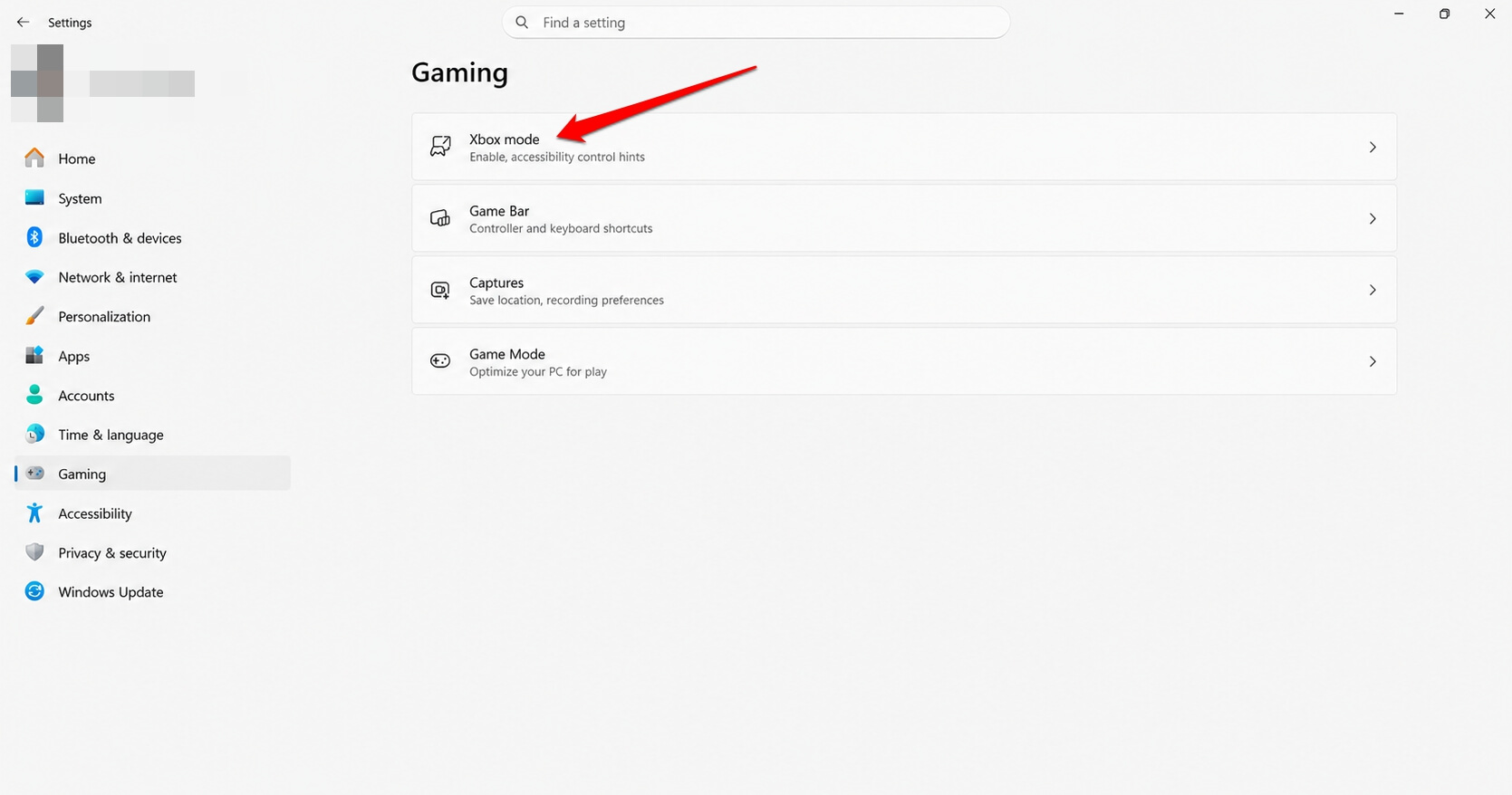
To enable it on your PC,
- Go to Windows Settings > Gaming > Xbox Mode.

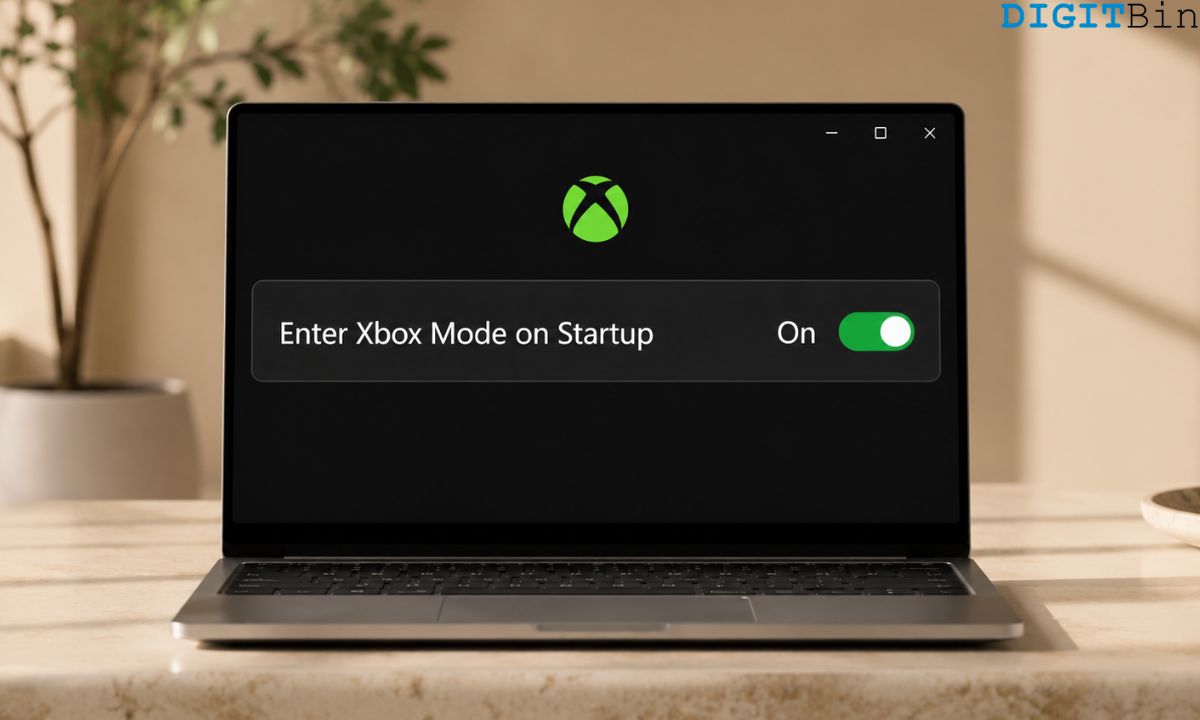
- Enable the toggle beside Enter Xbox Mode on Startup.
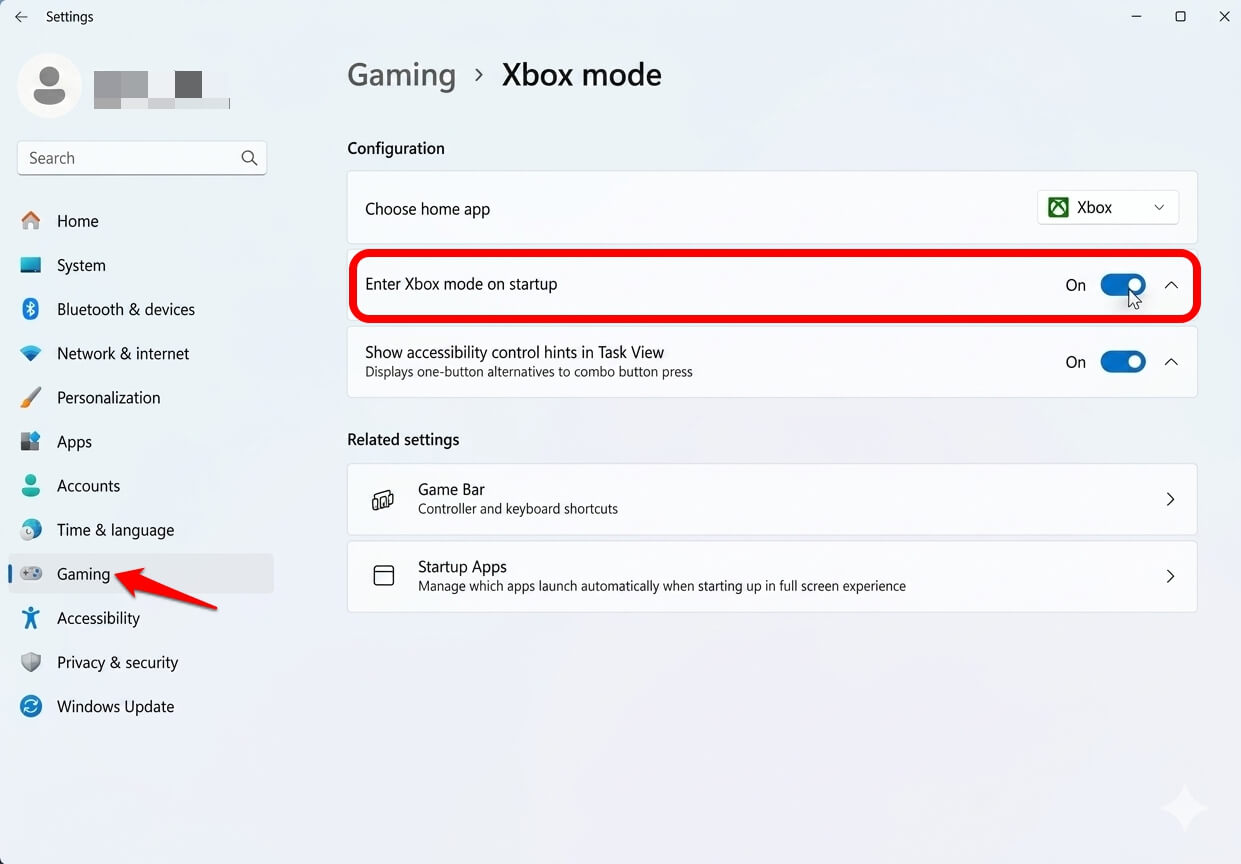

The key behaviour change is at startup. When Xbox Mode is active, Windows boots directly into the gaming interface rather than the standard desktop.
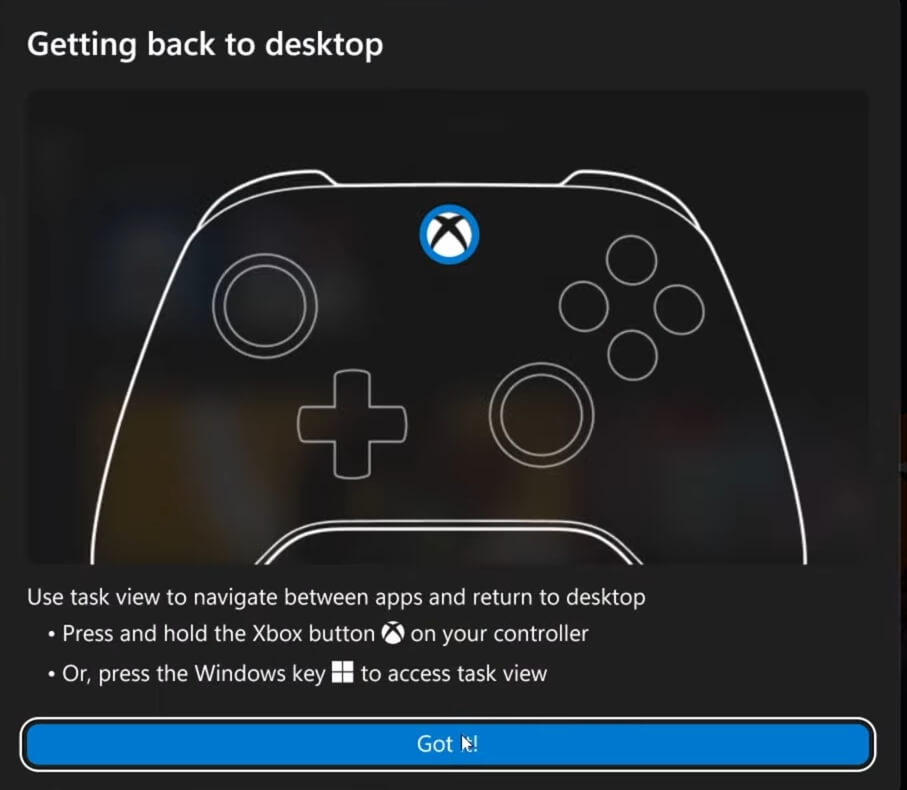
You can switch to the Windows desktop at any time with a button press and return to the mode just as easily. It is designed to be reversible, not permanent.
How it compares to the old Xbox Game Mode
Windows has had Game Mode since Windows 10.
It was always a background toggle: turn it on, and Windows would supposedly reduce CPU and GPU resources allocated to non-game processes during active gaming sessions.
The results were inconsistent. Some games ran marginally better, some ran worse, and most users eventually forgot the setting existed.
The new Windows 11 Xbox Mode is a different proposition entirely. Game Mode operated invisibly inside the normal Windows environment and asked background processes to yield.
Xbox Mode eliminates the normal Windows environment altogether for the duration of your gaming session. The taskbar is not competing for GPU draw calls because it is not there. The notification system is not polling for updates because it has been suspended.
The difference in philosophy is significant: Game Mode said please yield; Xbox Mode said you are not invited.
The practical effect is that Xbox Mode removes the ambient resource drag that accumulates from just having Windows running in its standard state with all its services and background processes active. Independent benchmarking confirmed this translates to real numbers in many titles, though not all.
What the benchmarks actually showed
Content creators Lombera and Dee Batch ran head-to-head frame rate tests comparing Xbox Mode against standard Windows 11 desktop across several titles in early May 2026. The results varied substantially by game.
Marvel Rivals showed the most dramatic improvement, with frame rate gains up to 30 fps in their testing. Cyberpunk 2077 gained up to 10 fps. Forza Horizon 5 improved by around 7 fps.

Similarly, Call of Duty: Black Ops 7 picked up roughly 4 fps. Crimson Desert showed marginal gains of around 5 fps. Monster Hunter Wilds and The Finals showed negligible differences between the two modes.
A separate test using an RTX 4070 Ti Super and RX 9070 at 1080p found 2.5% higher 1% lows and 1.5% higher average frame rates.
At 1440p, the gains were even smaller: 1.4% better, 1% lows, and an average frame rate that was actually 0.2% lower.
The broad pattern is that Xbox Mode helps more in CPU-bound scenarios and helps less or not at all in GPU-limited situations. But frame rates were not the thing that changed my daily experience with it.
What actually changed during a week of using it
The first few days, I kept reaching for a keyboard out of habit.
Opening a game in Xbox Mode feels different from double-clicking an exe from the desktop. There is no file explorer. There is no window management.
While gaming, you are just in the game, and when coming out, you land back in the dashboard rather than back in the context of whatever work window you had open three hours ago. That boundary is the thing that actually changes gaming on a PC.
On a desktop PC where the same machine is used for work and gaming, that separation matters more than any benchmark.
The mental overhead of navigating through work browser tabs and notification baggage to launch a game is a real friction point. Xbox Mode eliminates it cleanly. I found myself gaming for longer stretches because the context switch in both directions felt less disruptive.
The unified library was the second genuine improvement. I have games across Steam, Game Pass, and the Epic Games Store.
Under normal Windows, I open three different launchers depending on where a game lives. In Xbox Mode, they all appear in a single library view.
Installing the May 2026 Windows 11 update and enabling Xbox Mode was the first time those three libraries existed on the same screen without any extra steps.
The limitations worth knowing before you enable it
Xbox Mode is still beta software. Controller detection issues, interface lag, and conflicts with existing launchers like the standalone GOG Galaxy app have been reported by early users.
Some games with anti-cheat systems behaved differently under Xbox Mode in early testing, though this is expected to improve as the feature matures.
The rollout is gradual and regional. As of the May 2026 update cycle, North America has priority, followed by Europe. Users in other regions may not see the option yet, even after installing KB5089549.
Microsoft is using its Controlled Feature Rollout technology, which means the toggle may simply not appear in your Gaming settings, even on a fully updated system.
Force-enabling via ViVeTool on build 26200.8328 or higher is possible but carries the usual caveats of unofficial feature flags.
It is worth noting that the feature will not fix an underpowered machine. Xbox Mode removes overhead from Windows but does not change what your GPU can render.
A system that struggles at 60 fps in a demanding title under normal Windows will still struggle at 60 fps in Xbox Mode. The gains are real and consistent in CPU-bound titles, marginal or absent in GPU-limited ones.
If Xbox Mode is not yet available in your region, try using Xbox emulators for Windows 11 PC.
Who should actually turn this on
Xbox Mode makes the most sense for three types of users: people who primarily use a controller on their PC, people who game from a couch or TV setup where a keyboard and mouse are not primary inputs, and people who want a clean daily separation between work context and gaming context on the same machine.
For all three of those situations, it delivers something the old Game Mode never could: a genuine mode shift rather than a background toggle.
For mouse-and-keyboard desktop gamers who already keep gaming and work on separate profiles or virtual desktops, the value proposition is narrower. The benchmark gains are too inconsistent to be the deciding factor.
What you are really deciding is whether a console-style interface on top of Windows is something you want. After a week of use, I find I do. That flexibility is probably the right design that Xbox Mode brings to Windows 11.