I set up a fresh Windows 11 install last month and spent the first afternoon feeling vaguely irritated without being able to say why.
The Start menu kept recommending apps I did not ask for. A notification about OneDrive storage came up three times in the first hour. This did not end here.
The search bar surfaced a news story when I typed the name of an app. None of it was broken, exactly. It just felt like the computer was working for someone else.
So, I went into the Windows 11 settings and turned off ten features that were enabled by default. They did not serve me any purpose. Rather, they slowed down my computer.
TL;DR: Windows 11 ships with ten defaults that prioritise Microsoft’s services and data collection over your experience. The most impactful changes are disabling optional diagnostic data, turning off the advertising ID, removing web results from Start search, cleaning up the taskbar, setting power mode to Best Performance on desktop, and disabling Edge’s startup boost. None of these requires third-party tools. All are in Settings.
1. Turn off optional diagnostic data
Windows 11 ships with optional diagnostic data enabled by default.
This includes detailed app usage, feature activity, and memory snapshots tied to crashes, which go to Microsoft’s servers on top of the basic required telemetry that cannot be turned off. Required telemetry is mandatory; optional is not.
To disable the feature,
- Press Windows + I to access the Settings.
- Click Privacy and security > Diagnostics and feedback.
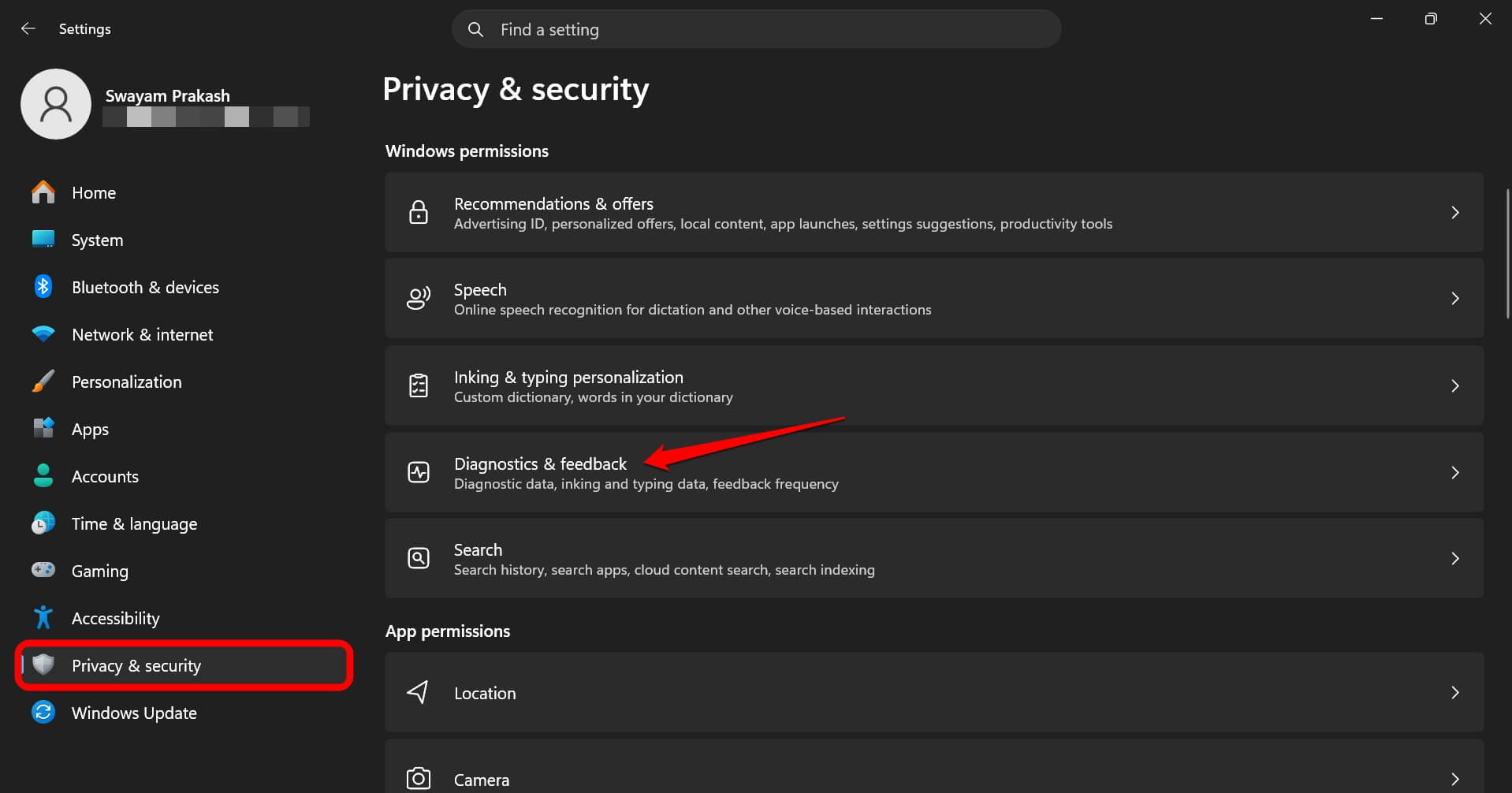

- Turn off Send optional diagnostic data.
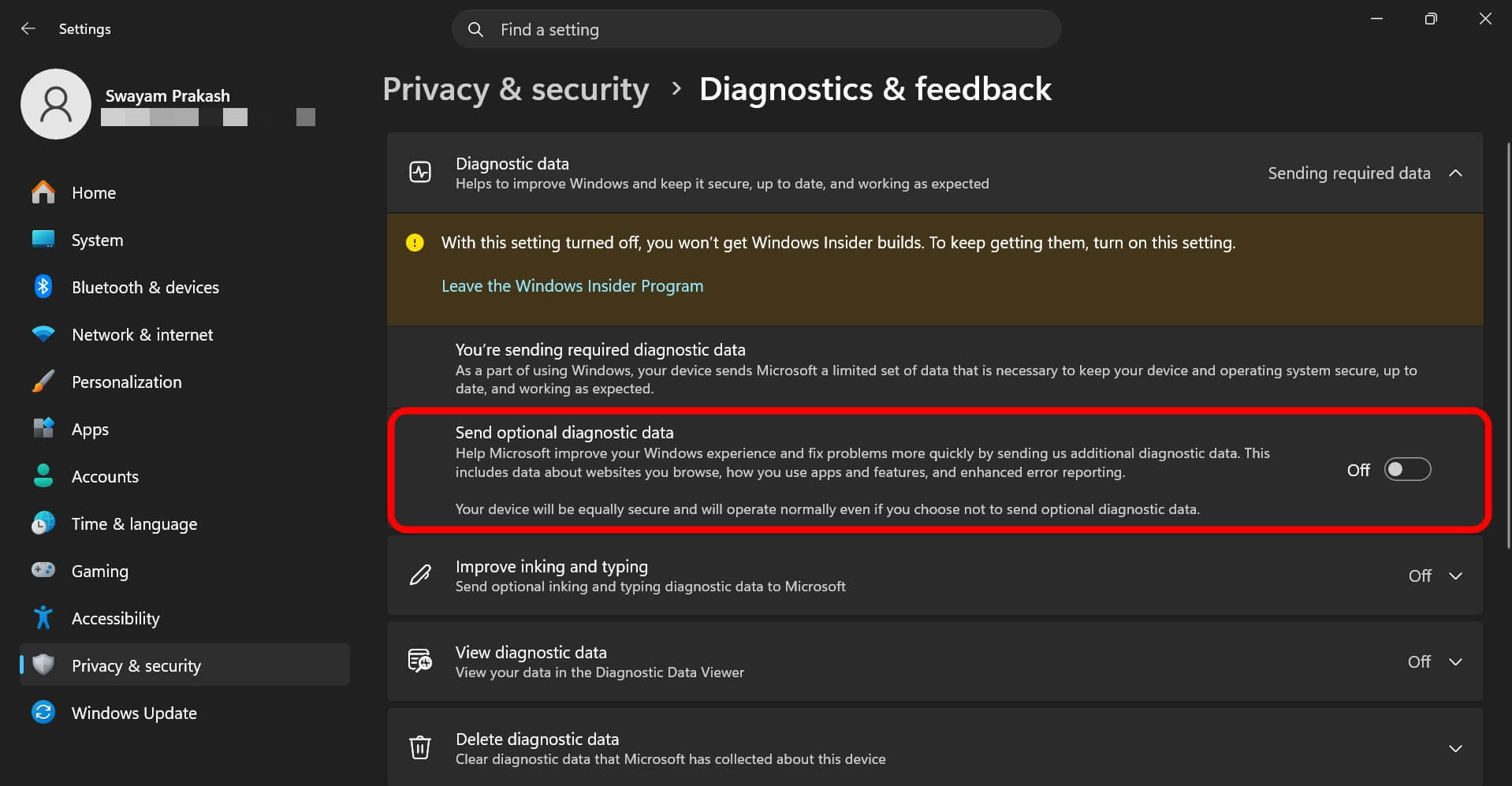

Be mindful that if you are on the Windows Insider Program, you cannot turn off diagnostic data. Windows relies on diagnostic data from beta users to improve future stable OS releases.
While you are on this page, disable tailored experiences, which use your diagnostic data to surface Microsoft product recommendations. These two toggles are separate, and both are on by default.
2. Disable the advertising ID
Windows assigns each account an advertising identifier that apps can use to track you across applications for personalised ads. It is on by default.
You can disable the advertising ID on your PC.
- Press Windows + I to go to Settings.
- Click Privacy and security > Recommendations and Offers.
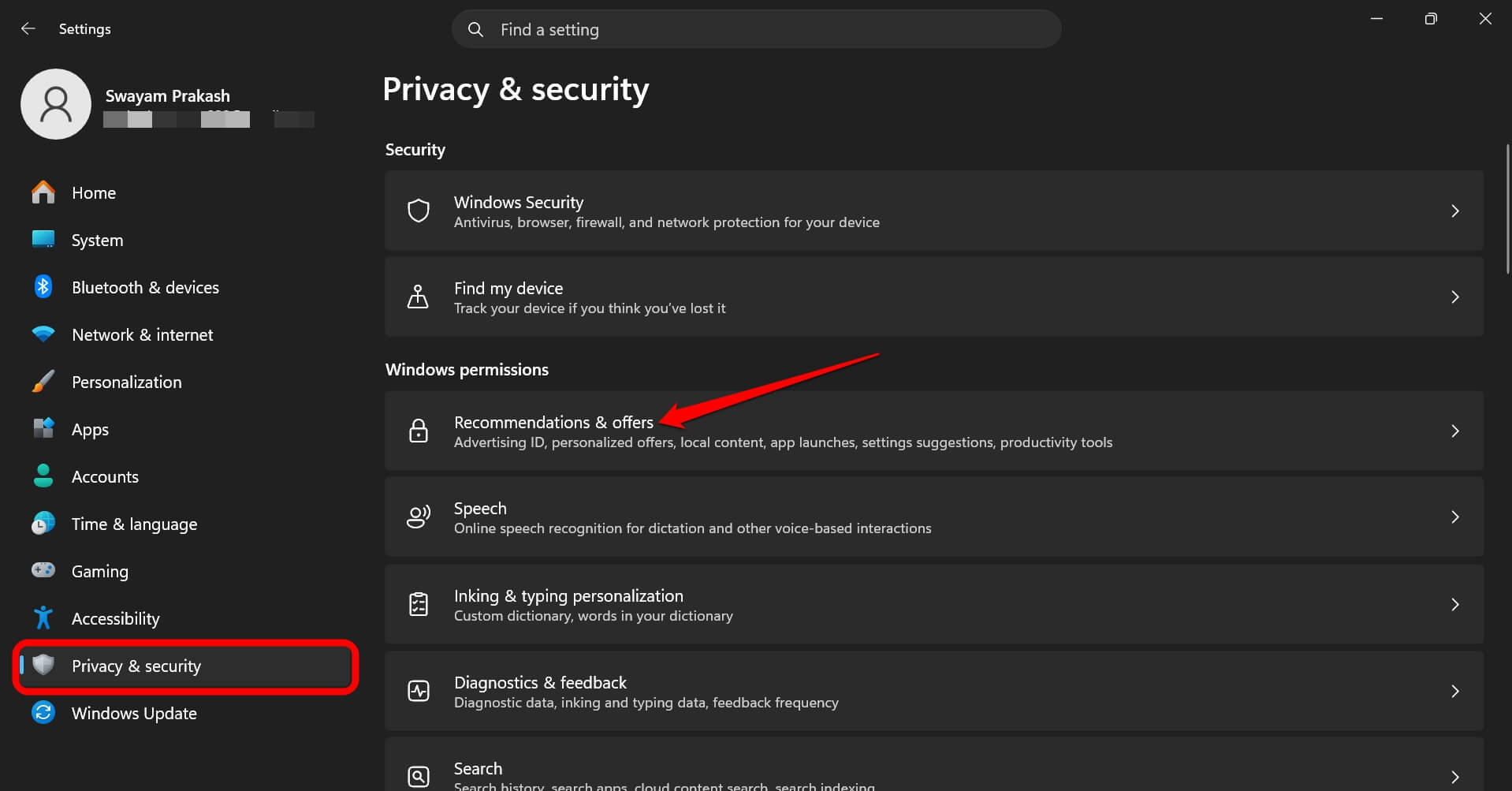

- Turn off Let apps show me personalised ads by using my advertising ID.
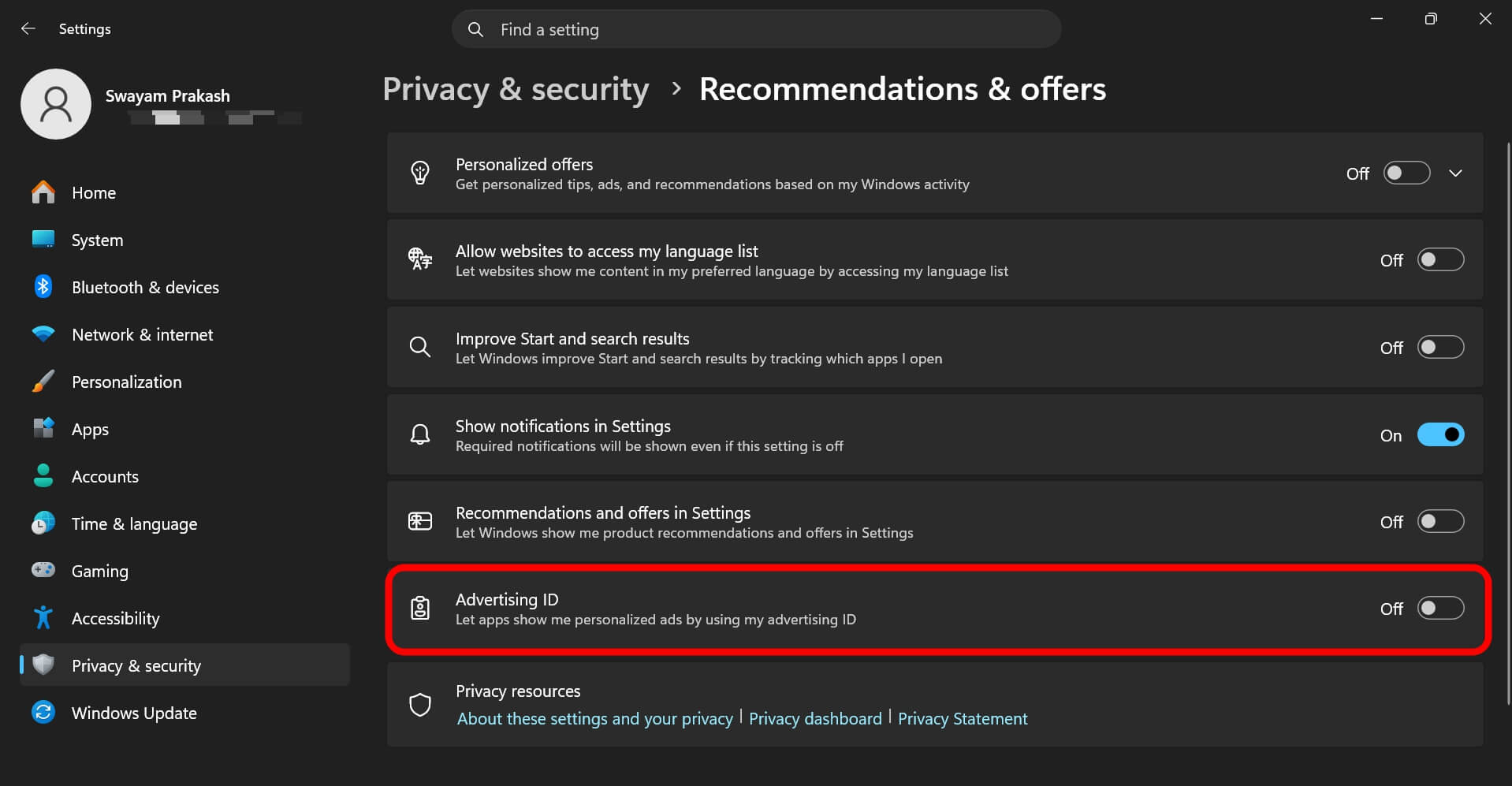
This also disables the related toggle for personalised search results and news.
3. Remove web results from Start search
By default, typing in the Windows search bar triggers a Bing web search alongside local results.
If you search for the Firefox app, Windows also surfaces news articles about Firefox and Bing web results.
This is a distraction and a data collection point.
On Windows 11 Home, you can disable it through the registry.
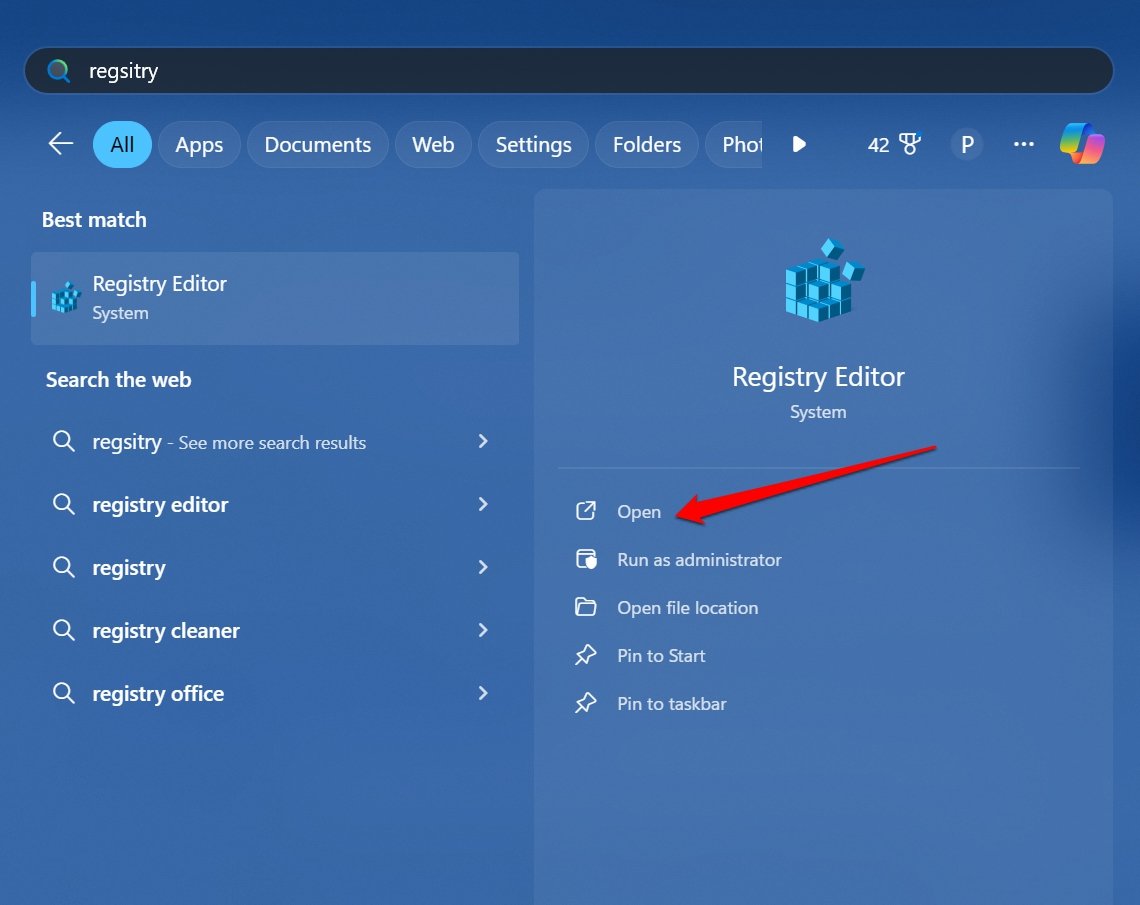
- Open the Windows Registry Editor.

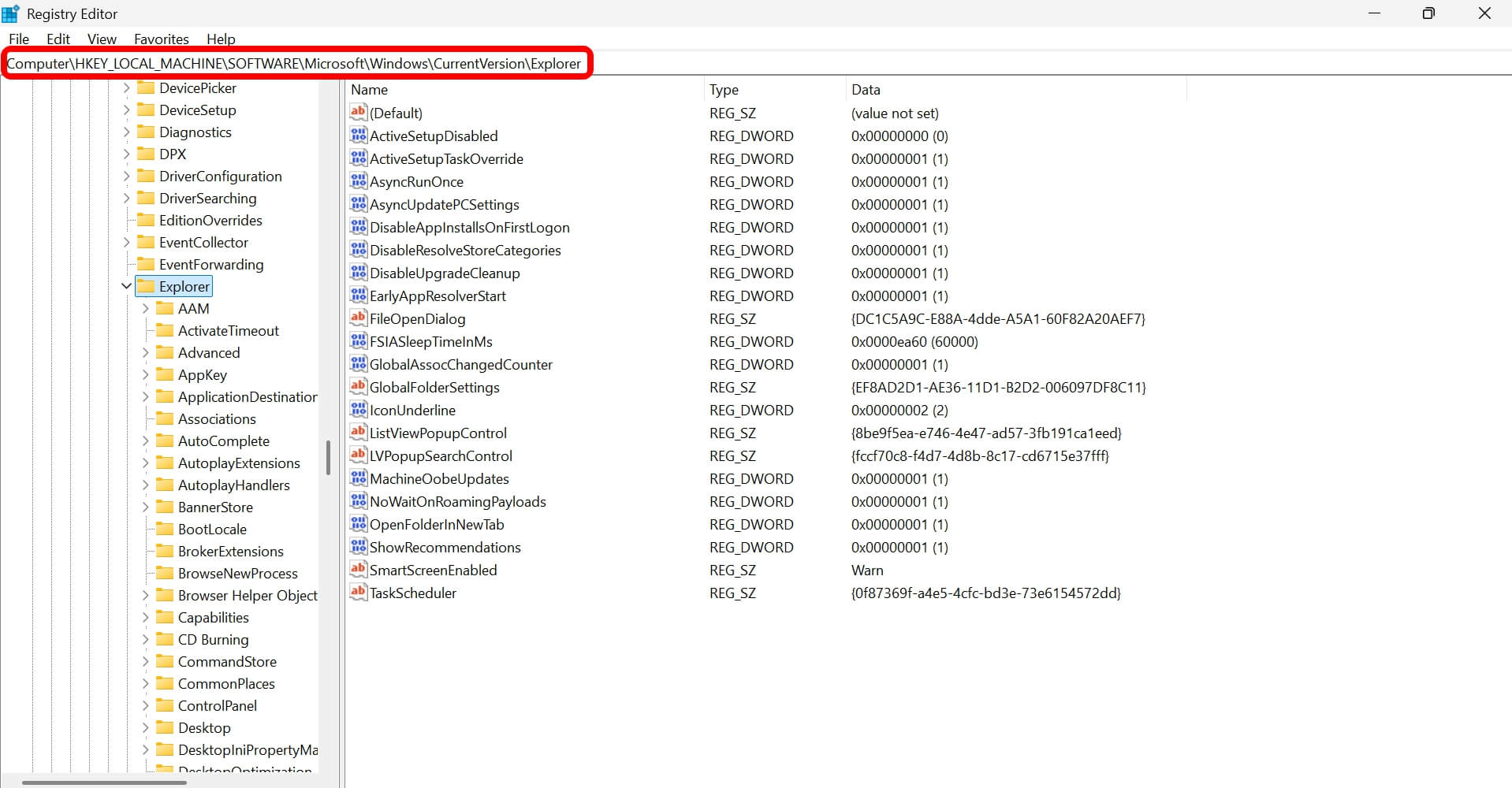
- Go to the following path in the registry.
HKEY_LOCAL_MACHINE\Software\Microsoft\Windows\CurrentVersion\Explorer

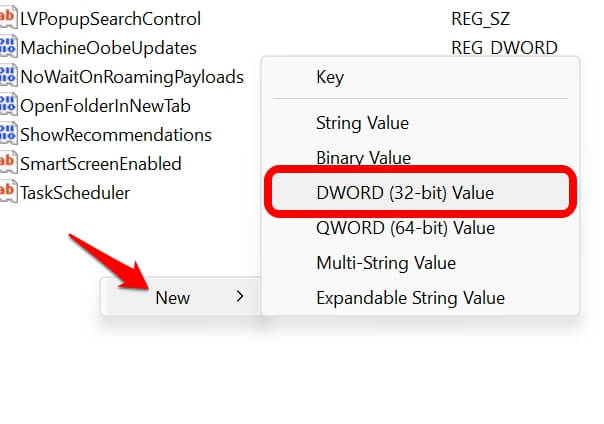
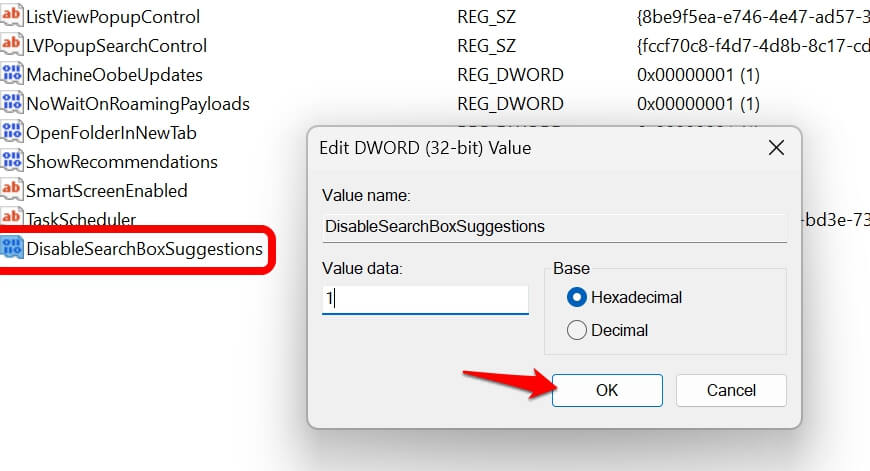
- Create a DWORD named DisableSearchBoxSuggestions

- Set its value to 1. [This means the feature we created is now enabled]

On Windows 11 Pro, Group Policy Editor offers a cleaner toggle under Computer Configuration > Administrative Templates > Windows Components > Search.

4. Clean up Start menu recommendations
The lower half of the default Start menu shows Microsoft 365 promotions, OneDrive files you never asked to see, recently added apps, and suggested content.
These unwanted apps run during startup and slow down the performance of your PC.
Here is how to turn them off.
- Go to Settings by pressing Windows + I.
- Go to Personalisation > Start.
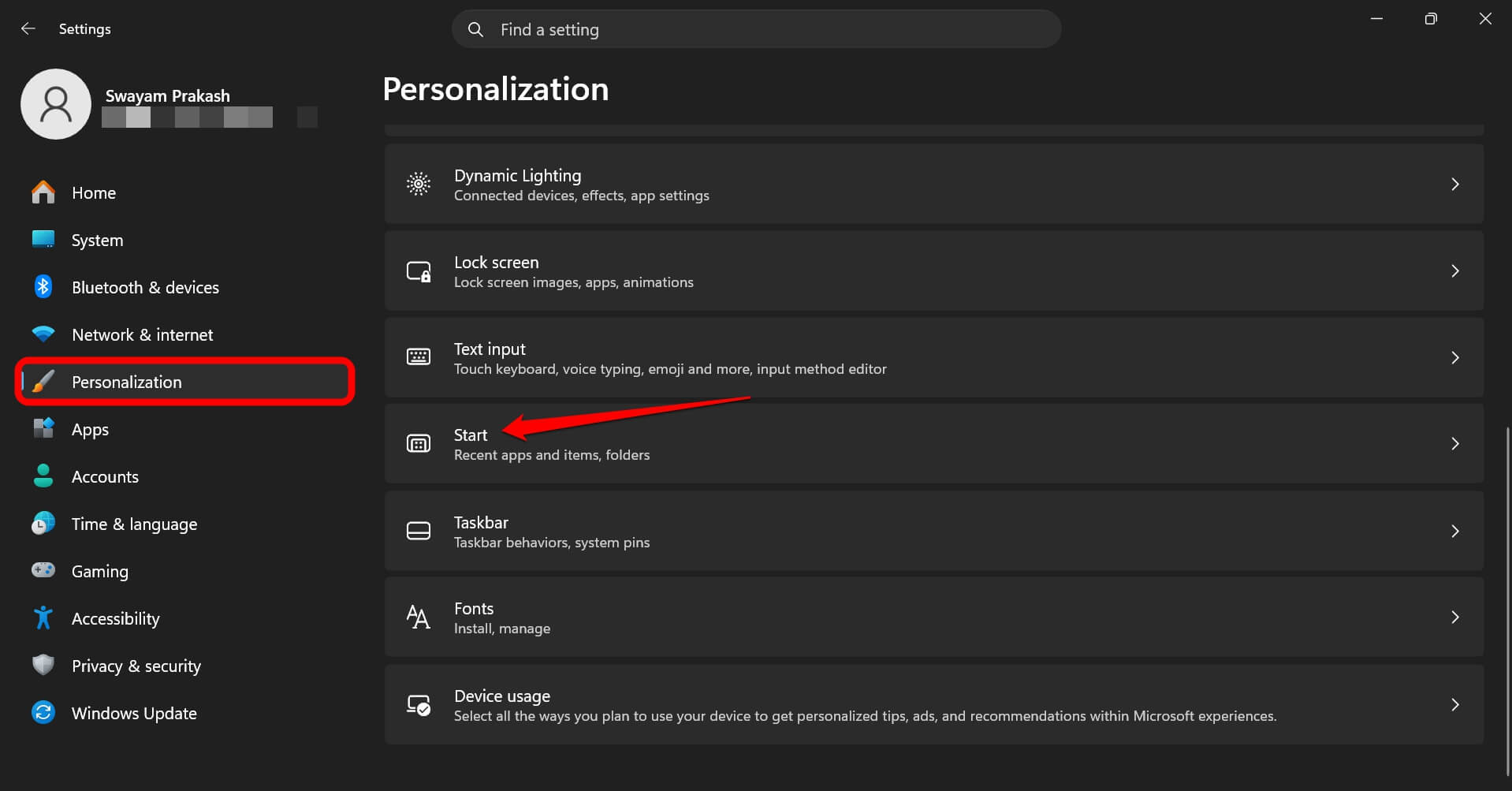
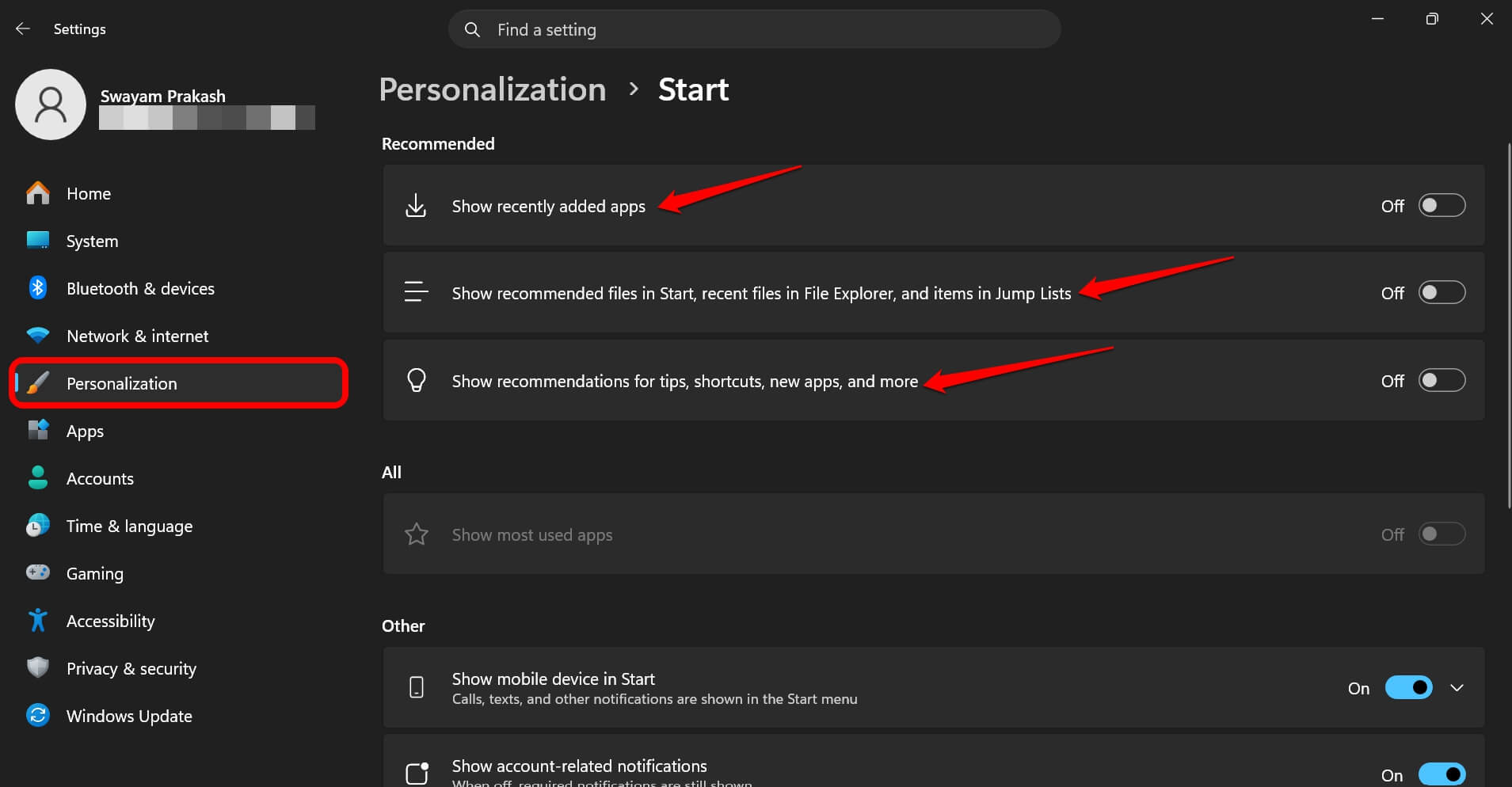
- Turn off “Show recommendations for tips, shortcuts, new apps, and more”.
- Also, turn off the “Show most used apps”.
- Disable the “Show recommended files in Start, recent files in File Explorer and items in Jump Lists”.

If you are still facing performance issues with your PC, check these Windows cleanup tips that made my computer snappy.
5. Change power mode on desktop PCs
Desktop PCs on Windows 11 often ship with power mode set to “Balanced” by default.
Balanced throttles CPU performance to save electricity, which makes sense for laptops but costs you real performance on a plugged-in desktop.
To manage the power mode,
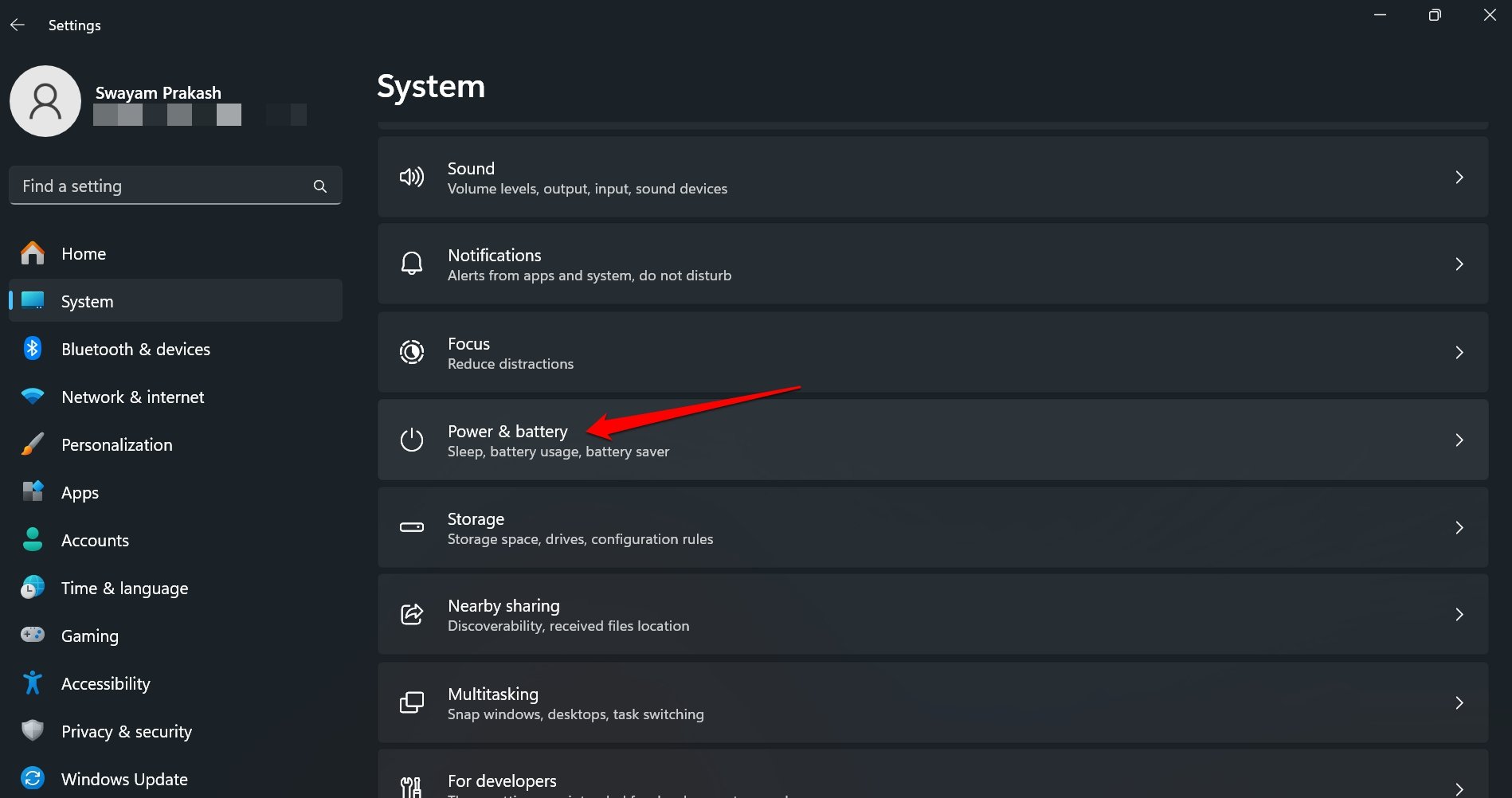
- Open the Windows Settings.
- Click System > Power and battery.

- Change Power mode to Best performance.
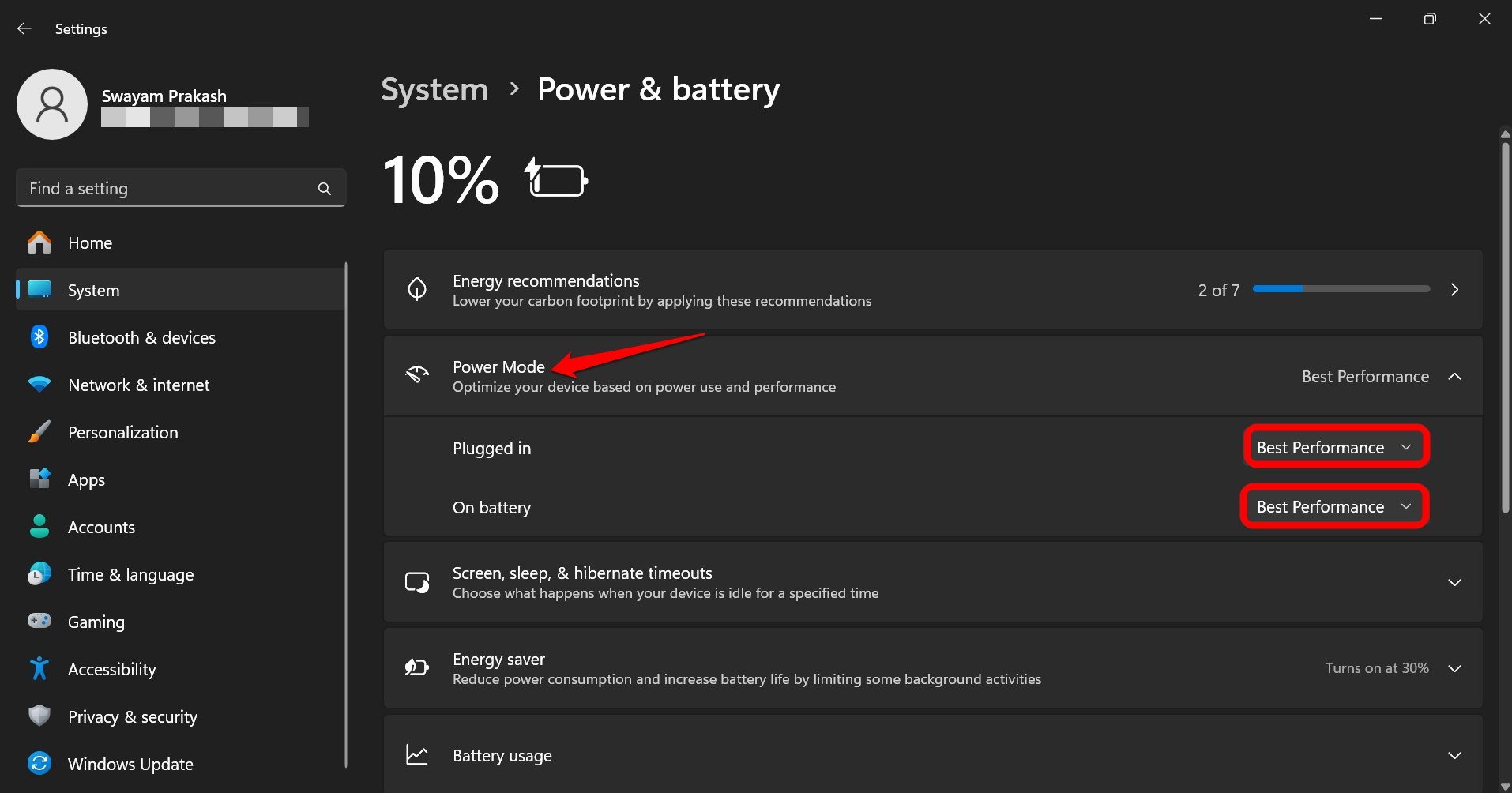

On laptops, do this only for the plugged-in state. The performance difference in CPU-bound tasks is noticeable immediately, particularly for app launches and file operations.
6. Disable Edge startup boost
Microsoft Edge runs a background process at Windows startup even when you never open it, through a feature called Startup boost.
The system pre-loads Edge components to make the browser open faster. If you use Chrome or Firefox as your primary browser, this is CPU and RAM allocated to an app you are not using.
To get rid of this,
- Open Edge on Windows 11.
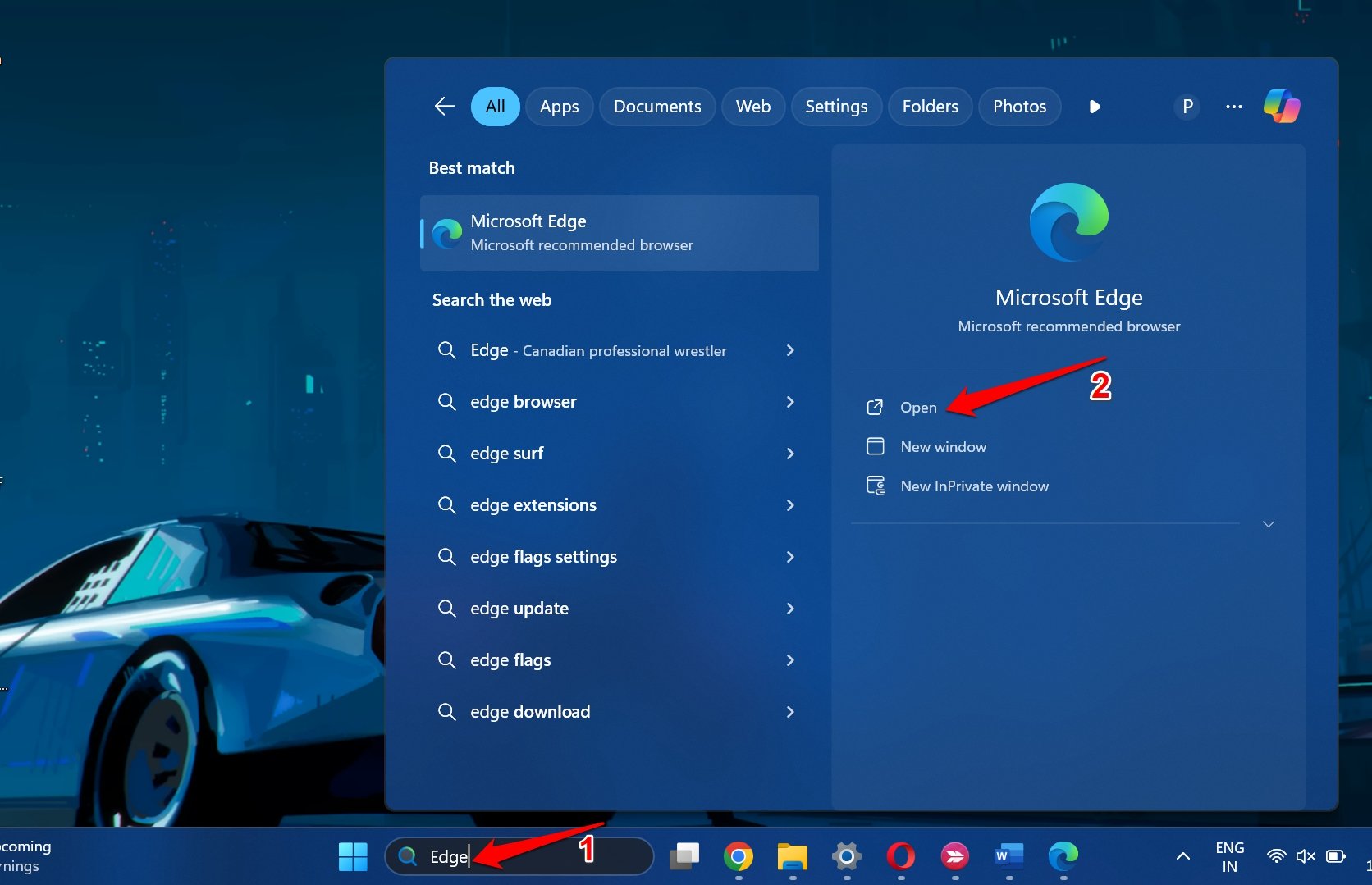

- Type edge://settings in the URL bar and press Enter.
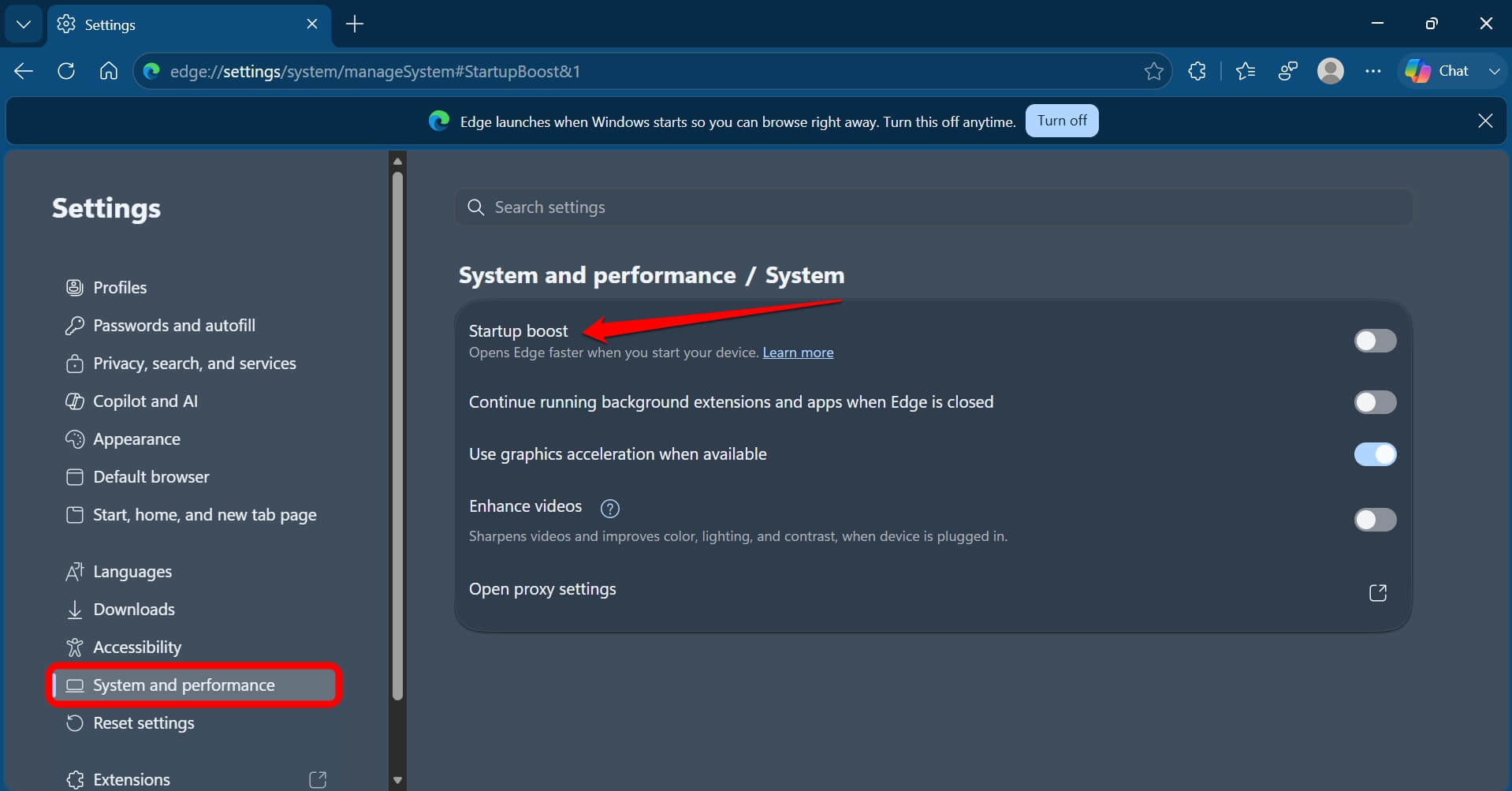
- Click System and performance on the left sidebar.
- Turn off Startup boost.
- Also, disable the toggle for Continue running background extensions and apps when Microsoft Edge is closed.
If you prefer using the Edge browser over other browsers, keeping the Startup boost enabled makes sense. Also, as an Edge browser user, you should not miss out on the best Edge browser flags to improve your browsing experience.
7. Remove widgets from the taskbar
The Widgets button on the taskbar is a live news and weather feed that runs continuously in the background.
This Windows 11 feature draws from MSN and Bing, surfaces personalised recommendations, and contributes to the ambient resource usage that makes Windows feel heavier than it needs to be.
Here is how to turn it off and optimize resources on your Windows 11 PC.
- Right-click on the taskbar and select Taskbar settings.
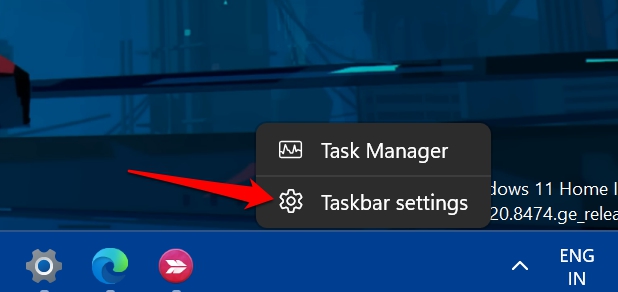

- Toggle Widgets off in the taskbar personalization settings.
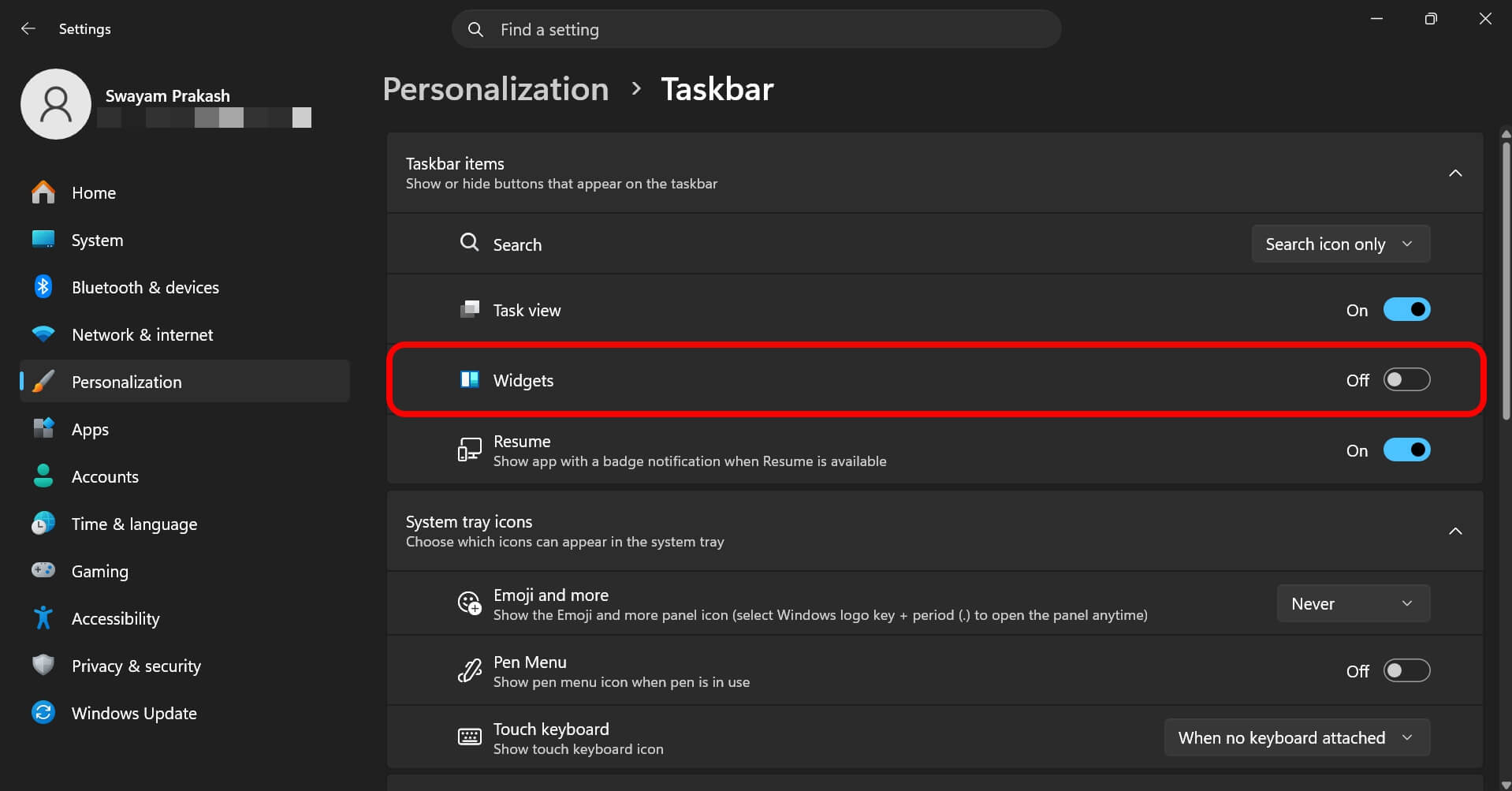
This does not remove the underlying widget capability, but it removes the always-on entry point that most people never use intentionally.
8. Audit startup apps
Every piece of software you install with default settings tends to add itself to the Windows startup.
Over time, boot time increases and memory usage at idle climbs. Review the list of apps running at startup and turn them off(the non-system third-party apps)
- Press Ctrl + Shift + Esc to open Task Manager.
- Go to the Startup apps tab, and review the list.
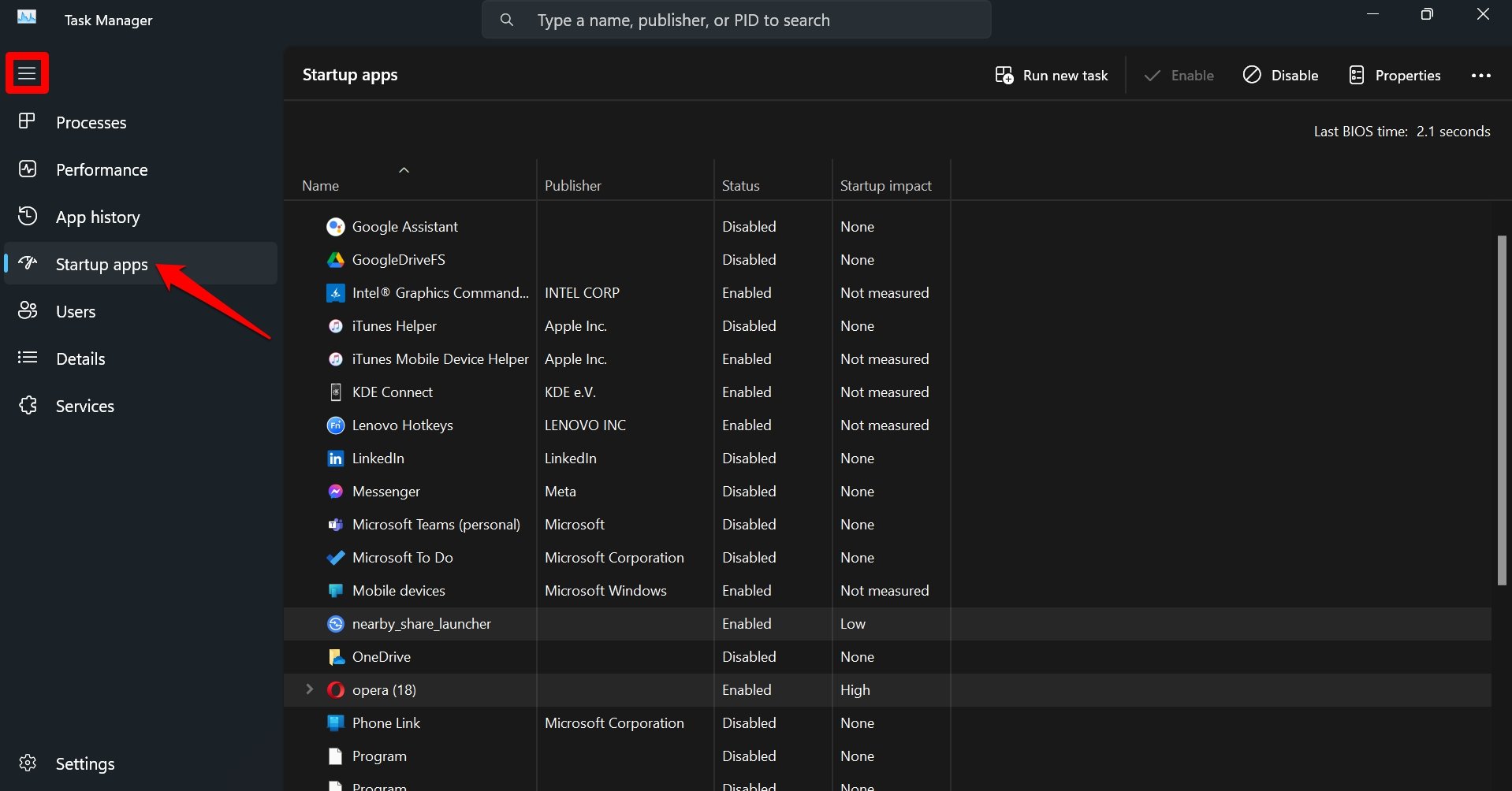

- Right-click and disable the apps that do not need to run before you manually open them.
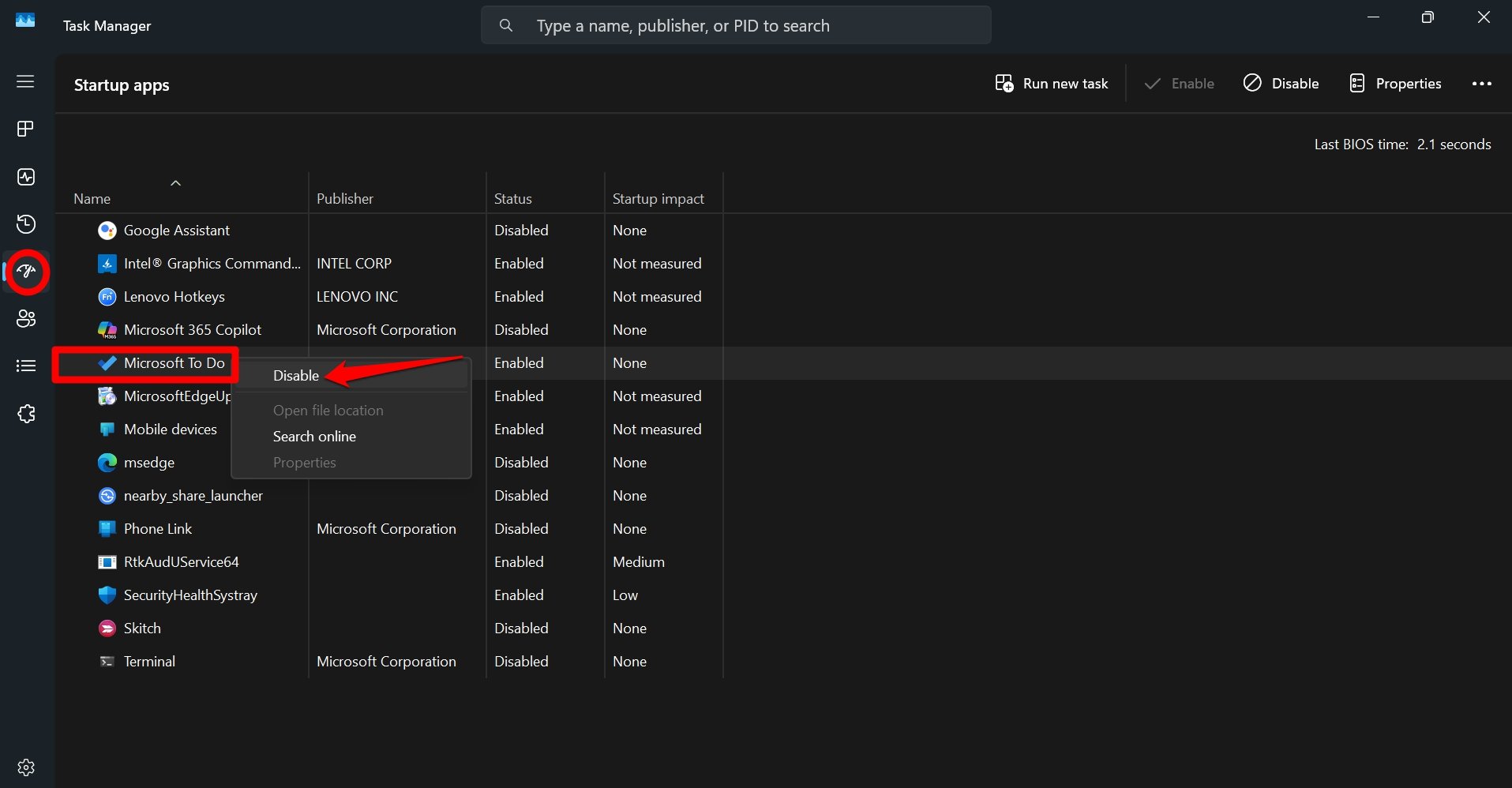

Often in the list of startup apps, you would find common offenders like Spotify, Discord, Steam, OneDrive, and any printer utility that came bundled with a hardware purchase.
9. Turn off post-setup service prompts
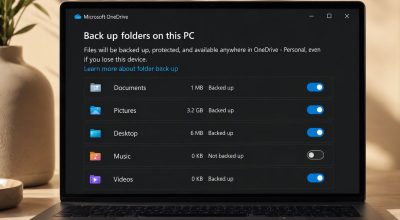
After setup completes and for months afterward, Windows 11 displays full-screen prompts encouraging you to set up OneDrive backup, Microsoft 365 subscriptions, and Xbox Game Pass.
They even occasionally appear after finishing system updates. You can turn them off for good.
- Open the Settings > System > Notifications.
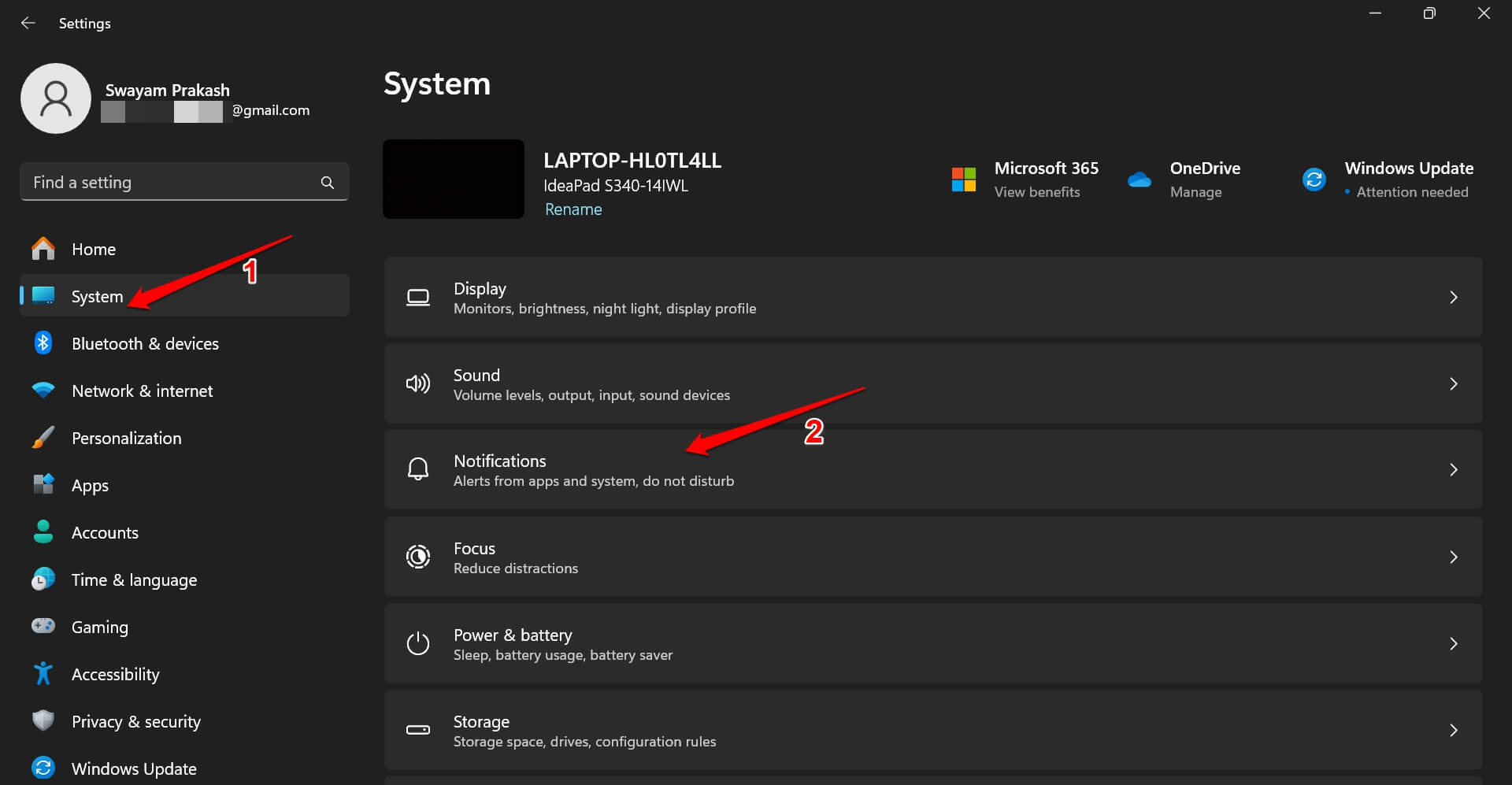

- Go to Additional Settings.
- Uncheck Get tips and suggestions when using Windows.
- Also, uncheck Suggest Ways to get the most out of Windows and finish setting up this device.
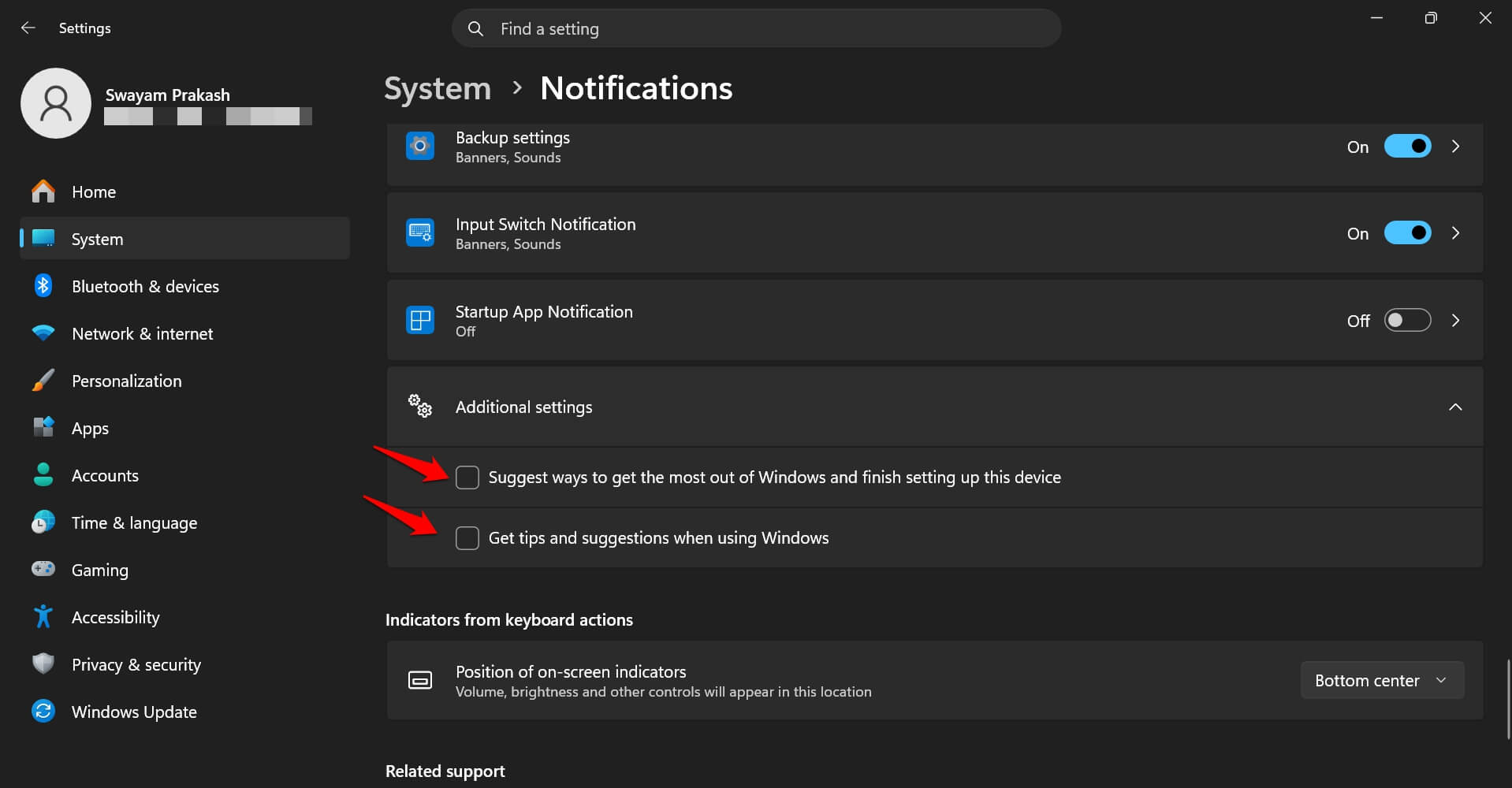
10. Show file extensions in File Explorer
Windows 11 hides file extensions by default, so a file named document.pdf appears as just document. This creates ambiguity when files of the same name but different types exist in the same folder.
I often find it harder to identify what file I’m about to open, and it can be a mild security concern since malware sometimes uses double extensions like image.jpg.exe that are invisible when extensions are hidden.
To change this,
- Press Windows + E to open File Explorer.
- Go to View > Show.
- Check File name extensions.
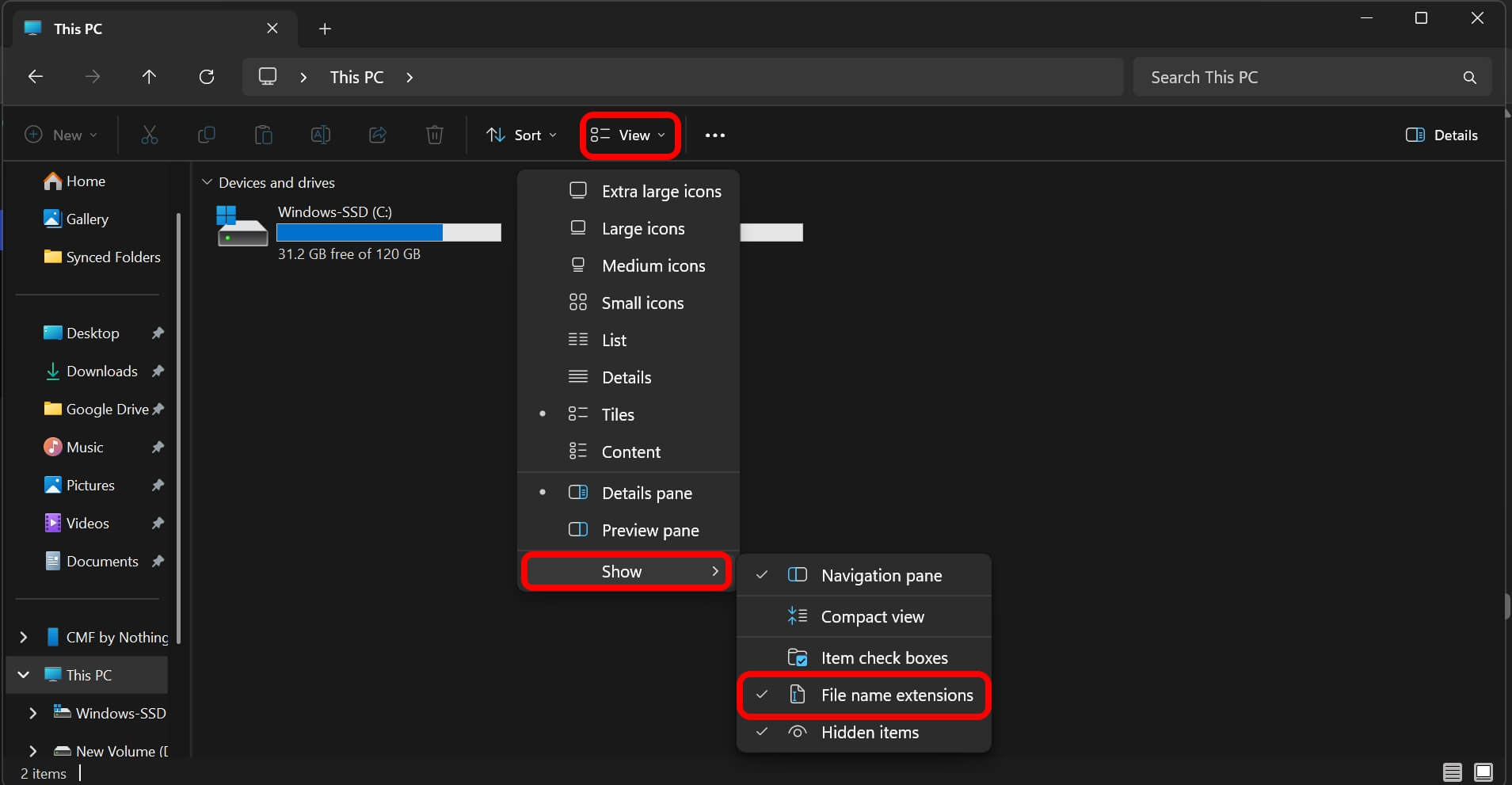

It takes three clicks and should have been on by default. This makes the Windows 11 experience transparent and secure.
What is worth skipping?
Some guides recommend disabling Windows 11 default settings, such as the Copilot, Activity History, and telemetry, via registry hacks beyond what the settings expose.
Required telemetry cannot be fully disabled on consumer editions of Windows 11, and some registry changes affecting telemetry get overwritten on the next Windows update.
The ten settings above are all reversible through Windows 11 settings, stable across updates, and give you a meaningfully cleaner machine without requiring you to maintain a registry patch list.
After making these changes on that same fresh install, the afternoon restlessness went away. This was not because the machine became dramatically faster. Because it stopped working against me while I was trying to use it.