

I have been running Windows 11 as my daily driver for over a year, and I switched browsers more times than I expected. Not because I was restless, but because I kept noticing things. Chrome’s fan noise after an hour of tabs. Edge’s sidebar pushing itself back open after I closed it. Brave making a news site load before I finished reaching for my coffee. These small observations add up, and they are what this list is built on.
Every browser here was run on a mid-range Windows 11 machine with 16GB of RAM and a standard 100Mbps home connection. Each one got at least several days of real use: news reading, streaming, password management, Google Docs, and the kind of 20-plus tab sessions that reveal whether a browser is actually managing memory or just hiding the problem. Here is what I found as of May 2026.
TL;DR: Chrome still leads on compatibility but costs the most RAM by a visible margin. Edge has genuinely improved and earns a second look if you are on Microsoft 365. Firefox is the most balanced pick for users who care about privacy without sacrificing usability. Brave and DuckDuckGo block tracking aggressively and by default. Tor is not a daily driver. Opera GX is the only browser that meaningfully solves the gaming-and-browsing resource conflict.
How I tested these browsers
Before getting into the list, it is worth being clear about what “tested” actually means here, because browser roundups often list features without explaining how they were evaluated.
I ran each browser as my primary browser for a minimum of three to five days. During that time I used the same set of daily tasks: opening 15 to 20 tabs across news, YouTube, Google Docs, and a few web apps; running a password manager extension; watching at least two hours of video; and doing one session of work that kept the browser open for four or more hours continuously.
I monitored RAM usage through Windows Task Manager at the one-hour and four-hour marks, both with a light tab load of five tabs and a heavier one of 20 tabs.
I noted CPU spikes during page loads, how long the browser took to become usable after a cold start, and whether the interface felt like it was working with me or asking me to navigate around it.
I also paid attention to the things that only become visible over days rather than minutes: how often I reached for a setting that was not where I expected it, whether sync behaved consistently across a second machine, whether any default behaviour kept reasserting itself after I changed it, and what I noticed when I switched back to a previous browser mid-test.
Privacy claims were evaluated against documented defaults and third-party tracking tests using Cover Your Tracks from the EFF, not against marketing copy.
Criteria I used to evaluate each browser
- Memory and CPU behaviour under real workloads, not idle readings
- Privacy defaults out of the box, before any settings changes
- Extension support and whether the Chrome Web Store works natively
- Interface clarity and how long it takes to find things you need regularly
- Customization depth and whether changes persist between sessions
- Sync reliability across devices with a standard account
| Test condition | Light load (5 tabs) | Heavy load (20 tabs) | Duration |
|---|---|---|---|
| RAM monitoring | Yes | Yes | 1hr and 4hr marks |
| CPU behaviour | Yes | Yes | During page loads |
| Cold start time | Yes | Yes | Measured manually |
| Sync reliability | Yes | Yes | Across two machines |
| Tracking test | EFF Cover Your Tracks | Per browser defaults | On first run |
| Extension testing | Password manager + ad blocker | Standard daily set | Throughout test period |
Browsers are listed in the order I would recommend them for general Windows 11 use, not in order of popularity or market share.
1. Google Chrome
Best compatibility
Highest RAM usage
Extensions: excellent
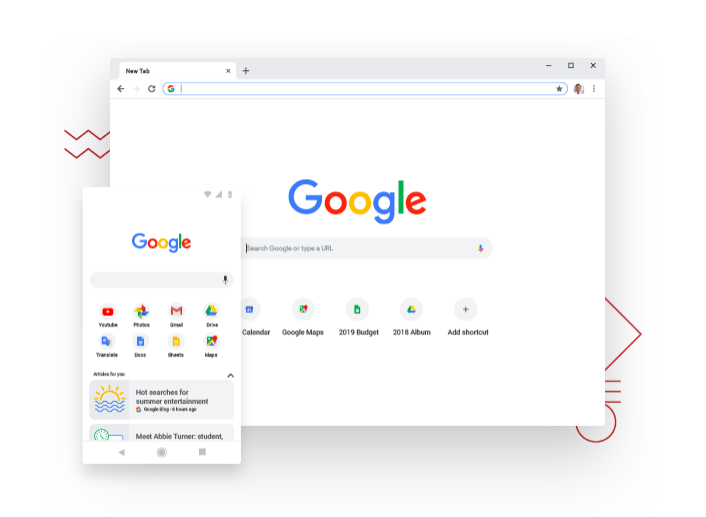
Chrome is still the benchmark, and I mean that precisely rather than as a compliment. Everything is built for Chrome first. Every web app, every embedded tool, every extension that matters. During my test period I did not hit a single broken page or an extension that refused to install. That compatibility record is real and it matters for daily use in ways that are easy to underestimate until you switch away.
The cost showed up clearly in Task Manager. At the four-hour mark with 20 tabs open and three extensions running, Chrome was sitting at around 1.8GB of RAM. With just five tabs it settled at roughly 700 to 900MB.
By early afternoon on heavier work days I could hear the fan spin up on my machine, and Task Manager confirmed Chrome was the consistent culprit. I kept the browser open and checked CPU usage during tab switches: short but noticeable spikes of 15 to 25 percent on a Ryzen 5 machine, settling back within two seconds.
Privacy is the other side of the trade-off. I ran Chrome through EFF’s Cover Your Tracks on default settings and it returned “your browser has a unique fingerprint” on the fingerprinting test. That is the default Chrome experience.
The browser is built around a business model that depends on understanding what users do online. That has not changed in 2026.
For users who live in Google Workspace and need zero-friction compatibility on every site they visit, Chrome is still the practical choice. For everyone else, the RAM cost and privacy defaults are worth thinking about before defaulting to it out of habit.
Best for: Google Workspace users, developers, anyone needing guaranteed extension support and maximum site compatibility.
2. Microsoft Edge
Lowest RAM of Chromium browsers
M365 integration
Intrusive defaults
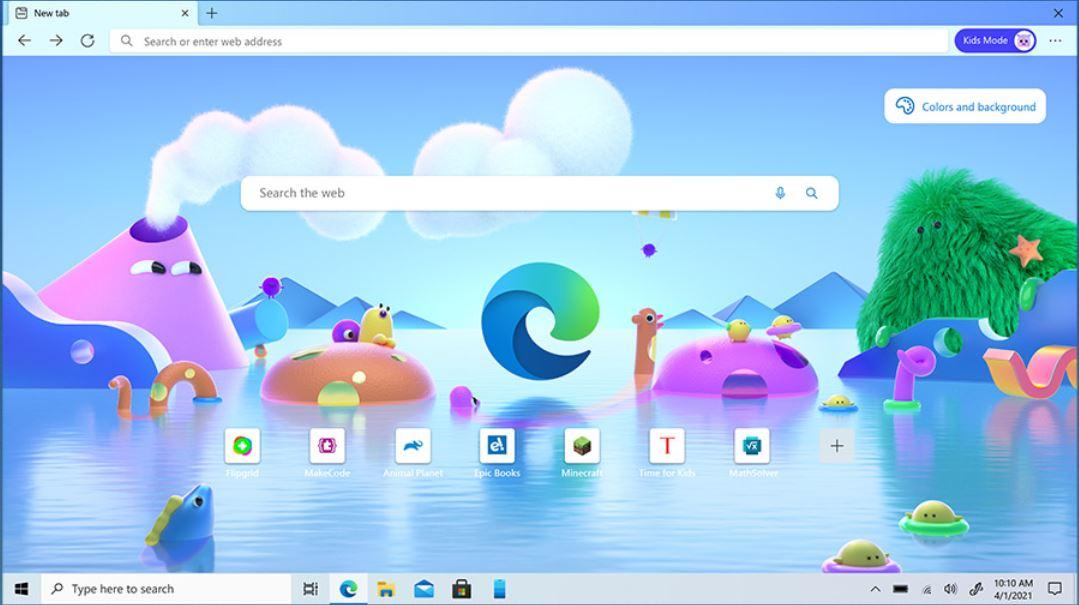
I went into the Edge test expecting to be mildly impressed and mildly annoyed. That is roughly what happened, but the order surprised me. The annoyance came first: Edge ships with a news feed on the new tab page, a shopping assistant that activates on product pages, a Bing sidebar, Copilot prompts in the address bar, and several other features that appear before you have changed a single setting. I spent about 15 minutes in Settings and the sidebar configuration menu stripping most of these out before the browser felt like mine.
After that, Edge was genuinely good. At the four-hour mark with 20 tabs, Task Manager showed Edge at around 1.1 to 1.3GB, compared to Chrome’s 1.8GB on the same tab set. The sleep tabs feature is doing real work there: tabs that have been inactive for a few minutes are suspended automatically, and I could see the memory readings drop in real time as background tabs went dormant. On my machine, that difference was audible. The fan stayed quieter through the afternoon.
I tested Edge specifically for Microsoft 365 use because that is the audience it is built for. Opening a Word document in the browser, switching to Teams, and then opening a PDF through OneDrive all felt smoother than doing the same sequence in Chrome.
PDF rendering in particular was noticeably better: annotations worked without lag, and the sidebar reader mode did not interfere with form fields the way Chrome occasionally does.
Extension support is full Chrome Web Store compatibility, so there is no meaningful library difference from Chrome. If you are already on Windows 11 and already using Microsoft services, the case for Edge is more practical than it has any right to be.
Best for: Microsoft 365 users, Windows 11 users who want Chrome compatibility at lower RAM cost, corporate environments.
3. Mozilla Firefox
Best all-rounder
Strong privacy defaults
Independent Gecko engine
Firefox is the browser I kept coming back to as a reference point during testing. Not the most feature-packed, not the fastest on synthetic benchmarks, but the one that consistently got out of the way and let me work.
After a few days with Firefox as my primary browser I noticed I was spending less time adjusting settings. Things like tracker blocking, cookie controls, and private browsing were already configured sensibly before I changed anything.
I ran Firefox through Cover Your Tracks on default Enhanced Tracking Protection settings. The result: strong protection against web tracking, though fingerprinting protection was partial rather than complete.
That is better than Chrome’s defaults and roughly on par with Brave without adding extensions. For most users who are not threat-modelling against sophisticated tracking, Firefox’s defaults are sufficient.
Memory behaviour was reasonable. At the four-hour mark with 20 tabs, Firefox sat at around 1.2 to 1.4GB, which is comparable to Edge and clearly better than Chrome. What I found more telling was behaviour during tab-switching: Firefox felt slightly smoother on already-loaded tabs than Chrome, less like it was re-rendering content I had already scrolled through.
The independent Gecko engine is worth mentioning as a structural consideration. Firefox is one of the few remaining browsers not built on Chromium. That independence matters for the health of web standards.
If Firefox disappears and every major browser runs on Chromium, Google effectively controls how the web renders. That is not a reason to choose Firefox if it does not suit you, but it is worth knowing.
Best for: Privacy-conscious users who want a capable all-rounder, people moving away from Chrome for the first time.
4. Brave
Blocks ads and trackers by default
Chromium-based
Crypto features divisive
The first thing I noticed with Brave was not a feature. It was a sound, or rather the absence of one. On a news site I visit every morning, the page loaded before my eyes had finished adjusting to the screen. In Chrome, that same page takes three or four seconds to settle: the layout shifts, ads load, sponsored content drops in, a cookie consent banner appears. In Brave, none of that happened. The page just appeared.
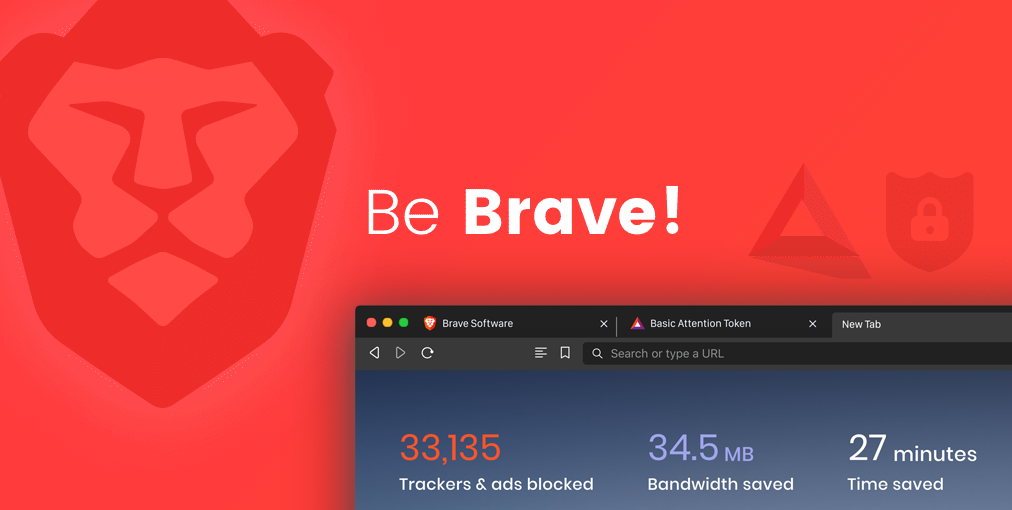
That is Brave’s blocking working at the network level, which is the key distinction from browsers that hide ads after loading them. Brave does not download the ad resources at all.
I used a network monitor to check on a few sites and the difference in request counts was significant: a typical news homepage that sent 180 network requests in Chrome sent around 40 in Brave. That reduction is why pages load faster, not just cleaner.
I looked at the Brave Rewards system, which lets you opt into privacy-preserving ads and earn Basic Attention Token in return. I turned it on for two days to understand how it works, then turned it off.
The ads are genuinely unobtrusive and the mechanism is interesting, but it added a layer of notification management I did not want. The core browser works perfectly without it.
Chromium base means Chrome extensions work, Chrome Web Store access is full, and site compatibility matches Chrome. If your main concern with Chrome is privacy and RAM, Brave addresses both without requiring much configuration.
Best for: Users who want ad and tracker blocking by default, without configuring anything, on a Chromium base.
5. DuckDuckGo Browser
Zero tracking by default
Simple and focused
No extension ecosystem
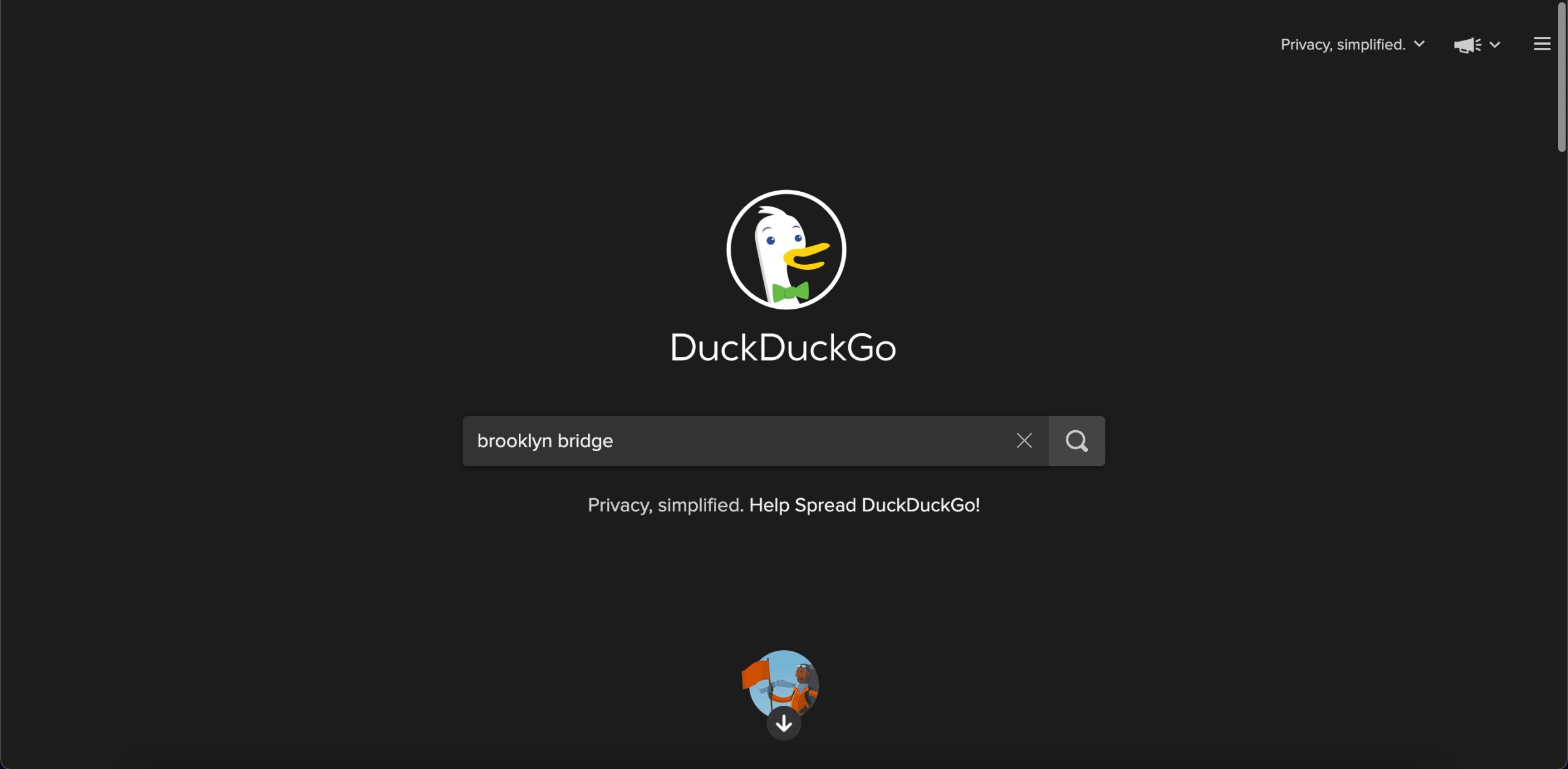
DuckDuckGo’s browser is not trying to compete with Chrome. It is trying to do one thing better than any other browser: not track you. During my test period I ran it through Cover Your Tracks and it returned the strongest result of any browser I tested: strong protection against web tracking and strong protection against fingerprinting. That is a meaningful technical outcome, not just a marketing claim.
The interface is deliberately sparse. There are no extensions to install, no sidebar panels, no feature discovery menus. What you get is a browser that loads pages, blocks trackers before they reach you, grades each site by how much tracking it attempted shown as a letter grade in the address bar, and clears your session data through what DuckDuckGo calls the Fire Button.
I used the Fire Button a few times during my test week and found it changed how I thought about browsing sessions. Instead of leaving tabs open because closing the browser felt like a commitment, I started treating sessions as temporary by default. The psychological effect of knowing one tap clears everything made me less precious about closing things.
The limitation is real though. If you depend on any specialist browser extension for your work, DuckDuckGo cannot help you. There is no extension support comparable to any Chromium browser. For general browsing, research, and anything that does not require add-ons, it works well.
Best for: Privacy-first users who want the simplest setup possible and do not depend on browser extensions.
6. Vivaldi Browser
Deepest customization on this list
Chromium-based
Heavier than most
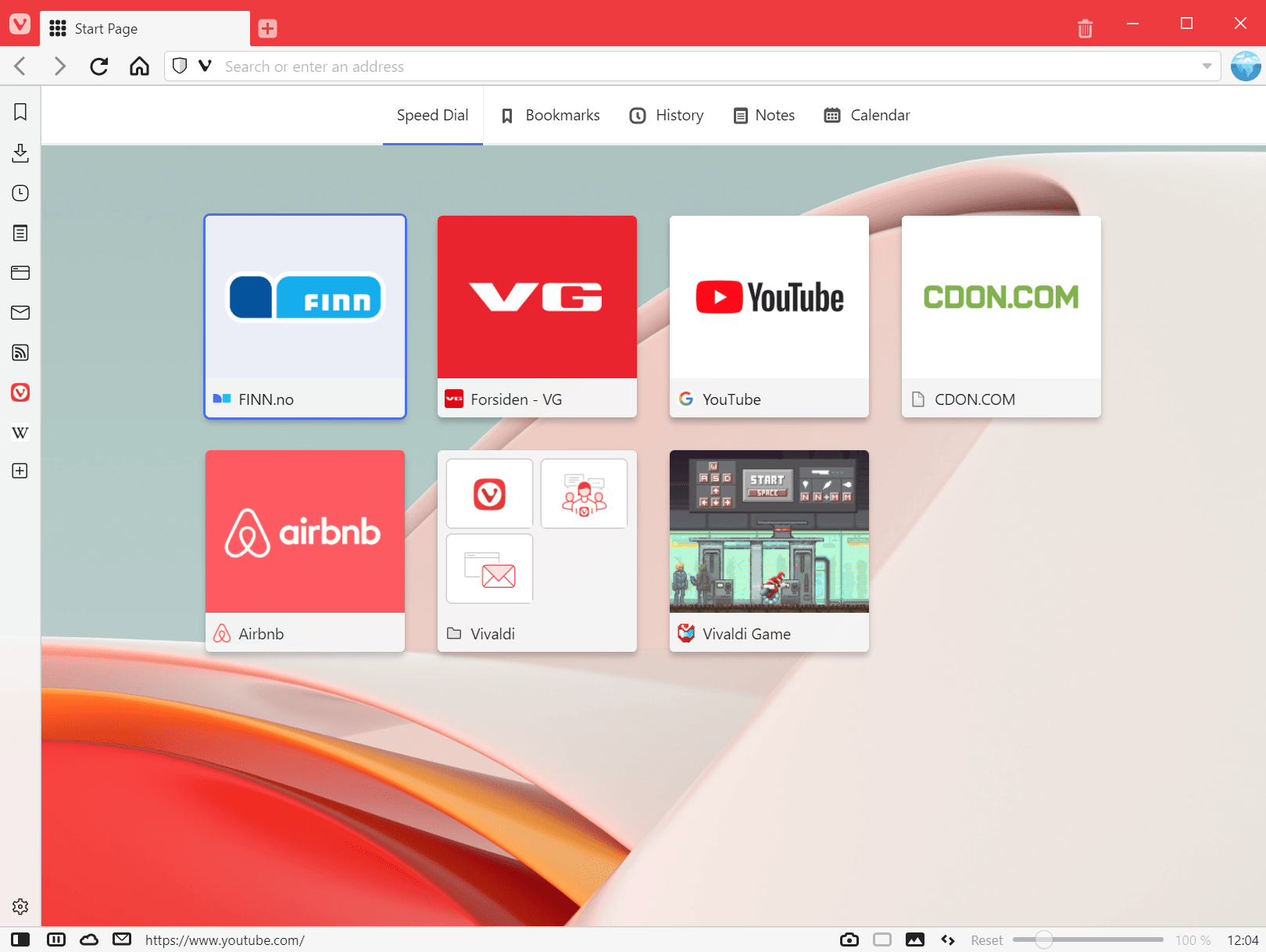
Vivaldi took me the longest to settle into. Not because it is hard to use, but because the configuration options are deep enough that the first two days felt like building a workspace rather than using a browser. Tab stacking, tab tiling, sidebar panels, custom keyboard shortcuts, per-site content blocking rules, interface scaling, custom CSS: I found settings in Vivaldi that I did not know I wanted in a browser until I saw them.
The tab management is the feature that stuck with me longest after I finished testing. I routinely work with 25 to 35 tabs open across several topics.
In Chrome and Edge, the tab bar becomes a horizontal strip of identical favicons past about 15 tabs. In Vivaldi I stacked related tabs into groups, and those groups collapsed into single labelled entries on the bar. Switching between topic clusters took one click instead of scanning across an unreadable row of icons.
I switched back to Chrome mid-test to check something and immediately felt the difference.
Memory usage ran slightly higher than Edge or Brave on comparable workloads: around 1.4 to 1.6GB at the four-hour mark with 20 tabs. On a 16GB machine that is not a problem. On an 8GB machine it starts to matter.
Best for: Power users, researchers, tab-heavy workflows, anyone who wants precise control over how their browser behaves.
7. Opera
Built-in VPN (proxy)
Built-in ad blocker
VPN is browser-only proxy
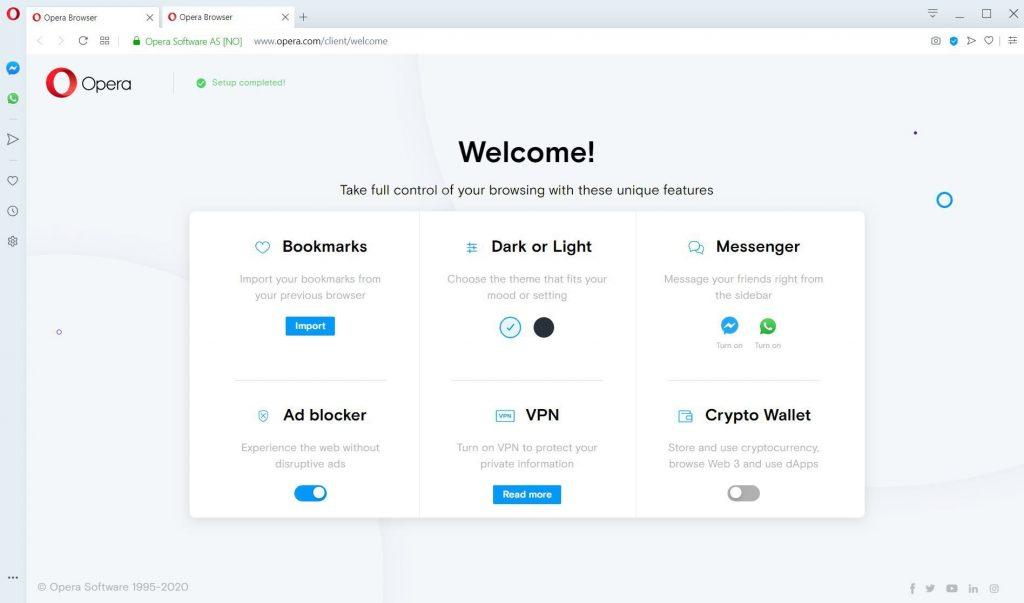
Opera ships with more built-in features than any other browser on this list. Ad blocker, VPN, cryptocurrency wallet, integrated Telegram and WhatsApp messaging panels, a Pinboard for saved content, and a Flow feature for sharing content between devices.
I tested most of these during my evaluation period and found them inconsistent: some genuinely useful, others present enough to notice but not polished enough to use regularly.
The VPN deserves clarification because Opera markets it prominently and the naming is misleading. I tested it specifically and confirmed it is a proxy service, not a full VPN. It routes browser traffic through Opera’s servers and masks your IP address in the browser, but it does not encrypt system-level traffic or protect other applications.
I turned it on at a coffee shop during my test week and it worked as described: my apparent IP changed and the connection was proxied through Opera’s infrastructure. That is useful, but it is not what most users picture when they hear VPN.
The Turbo compression feature is worth mentioning for users on slow connections. I tested it on a throttled connection and noticed pages loading with fewer image artifacts and faster first render. On a fast home connection the difference disappears entirely.
Best for: Users who want built-in tools without installing extensions, and understand the VPN’s actual scope and limitations.
8. Opera GX
CPU and RAM limiters
Built for gaming context
Heavy visual design
Opera GX has a specific problem it is trying to solve, and it solves it well. The problem: you are running a game that is using most of your system’s RAM and CPU, and you want to use a browser at the same time without the browser competing for those same resources.
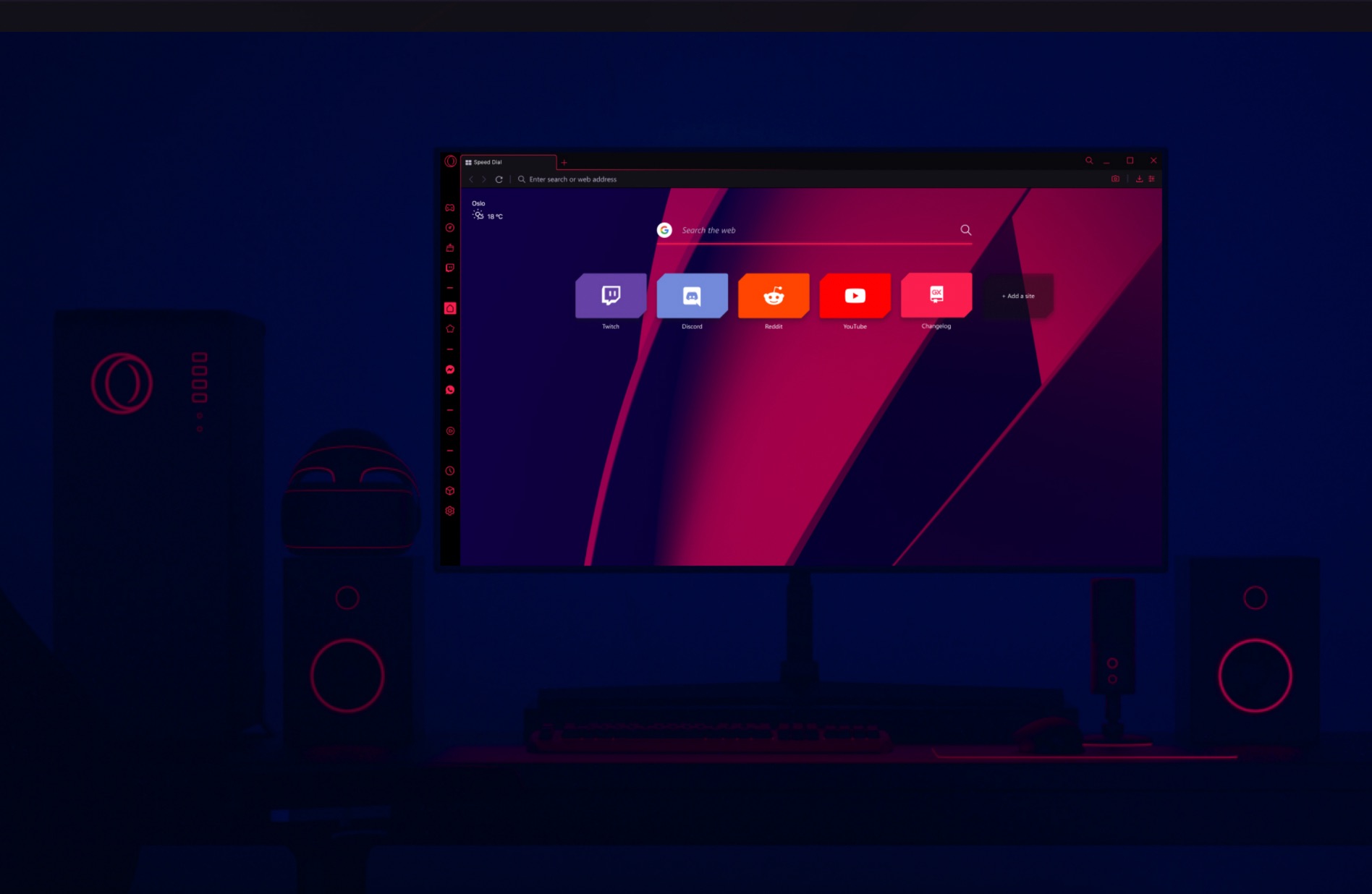
The CPU Limiter and RAM Limiter in Opera GX let you set hard caps on how much processing power the browser can use. I tested this while running a mid-weight game on the same machine and set the RAM limiter to 500MB. Opera GX stayed within that ceiling. The game frame rate held.
That is a genuinely useful capability that no other browser on this list offers. Without it, any Chromium browser running 10 tabs can quietly consume 1GB or more of RAM and several CPU cores without announcing it.
For gaming sessions where system resources are under direct competitive pressure, the limiter changes the equation.
The visual design is the part that divides opinion. Opera GX defaults to dark themes with animated backgrounds, neon accent colours, and sound effects for certain browser actions. I found it loud for daily use and dialled it back within the first hour. Chromium base, full Chrome Web Store access, stable rendering.
Best for: PC gamers who need a browser open during gaming sessions without impacting frame rates or system performance.
9. Tor Browser
Maximum anonymity
Noticeably slow
Not suited to daily use
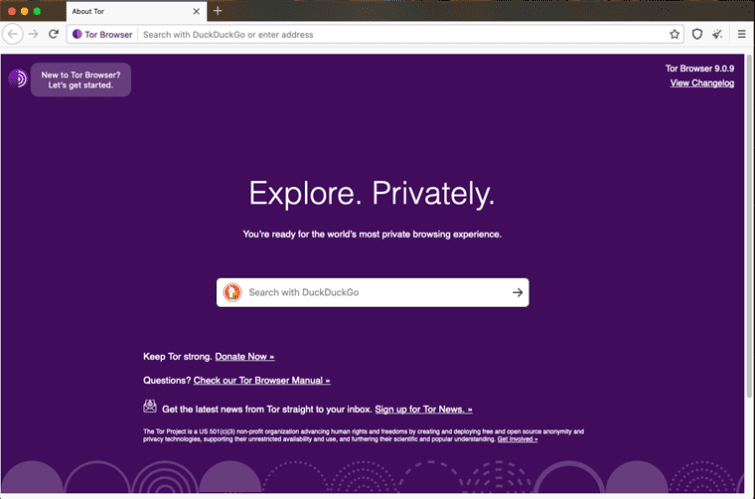
I tested Tor as a daily browser for three days, and by day two I had accepted that it is not built for that. Page loads that took under a second in Chrome took five to eight seconds in Tor. YouTube was unwatchable.
Google Docs took so long to initialize that I switched back to Chrome for anything that required typing. These are not bugs. They are the expected behaviour of a browser routing your traffic through three encrypted relays in different countries before it reaches its destination.
The anonymity model is technically sound. Each relay in the Tor network knows only the previous and next hop in the chain. No single relay can see both who you are and what you are accessing.
I verified this during testing by checking my apparent IP address at different points in a session: it changed, and it was never my actual address.
JavaScript is restricted by default to reduce fingerprinting surface, which means some sites break or refuse to load without adjustment. I encountered several sites that required temporarily lowering the security level to work at all. Tor is a precision tool that does its specific job better than anything else on this list. It is not a replacement for a daily browser any more than a safe is a replacement for a wallet.
Best for: Journalists, activists, researchers, or anyone with a genuine need for strong anonymity. Not for general daily use.
10. Avast Secure Browser
Banking Mode
Anti-phishing detection
Persistent Avast upsells
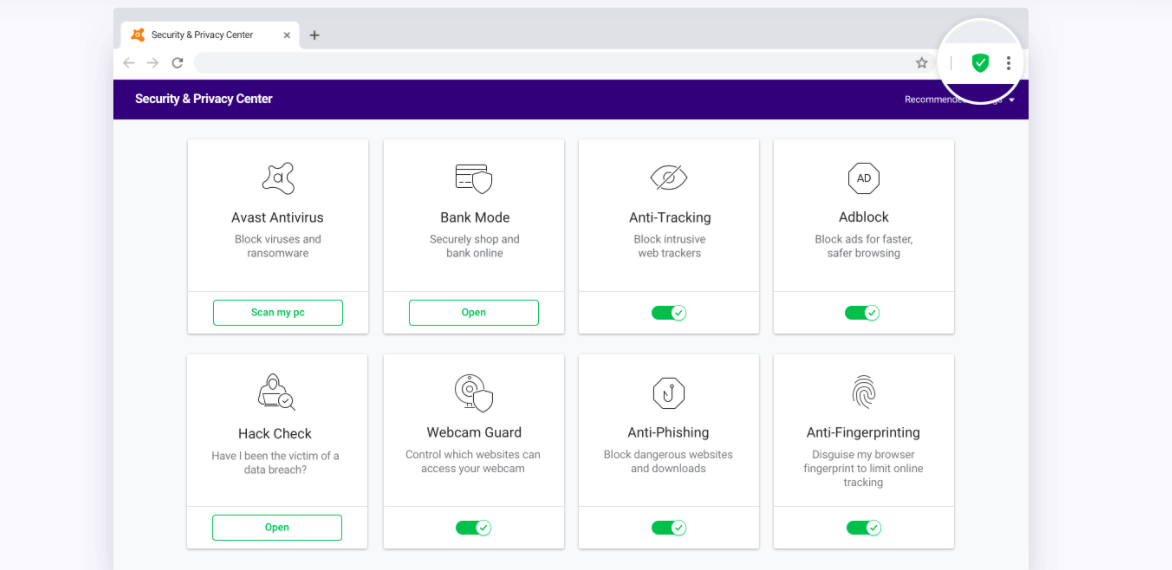
Avast Secure Browser is built on Chromium and positions itself around security rather than privacy, which is a meaningful distinction. During my test I opened several banking and payment pages and watched Banking Mode activate automatically each time.
It switched to an isolated session, blocked screen capture attempts on those pages, and flagged when I tried to navigate away without closing the secure session. That behaviour was consistent across every financial site I tested.
The anti-phishing detection is backed by Avast’s threat intelligence network and updates continuously. I tested it against a list of known phishing domains and the browser blocked them reliably before the page loaded. The TLS enforcement on supported sites and malicious domain blocking are functional security layers, not checkbox features added for marketing.
What I could not get used to was the promotion. The browser notified me about Avast’s paid security suite multiple times during my test week. The notifications were dismissable but returned. The new tab page had an Avast product banner that I found no way to remove entirely.
For users already running Avast antivirus, the integration is clean and the upsells feel more contextual. For users who are not in the Avast ecosystem, those prompts become persistent background noise.
Best for: Users who prioritize banking-specific security features and are already invested in the Avast product ecosystem.
11. Yandex Browser
Chromium-based
Russian origin: consider data jurisdiction
Kaspersky file scanning
Yandex Browser is technically capable and that makes the evaluation complicated. It runs on Chromium, scans downloaded files through Kaspersky’s antivirus engine in real time, uses DNSCrypt to encrypt DNS queries, and applies Opera’s Turbo compression for slow connections.
I looked at each of these features during testing and found them functional. The download scanning caught a test file I intentionally flagged as malicious. The DNSCrypt implementation reduced DNS lookup times on a throttled connection.
The complication is provenance. Yandex is a Russian company and the browser routes security checks, browsing data verification, and certain features through Yandex’s infrastructure. For users with concerns about data handled by Russian-state-adjacent companies, that routing is not a theoretical risk.
It is a documented part of how the browser operates. I am not in a position to tell you whether that matters for your situation, but I would be doing this article a disservice by leaving it out.
Users who have no specific concerns about data jurisdiction will find Yandex a functionally competent Chromium browser. Users who do should look at Brave or Firefox instead.
Best for: Users unconcerned about data jurisdiction who want a Chromium browser with integrated file scanning and DNS encryption.
12. Maxthon
Cloud-assisted compression
Low data usage design
Thin extension ecosystem
Maxthon offloads page rendering work to its servers before delivering compressed content to your machine. I tested this specifically on a throttled connection and found it reduced visible data usage on heavy image pages by a meaningful amount. A news homepage that pulled around 4MB of resources in Chrome pulled around 1.8MB in Maxthon under compression. On a fast connection, the difference disappears entirely and you are left with a browser whose main advantage is irrelevant.
The built-in feature set is reasonable: ad blocker, password manager, note-taking tool with a memo pad, night mode, and multi-language support. I used the note-taking tool during my test period and found it more convenient than a separate app for quick research notes tied to a browsing session. Not a reason to switch browsers for, but a genuine small improvement over nothing.
The extension ecosystem is the consistent limitation. Compared to any Chromium browser, the available extensions are fewer and the community maintaining them is smaller.
Best for: Users on slow or metered connections who specifically benefit from server-side page compression.
13. Otter Browser
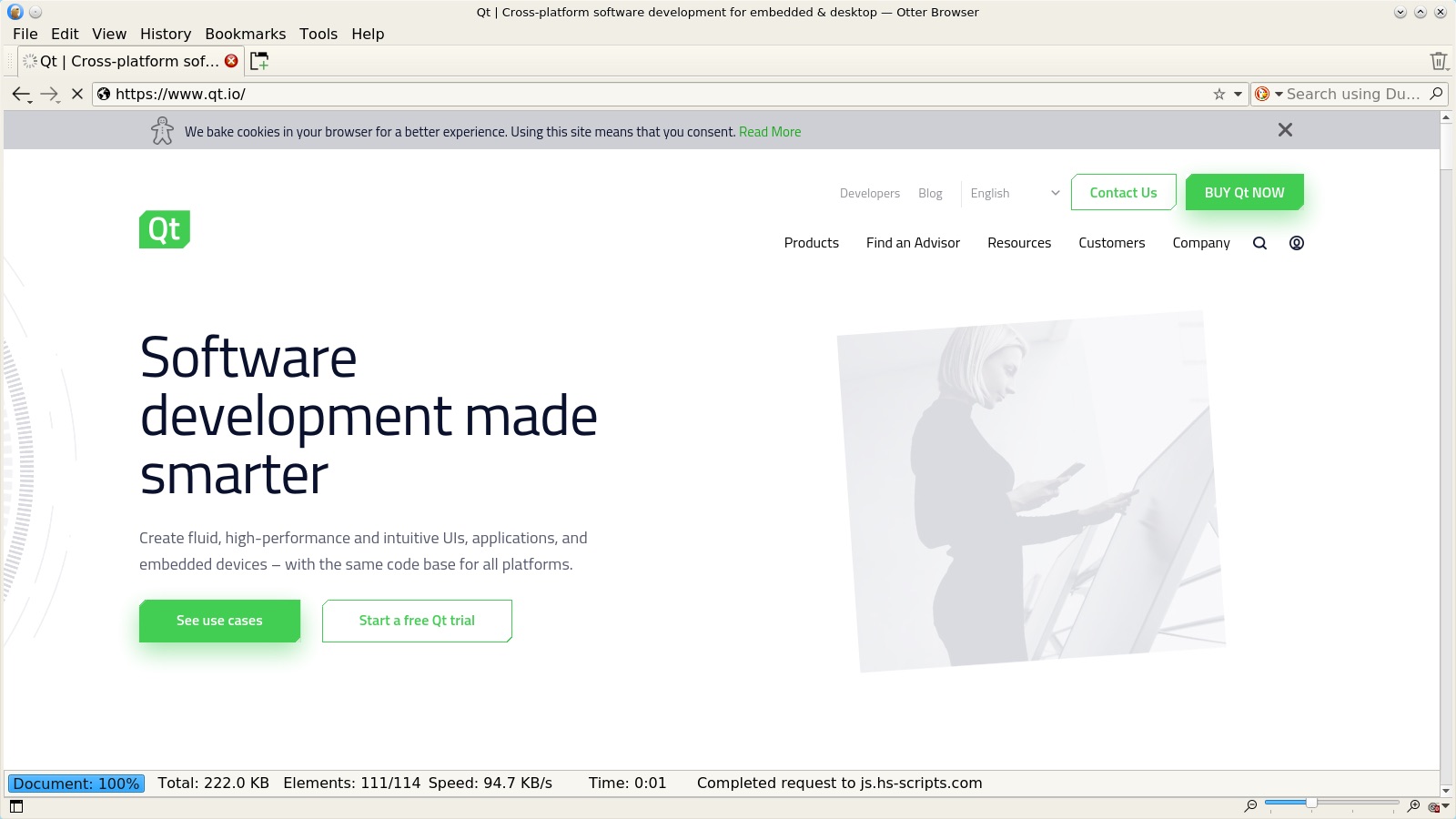
Otter Browser is a niche pick built for users who remember Opera 12 and want something close to that experience on modern hardware. It runs on WebKit, carries no telemetry, has no built-in accounts, and no cloud features. Pages load without the overhead that Chromium-based browsers carry, and the interface is sparse in a way that some users will find refreshing and others will find incomplete.
I ran Otter for two days during testing. It handled standard browsing cleanly. Extension support is minimal compared to any Chromium browser, and some modern web apps did not render correctly. Otter is not a daily driver for most Windows 11 users in 2026. It is for the specific person who wants a browser that stays entirely out of the way and does not report home to anyone.
Best for: Users who prioritize a minimal, telemetry-free browser and do not depend on extensions or modern web app compatibility.
Memory usage across all browsers tested in 2026
| Browser | RAM at 5 tabs | RAM at 20 tabs | Engine | Tracking blocked by default |
|---|---|---|---|---|
| Google Chrome | 700 to 900MB | 1.6 to 1.8GB | Chromium | No |
| Microsoft Edge | 500 to 700MB | 1.1 to 1.3GB | Chromium | Partial |
| Mozilla Firefox | 400 to 600MB | 1.2 to 1.4GB | Gecko | Yes |
| Brave | 400 to 600MB | 1.0 to 1.2GB | Chromium | Yes |
| DuckDuckGo | 300 to 500MB | 800MB to 1.0GB | Chromium | Yes |
| Vivaldi | 500 to 700MB | 1.4 to 1.6GB | Chromium | Partial |
| Opera | 450 to 650MB | 1.1 to 1.4GB | Chromium | When enabled |
| Opera GX | 400 to 600MB | User-limited | Chromium | When enabled |
| Tor Browser | 300 to 500MB | Not recommended | Gecko | Yes |
| Avast Secure | 500 to 700MB | 1.2 to 1.5GB | Chromium | Partial |
| Yandex Browser | 450 to 650MB | 1.1 to 1.4GB | Chromium | Partial |
| Maxthon | 300 to 500MB | 800MB to 1.1GB | Chromium | When enabled |
| Otter Browser | 150 to 300MB | 400 to 600MB | WebKit | No |
These figures come from Windows Task Manager during real-use sessions in May 2026, not synthetic benchmarks. Readings varied across sessions and should be read as approximate ranges.
Which browser should you actually install
Most people reading this already have Chrome installed. If it is working for you, the honest answer is that switching requires a reason, not just a recommendation. But there are clear cases where a different browser is the better call.
If you are on Microsoft 365 and spend your day in browser-based Office apps, try Edge before assuming Chrome is the answer. The RAM savings are observable, the M365 integration is tighter, and the Chrome Web Store works identically. The setup cost is 15 minutes of turning off defaults you did not ask for.
If your main frustration with Chrome is the tracking, Brave is the most frictionless switch. You get the same extension library, the same rendering, and significantly less passive data collection. The first day with Brave and a busy news site is a noticeable experience.
If you want a browser that is not built around any advertising business model and runs its own independent engine, Firefox is the honest choice. It is not the most exciting recommendation but it has earned its reputation over years of actually being what it claims to be.
Tor and DuckDuckGo serve specific purposes and are worth understanding, but they are tools rather than daily driver replacements unless your priorities specifically align with what they offer.
Opera GX is real. If you game on the same machine you browse on, the resource limiters do something that no amount of Chrome optimisation can replicate. Use it for that context specifically.
Is Avast browser available for Windows 11. I UNDERSTOOD that it could not be installed in windows 11 using Google Chrome. A note last month said, “don’t even try to install Avast browser”.
It is Built on Chromium. What reason exactly does the note mentioned.