Fresh installs feel deceptively clean. You get to the desktop, it looks tidy, and for about three minutes, everything seems fine.
Then OneDrive starts uploading your Documents folder to the cloud, a news panel swings open because your cursor grazed the taskbar edge, and a full-screen prompt appears asking you to finish setting up your device.
You were just trying to open a browser. I have done enough of these to have a list.
I go through the same issue before doing anything else, before Chrome, before my apps, before I even check for updates.
This article is a compilation of that list, with exact paths, my reason for each one, and honest notes on who might actually want to keep it.
TL;DR: A fresh Windows 11 install in 2026 ships with several settings that most users will want to turn off right away: a unique advertising ID tied to your app activity, optional diagnostic data, activity history syncing to Microsoft cloud, OneDrive auto-launch, Widgets, a Bing-connected taskbar search box, lock screen tips and ads, post-update welcome screens, and background app permissions for apps you never intentionally opened. Each one has a clear path and takes about 30 seconds.
Advertising ID
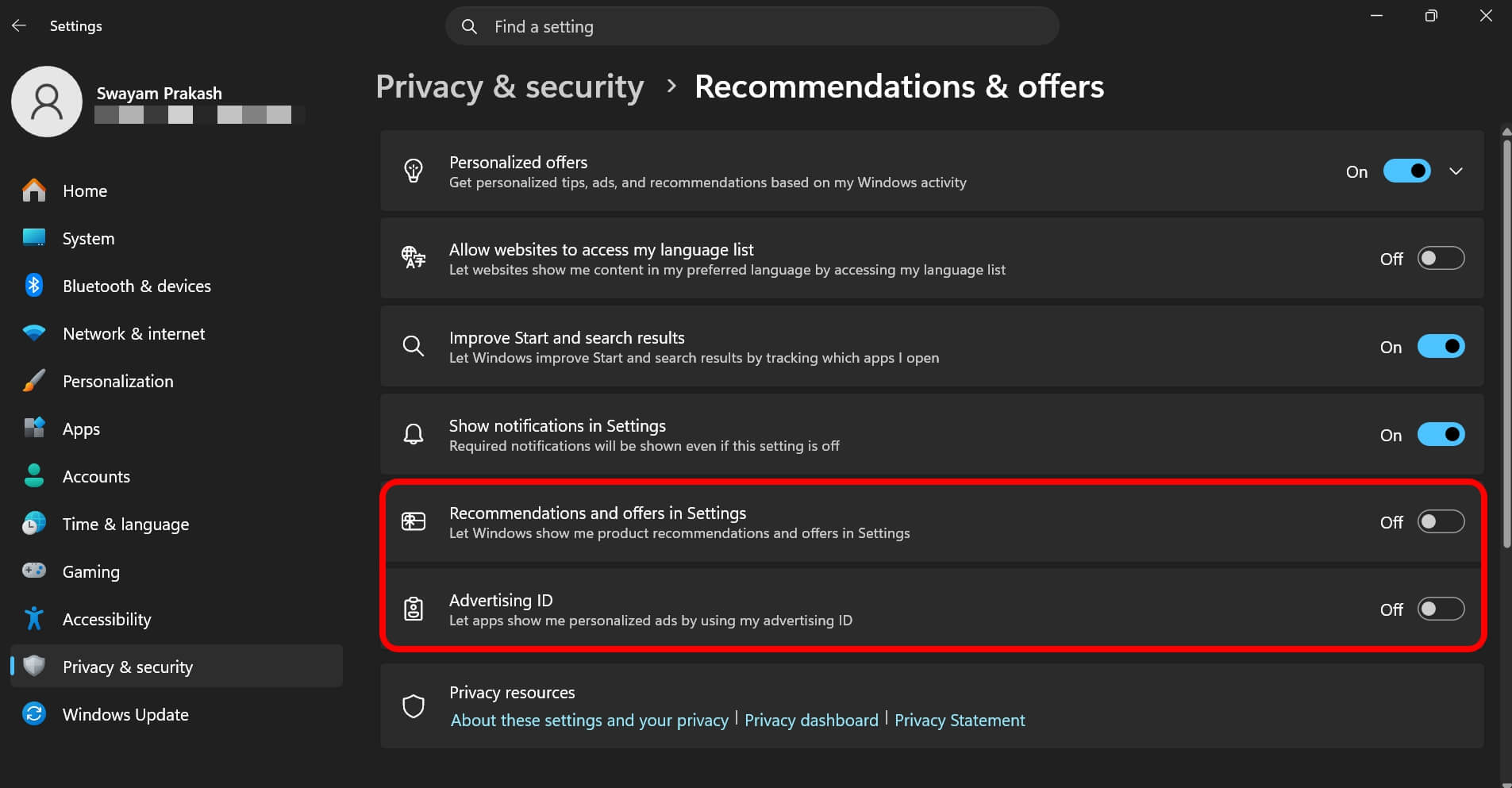
Path: Settings > Privacy & Security > Recommendations & Offers on newer builds
Windows assigns every user account a unique advertising ID. Apps can read it and use it to serve you targeted ads across the platform.
Think of it as a tracking cookie that operates at the OS level, not just in your browser.
I turn it off on every install. It does not stop ads from appearing. Microsoft says that plainly.
What it stops is those ads being shaped by your behavior. That alone was enough for me.
Turn off: Let apps show me personalized ads by using my advertising ID.
NOTE: Also, turn off Show me suggested content in the Settings app while you are there.
That is the toggle that lets Microsoft surface Microsoft 365 upgrade prompts inside Settings itself, right when you are trying to change something else. It shows up exactly when you do not want it.
Who might keep it: Honestly, nobody needs to. There is no functional cost to turning this off.
Optional Diagnostic Data and tailored experiences
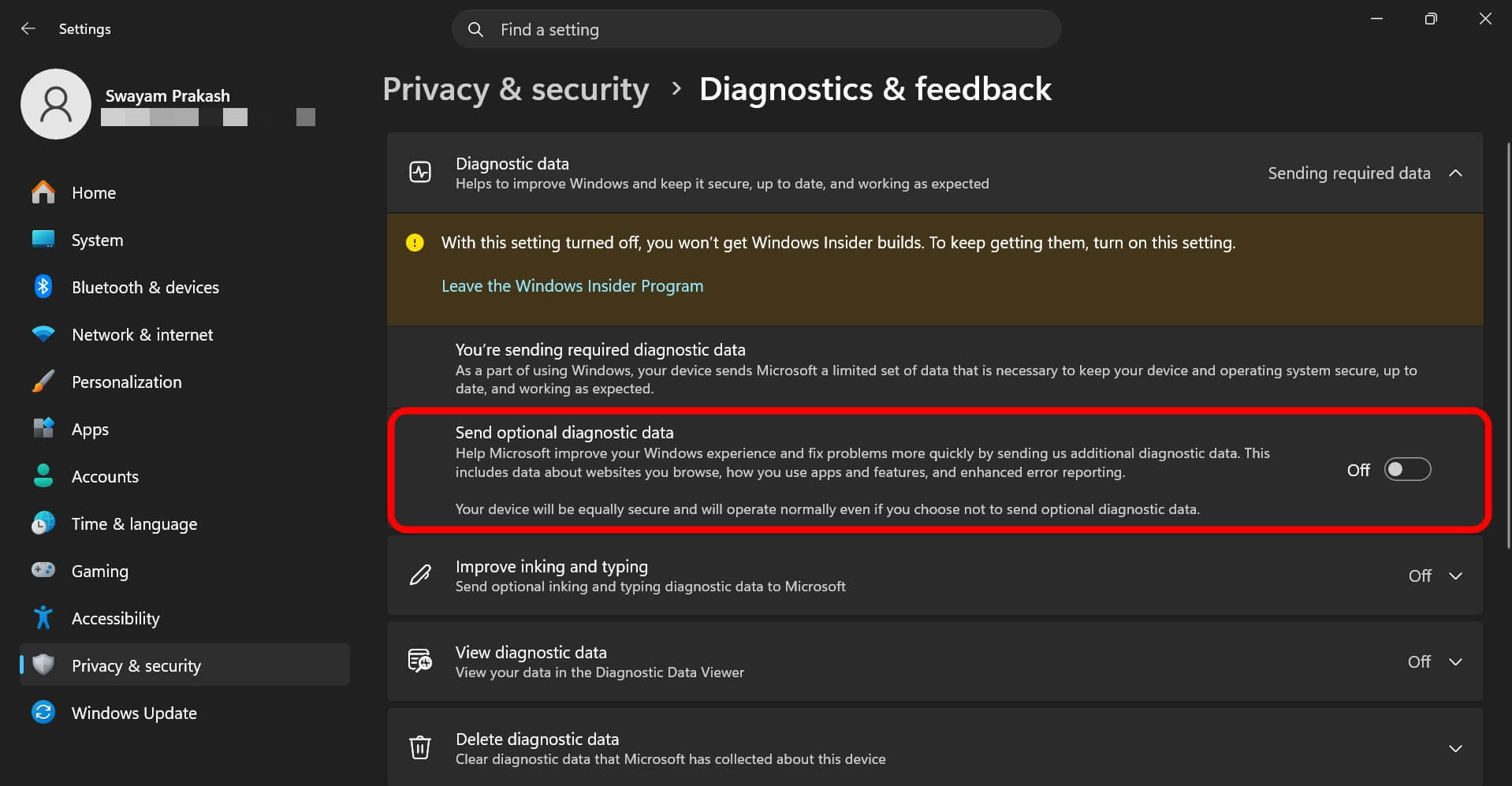
Path: Settings > Privacy & Security > Diagnostics & Feedback
Two tiers. Required data covers crash reports, update status, and basic hardware signals.
You cannot turn that off on Windows 11 Home or Pro, and that is fine.
The optional tier is the one worth addressing. It collects app usage patterns, how you interact with features, and typing samples if that sub-toggle is on.
Set Send optional diagnostic data to Off. Then expand Tailored Experiences and turn that off too.
Tailored Experiences sounds like a personalization feature. It is.
Microsoft uses your diagnostic data to serve you tips, recommendations, and ads inside Windows. The name is polite. The function is exactly what it sounds like.
Hit Delete under Delete diagnostic data before you leave the screen. This clears whatever was already collected during setup.
Who might keep it: Windows Insider members. Optional data is required for the program. No way around that one.
Search history
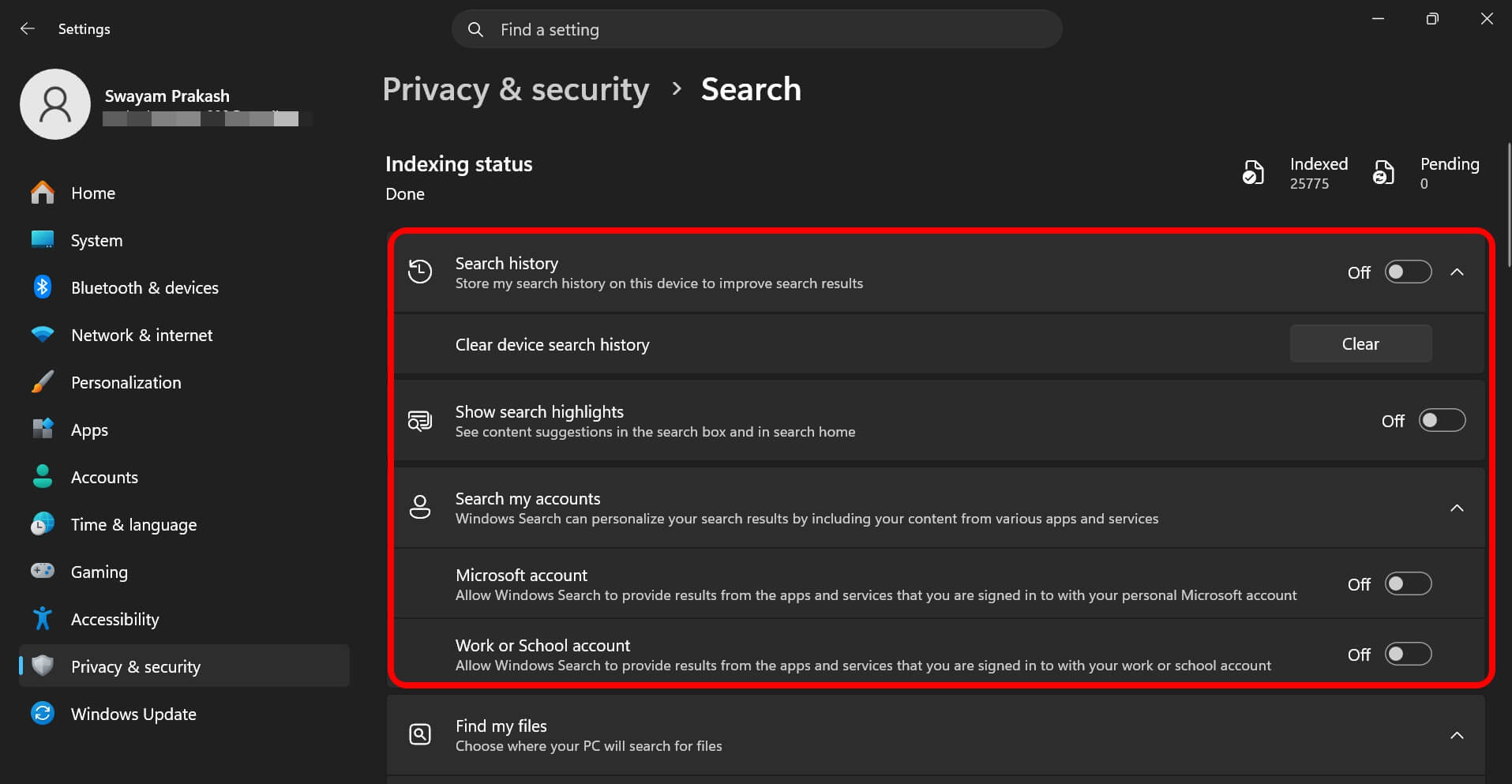
Path: Settings > Privacy & Security > Search
Search History logs what you open, the files you work with, and the sites you visit through the Edge browser and other supported apps.
It is meant to power Windows Timeline so you can resume tasks across devices.
I do not use Timeline. Most people do not.
And I am not particularly interested in a cloud-synced record of everything I have opened sitting on Microsoft servers.
I ignored this setting the first time I did a fresh install. Then I found out Timeline was quietly syncing across two machines I used differently. That was the last time I left it on.
If you have a Microsoft account linked, also turn off Allow Windows search to provide results from the apps and services that you are signed into with personal Microsoft account.
Then hit Clear History.
Who might keep it: If you actually use Timeline to pick up tasks across devices, this is what makes it work. Keep it on.
OneDrive auto-launch
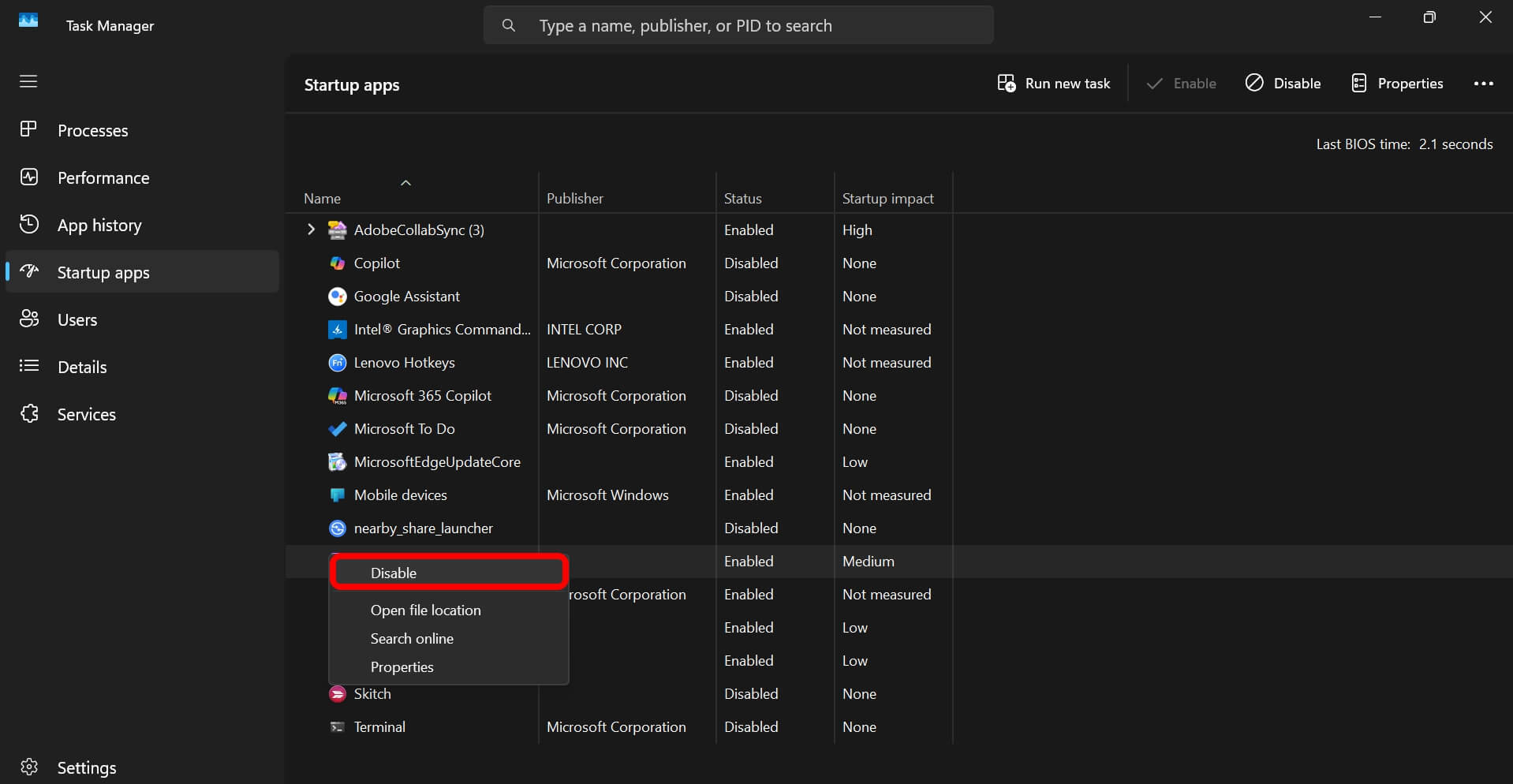
Path: Task Manager > Startup Apps (or right-click the OneDrive tray icon > Settings > General)
OneDrive starts itself at login.
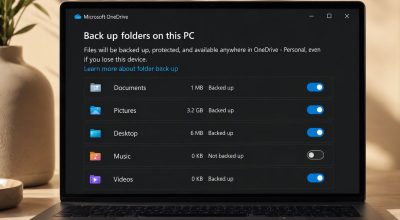
It plants an icon in the system tray and begins syncing your Desktop, Documents, and Pictures folders to the cloud. Quietly. Without asking.
On a work machine I set up in a hurry, I logged into Windows with a Microsoft account during install. Twenty minutes later, the upload indicator was spinning.
OneDrive had already started pushing 40GB of project files to a personal account. Undoing that took an hour I did not have. I have not forgotten it.
Even without the work scenario, the sync behavior is quietly disruptive.
On a slower internet connection, OneDrive grinding through your files in the background is enough to make downloads sluggish and video calls stutter.
You sit there wondering what is wrong with the machine. The answer is in the system tray.
Open Task Manager > go to Startup Apps > find Microsoft OneDrive, and disable it.
To also stop the folder sync, right-click the tray icon, go to Settings > Account, and click Unlink this PC.
Your cloud files stay in OneDrive storage untouched. Only the background behavior on this machine stops.
Who might keep it: If OneDrive is genuinely your backup strategy or you rely on cross-device sync, leave it running. Do confirm which folders are set to sync before trusting the defaults.
Widgets
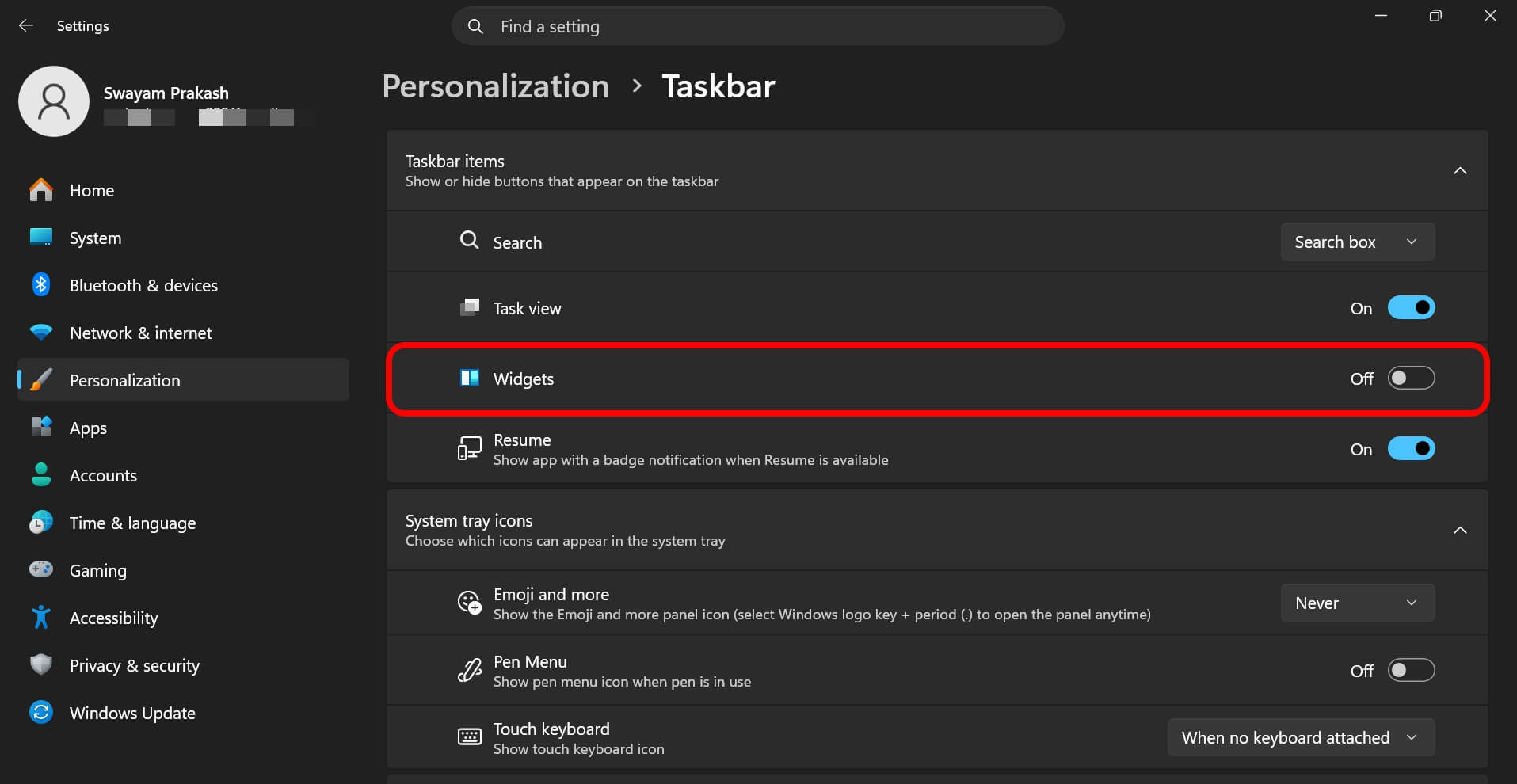
Path: Settings > Personalization > Taskbar
The Widgets panel is a live feed of Microsoft News, weather, sports scores, stock tickers, and rotating third-party content.
On some systems, it opens automatically if your cursor lingers near the left edge of the taskbar.
That is the kind of thing you do not notice until it swallows half your screen at exactly the wrong moment.
I have never opened it on purpose.
What I have done is graze the taskbar while reaching for the Start button, and suddenly have Bing News filling my workspace. I have never once missed the panel after disabling it.
Go to Settings > Personalization > Taskbar and toggle Widgets off.
It removes the button and the hover trigger. The underlying service stays installed in a suspended state, but for most people, that is fine.
Who might keep it: If you genuinely use the Widgets board for weather or news, it is a reasonable convenience to have it enabled.
Taskbar search box
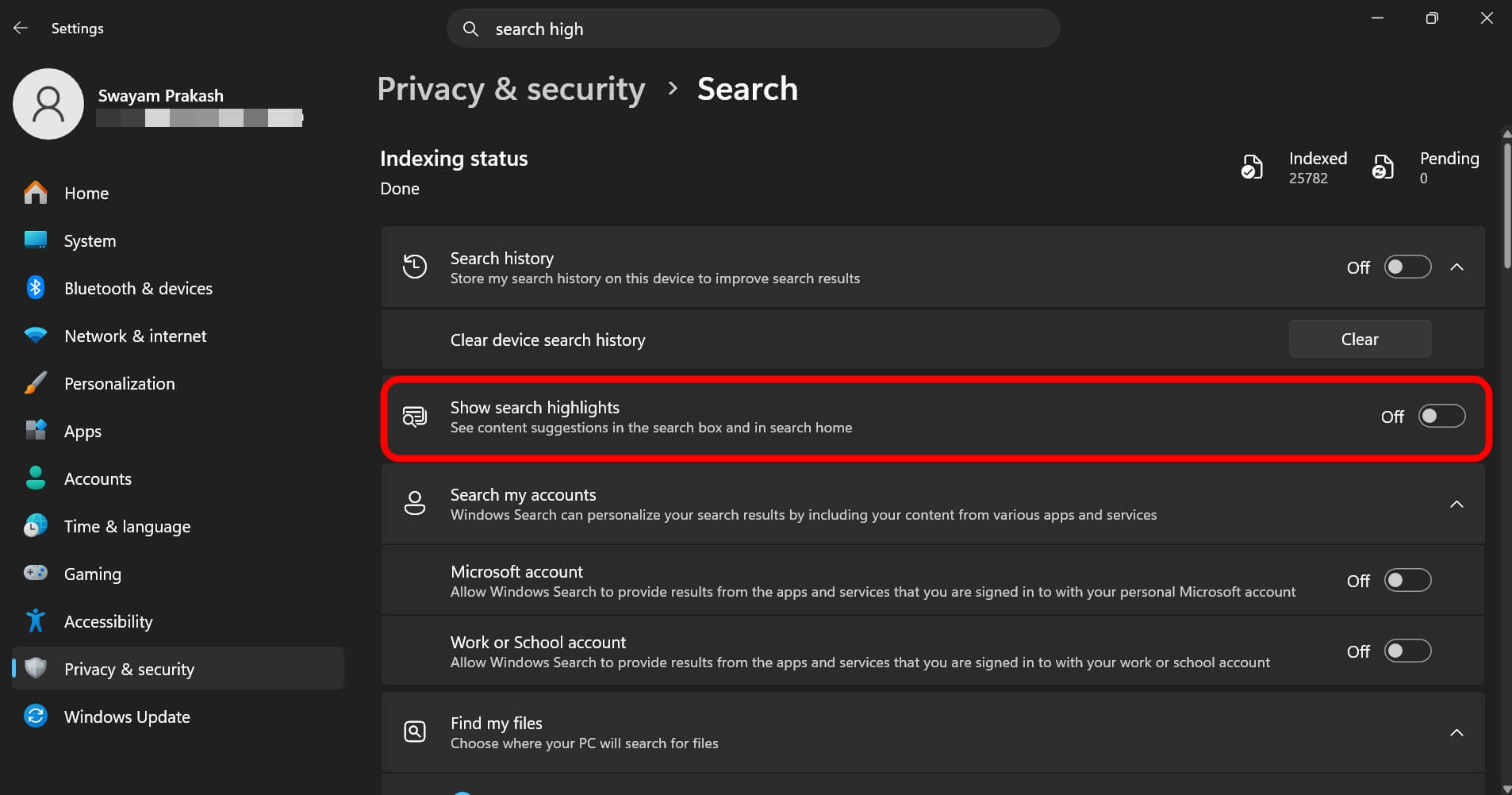
Path: Settings > Privacy and Security > Search > Show Search Highlights
The default is a full-width search box on the taskbar.
Click it, and it connects to Bing before you have typed anything. Trending searches, suggested content, and web results are loading before you have formed a question.
It is not searching your machine at that point. It is pulling content from Microsoft servers because the box exists.
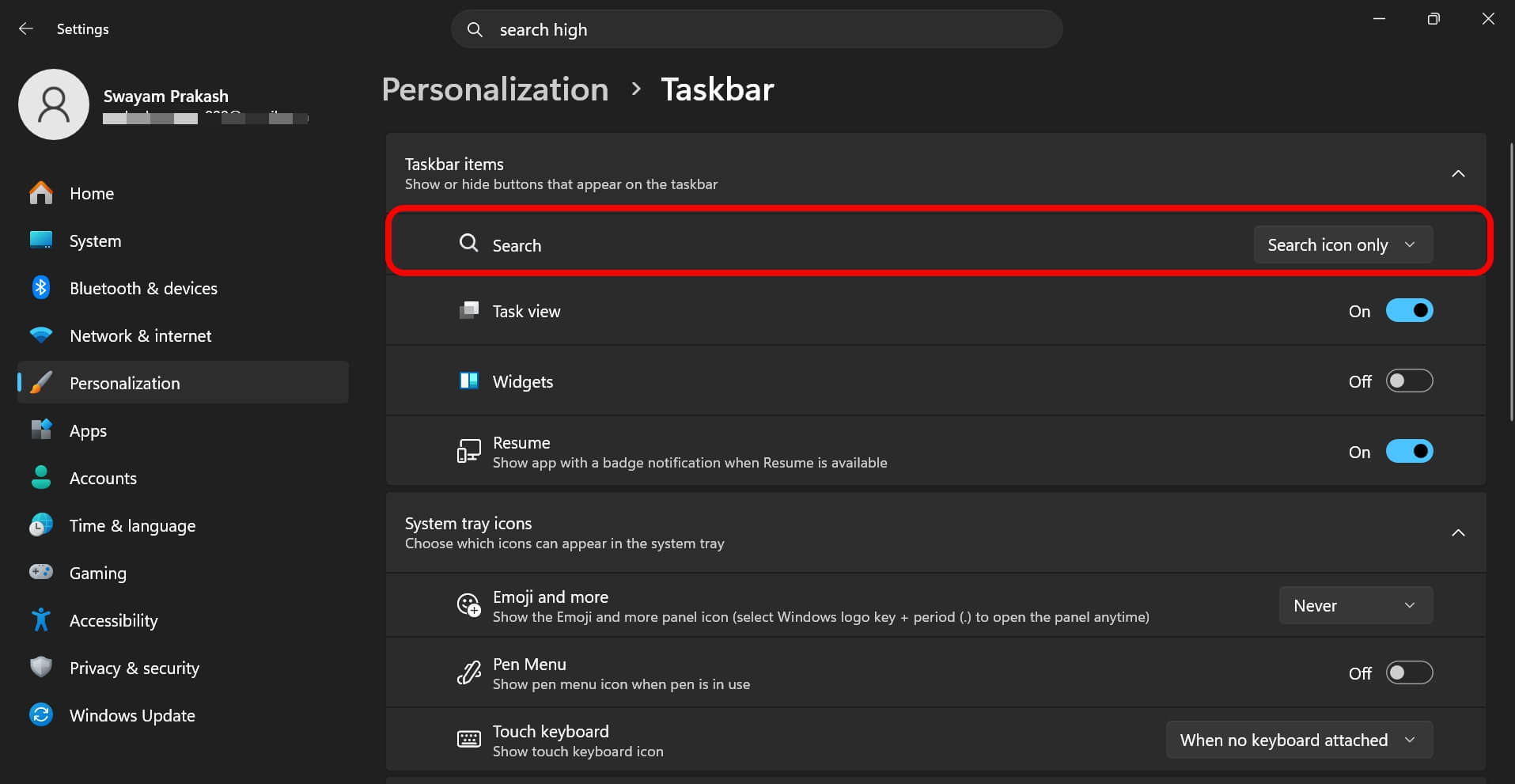
I shrink it to an icon. Windows Search still works fine. Win key, start typing, find anything.
The Bing connection and the taskbar space it took are both gone. That is the only change.
On the Taskbar settings page, click the Search dropdown and switch from Search box to Search icon only.
While you are in the section, go to Settings > Privacy & Security > Search and turn off Show search highlights.
That removes the little rotating icon in the search bar that changes daily to promote whatever topic Microsoft has featured.
Lock screen ads and tips
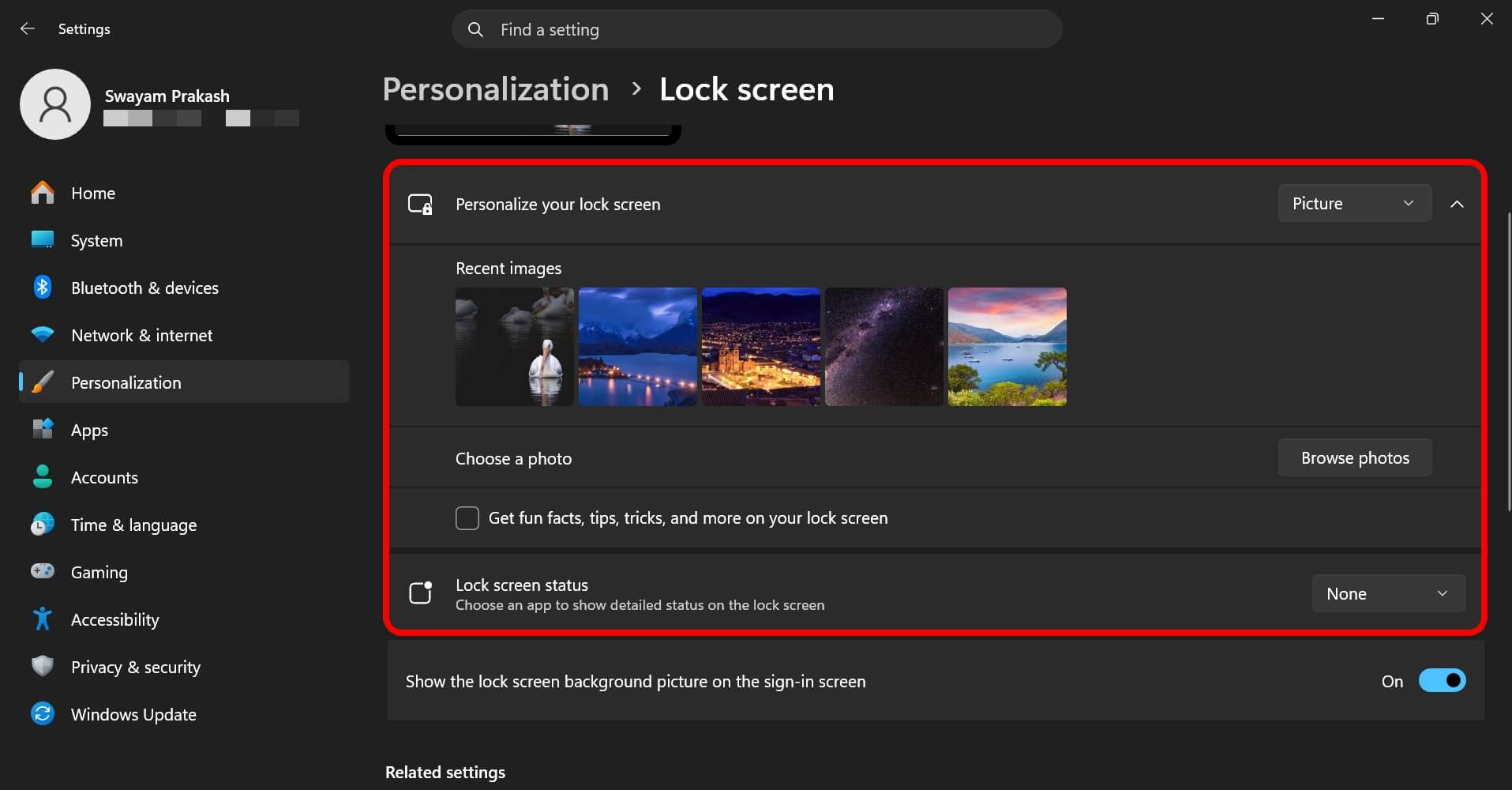
Path: Settings > Personalization > Lock Screen
Windows Spotlight is the default lock screen. It rotates photography from around the world, which is actually nice.
The part that is not so nice: Microsoft also uses it to surface app suggestions, tips, and occasional ads for games and services.
You see them every time on the screen when the PC wakes up. It is subtle enough that most people never think about it. But it is still there.
Switch the Personalize your lock screen dropdown from Windows Spotlight to Picture.
Uncheck Get fun facts, tips, tricks, and more on your lock screen.
Also, set the Lock screen status to None.
That’s it. You are done. All you get to see on the screen is just the wallpaper.
Tips, suggestions, and the Windows welcome experience
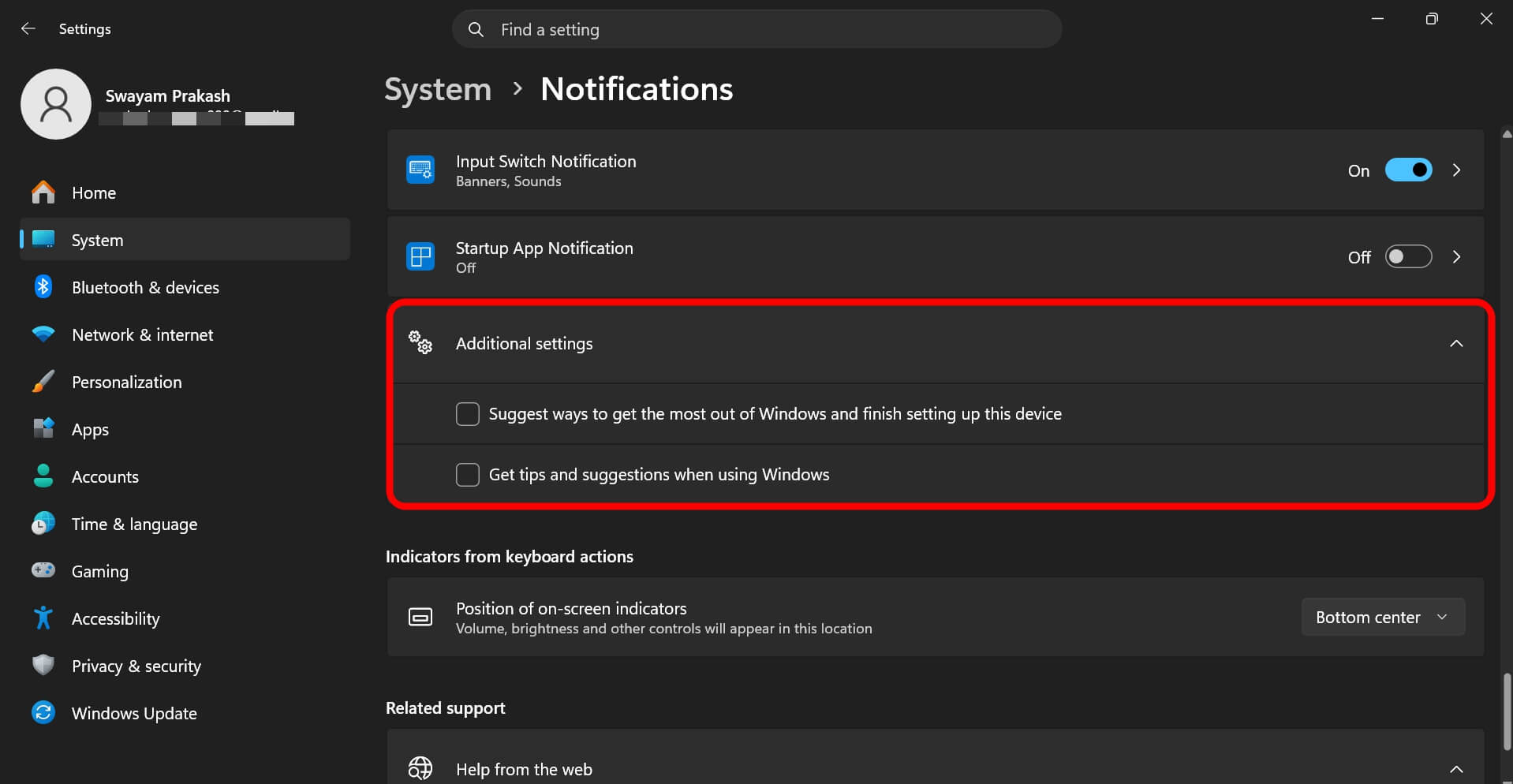
Path: Settings > System > Notifications
Scroll to the bottom of Notifications and expand Additional Settings. You will see three checkboxes.
These are behind most of the interruptions that make a fresh Windows install feel like it is constantly asking you for something.
Get tips and suggestions when using Windows is the tooltip that appears while you are focused on something else, more important to you.
Not when you ask. Just whenever Windows decides the moment is right.
Suggest ways to get the most out of Windows and finish setting up this device is the full-screen prompt.
You restart after installing a driver, sit back down, and your entire screen is covered with a setup wizard asking about OneDrive, location services, and Microsoft 365. You were gone for two minutes.
Show the Windows welcome experience after updates and when signed in to show what’s new and suggested. This one comes back after major updates.
Even after turning it off, updating Windows a few months later, it comes back. Usually, with an Edge recommendation and a Copilot shortcut.
Background app permissions for social media apps
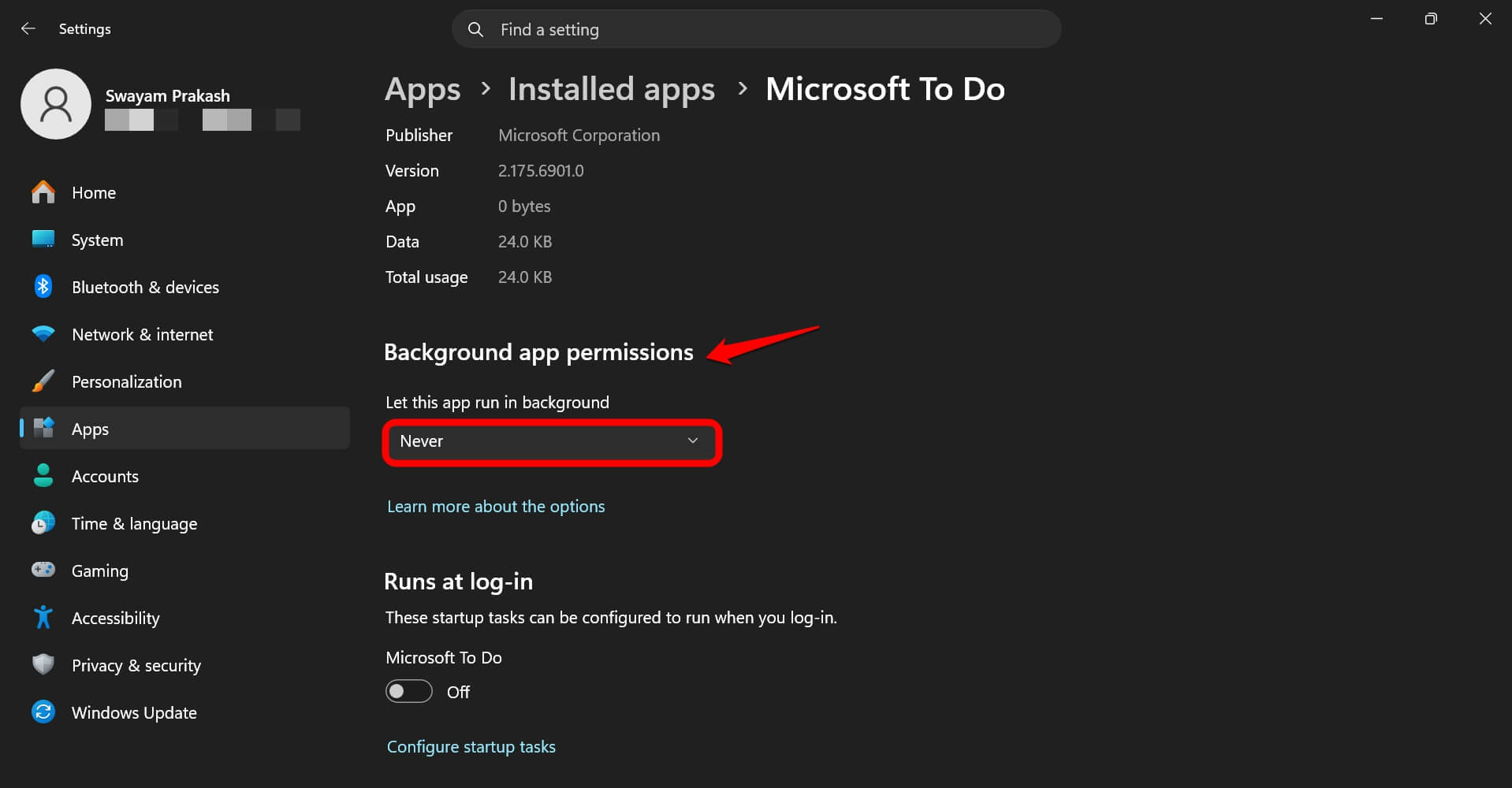
Path: Settings > Apps > Installed Apps > (select app) > Advanced Options > Background App Permissions
Background permissions let apps run, refresh, and use your network connection even when you are not in them.
For communication apps, that is necessary. For apps you only open on purpose, it is not.
You often do not notice this until something feels off. A video call starts stuttering.
You check Task Manager and find Instagram, a news app, and a social platform all doing network activity in the background at the same time.
None of them needed to be. That is where it gets annoying, because it is not dramatic enough to diagnose easily.
Go to Settings > Apps > Installed Apps, find the app, click the three-dot menu, select Advanced Options, and set Background App Permissions to Never.
Do this for anything you open intentionally rather than something that needs to alert you.
NOTE: Some installed apps may not have an Advanced Options tab in the three-dot menu.
Bonus setting: File Explorer sync provider notifications
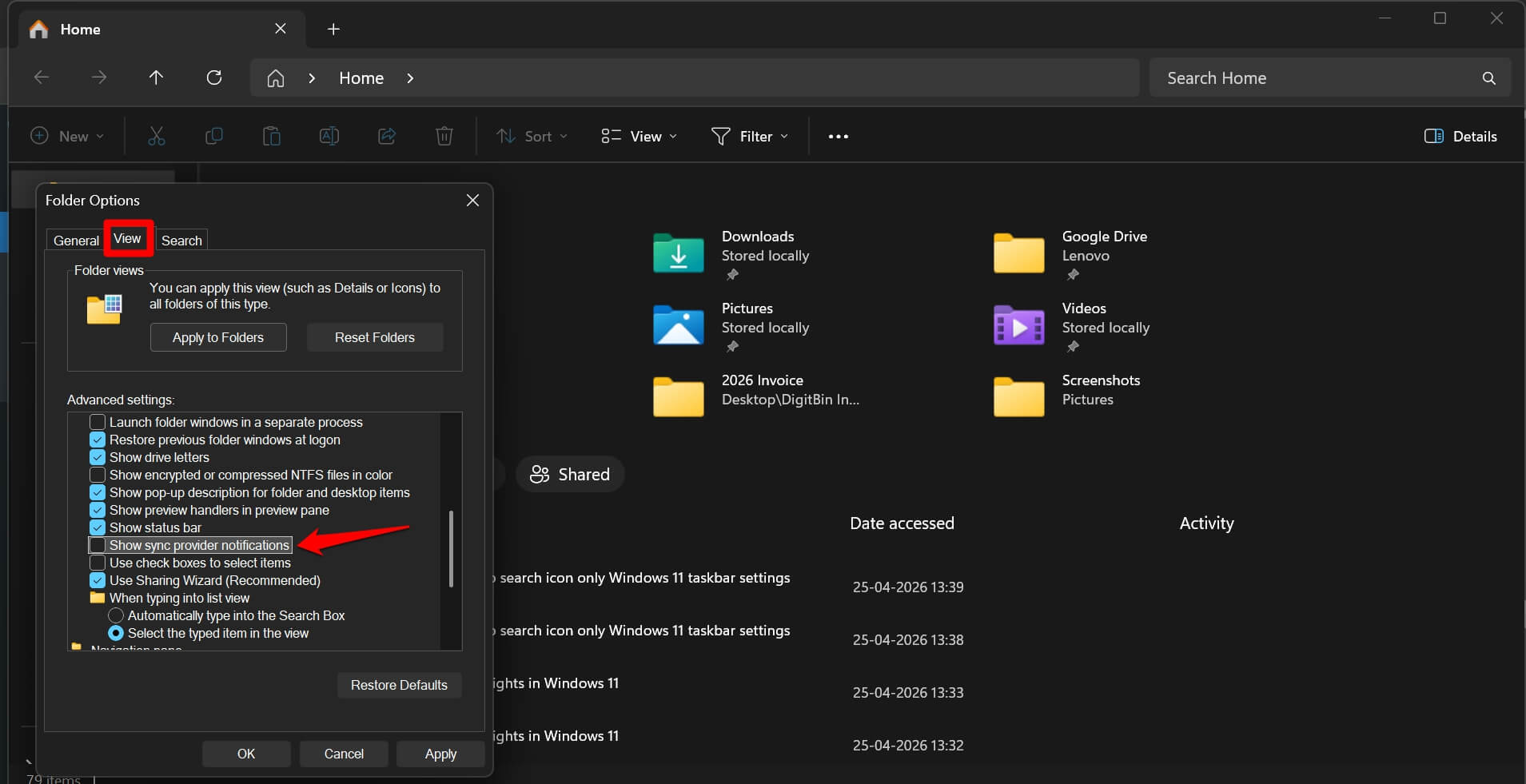
Path: File Explorer > See More (…) > Options > View tab > Show sync provider notifications
It is not in the Settings app. You can find it buried deep in the File Explorer folder options, which is why almost nobody ever finds it.
Sync provider notifications are promotional banners that appear inside Windows 11 File Explorer, just below the address bar, promoting OneDrive upgrades and Microsoft 365.
User experience is meant to vary on Windows 11. That’s normal.
What’s not normal is having some features enabled in the system that massively slow down the workflow when you’re trying to work on something important.
You may turn these features off. All of them. Maybe, some of them. If your PC is slowing down, check whether turning off these features makes any substantial difference.
For me, turning off most of these features greatly improved my user experience.