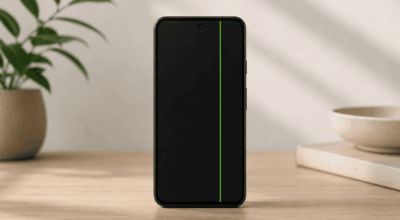
You open your MacBook and there it is: a thin white line cutting across or down the screen. No warning, no crash, just a line that was not there yesterday. The immediate instinct is to assume the worst. New display. $700 repair. But that is not always where this ends up.
A white line on a MacBook screen has a few distinct causes, and some of them are completely fixable without spending anything. The trick is figuring out which one you are dealing with before you do anything drastic. This guide walks through that process in order, from the fastest checks to the ones that confirm hardware damage.
TL;DR: A white line on your MacBook screen can come from a software glitch, a worn display flex cable, GPU trouble, or physical damage. Take a screenshot first: if the line does not appear in the screenshot, the issue is in the display hardware, not software. Then connect an external monitor to pinpoint whether the panel or the GPU is the problem. Safe Mode and NVRAM resets cover the software side. If none of that helps, you are likely looking at a display assembly repair.
⚠️ Pro Tip: Back Up Your Data First Before attempting system-level resets or handing your MacBook to a technician, ensure you have a current backup. Display issues can sometimes be symptoms of deeper logic board failures that could lead to data loss during repair. Use Time Machine or sync critical files to iCloud before proceeding.
The screenshot test: the fastest way to know what you are dealing with
Before anything else, take a screenshot. Press Shift + Command + 3 and open the file in your Downloads folder.
If the white line does not appear in the screenshot, the problem is in the display hardware itself, not the software or GPU. The screenshot captures what the system is rendering, and if the line is not in that output, it means the graphics pipeline is producing a clean image.
Something between the graphics chip and your eyes is introducing the line, which points to the panel, the display cable, or the connection at the logic board.
If the line does appear in the screenshot, software or the GPU is involved. That is actually the better scenario, because it opens up several fixes you can try yourself.
Why a white line appears: the three real causes
There are three categories worth understanding before you start troubleshooting. They look identical on screen but require completely different solutions.
Software and GPU glitches. A bad macOS update, a corrupted graphics driver, or overheating can all produce display artifacts including lines. These tend to appear suddenly, sometimes flicker, and occasionally disappear on their own. On Apple silicon Macs, restarting the machine resets low-level power management entirely, which is often enough to clear a transient glitch. On Intel models, resetting the SMC handles the same job.
The flex cable. This is a well-documented issue, particularly on MacBook Pro models from 2016 onwards. The display flex cable runs through the hinge and gets pulled taut every time you open the lid. iFixit documented the problem in detail, noting that Apple quietly made the cable 2mm longer in 2018 models to reduce the stress.
The symptom is telling: the line changes or disappears at certain lid angles. If tilting your screen forward or backward affects the line, the flex cable is almost certainly involved. Apple ran a repair program for some 2016 models but did not extend it to later machines affected by the same design flaw.
Physical damage. A drop, liquid exposure, or pressure from something left between the keyboard and the closed screen can crack the display panel without breaking the glass. These lines stay fixed regardless of lid angle, do not change with restarts, and do not show up in screenshots. There is no software path out of this one.

Connect an external monitor to isolate the source
This is the single most useful test you can run. Connect your MacBook to an external display via HDMI or USB-C and watch carefully.
If the external monitor shows a clean image with no line, the problem is isolated to the internal display, the flex cable, or the connectors. The GPU is rendering correctly. The fix, if there is one, is in the physical display path.
If the white line appears on the external monitor too, the GPU or logic board is involved. That is a more serious diagnosis, though not necessarily more expensive to fix if it turns out to be software-related on that side.
Boot into Safe Mode
Safe Mode skips third-party software and loads only the core system components. If the line vanishes in Safe Mode, something running on your Mac is causing a graphics conflict, usually a login item or an app that loads at startup.
On Apple silicon Macs: shut down completely, then hold the power button until startup options appear. Select your startup disk, hold Shift, then click Continue in Safe Mode.
On Intel Macs: shut down, then hold the Shift key while pressing the power button and release it when you see the login screen.
If Safe Mode clears the line, restart normally and go to System Settings, then General, then Login Items. Remove anything unfamiliar, restart again, and see if the line comes back. You can also check if a recent macOS update coincided with when the line appeared, as display driver issues after updates are a known trigger on both Intel and Apple silicon machines.
Reset NVRAM (Intel Macs only)
NVRAM stores display settings, screen resolution preferences, and other low-level configuration data. A corrupted value here can produce display artifacts after a crash or interrupted update. Resetting it takes about 30 seconds and changes nothing you cannot re-adjust afterward.
Shut down your Mac. Press the power button, then immediately hold Option + Command + P + R. Keep holding until you hear the startup sound a second time, then release and let the Mac boot normally.
On Apple silicon Macs, NVRAM is reset automatically during every restart. A standard shutdown and reboot covers it, so there is no separate key combination needed.
The lid angle test for flex cable damage
Open your MacBook and slowly move the screen through its full range of angles, from nearly closed to fully open. Watch the line as you do this.
If the line shifts, flickers, or disappears at certain positions, the flex cable running through the hinge is damaged or has a loose connection. This is consistent with what users in Apple Community discussions have reported for years on multiple MacBook Pro models: lines that appear at 90 degrees but vanish at 45, or vice versa.
The cable is integrated into the display assembly on modern MacBooks, meaning the cable itself cannot be replaced separately. The repair involves replacing the entire display.

When to stop troubleshooting and get it repaired
If Safe Mode did not help, the screenshot confirmed the line is in the hardware, the external monitor test pointed to the internal display, and the lid angle test confirmed flex cable movement, the next step is professional service. There is no software path forward at that point.
Check your warranty status first. Machines under AppleCare+ may have display repairs covered depending on whether the damage is classified as a defect or accidental. It is worth the call before paying out of pocket. Authorized service providers can run Apple Diagnostics, which generates specific reference codes that identify whether the GPU, logic board, or display assembly is flagged as faulty.
If you are out of warranty and the machine is older, a display issue like a white dot on MacBook screens follows the same diagnostic logic. The pattern is always the same: software first, hardware second, professional repair last.
Frequently Asked Questions
Below are common questions people have about white lines on MacBook screens.
Why did a white line suddenly appear on my MacBook screen with no warning?
It can happen for a few reasons. A macOS update that installs new graphics drivers sometimes triggers display artifacts on both Intel and Apple silicon machines. Overheating can also cause temporary lines that clear once the machine cools down. A flex cable that has been slowly degrading for months might finally reach a threshold where the line becomes visible. The sudden appearance does not always mean sudden damage.
If the white line only shows up at certain screen angles, is it definitely the flex cable?
That is the strongest indicator, yes. When the line changes with lid position, it almost always means a cable connection is being stressed or relieved as the hinge moves. It does not prove the cable is fully broken yet, but it means the connection is no longer reliable. In most cases the issue gets worse over time as the cable continues to wear.
Can a software update fix a white line on a MacBook screen?
If the line appears in a screenshot and disappears in Safe Mode, yes. macOS updates occasionally include display driver fixes that clear these kinds of artifacts. If the line does not appear in a screenshot and does not respond to Safe Mode, the cause is hardware and a software update will not help.
Does AppleCare+ cover a white line on the MacBook screen?
It depends on the cause. Manufacturing defects and display failures that are not caused by accidental damage are generally covered under AppleCare+ at no extra cost. Damage from drops or pressure is classified as accidental and covered with a service fee. If you are not sure which category your situation falls into, the safest move is to contact Apple Support and describe the symptom before assuming anything about cost.
How much does it cost to repair a white line on a MacBook screen?
Display assembly replacements for MacBook Pro models typically range from around $400 to $800 at Apple, depending on the model and year. Third-party repair shops tend to charge less, often in the $200 to $500 range, but quality and warranty on the replacement parts can vary. Some 2016 MacBook Pro models affected by the Flexgate issue were covered under Apple’s display backlight service program, though that program had model-specific eligibility and expiration dates.
Repair prices fluctuate based on your region and specific model technology (like Liquid Retina XDR vs. standard LCD). Here is a general breakdown:
MacBook Air (M1-M3): $350 – $500
MacBook Pro 14″/16″ (Mini-LED): $700 – $900+
Third-Party Repairs: Often $150–$200 cheaper, but part quality varies.
Note: Always ask for a “flat-rate” diagnostic quote to confirm local pricing.