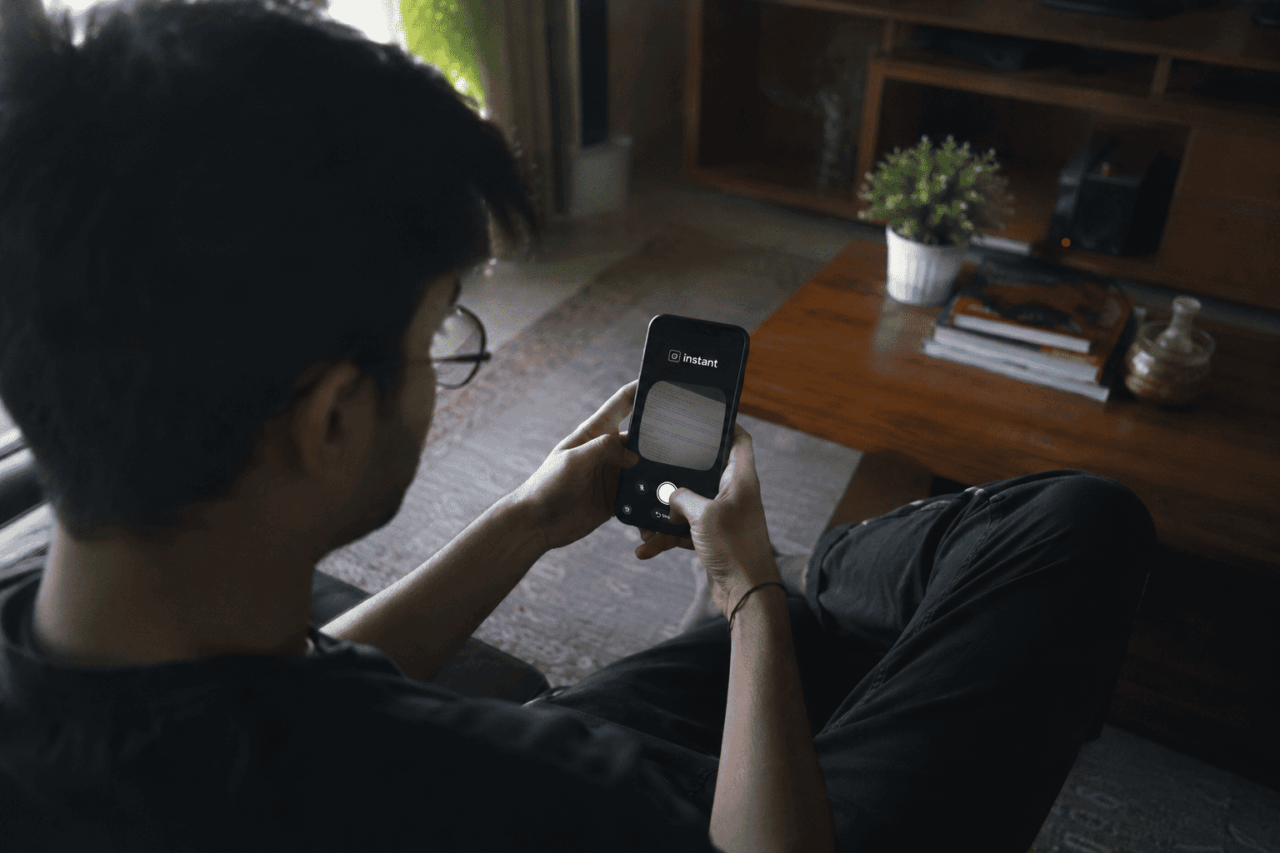
The most common complaint about Instagram Instants is not that the feature exists, it is that the first time people try it, the photo goes out before they expected it to.
The shutter fires, the image sends immediately, and the Undo button appears below the camera for a brief window before it is too late. Understanding how Instagram Instants works before you open it saves that experience entirely.
TL;DR: Open Instants from the small photo stack icon in the bottom-right of your Instagram inbox. Choose Close Friends instead of Friends before shooting to limit your audience. Tap Undo immediately after sending if you want to retract the photo. To stop receiving Instants, go to Profile, then Settings, then Content Preferences, and toggle Hide Instants in Inbox.
How to access Instagram Instants
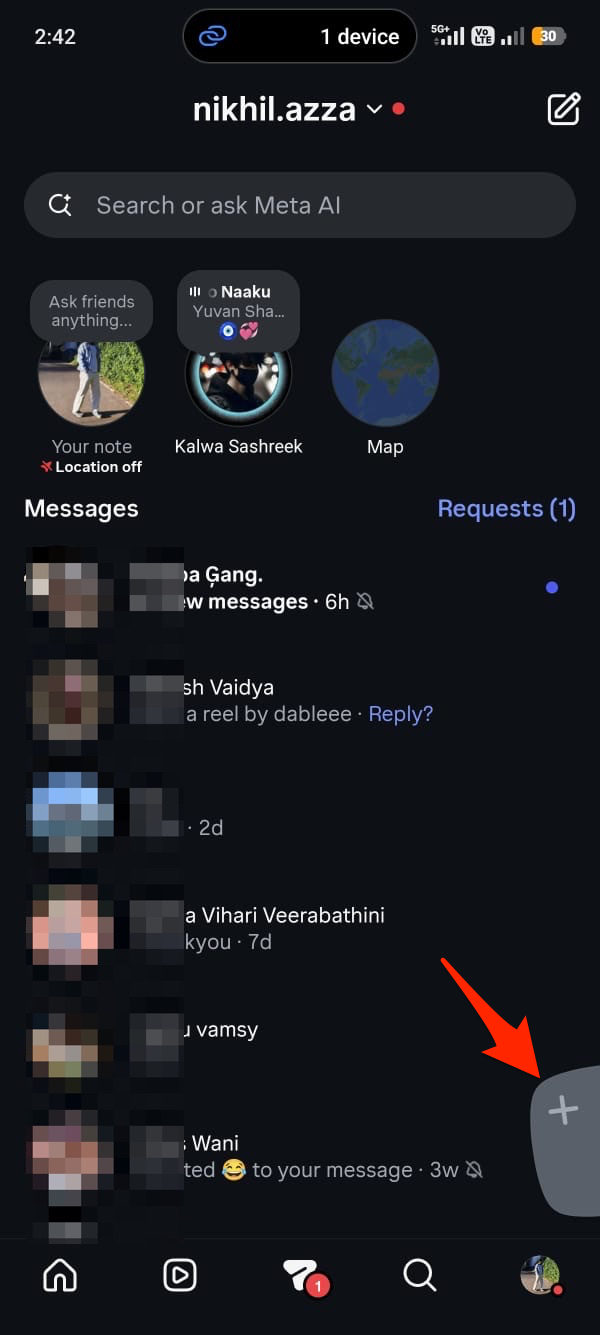
Instants lives inside your DM inbox, not on the main Instagram feed or Stories bar. Open Instagram on Android or iPhone and tap the paper plane icon at the top right to open your messages. In the bottom-right corner of the inbox screen, you will see a small stack of photos. Tap it and the Instants camera opens immediately.
The first time you access it, Instagram shows a short tutorial explaining that photos disappear after being viewed and that reactions and replies are private. Read through it. The tutorial does not, however, make clear that the shutter button sends immediately to your audience with no preview step. That is the part most users miss.
Choosing who sees your Instants
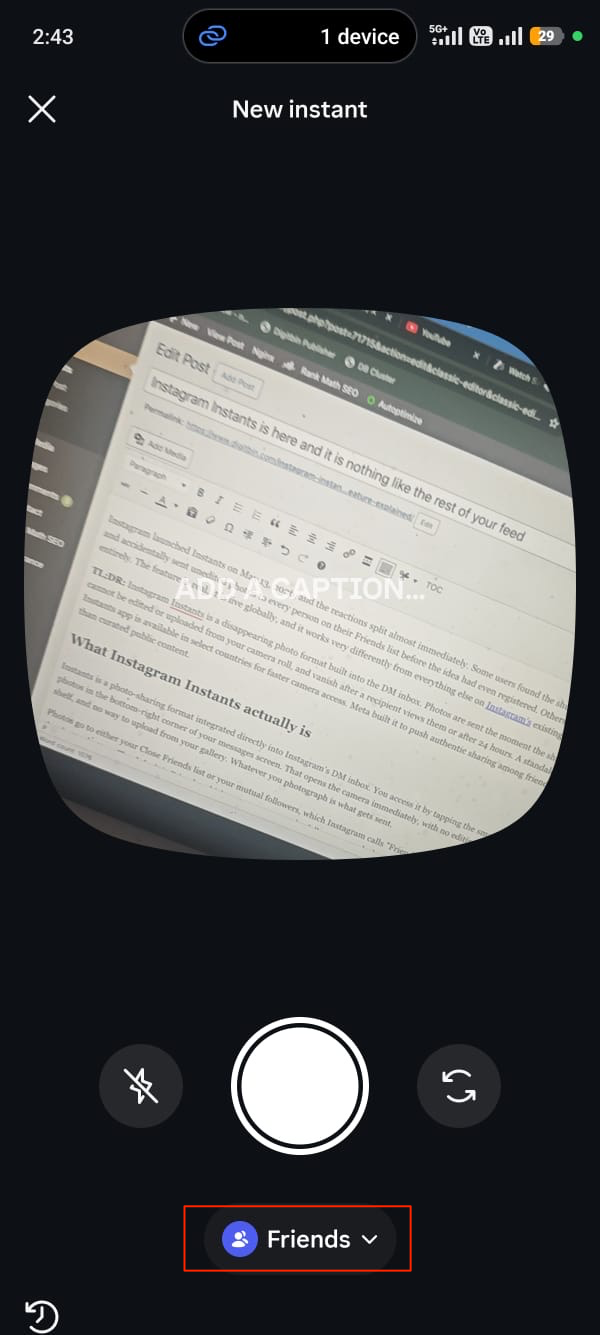
Once the camera is open, look below the white shutter button. There is a toggle with two options: Friends and Close Friends. Friends means every mutual follower, anyone who follows you and who you follow back. On an account with a few hundred followers, that can be a large and mixed group. Close Friends is your curated list, the same one used for Stories. If you have not set up a Close Friends list yet, Instagram will prompt you to create one.
Change this toggle before you shoot, not after. The setting does not carry over between sessions by default, so check it each time you open Instants. Shooting on Close Friends first and switching to Friends if you want broader reach is a safer habit than the reverse.
After you shoot, recipients receive the photo in their own inbox photo stack. They can react with an emoji or send a reply directly to your DMs. The platform blocks both on iOS and Android.
| Action | How |
|---|---|
| Open Instants | DM inbox, tap photo stack at bottom-right |
| Choose audience | Toggle below shutter: Friends or Close Friends |
| Send a photo | Tap the white shutter button |
| Undo a send | Tap Undo below the shutter immediately after |
| Delete from archive | Four-box icon, top-right of camera, then Delete |
| Pause incoming Instants | Hold photo stack in inbox, swipe right |
| Disable fully | Profile, Settings, Content Preferences, Hide Instants in Inbox |
How to undo or delete an Instant
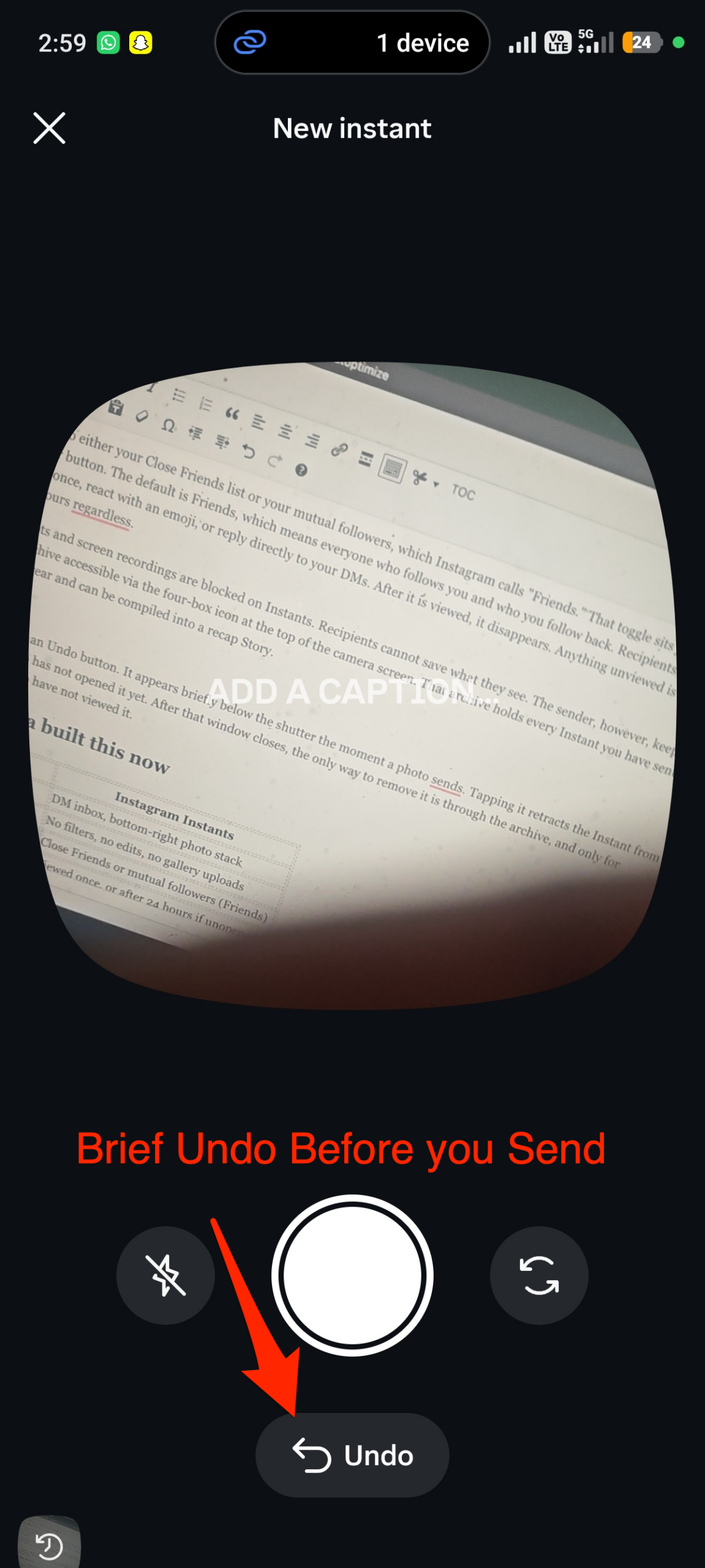
The Undo button appears directly below the shutter button for a short window after a photo sends. Tap it immediately and the Instant is retracted from everyone who has not opened it yet. This is your fastest option and the only one that works in real time.
If the Undo window has already closed, go to your archive. Tap the icon in the bottom-left corner of the Instants camera. This shows every Instant you have sent. Tap any entry and select Delete to unsend it, but only for recipients who have not yet viewed it. Once someone has opened an Instant, it cannot be removed from their experience.
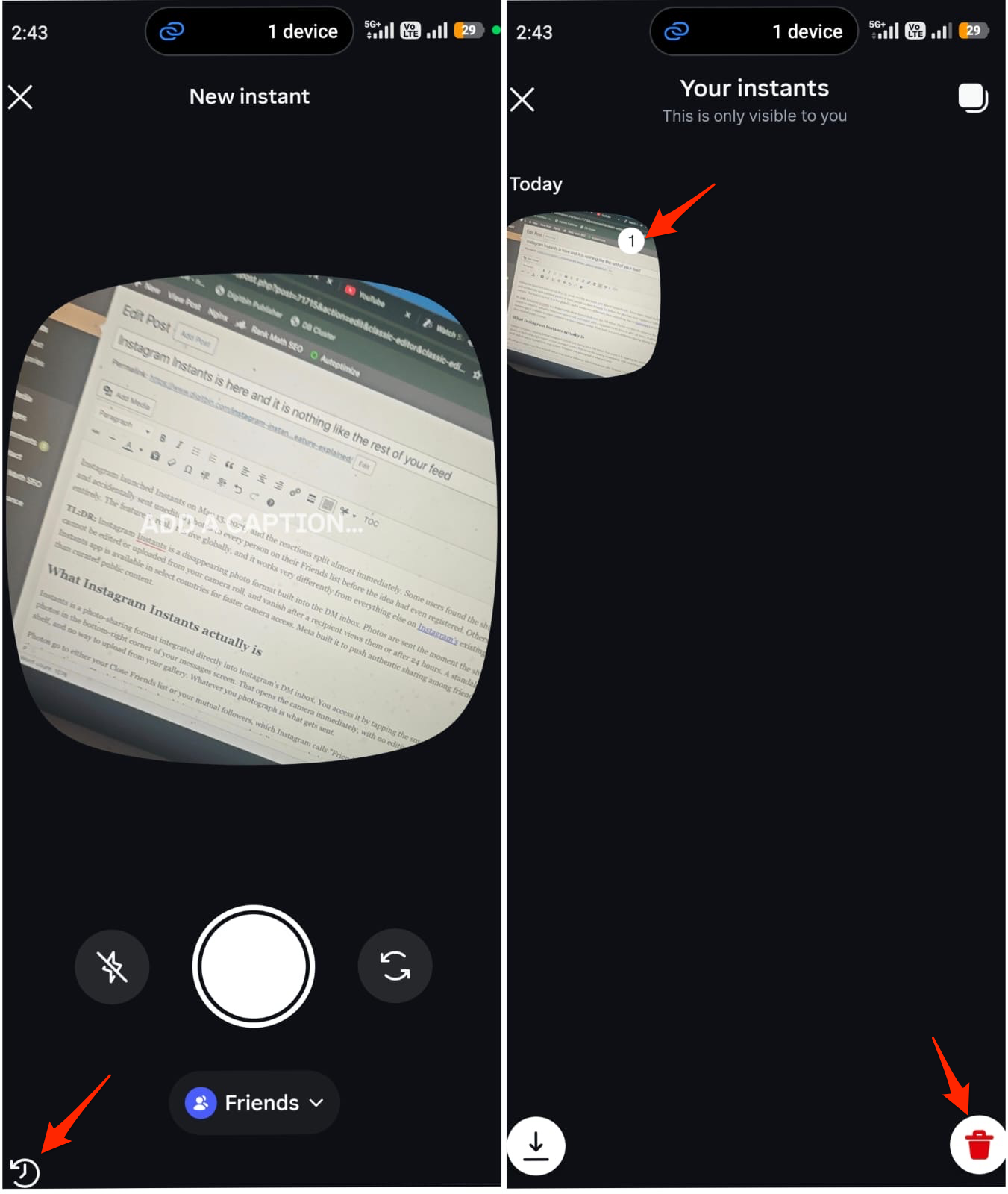
The archive holds your sent Instants for up to one year and is private to you. You can also use archived Instants to create a recap, which compiles older photos into a single Story post on your main feed.
How to temporarily pause or fully disable Instants
If you want to stop receiving Instants without turning the feature off permanently, press and hold the photo stack in your inbox and swipe right. This snoozes incoming Instants from your connections without removing the feature from your app. Swipe left on the same area to resume.
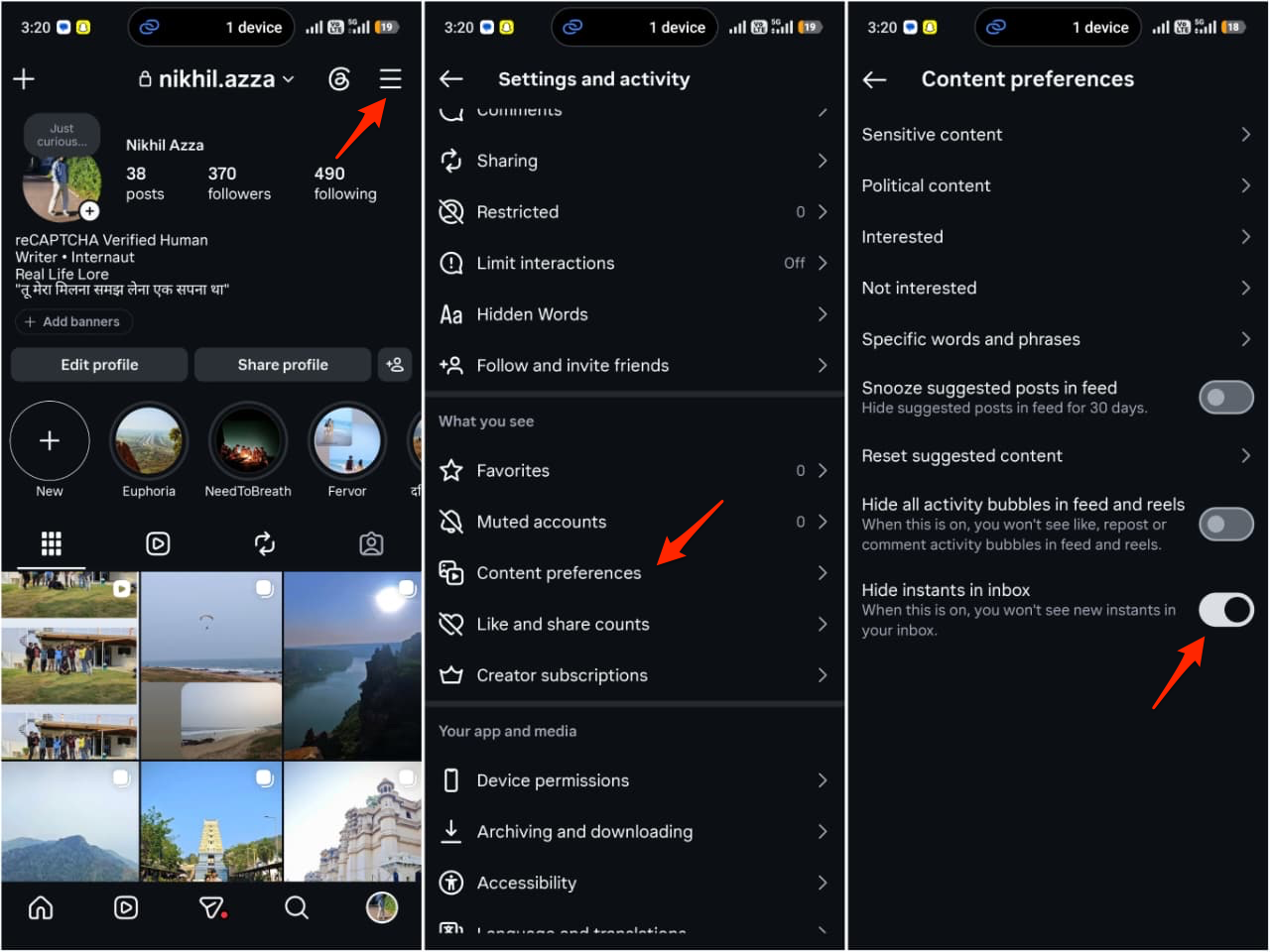
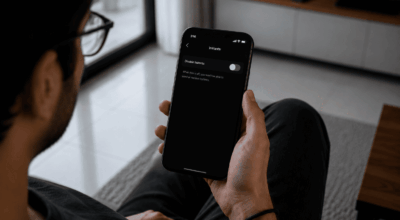
To disable Instants completely on Android or iPhone, go to your Instagram profile by tapping your avatar in the bottom-right corner of the main screen. Tap the three horizontal lines at the top right to open the menu, then go to Settings. Scroll down to Content Preferences and toggle on Hide Instants in Inbox. Once that is active, the photo stack disappears from your inbox and you will not see any Instants others send you either.
Frequently Asked Questions
Can I add a caption to an Instant?
Yes. Instants allows you to add a text caption before sending. You cannot apply filters, stickers, or other editing tools.
Does the Close Friends toggle carry over between sessions?
No. The audience toggle resets between sessions. Check that it is set to Close Friends before shooting each time if you want to limit your audience.
What happens if I close the app before tapping Undo?
The Undo window closes with the session. If you close the app before tapping Undo, the photo has already been sent. You can still delete it from the archive before any recipient opens it.
Can I use Instants if the standalone app is not available in my country?
Yes. The standalone Instants app is only in Spain and Italy currently, but the feature is live inside the Instagram DM inbox globally for all users.
What the standalone Instants app changes
Meta is testing a separate Instants app in Spain and Italy for users who want faster camera access. It logs in with your existing Instagram account and opens directly to the camera, skipping the inbox entirely. Photos you take in the standalone app appear as Instants for your friends inside Instagram’s DM inbox, and any Instants they send you appear inside the standalone app as well.
If you are outside Spain and Italy, the standalone app is not yet available. The in-app version through your Instagram inbox is the only access point for now. The Undo, archive, audience toggle, and all other controls work identically in both versions.