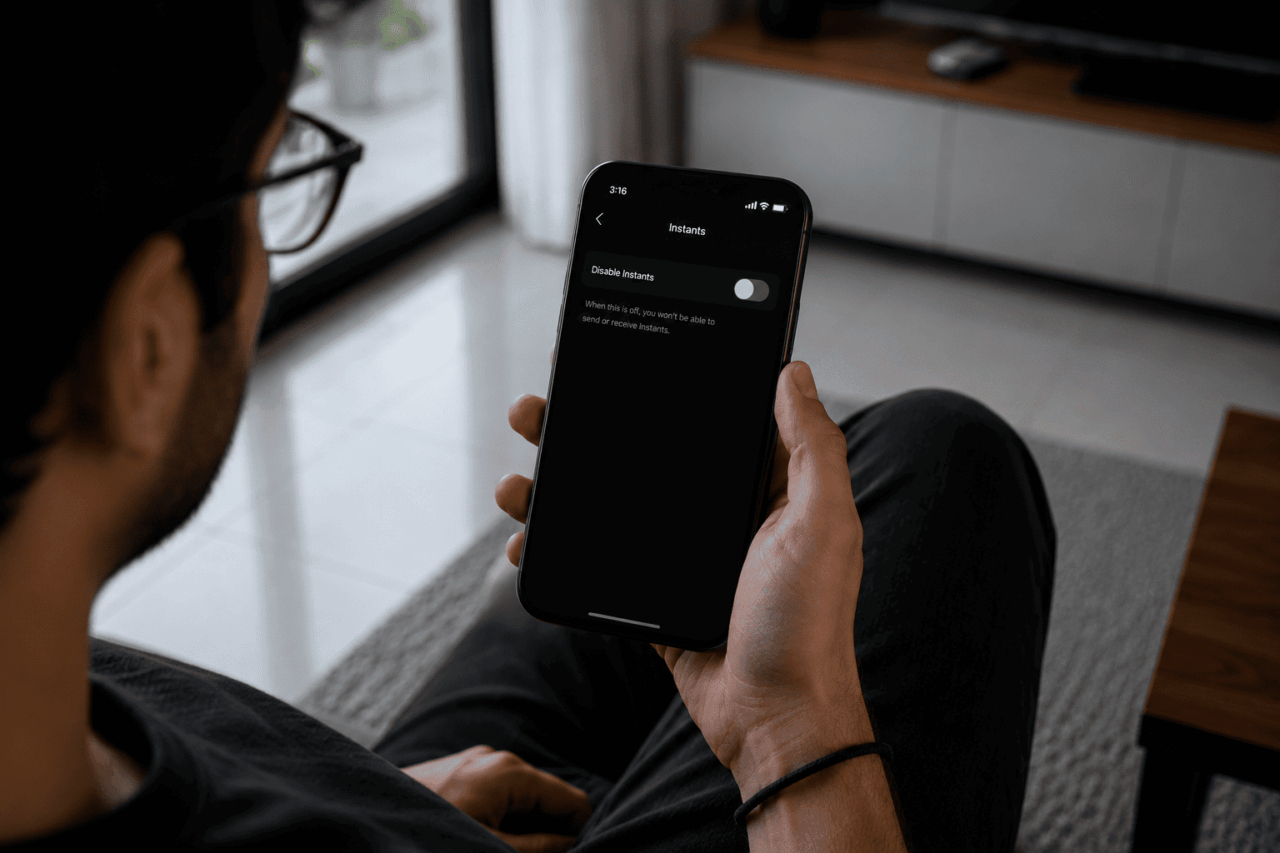
Instagram Instants launched on May 13, 2026 and within hours, the top search around it was not how to use it but how to turn it off. The feature sends photos immediately when you tap the shutter with no preview and no confirmation, and a significant number of users discovered this by accidentally sharing an unedited photo with their entire Friends list.
If that happened to you, or if you just do not want the feature taking up space in your inbox, the disable process is straightforward once you know where to look.
TL;DR: To turn off Instagram Instants, go to your profile, tap the three-line menu, open Settings, scroll to Content Preferences, and toggle on Hide Instants in Inbox. To temporarily pause it, press and hold the photo stack in your inbox and swipe right. To unsend an accidental photo, tap Undo immediately after sending or delete it from your archive before the recipient opens it.
How to fully disable Instagram Instants on Android and iPhone
Disabling Instants completely removes the photo stack from your DM inbox and stops all incoming Instants from other users. The steps are identical on Android and iPhone.
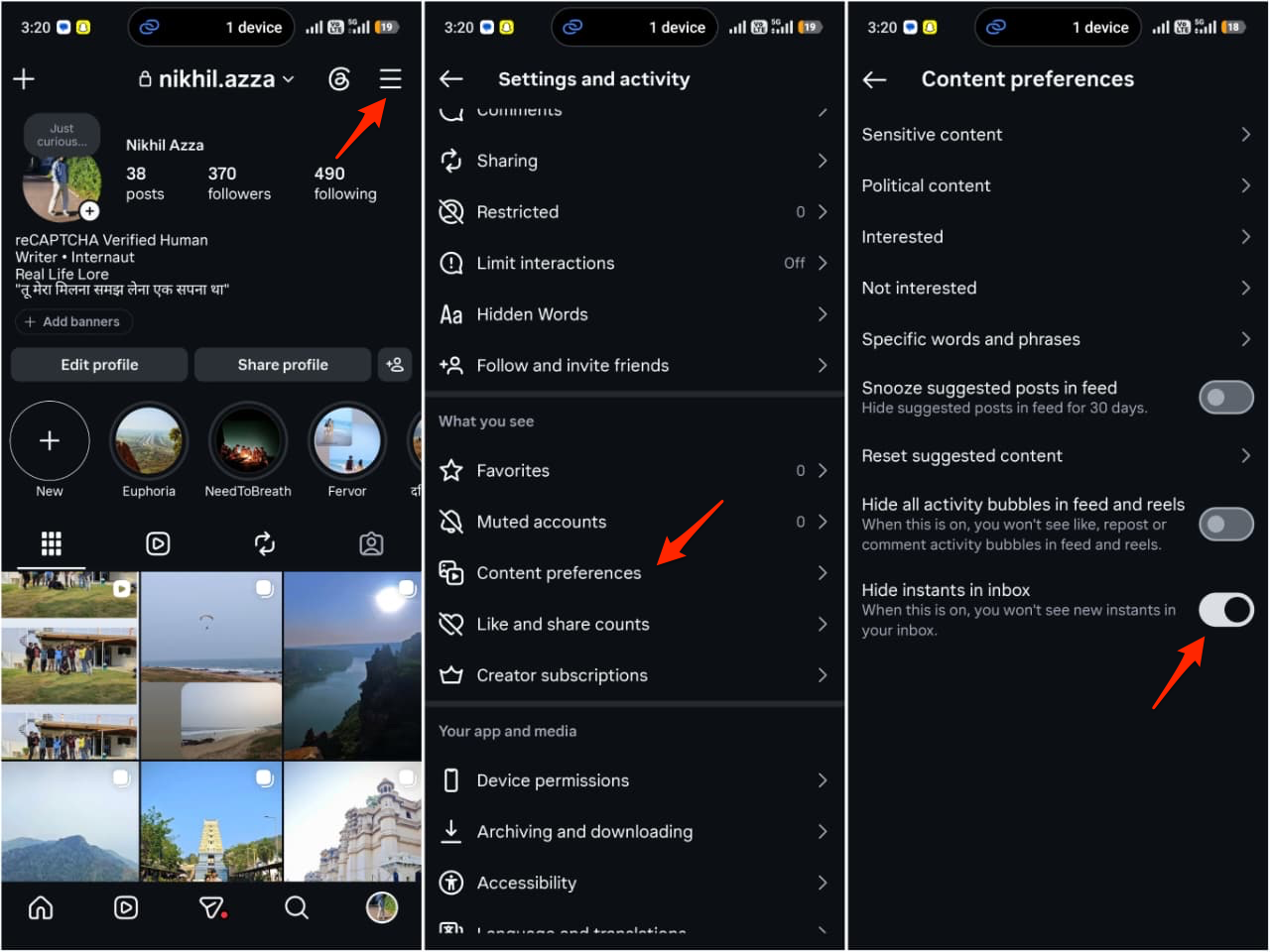
Step 1: Open Instagram and tap your profile avatar at the bottom-right of the main screen.
Step 2: Tap the three horizontal lines at the top-right corner to open the menu.
Step 3: Scroll down and tap Settings.
Step 4: Scroll to Content Preferences.
Step 5: Toggle on Hide Instants in Inbox.
The photo stack disappears from your inbox immediately and incoming Instants from others will no longer appear.
Toggling this setting also hides any Instants already queued in your inbox from people who sent them before you disabled the feature. You will not lose your own sent archive; it remains accessible if you re-enable the feature later.
| Goal | Steps | Result |
|---|---|---|
| Disable Instants fully | Profile, three-line menu, Settings, Content Preferences, Hide Instants in Inbox | Photo stack removed from inbox |
| Snooze temporarily | Hold photo stack in inbox, swipe right | Incoming Instants paused |
| Resume after snooze | Swipe left on same inbox area | Instants reappear in inbox |
| Undo accidental send | Tap Undo below shutter immediately after send | Photo retracted before opened |
| Delete from archive | Four-box icon, top-right of camera, then Delete | Unsent for unopened recipients |
How to temporarily snooze Instants
If you want a break from Instants without disabling the feature entirely, the snooze option is faster than navigating into Settings. Open your DM inbox and find the photo stack icon in the bottom-right corner. Press and hold it, then swipe right. Incoming Instants from your connections stop appearing immediately.
To bring Instants back, swipe left on the same area in your inbox. This temporary pause is useful if you do not want your inbox filling with photos during a busy stretch but you still plan to use the feature later. It does not affect your own ability to send Instants; only incoming ones are paused.
You can also mute or block specific people without turning off Instants globally. From inside the Instants camera, tap the person icon or find the contact in your inbox to access those options. This is more useful if one or two specific people are flooding your stack rather than the feature itself being the problem.
How to unsend an accidental Instant
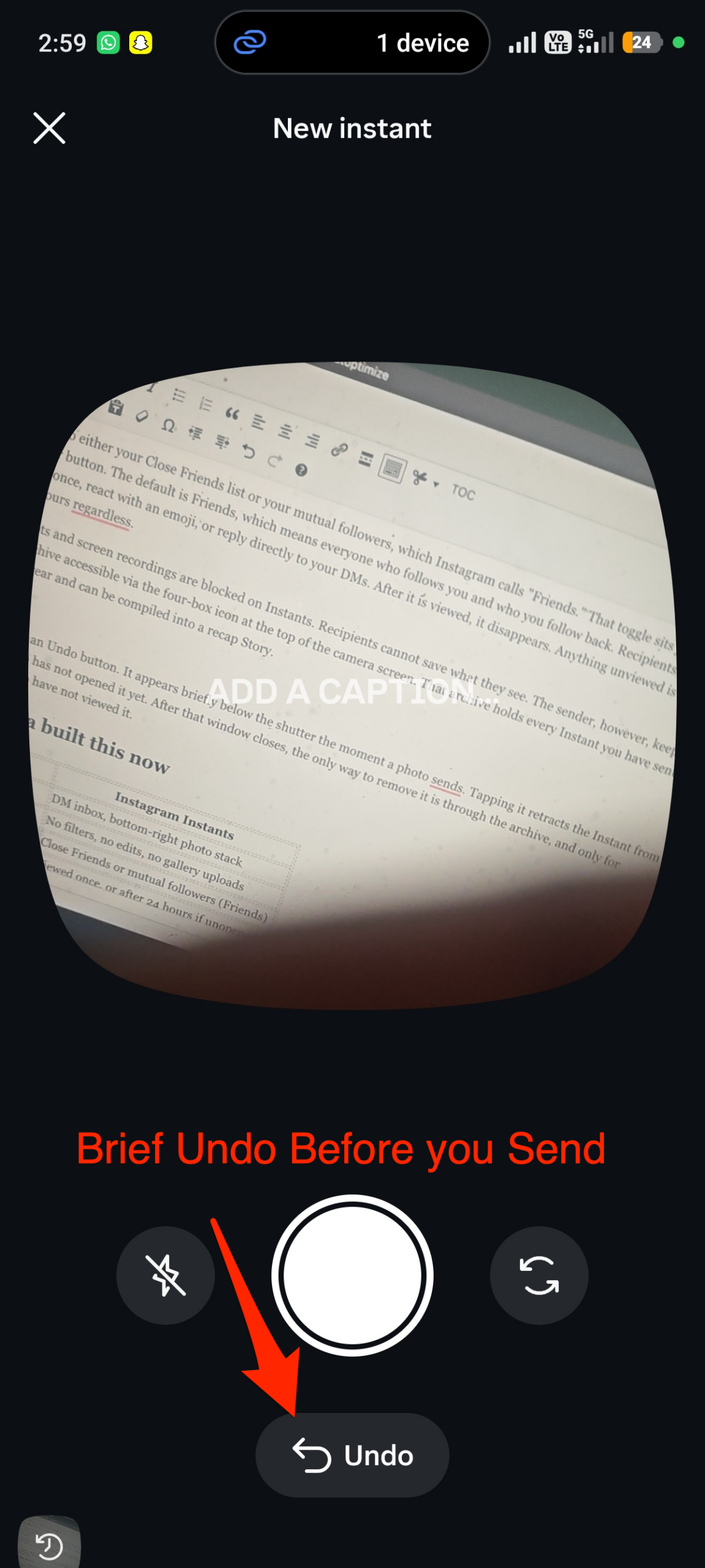
The fastest recovery option is the Undo button. Immediately after a photo sends, a small Undo option appears below the shutter button for a short window. Tapping it pulls the Instant back from everyone on your recipient list who has not opened it yet. This is the only real-time option, and it closes quickly, so act on it the moment you see it.
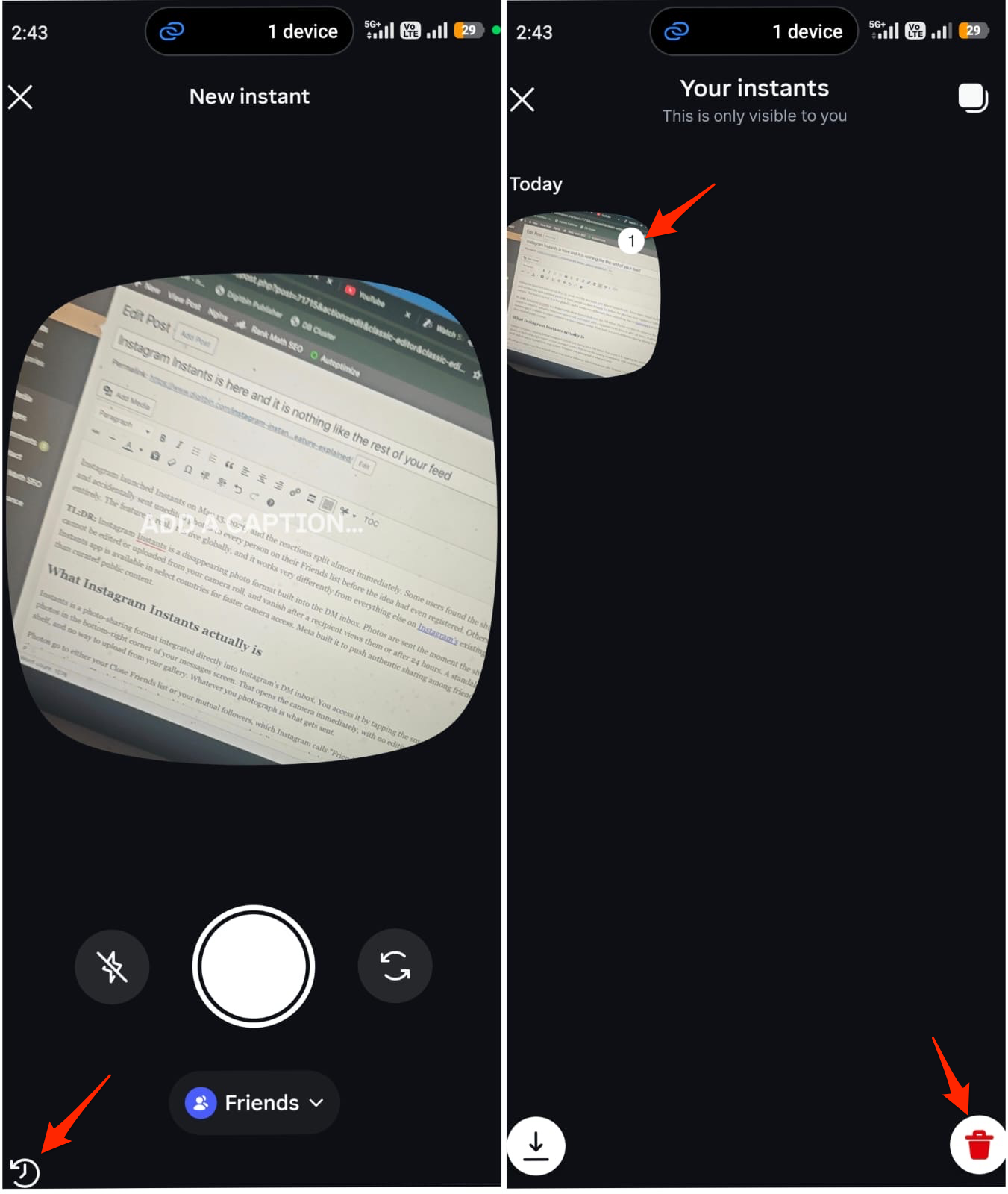
If the Undo window has closed, open the Instants camera and tap the four-box icon in the top-right corner to access your sent archive. Find the photo you want to remove, tap it, and select Delete. This unsends it for anyone who has not yet viewed it. Once a recipient has opened the Instant, the photo cannot be retrieved or removed from their experience.
The archive retains your sent Instants for up to one year and is private to you. Nobody else can access it unless they have already opened the specific Instant you sent them. Deleting from the archive removes future access for unopened recipients only.
Frequently Asked Questions
Does disabling Instants delete my archive?
No. Your sent archive is preserved even when the feature is hidden. If you re-enable Instants later, your archived photos are still accessible via the four-box icon.
Can I stop one specific person from sending me Instants?
Yes. You can mute or block specific users from inside the Instants camera without disabling the feature entirely for everyone else.
What if I cannot find Content Preferences in Settings?
Make sure you are on the latest version of Instagram. The Hide Instants in Inbox toggle is inside Settings, then Content Preferences, and may not appear on older app versions.
Does the Undo option work after someone has already seen the photo?
No. Undo only retracts an Instant from recipients who have not yet opened it. Once viewed, the photo cannot be removed from that recipient’s experience.
If I delete an Instagram Instant from my archive, will it be deleted for everyone?
Deleting from your archive removes it for recipients who have not opened it yet. If they have already viewed it, the delete only affects your side. Either way, the photo is already gone from their inbox since Instants vanish after a single view.
Why so many people needed this guide
The root issue is the audience default combined with the instant-send mechanic. When you open Instants for the first time, the toggle below the shutter is set to Friends, meaning every mutual follower on your account. On most accounts, that group includes coworkers, acquaintances, family, and people you barely know alongside your close circle.
The tutorial that appears on first open explains how photos disappear and how reactions work. It does not explain that the shutter fires immediately with no confirmation step. For users who have spent years carefully curating their Instagram presence before posting anything, this is a jarring departure. The gap between expectation and actual behavior is where most accidental sends happen.
Switching the toggle to Close Friends before shooting is the simplest prevention. If you do not have a Close Friends list set up yet, building one before using Instants is worth the five minutes. It keeps your photos going to the people you actually intend to share with rather than the full mutual follower pool.