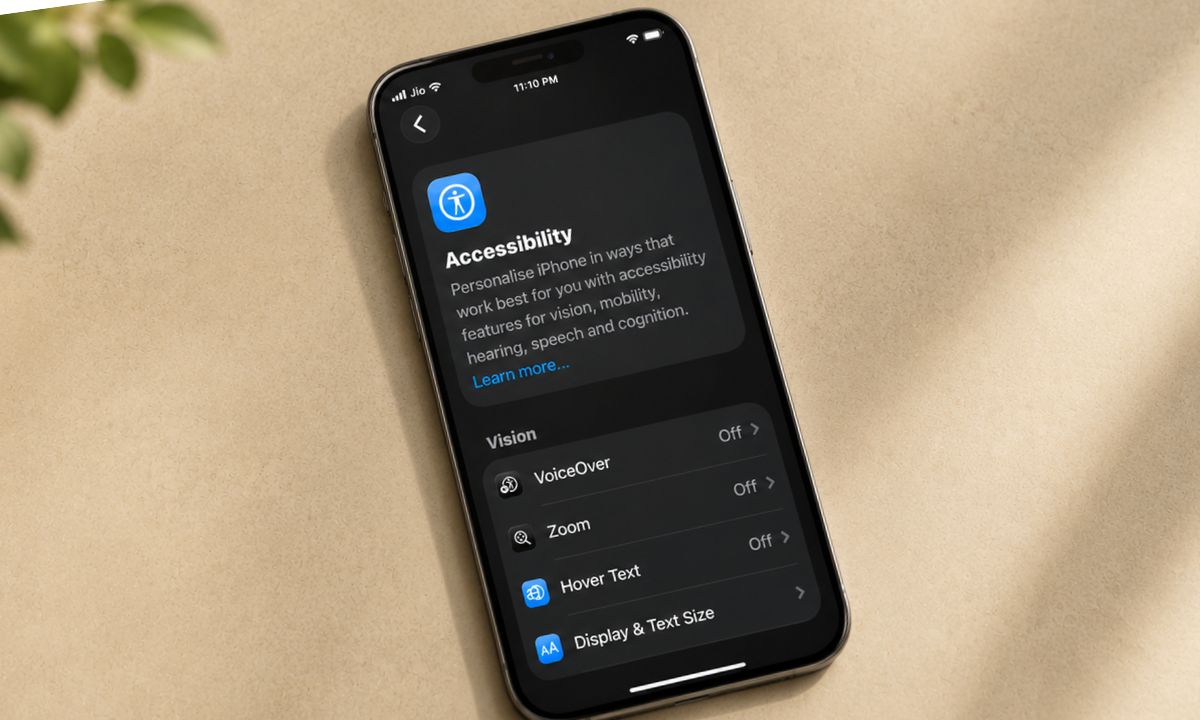
I do not have a hearing or vision condition that would normally send me into the Accessibility menu on my iPhone. I went in anyway and turned on four settings buried under Accessibility that I had scrolled past for years.
I enabled those iPhone accessibility settings and left them running for two weeks to see what actually changes about a normal day when you stop treating that menu as something meant for a special use case.
TL;DR: Back Tap, Sound Recognition, Flash for Alerts, and Door Detection in Magnifier all live under iPhone’s Accessibility settings, and none of them require a disability to be useful. Two weeks of actually using them left Back Tap and Sound Recognition’s smoke alarm alert running by habit, Flash for Alerts on for meeting heavy days, and Door Detection turned back off because it solved a problem that did not exist for me.
Back Tap turned into a shortcut I forgot I had set up
Back Tap lives under
- Settings > Accessibility > Touch
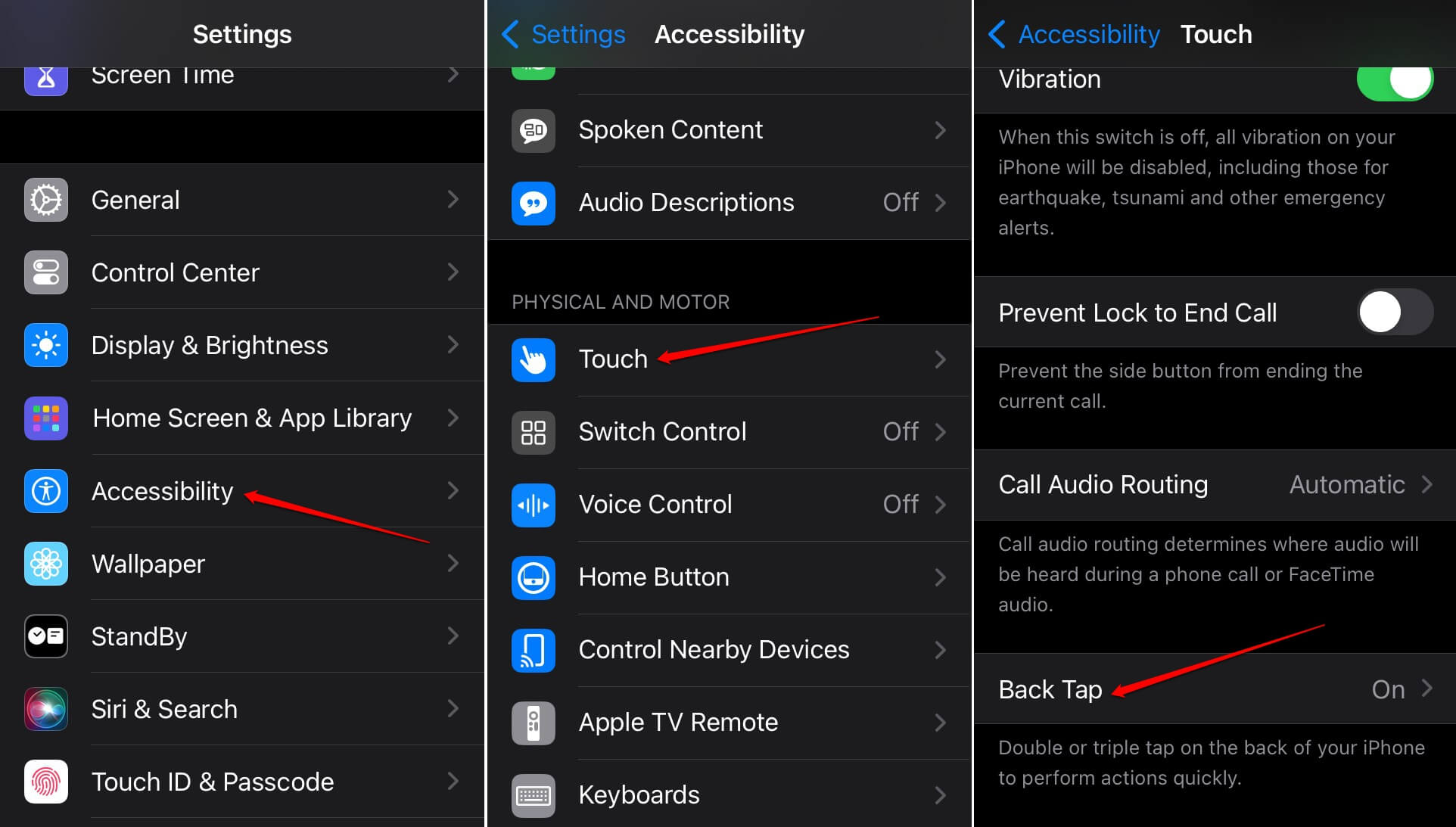

- Back Tap > Double Tap/Triple Tap
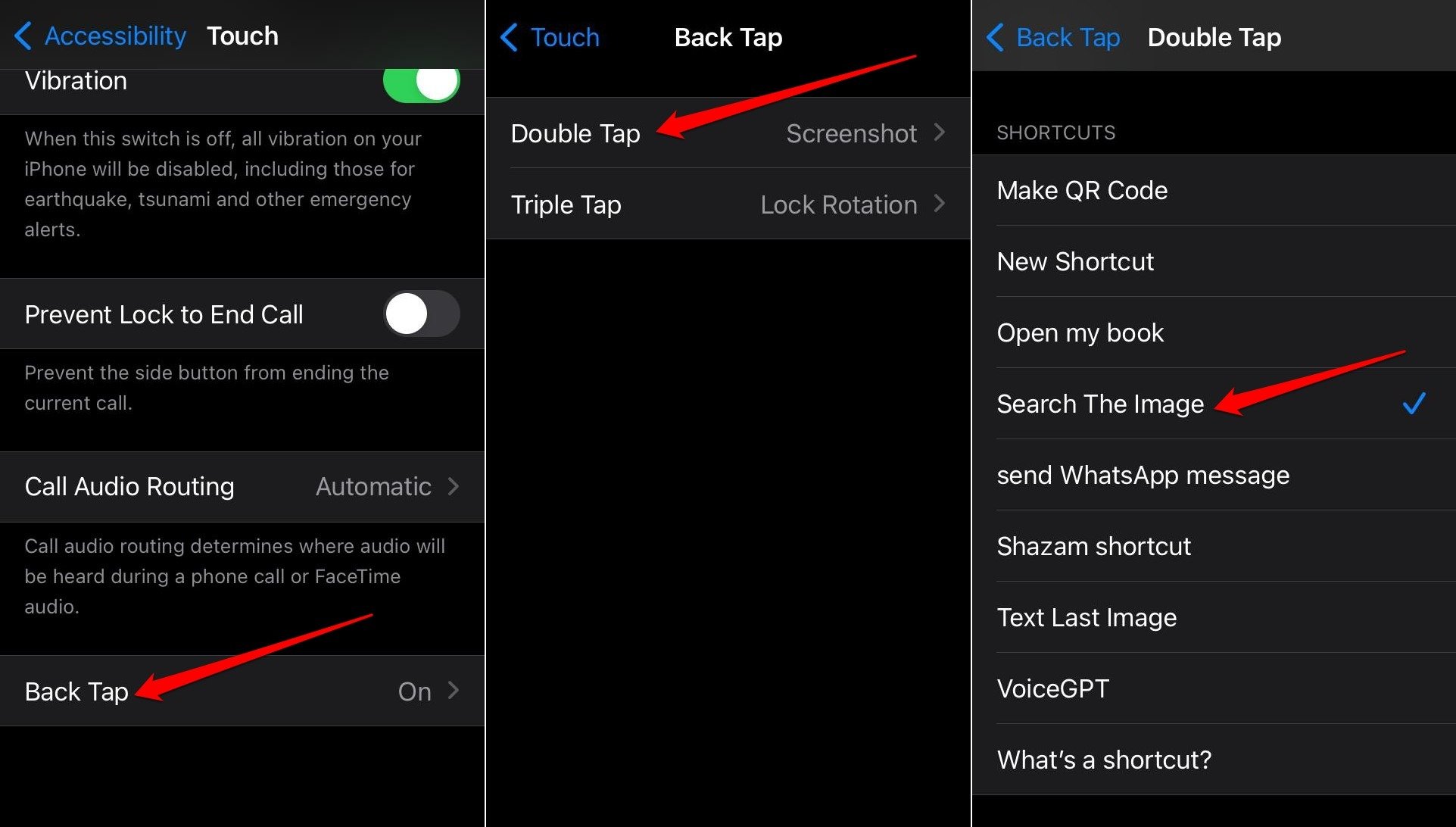

Back Tap setting lets a double tap or a triple tap on the back of the phone trigger an action. It could be for capturing a screenshot, accessing Control Center, using AssistiveTouch, or running a Shortcut.
Each gesture is assignable to a different action, according to Apple. I set double-tap to screenshot mostly to test whether I would even remember it existed a week later.
I did remember the settings, just not on purpose. I soon started tapping the back of the phone before I consciously decided to take a screenshot. It is like forming a habit without you noticing the exact day it started.
By the second week, I was reaching for it in situations that had nothing to do with why I set it up, mostly to open Control Center one-handed while the other hand was doing something else entirely.
Sound Recognition noticed my dog before I did
| Feature | Settings path | Requirement |
|---|---|---|
| Back Tap | Settings, Accessibility, Touch, Back Tap | Any current iPhone |
| Sound Recognition | Settings, Accessibility, Hearing, Sound Recognition | None, processes locally |
| Flash for Alerts | Settings, Accessibility, Hearing, Audio and Visual, Flash for Alerts | Screen flash needs iOS 26.2 or later |
| Door and people detection | Magnifier app, Settings, Detect | iPhone Pro or Pro Max, 12 Pro or newer |
Here is how to access Sound Recognition.
1. Open Settings > Accessibility > Hearing Control Center
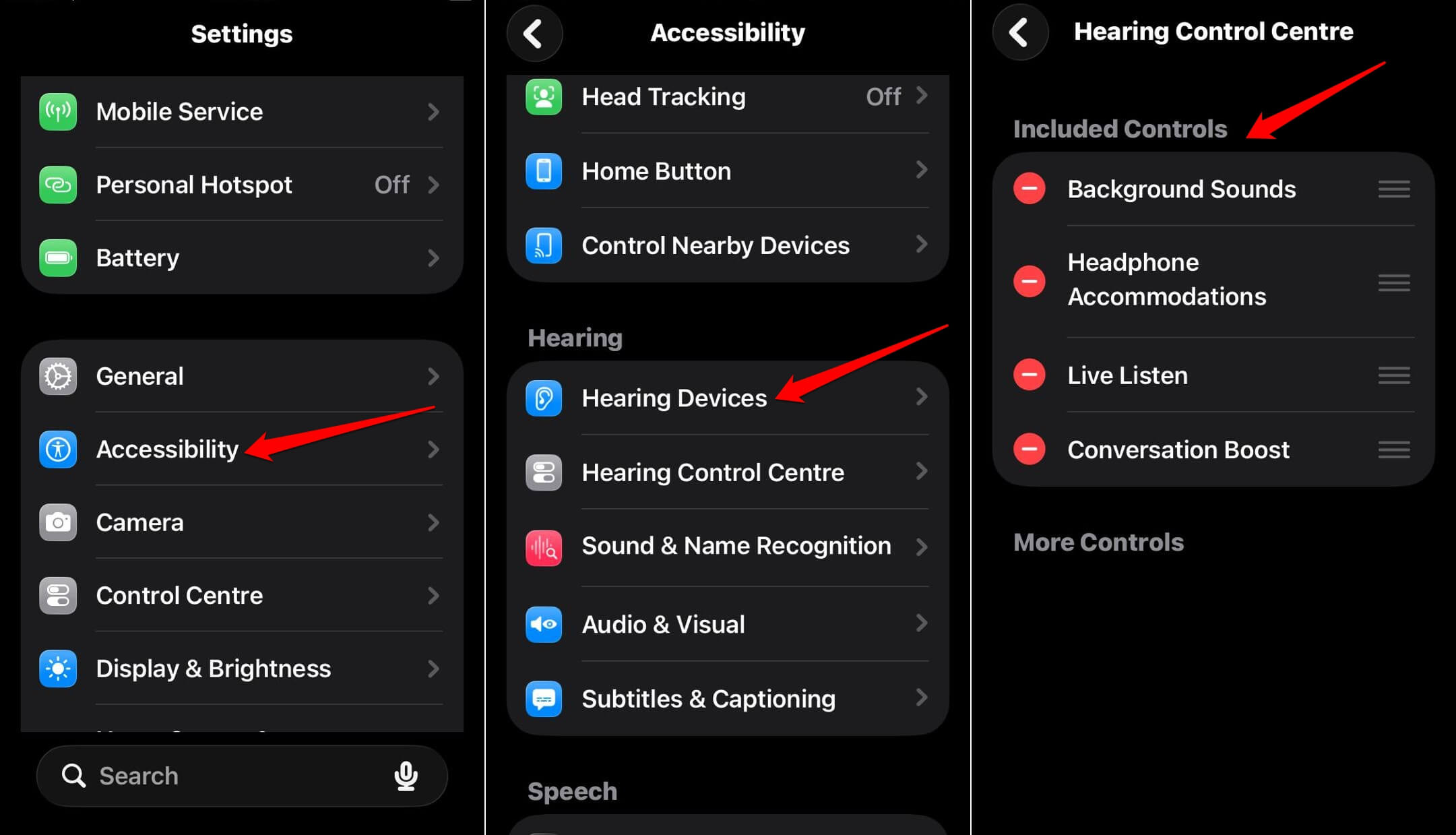
Once turned on, it listens locally on the device for categories like doorbell, smoke alarm, siren, dog barking, and baby crying, sending a notification the moment it hears one.
All of the information is processed on the phone rather than sent anywhere, a quieter privacy pattern than some of the other iOS 26 privacy features I have tested.
I turned on dog barking mostly as a joke; my dog is loud, and I am rarely more than a room away from her. The notification still beat my own reaction twice that week, once when I had headphones in and once when I was just distracted enough not to register the sound consciously until the phone told me about it half a second later.
The smoke alarm category is the one I kept for a different reason. It is not something I expect to ever need, and that is exactly why it stayed on, a background process I do not think about until the one day it matters.
Flash for Alerts stopped being just for phone calls once I added the screen
The older version of Flash for Alerts only flashed the rear camera LED when the phone was locked. iOS 26.2 added a second option: flashing the front screen itself.
This setting can be found by going to
- Settings app > Accessibility > Audio and Visual
- Go to Flash for Alerts, where you can choose LED, screen, or both.
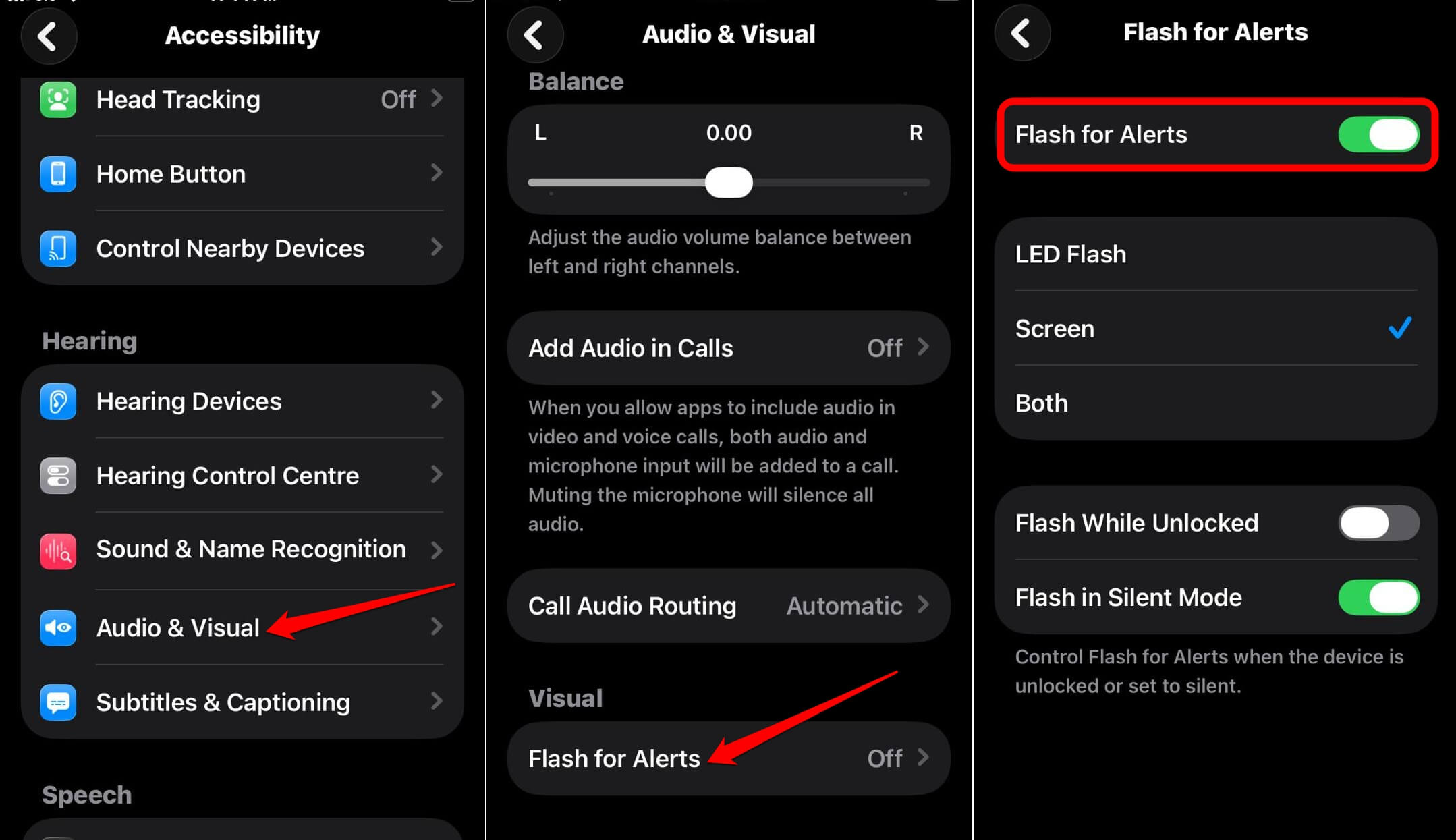

There is also a toggle for whether it fires in silent mode.
I turned on screen flash specifically for a week when I sat through back-to-back meetings with the phone face up on the table, sound off.
The flash caught my eye in peripheral vision in a way a silent notification badge never had, before I consciously registered I was looking at the phone at all. I noticed the silence of missed notifications before I noticed how many I was actually catching now.
Door Detection is the one I could not keep using
Detection Mode inside the Magnifier app can identify doors and people nearby, but it only works on iPhone Pro and Pro Max models from the 12 Pro onward, since it leans on the LiDAR sensor those models carry.
Turning this feature on requires
- Opening Magnifier > tapping Settings > Detect
- Enabling it to show in Control Panel.
- Holding the Detect button to choose people or doors.
Walking down a hallway with it running, the phone vibrated and described a doorway I was already looking directly at, the pitch of the sound rising as I got closer, the way a proximity sensor would. It was accurate.
It was also more information than I needed for a hallway I already knew, and I turned it off within two days, not because it failed but because my own eyes were already doing that job well enough that the extra layer felt like noise instead of help.
Apple’s own guidance is blunt about this too. The feature is explicitly not meant to be relied on in high-risk situations or for actual navigation, which matched how it felt in practice: useful context rather than something to trust blindly.
Frequently Asked Questions
Do I need a disability to use iPhone accessibility features?
No. Features like Back Tap, Sound Recognition, and Flash for Alerts work for anyone and do not require any diagnosis to turn on.
Where do I find Back Tap on iPhone?
Go to Settings > Accessibility > Touch > Back Tap. Within that, Double Tap and Triple Tap can each trigger a different action.
Does Sound Recognition send audio to Apple?
No. It listens and processes sound entirely on the device rather than sending anything to Apple’s servers.
What is new about Flash for Alerts in iOS 26.2?
It adds a front screen flash option alongside the older rear LED flash, so notifications can be seen no matter which way the phone is facing.
Does Door Detection work on every iPhone?
No. It requires an iPhone Pro or Pro Max from the 12 Pro onward because it relies on the LiDAR sensor.
What iPhone accessibility setting actually stuck after two weeks
Two of the four made it past the two-week mark without me deciding to keep them: Back Tap and Sound Recognition’s smoke alarm category. Both settled into the background without asking for attention again.
Flash for Alerts came and went depending on whether I had a meeting-heavy day. Door Detection is off, not because it does not work, but because I never needed the thing it was built to solve. If you want a broader pass through the rest of iOS beyond accessibility, an iPhone settings worth changing guide covers the rest of it.
None of this required a disability to find useful; it just required actually opening a menu most people scroll past on the assumption it was not built for them.