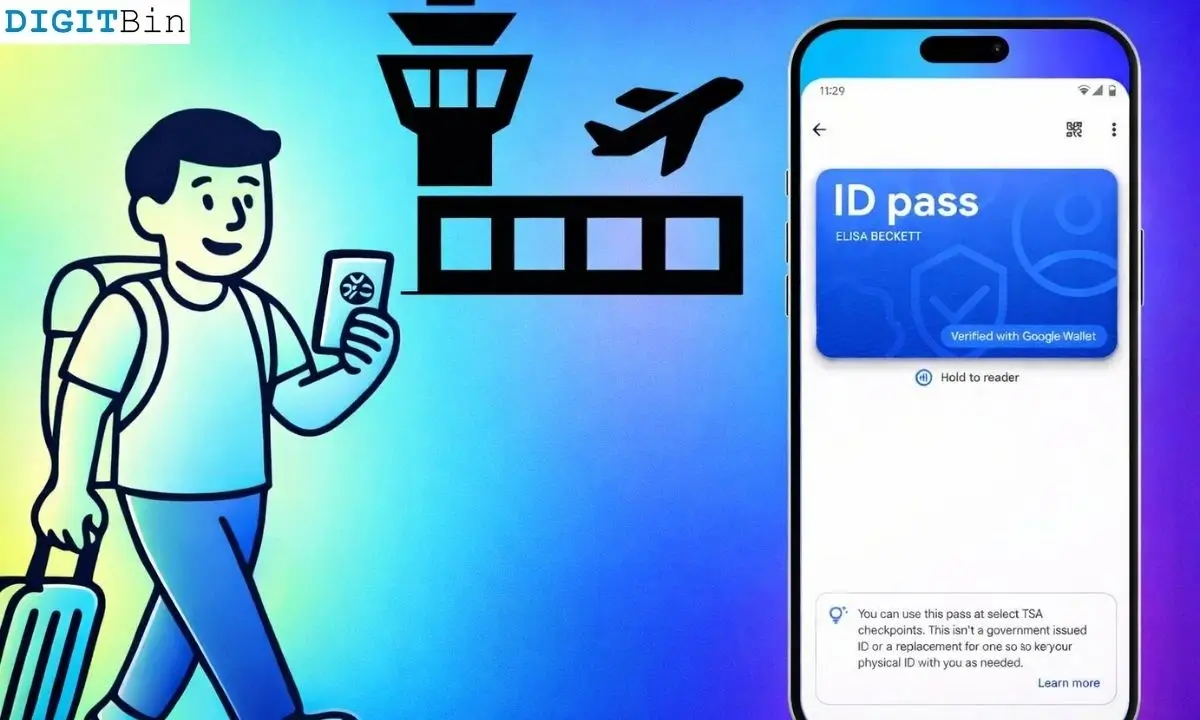
During a recent chat on digitization, one of my acquaintances from America told me how the digital form of ID verification at the airports has been a game-changer.
It is now possible to add a Passport ID to Google Wallet and save it as an e-document.
While traveling through airports, at TSA checkpoints, simply show the digital passport to get a green signal to proceed ahead for boarding.
It is a much-needed and welcome change that cuts down the hassle of constantly holding onto paper documents or wasting time picking them from the bag and then putting them back.
Instead, when the airport security officials ask for an ID, all I can do is flash the passport ID right from my Google Wallet app.
This article explains how to add a Passport ID to Google Wallet. Also, I have added the steps to present the digital ID at the TSA for security checks.
Digital passport: Backup all paper documents
If I forget or misplace my passport, having the e-version of the identity proof can help me to a great extent to check and confirm my ID.
The feature to store a passport as a digital ID on Google Wallet was announced in the early 2025 and was rolled out towards the year’s end.
Currently, around 250 regions in the US support storing a digital passport in Google Wallet and other major e-wallets. This includes California, Colorado, Arizona, Georgia, New Mexico, and several other states that support the feature.
Check out the official list from the TSA website for the digital ID issuing authority and the eligible digital platform to store the ID.
During the initial phase of the implementation of this feature, users faced some issues setting up their e-passport ID on Google Wallet due to bugs.
That has been fixed. Now, Google Wallet users can smoothly save their passports as a digital document for hassle-free security checking.
NOTE: Even though in most cities/states of the US the digital version of the passport is accepted, I suggest carrying the original paper-based passport with you at all times during your travel to cooperate with security procedures.
Create an ID pass on Google Wallet using a US passport
Before creating the passport ID pass, install the latest version of Google Wallet or update to the currently available public build if the app is already installed.
This feature is supported on an Android device running Android 9 or higher. Enable the Bluetooth on your phone.
Follow these steps to create the ID pass on Google Wallet using your passport.
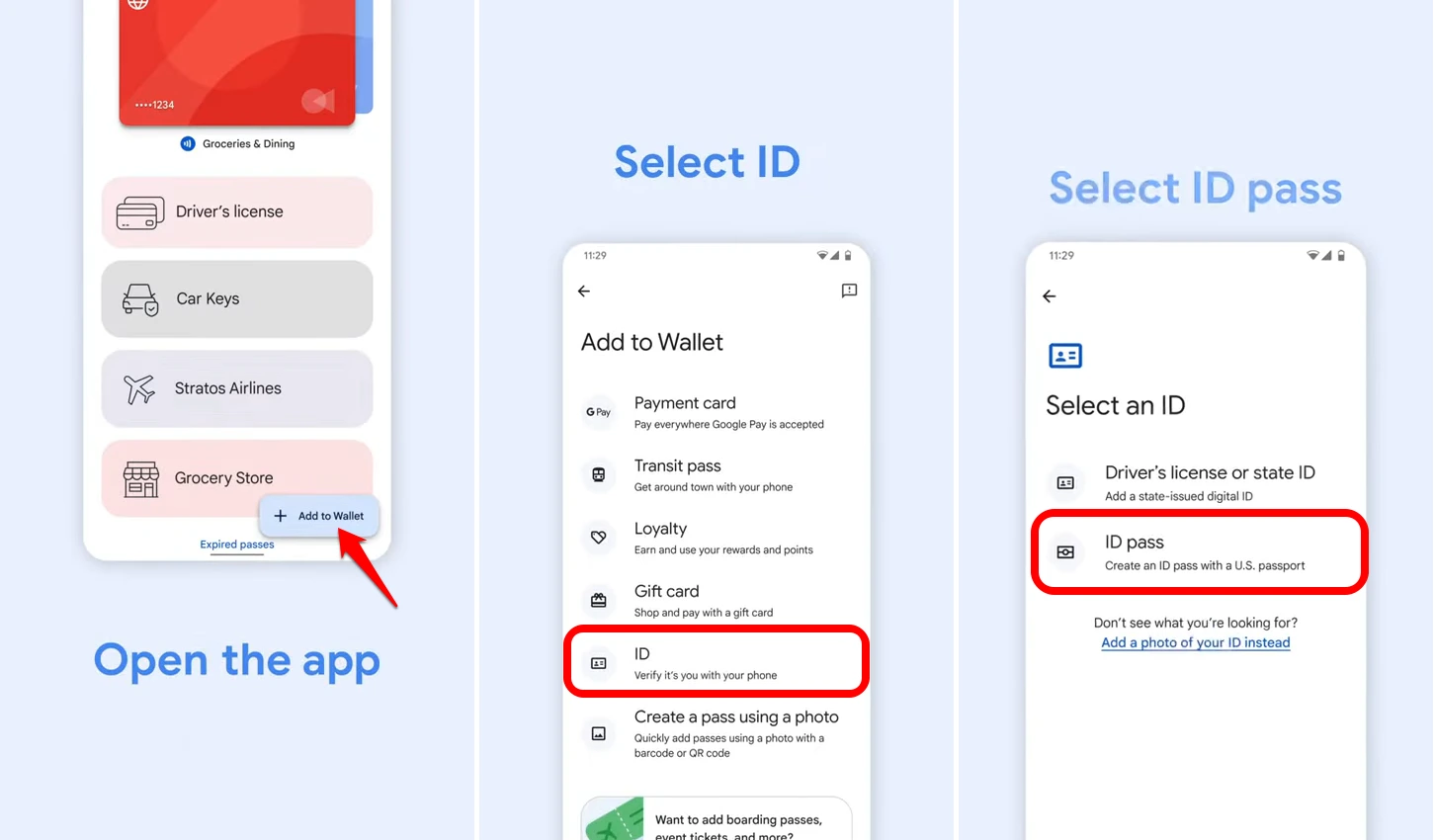
- Launch the Google Wallet app.
- Tap on Add to Wallet.
- Select ID from the list of options.
- Tap ID Pass under Select an ID.

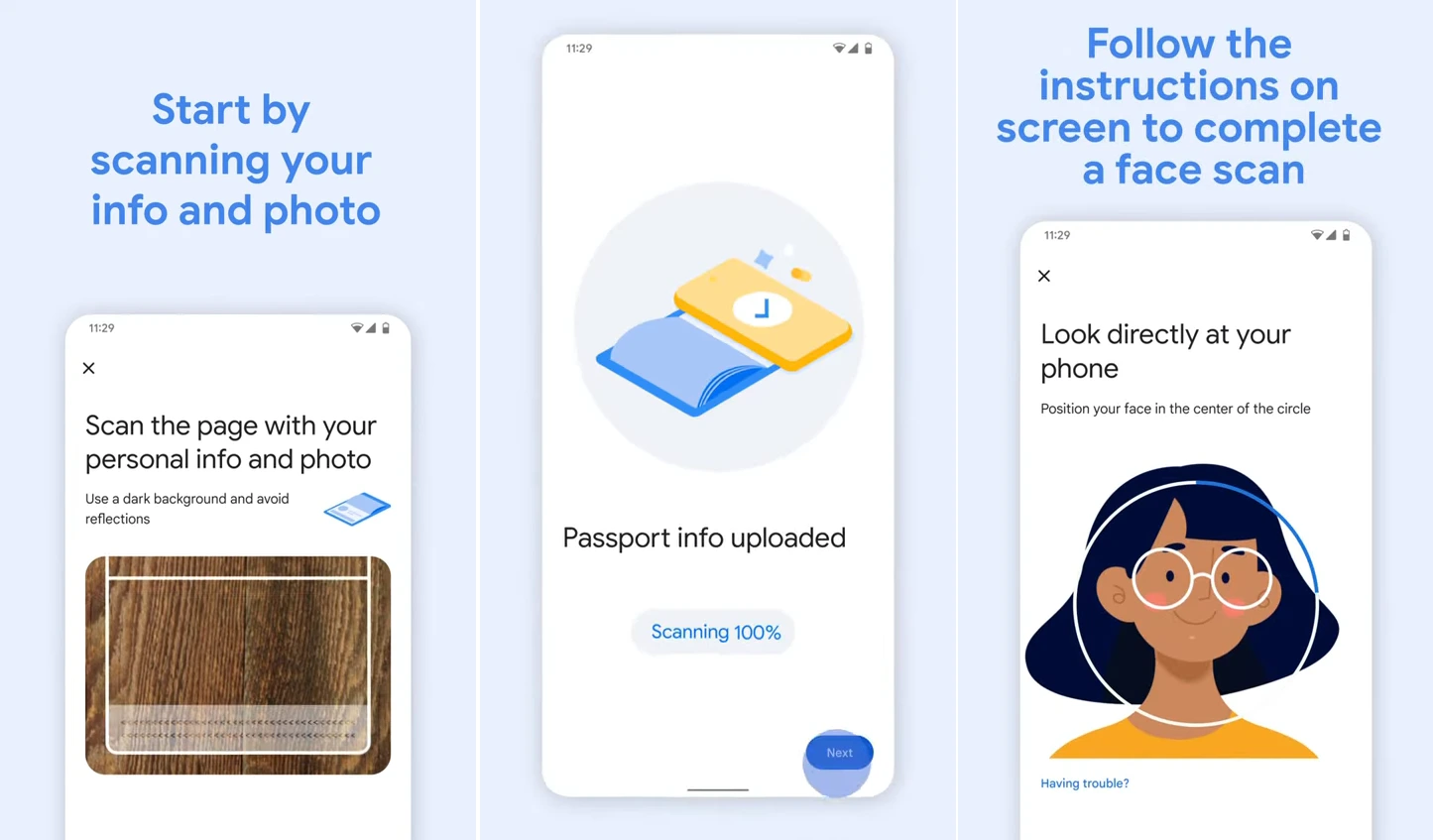
- Place your passport under the scanner.
- Now, scan the security chip on the rear of the passport.
- Press Next once you see the passport info uploaded on the screen.
- Complete the facial scan by looking at the circular space on the phone screen.

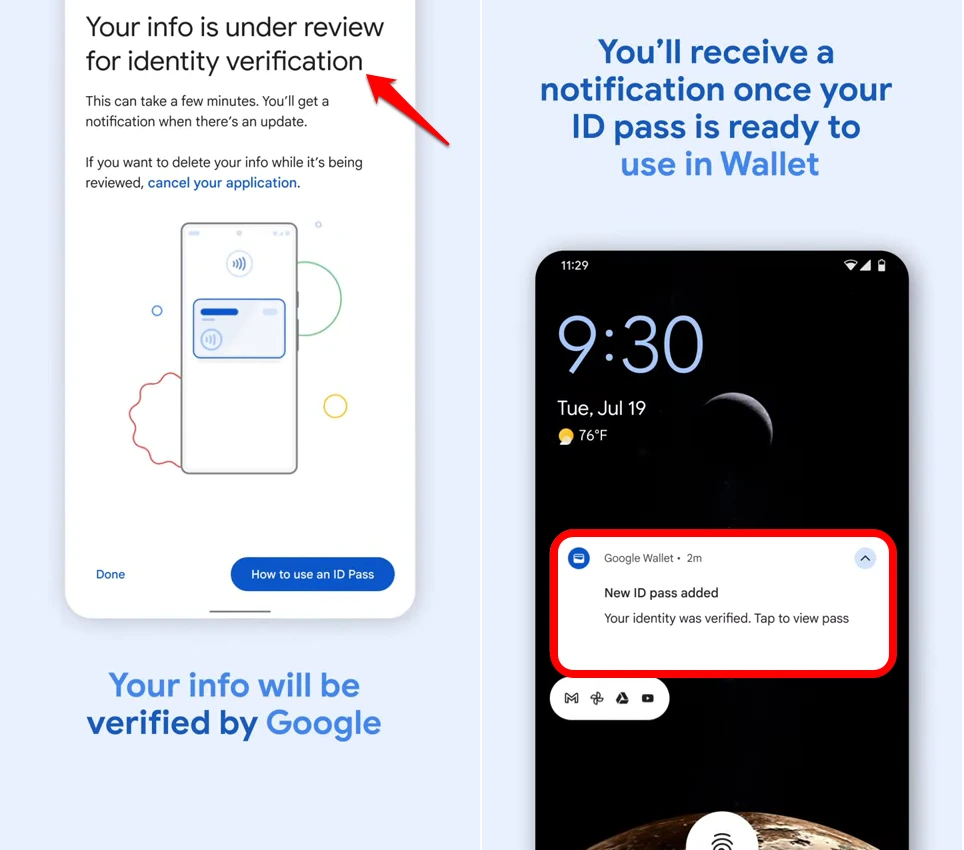
Once the scan is complete, a message “Your info is under review for identity verification” will pop up.
Post the identity verification by Google, a notification will appear on the phone that says “New ID pass added”. Go to the ID section in Google Wallet to find the ID pass of your digital passport.
US citizens can find the security chip inside the back cover of their passports, and UK citizens can look for the chip on the front cover of the passports.
NOTE: Adding a passport as an ID pass to Google Wallet is currently available for legitimate passport holders from the US or UK.
How to present a digital ID at any TSA checkpoint?
This is the standard procedure followed at any TSA point that allows showing a passport as a digital ID pass to get past the security screening points.
- Once at the airport, walk to the credential-scanning kiosk.
- Turn on the Bluetooth on your phone.
- Hold your phone over the TSA reader. It will automatically pull the saved ID pass and take your picture.
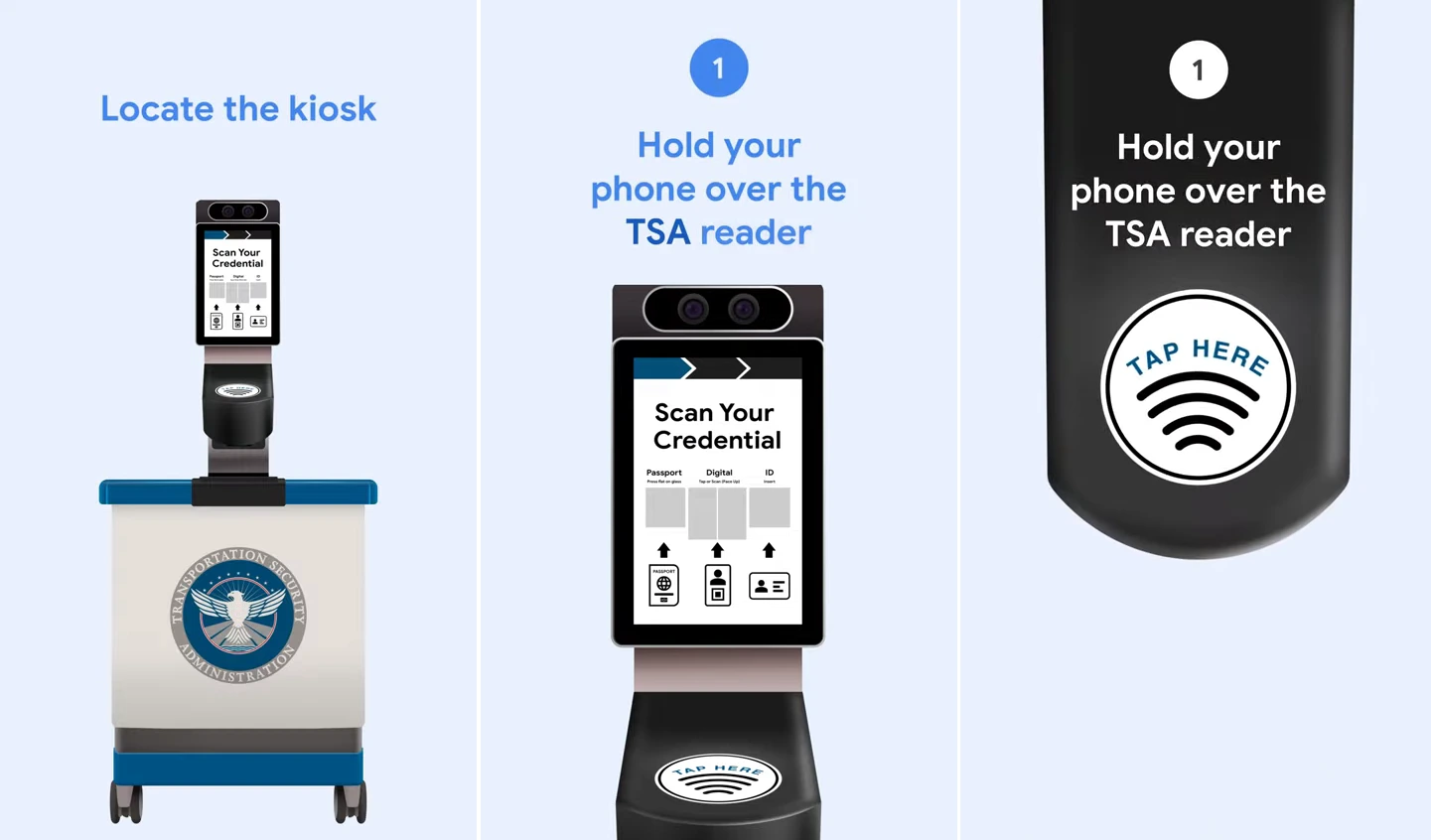

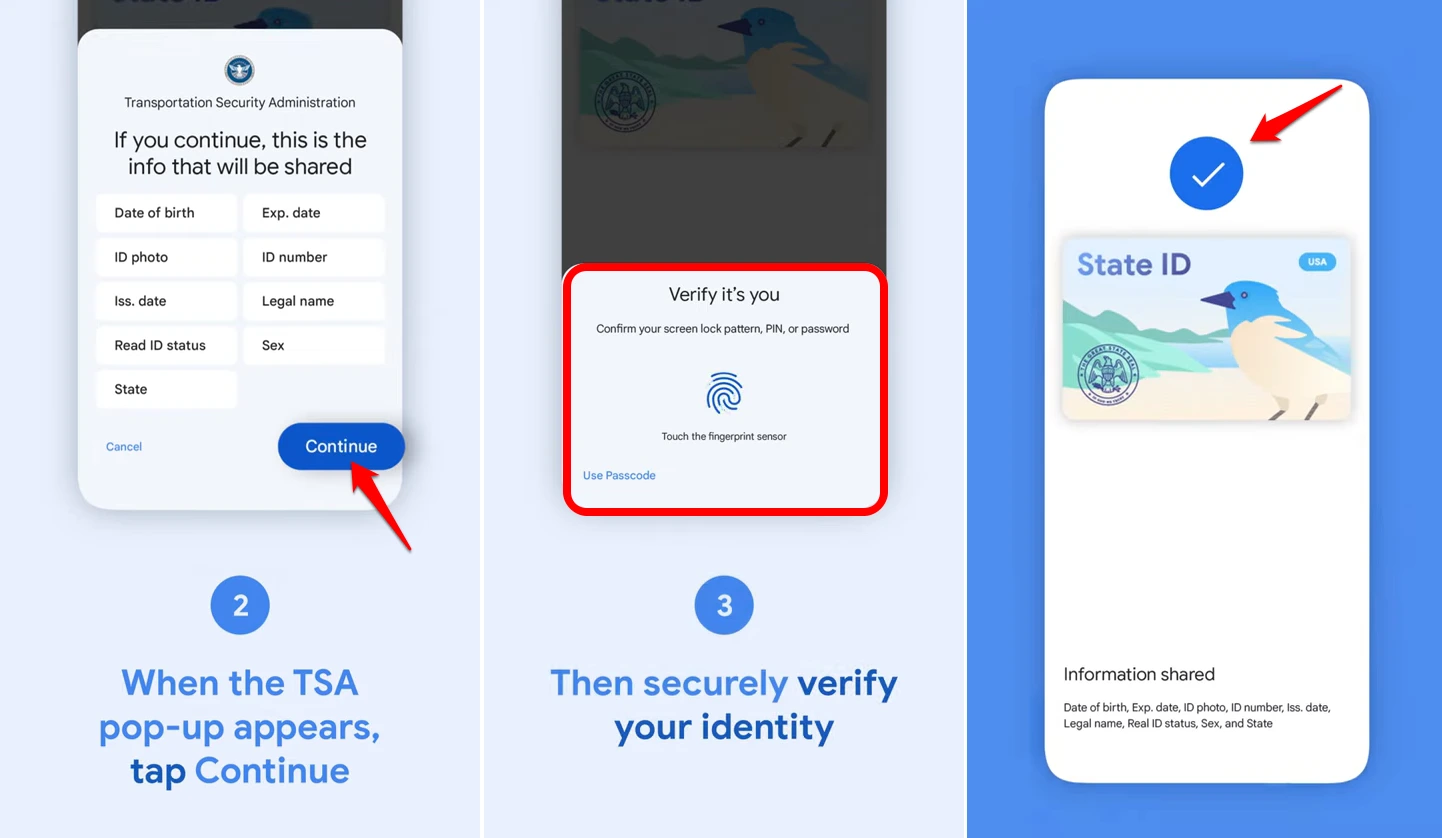
- Press Continue when the TSA pop-up appears, asking for confirmation to access the ID pass data saved on the Google Wallet.
- Authenticate by using biometric means. entering the screen lock pattern or typing the device unlock PIN.
A blue tick will appear on the phone screen. This confirms the passenger’s ID pass was successfully shared with the TSA.
ID pass doesn’t appear on Google Wallet: How to fix?
Some users have reported that after successfully adding their US passport to the Google Wallet, they cannot see it.
They could view the ID pass in the Personal Data section of their Google account when using a web browser on a PC.
Simple troubleshooting methods like force-closing the Google Wallet app or clearing the app storage and cache should fix this problem.
Force close Google Wallet
To force stop Google Wallet on an Android device,
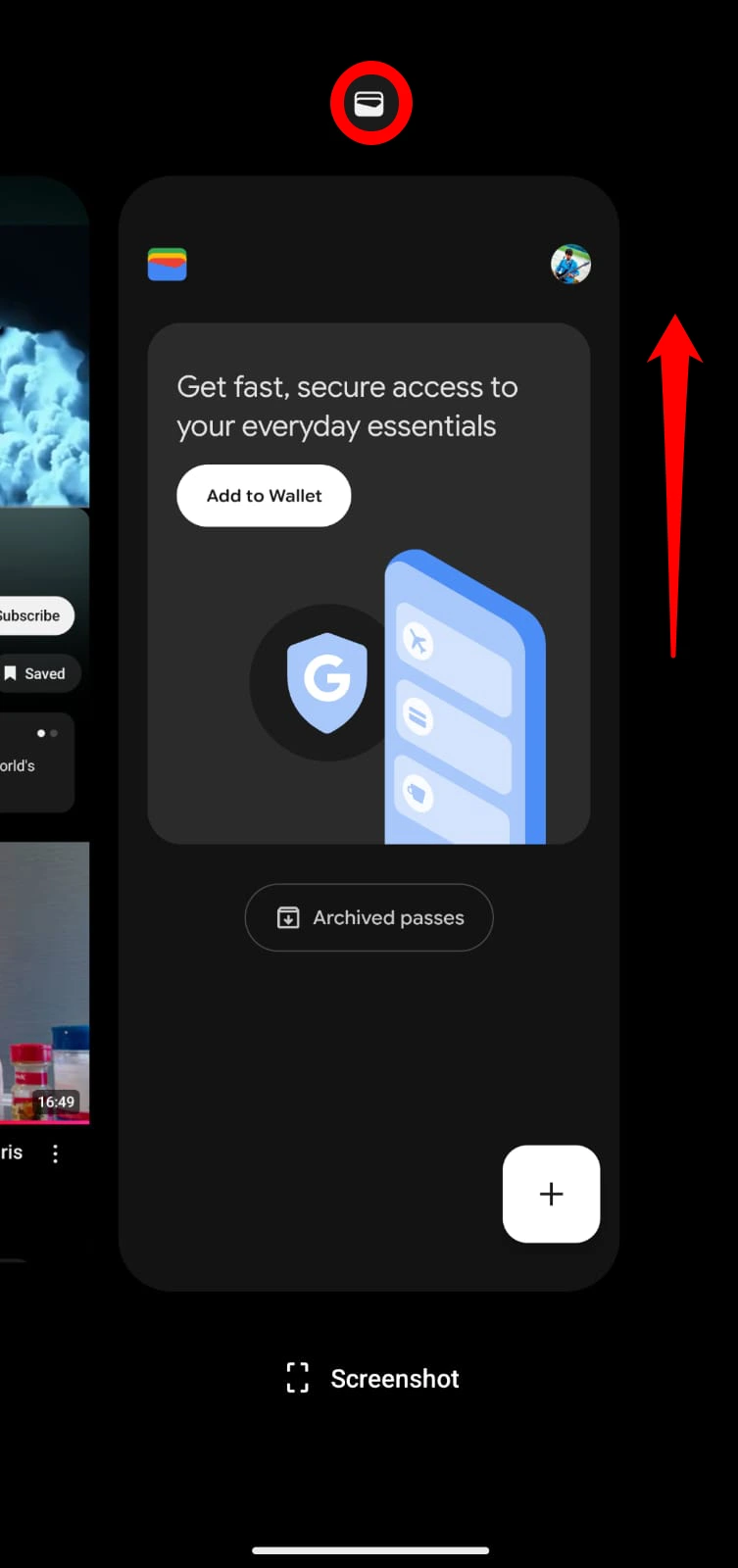
- Press and swipe up on your phone screen.
- Navigate to the Google Wallet app card, and swipe it up.

Clear the Google Wallet storage/cache
To clear the Google Wallet cache and storage,
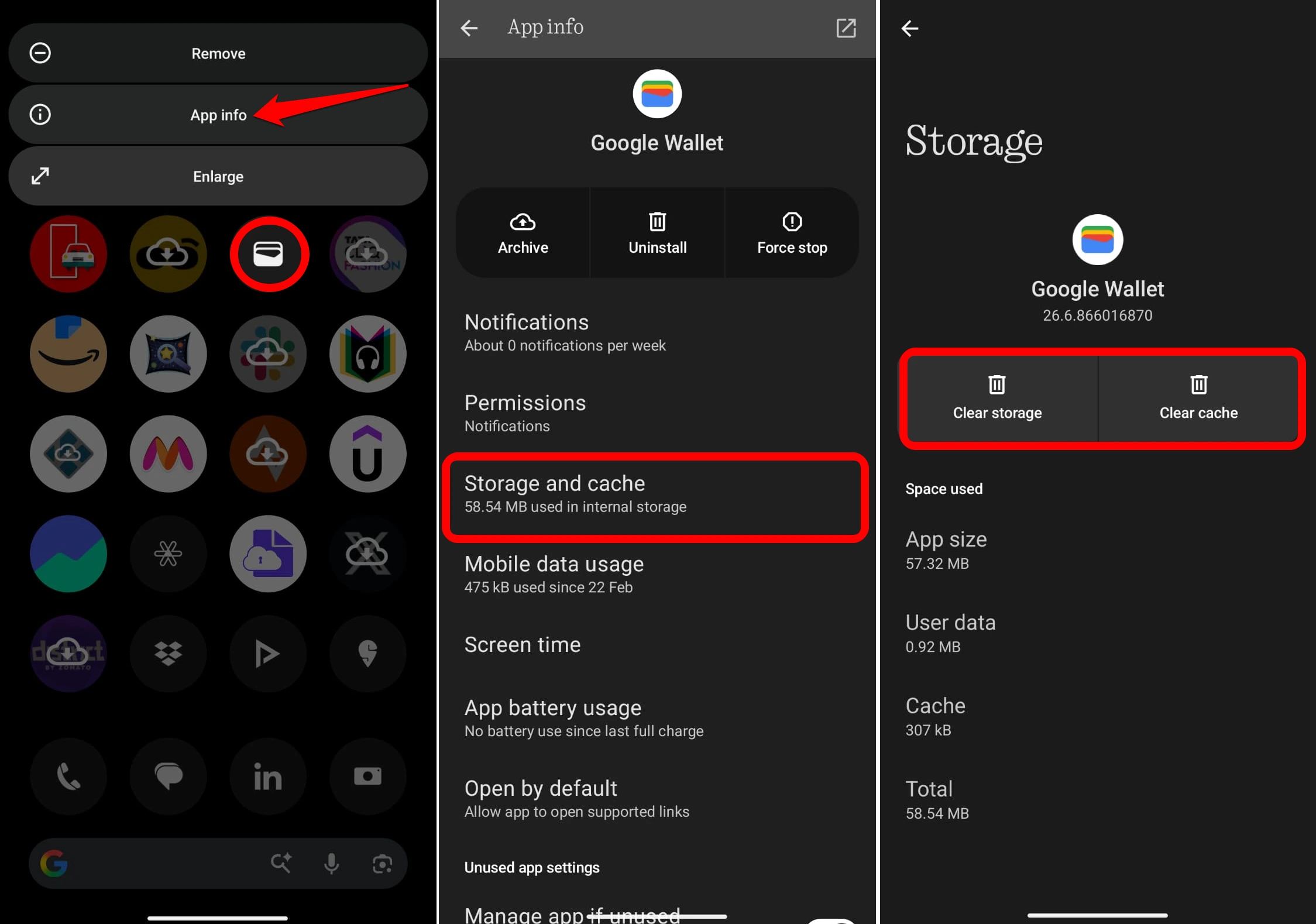
- Press and hold on the app icon.
- Select App Info from the shortcut menu.
- Go to Storage and Cache.
- Press on Clear Cache and Clear Storage.

Relaunch Google Wallet after implementing these troubleshooting methods, and check if the passport now shows up as an ID pass.
Frequently asked questions
Which countries support using a digital ID pass on Google Wallet?
The digital ID pass feature is available in the US and UK. You must have a legally valid US/UK passport to create a digital ID pass on Google Wallet.
Can I solely carry the digital ID Pass and get past the security check?
A passport as a digital ID pass is allowed at TSA checkpoints in selected states/cities. We suggest carrying your original passport document during travel.
Can I save the digital ID pass only on Google Wallet?
Along with Google Wallet, you can save the digital ID pass on Apple and Samsung wallets, or the Mobile ID app powered by the local government.
I have an iPhone. How to use Google Wallet to save an ID pass?
You may use Apple Wallet to store an ID pass on your iPhone, as it doesn’t support using Google Wallet.
Use a digital ID pass for a hassle-free security check
It can feel clumsy to scour through the luggage to find the ID pass, such as the passport, whenever passing through TSA.
Instead of going through that hassle, I would prefer saving my passport in the Google Wallet.
When at the airport security check, all I have to do is open the Google Wallet ID section to scan my ID pass at the TSA kiosk or show my digital passport to the officials. Travel experience cannot get any easier than this.