
I grew up playing classic retro games such as Project IGI, Hitman, Max Payne, Call of Duty, Prince of Persia, and similar titles that were some of the best gaming franchises of the 2000s.
I prefer playing old retro games over newer games because of the minimal hardware requirements, and as I have a PC with a basic hardware setup, this could be achieved.
This is not without encountering technical snags.
There is an issue that I have encountered frequently. The classic PC game I play would crash abruptly while I’m thoroughly enjoying it. The problem is not limited to this issue alone.
Sometimes, during the gameplay launch, the screen will freeze until I close the game from the Task Manager. Often, the game won’t launch at all, even after it is installed successfully on my PC.
I’m sure there must be thousands of retro game enthusiasts out there who love revisiting old games for the sake of nostalgia.
They might be facing the same issue with retro games as me. I tried finding the reasons behind the classic PC games crashing on Windows 11 and whether the problem could be fixed.
Reasons why classic PC games crash on Windows 11
I dived deep into the technical reasons that can trigger a crash, especially when playing retro games on a modern PC with the latest operating systems.
Architectural limitations restrict launching/playing the 90s PC games
This is one of the multiple issues I faced while installing and playing a couple of FPS titles that date back to the early 2000s.
The games from the older era were designed for PCs of the same period, which had a different architecture from modern computers.
The older games were compatible with the computers with a 16-bit architecture. Modern PCs are primarily built on 64-bit architecture, so app incompatibility may result in old games becoming unplayable on modern PCs/laptops.
Interestingly, some PCs with 64-bit architecture may run the programs designed for 32-bit architecture; however, running vintage games designed for 16-bit architecture becomes impossible.
The lack of backward compatibility with PC hardware
Modern GPUs are designed for processing heavier graphics meant for modern resource-intensive games. By design, they cannot process the graphics of a very old game.
Adding to that, the architectural difference makes it even more difficult to run the gaming app that was launched two decades ago.
Also, GPUs from Nvidia or AMD don’t ship with translation code for older programs. They are aimed at providing the best performance for the games that have been released in recent years.
The logic in the older games was programmed using CPU clock speed as a timer.
If a game was supposed to run on a low-end processor and it is run on a PC with a modern high-end processor, it will result in the game crashing because of the clock speed difference.
While it is not a general case, I have experienced this issue while playing most older games.
Windows 11 doesn’t allow the DRM system found in vintage games
Some of the vintage games require a CD-ROM to install and run.
When you try running it on a modern laptop that pretty much ships with no CD player in it by using some sort of unofficial patch or crack, chances are the game will crash badly.
Back in the days, CD-ROM-dependent games had mechanisms such as SecuROM. It was primarily designed to stop the piracy of the game by preventing users from copying the game installation files to other discs.
SecuROM would deploy drivers to verify the CD when you run it for installing or launching the game.
As Windows security management improved over the years with the evolution of the operating system, these drivers were recognized as security threats for the PC.
The SecuROM drivers already had access to the PC kernel, and the game studios that released the game would stop pushing updates/patches for the games and these drivers at some time.
So, using the game installation files or associated cracks on a newer operating system like Windows 10/11 will be deemed as a potential security threat.
I faced a similar issue with FIFA 2002 after running it on a Windows 11 PC. While the game installed fine, it crashed after I launched it.
I remember playing it smoothly on Windows 7 back in the day, and it did use a CD-ROM on a supported desktop setup I had.
Security mechanisms in modern Windows 11 block the executables of older games
Windows OS has systematically evolved in terms of managing security vulnerabilities for the programs.
Windows 11 does not allow unofficial apps on the Windows 11 unless the user manually overrides the restriction.
In most cases, Windows Defender has prevented running executable files to launch an old game or use the installer. It marks the executable file as a threat.
In some cases, overriding the warning and running the game results in the game crashing due to backward hardware compatibility.
When the old games access the PC hardware to run, Windows security blocks the programs.
For example, some vintage games may run without sound because the Windows security prevents the game app from accessing the sound driver.
No patching or updates available for decade-old obsolete games
Several companies or studios that produced the vintage games have shut down as of today.
There is no official way to patch any bugs or technical issues that occur with the installation, launch, or gameplay.
I have firsthand experience with this while installing an FPS game on my Windows 11 PC.
There was an installation issue because the installer asked to run a specific patch. I tried reaching out to its developer studio in case they are around.
It turns out that the studio/dev team that worked on the game shut its shop long ago. There was no way to patch the installation issue I was encountering. I had to let go of the game.
How did I fix classic PC games from crashing on Windows 11?
There is no singular trick to fix the technical issues with all vintage games and make them playable on a modern PC with a newer OS and the latest hardware.
The troubleshooting will vary from one game to another.
As per my experience with installing/playing older games, some of these workarounds proved quite helpful in troubleshooting.
Check if the game is on GOG
Good Old Games, better known as GOG, is an online gaming distribution platform that offers various vintage PC games by making them DRM-free and repackaging them, which allows you to play them on modern machines running Windows 10/11.
GOG modifies the vintage games with DOSBox and ScummVM, thus saving you the hassle of using separate emulators to play them on newer OS.
I found several of my favorite games on GOG that run smoothly on Windows 11.

When a game is DRM-free, you don’t have to pay any recurring subscription fees. However, GOG does not offer all games as freeware.
Some titles will cost you a one-time fee, though it is possible to grab games like Shadow Warrior or Ultima for free.
Platforms like GOG are highly dependable as they are managed by the folks who have developed Cyberpunk 2077.
It is far better to get your game from GOG than to depend on any abandonware website that might be unsafe to download files.
Find the missing or corrupt file in the game folder
In the case of some of the vintage games that had issues running on my PC, I found out that some key files were missing in the game folder, which either crashed the game or prevented the launch.
I remember there was a corrupt DLL file when I installed Delta Force 2, a popular FPS from the late 90s.
So, I had to look online for a replacement file and copy it into the game files folder. Then, I could run the game without any issues.
Now, how exactly did I know that a DLL file has an issue that is hindering the game? Here’s how.
- I launched the Windows Run box by pressing Windows + R.
- I typed eventvwr and pressed Enter.
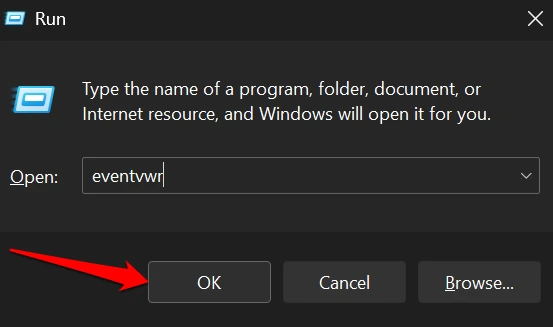

- I expanded the Windows Logs and clicked on Applications.
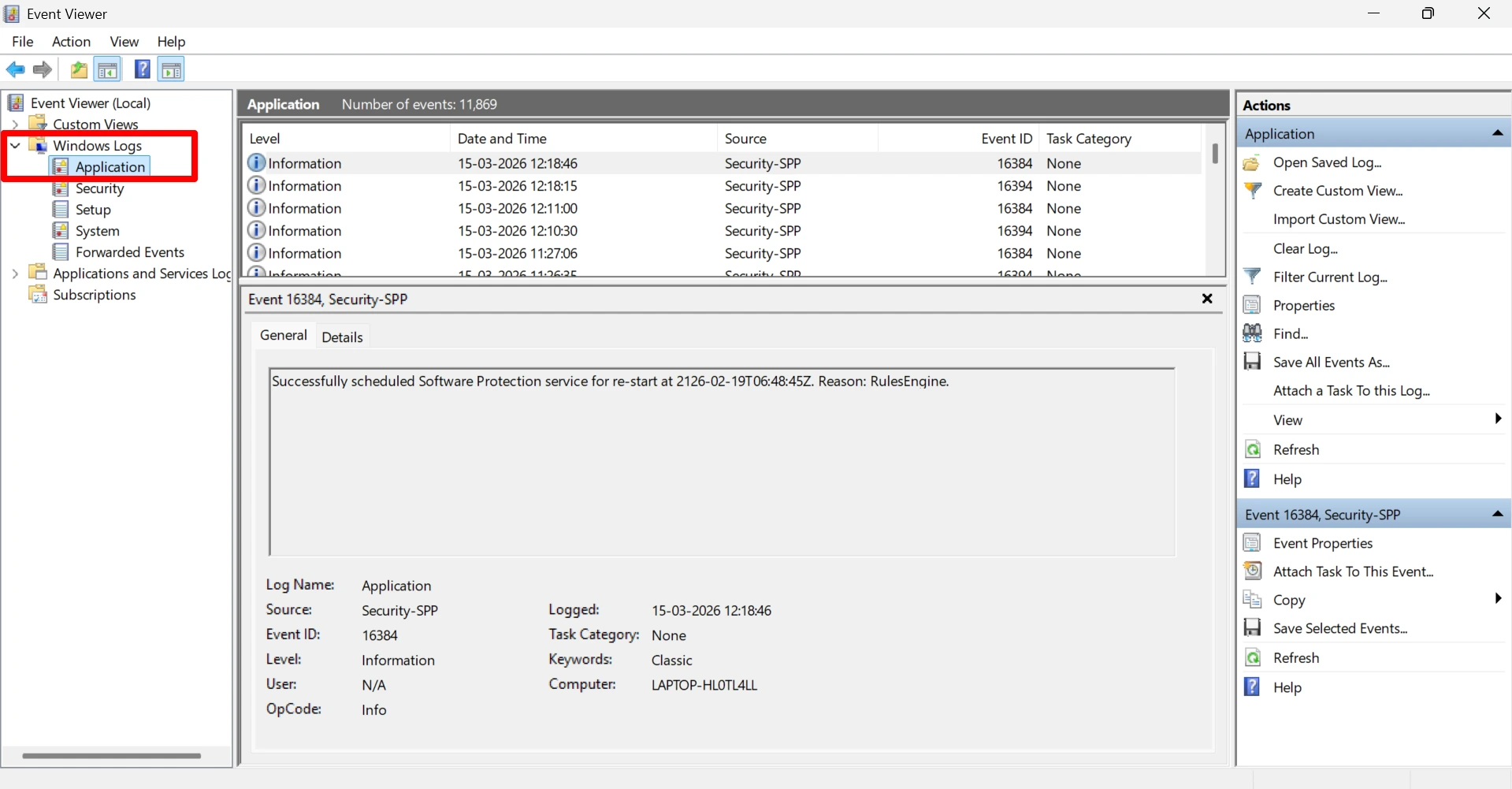

I just scrolled through the log to check what caused Delta Force 2 to crash when I launched it. I came to know that there was a faulty module named Winmmbase.dll causing the problem in running the game.
I had to look up this file on the internet and download it to my PC. Then I replaced the faulty DLL file with this one. The game launched and ran just fine.
Whenever you are unable to run a vintage game smoothly, check the Windows 11 event viewer for missing or faulty files.
Fix or replace the particular file to troubleshoot the crash. While the issue may not be the same with all games, knowing where to look for the problem can lead to possible solutions.
Play older games on a browser
Several old games from the 90s and 2000s era can be played on browsers.
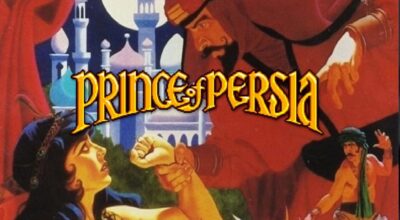
You can play games like Counter Strike, Prince of Persia, Mario, and many such cool games directly on the browser without having to log in, pay anything, or go through the hassle of downloading setup files. This workaround is the best if you don’t want to get into technical troubleshooting when a vintage game becomes unresponsive on your PC.
NOTE: Always check the legitimacy of the sites where online games are available. Make sure you can play the games for free, and the site should never ask for personal details.
Keep the spirit of retro PC gaming alive
Implement the tips I shared if you are playing a retro PC game on a setup with the latest hardware/operating system and have been encountering technical issues.
Honestly, I could not fix the crash, launch failure, and black screen issues with most classic games that I tried playing.
However, some of the aforementioned troubleshooting tips helped me successfully fix the crash issue in some of my favorite retro PC games.
Also, I have noted that the fixes vary from game to game and depend largely upon the hardware/operating system of your current PC.
While new generation games are amazing and will keep evolving into newer heights, old computer games will always have a special place in the hearts of millennial gamers, who learned the ABC of gaming from these games.
talk about contentment!!!
It only works when I’m Rwanda.