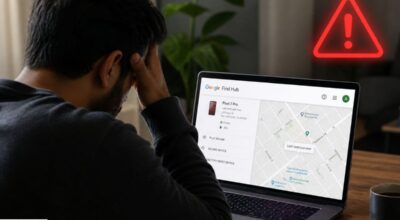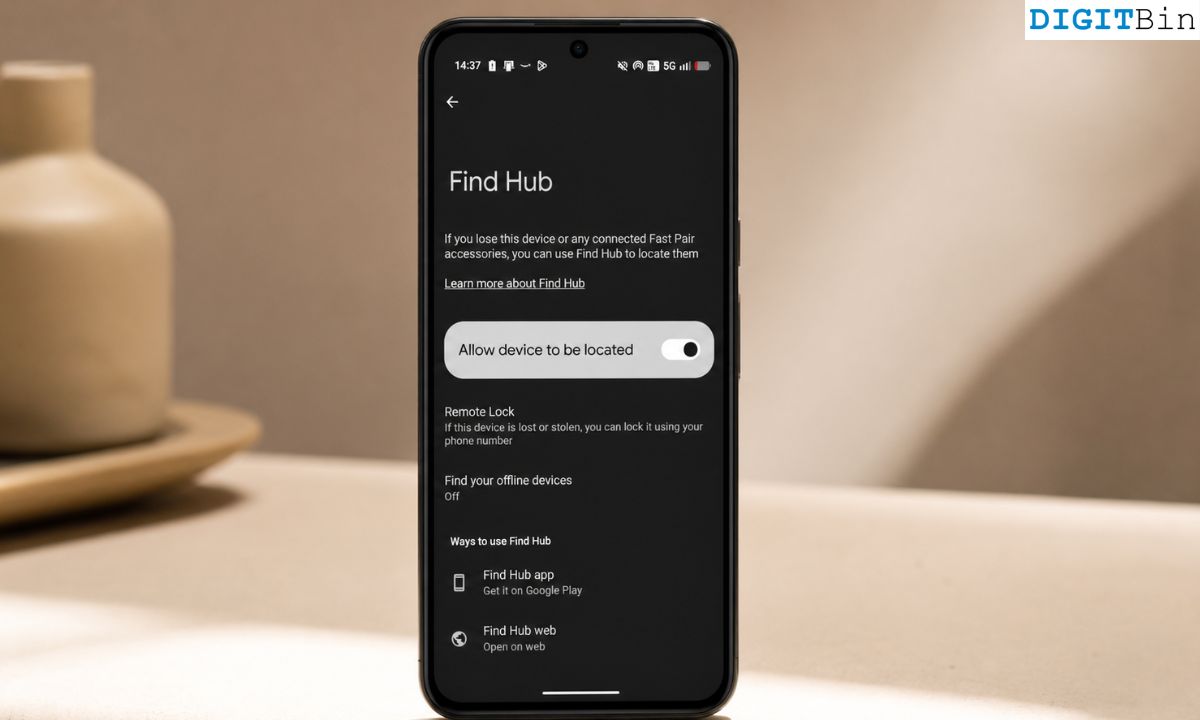
Most people assume Find Hub is working the moment they see it on their Android phone. It is pre-installed, it is tied to a Google account, and nothing during setup suggests there is anything left to do.
That assumption is wrong in ways that matter.
Find Hub can be active, linked to your account, and still fail to locate your phone when you actually need it.
The settings that make it genuinely useful are not all enabled by default, and the gap between what people expect and what the tool actually delivers in a real lost-phone situation is wider than most realize.
These are the five things worth checking now, before you ever need to use them.
TL;DR: Find Hub is on by default on most Android phones, but its most important features are not. Offline tracking defaults to busy areas only, Bluetooth must stay on for network detection to work, the stored recent location needs to be verified, and most phones stop being trackable the moment they are switched off. Fixing all five issues takes under five minutes and dramatically improves what Find Hub can actually do in a real situation.
1. Offline tracking coverage is set to busy areas only
This is the one most people never find out about until it matters.
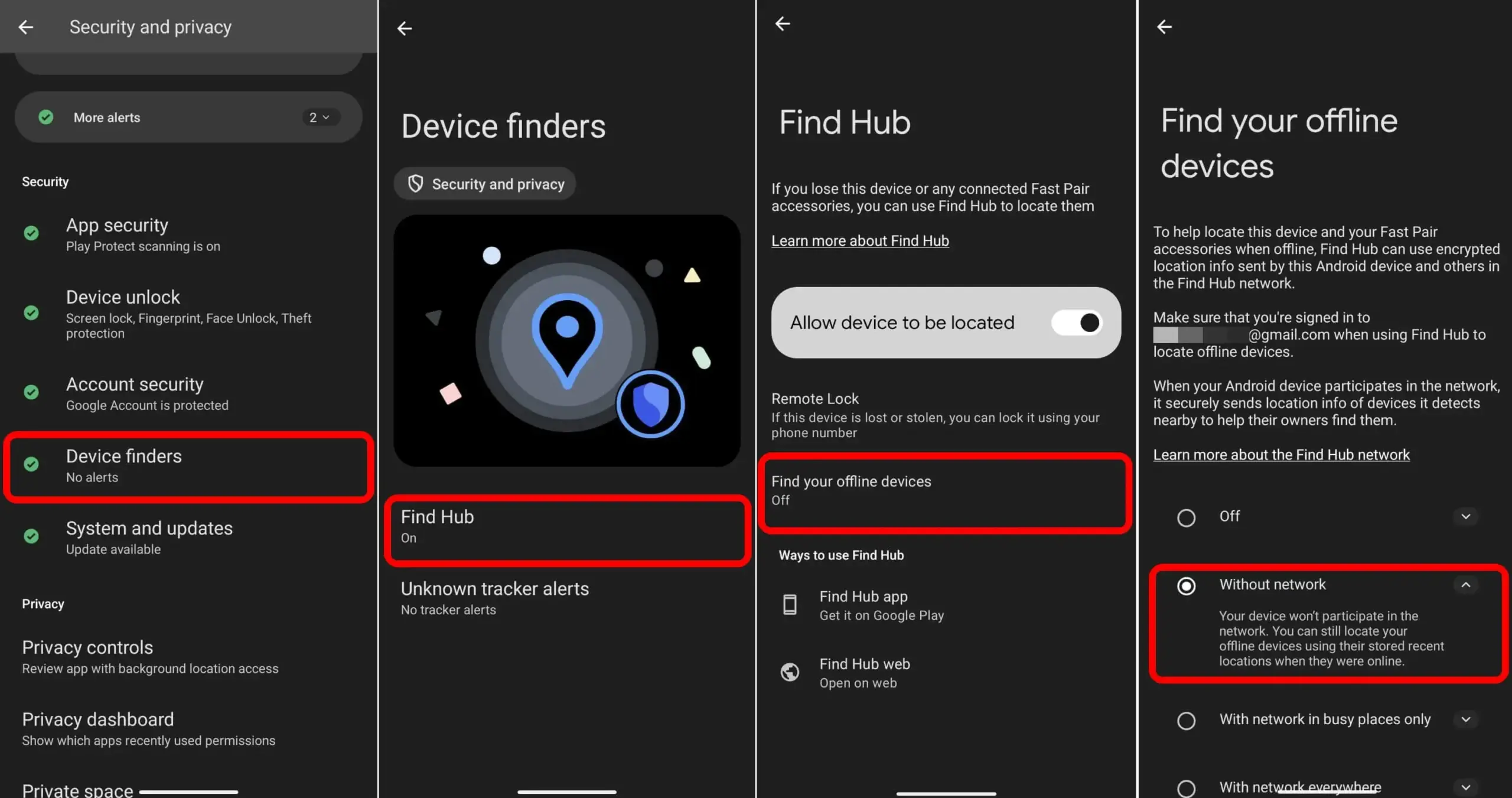
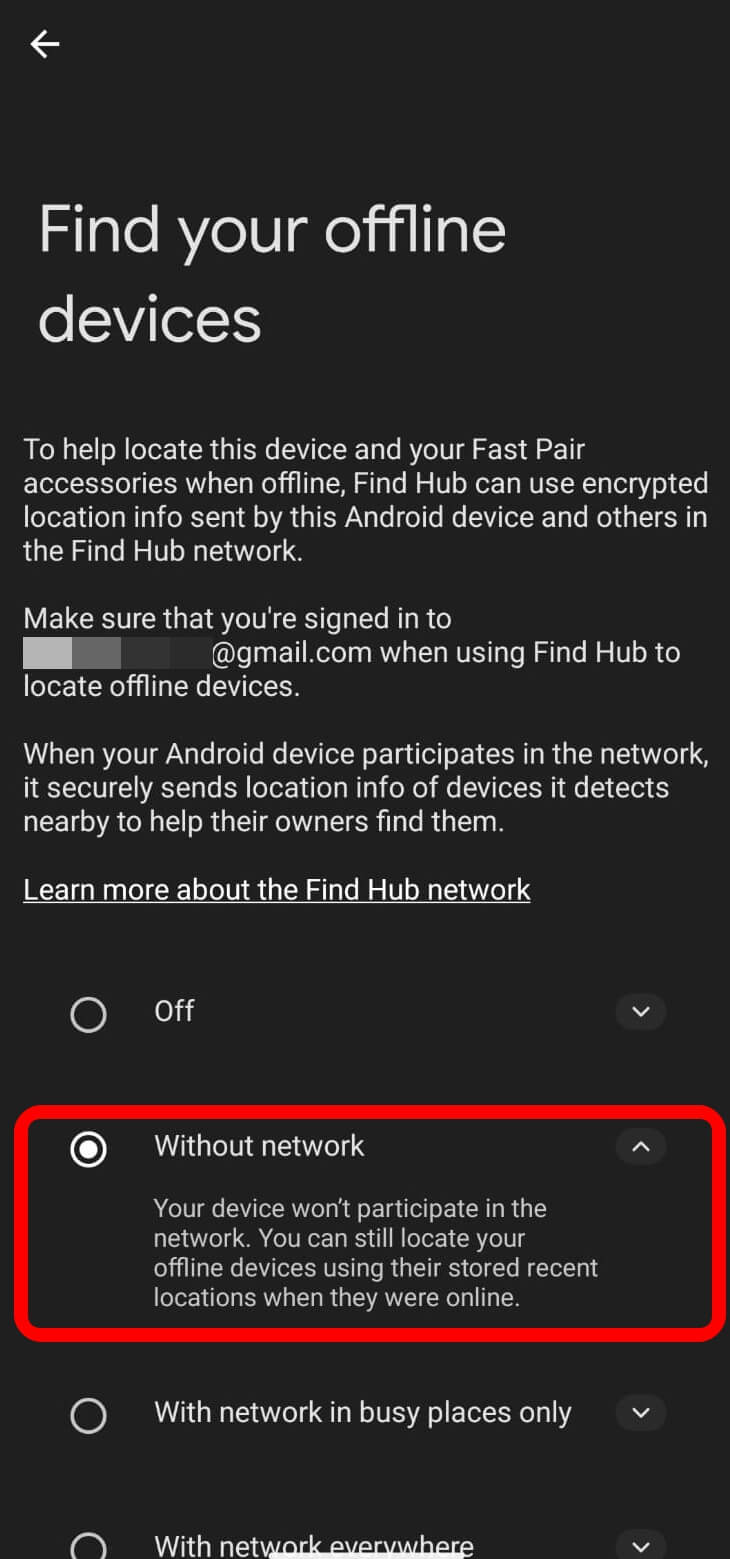
Find Hub has four offline finding modes: Off, Without network, With network in busy places only, and With network everywhere.
The default for most Android devices is “With network in busy places” only. In this mode, Find Hub will only report your phone’s location if multiple nearby Android devices detect it at the same time before relaying that signal.
In a crowded train station or shopping mall, that threshold is easy to hit. On a quiet residential street, near a park, or anywhere outside a high-traffic zone, it often is not.
Your phone can be sitting thirty meters away, and the map will not update, because not enough devices have passed by it.
The fix is straightforward. Follow the steps provided below.
NOTE: The steps may slightly vary depending on the Android OEM.
Go to Settings > Security and Privacy > Find Hub > Find your offline devices.
Switch it from “With network in busy places only” to “Without network everywhere”.
In this mode, your phone’s location can be reported even if only a single nearby Android device detects it, which is far more useful in the places where theft actually happens.
The trade-off is a slight reduction in privacy in remote areas, because a single device rather than a cluster confirms your location. For most people, that is an acceptable exchange given what is at stake.
You may read about my experience of using Find Hub to locate my lost Android device.
2. Bluetooth off means the network cannot see your phone
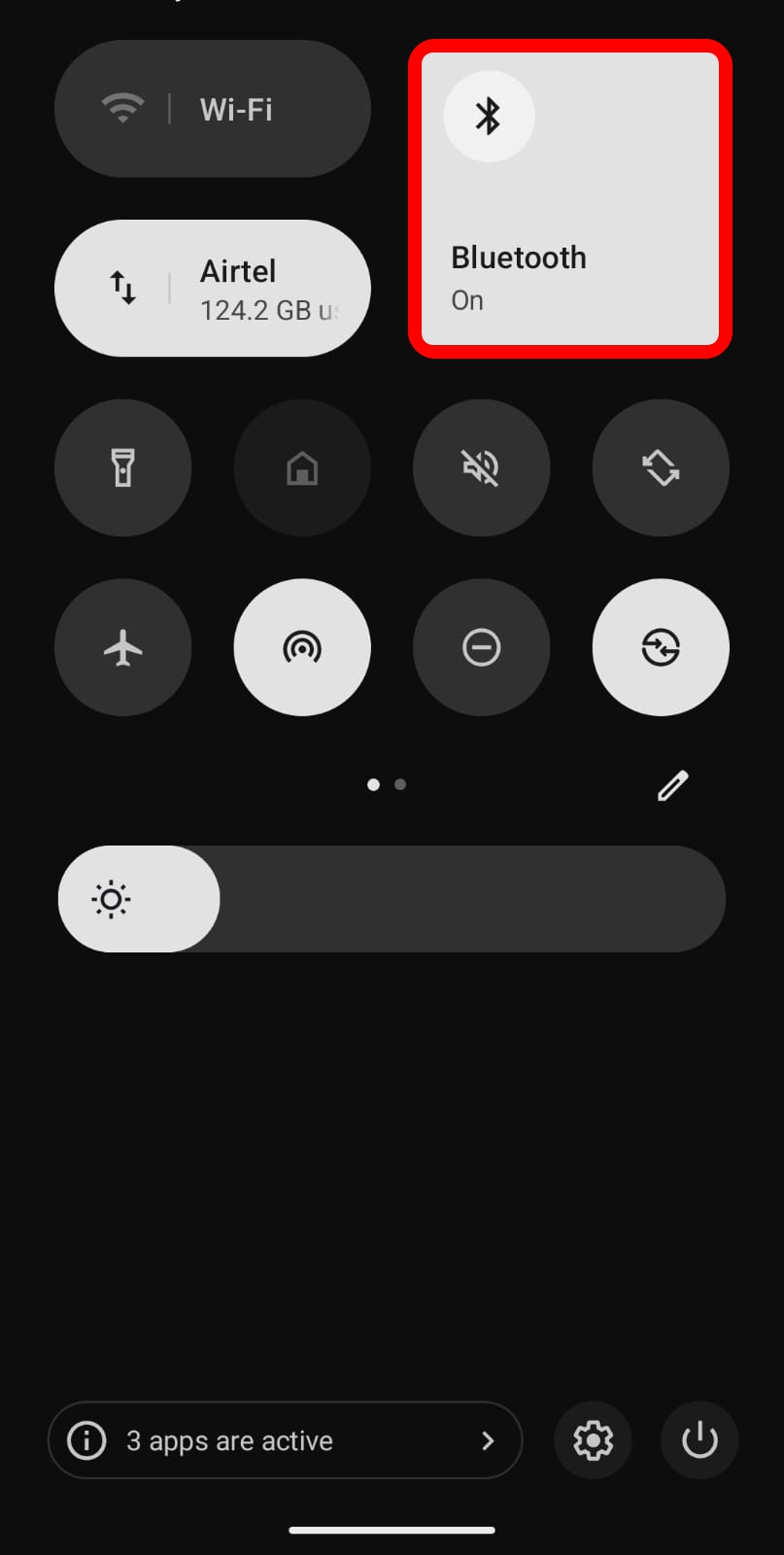 Find Hub’s offline network runs entirely on Bluetooth Low Energy.
When your phone has no internet connection, nearby Android devices detect its Bluetooth signal and anonymously relay its location back to Find Hub.
Remove Bluetooth from that equation and the network has nothing to detect.
If your phone is missing and Bluetooth is off, the crowdsourced network cannot help you at all. The map will show the last known location from when the phone was last online, and nothing after that.
The common mistake here is turning Bluetooth off to save battery.
It is a habit a lot of Android users have, and it quietly disables the most useful part of offline tracking without any warning from the system.
Keeping Bluetooth on by default is the simplest change in this list, and one of the highest-impact ones.
Modern phones handle Bluetooth Low Energy efficiently enough that the battery drain from leaving it on is minimal in practice.
3. Stored recent location is your last fallback
When your phone goes offline entirely, Find Hub falls back to the most recent location it has stored.
This is not the same as a live location. It is a snapshot of where the phone was the last time it had connectivity, and depending on how frequently it is updated, that snapshot can be minutes or hours old.
The setting that controls this is called Store recent location, and it needs to be enabled under your Find Hub settings.
Without it active, the map may freeze at a point that predates the phone going missing by a significant margin. With it active, you at least have a meaningful starting point even if the phone has since gone dark.
This stored location is end-to-end encrypted, so only you can access it using your Google account PIN or password.
This is not a privacy concern. It is a safety net, and one worth checking is actually turned on.
4. Active does not mean properly configured
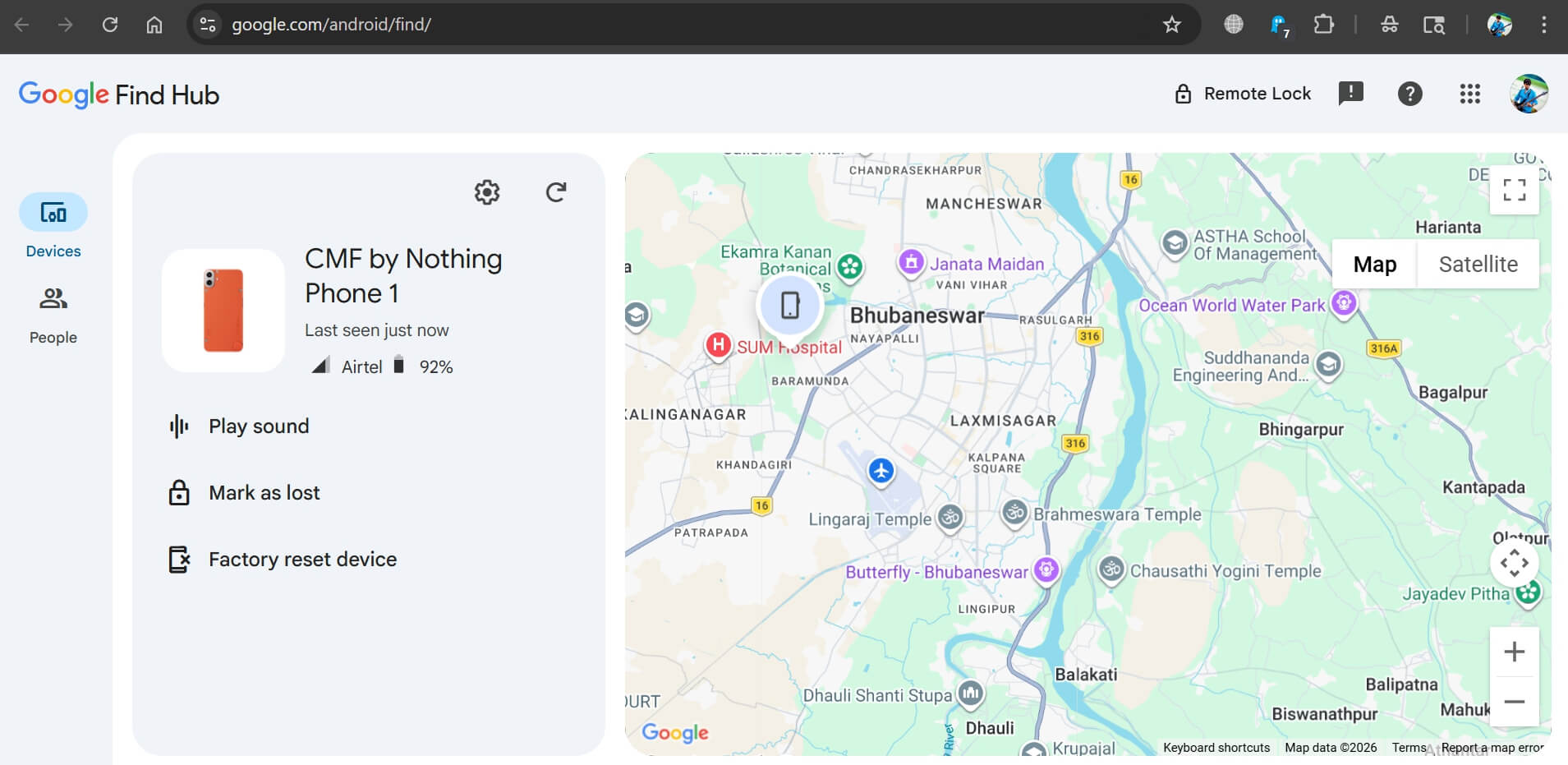
Find Hub is pre-installed on most Android phones running Android 6 or later. and
The main toggle for the feature is on by default when you are signed into a Google account. That creates the impression that everything is ready. It is not necessarily true.
For Find Hub to actually work at the level most people expect, three additional things need to be in order: location services must be enabled, your device must be linked to a Google account that you can access from another device, and the relevant permissions must be active.
All three are usually fine on a phone you have set up properly, but it is worth opening Find Hub and confirming your device appears in the device list before you need it.
The quickest check is to visit android.com/find from a browser or open the Find Hub app on a second device signed into your Google account.
If your phone appears with a recent location, the basics are working.
If it shows as unavailable or the location is stale, perhaps something in the settings chain is broken.
You can find a full walkthrough of what the setup process should look like, and what to check if tracking stops working, in this guide on tracking and finding a lost Android phone.
5. Most Android phones stop being trackable when switched off
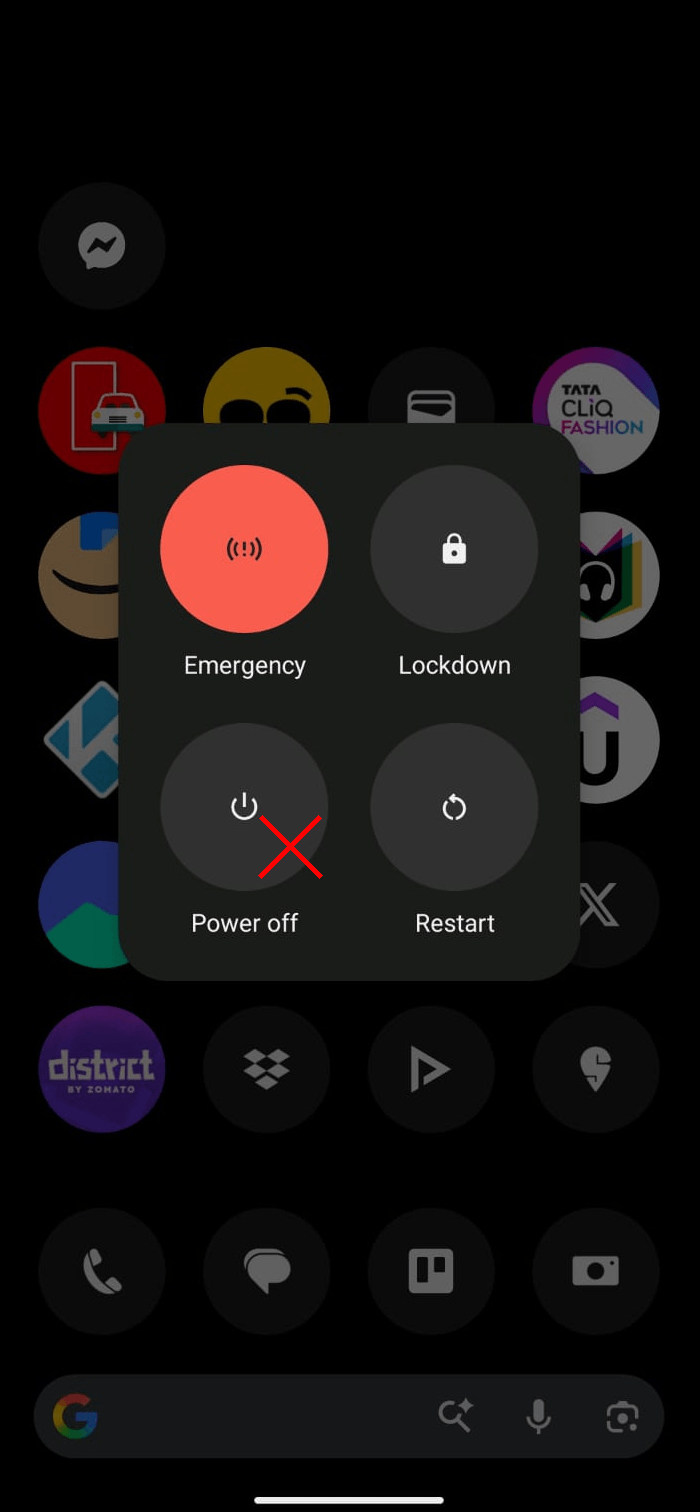
This is the hardest limitation to work around, and it is the one that matters most if your phone has actually been stolen.
On most Android phones, switching off the device terminates every signal: GPS, cellular, Wi-Fi, and Bluetooth.
Find Hub cannot detect a phone with no power. The map freezes at the last known location, and any crowdsourced network updates stop immediately.
Why does this matter? It is straightforward. Switching off a stolen phone is one of the first things someone will do if they know what they are doing.
Turning off a smartphone stops tracking, prevents remote locking, and buys time. The window between a phone going missing and going dark is often very short.
There is a partial exception for specific Pixel devices.
The Pixel 8, Pixel 8a, Pixel 9, and Pixel 10 series support limited offline tracking for several hours after the battery dies or the phone is powered off, using a low-power Bluetooth chip that keeps broadcasting a signal even without main power.
This is a hardware capability, not a software setting, and it is not available on phones from other manufacturers or on older Pixel models.
If you own one of the supported Pixel devices, make sure the Find your offline devices setting is enabled, as this is required for the post-shutdown tracking to function.
For any other Android phone, this option does not exist for you, regardless of how the settings are configured.
For situations where tracking has already stopped, the guide on locating a lost Android phone that has been switched off covers the remaining options available, including using location history and IMEI-based reporting.
While you have the phone: The other half of the equation
Find Hub handles tracking after a phone is gone.
There is a separate layer of settings that helps prevent a thief from doing anything useful with it once they have it.
Android’s Theft Protection feature is available under Settings > Security and Privacy > More Security and Privacy.
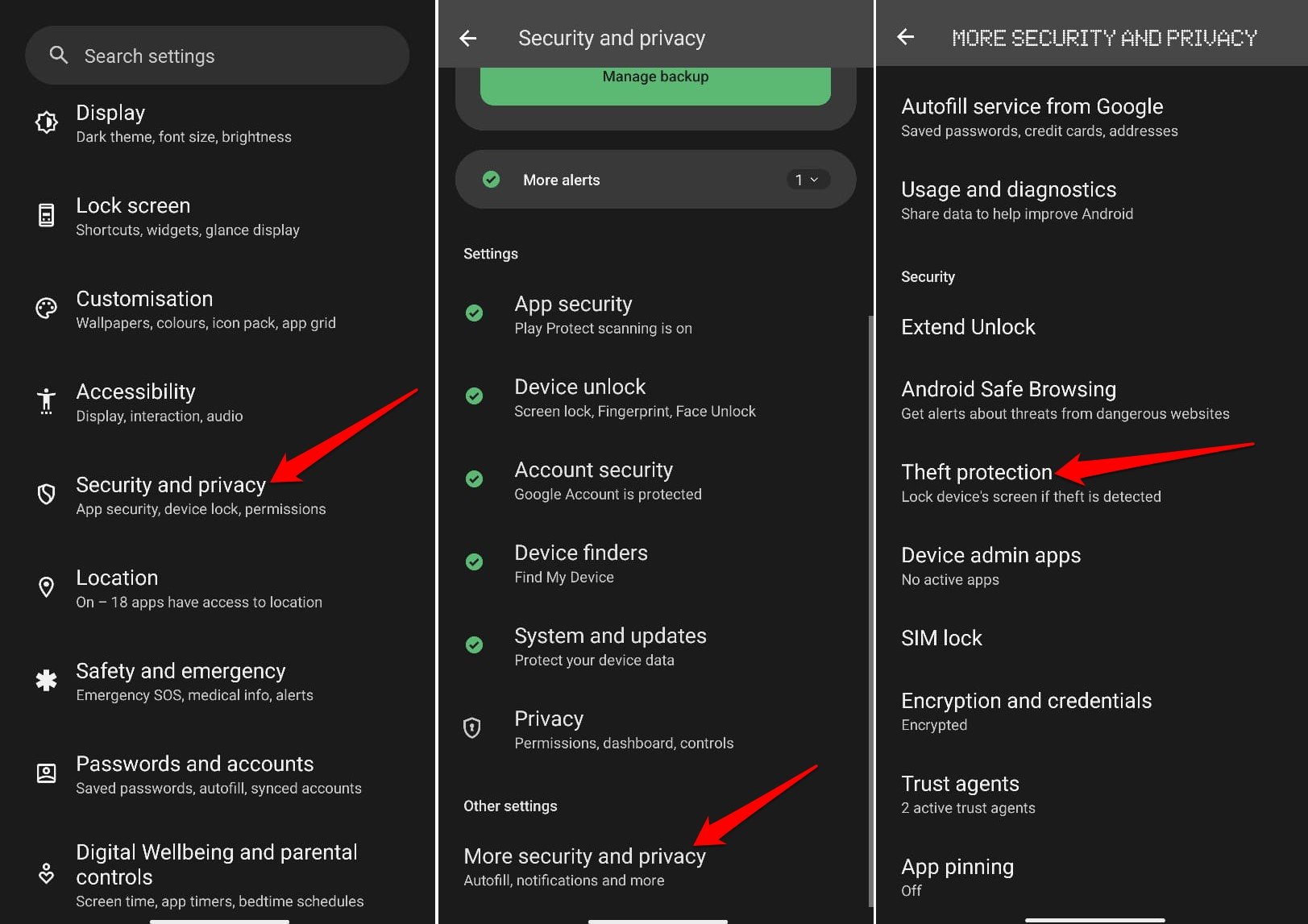
It includes Theft Detection Lock, which uses sensors to detect a sudden snatch motion and automatically lock the screen, and Offline Device Lock, which locks the phone if it stays offline for an extended period.
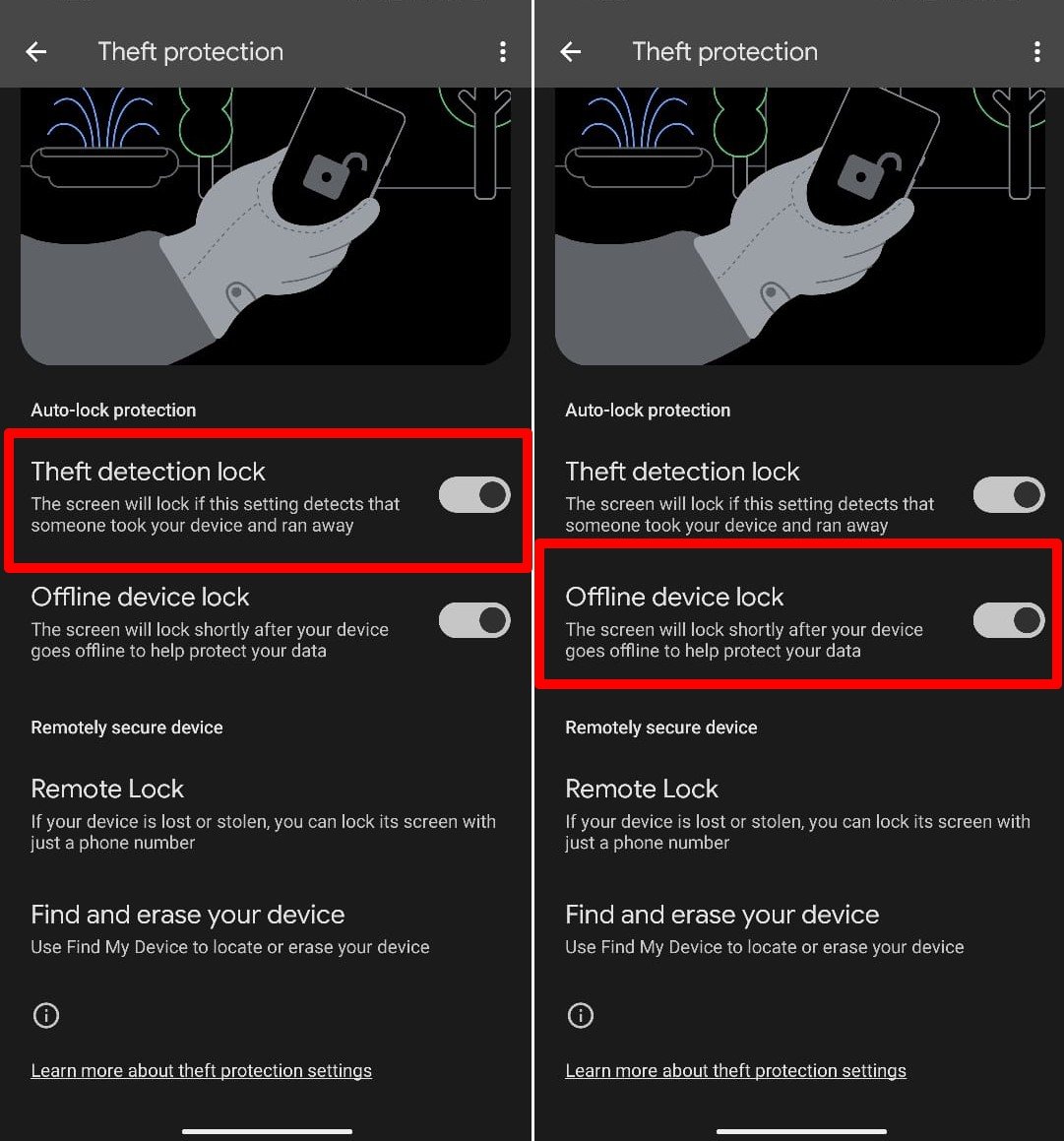
Neither of these is on by default on all devices, and both are worth enabling.
Requiring a password to power off the device is another setting worth knowing about. It forces anyone who grabs your phone to enter the screen lock before they can switch it off, which extends the window where Find Hub can still see the device.
The broader set of theft-proofing steps, including SIM locking and remote lock configuration, is covered in this guide on making your Android phone theft-proof.
The five-minute checklist
Open Settings > Security and Privacy > Find Hub. Confirm Allow device to be located is on.
Tap Find your offline devices and set it to With network everywhere.
Enable Store recent location.
Open the Find Hub app and verify your device appears with a recent location.
Then go to Settings > Security and Privacy > More Security and Privacy, and turn on Theft Detection Lock and Offline Device Lock.
That is the full setup. None of it takes long.
The difference between a Find Hub that gives you a fighting chance and one that shows a frozen map and nothing else comes down almost entirely to whether these options were configured before the phone left your hand.
Frequently asked questions
What is the difference between With network in busy places only and With network everywhere in Find Hub?
Busy places only require multiple Android devices to detect your phone before reporting its location, which limits reliability in low-traffic areas. Network connectivity everywhere allows even a single passing device to report your phone’s location, making it significantly more reliable outside crowded areas.
Does Find Hub work if Bluetooth is turned off on my phone?
No. The offline crowdsourced network relies entirely on Bluetooth signals. If Bluetooth is off when your phone goes missing, nearby Android devices cannot detect it and the network cannot update your phone’s location.
Can Find Hub track a phone after it has been switched off?
On most Android phones, no. Tracking stops when the device is powered off. Pixel 8 and later Pixel models support limited Bluetooth-based tracking for several hours after shutdown, but this is a hardware feature not available on other Android devices.
How do I check if Find Hub is properly set up before losing my phone?
Open android.com/find from any browser or the Find Hub app on a second device signed into your Google account. If your phone appears in the device list with a recent location, the core setup is working correctly.
What does Store recent location do in Find Hub?
It saves an encrypted snapshot of your phone’s location periodically with Google. If your phone goes offline, this stored location becomes the last known position shown on the map, giving you a more useful starting point than an older cached location.