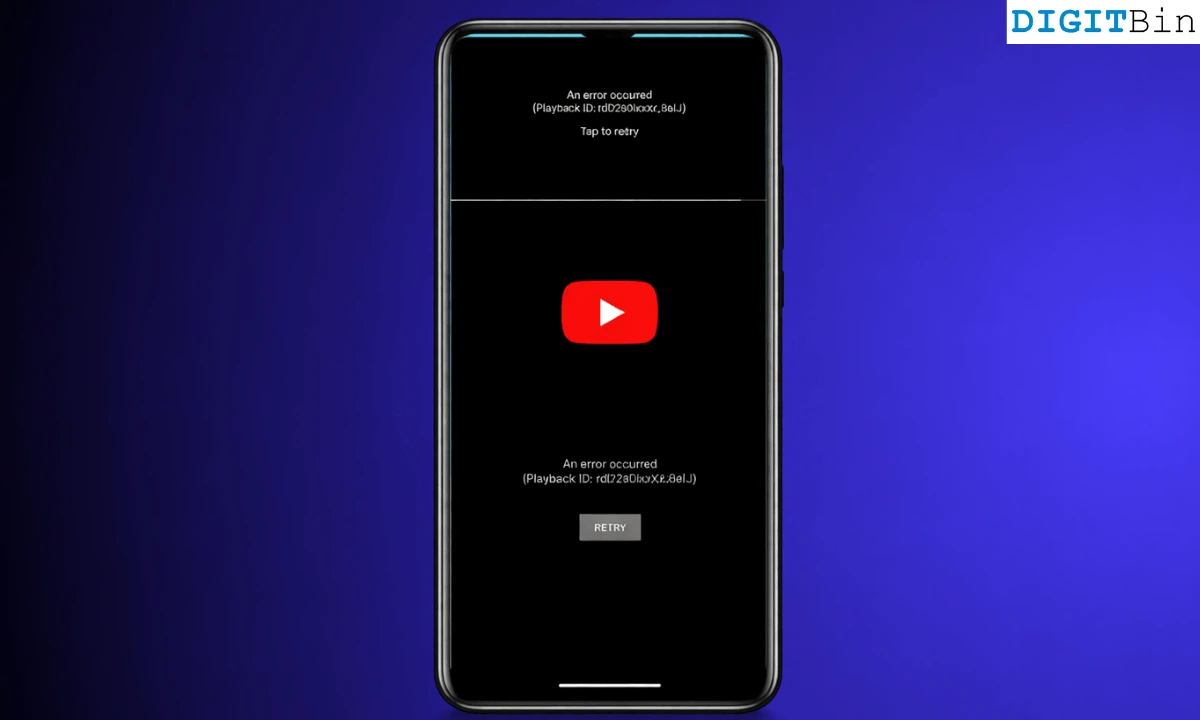
I’m sure if you are visiting this page, you have encountered the “An error occurred: tap to retry” issue on YouTube. It is a notorious YouTube bug that appears now and then across every device for years.
I have recently faced the same issue in playing YouTube videos on my Android device. It was quite irritating to experience the bug right when I was enjoying YouTube videos while having dinner.
So, I tried to figure out the problem with the YouTube video not playing, how often users face this issue, and what troubleshooting tips to follow to resolve it.
“An error occurred: Tap to Retry.” YouTube video not playing
I found several possible reasons for this YouTube video playback issue. People across all the platforms, such as PC, Android, and iOS, have experienced the issue.
Normally, when the YouTube servers get an overwhelming number of access requests during peak hours, they may become temporarily unresponsive.
This results in the problem with streaming a video, leading to the video playback error message.
I found out that this issue with YouTube video playback occurs when the device is connected to a WiFi.
Sometimes bugs in the YouTube app for Android and iOS can also cause the playback errors. If the app storage and cache data become corrupt, it can disrupt the video streaming or other app functions.
Best Tips to fix the YouTube video playback error
I have compiled a few troubleshooting steps to fix the YouTube playback issue and get your video streaming.
Most users have confirmed that implementing one or more of these fixes quickly resolved the “an error occurred: tap to retry” issue on YouTube.
Check if YouTube is down
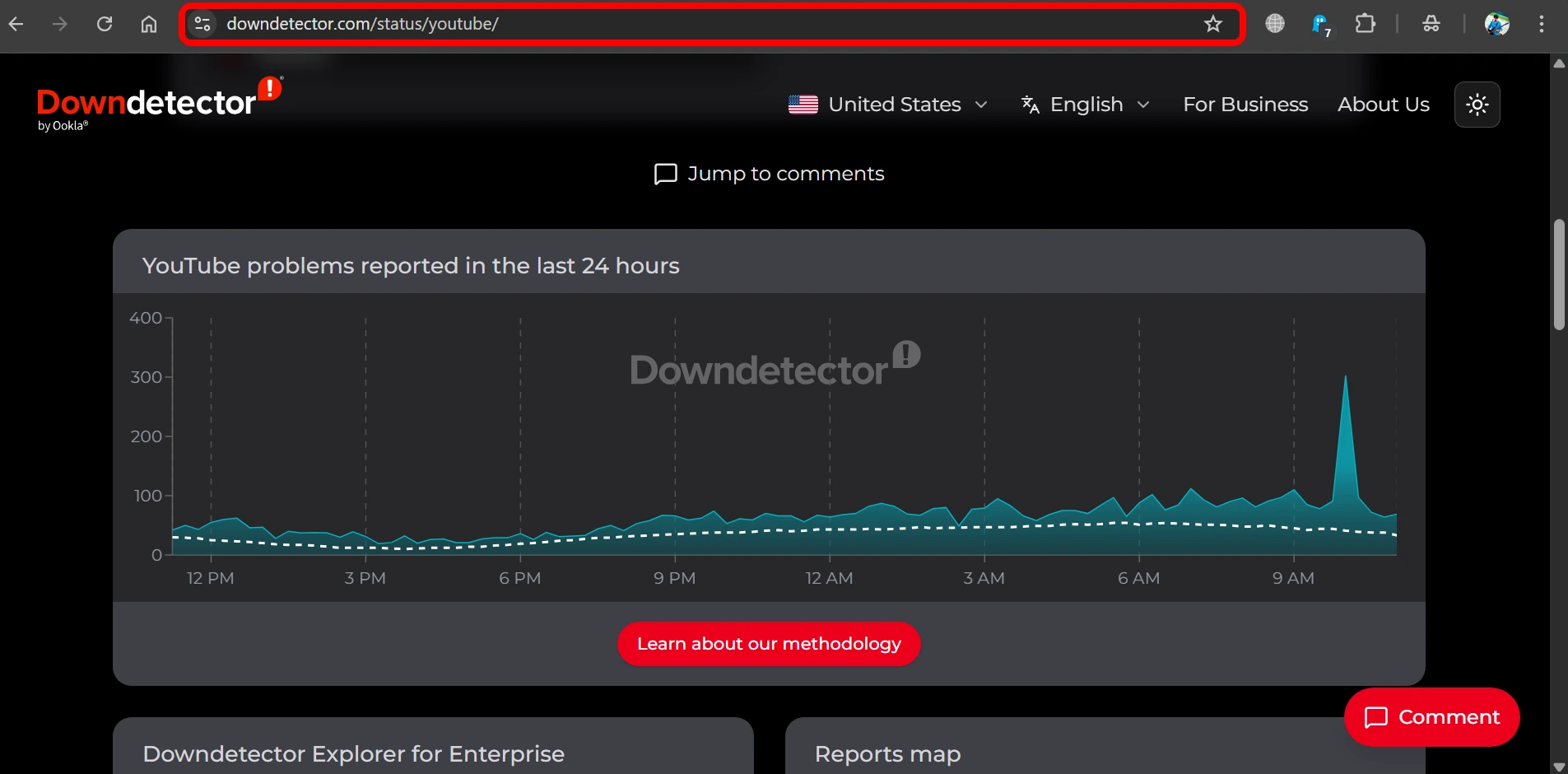
When facing playback issues on YouTube constantly, I first check if YouTube servers are down.
- Go to Downdetector.
- Search for YouTube to know its status.
Apart from the above site, I often go to reliable social media apps like Reddit or X and search for posts on “YouTube is down today”. If other users are facing the same issue, I usually see the latest posts regarding that.
Most of the time, when YouTube services are down, the issue is acknowledged on their social media handles.
When the issue is on YouTube’s end, I wait until they officially resolve the bugs.
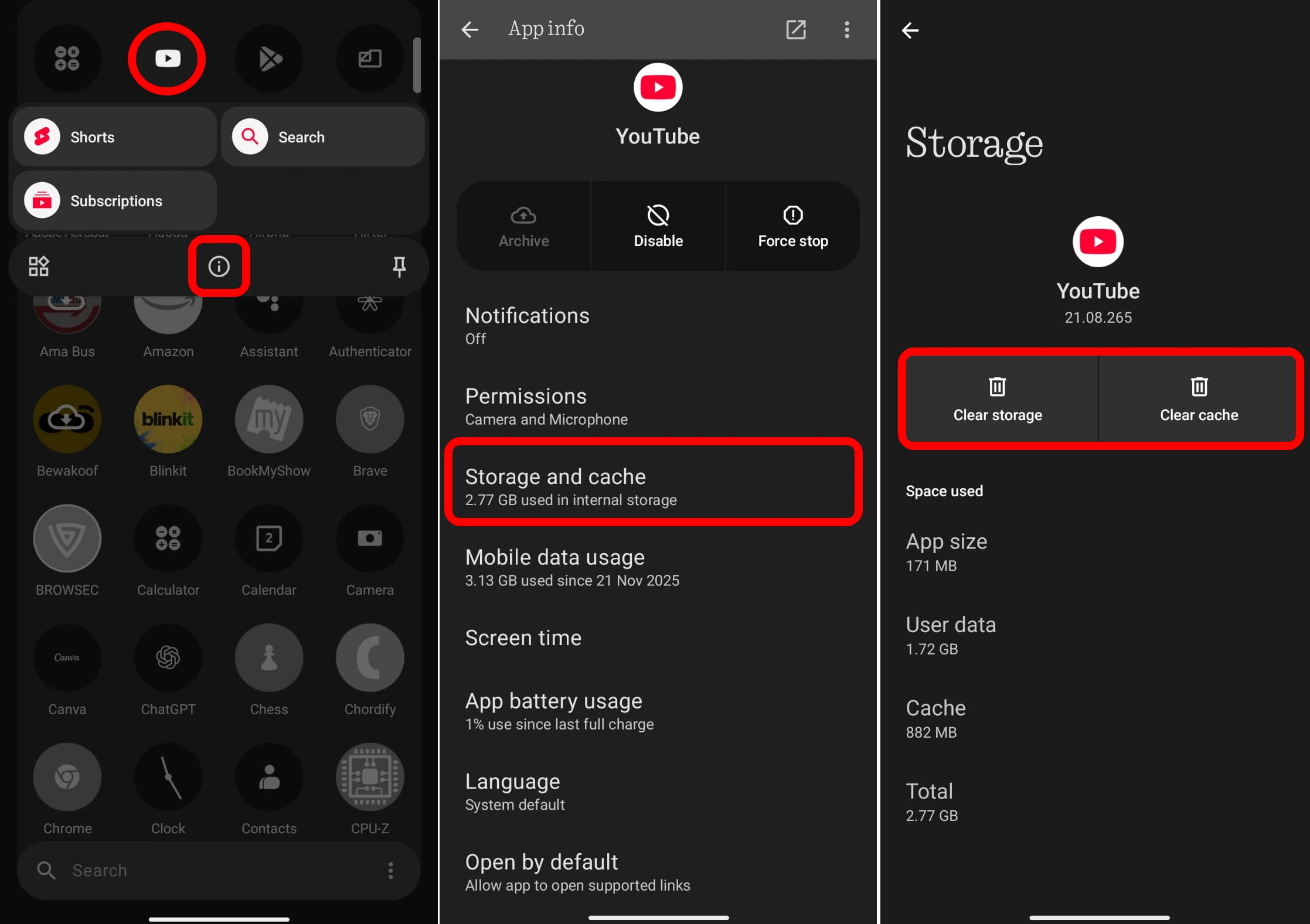
Clear the YouTube app storage [Android]
On my Android device, I refresh the junk data from the YouTube app storage. To do this,
- Long-press on the app icon to view the shortcut menu.
- Select App info from the menu.
- Go to Storage and Cache.
- Tap on Clear Storage.
- Also, press Clear Cache.

Force close YouTube
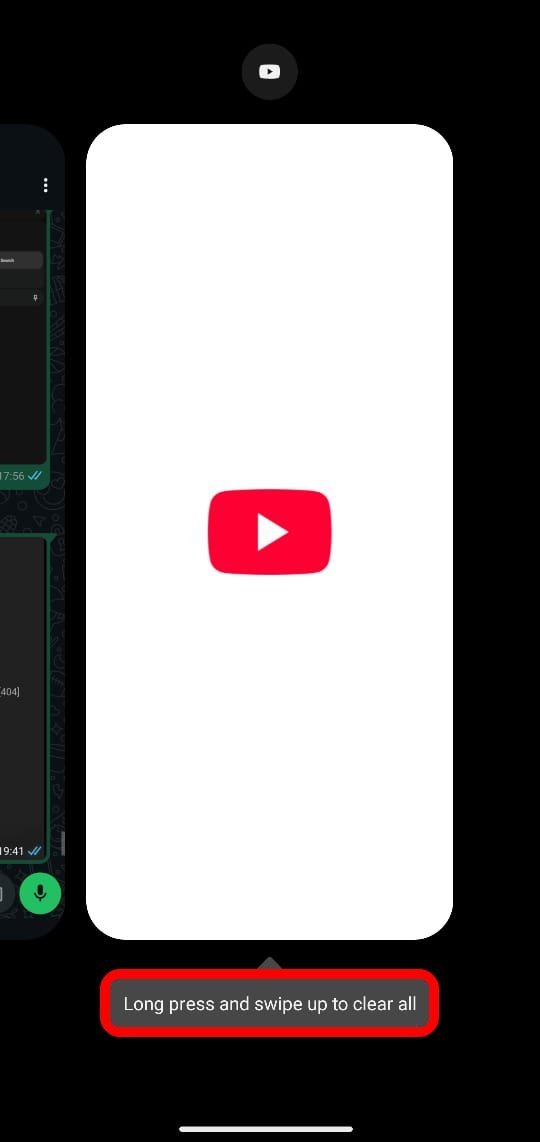
I often force close the YouTube app. This trick is more useful right after clearing the storage/cache.
Android,
- Swipe up on the screen to view the open apps.
- Navigate to the YouTube app card, hold and swipe it up to terminate the app.

- Relaunch YouTube.
iOS
On my iPhone, I follow these steps to force close the app on an iPhone. Followed by which, I relaunch the app from the iOS App Library.
Uninstall YouTube updates
On an Android device, it is not possible to uninstall YouTube as it comes pre-installed as a core part of the Google, which develops the Android OS.
Alternatively, I downgrade from the current version of the app to a previous one. This likely fixes any bugs in the current build that may be causing the video playback error.
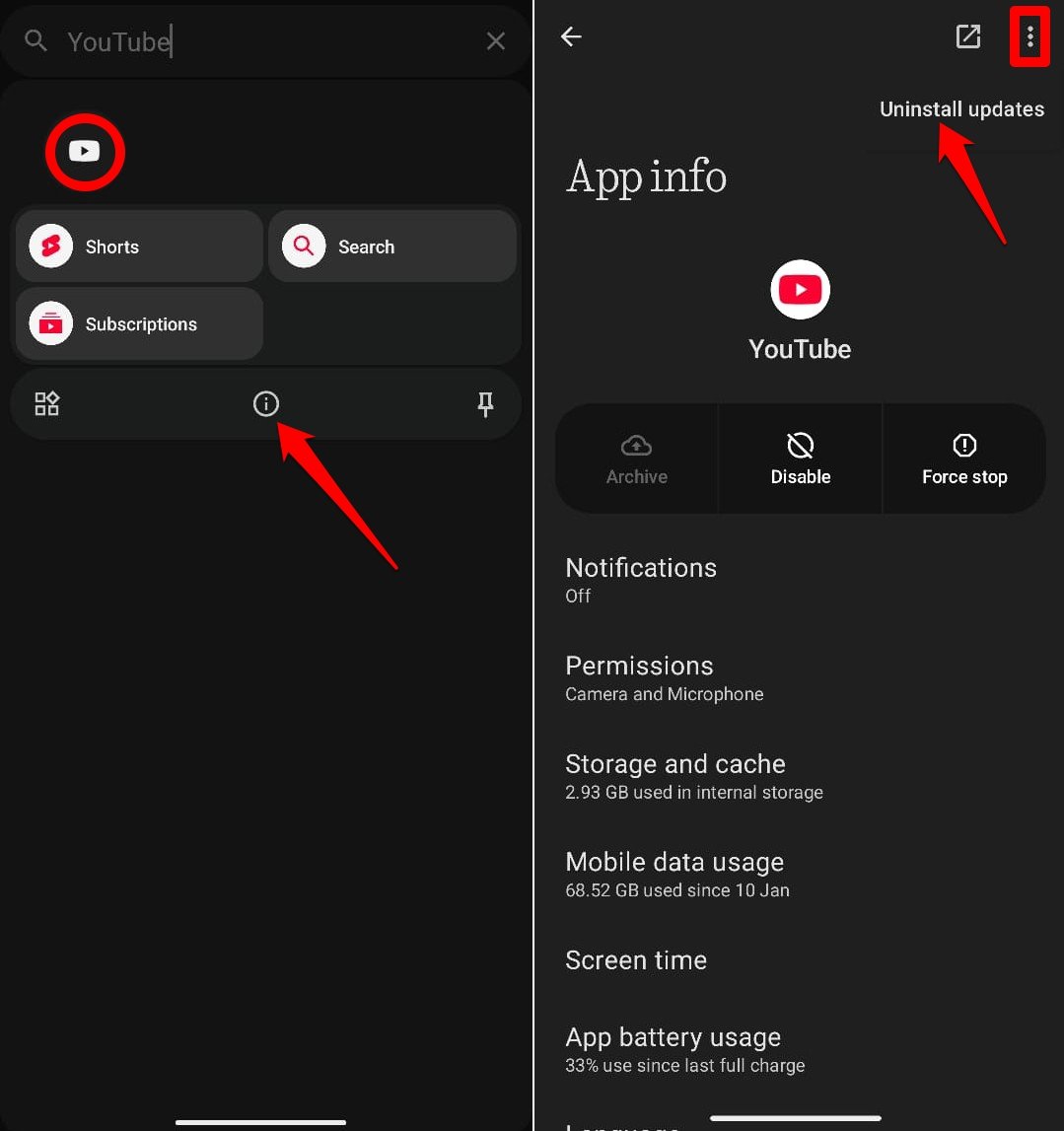
To uninstall YouTube app updates,
- Press and hold the YouTube app icon to view a menu.
- Select App Info.
- Tap the overflow menu icon at the top-right corner, and select Uninstall updates.

Next, I open the Play Store app and check if YouTube has a new version update available. I have laid out the steps in the next section.
Update YouTube app [Android]
Often, when app developers are aware of bugs, they quickly release new builds to replace the old ones and fix the snags.
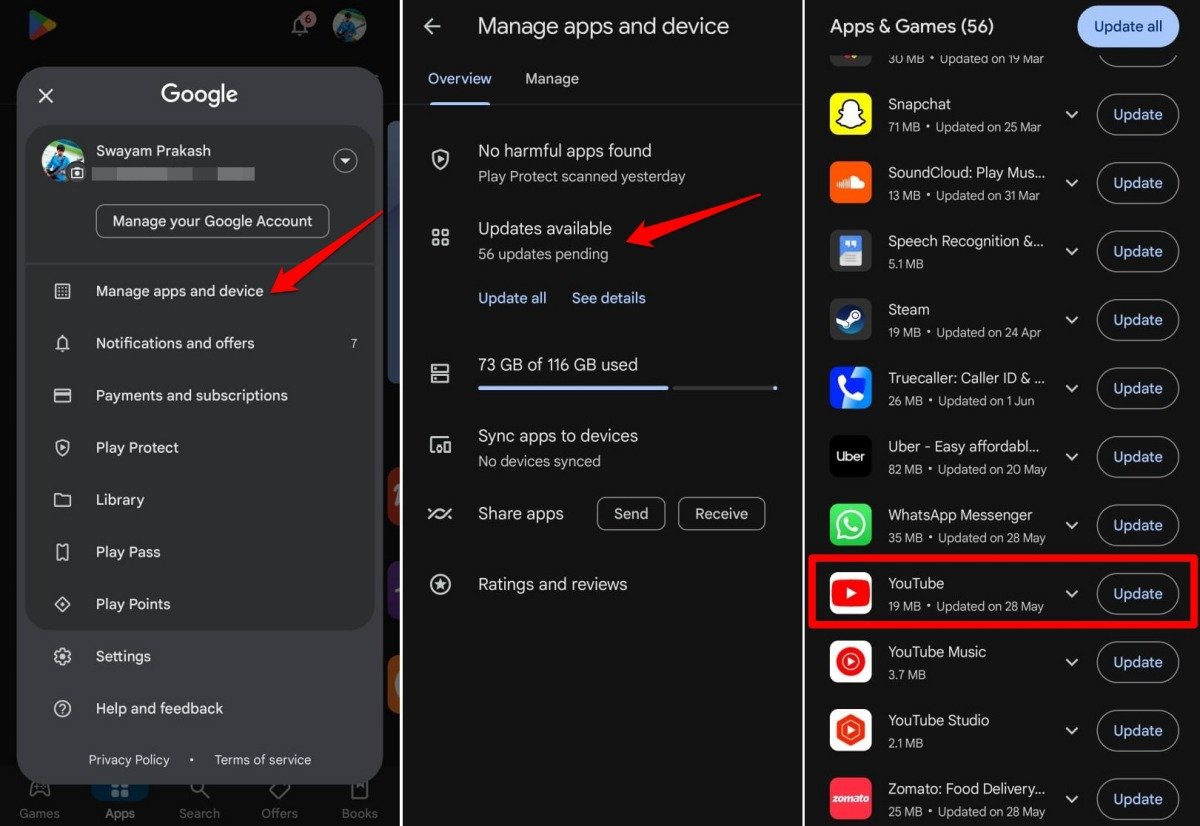
I check the Play Store to follow up with new app updates.
- Open the Play Store.
- Tap the Gmail ID at the top and select Manage Apps and Devices.
- Press Updates Available.
- If YouTube has a new build ready to install, tap Update.

On iOS,
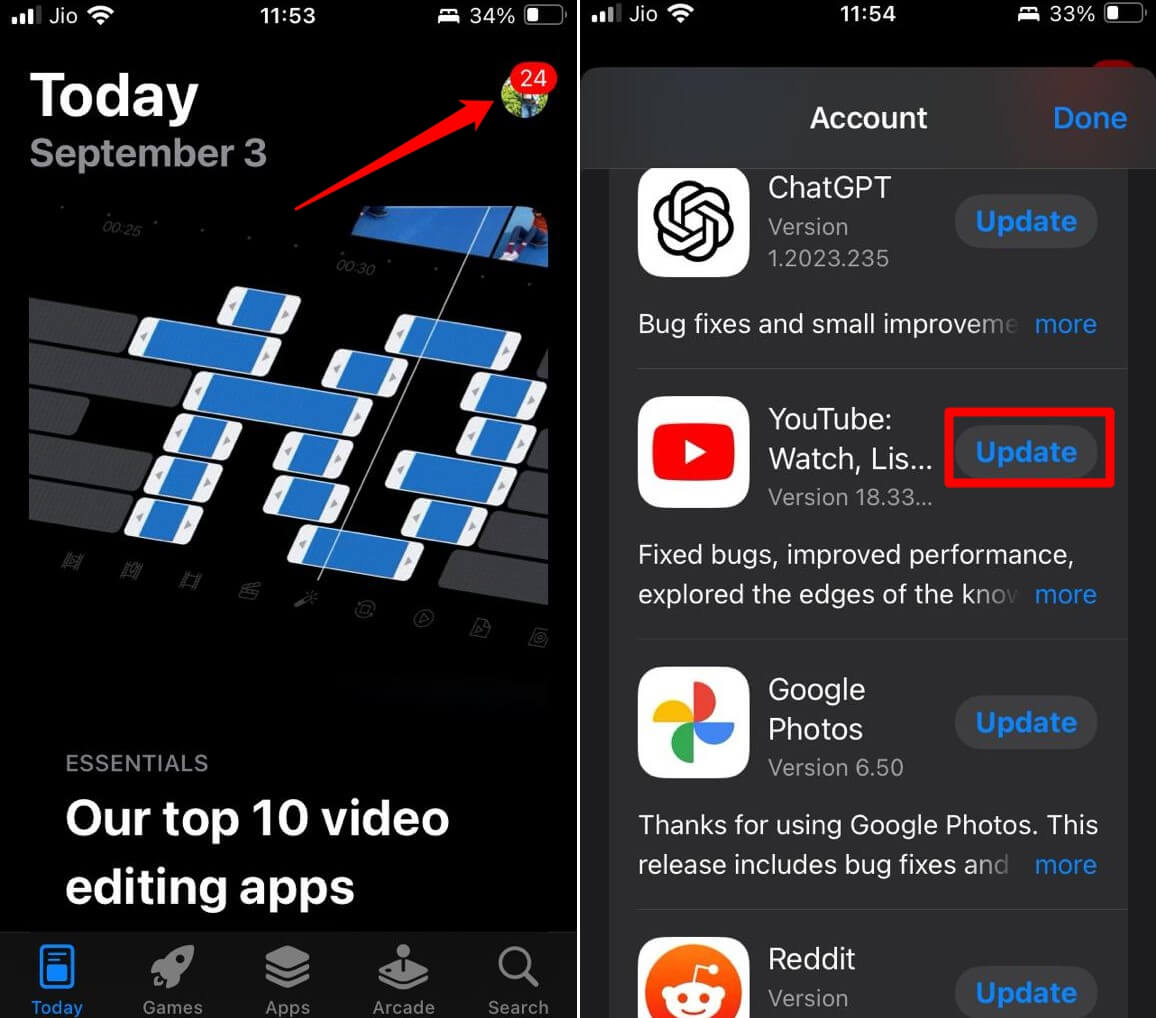
- Open the App Store and tap the ID at the top.
- Scroll down to check if YouTube has a new update.
- Press Update to install the new version.

Disconnect the device from the WiFi
According to some Redditors, repeated encounters with the “an error occurred: tap to retry” issue led them to disconnect their device from the WiFi and reconnect.
This troubleshooting seemed to work, and they could stream YouTube videos without any errors.
Personally, this fix has also time and again solved the YouTube video playback issues for me when other tips and tricks would fail.
Toggle flight mode
Often, quickly toggling the device through the flight mode has reportedly fixed the video playback error on YouTube for me.
This is an effective solution if network issues are causing an app to malfunction.
- Locate the flight mode icon on your phone, and tap it to disrupt all networks.
- Once again, tap the icon to turn off flight mode to reinstate all the networks.
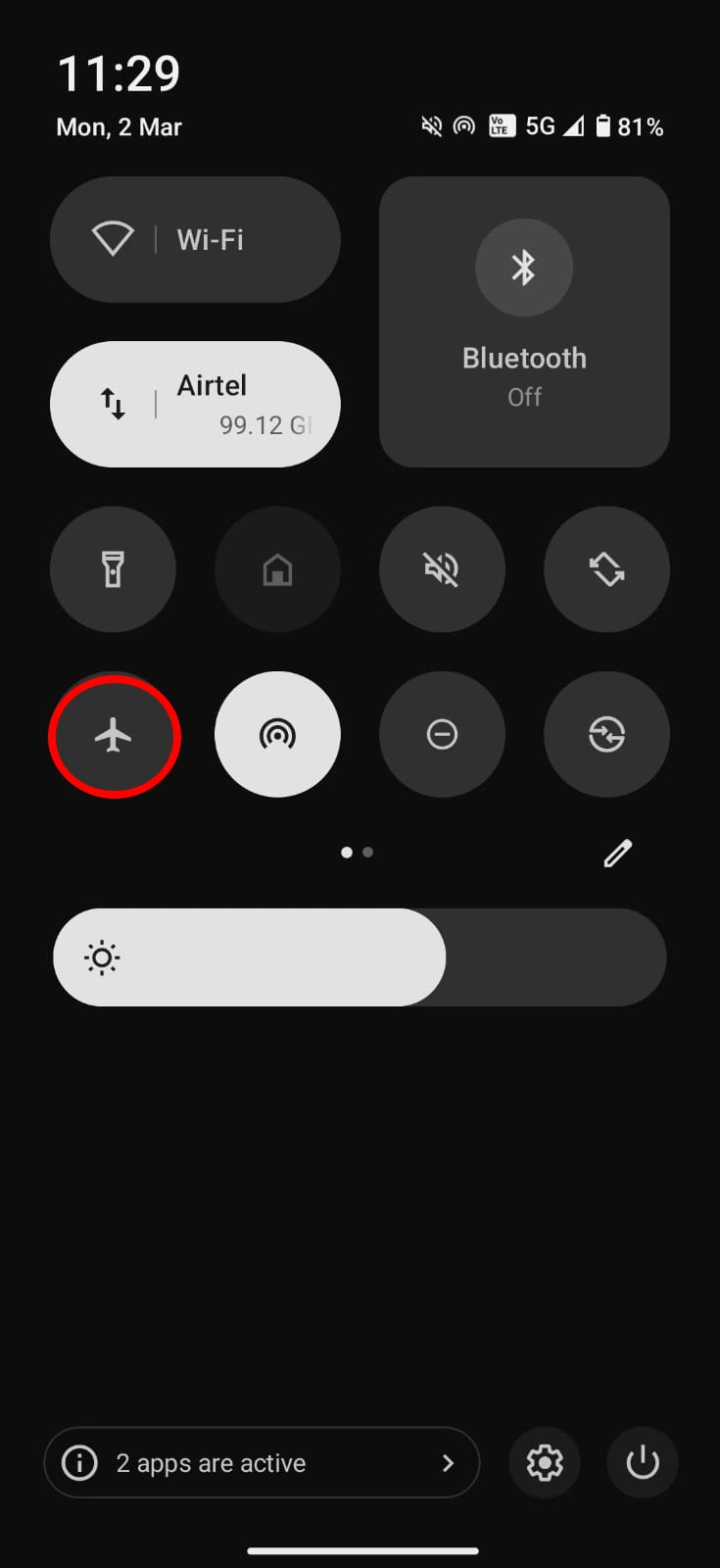

On Android, you can find the flight mode icon on the pull-down quick settings tiles. On an iPhone, you can find this icon in the iOS control center.
Install iOS update
Some iPhone users suggest upgrading the iOS to a newer build to fix the “an error occurred: tap to retry” issue on YouTube.
To install the latest iOS update,
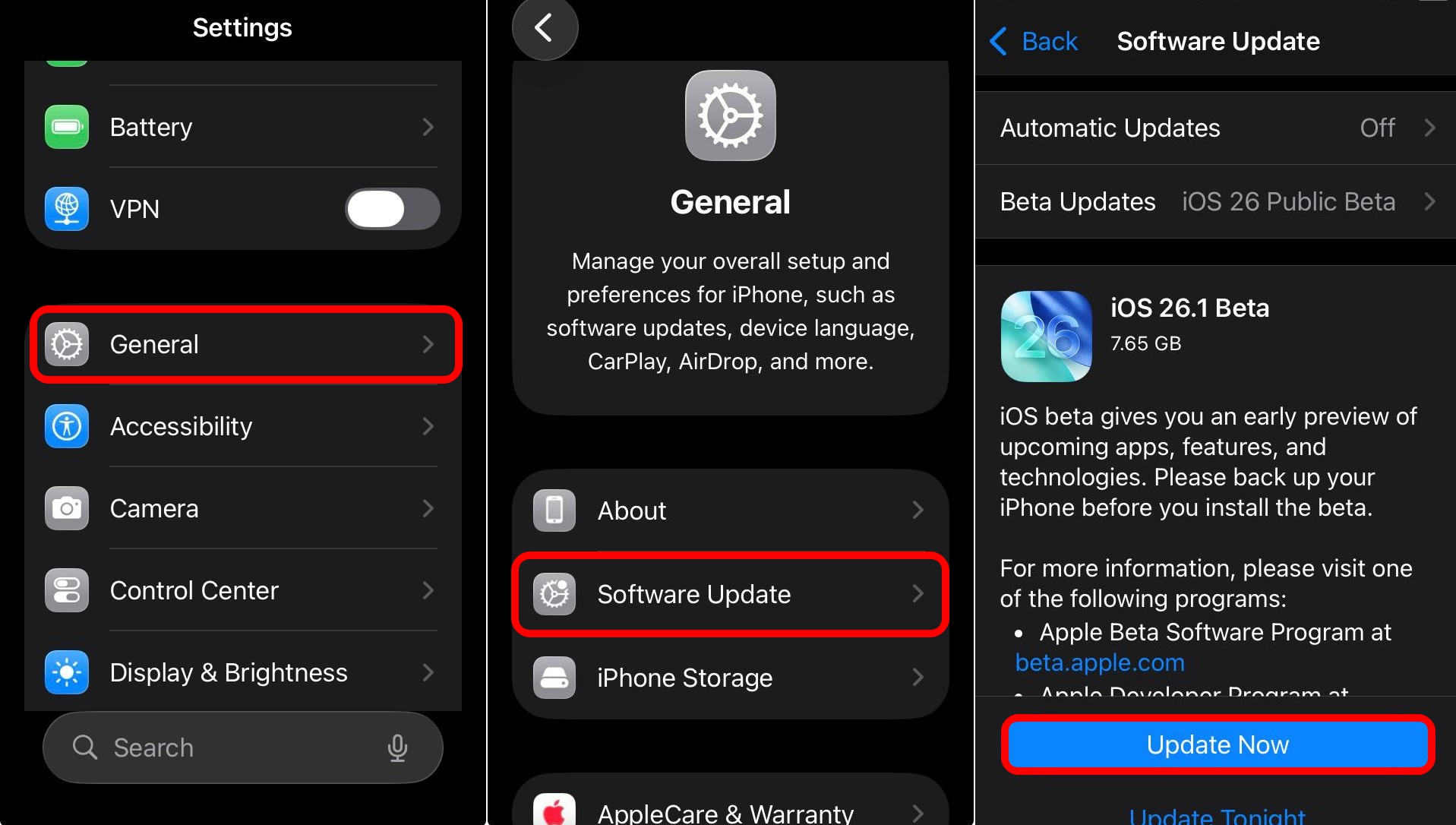
- Open the Settings app on your iPhone.
- Go to General > Software Update.
- Tap Update Now if a new system build is available.

Reinstall YouTube [iOS]
On internet forums, I read that some iPhone users have reported that reinstalling the YouTube app for iOS fixed the playback problem.
To uninstall the YouTube app on iOS,
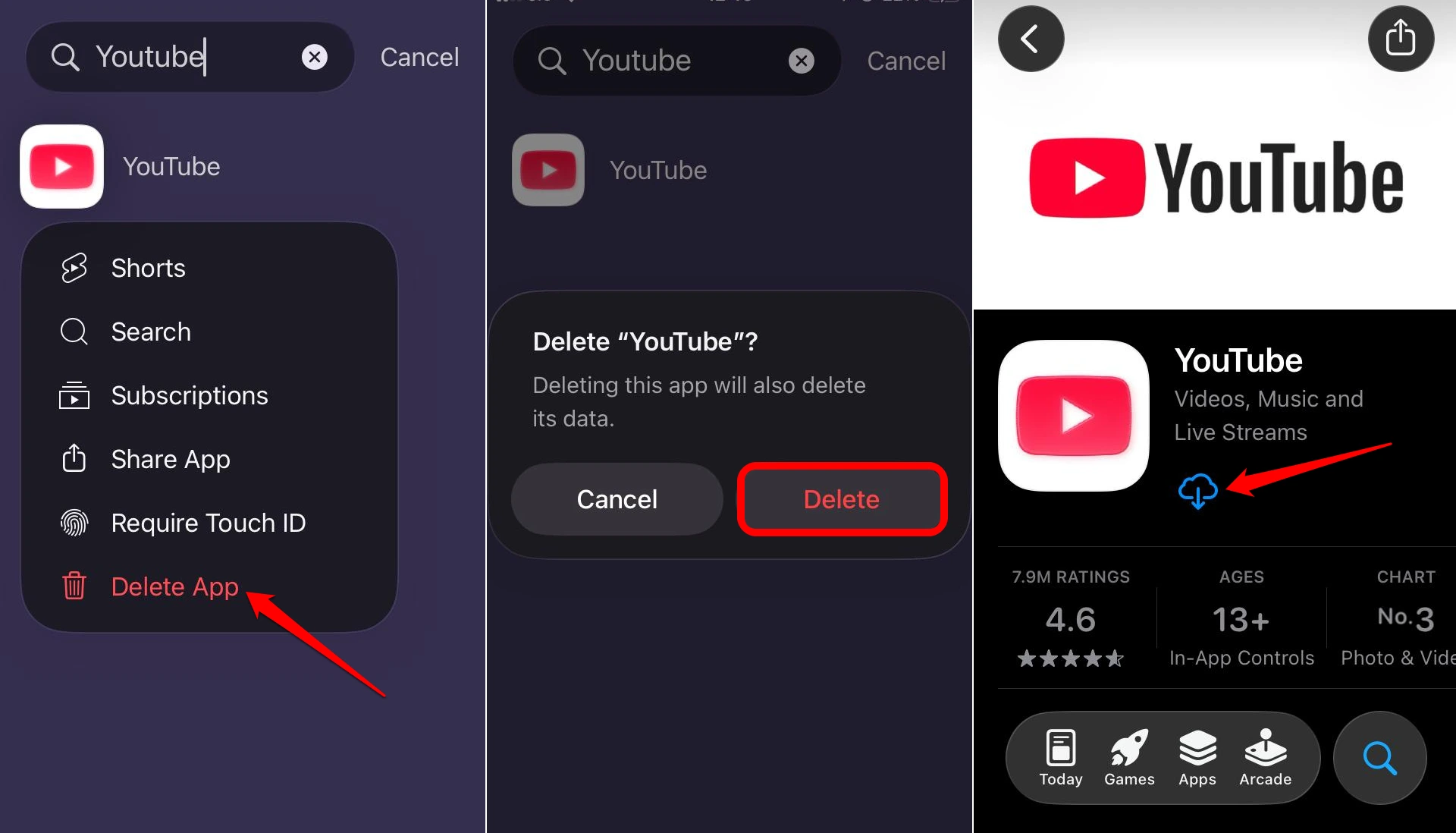
- Go to App Library and search for YouTube.
- Press the app icon and select Delete App from the menu.
- Access the App Store and search for YouTube.
- Press the download icon to install YouTube on your device.

NOTE: Android doesn’t support complete uninstallation of YouTube.
Use YouTube from a PC browser
When none of the other fixes work to fix the issues with the YouTube app or site on Chrome browser, I switch to a different PC browser to watch YouTube videos.
Stream YouTube videos without playback error
It can get frustrating when you’re all set to watch a video on YouTube, but the screen gets stuck on an error message.
Several tips from this guide have, time and again, helped me fix the streaming issue on YouTube.
Let me know which workaround resolved your problem. Stay tuned to DigitBin for more such helpful articles.