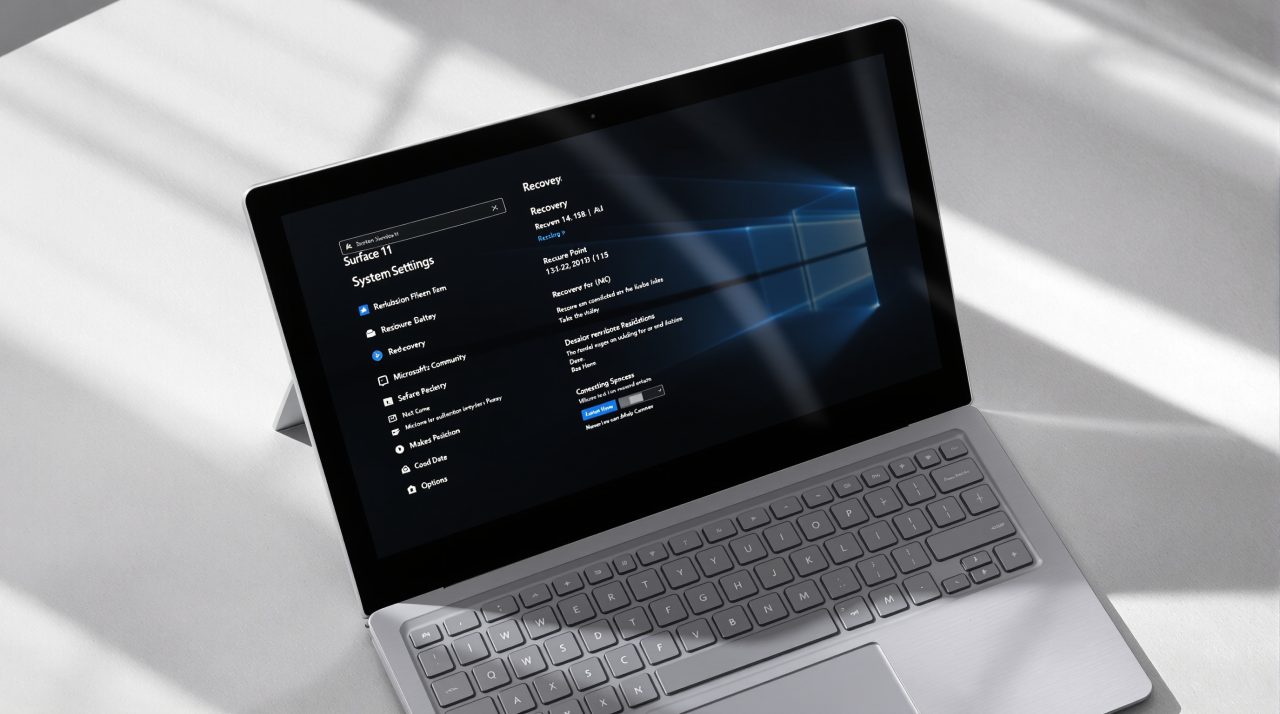
Microsoft released KB5095093 for Windows 11 on June 23, 2026, an optional preview update that begins rolling out Windows 11 Point-in-Time Restore, a recovery feature that automatically captures a full system snapshot every 24 hours.
When something goes wrong, you can revert the entire PC to any of those saved states in minutes, covering the operating system, installed apps, settings, and personal files simultaneously.
System Restore has been in Windows since Windows XP but has never cleanly handled personal files. This one does. The update applies to Windows 11 24H2 and 25H2, updating both to build 26100.8737, and is optional with no security patches included.
TL;DR: Microsoft’s KB5095093 preview update adds Point-in-Time Restore to Windows 11, saving a full automatic snapshot every 24 hours for up to 72 hours. When something breaks, you roll back your entire PC in minutes, including apps and personal files. The update also fixes the Recycle Bin filename bug from June’s Patch Tuesday and switches emoji panel GIFs from Tenor to GIPHY before June 30, 2026.
What Windows 11 Point-in-Time Restore actually does
Windows 11 Point-in-Time Restore uses Volume Shadow Copy Service (VSS) to save a full snapshot of your system automatically once every 24 hours. Those snapshots stay on the device and are deleted after 72 hours to keep storage use manageable.
When you restore, the PC returns to the exact state it was in at that point: the operating system build, all installed apps, settings, and personal files revert together. Microsoft says the recovery takes minutes, not the hours a manual reinstall would require.
The feature is rolling out gradually to users after installing KB5095093, so it may not appear immediately. Storage for snapshots is reserved automatically, which keeps the disk footprint lower than System Restore’s approach. This is not System Restore renamed.
How it is different from System Restore
System Restore has existed in Windows since 2001, and its gaps are familiar. It covers system files and some settings but has always handled app data and personal files inconsistently. A System Restore point can fix a broken driver without rolling back the document changes that happened in the same session.
Microsoft published a direct comparison alongside the official Point-in-Time Restore documentation.
| Capability | Point-in-Time Restore | System Restore |
|---|---|---|
| Configuration | System Settings | Control Panel |
| Restore trigger | Automatic schedule only | Event-triggered or manual |
| Retention | Maximum 72 hours | Indefinite (subject to disk space) |
| Target scope | Full system state | System files and settings (app/file coverage varies) |
| Storage impact | Lower, reserved allocation | Higher, unmitigated |
| Remote management | Robust | Limited |
The 72-hour maximum is the real trade-off. System Restore can keep snapshots for weeks. For the most common scenario where a bad update breaks something within the same day, 72 hours is enough window to act.
Many people running the default Windows 11 default settings have System Restore either turned off or scoped only to the system drive. Point-in-Time Restore manages its own storage allocation and requires no manual configuration of disk space limits.
What else is in KB5095093
The update fixes a visible Recycle Bin bug that shipped with June’s Patch Tuesday. When permanently deleting a file, Windows was showing an internal system filename in the confirmation dialog instead of the original filename. Lawrence Abrams at Bleeping Computer documented the full change log when the update dropped on June 23.
GIFs in the emoji panel are switching providers. Google deprecated the Tenor API that Windows has used since Windows 11 launched. Starting June 30, 2026, any device not on KB5095093 or a later update will show a “GIF service is not available” error when searching for GIFs via the Windows key plus period shortcut. This update switches the provider to GIPHY and keeps GIF search working without interruption.
Windows Update gains a calendar-based pause option, letting you pick a specific end date up to 35 days out instead of pausing for a preset period.
Bluetooth reliability improves for AirPods, which now appear faster in pairing mode, and for Beats Studio Pro headphones. Voice access and voice typing expand to French, German, and Spanish for the first time, with real-time grammar and punctuation correction during dictation.
One known issue carries forward from June’s Patch Tuesday: third-party applications launching Microsoft Office apps or opening documents from within another app may still fail after this update. Microsoft says the fix is coming in a future update. The current workaround is opening Office apps directly.
How to install KB5095093 and what to do before June 30
KB5095093 is optional and will not install automatically unless the “Get the latest updates as soon as they’re available” toggle is enabled in Windows Update. To install manually, open Settings, go to Windows Update, and click Check for Updates.
Select “Download and install” when KB5095093 appears. It is also available as an offline installer from the Microsoft Update Catalog.
Point-in-Time Restore rolls out gradually after installation and may not appear in Settings immediately. When it does arrive, the controls sit in the System section of Windows Settings, where you can also adjust the storage allocated to snapshots.
GIPHY is the time-sensitive detail here. If GIF search in the emoji panel is part of your workflow, install KB5095093 before June 30 to avoid the service outage that hits devices still on Tenor.
A separate Windows 11 low-latency profile that cuts app launch times by up to 40 percent is rolling out through a different update path. Together, these changes make June 2026 one of the more active Windows 11 feature cycles outside of a major version release.