Microsoft is rolling out its July 2026 Patch Tuesday update to Windows 11 today, and it changes something that mattered more as an opt-in preview than most people gave it credit for. Point-in-Time Restore, the automatic recovery feature Microsoft began testing in June, now ships enabled by default on Windows 11 Home and Pro.
Nobody has to hunt down a preview build or flip a hidden toggle to get it anymore. The same update adds a new accessibility feature called Screen tint, switches printer installation to a modern protocol by default, and finally lets you pause Windows Update for longer than five weeks at a stretch.
TL;DR: Microsoft’s July 2026 Windows 11 update turns Point-in-Time Restore into a default feature instead of an opt-in preview, automatically creating recovery snapshots on any PC with 200GB or more free storage. The same update adds a Screen tint accessibility mode with six color presets, switches printer installs to the IPP standard, speeds up File Explorer launches, and replaces the old 35-day update pause cap with a renewable calendar pause.
Point-in-Time Restore no longer needs a toggle
Windows 11 Point-in-Time Restore stopped being something you had to go looking for. It shipped first as an optional preview in June’s KB5095093 update, buried behind a manual install and no security patches attached to sweeten the deal.
Today’s update flips that. Point-in-Time Restore is enabled by default on Windows 11 Home and Pro editions, provided the device has at least 200GB of storage. Microsoft’s own configuration documentation confirms the feature uses Volume Shadow Copy Service to capture automatic snapshots covering the operating system, installed apps, settings, and personal files together, the same mechanism DigitBin detailed when the preview first appeared.
That distinction matters more than it sounds. A feature buried in an optional update only protects people who go digging through Windows Update settings. A feature that ships on by default protects everyone else too, which is the actual point of a recovery tool.
| Feature | Status before July 14 | Status after July 14 |
|---|---|---|
| Point-in-Time Restore | Optional, manual install via KB5095093 | Enabled by default on Home and Pro |
| Screen tint | Not available | New accessibility feature |
| Printer installation | Vendor-specific by default | Internet Printing Protocol by default |
| File Explorer launch | Standard speed | Faster launch times |
| Update pause | Fixed increments, 35-day maximum | Calendar pause, renewable past 35 days |
Screen tint is Windows 11’s answer to eye strain, finally built in
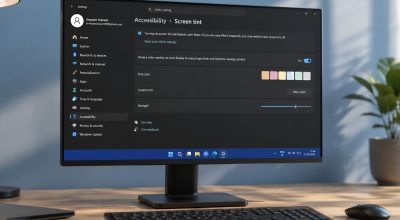
Screen tint applies a color overlay across the entire desktop, and it is genuinely new to this update, not a renamed version of something that already existed. It lives in Settings, under Accessibility, and opens directly with Win plus U.
There are six presets to start from: Amber for long sessions, Rose for people sensitive to fluorescent lighting or migraine triggers, Yellow to cut visual stress while reading, Blue for glare in bright rooms, Green to soften harsh white backgrounds, and Gray for anyone who finds high-contrast displays tiring. A custom color option and a strength slider sit alongside the presets. Windows Central’s hands-on testing of Screen tint found it automatically disables Color Filters when turned on, since running both at once would fight over the same pixels.
Night Light already dims blue light on a schedule, so it is worth being clear that Screen tint is a different tool. Night Light shifts color temperature by time of day. Screen tint applies a fixed color choice regardless of the clock, and the two can run together.
Printers and File Explorer get quiet upgrades most people will only notice by accident
Starting with this update, Windows 11 installs supported printers by default using the Internet Printing Protocol instead of older vendor-specific drivers. IPP is the same standard most modern printers already speak over a network, so the practical result is fewer failed driver installs when you add a printer for the first time.
File Explorer also launches faster after this update, according to Microsoft’s own release notes, though the company has not published a specific benchmark figure for the improvement. It follows a similar pattern to the Low Latency Profile change Microsoft shipped in June, another background tweak aimed at making the interface feel quicker without asking anyone to turn it on. Microsoft has not described a settings toggle for either change, which suggests both apply automatically once the update installs, consistent with how the company has been shipping smaller performance work throughout 2026.
Pausing updates finally works the way people have wanted for a decade
Windows Update’s pause button has been stuck at the same hard limit since early Windows 11 builds: pick a preset duration of one to five weeks, and once that window closed, the update installed whether anyone was ready or not.
This update replaces the preset list with a calendar. You choose a specific end date up to 35 days out, and when that date approaches, you can go back into Windows Update settings and pick a new one before the current pause expires. Chained together, that adds up to pausing indefinitely, though it still requires returning to the calendar every 35 days rather than a single switch that pauses forever.
That is a meaningful shift for anyone who has ever had a forced restart interrupt something mid-task. It is not a permanent opt-out of updates, and it should not be treated as one, since security patches still need to land eventually.
What to check before this update reaches your PC
This is a gradual rollout through Microsoft’s Controlled Feature Rollout system, so not every eligible PC gets every feature on July 14 itself. The update applies to Windows 11 versions 25H2, 24H2, and 23H2, and Microsoft has said it typically begins deployment in the early afternoon Eastern Time.
Point-in-Time Restore’s 200GB storage requirement is the detail most likely to catch people off guard on smaller SSDs common in budget laptops. If your drive falls short, the feature simply will not turn on, and Windows will not necessarily tell you why. It is worth checking available storage first, and pairing that check with the other default settings worth changing on a fresh Windows 11 install.