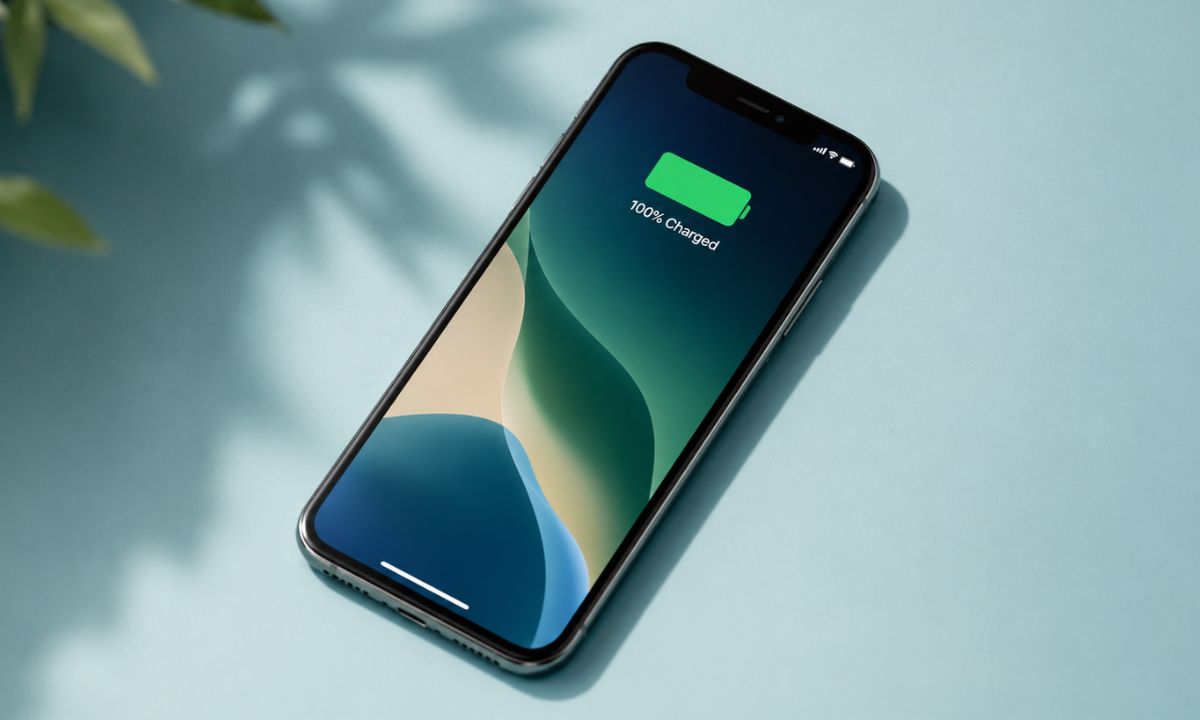
My iPhone used to hit 20 percent by around 7 PM most days, even on days I was not doing anything unusual with it.
I had blamed the battery itself for a while, assuming it was just aging the way batteries do on an older iPhone. Then I actually bothered to go through the iOS Settings, app by app, toggle by toggle, instead of accepting the decline in battery as normal.
Six setting changes later, I was ending the day closer to over 30 percent instead of scraping past 15. This article highlights what settings on iPhone I turned off, in the order which I did, and whether making those changes actually did something.
TL;DR: Turning off Always-On Display, trimming Background App Refresh to only a handful of apps, switching Location Services from Always to While Using, and dropping the screen refresh rate to 60Hz together added roughly 10 percent more battery by evening. Always-On Display and the refresh rate change made the biggest difference. Hey Siri and keyboard haptics barely moved the needle.
Always-On Display was the first thing to go
| Setting | Where to find it | Battery impact |
|---|---|---|
| Always-On Display | Display and Brightness | Noticeable |
| Background App Refresh | General, Background App Refresh | Moderate over several days |
| Location Services (Always to While Using) | Privacy and Security, Location Services | Moderate over several days |
| Limit Frame Rate (60Hz cap) | Accessibility, Motion | Noticeable |
| Hey Siri | Siri | Minimal |
| Keyboard haptics and clicks | Sounds and Haptics, Keyboard Feedback | Minimal |
Always-On Display keeps a dimmed version of the lock screen visible even when the phone is locked, and I had never actually questioned whether I needed that.
To change it,
- I went to Settings > Display and Brightness
- Turned Always-on Display off.
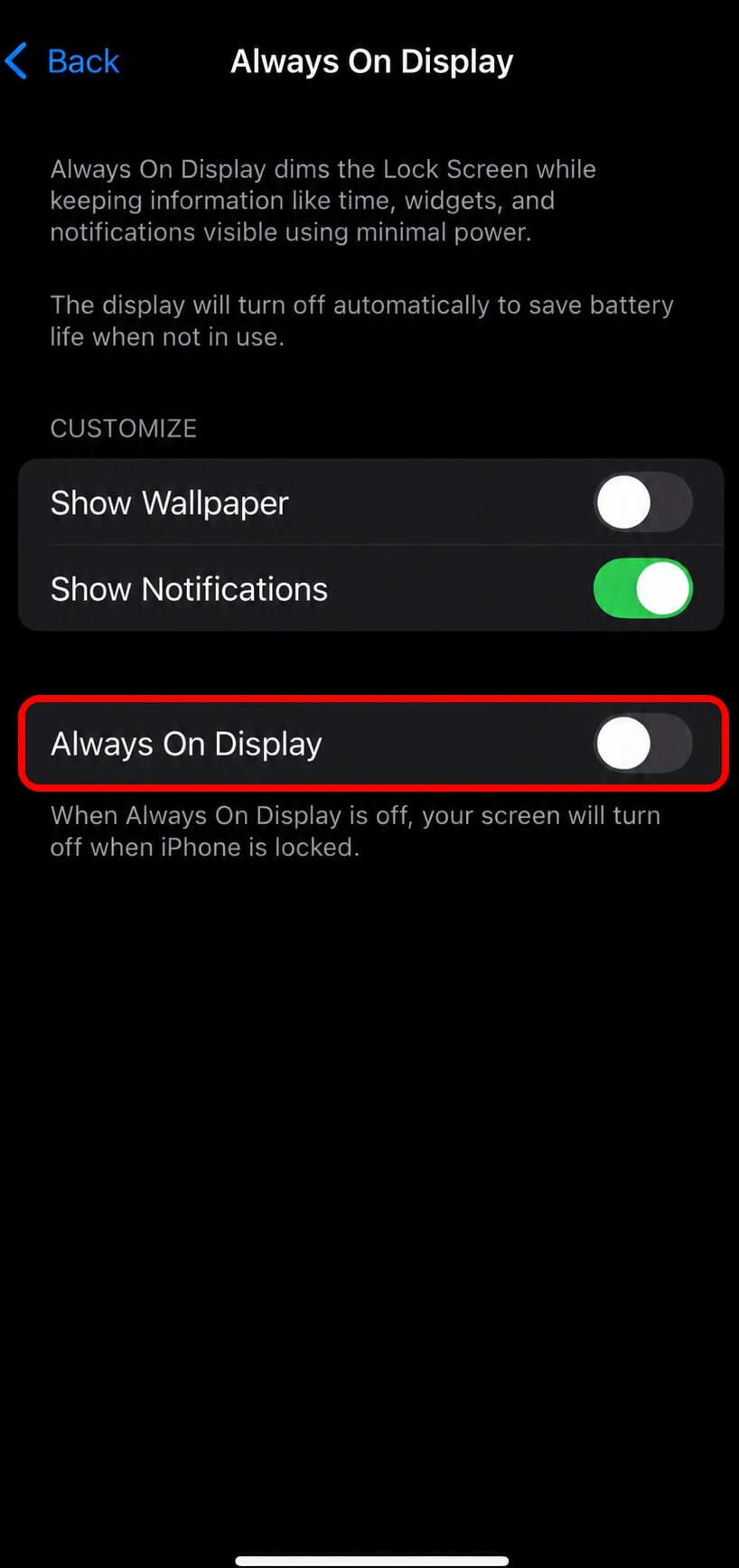

The lock screen now goes fully black until I tap it or raise the phone.
This is the one where I actually noticed something within a day. My phone was noticeably cooler in my pocket after an hour of sitting on the desk doing nothing, which is not something I expected to feel that quickly.
I kept glancing at the dark lock screen out of habit for the first two days, expecting the time to already be there. That habit faded by day three.
Background App Refresh, trimmed instead of killed
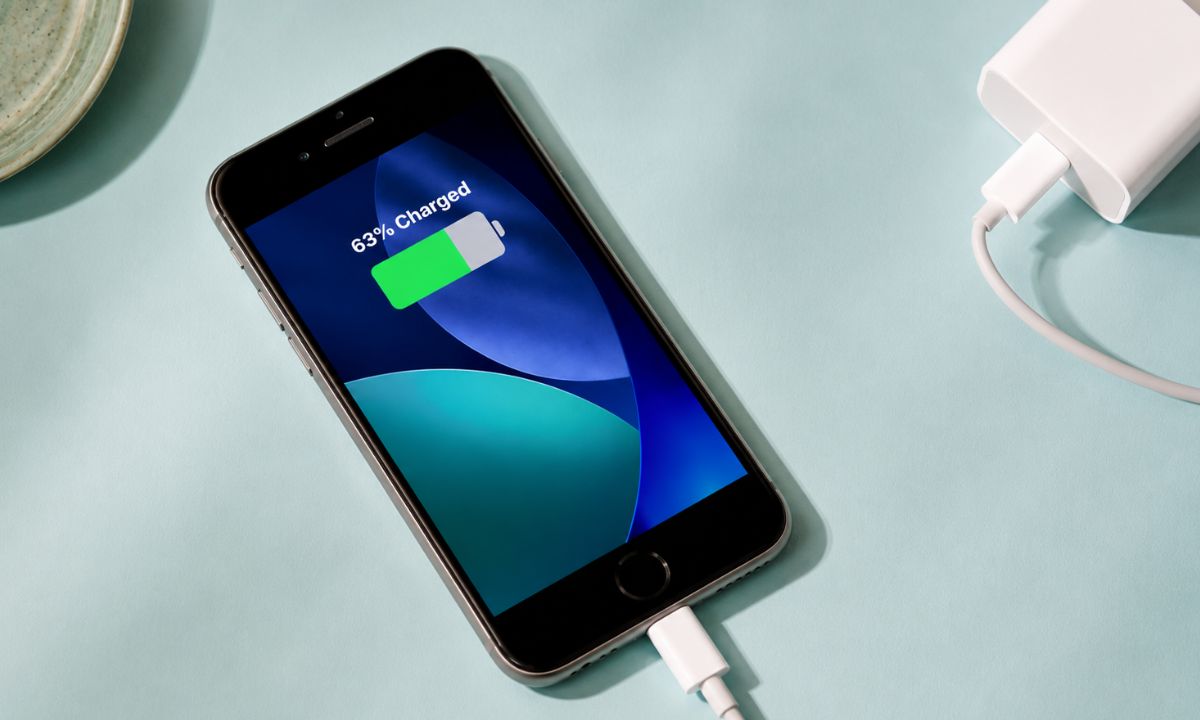
Background App Refresh in the iPhone settings lets apps update themselves before you open them, which sounds convenient until you realize most of the apps doing it are ones you open once a week at most.
I did not turn this off entirely for all apps. That would not be a smart move.
I went into
- Settings app > General > Background App Refresh
- Went through the list app by app, leaving the feature on only for the handful I actually check throughout the day.
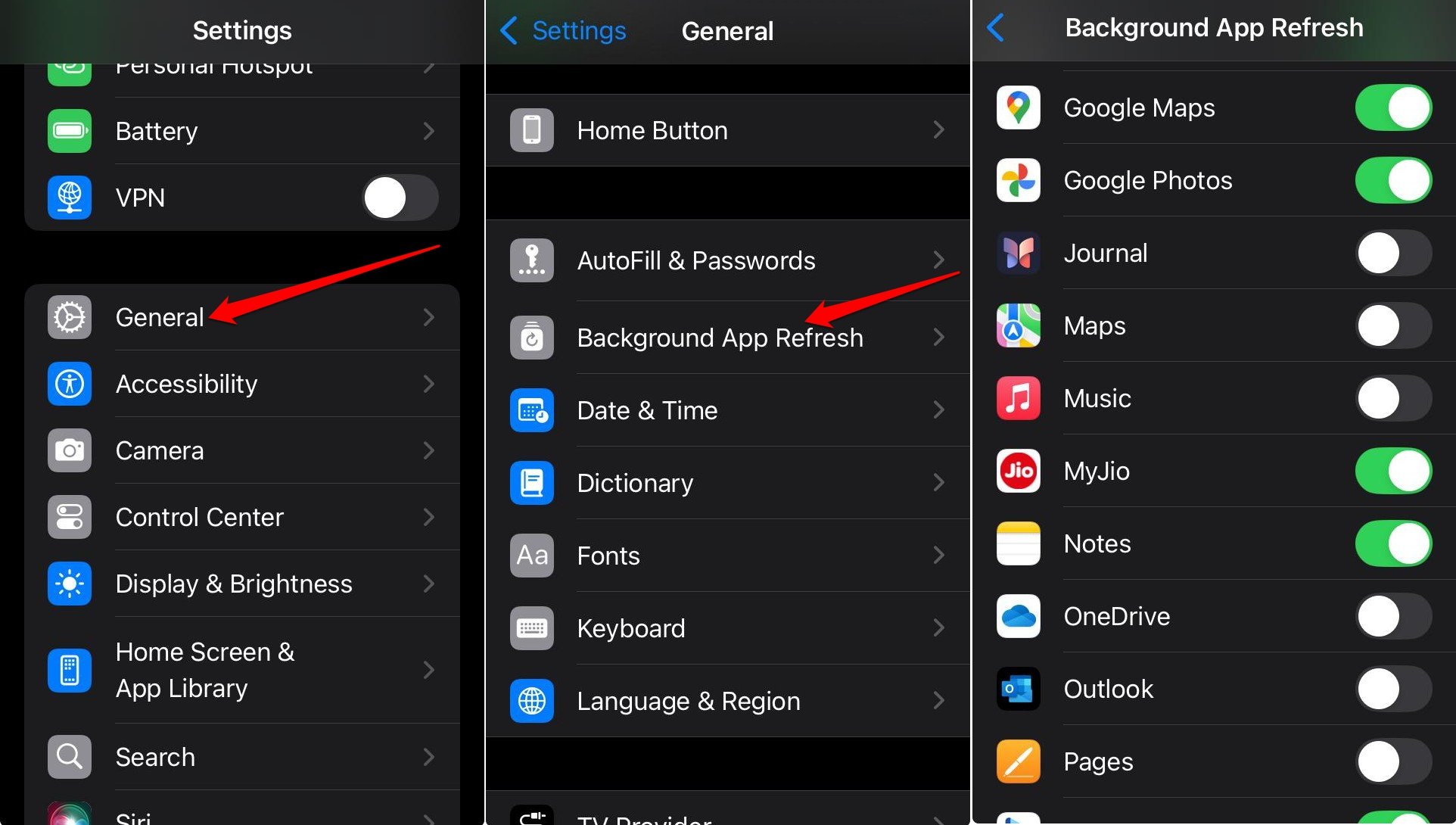

Everything else, such as shopping apps, a couple of games I barely open, and a news app I forgot I installed, got switched off. The list was longer than I expected, and seeing it laid out that way was actually surprising.
Location Services, from Always to While Using the App
A handful of apps had Always access to my location, which meant they were checking in the background even when closed. That was slowly sucking out the juice, and I had not observed it until now.
To change it, I went to
- Settings > Privacy and Security >Location Services.
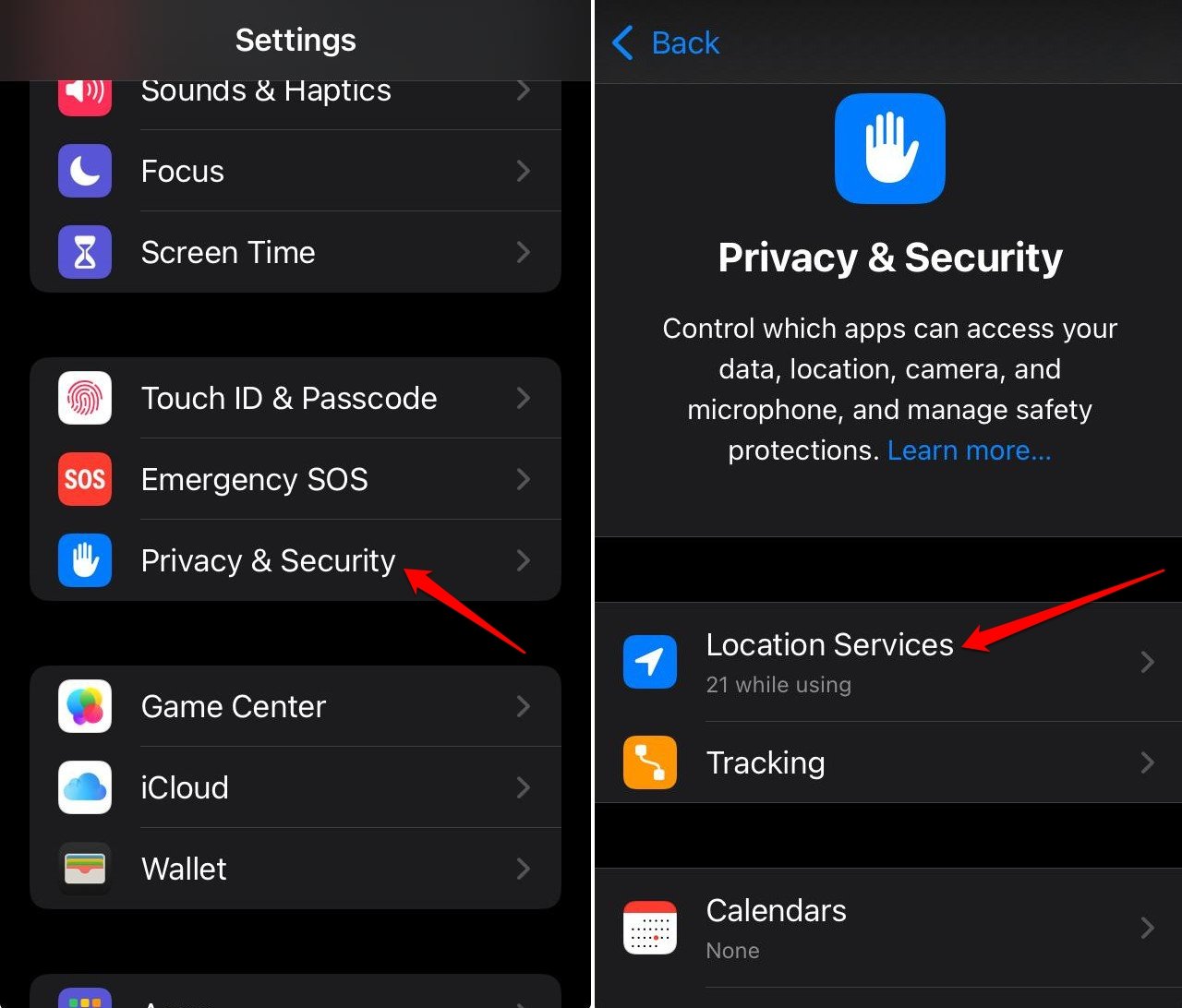

- Then I went through each app individually and set the location access permission to “While Using the App“.
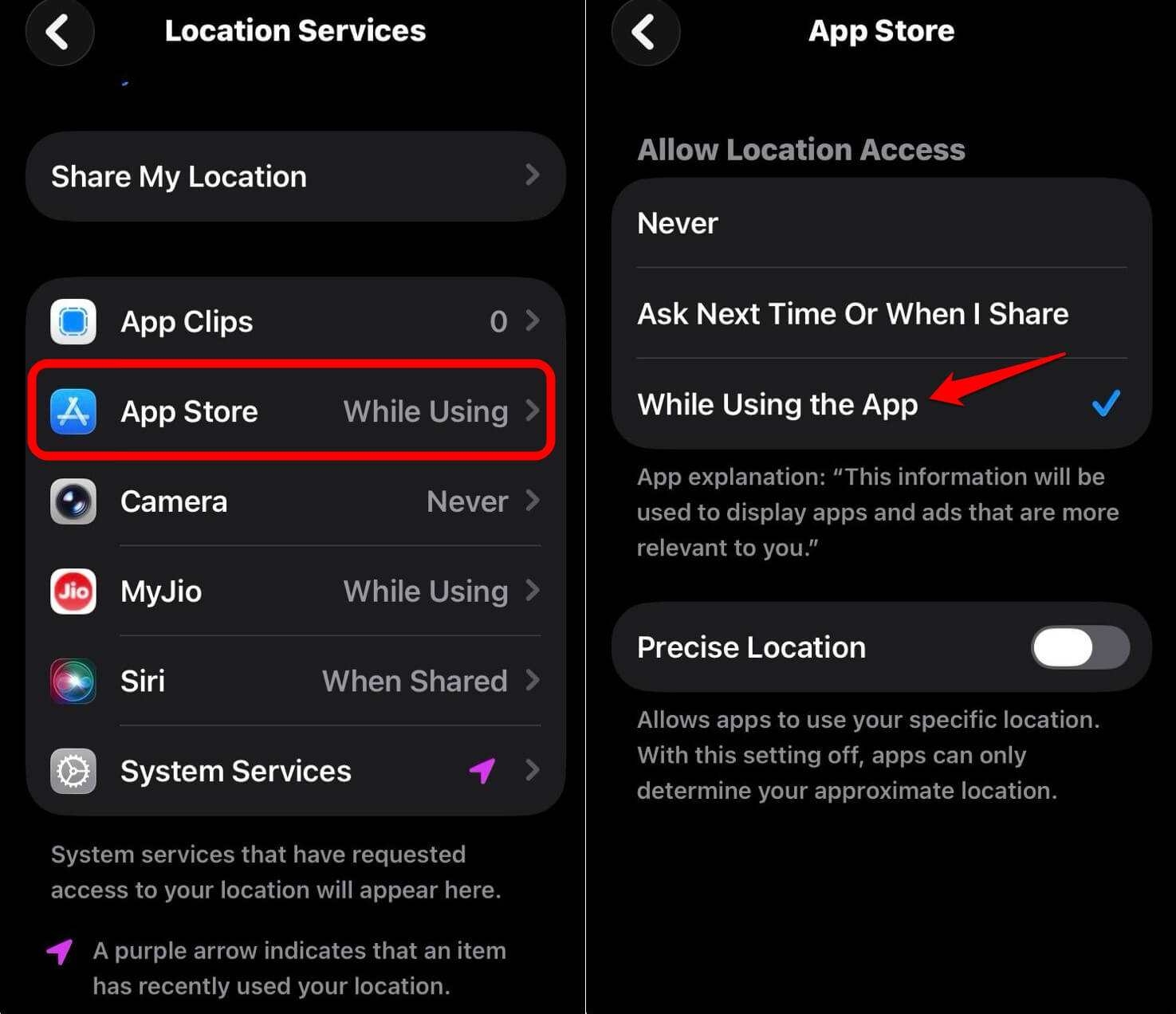

Several apps had no clear reason to need location access at all 24×7, so those got switched to Never.
I did not feel a dramatic difference from this one specifically, but it is the kind of change where the value shows up over a full day rather than in the first hour.
Dropping the screen refresh rate to 60Hz
My iPhone has ProMotion, which pushes the display up to 120Hz for smoother scrolling. It looks good. It also costs more battery than I had been accounting for.
This setting can be changed by going to
- Settings > Accessibility.
- Then Motion > Limit Frame Rate.
- Turning it on caps the display at 60Hz.
Scrolling felt slightly less fluid for about a day, the kind of thing you only notice because you are paying attention, not because it is actually distracting. By the next day, I stopped noticing it entirely, which is usually the sign a change was worth keeping.
Hey Siri and keyboard haptics, the two that barely mattered
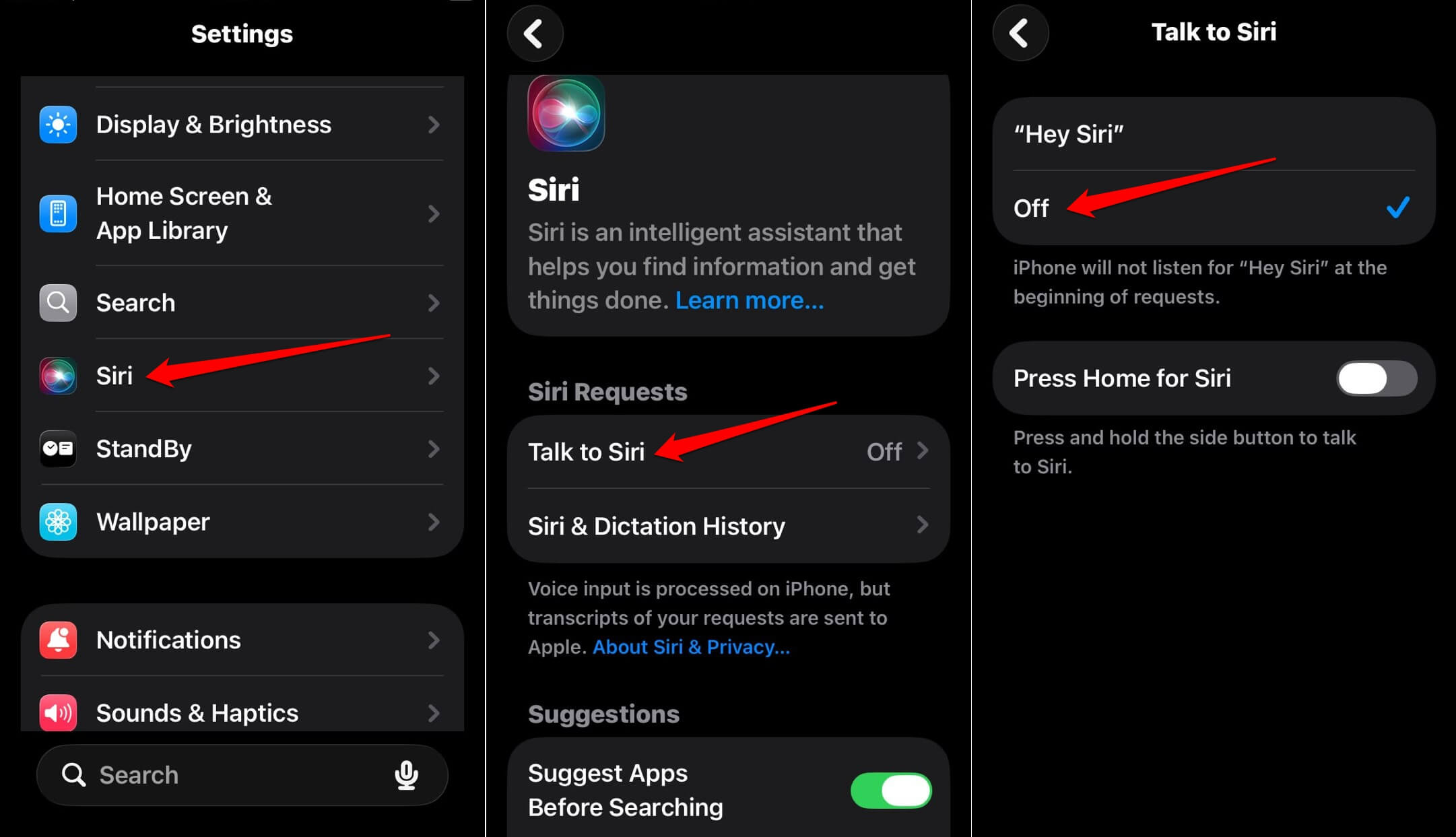
I disabled Hey Siri because I could not remember, in all these years of using iOS, when I had actually said it out loud on purpose.
I changed it by going to
- Settings > Siri > Talk to Siri
- I turned off Listen for Hey Siri entirely.

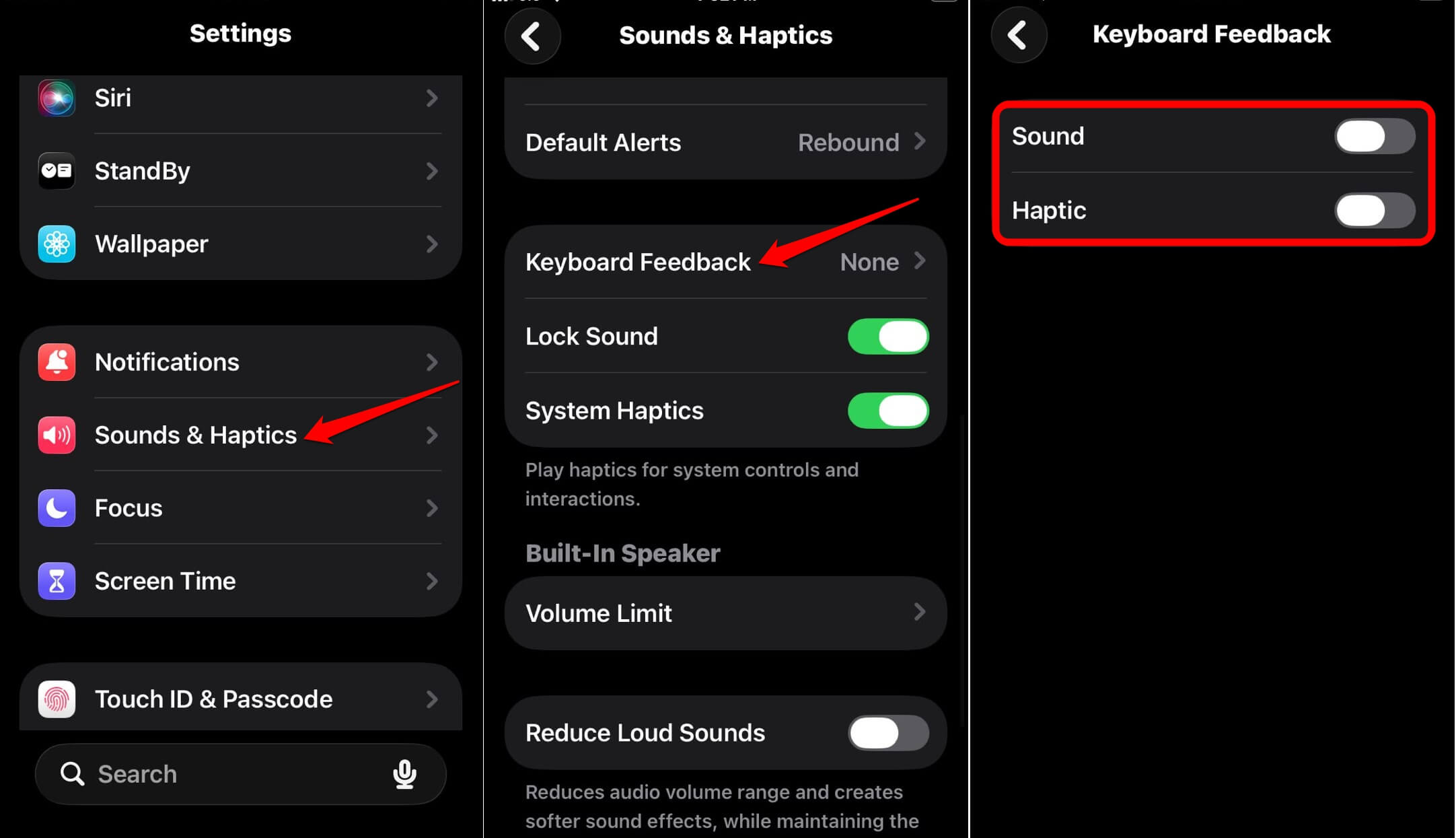
I also turned off keyboard clicks and haptic feedback.
To do it,
- Go to Settings > Sounds and Haptics.
- Access Keyboard Feedback and turn off the toggle for Sound and Haptics.

Neither of these produced a significant battery change I could actually attribute to them specifically.
They are worth doing anyway for other reasons: quieter typing in meetings, one less thing listening in the background, but I would not tell someone to expect a visible battery number from these two alone.
What the week actually looked like with more battery
I did not change these iPhone settings all in one day. I spread it across a week, observing the Battery section under Settings each evening to see where the day landed.
The two changes that moved the number in a way I could actually point to were Always-On Display and the 60Hz cap.
Background App Refresh trimming and the Location Services cleanup felt like they mattered more over several days than in any single one.
By the end of the week, evenings that used to land around 15 to 20 percent were consistently closer to 25 to 30 percent, with no change to how I was actually using the phone day to day.
Was it worth tweaking the iPhone settings?
None of these six iPhone settings are difficult to find or risky to turn off if you want to change them all at once. The entire process takes less than fifteen minutes spread across a few sittings, mostly because Background App Refresh and Location Services both require going app by app rather than one single toggle.
If your evenings look like mine used to, scraping toward empty by dinner for no obvious reason, this is worth doing before assuming the battery itself has degraded.
Apple’s own guidance on battery drain and Low Power Mode covers a similar list, and it lines up with what actually moved the number for me over a real week of use.