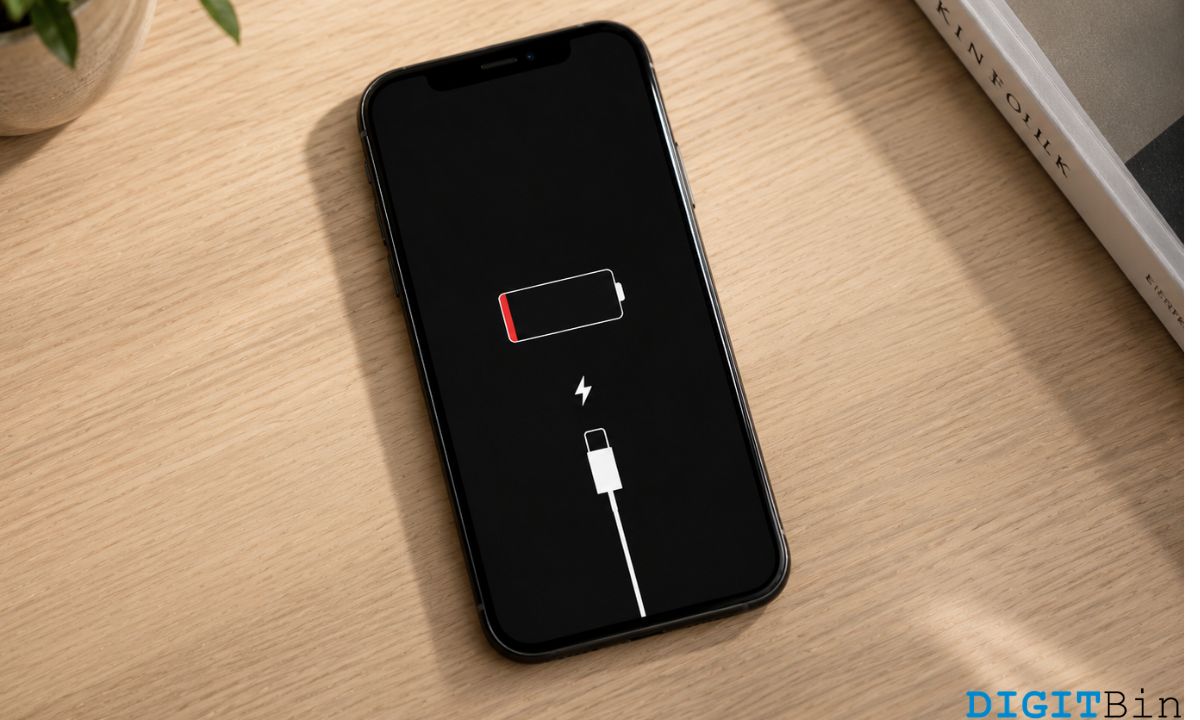
My phone hit 20% battery by noon on the day I updated to iOS 26. The same usage pattern that used to get me to 7 PM comfortably was burning twice as fast.
The screen was warm during a commute where I was not actively using it. I knew it was post-update behaviour, but I also did not know how long to wait before doing something about it.
iOS 26 battery drain after updating is a documented pattern that Apple officially acknowledges. The cause is real and the fix for most users is patience, not tweaking any iOS settings.
There is a 72-hour window that tells you whether you need to wait or act. This article covers both sides of that window.
TL;DR: iOS 26 battery drain in the first 48 to 72 hours is caused by Spotlight reindexing, Photos analysis, and Apple Intelligence model downloads running all at once in the background. Apple confirms this is expected and temporary. If the drain persists past 72 hours, check Settings, Battery, App Activity first, then turn off Background App Refresh. Older iPhones benefit from disabling Reduce Motion and Reduce Transparency to cut the cost of the Liquid Glass interface.
What causes iOS 26 battery drain in the first 72 hours?
When iOS 26 installs, it triggers several background processes simultaneously.
Spotlight reindexes every app, message, mail, file, and note on the device. The Photos app rescans the entire library for faces, scenes, and objects.
Apple Intelligence downloads and rebuilds on-device machine learning models. App Store updates all installed apps in the background. These processes run whether you are using the phone or not, and they are CPU and neural engine-heavy work.
Apple’s documentation confirms this is expected behaviour after major updates and states it should resolve once indexing and downloading are complete. The timeline is 48 to 72 hours for most users, with older devices that have larger data libraries sometimes needing up to three full charge cycles before things normalize.
An iOS 26 battery drain complaint on the Apple Community forums confirmed that Home and Lock Screen appearing at the top of the Battery screen is a reliable sign that Spotlight indexing is still running.
The fastest way to get through this window is to plug the phone into a charger on WiFi with the screen off for an hour or two.
Background indexing completes faster when the device is not also handling active use. Check Settings > Battery and look for an insight that reads Ongoing iOS Update or Ongoing Device Setup. While that is visible, the system is still working through the setup queue.
How to tell if the drain is normal or real?
The 72-hour mark is the practical dividing line. Before that point, almost every battery symptom is explained by background indexing and model downloads.
After it, any remaining heavy drain is worth investigating.
| Symptom | Before 72 hours | After 72 hours |
|---|---|---|
| Battery draining 30-50% faster than usual | Expected, do not act yet | Check Settings, Battery, App Activity for a rogue app |
| Phone running warm during light use | Normal, CPU is doing indexing work | If warm at idle, disable Apple Intelligence temporarily |
| Home and Lock Screen at top of Battery screen | Normal, Spotlight still running | Should be gone; try a force restart |
| Battery draining overnight while idle | Plug in and leave on WiFi | Turn off Background App Refresh completely |
| One specific app consistently at top of Battery list | Update that app, then wait | Restrict Background App Refresh for that app in Settings |
A force restart clears cached processes without losing data.
On iPhone 8 and later, press and release Volume Up, press and release Volume Down, then press and hold the Side button until the Apple logo appears.
This sometimes resolves a stuck background process that did not finish cleanly after the update.
What iPhone battery settings to change after 72 hours?
If the drain is still significant after three days, Background App Refresh is the first setting to change.
- Go to Settings > General > Background App Refresh.
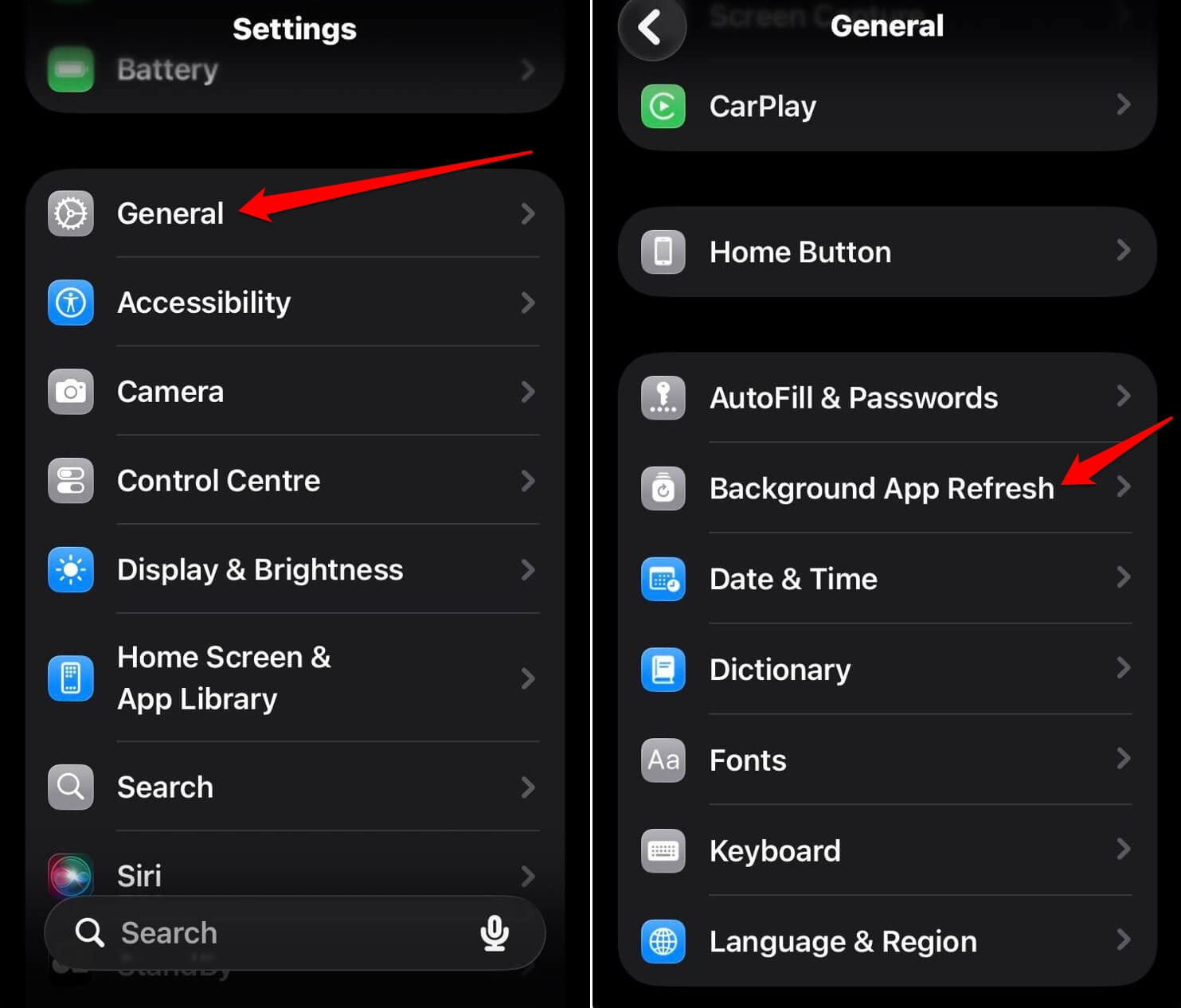

- Turn off the feature completely.
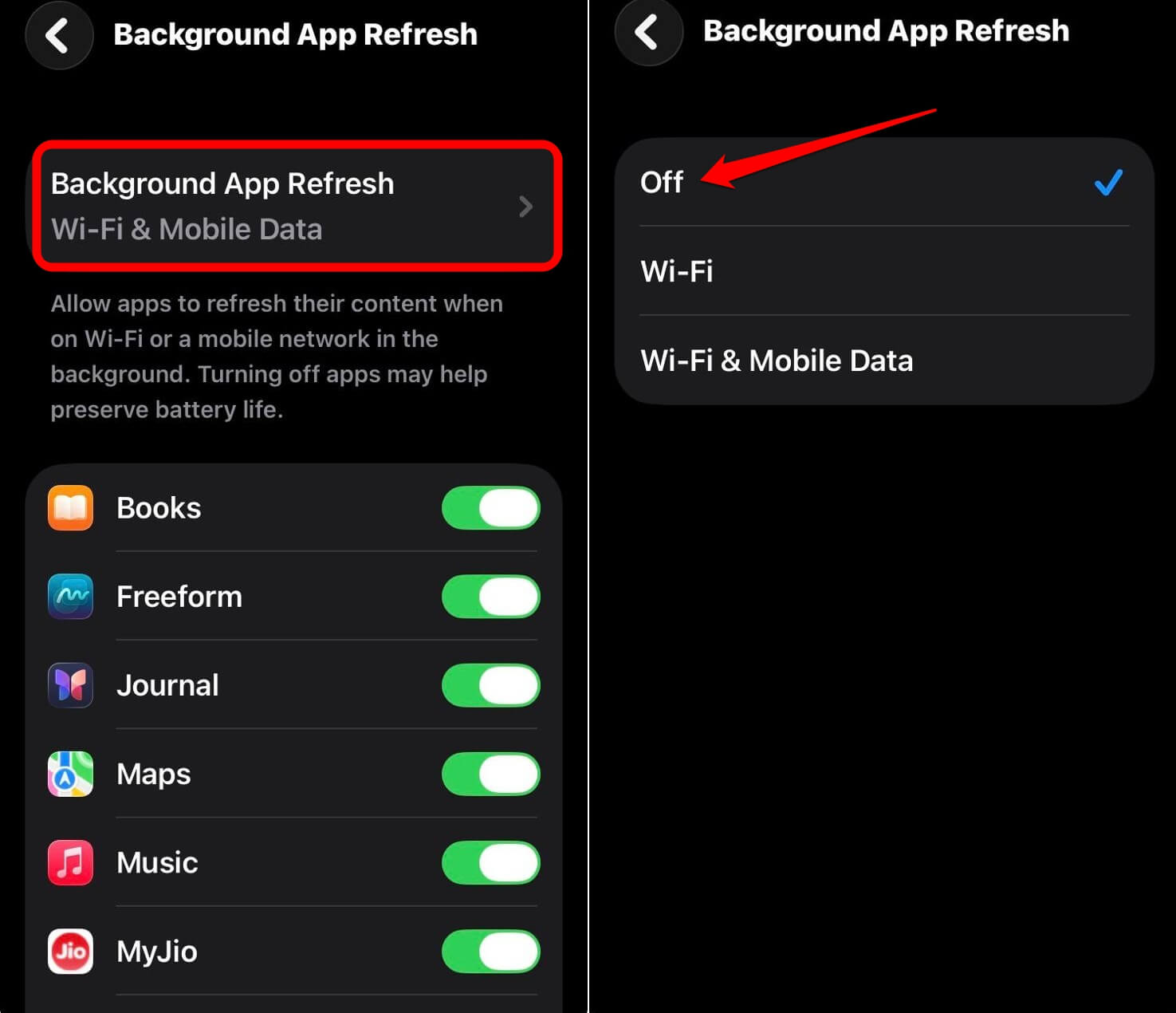

Users on the Apple Community forums reported this cut their battery consumption by more than half during the post-update period. It limits apps from running in the background when not in use, which addresses the most common cause of continued drain after indexing completes.
Turning off Apple Intelligence is more aggressive but effective on older hardware.
- Go to Settings > Apple Intelligence and Siri.
- Toggle off Apple Intelligence.
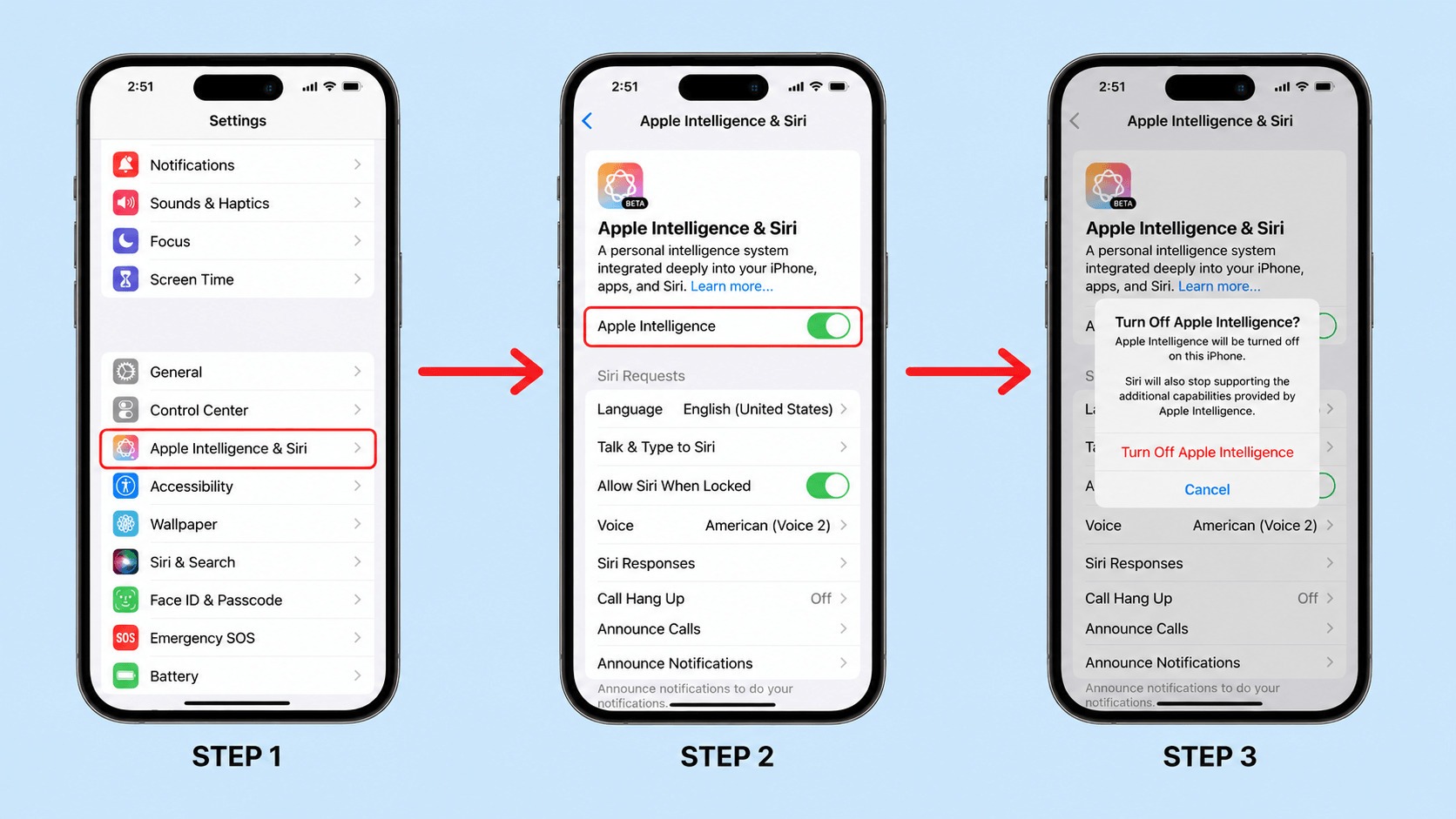

This stops the on-device model processing that iOS 26 introduced. It can be re-enabled once the initial setup period is over without losing any data. A restart after switching it off helps the change take effect immediately.
Location permissions are worth reviewing alongside this. Apps set to Always location access continue running in the background regardless of Background App Refresh settings, and they contribute to drain.
Read the iPhone battery draining fast guide to understand the settings that affect battery life beyond just the update window.
The iOS 26 Liquid Glass factor on older iPhones
iOS 26 introduced the Liquid Glass interface design, which adds transparency, layered blur effects, and dynamic lighting throughout the system UI.
On iPhone 15 Pro and later, the hardware handles this efficiently. On older models, these iOS 26 liquid glass visual effects are measurably more demanding than the flat interface they replaced.
Two accessibility settings reduce this cost without affecting core functionality.
- Go to Settings > Accessibility > Motion.
- Enable Reduce Motion.
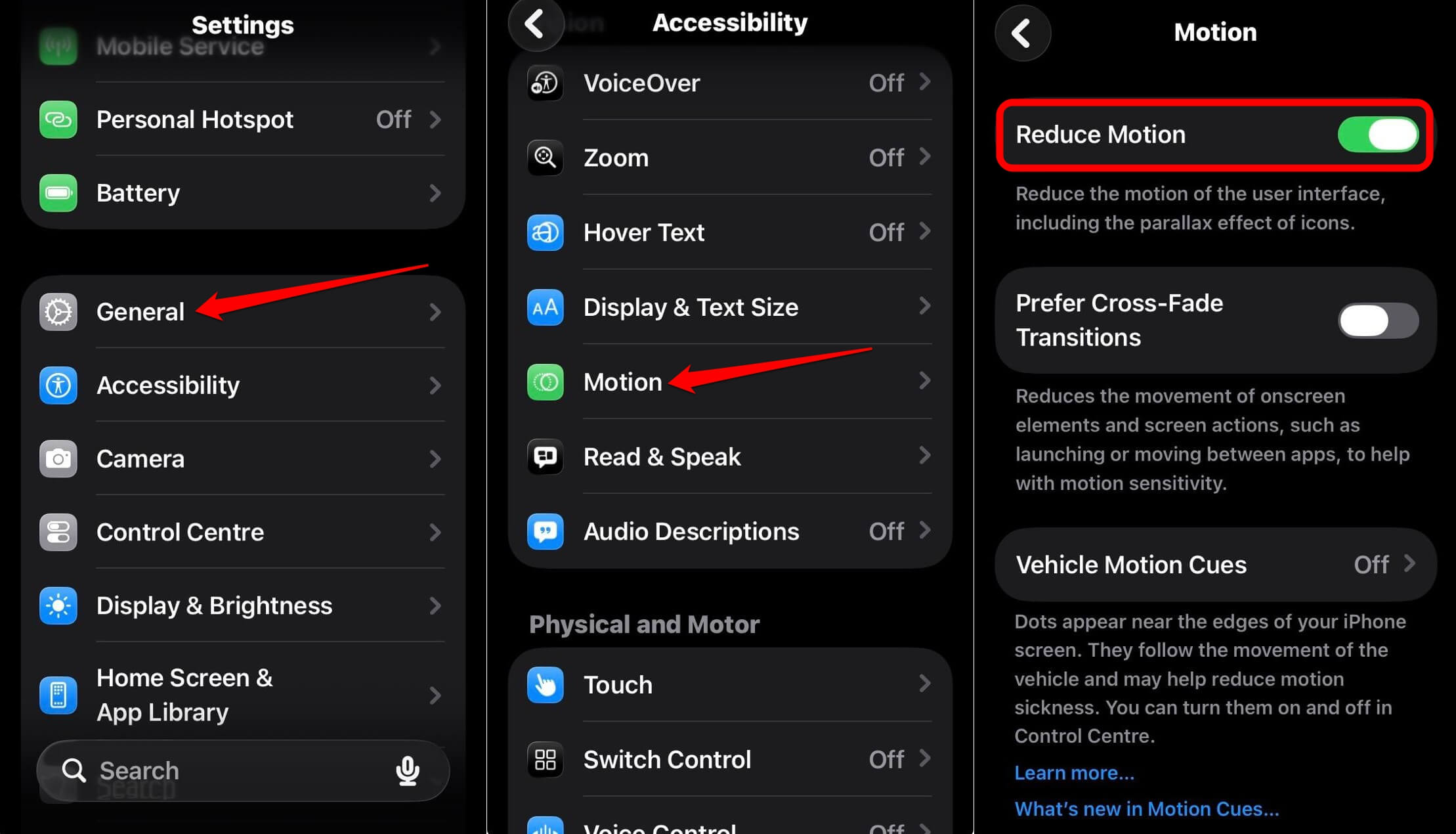

Next, you can tweak the transparency.
- Go to Settings > Accessibility > Display and Text Size.
- Turn on Reduce Transparency.
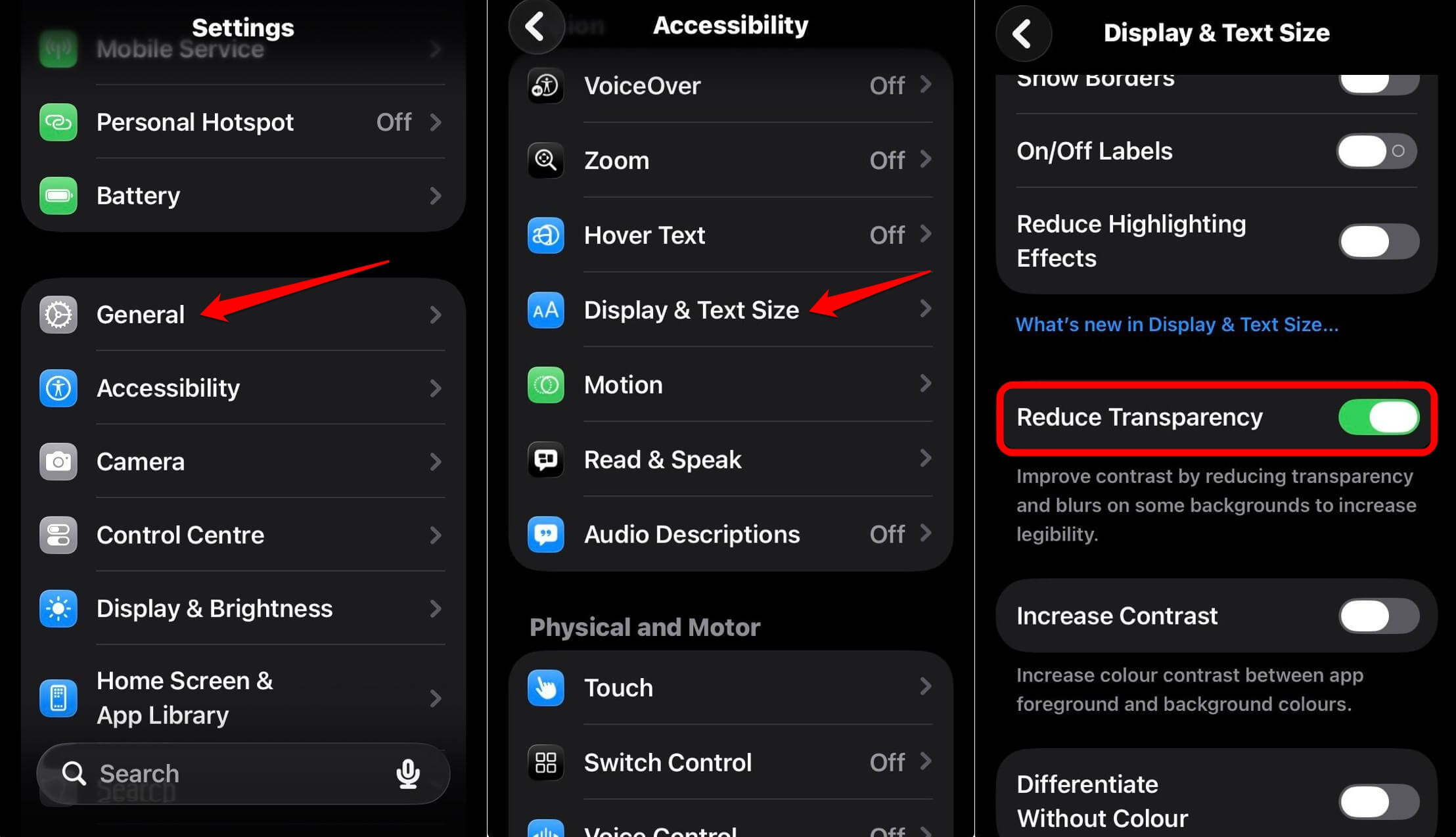

Both of the above settings remove the blur-heavy elements that drive up GPU usage on older chips. The UI looks flatter but performs considerably better on an iPhone 13 or 14 running iOS 26.
iPhone 15 Pro and later also have access to Adaptive Power Mode.
You can find the settings in iOS Settings > Battery > Power Mode > Adaptive Power.
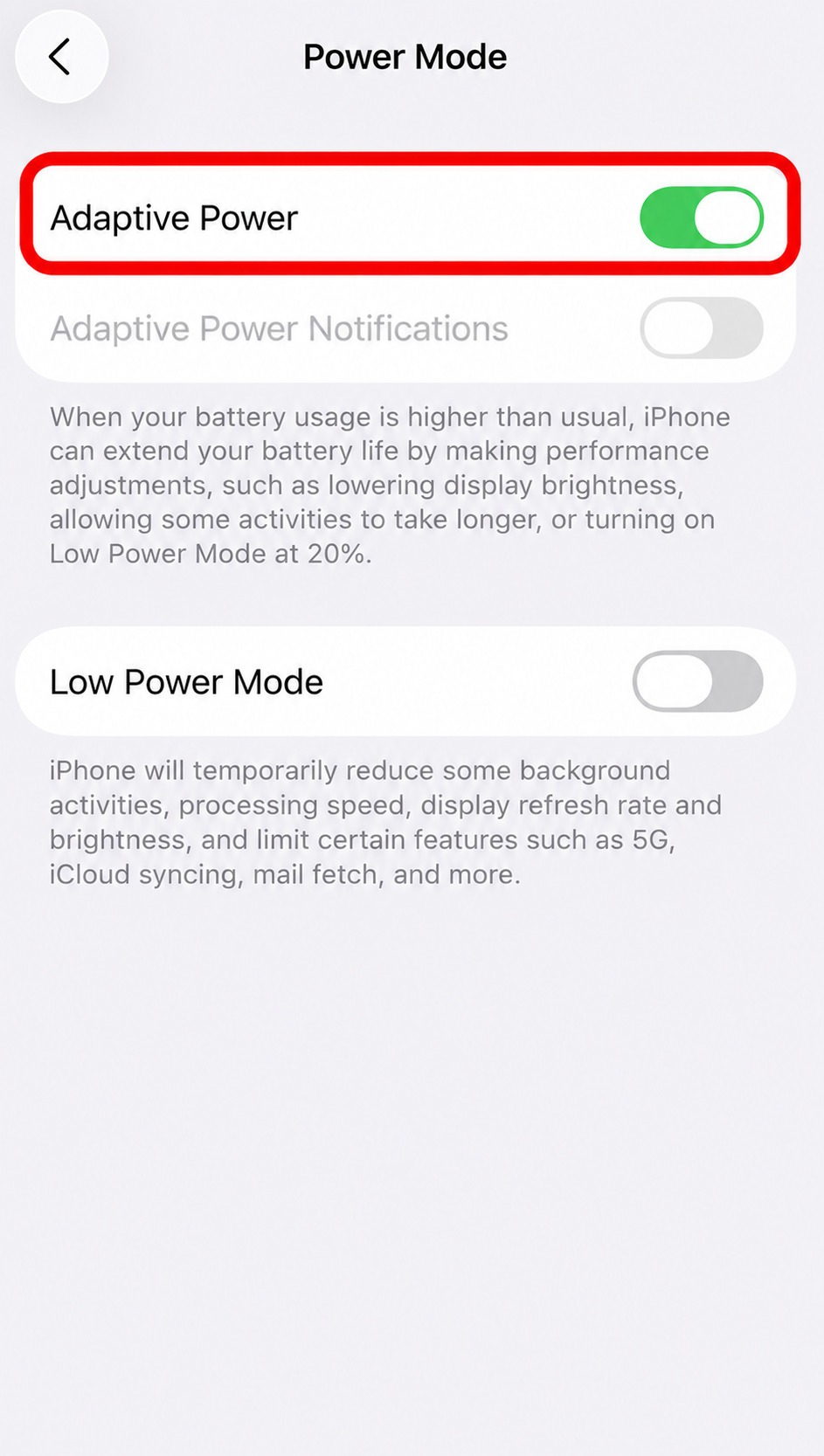
This is different from Low Power Mode. It dynamically adjusts background activity and performance based on usage patterns rather than applying a fixed reduction.
The optimized battery charging feature that manages charge cycles works alongside Adaptive Power Mode and does not need to be changed.
When to check battery health instead of settings?
If none of the above changes produce any improvement after a week, the issue is likely battery degradation rather than software.
- Go to Settings > Battery.
- Access Battery Health & Charging.
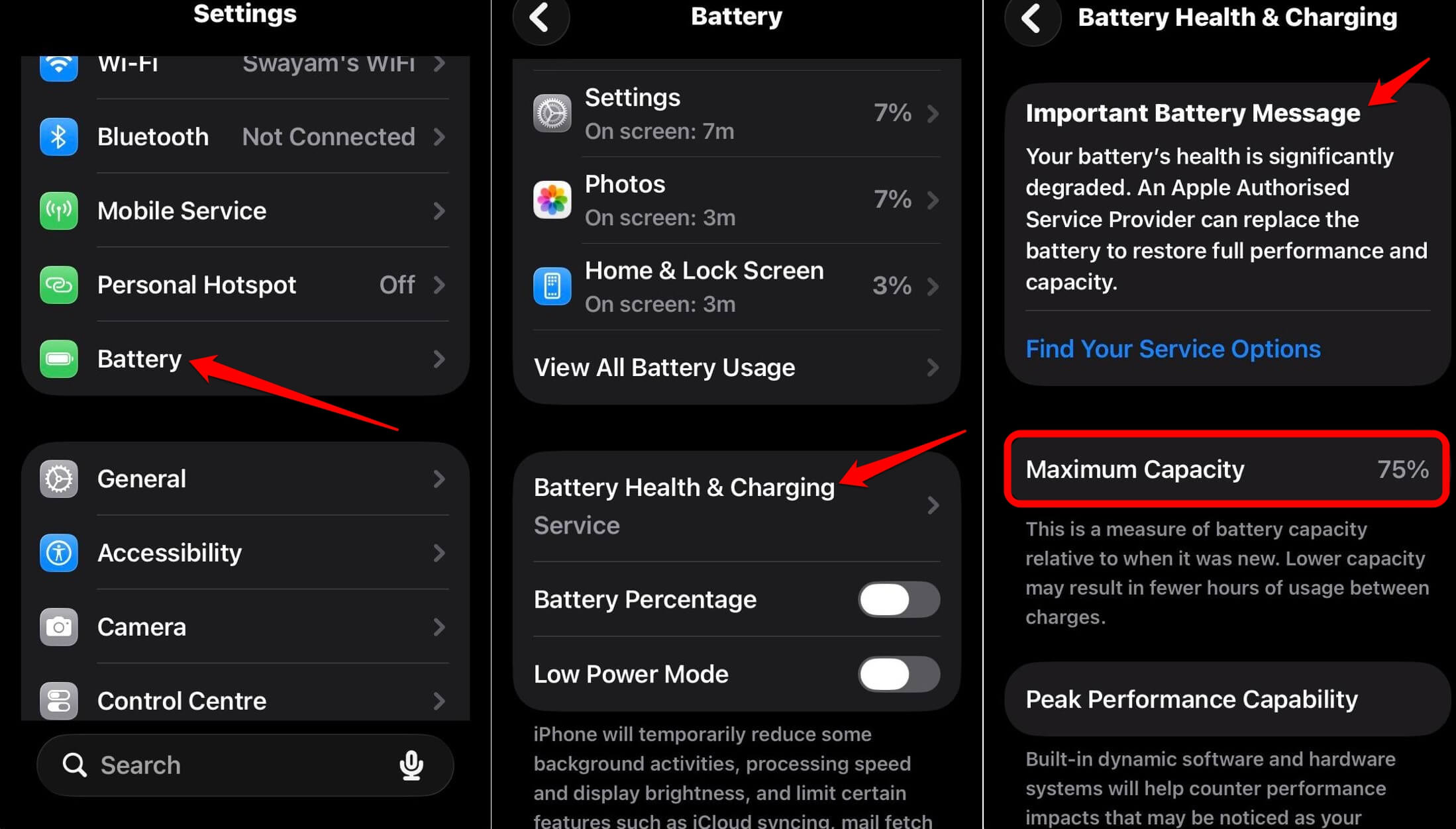

A Maximum Capacity below 80% means the battery is delivering noticeably less charge than when the phone was new.
Apple offers a free battery replacement under warranty or AppleCare+ coverage when health falls below 80%.
Out-of-warranty replacements are a paid service available through the Apple Store or an Apple Authorised Service Provider.
The iOS 26 update did not cause the degradation, but it can make already-degraded hardware feel significantly worse during the post-update load period.
Frequently asked questions
How long does iOS 26 battery drain actually last?
Most users see improvement within 48 to 72 hours. Devices with larger photo libraries or more installed apps take longer because there is more data for Spotlight and Photos to process. Three full charge cycles is a reasonable maximum before concluding the drain is not update-related.
Does turning off Apple Intelligence permanently affect anything?
No. Apple Intelligence can be re-enabled at any time. Turning it off stops on-device AI model processing and writing tool features, but all other iOS functions remain unchanged. Re-enabling it will trigger another brief period of model downloading.
My battery health is at 79% but I just updated. Is the update the real problem?
At 79% battery health, the battery is below Apple’s 80% threshold and is delivering significantly less charge per cycle than when new. The update amplifies existing degradation. The settings changes in this guide will help, but battery replacement is likely the more complete solution.