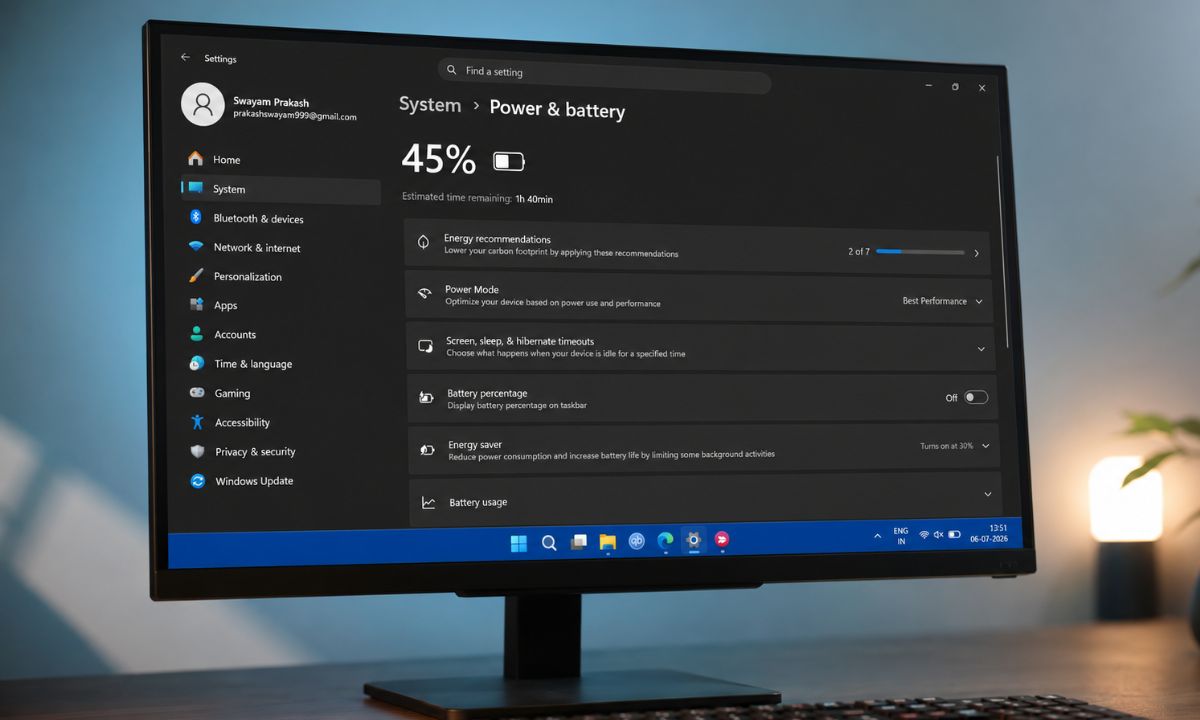
I run a Windows 11 laptop that sits unplugged for most of a workday, and last month the battery life started slipping enough to annoy me into doing something about it.
I spent ten days testing every battery-saving trick that keeps showing up in comment threads and support articles, changing one or two at a time to see what was real and what was placebo.
Some settings made a difference within a day. Others changed nothing I could measure, no matter how many times a forum thread insisted otherwise.
TL;DR: Energy saver and background app permissions made the biggest measurable difference, adding roughly ninety minutes on a mixed-use day. Power mode and efficiency mode helped less than expected because most of the drain on my machine came from background apps, not raw CPU load. Screen timeout and refresh rate changes added a smaller amount but cost nothing to try. Dark mode did nothing on my LCD panel, despite what several guides claim.
Energy saver did the most, once I stopped fighting it
Energy Saver made the biggest difference of anything I tested to manage the Windows 11 battery, and it took a couple of days to notice I had been working against it.
Energy Saver replaced the old Battery Saver toggle starting with Windows 11 24H2, and it works the same way at its core.
To set it up,
- Go to Windows 11 Settings > System.
- Click on Power and Battery.
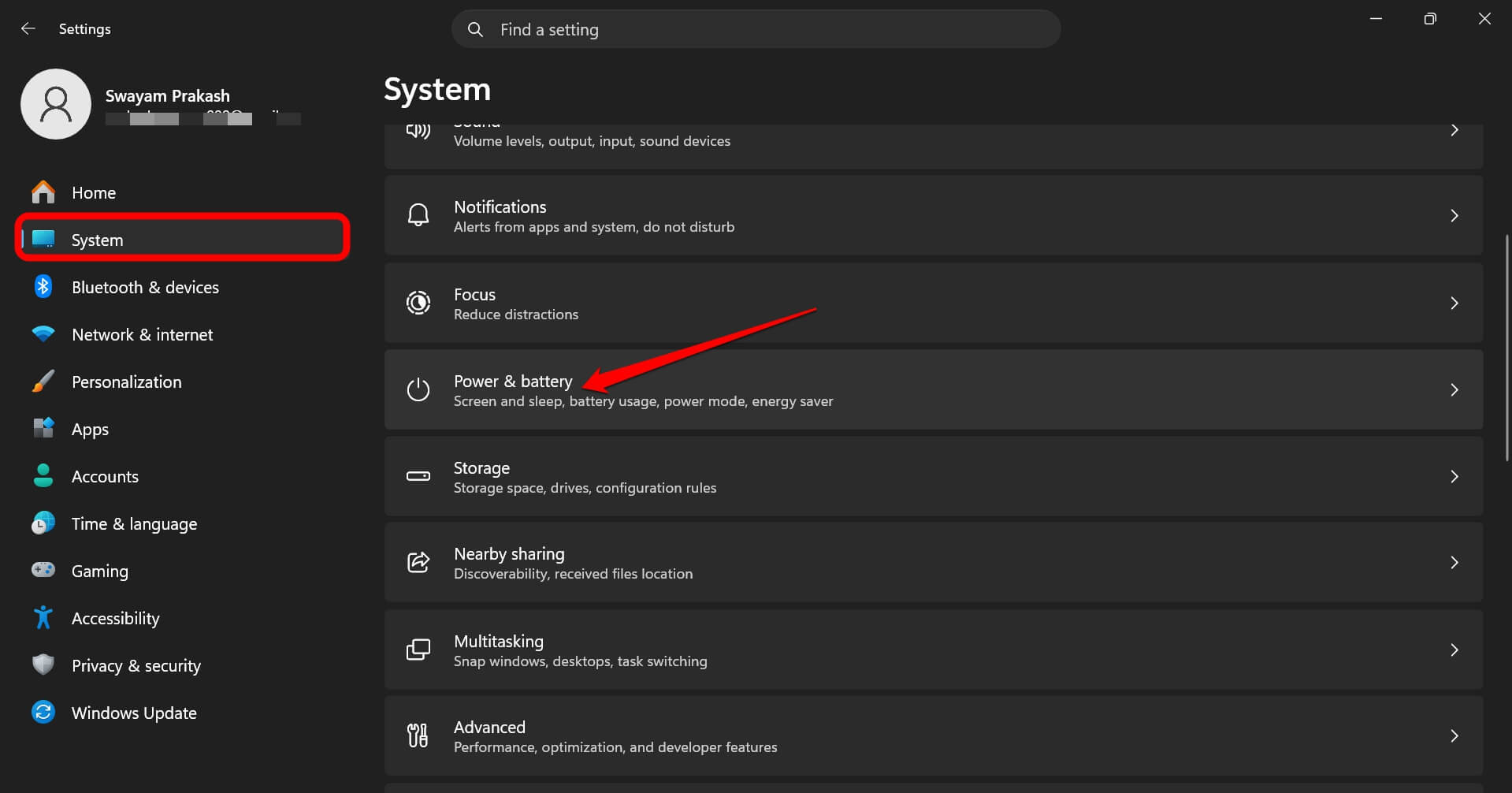

- Scroll to Energy Saver.
- Enable the toggle Always Use Energy Saver.
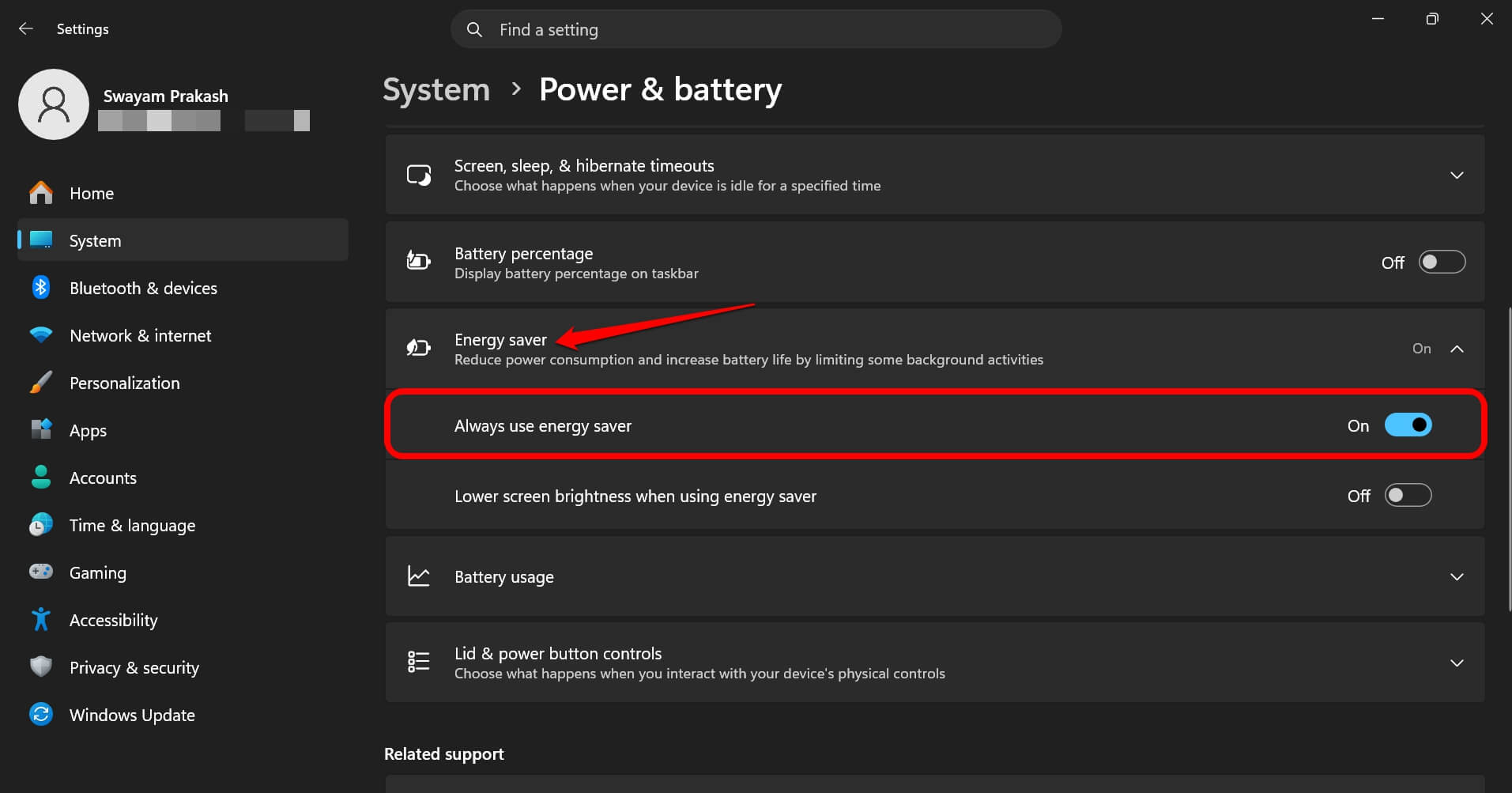

- You may also turn on Lower Screen Brightness when using Energy Saver.
When it is on, Windows pauses non-essential background syncing, blocks most background app activity, and delays large update downloads, according to Microsoft.
I had it set to switch on automatically at 20 percent, which is the default. On day three, I set it to always on, plugged in or not.
The screen dims by around 30 percent by default when energy saver is active. I expected to hate this, but my eyes adjusted within a few minutes and I stopped noticing the dimmer screen entirely.
The behavioral change that stuck with me was smaller than the battery number. I stopped checking the battery percentage every twenty minutes, a habit I did not realize I had picked up until it was gone.
| Setting tested | Effect measured | Worth doing |
|---|---|---|
| Energy saver, always on | Biggest gain, about 90 extra minutes | Yes |
| Background app permissions | Stopped fan spin-up at idle | Yes |
| Power mode, best efficiency | 15 to 20 extra minutes | Yes, minor |
| Efficiency mode, per app | Helped one background app only | Background apps only |
| Screen timeout and refresh rate | Small but real gain | Yes |
| Dark mode | No measurable change on LCD | No, on LCD screens |
Power mode changed less than the forums promised
Power mode was the setting I expected to matter most, and it turned out to be the one that moved the needle the least.
Windows 11 offers three levels: Best power efficiency, Balanced, and Best performance. It can be found under Settings > System > Power and Battery.
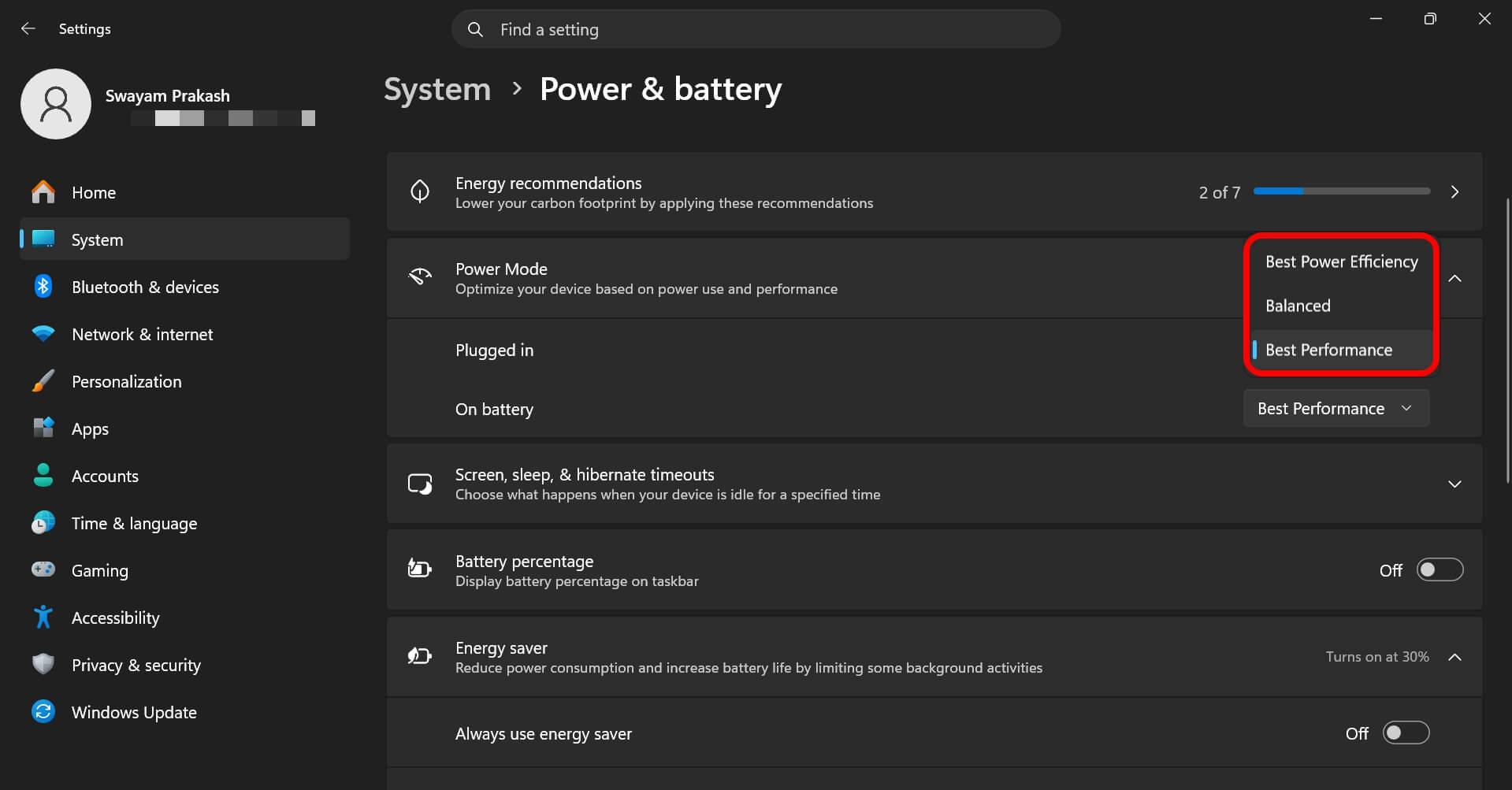
The setting controls how aggressively the CPU and GPU ramp up, not how many apps run in the background.
I ran two full days on Best power efficiency for writing and browsing. The gain was real but modest, somewhere around fifteen to twenty extra minutes on a light-use day.
Switching back to Best performance mid-test made scrolling and app switching noticeably snappier right away.
That is the whole trade-off with power mode: a slightly longer runtime in exchange for a machine that feels more responsive.
Background app permissions was the setting nobody warns you about
Background app permissions ended up mattering more than power mode, and it is the setting most battery guides skip or mention last.
Every app can be set to Always, Power optimized, or Never.
To do it,
- Go to Settings > Apps > Installed Apps.
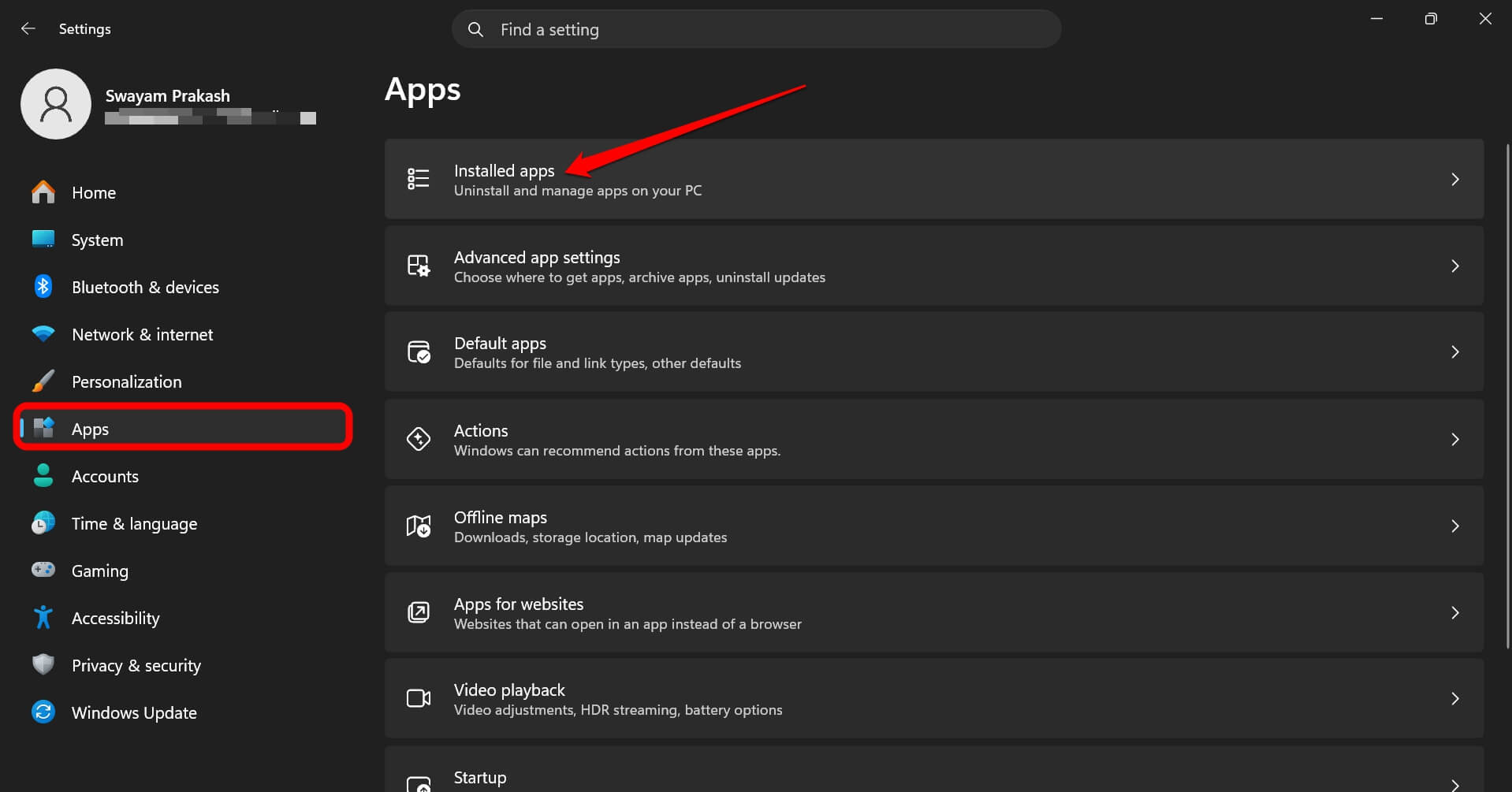

- For any app, click the 3-dot menu button and select Advanced Options.
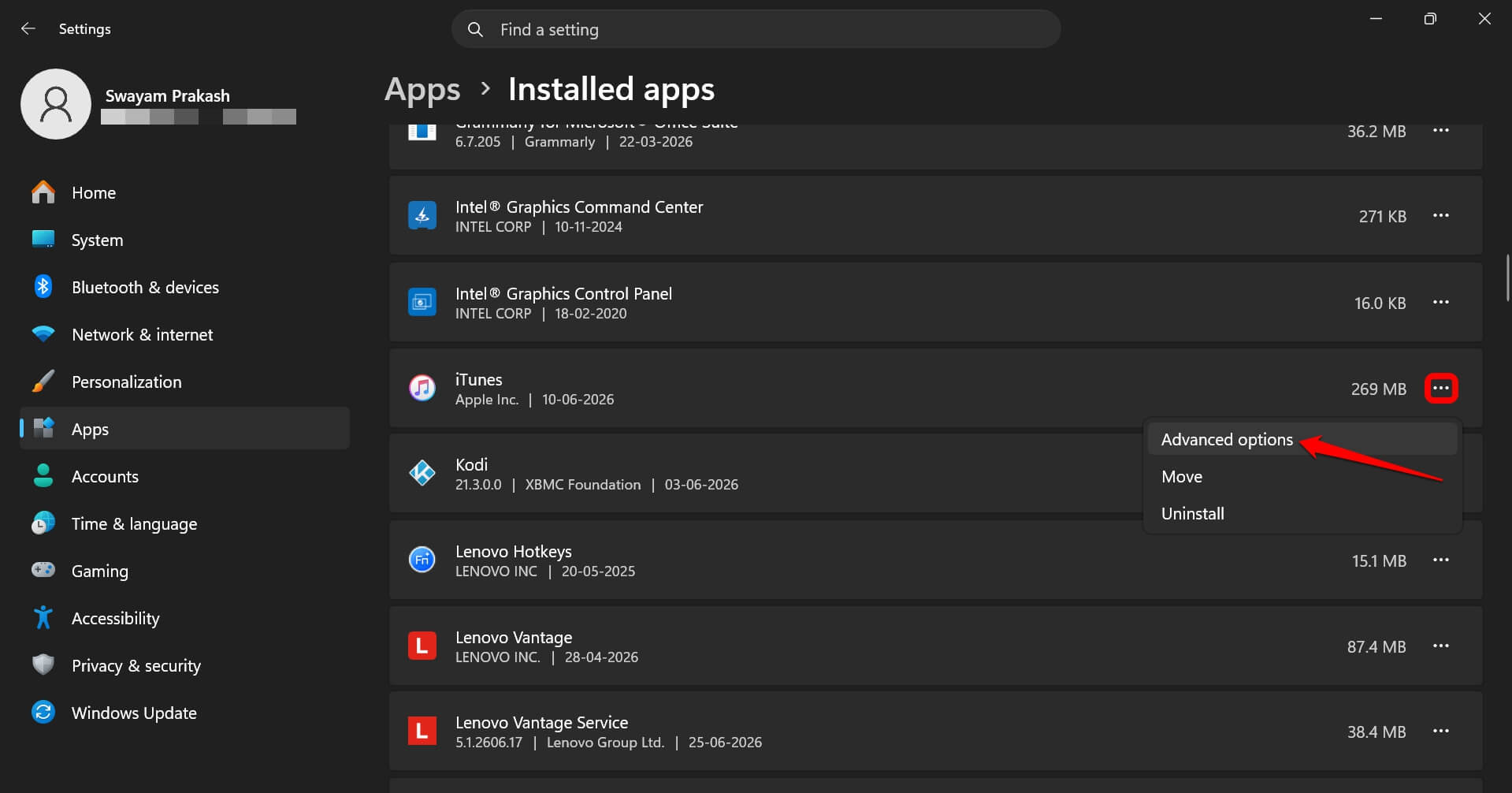
- Scroll to Let this app run in the background.
- Select between Power Optimized or Never.
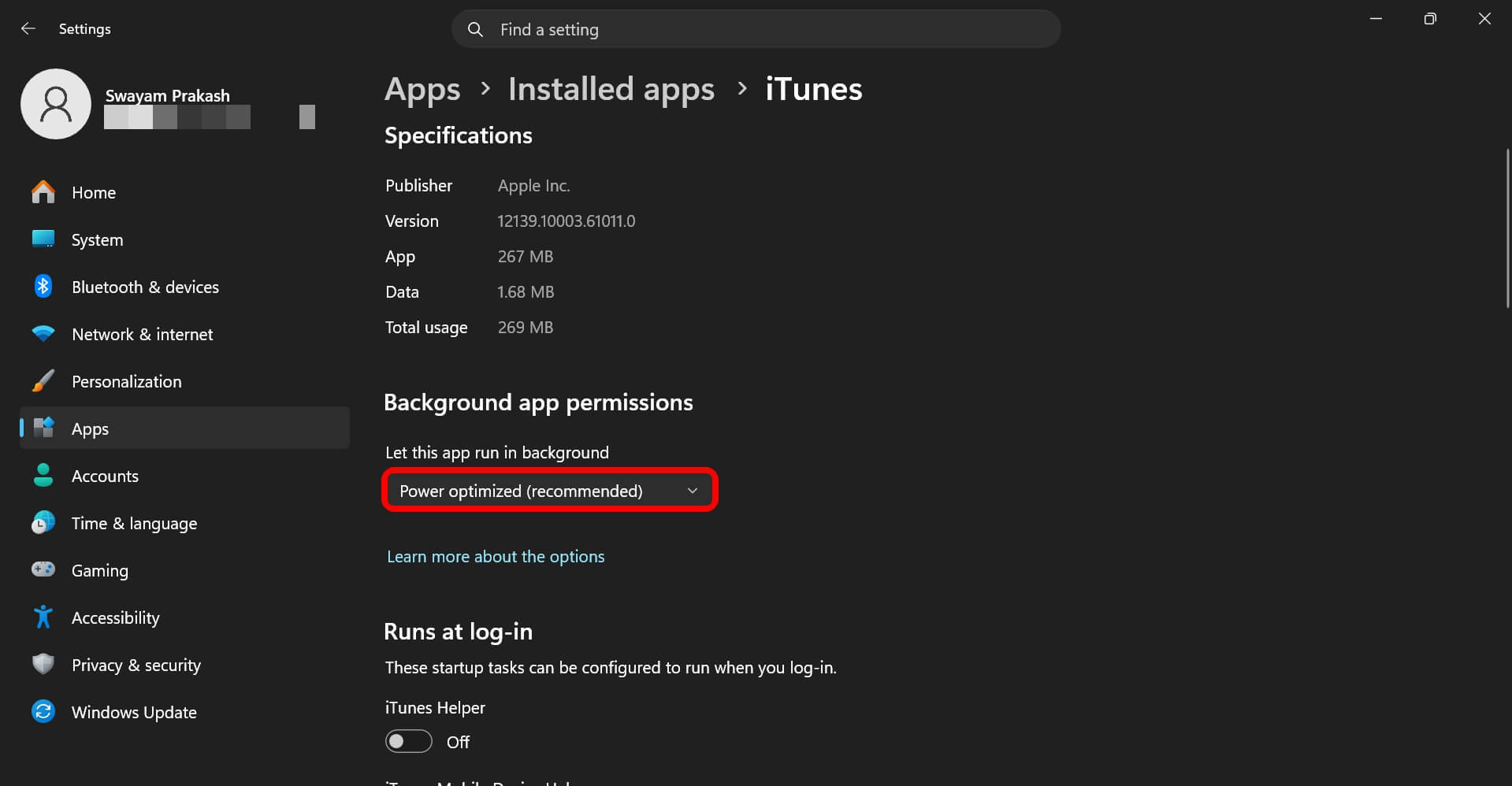

Set to Never if the app has no business running in the background when your PC is in use. Power Optimized is set by default, but plenty of apps get switched to Always during setup without anyone noticing.
In my case, I found three apps set to Always with no good reason: a note-taking app, a cloud backup client, and a chat app.
Switching all three to Power optimized stopped the fan from spinning up while the laptop sat untouched on my desk.
Search indexing plays a similar quiet role in the background. If your CPU spikes for no obvious reason, it is worth ruling out before blaming the battery, and I had dealt with that exact issue using this Windows 11 search CPU fix.
Efficiency mode only helped with one specific app
Efficiency mode in Task Manager helped, but only for a single app, which surprised me given how often it gets pitched as a universal fix.
Right-clicking a process and selecting Efficiency mode throttles that process and limits its power draw.
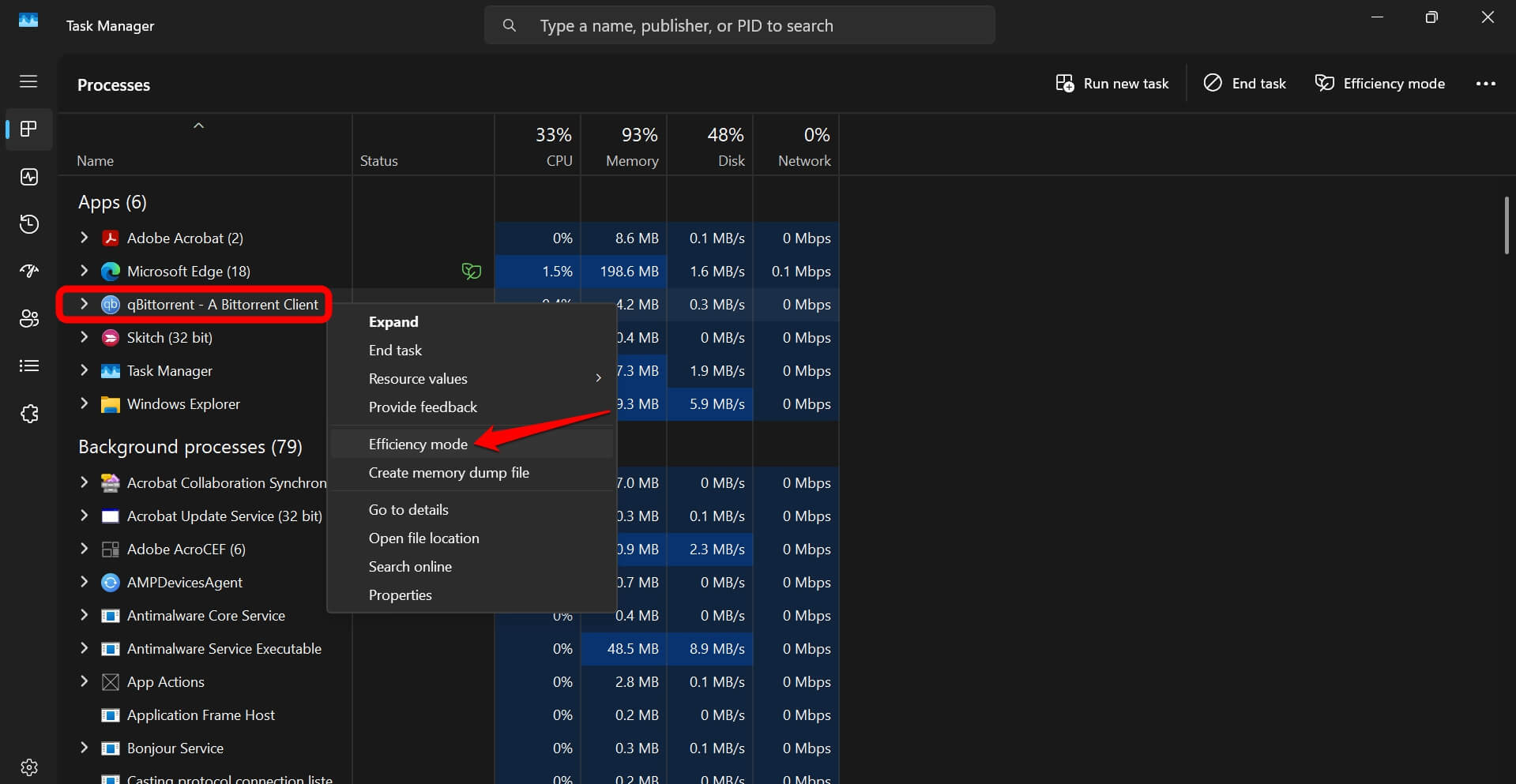
I applied it to a sync client that stayed open all day and rarely needed to be fast, and its CPU usage dropped noticeably in Task Manager’s own readings.
Applying the same setting to my browser introduced a small stutter when switching tabs, which is why it belongs on background utilities rather than anything you are actively using.
Screen timeout and refresh rate: small changes, no downside
Screen timeout and refresh rate are the smallest changes on this list, and also the easiest to make without any real cost.
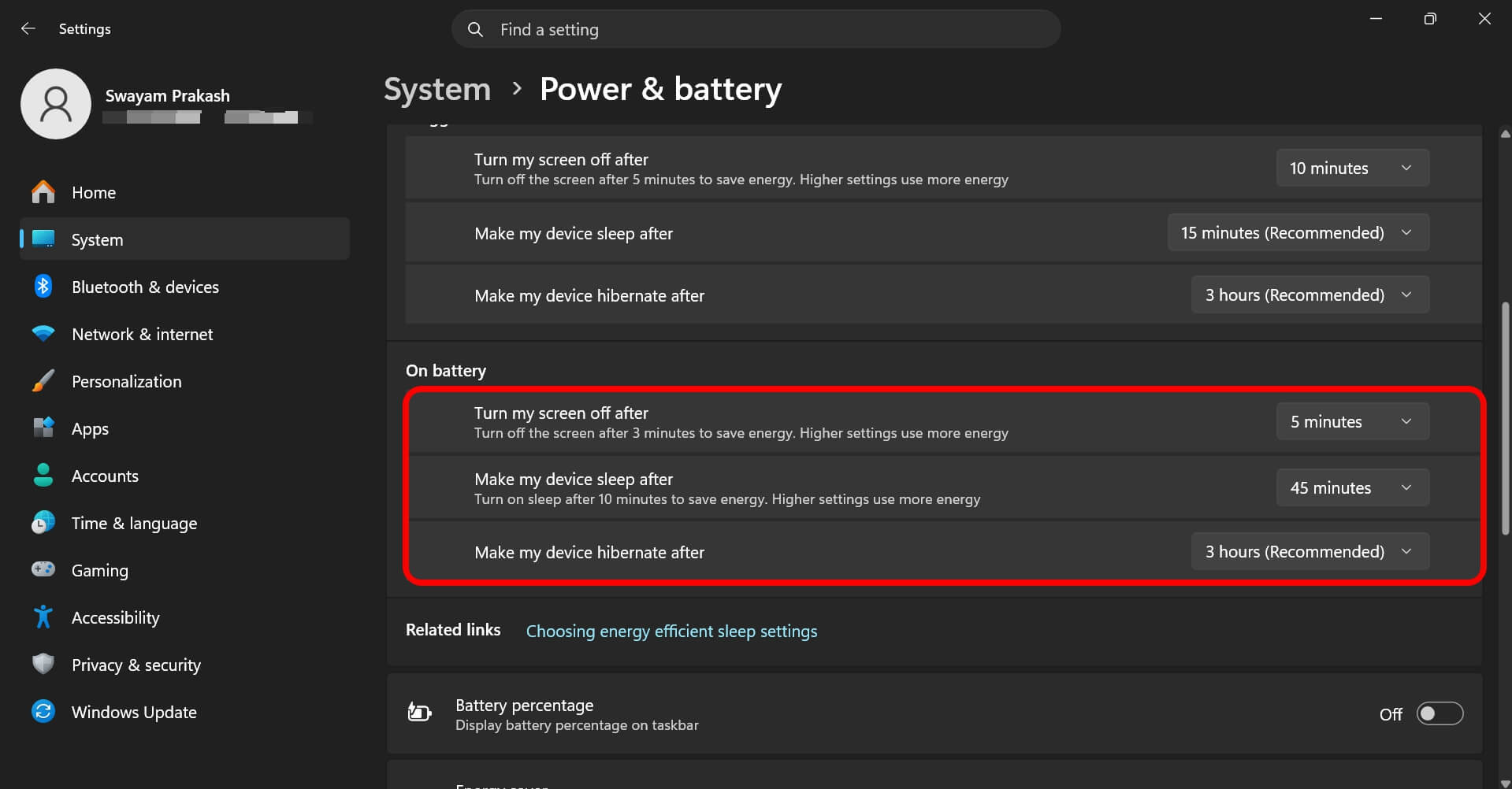
Shortening the screen off timer under Settings > System > Power and battery saved a small amount by cutting the minutes the display stayed lit while I stepped away.
Also, I felt dropping the refresh rate from 120Hz to 60Hz under Display, Advanced display added a slightly bigger gain.
Neither change felt dramatic. I noticed the lower refresh rate for about an hour, then stopped noticing it at all.
Dark mode did nothing on my screen, despite what every guide claims
Dark mode did nothing measurable for my battery, and I want to be upfront about that since it is one of the most repeated tips in every roundup like this one.
Dark mode saves real power specifically on OLED displays, where black pixels draw close to no power. My laptop has a standard LCD panel, where black pixels are still backlit the same as white ones.
I switched between light and dark mode for two days each and watched Battery usage in Settings the whole time. The numbers stayed within normal variance.
This tip is worth trying on an OLED phone, but on an LCD laptop it is mostly a visual preference.

Frequently asked questions
Does turning on Energy Saver slow my laptop down?
Not in any way I could feel. Energy Saver mainly pauses background syncing and dims the screen, but it does not throttle the CPU the way Power mode does.
What is the difference between Energy saver and Power mode?
Energy saver limits background app activity and syncing. Power mode controls how aggressively the CPU and GPU are allowed to run.
Does dark mode save battery on a Windows 11 laptop?
Only on OLED screens, where black pixels use close to no power. On a standard LCD laptop panel, it made no measurable difference in testing.
Which apps should I set to Power optimized?
Any background app you do not check constantly, like note-taking apps, cloud backup clients, or chat apps that got switched to Always during setup.
Does Efficiency mode work on any app?
It works best on background utilities that stay open all day. Applying it to an actively used browser introduced a small stutter during testing.
What I would actually tell a friend who wants to manage Windows 11 battery
If someone asked me where to start, I would point them at energy saver first and background app permissions second, in that order.
Those two settings did more in three days than power mode, efficiency mode, screen timeout, and dark mode managed combined over the full ten-day test.
The browser you use matters too, since some hold onto memory and CPU far longer than others once tabs pile up, worth checking against a browser battery comparison. After I switched to the Edge browser instead of Chrome, I have experienced better battery preservation.
To put it simply, none of these settings turned my laptop into some high-performing machine. What they did was stop it from wasting battery on things I was never using in the first place.