The old laptop sits in a drawer with its charger wrapped around it, and every few months somebody asks what to do with an old laptop that still boots.
The laptop is rarely dead. It’s slow, or stuck on Windows 10, or too tired for the apps you use now.
A slow laptop is usually still good for a second life. Here are ten uses, from a cheap SSD swap to a home server, plus the safe way to wipe, sell or recycle it if none of them fit.
TL;DR: A laptop that still boots can usually become a Chromebook, a Linux machine, a home server or a retro games box, and a cheap SSD swap helps most of them. Windows 11 needs TPM 2.0 and 4GB of RAM, but ChromeOS Flex and Linux Mint run on less. If you sell or recycle it, wipe it with Clean data on first, and stop using any laptop with a swollen battery.
What to do with an old laptop depends on three specs
RAM, storage and the processor decide what an old laptop can still do, and Windows 11 is the pickiest about all three.
Windows 11 needs a dual core 1GHz 64-bit processor, 4GB of RAM, 64GB of storage, Secure Boot capable UEFI and TPM 2.0, and Microsoft publishes the full list. The processor also has to be on Microsoft’s supported CPU list, so a laptop that meets the specs on paper can still fail the check.
Windows 10 reached end of support on October 14, 2025. Microsoft’s extended security update page now lists October 12, 2027 as the end date, a year later than the original October 13, 2026.
Enrollment is free when you sync your PC settings, or you can use 1,000 Microsoft Rewards points or pay $30 once. The PC needs Windows 10 version 22H2 in the Home, Pro, Pro Education or Workstations edition, and an administrator Microsoft account.
PCs joined to a work domain or Microsoft Entra, or enrolled in device management, aren’t eligible, and the latest Windows update and the Licensing Preparation Package (KB5126256) have to be installed first.
Settings, then System, then About shows the processor and RAM, and the Storage page shows the drive.
| Requirement | Windows 11 | ChromeOS Flex | Linux Mint |
|---|---|---|---|
| RAM | 4GB | 4GB | 2GB, 4GB recommended |
| Storage | 64GB | 16GB | 20GB, 100GB recommended |
| Processor | 64-bit, 2 or more cores at 1GHz | Intel or AMD x86-64 | 64-bit |
| Secure Boot and TPM 2.0 | Required | Not listed as required | Not required |
1. Put an SSD in it before you decide it is slow
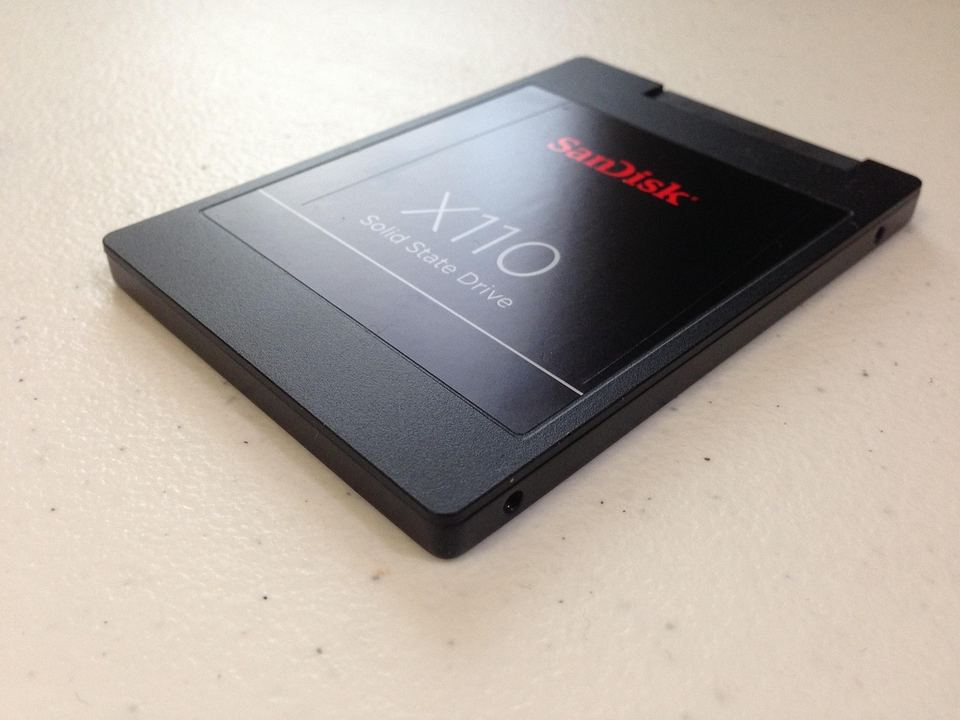
A laptop that feels slow on a spinning hard drive often feels like a different machine after an SSD swap.
A fresh install is usually the better choice on an old machine, since it drops years of leftover software.
Check whether the drive is a 2.5 inch SATA drive or an M.2 card, and whether the RAM is socketed. Some M.2 slots take only SATA drives, so confirm the spec sheet before you buy.
Many thin laptops solder the memory to the board, so a 4GB model stays a 4GB model.
If you swap in bigger sticks, our guide to old laptop RAM covers what the leftovers are worth.
2. Turn it into a Chromebook with ChromeOS Flex
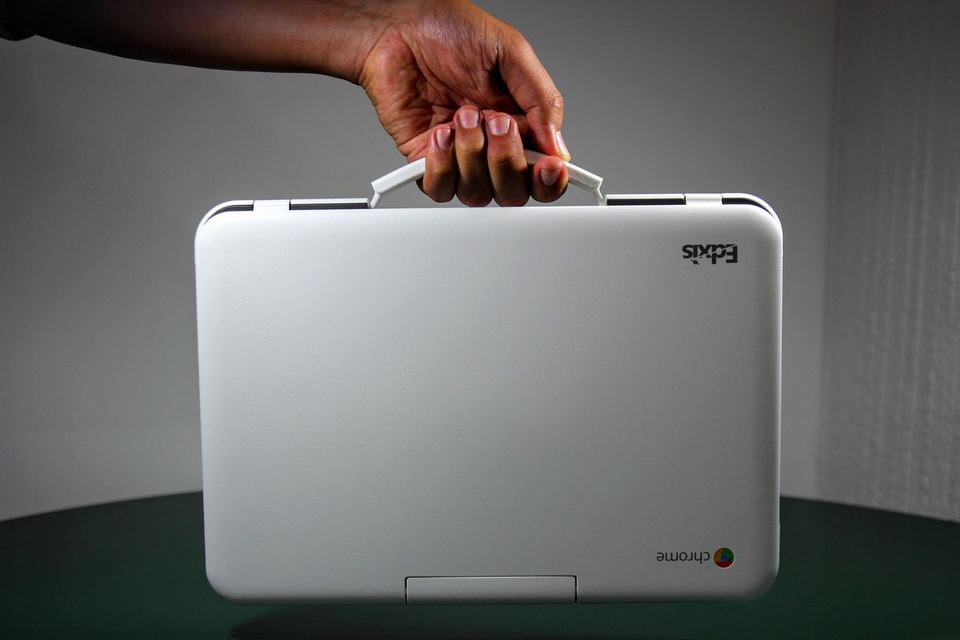
Skip ChromeOS Flex if you depend on a Windows-only program or Android apps, because Flex does not support Android apps or Google Play and it can’t run Windows software.
For everything else it turns an Intel or AMD laptop into a Chromebook style machine, and it needs 4GB of RAM and 16GB of storage.
Google only guarantees it on certified models, and it does not recommend Intel or AMD chips from 2012 or earlier. Check the certified list before you make the USB stick, because the stick gets erased.
Google’s installer is the Chromebook Recovery Utility extension for Chrome, which writes Flex to a USB stick that you then boot the laptop from.
3. Install Linux Mint and keep it for the boring jobs
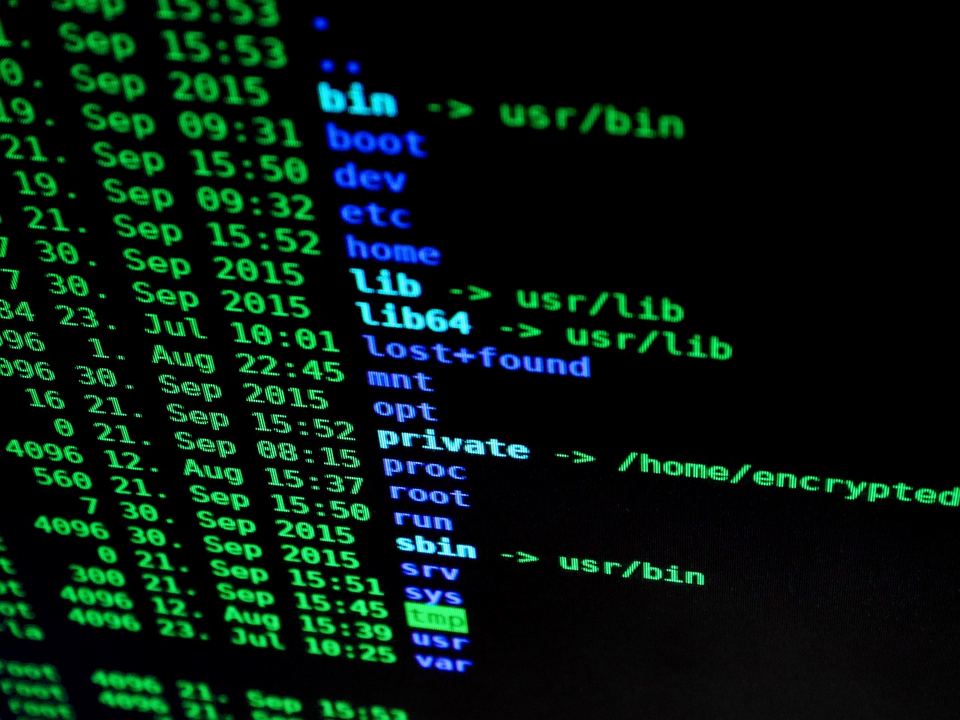
Linux Mint lists 2GB of RAM and 20GB of disk space as the minimum, and its team recommends 4GB and 100GB for comfortable use. Treat 2GB as the floor, not the target.
Mint ships with Firefox for browsing, LibreOffice for documents and spreadsheets, and Thunderbird for email, so a fresh install covers everyday work. The Software Manager adds anything else from Mint, Ubuntu, Debian and Flathub sources.
That makes it a good fit for a laptop that only needs a browser, office files and calls made through the browser.
Boot it from a USB stick first. Mint starts a live session, so you can check the Wi-Fi, the trackpad and the sound before anything gets wiped.
Weaker machines can try one of the lightweight Linux distros we covered for old computers.
4. Run it as a small home server
A laptop is a decent small server because the screen and battery are built in, and Pi-hole needs only 512MB of RAM and 2GB of free space.
Pi-hole blocks ad and tracking domains for the whole network, and Jellyfin is a free, open-source media server. Pi-hole wants a static IP address or a DHCP reservation on your router.
Pi-hole supports only actively maintained Linux releases, so check its supported list before you install.
Linux suspends when you close the lid by default. Set HandleLidSwitch to ignore in /etc/systemd/logind.conf and reboot, and the laptop keeps running with the lid shut, though a few laptops drop Wi-Fi that way.
Some desktop environments handle the lid themselves, so you may also need to change their power settings.
The snag people hit most is Wi-Fi power saving, which can make an idle Linux laptop drop off the network. Setting wifi.powersave to 2 in a file under /etc/NetworkManager/conf.d/ turns it off, and a USB Ethernet adapter sidesteps the problem.
Keep an eye on the battery, because a laptop that runs all day with the lid closed gets warm. The battery notes in number 10 apply here.
5. Make it the family photo and backup box
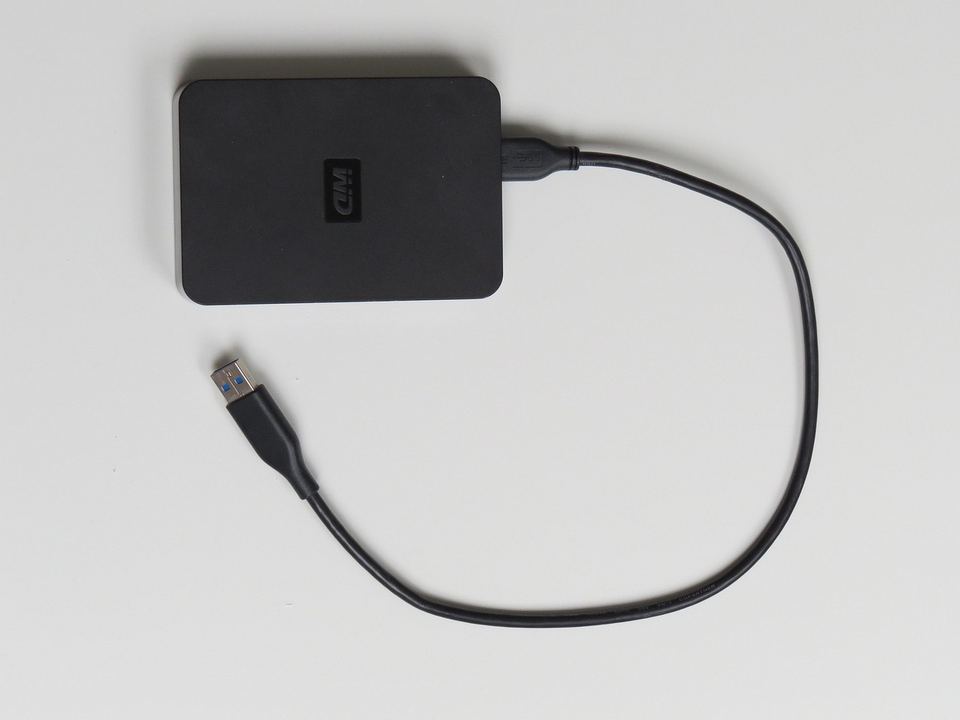
Plug an external drive into the laptop and share one folder from it, and the laptop becomes a place the whole house can copy photos to.
On Windows, file sharing starts with right-clicking the folder, choosing Show more options, then Give access to and Specific people. Another PC opens it by typing \\ComputerName\ShareName into the File Explorer address bar.
On Linux the same job is done with Samba. Either way, the laptop has to stay on and on the network for anyone to reach the folder, so this suits a machine that lives plugged in.
A shared drive is one copy in one place. Keep a second copy somewhere else, because a drive that old can fail without warning.
Our list of external hard drive uses covers what to put on the drive itself.
6. Turn it into a retro games machine
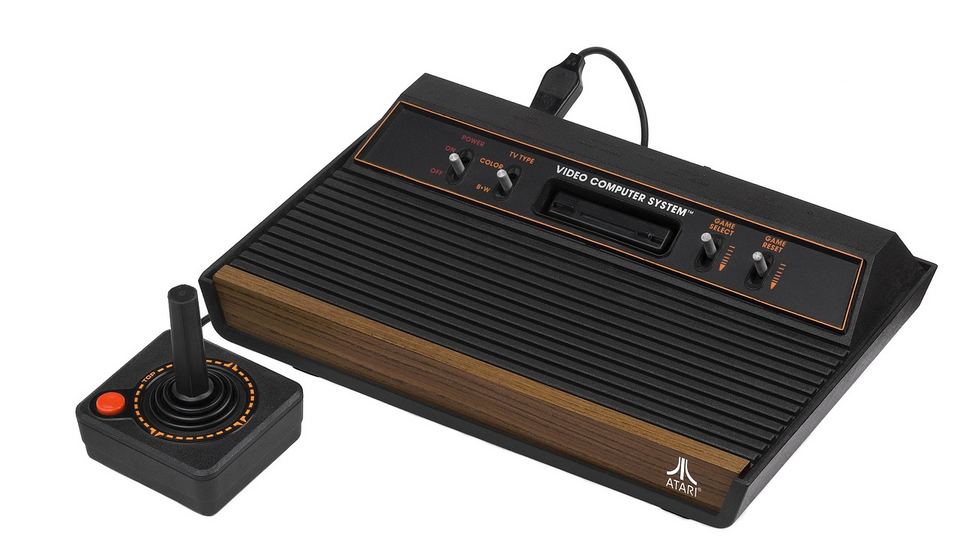
Batocera is a free, open-source retro gaming system that you copy to a USB stick, and it can turn a computer into a games console for a session or permanently.
Run Batocera from the stick first to see how it behaves, then plug the laptop into a TV over HDMI.
All major controllers are supported and most work without setup, and a controller it doesn’t recognize prompts you to map its buttons. Xbox, PS4 and PS5 pads always work over a USB cable, which is the simplest way to start.
What an old laptop can run depends on the emulator. Batocera’s guide lists 1GB of RAM as the bare minimum and 2GB as recommended, and the graphics chip usually makes or breaks it, so older consoles are the safe bet and PS2 and newer need real graphics power.
Use game files you own or have the right to use.
The laptop’s fan was the only thing that broke the illusion, a faint hum under the menu music.
7. Give it to a kid with limits turned on

Check the operating system first, because Family Safety screen time limits work on Windows and only on devices connected to your family group.
The child needs their own Microsoft account in that group. In the Family Safety app you pick the child, choose Windows, then set allowed hours and a daily total for each day.
If the laptop is still on Windows 10, enroll it in security updates from an adult administrator account first. A child account can’t do that.
Expect the first lock-out to land at a bad moment, so set the hours wider than you think you need.
8. Give it one job on a desk or in the kitchen
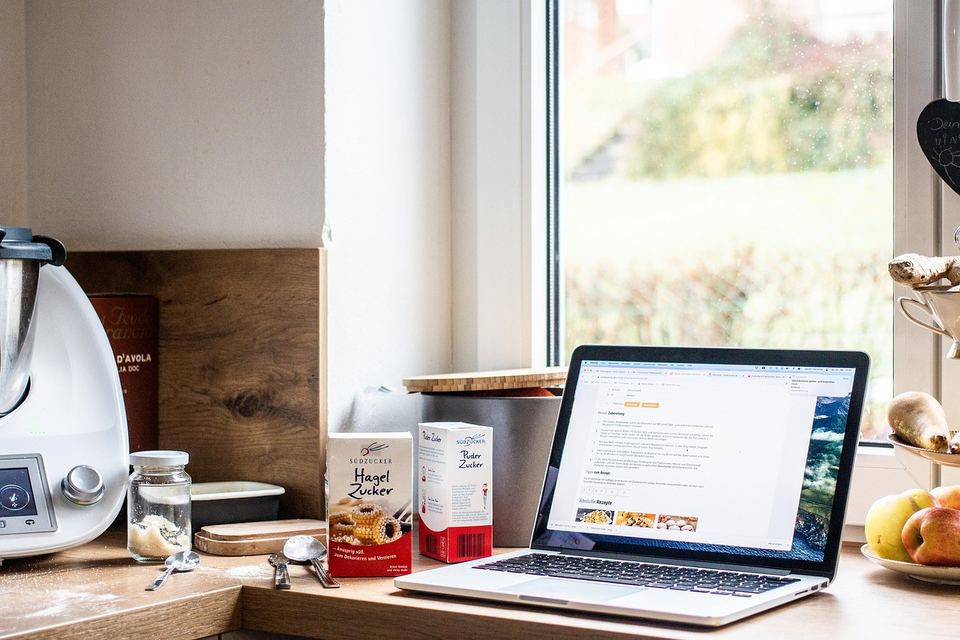
Pick one job, like a recipe screen, a music player or a video call machine, and the laptop stops being something you have to maintain.
A recipe screen is the easy start: open one recipe page and set the screen to stay awake.
A video call machine works the same way, with the browser opening your calling site at sign-in and nothing else installed. A music station needs only a streaming page and a speaker.
In Windows 11, set the screen timeout to Never under Settings, System, then Power and battery, and switch on Do not disturb under Notifications.
Within a day it had flour on the trackpad, and I had stopped thinking of it as a computer.
Prop the lid half open if the vents are underneath, since the fan has less to fight that way.
9. Sell it, trade it in or give it away

Price it from sold listings for your exact model, not from asking prices.
Buyers tend to pay more for a laptop that boots quickly, holds a charge and comes with its charger, so test the battery before you list it.
Put the processor, RAM and storage in the first line, mention any SSD swap, and photograph the keyboard and screen.
Schools and charities set their own rules, so call before you drop a laptop off. Wipe it first using the steps in the section below, and don’t sell one with a swollen battery.
10. Recycle it properly, and check the battery first
Best Buy recycles laptops for free at participating US stores, up to five per household per day, though state rules can differ.
Best Buy does not accept stand-alone batteries or items that present a health or safety hazard, so a swollen battery needs a different route.
A lifted trackpad, a case that won’t sit flat or a lid that won’t close are the usual signs of one. Check your maker’s support page first, because the steps differ by brand.
Dell advises letting its battery drain, not pressing or prying at it, and contacting Dell about replacement and disposal.
The EPA lists other retailer and manufacturer take-back options if no Best Buy is near you.
Which job fits which laptop
The table below lists what each of the ten jobs needs from your laptop and where it tends to go wrong.
| Job | What it needs | Watch out for |
|---|---|---|
| 1. SSD swap | A SATA or M.2 slot | Soldered RAM stays as it is |
| 2. ChromeOS Flex | 4GB RAM, 16GB storage, Intel or AMD chip | No Android apps, and only certified models are guaranteed |
| 3. Linux Mint | 2GB RAM, 20GB disk | 4GB RAM is the comfortable level |
| 4. Home server | 512MB RAM for Pi-hole, a wired or stable Wi-Fi link | Lid closed means heat, and some laptops drop Wi-Fi |
| 5. Photo and backup box | An external drive and a shared folder | It is not a backup if it is the only copy |
| 6. Retro games | A USB stick, a controller and an HDMI cable | Use only game files you have the right to use |
| 7. Kid’s laptop | Windows and a Microsoft account in your family group | Windows 10 needs security updates enrolled |
| 8. One job machine | A browser and a power outlet | Keep the vents clear |
| 9. Sell or give away | A working laptop and its charger | Wipe it first |
| 10. Recycle | A Best Buy or other drop-off | Swollen batteries are not accepted |
Back up, sign out and wipe it before it changes hands
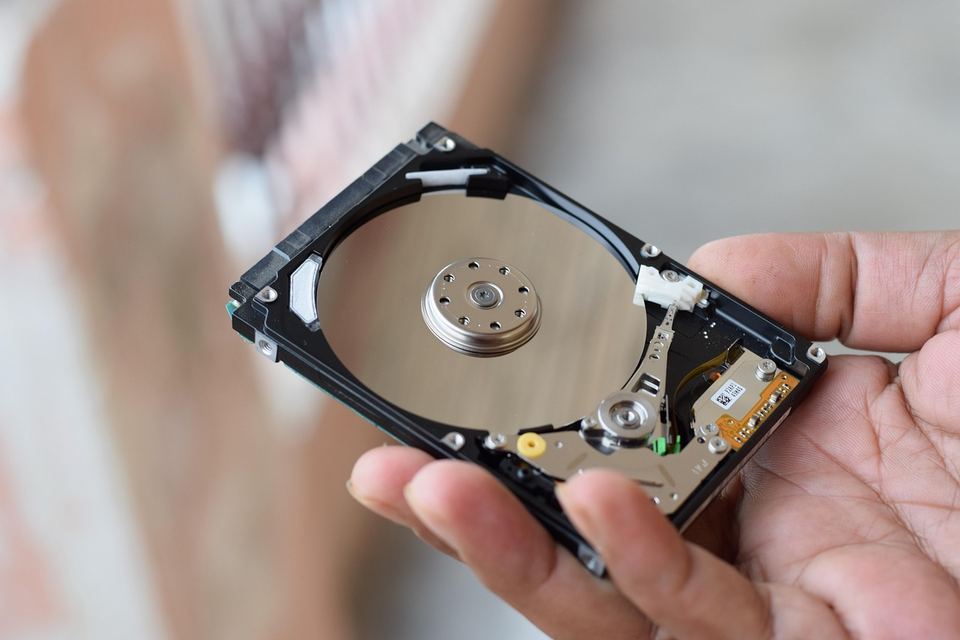
Copy anything you want to keep, then wipe the laptop before it leaves your hands, whether you sell it, give it away or recycle it.
On Windows 11, go to Settings, then System, then Recovery and choose Reset PC. Pick Remove everything, and turn on Clean data if the laptop is leaving your hands.
Clean data takes longer but makes removed files harder to recover, though Microsoft notes it does not meet government or industry data erasure standards. On Windows 10, the same reset sits under Update and Security, then Recovery.
On a Mac with Apple silicon or a T2 chip running macOS Monterey 12 or later, open System Settings, then General, then Transfer or Reset, and choose Erase All Content and Settings. Older Intel Macs follow Apple’s longer steps, which include signing out and erasing the disk from Recovery.
The thing I always forget is a browser that is still signed in to something.
Frequently Asked Questions
Can I keep using Windows 10 on an old laptop?
Yes, for now. Microsoft’s consumer extended security updates for Windows 10 version 22H2 now run to October 12, 2027, and enrollment is free when you sync your PC settings.
What if my laptop can’t run Windows 11?
Try ChromeOS Flex or Linux Mint. ChromeOS Flex needs 4GB of RAM and 16GB of storage, and Linux Mint needs 2GB of RAM and 20GB of disk space.
How do I wipe a laptop before selling it?
On Windows 11, go to Settings, System, Recovery, choose Reset PC, pick Remove everything and turn on Clean data. On a Mac with Apple silicon or a T2 chip, use Erase All Content and Settings under General, then Transfer or Reset.
Can I leave an old laptop plugged in all the time?
You can, but old batteries can swell with age, charge cycles and heat. Check the case and trackpad now and then, and stop using the laptop if either looks lifted.
Does Best Buy recycle old laptops for free?
Yes, at participating US stores, though state rules can differ. Best Buy takes up to five laptops per household per day, but it does not accept stand-alone batteries or items that present a safety hazard.
What to try first
Start with the cheapest fix. An SSD swap or a free operating system install costs little and shows you quickly whether the laptop is worth keeping.
If it feels fine after that, give it one job. If it doesn’t, sell it or recycle it and move on.