Many people buy an external hard drive for one job. They plug it in for a backup, then leave it in a bag.
Data loss is common. In a February 2025 survey of 6,118 people in 10 countries, commissioned by drive maker Western Digital, 63% had lost data to device failure, accidental deletion or a cyberattack, and 45% used an external hard drive for backups.
A drive that only sits in a drawer is easy to forget, and it can do a lot more than backups once you pick the right format.
Here are eight uses for an external hard drive or SSD, with the format, port and console rules that Apple, Sony and Microsoft actually list. The format comes first, because it decides whether the rest will work.
TL;DR: An external drive can back up a Mac or PC, take iPhone video, hold console games, encrypt private files, archive old photos, free up a Mac, run macOS and store a PC game library. The format decides which jobs work: exFAT for sharing between Windows and Mac, APFS for Mac-only jobs. A PS5 can store its games on a USB drive but cannot play them from it.
Pick the format of your external hard drive first
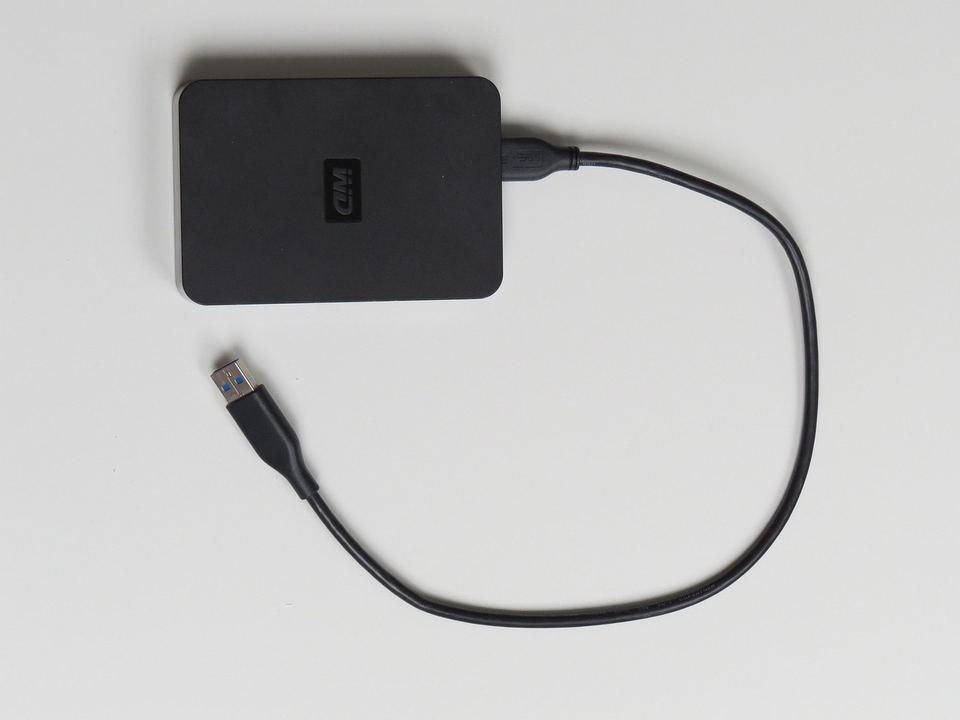
The format decides which of these jobs a drive can do, and changing it later erases everything on the drive. exFAT works on both Windows and macOS, so it suits a drive that moves between a PC and a Mac.
APFS is the Mac-only option, recommended for SSDs, and Mac OS Extended is the older Mac format that Apple still accepts for hard drives. NTFS is Windows-native, and macOS reads NTFS drives but does not write to them by default.
| Format | Windows | Mac | Best for |
|---|---|---|---|
| exFAT | Read and write | Read and write | Moving big files between a PC and a Mac |
| NTFS | Read and write | Read only by default | A drive that stays on Windows |
| APFS | No | Read and write | Mac backups, Photos libraries and startup disks on SSDs |
| Mac OS Extended | No | Read and write | Older Macs and traditional hard drives |
Many new drives arrive formatted for Windows, and consoles and Time Machine may reformat a drive anyway, so copy off anything you want to keep. Skip ReFS for removable storage, since Windows 11 will stop opening ReFS USB drives, as DigitBin’s ReFS USB drive report explains.
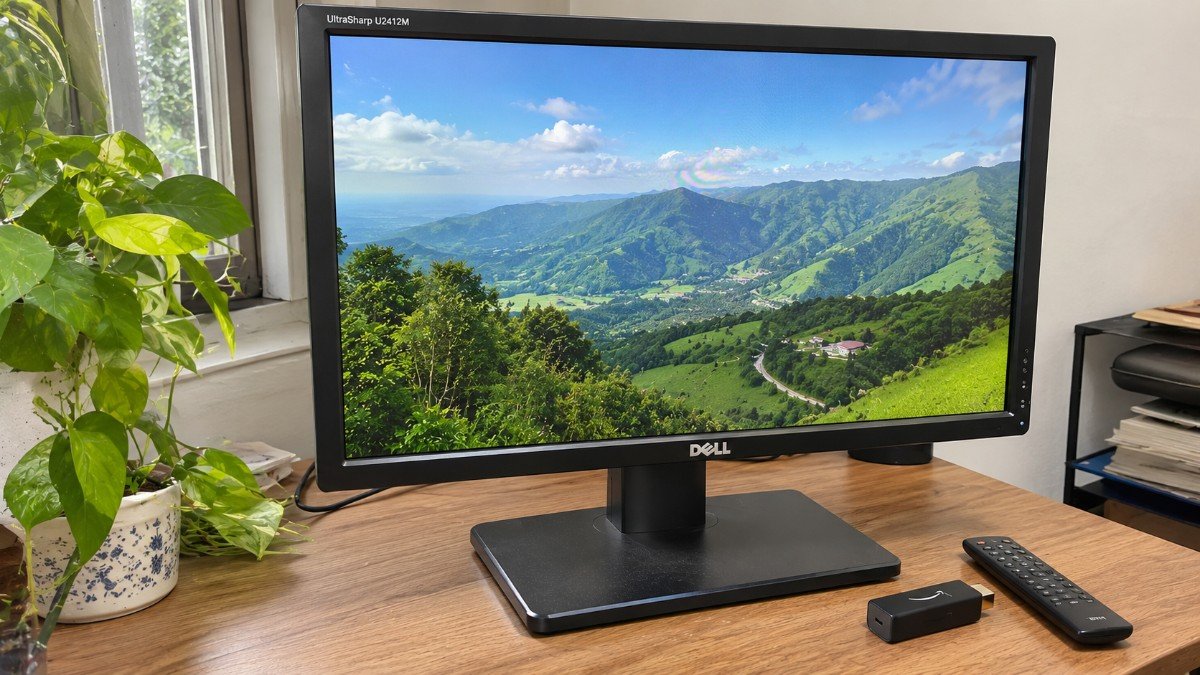
1. Back up your whole computer
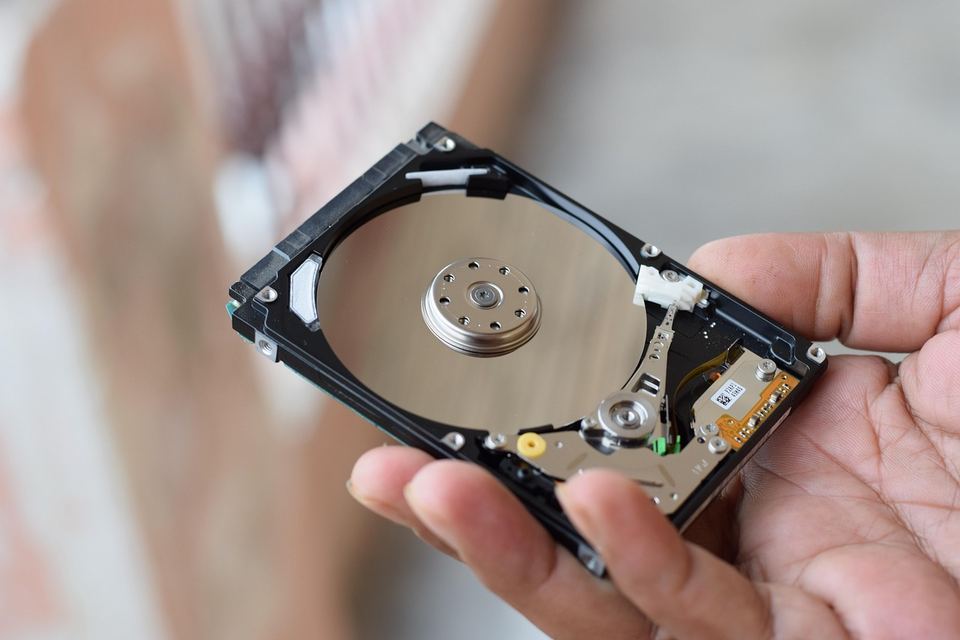
On a Mac, Time Machine backs up to a USB or Thunderbolt drive, and Apple suggests a drive with at least twice the storage of what you are backing up. It may ask to erase the drive, and Apple says to use a backup disk only for backups, so give it a drive of its own.
Windows 11 still includes File History, which copies folders such as Documents and Pictures to an external drive on a schedule. It backs up files, not apps or the operating system, so treat it as a file safety net.
A drive in your bag is still one copy in one place, so keep a cloud copy as well. See what OneDrive folder backup did on Windows 11 before you turn it on.
2. Move photos and phone video off your phone
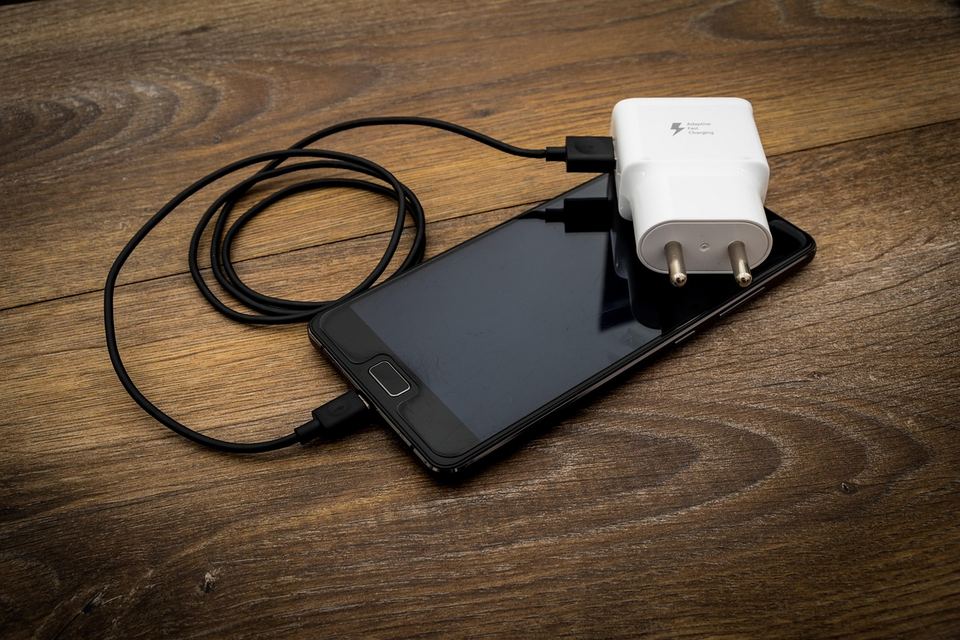
iPhone 15 and later models can connect an external drive over USB-C, so you can move photos and video without a computer in the middle. The Pro models go further, since iPhone 15 Pro and later Pro models can record ProRes video straight to an external drive, per Apple’s ProRes page.
A few things trip people up with ProRes recording:
- The drive must be formatted exFAT and cannot be password encrypted.
- Use a USB 3 cable rated at 10 Gbps or better. The charging cable in the iPhone box has been a USB 2 cable on recent models, so it will not do.
- The drive must sustain at least 220 MB/s for 4K60 ProRes, or 440 MB/s for 4K120, which in practice means an SSD.
Some USB-C Android phones can read a drive in the Files app, but support varies by phone and by how the drive is formatted. Test yours before you build a routine around it.
3. Expand your game console’s storage

A PS5 can store PS5 games on a USB drive, but Sony says they cannot be played from it, so you copy them back to play. PS4 games can be installed on the drive and played from it.
- PS5: Sony lists a USB drive of 5 Gbps or faster, from 250GB to 8TB, connected directly and not through a hub.
- Xbox Series X|S: Microsoft’s Xbox support page says games optimized for the console must be installed on the internal SSD or the Storage Expansion Card to play. Older Xbox One, 360 and original Xbox games can run from a USB 3.0 drive of at least 128GB, per Seagate’s Xbox support page.
Both consoles format the drive when you set it up, so use a drive with nothing on it.
4. Carry an encrypted drive for private files

On Windows, BitLocker To Go encrypts USB flash drives, SD cards and external hard drives, and Microsoft says you unlock them with a password, a smart card certificate or a recovery password.
It needs Windows Pro, Enterprise or Education, so Windows Home users will not find it. Save the recovery key somewhere other than the drive.
On a Mac, erase the drive in Disk Utility with the APFS (Encrypted) format, or Control-click an existing disk in Finder and choose Encrypt. You enter the password each time you connect the drive, so write it down somewhere other than the drive itself.
5. Keep a cold archive of old photos and documents

A common rule of thumb is three copies of anything important, on two kinds of storage, with one copy offsite. A drive that sits in a drawer and comes out twice a year can be one of those copies, as long as you plug it in once a year and open a few files.
A backup you never test is a guess. Hard drives usually cost less per terabyte than SSDs, which suits an archive that rarely changes.
6. Free up a Mac by moving the Photos library
You can move your Photos library to an external drive formatted as APFS or Mac OS Extended (Journaled), per Apple’s Photos guide. The drive cannot be one used for Time Machine backups, and Apple advises against a USB flash drive or SD card.
- Quit Photos and drag the Photos Library file to the external drive.
- Double-click it in its new location to open it.
- If you use iCloud Photos, choose Photos, then Settings, then General, and click Use as System Photo Library.
Only the System Photo Library works with iCloud Photos, and holding Option while you open Photos lets you pick which library to use. Keep the drive connected before you open Photos, or it creates a new empty library in your Pictures folder.
7. Run macOS from an external SSD

Apple lets you install macOS on a USB or Thunderbolt drive and start your Mac from it, as Apple’s startup disk guide explains. It is a handy way to try another macOS version without touching your main install.
- Use APFS, which Apple recommends especially for an SSD.
- On Apple silicon Macs, keep the drive off the DFU port during installation.
- The installation is specific to your Mac model, so it will not start a different Mac.
- On Apple silicon Macs the built-in startup disk must still work, so an external drive cannot replace a failed one.
8. Install PC games on it

Steam can add a library folder on another drive, so a PC game library can live on an external SSD and not on your internal disk. A hard drive will load games more slowly than an SSD, and a drive you unplug takes its games with it, so keep it connected while you play.
Fast ports matter here, so look for USB 3.2 or USB4, which DigitBin’s USB4 and Thunderbolt explainer breaks down.
Frequently Asked Questions
Can one external drive work on both Windows and Mac?
Yes, if you format it as exFAT, which both read and write. Time Machine, Photos libraries and macOS startup disks need a Mac format such as APFS instead.
Can I play PS5 games from an external drive?
No. Sony says PS5 games can be stored on USB extended storage but must be copied back to the console to play, while PS4 games can be played from the drive.
Do I need Windows Pro to encrypt an external drive?
For BitLocker To Go, yes. It needs Windows Pro, Enterprise or Education, and a Mac can encrypt a drive with the APFS (Encrypted) format.
Will Time Machine erase my external drive?
It might. Your Mac may ask to erase the drive for Time Machine, and Apple says to use a backup disk only for backups.
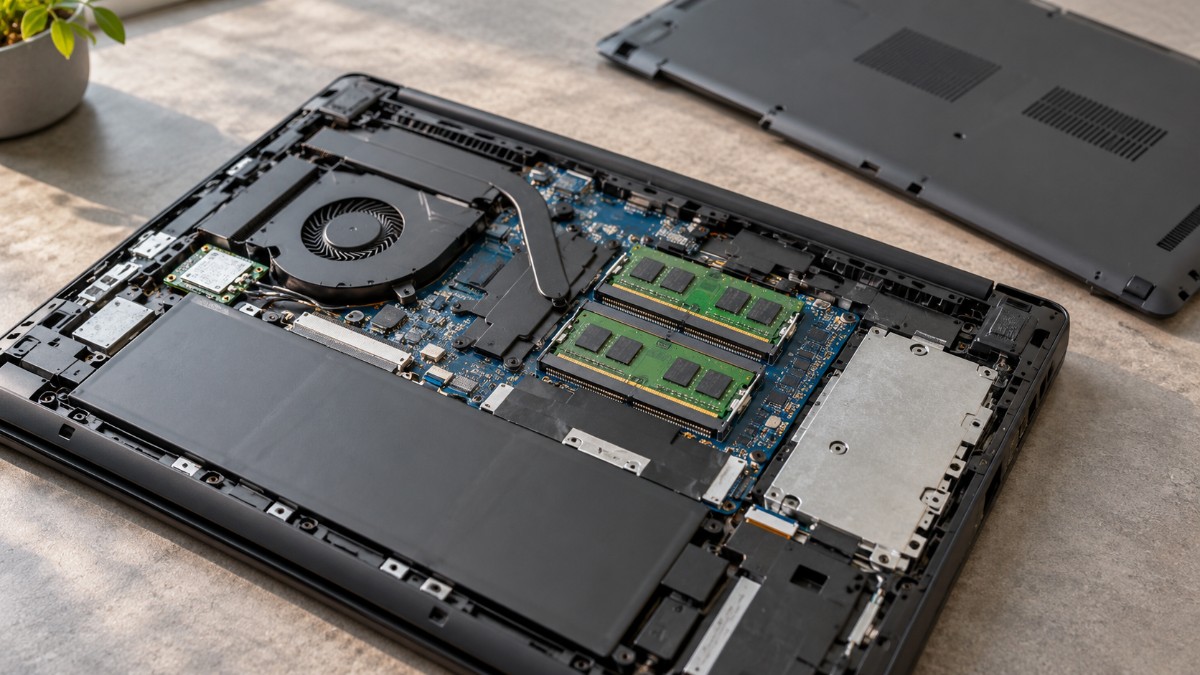
Which drive fits which job
A hard drive suits backups and archives, where cost per terabyte matters more than speed. An SSD suits games, a macOS startup disk and video, where speed matters.
| Job | Drive type | Why |
|---|---|---|
| 1. Whole-computer backup | Either | Cost per terabyte matters more than speed |
| 2. iPhone ProRes recording | SSD | Needs 220 MB/s or more of sustained writes |
| 3. Console game storage | Either | PS5 wants 5 Gbps or faster, older Xbox games need USB 3.0 |
| 4. Encrypted drive | Either | BitLocker and APFS (Encrypted) work on both types |
| 5. Cold archive | Hard drive is fine | The data rarely changes, so price wins |
| 6. Mac Photos library | Either | APFS or Mac OS Extended, and not a Time Machine drive |
| 7. macOS startup disk | SSD | Apple recommends APFS, especially on an SSD |
| 8. PC games | SSD | Games load faster than from a hard drive |
If a drive stops mounting, fix a corrupted drive before you assume it is dead.
An external drive does not have to sit unused between backups. Pick the format first, keep a separate copy of anything important, and the extra storage can earn its place.