Gemini in Chrome Android reached every US Android user when Google announced the rollout on August 18. I figured it would sit in the toolbar like every other icon I never touch.
By day two I was tapping it before I’d even thought about opening a new tab.
I used it for a week of ordinary browsing, mostly long reads with the phone in one hand, and this is what stuck, what got in the way, and what Google keeps behind the AI Pro paywall.
TL;DR: Gemini in Chrome Android works best as a quick question about the page already on your screen, not as a replacement for reading it. The free version covers summaries, Calendar and Keep, and image edits. Auto browse needs Google AI Pro at $19.99 a month and stops to ask before anything sensitive. I would keep the free part and think twice before paying for the rest.
How Gemini in Chrome Android opens and what it can see
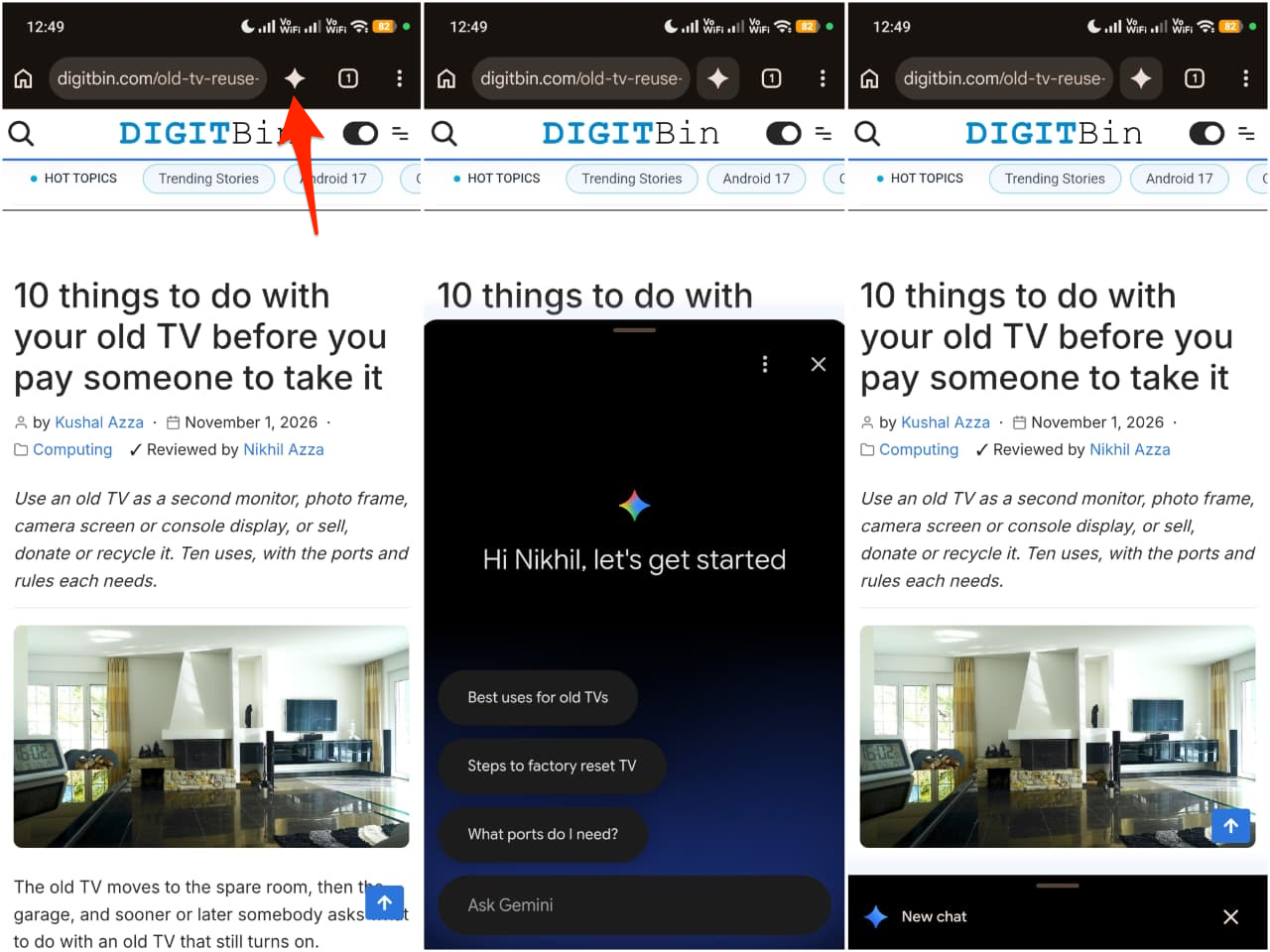
You open it from the Gemini icon in the toolbar or from the three-dot menu, and Chrome asks you to opt in the first time. Gemini needs Android 12 or higher, at least 4GB of RAM, the latest Chrome, a signed-in account and English as the phone language, and you must be 18 or older.
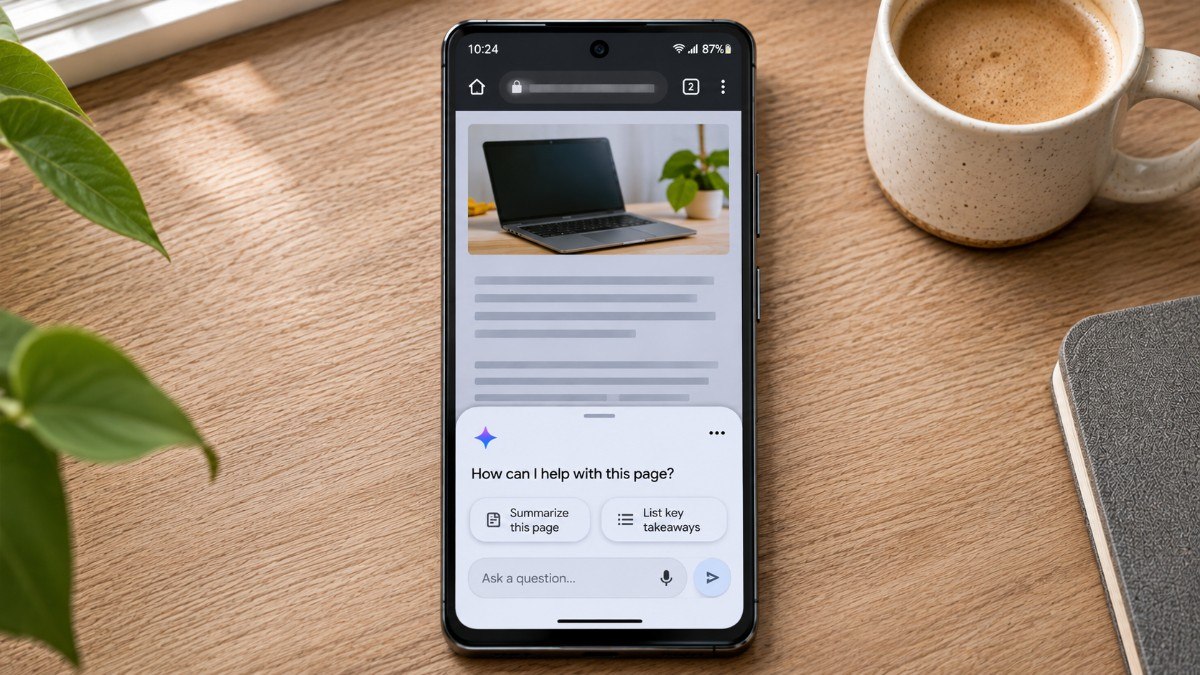
The sheet looks almost identical to the desktop panel. The page you are on is shared with it by default, and you can stop that from the chat.
I docked the sheet at the bottom, and it sat over the last couple of lines I was reading. Took me an article to work out why the ending felt cut off.

Asking about the page instead of opening a second tab
Asking Gemini about the page I was already on replaced most of my second tab lookups. A long laptop review used to send me off to a search every time a spec showed up that I didn’t recognize, and then I’d lose the review tab.
Around day three I caught myself tapping the icon before I’d finished typing the question, which is a strange thing to catch yourself doing.
It was weaker on tables and images. Twice a summary skipped a number I ended up hunting for myself.
I still finished the week with far too many tabs open, so the tab groups and Memory Saver advice still applies.
Calendar, Keep and image edits inside Chrome
Gemini in Chrome connects to Google Calendar and Keep, so you can act on a page without leaving it. It can also generate and edit images with Nano Banana.
I saved a recipe’s ingredient list to Keep without leaving the page, then opened Keep anyway to check it had actually landed.
The image tools I barely touched.
Personal Intelligence, which connects apps like Calendar and Keep, can be switched on or off from the tools menu.
Settings worth checking on day one
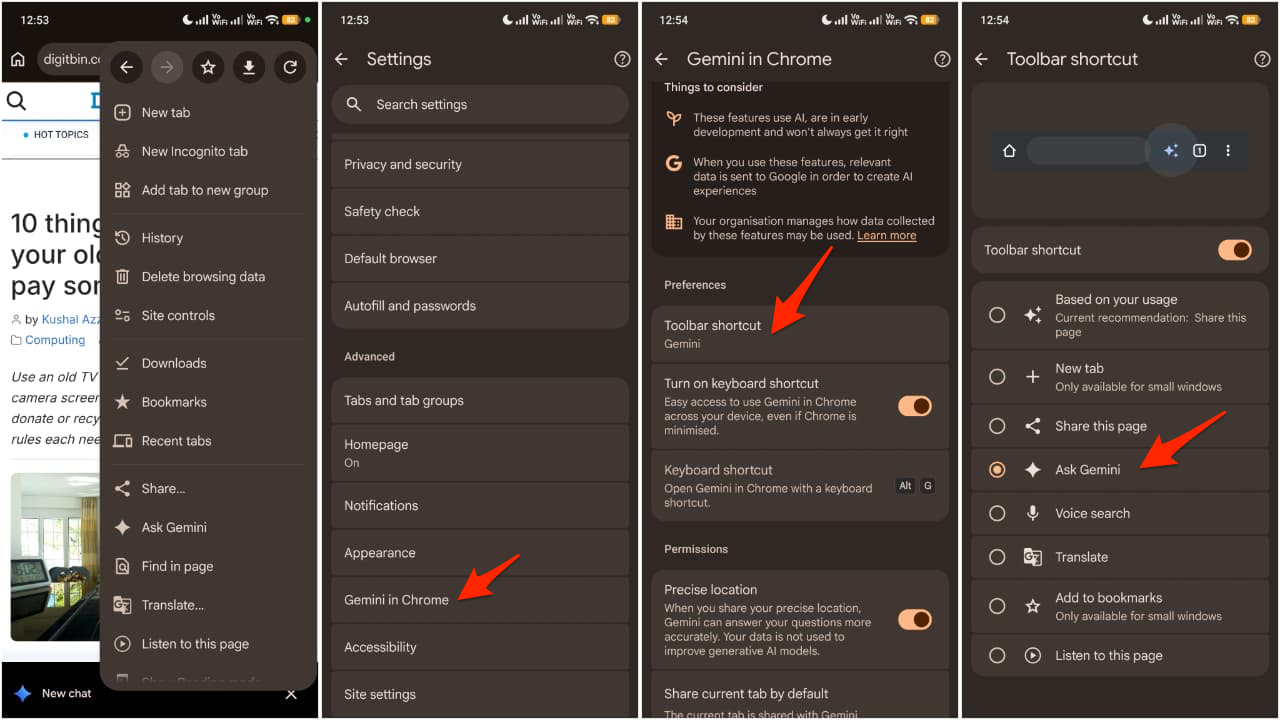
The settings that matter most sit under Chrome > Settings > Gemini in Chrome. That is where you control whether Gemini can browse for you and which sites it can sign in to.
Chrome allows only one toolbar shortcut, so Gemini competes with whatever you had there before. I gave it the slot and stopped reaching for the overflow menu within a day.
It took me a while to find the sign-in list. Once I did, I deleted the sites I did not want an agent anywhere near.
What auto browse adds with Google AI Pro
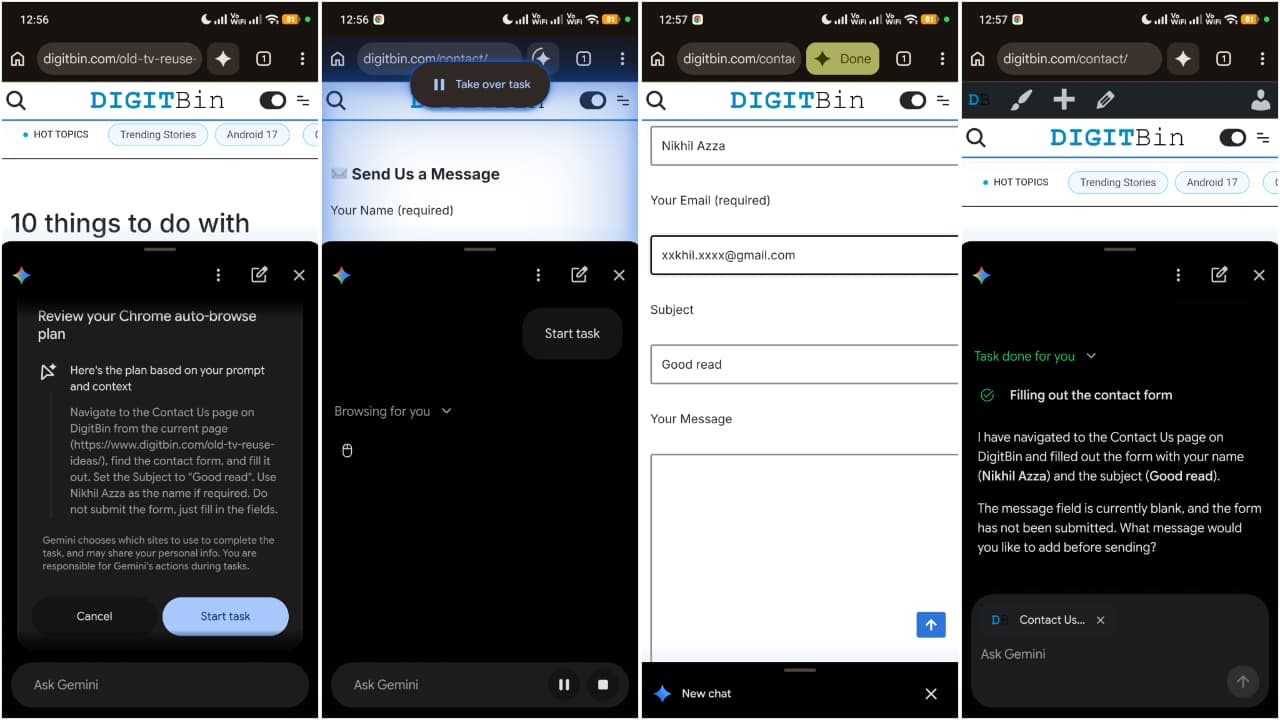
Auto browse is the paid part of Gemini in Chrome Android, and it needs Google AI Pro at $19.99 a month or Google AI Ultra. Google’s examples are booking parking for an event, updating a recurring online order and organizing travel.
You describe the task, review the plan Gemini shows, then tap Start Task. An auto browse icon appears on the tab it is using.
Auto browse asks for confirmation before actions like submitting forms or modifying data, and it hands control back to you for steps such as finalizing a payment. Google lists up to 20 multi-step requests a day on AI Pro and 200 on Ultra.
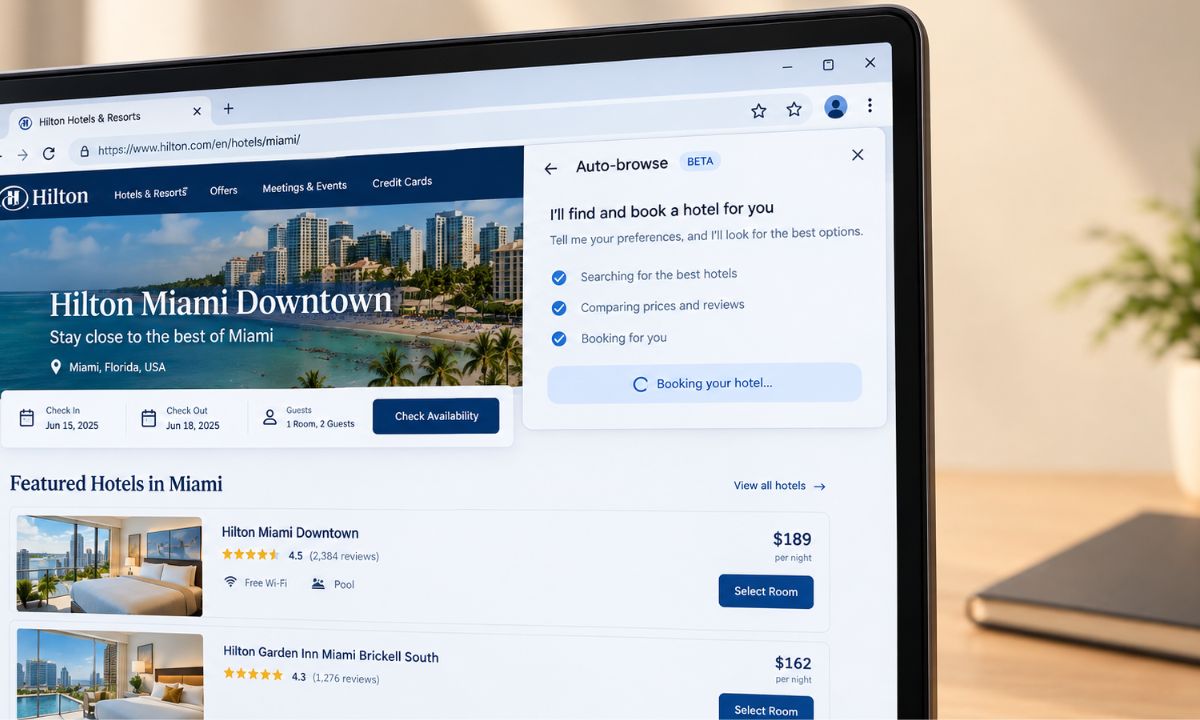
The desktop version of auto browse pauses before purchases the same way.
| Feature | Free | Google AI Pro |
|---|---|---|
| Page summaries and questions | Yes | Yes |
| Calendar and Keep | Yes | Yes |
| Nano Banana image edits | Yes | Yes |
| Auto browse | No | Yes |
| Auto browse requests per day | None | Up to 20 |
| US price per month | $0 | $19.99 |
Where Gemini in Chrome Android still falls short
Gemini in Chrome Android launched in the US and has since reached India, it needs the phone set to English, and Google says it can make mistakes. I treated every summary as a first pass and opened the page whenever a price or a date was involved.
Auto browse does not run in Incognito, and it needs Safe Browsing set to Standard or Enhanced. I only learned the Incognito part when the option simply was not there.
Work or school accounts only get the feature if an admin turns it on. The rollout is also gradual, so the icon may not show up on your phone yet.
Frequently Asked Questions
Does my Android phone support Gemini in Chrome?
Gemini in Chrome needs Android 12 or higher, at least 4GB of RAM, the latest Chrome, and the language set to English. It launched for Android users in the US and has since reached India.
Is Gemini in Chrome on Android free?
Yes. Summaries, Calendar and Keep, and image edits are free, but auto browse needs Google AI Pro at $19.99 a month or Google AI Ultra.
How many auto browse tasks can I run in a day?
Google AI Pro allows up to 20 multi-step requests per day, and Google AI Ultra allows up to 200.
Does auto browse work in Incognito?
No. Auto browse does not run in Incognito, and it also needs Safe Browsing set to Standard or Enhanced.
Can I stop Gemini from seeing the page I am on?
Yes. Gemini in Chrome shares the current page by default, and you can stop sharing it from the chat.
Who should bother with it
The free part is enough for most people on an Android phone. AI Pro only makes sense if you have a recurring chore worth handing off, and I would not pay $19.99 a month just to try it.
I’m still using the icon, mostly on long reads. Whether that survives once the novelty wears off, I can’t say yet.