Quick Summary
- Set up shortcuts in Gboard so that you don’t have to type freqently used words repeatedly during a text.
- Quickly switch between upper and lower case.
- Instantly translate while you type.
- Quick gesture, slide to complete sentences, and paragraph deletion.
I do a lot of texting on my Android smartphone to send emails and text messages, for which I rely on Gboard. It is the native keyboard app found on Android OS. Over the years, Gboard added useful features to its platform, making it a worthy keyboard app for Android.
I know a lot of people prefer using Gboard over other contemporary keyboard apps such as SwiftKey or Grammarly. I even went around crunching some data to see how many people put their trust in Gboard.
From a poll conducted by AndroidCentral and some recent collective feedback from users on Reddit, Gboard is trusted by approximately 60 percent of Android users. SwiftKey has a 30% or less user base, while other keyboard apps are not widely used.
| Keyboard apps for Android | Preferred Users |
| Gboard | 60% or more users |
| SwiftKey | Around 30% users |
| Other Keyboard apps | Less than 10% users |
Android users certainly include some Microsoft fans in the form of SwiftKey users, but they are far behind the loyal Gboard users who prefer Gboard for their text operations.
Well, you can blame me for being a Gboard fan boy, but that app delivers and has a smooth interface that somehow makes my work easier. It is better than the iOS keyboard on my iPhone, which I find clumsy during texting.
Gboard has several useful features that have immensely helped me in my everyday text editing. I thought that I would pick a few of those attributes of Gboard, compile them in an article, and share them with fellow Gboard users.
Set up Shortcuts for Frequently Used Words
Humans are beings of habit, and that shows in the way they text. I’m referring to the frequent use of a word during texting. Everyone has the choice of words that they use while typing a text, specifically during an informal conversation.
Gboard makes sure that you don’t have to type a word repeatedly during a text editing session. You can set a text shortcut for the words that you use frequently. During editing a text, you can save time by generating the word automatically as you start typing it.
Here is how I have set up text shortcuts for different words that I tend to use regularly during composing an email or a WhatsApp text to my family.
- Open Gboard on any supported app. [Notes app in this example]
- Tap the cogwheel icon to launch the Gboard settings.
- Go to Dictionary > Personal Dictionary.
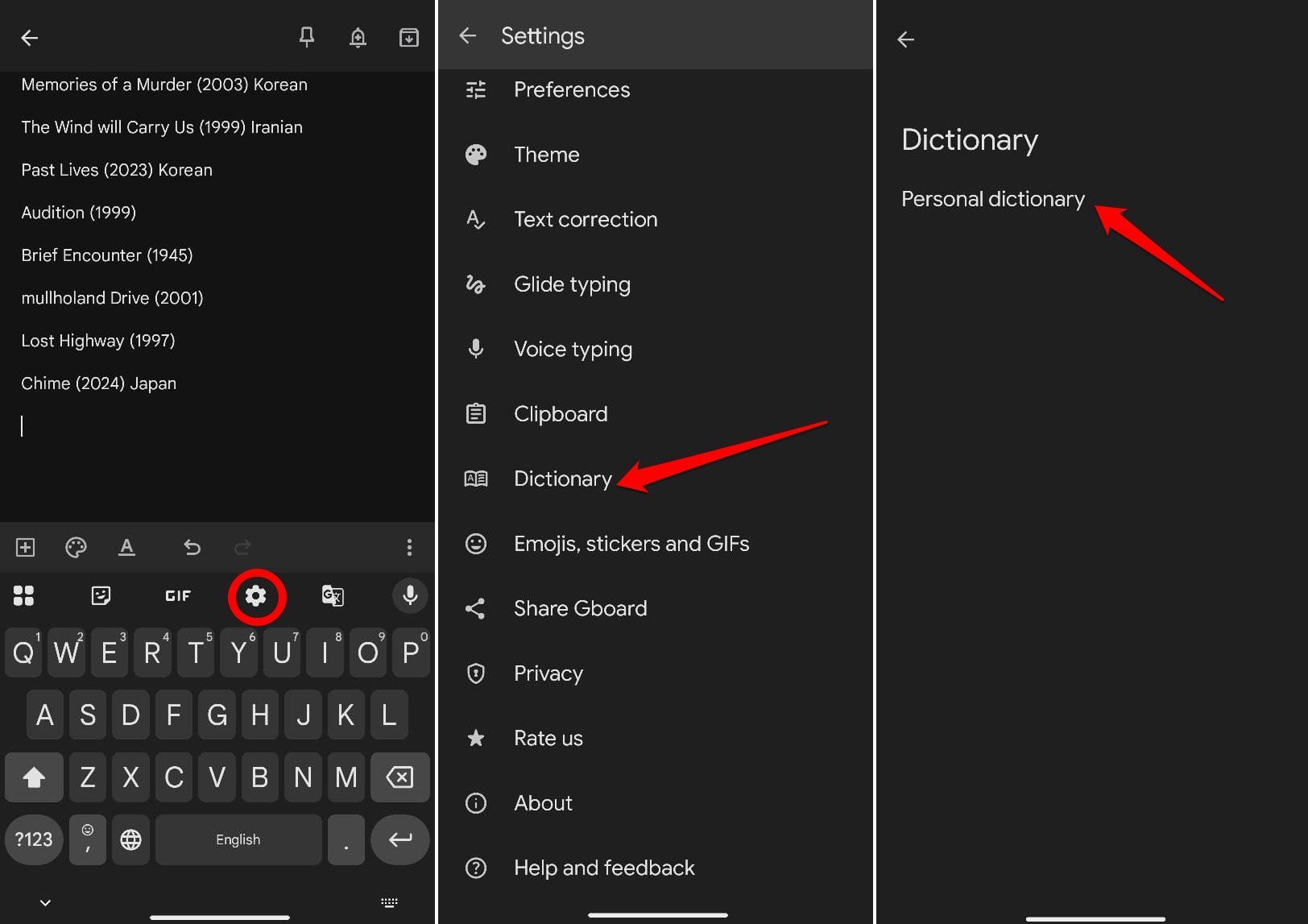

- Select the preferred language.
- Tap the + button.
- Enter the word you repeatedly use during texting in the “Type a word” section.
- Next, type the shortcut that will generate as a suggestion for the word you have entered in the previous steps.
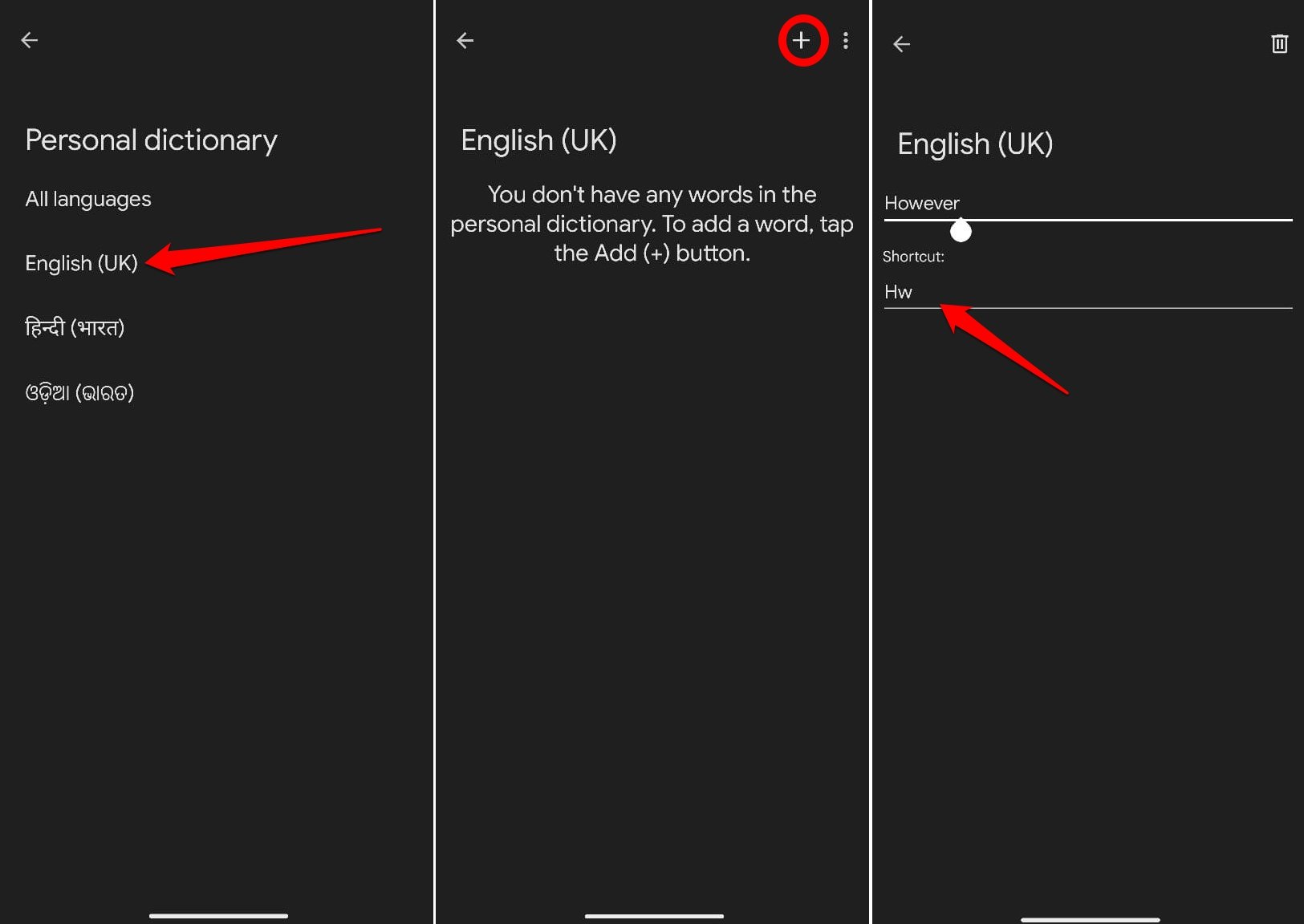

In the example screenshot, you can see I entered “Hw” as the shortcut for However. It means when I type Hw, Gboard will suggest “However”, which I can instantly choose instead of typing the complete word “However”, thus saving my time.
Get the Gboard Editing Mode into Action
I used to feel Gboard was very clunky for editing long paragraphs of text until I realized I could switch to editing mode and edit a big chunk of text easily.
Here are the steps for you to turn on the Gboard editing mode.
- Open Gboard in any supported app.
- Tap the four-tile icon at the upper left of the Gboard panel.
- Select Text Editing to view its controls.
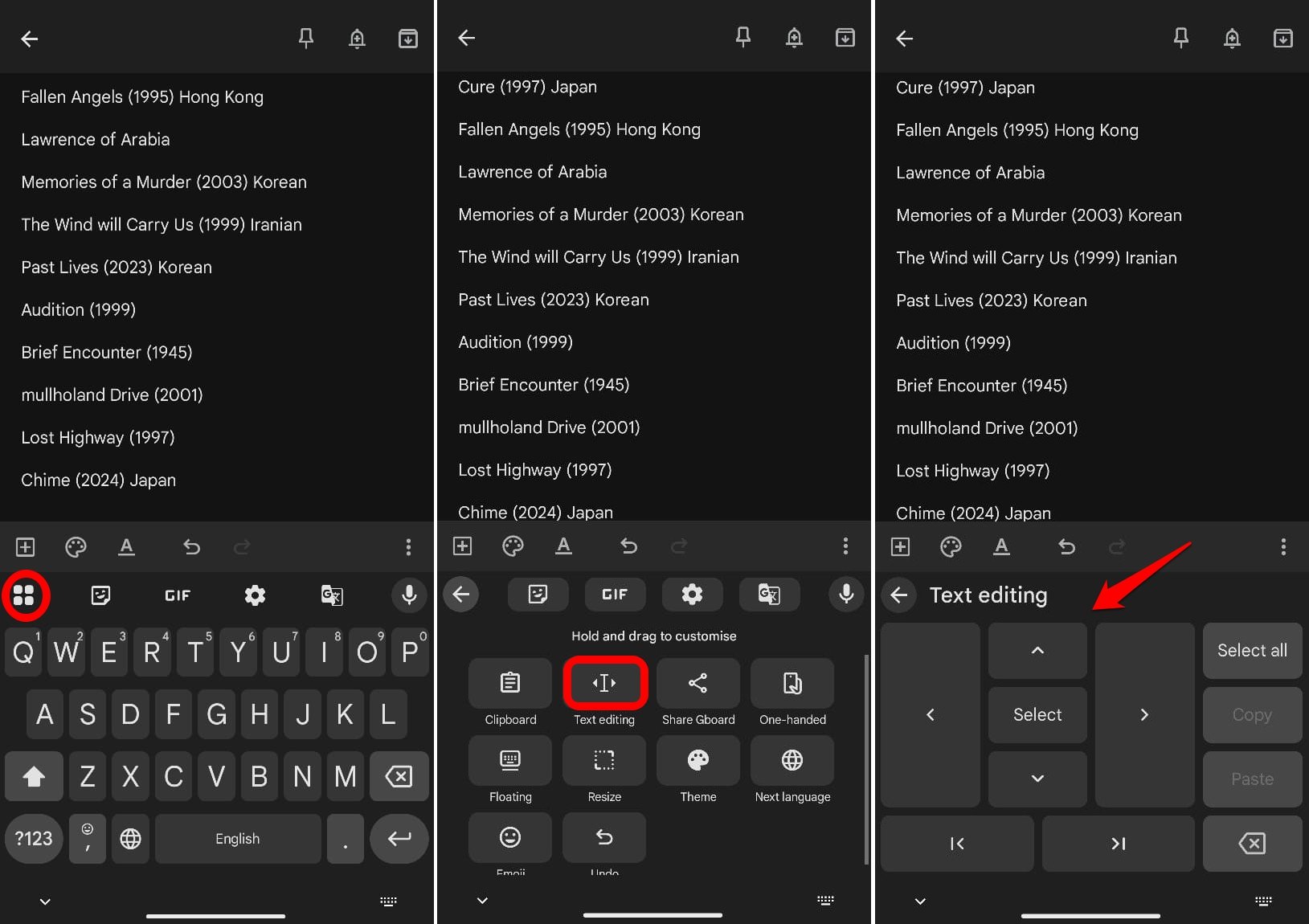

The arrow keys help you navigate through the text. The “start point” and “end point” keys will switch you to the start of the text or the end of the text.
To select a long section of text, place the cursor at the point where you want to begin the selection. Then press the Select button, followed by swiping down to the point in text up to which you want to copy.
Quick Switch between Upper and Lowercase
Do you still long-press the Shift key on the Gboard (the arrow key beside ‘Z’) and type a letter or sentence in uppercase? Sometimes, you may forget to change the case, ending up deleting and retyping the whole line. What a royal waste of time, but not anymore.
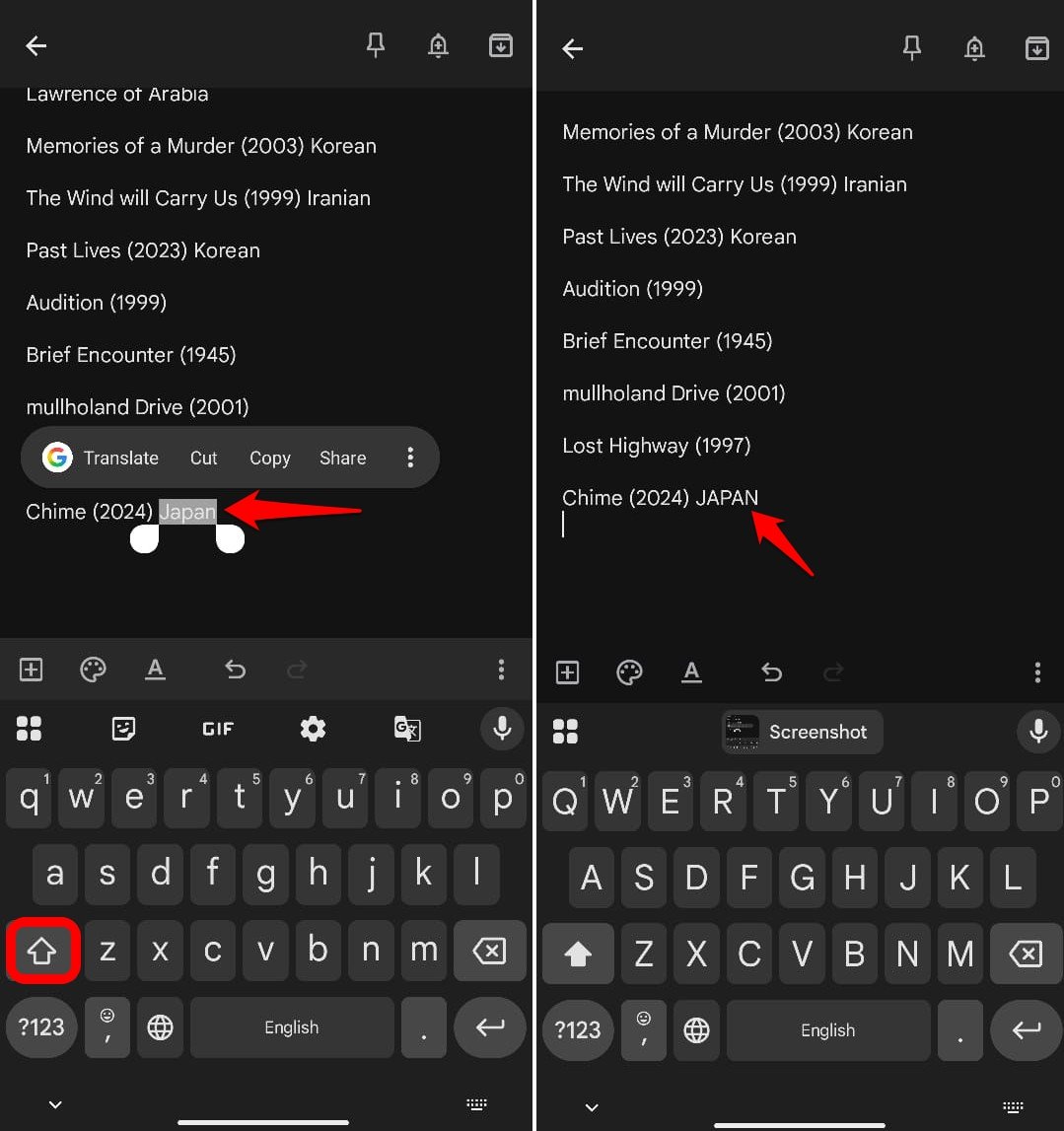
There is a little trick with the Shift key you can use to instantly select and change the case of a word/sentence from Upper to lower or vice-versa, as well as start case (the first letter of the word is capital)
For any word or sentence,
- Double-tap on the word to select it [double-tap and drag to select a sentence]
- Press the Shift key to switch to your desired case.

Instant Translate as you Type on Gboard
Sometimes, during travel, I need to communicate via email/WhatsApp with people in a different language that is not my first language or a linking language such as English.
I would generally use Google Translate, type the phrase in my language or the linking language, and translate it to the target language in which I want to communicate. That’s a lot of work.
Instead, I use the translate-on-the-go feature.
- Open the app on which you want to compose the text.
- Once Gboard appears, tap Translate.
- Set the Detected Language and Preferred Output Language.
- Type in your primary language/linking language in the “Type here to translate” text field.
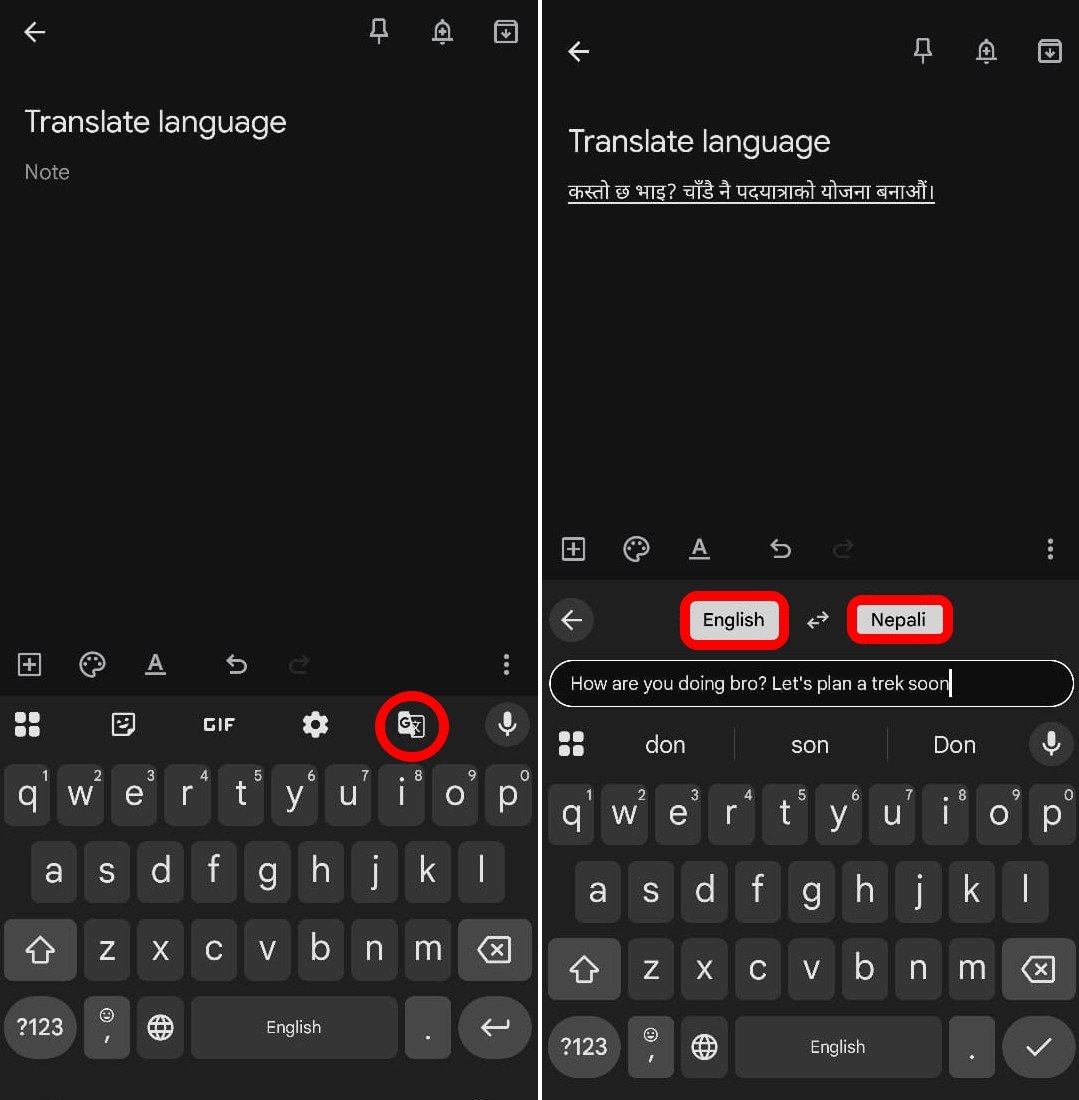

As you keep typing in the translation panel, the resulting output sentence/word/phrase will appear on the primary text field of the email/notes/messaging app you are using to compose the text.
Swipe on the Gboard to form Sentences Quickly
Instead of going around typing a word by tapping on each alphabet using two fingers and two hands, why not glide from one alphabet to another with a swiping motion on the Gboard and form words instantly? It can be done with one hand pretty easily once you get hold of it.
This feature on Gboard is called Glide typing. I use it all the time, from composing emails to sending that quick WhatsApp text.
- Launch Gboard on the app you are currently using.
- Tap the cogwheel icon to access the Gboard settings.
- Go to Glide Typing.
- Enable the toggle beside Glide Typing.
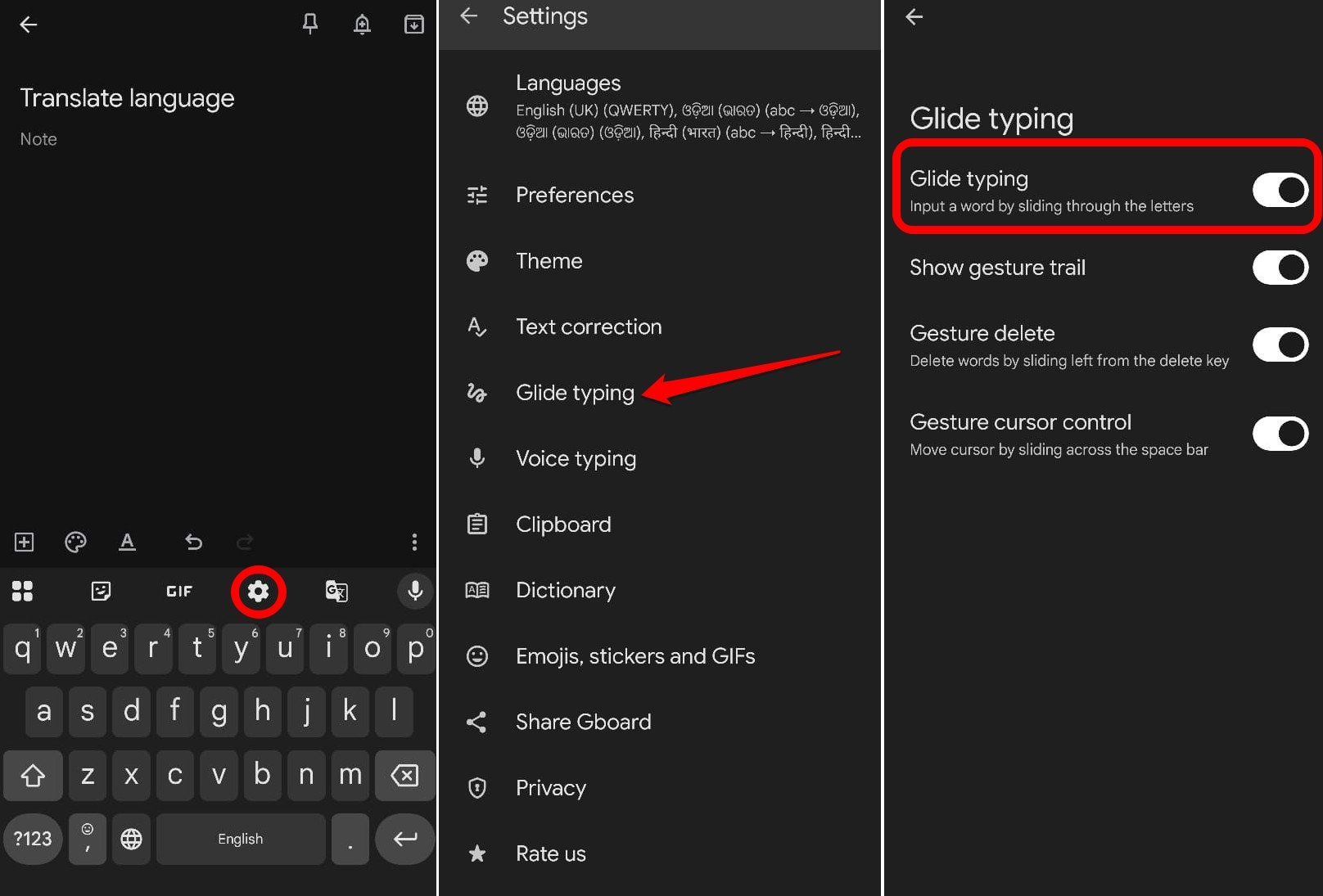

- To ensure that Glide Typing is working, you may enable Show Gesture Trail.
Gesture trail will enable a white streak of visual as you swipe from one alphabet to another to form a word.
Quickly delete a Paragraph/Sentence Using a Gesture
Being a professional writer, I make the most use of the gesture delete feature on Gboard, and it just makes me get over my creative block smoothly.
I often write fiction, poetry, rough content frames, and occasional journals during my travels. That’s a lot of thoughts getting expressed on the Notes app of my phone. Sometimes, while writing, I might not like a sentence and want to delete it.
I use the Gesture delete method in Gboard instead of pressing the delete button repeatedly or going through the hassle of text selection and deletion.
From the point where the cursor is placed, all I do is press and swipe leftwards on the delete button(X) in Gboard to move through the section of text, selecting and deleting it. If you are new to the feature, it may take a while to get used to it, but this method of deleting text saves time.
To enable this feature,
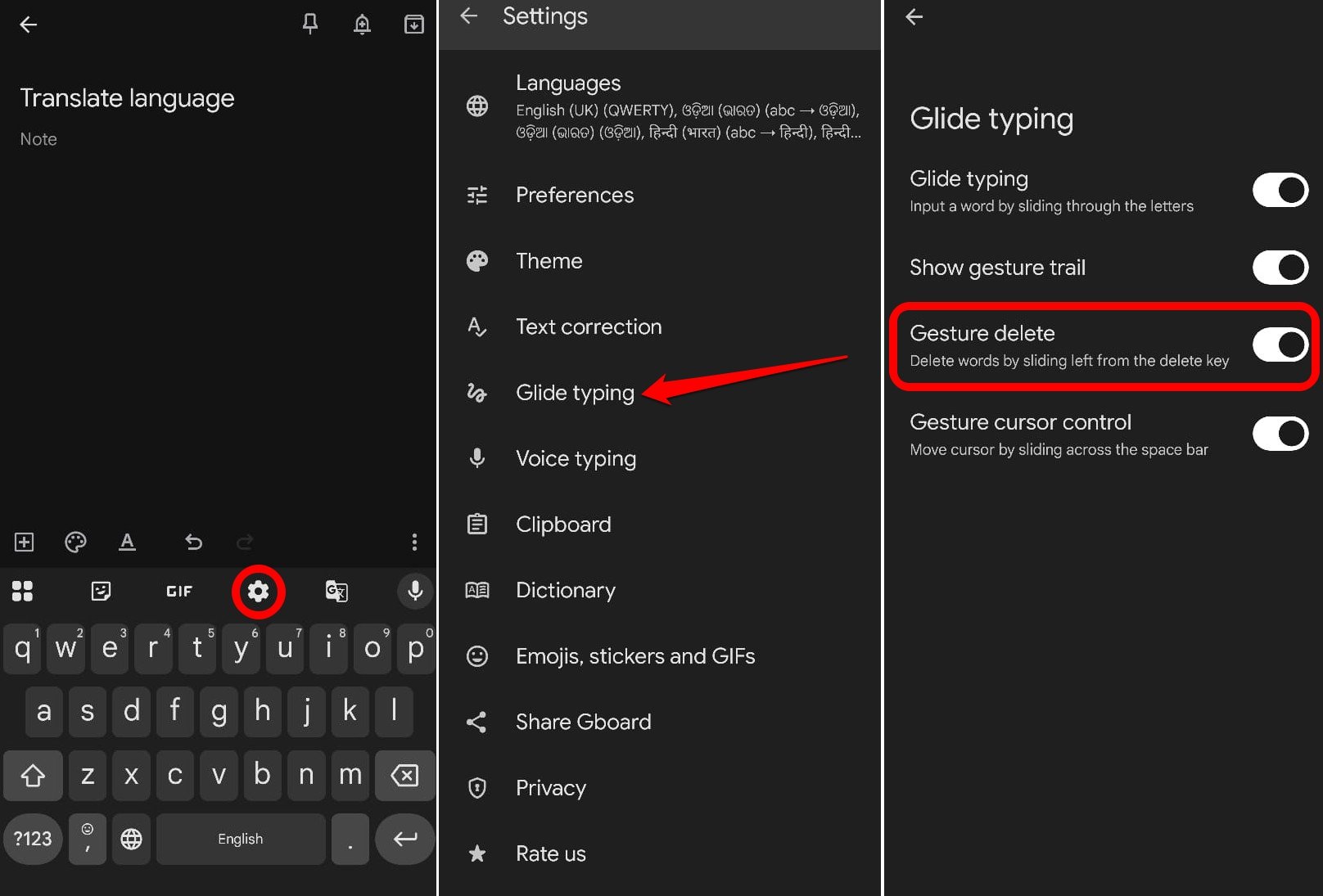
- Open Gboard and press the cogwheel icon to go to its settings.
- Tap on Glide Typing.
- Press the toggle beside Gesture Delete to turn it on.
Instantly Share a Screenshot in your Text
I use Reddit a lot in my free time to comment on memes in funny posts. Sometimes I see a funny meme image on other apps, and I want to share it instantly on a Reddit comment.
Technically, I should capture a screenshot. Then switch to Reddit, open the comment section, and go to Add image to select the screenshot by browsing it from the device storage. That’s a lot of work.
I tend to do things more smartly using Gboard. I share the screenshots instantly by saving them in the Gboard clipboard.
Once I capture a screenshot, it gets copied to the clipboard. I instantly switch to the Reddit comment section, type the required text for the comment, access the clipboard, and with a tap, paste the screenshot and post the comment.
It takes me less than 30 seconds. (unless I’m typing a big comment)You can also use this feature to attach screenshots with the text you are typing for messaging, notes, or email.
Here are the steps to enable the feature of saving screenshots in the Gboard clipboard.
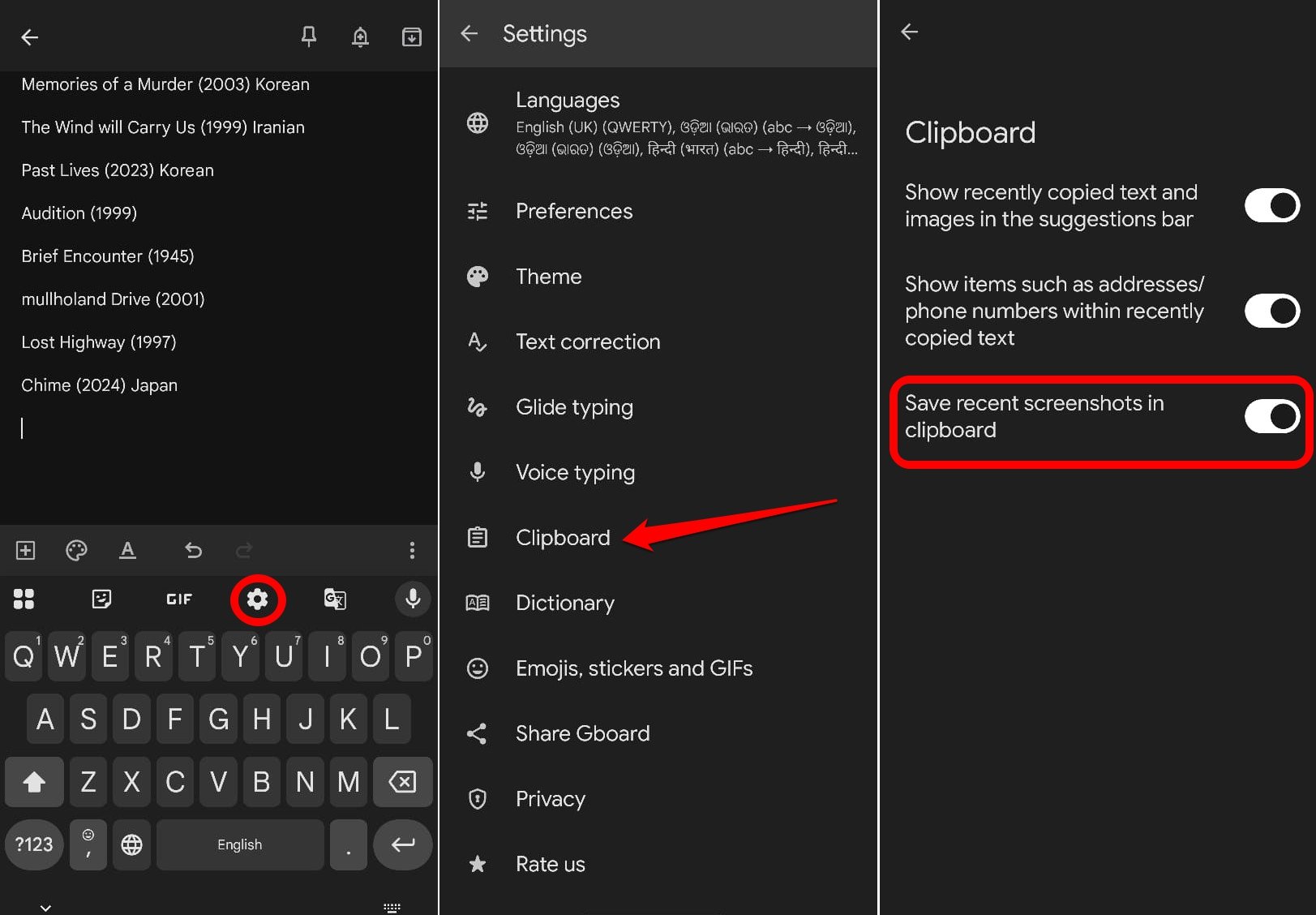
- Open Gboard in the app you are using.
- Tap the cogwheel icon to access the Gboard settings.
- Go to Clipboard.
- Enable the toggle next to Save screenshots in Clipboard.

Let Gboard type for you with the Voice Typing Feature [Bonus Tip]
Feeling too tired to tap on the letters to form that piece of message or email text? Why not speak out what you want to write, and Gboard will jot it down for you.
Sometimes, when I have some story ideas for fiction or some nice thoughts for poetry, but I’m too tired to sit and type them all, I make use of Gboard voice typing.
To enable voice typing on Gboard,
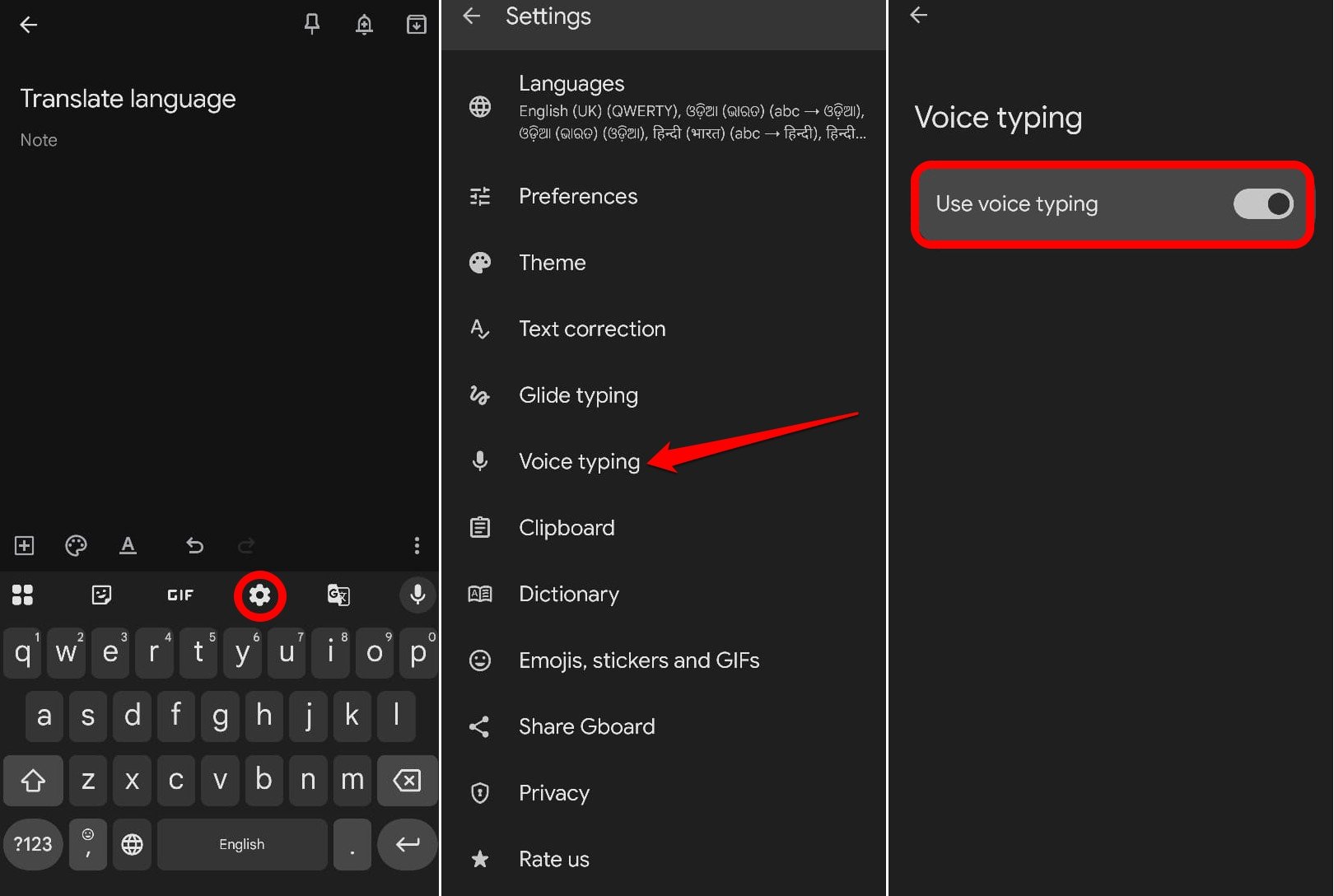
- Launch Gboard in the app you intend to use.
- Press the cogwheel icon to go to the settings.
- Tap on Voice Typing.
- Enable the toggle next to Use Voice Typing.

- To start the dictation, press and hold the Microphone icon at the right side of the Gboard panel [above the alphabet P]
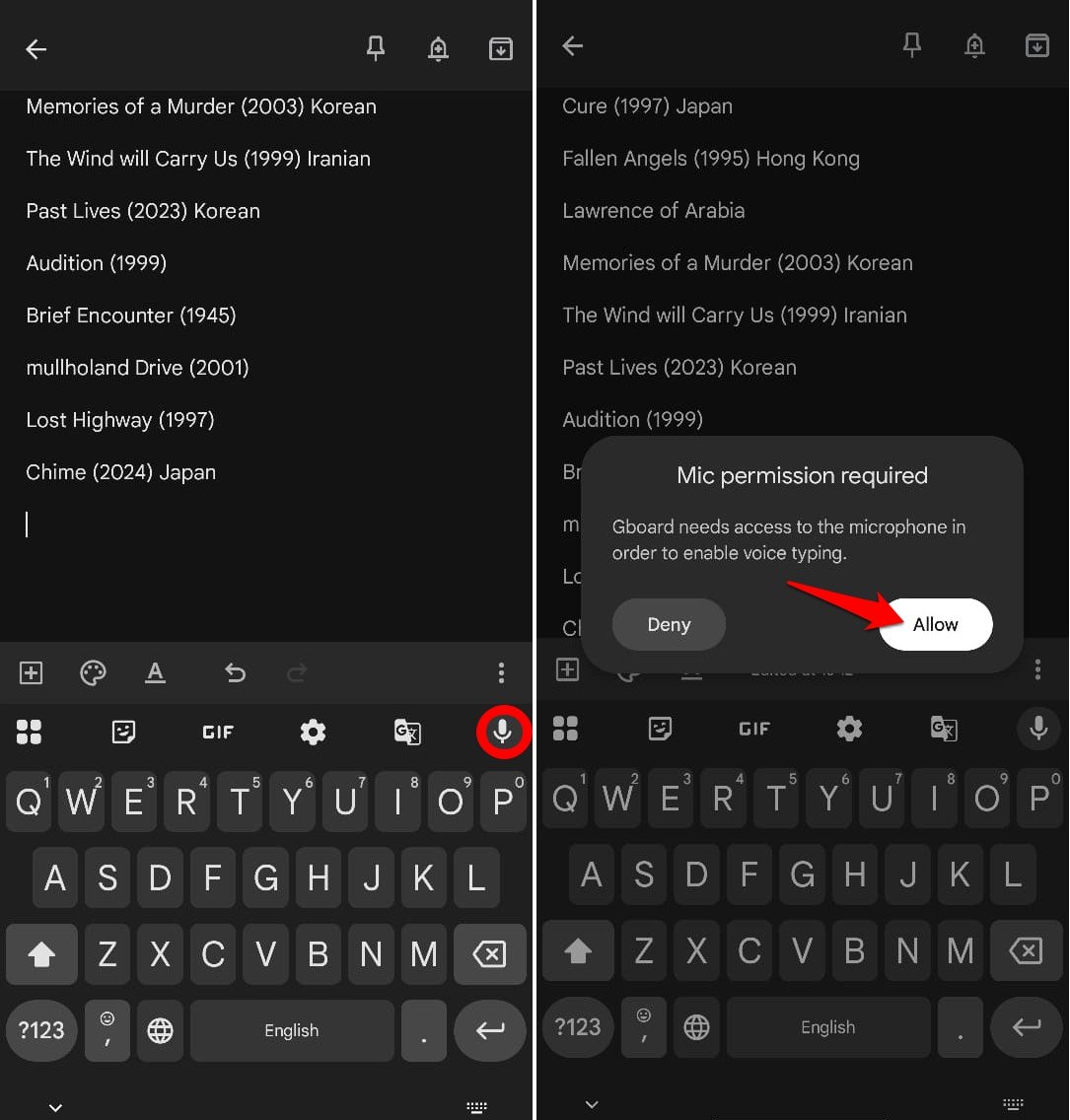

- Speak out the words and they will start appearing in the text field.
NOTE: When it’s your first time using voice typing, long-pressing the Microphone icon on Gboard will prompt you to allow access to the Microphone. Give the required permission to enable voice typing.
Gboard is the Unsung hero of Android Devices
For someone who intensively uses Gboard every day for formal and informal use, implementing these tips and tricks has helped me a lot. If using an Android device with Gboard, it’s high time you should use these Gboard features to make the text composition and editing process much easier.
If you've any thoughts on I Used These Gboard Tricks on Android to Edit and it Made Typing Easier, then feel free to drop in below comment box. Also, please subscribe to our DigitBin YouTube channel for videos tutorials. Cheers!