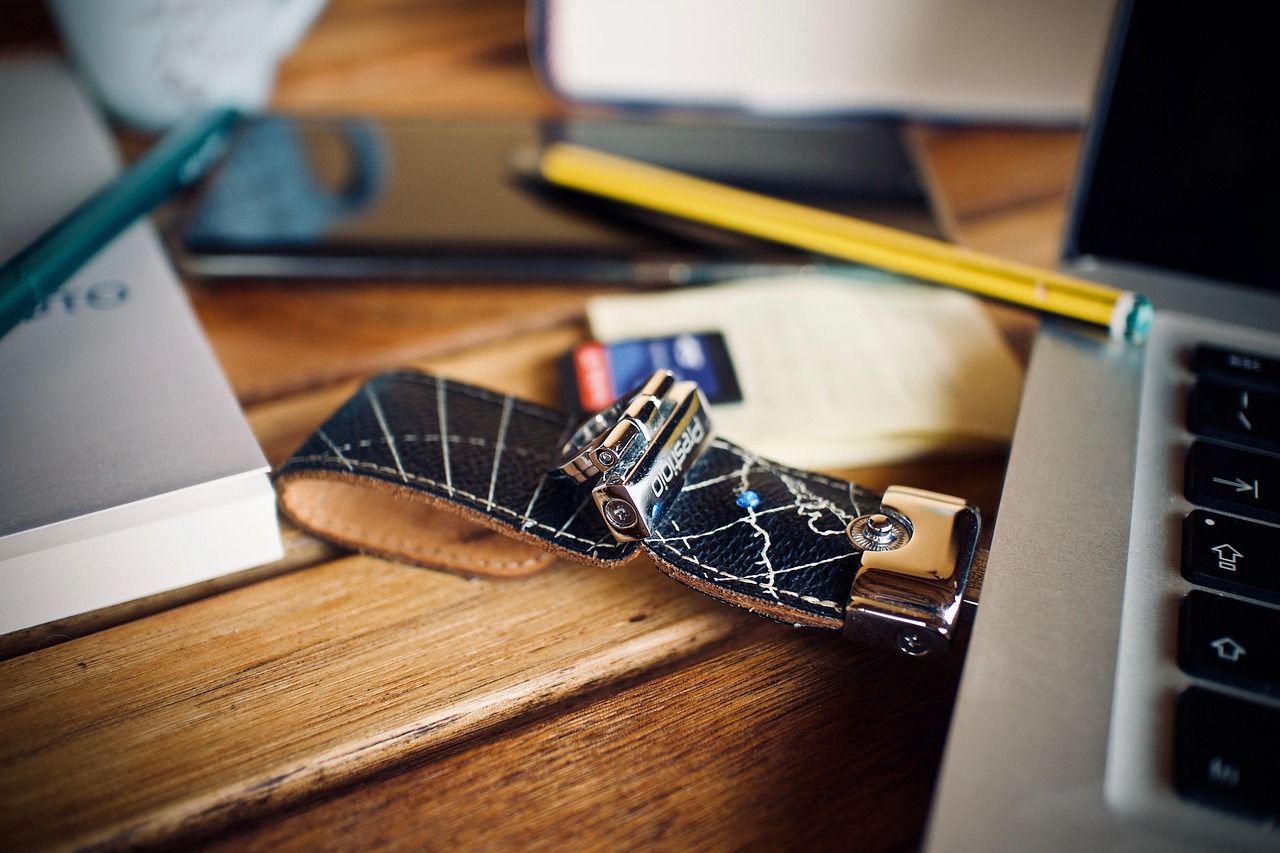
There are more things to do with a pen drive than carrying files, and I found that out the hard way. A PC refused to boot one evening and the only useful thing in the drawer was an 8 GB stick I had never used for anything else.
This list starts with the easy jobs, like playing a movie on a TV, and slowly moves to the technical ones, like installing Windows. Skip ahead if you already know the basics.
One warning first. Several of these wipe the drive, so keep a spare one for them.
TL;DR: A pen drive can play media on a TV, print documents, update a TV or motherboard, run portable apps, rescue a Windows PC, test RAM and boot Linux or Windows installers. FAT32 is the safest format for compatibility, and the installer jobs erase the drive. Keep one plain stick for everyday files and a spare 16 GB stick for the technical jobs.
1. Play music and movies on a TV or in the car
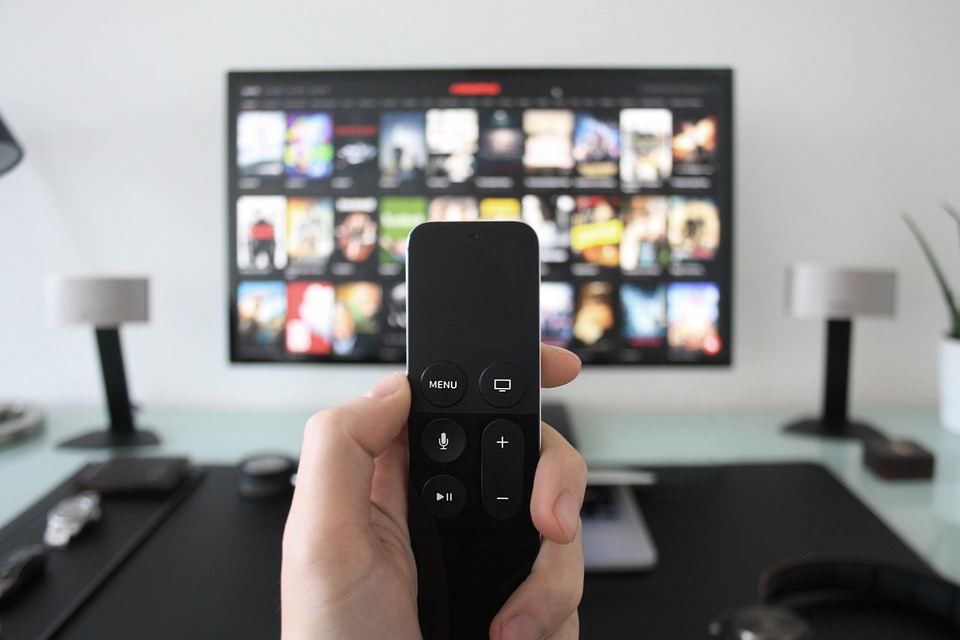
Samsung’s user guide says its TVs read FAT, exFAT and NTFS drives, though older Full HD models can be more limited, so a movie on a pen drive usually plays without any app. Plug it in, pick the drive from the source list and press play.
I did this for years before I trusted any streaming app, mostly with a movie copied from a friend’s laptop on a Sunday afternoon.
There are two catches. FAT32 cannot hold a single file bigger than 4 GB, so a long 4K movie needs exFAT. The same Samsung guide says the media list shows up to 8,000 items, which sounds like plenty until you copy a whole music library onto the stick.
In the car it is the same idea with a smaller screen. Plug it in, choose the USB source and hope the stereo likes your file names. The car manual lists what it supports, and mine was stricter than I expected.
Here is a quick format guide for the jobs in this list.
| Job | Drive format that works |
|---|---|
| Play media on a Samsung TV | FAT, exFAT or NTFS (older Full HD models can differ) |
| Print from an HP LaserJet Pro | FAT12, FAT16 or FAT32 |
| Open files on an iPhone | APFS, exFAT, FAT32 or FAT |
| Update a Samsung TV | Empty drive, FAT32 |
| Update an ASUS motherboard BIOS | FAT32 |
2. Print straight from the drive
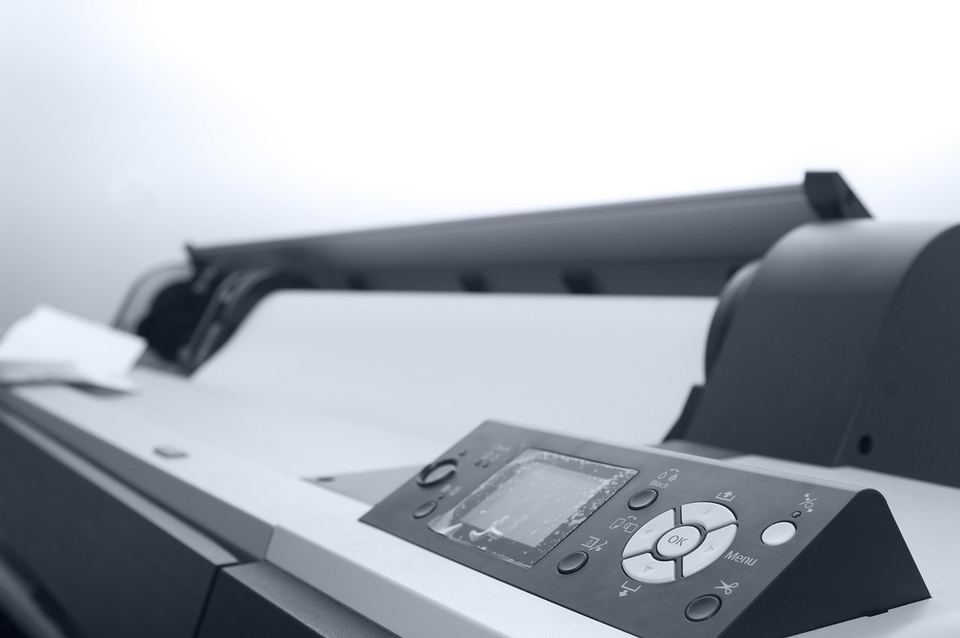
Many office printers have a USB port on the front, and you can print a PDF from a pen drive with no computer in between. HP says its LaserJet Pro printers with touchscreen panels print PDF, JPG, DOC, DOCX, PPT and PPTX files this way, and models with a 2-line LCD panel do not.
Printing this way is a small rescue when the Wi-Fi is down or the file is on a borrowed laptop.
HP also says the printer reads only FAT12, FAT16 and FAT32 drives, and a stick with more than one partition might not open at all. I found that out with an old boot drive, which the printer ignored completely.
3. Use it with your phone
Android phones can read a pen drive through a USB OTG adapter or a USB-C stick, and the Files by Google app lists it under Storage devices. Google says this needs Android 7.0 or newer.
iPhones can do it too. Apple says the drive must have a single data partition and be formatted as APFS, exFAT, FAT32 or FAT, and you may need an adapter.
Moving files this way is slower than a cloud upload on a good day. But I moved a month of photos off a phone while the router was down, and it simply worked. Eject the drive from the Files app before you pull it out.
4. Update a TV or a motherboard
My first Samsung TV update from a USB stick failed because I had dragged the whole folder across. Samsung says to unzip the update and copy the files to an empty FAT32 drive without putting them inside another folder, or the TV will not find them.
Then plug the drive in and go to Settings, All Settings, Support, Software Update, Update Now, though menu names shift a little between model years. It takes a few minutes, and Samsung says not to switch the TV off until it restarts by itself.
ASUS uses a similar trick on motherboards. Its BIOS FlashBack feature updates the BIOS from a FAT32 drive without a CPU or RAM installed, and ASUS says not to pull the stick or cut power while the light is blinking.
If you own a Samsung set, my Samsung Smart TV settings guide covers the update menu in more detail.
5. Carry portable apps
PortableApps.com packages programs that run from the drive itself with no installation, and it says they leave no files or settings behind on the PC apart from what Windows generates itself. They work on any Windows computer.
I keep a browser, a PDF reader and a text editor on mine. Carrying apps this way only matters on borrowed or locked down computers, but the first time a shared PC lacks a PDF reader, it earns its place.
You start it by double clicking Start.exe in the root of the drive, which opens a small menu of your apps. PortableApps is Windows only, and for most people it stays a niche habit. That is fine, because it costs almost nothing to set up.
6. Make a rescue drive for Windows
Windows has a built-in Recovery Drive tool that copies the files needed to repair or reinstall the PC onto a USB drive. Microsoft says to create it while the PC still works, and that it does not include your personal files.
Search for Recovery Drive in the Start menu, keep Back up system files ticked, choose the empty drive and click Create. Microsoft suggests recreating it every year so it includes recent updates.
There is a smaller trick for forgotten passwords. A password reset disk works only for a local account, not a Microsoft account, according to Microsoft.
I made mine the day after I needed one. The PC was fine by then, which is the point and also the annoying part.
Windows has been testing a cloud rebuild that reinstalls without a USB drive, though it was limited to Insider builds when I covered it.
7. Test your RAM with MemTest86
I ran MemTest86 once after a run of random blue screens that looked like a driver problem. It boots from a pen drive and tests your RAM without Windows, and mine came back clean.
That was oddly useful, because I could stop blaming the memory. MemTest86 lists the free edition, which needs a drive larger than 1 GB, and the current version boots only on UEFI systems, so an older PC with legacy BIOS needs the older V4 release.
On Windows you write the image with the included ImageUSB tool, which erases the drive. Then you restart and pick the stick from the boot menu, often with Esc, F9, F11 or F12.
8. Try Linux without installing it
A pen drive can boot a full Linux desktop that runs from the stick and leaves your hard drive alone. Ubuntu calls it Try Ubuntu and recommends an 8 GB stick or larger.
Copying the downloaded file to the drive is not enough, because the image has to be written with a tool such as Rufus. Ubuntu is clear that this is different from copying.
The same idea works for other systems. ChromeOS Flex needs a 16 GB or larger drive, and Google says live booting it is for a quick look only. Tails, the privacy system, needs at least 8 GB and does not run on Apple silicon Macs.
I tried Ubuntu this way on a laptop I had written off. It booted, the Wi-Fi worked, and I decided against installing it.
My older piece on Linux without installing has screenshots, and the old laptop ideas article covers what else a tired laptop can do.
9. Make a Windows 11 installer
Microsoft‘s media creation tool turns a blank USB drive of at least 8 GB into a Windows 11 installer, and it warns that everything on the drive is deleted. It creates media only for x64 PCs, not Arm.
Make it on a working PC, choose USB flash drive when asked, then boot the target PC from it using the boot menu key or the BIOS boot order.
The first time I needed one it was for a laptop that would not start, and I had to borrow a friend’s PC to make the stick. Now I keep one made, with a label, in the same drawer.
10. Put many installers on one drive with Ventoy
Ventoy is a free tool that makes a drive bootable once, and after that you copy ISO files onto it and pick one from a boot menu. Installing it formats the drive.
It splits the drive into two partitions, with the main one using exFAT by default. You can still use that main partition like a normal drive, which Ventoy says does not affect how it works.
If I could keep only one stick, this is the one, with a Windows ISO and an Ubuntu ISO on a 32 GB drive.
Remember the printer story, though. A drive with several partitions may be ignored by a printer, so keep this one for the computer jobs.

Frequently Asked Questions
Can I use a pen drive to install Windows 11?
Yes. Microsoft’s media creation tool needs a blank USB drive of at least 8 GB and erases everything on it.
Which format should I use for a pen drive?
FAT32 is the safest choice for compatibility, including Samsung TV updates and ASUS BIOS updates. Use exFAT when a single file is bigger than 4 GB and the device supports it.
Can a pen drive run Linux without installing it?
Yes. Ubuntu’s Try Ubuntu mode runs from an 8 GB or larger stick and does not change your PC.
Will my phone read a pen drive?
Often yes. Android phones on Android 7.0 or newer use the Files by Google app, and iPhones need a single partition in a supported format.
Does making an installer erase my pen drive?
Yes. Windows 11, Ubuntu and Ventoy setup all erase the drive, so copy your files off first.
Which drive to keep for which job
Keep one plain stick, formatted FAT32 or exFAT, for the everyday jobs like TVs, printers and phones. Keep a second, 16 GB or larger, for the technical ones.
Label them with a marker. It sounds silly until you grab the wrong one with a PC half open.
The stick that ended up most useful to me was the one I had stopped thinking of as storage. It sits in the drawer now, with a strip of tape that says Windows.