Quick Summary
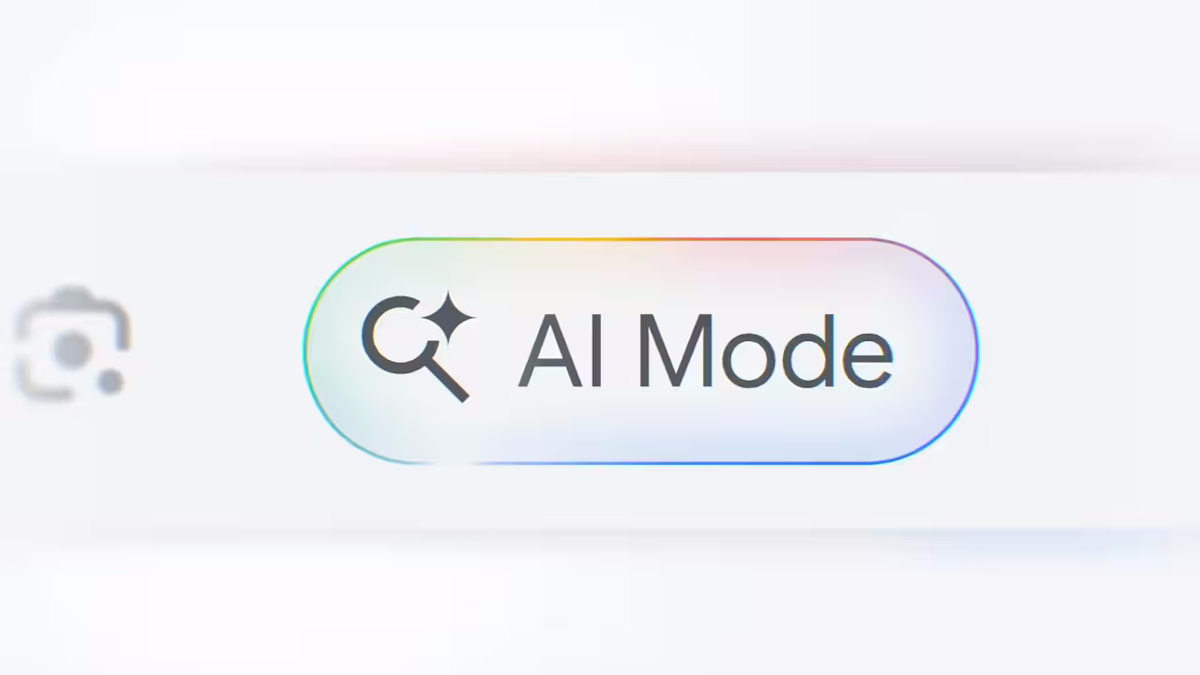
You can remove the Google AI mode from the search interface by creating a custom default search engine and disabling the option in Search Lab. There are also Chrome extensions to help you get rid of AI mode.
Google has implemented its new Google AI mode, which looks exciting because they were showing instant summaries and answers right at the top. But after using it for a few days, I realized it was not always helpful. Many times, I just wanted to see the normal blue links and read information from actual websites. Instead, the AI box took up a lot of space, and I had to scroll more to find what I needed. Also, I’m not very fond of Google AI overviews, and disabled them as well.
I personally like to compare results from different sources before forming an opinion. With AI mode, Google tries to give a single summarized answer, and that doesn’t always feel reliable. Sometimes the AI response even skipped important details. That’s when I started looking for ways to remove it.
Ways to remove Google AI mode from Google Search
Google AI mode is great for some people who generally search for simpler things. However, for me, I felt like I was losing control over how I use search. For someone who has been using Google Search for years, the new AI mode felt like an unnecessary layer. Here are a few simple tricks and settings that can help turn off or at least reduce the AI results.
Method 1: Create a custom default search engine
This is a trick I liked a lot, as it forces Google to use the Web-only mode every time you search via the address bar. And once set, you don’t have to think about it again.
- Open Chrome, and go to Settings > Search engine > Manage search engines and site search.
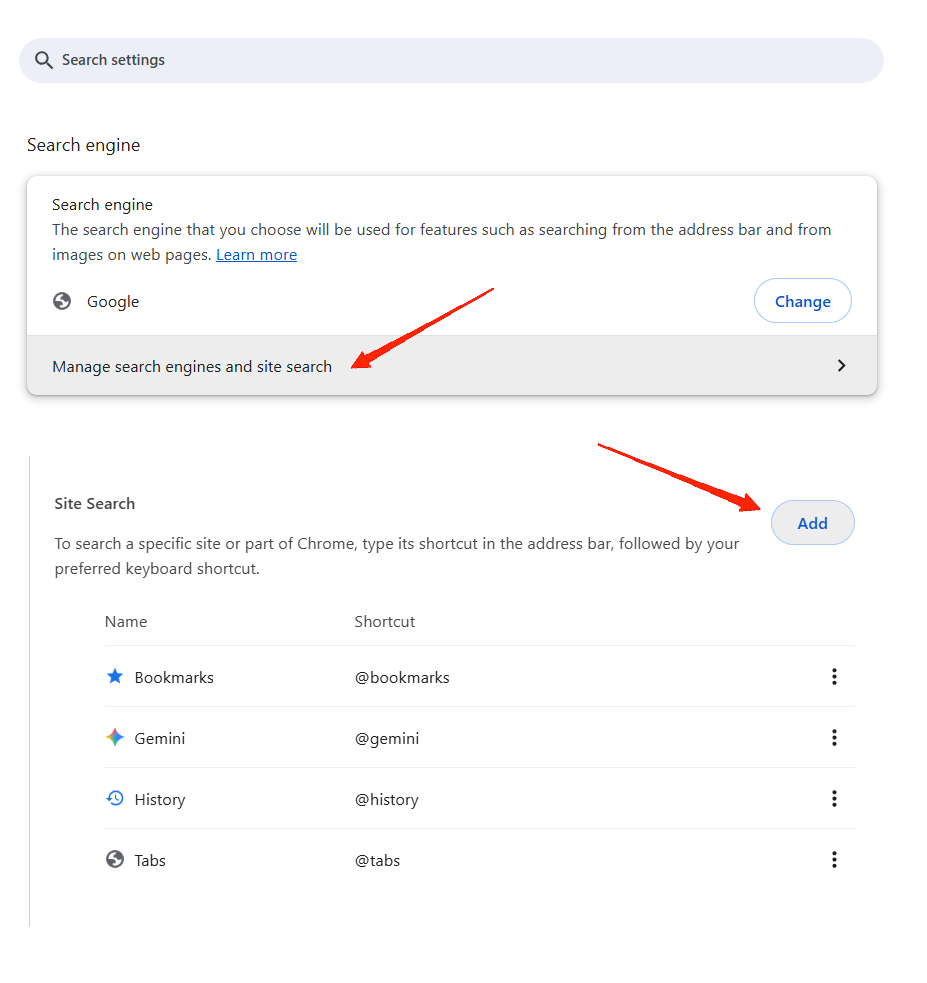
- Click on the Add button under site search. Name it something like “Google Web (no AI)“.
- Enter the following URL > https://www.google.com/search?udm=14&q=%s
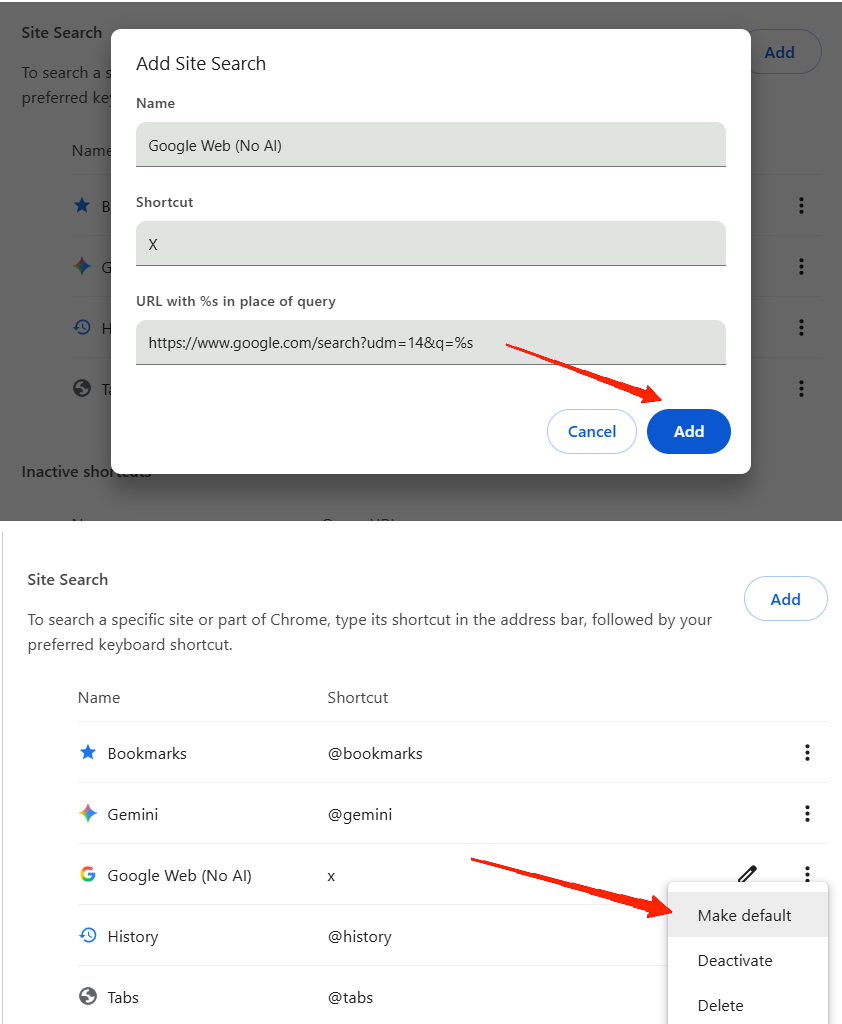
- Then make this new search engine the default. So every time you type in the address bar, it goes through the udm=14 path and avoids AI Overviews.
Note: This method is only useful if you perform your searches from the address bar or via browser search; it might not apply to search widgets or apps.
Method 2: Use Search Labs / Google settings
Google has a Search Labs feature where experimental features are managed. If AI Mode is part of that experiment, you can turn it off easily.
- Open the Chrome browser and navigate to Google Labs.
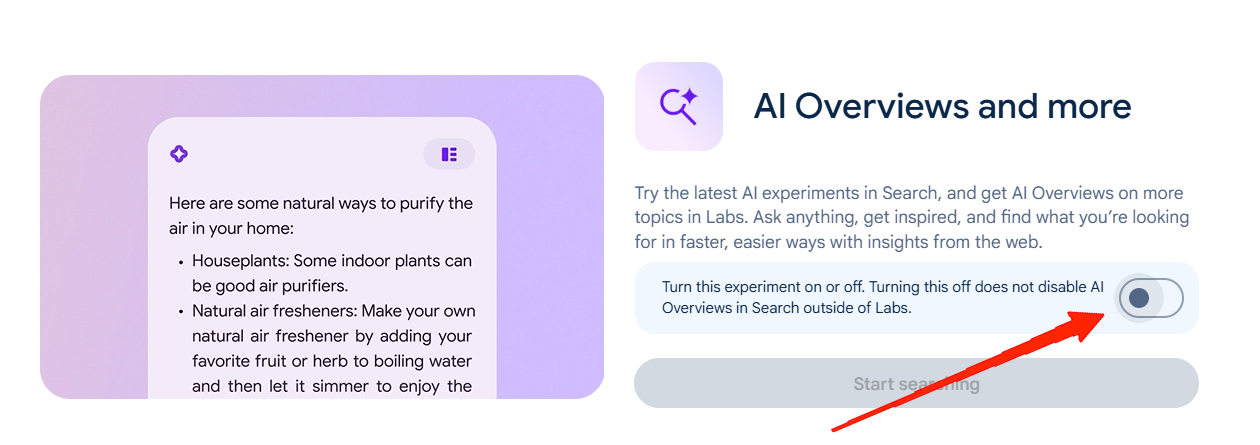
- Here, disable the AI Overviews and more options.
Method 3: Use Chrome Extensions
Chrome extensions provide a great way to enable and disable features inside Google Chrome. Here are some Extensions that can hide or block the AI summary box in Google search pages.
- Bye Bye, Google AI: Turn off Google AI Overviews, Discussions, and Ads by geekinchief
- Disable AI Overview | Turn Off AI Overview by faheemakhtar
- Hide Google AI Overviews by zbarnz99
Method 4: Use the Web mode after each search
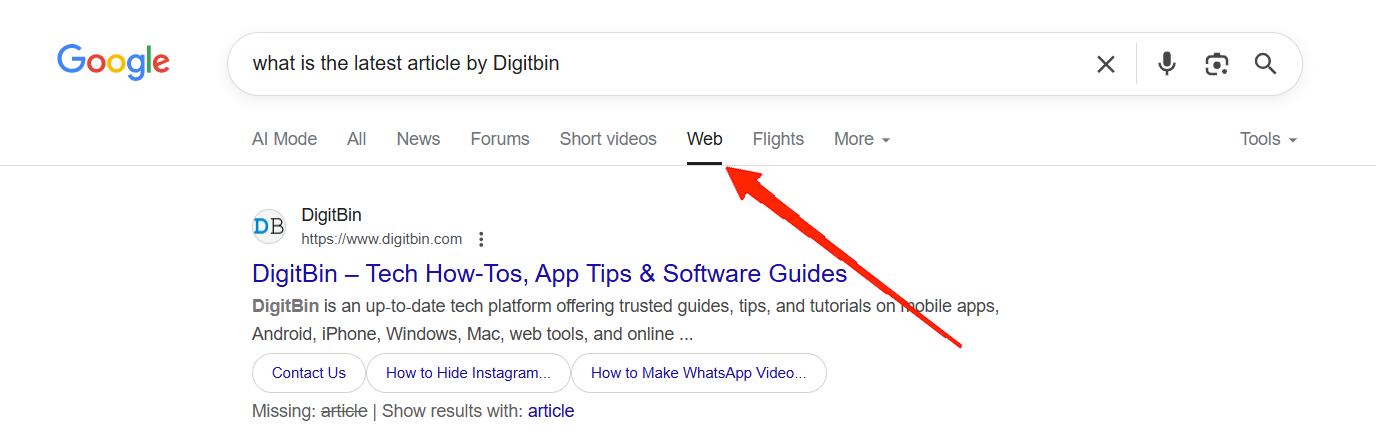
This is a simpler method and works just when doing searches. Google now shows a row of filters (e.g. “All”,”News”, etc.). One of them is Web. If you click “Web”, you see only traditional search results without AI Overviews.
Conclusion
This brings us to the end of this guide on How to remove Google AI mode from Google Search? The process is not perfect, but it makes the search experience feel more like the old Google I know and trust. It is not about rejecting AI completely, but about keeping the choice in your hands. After all, search should be about freedom and clarity, not about being forced into a single answer.