Microsoft is moving PowerToys to WinUI 3, and Color Picker and Text Extractor are the latest to switch, in PowerToys 0.102 released October 21, 2026, according to Microsoft’s PowerToys 0.102 release post. It is one more step in a larger plan to retire the older WPF interfaces across the utility pack.
If you use either tool daily, your shortcuts and settings should carry over untouched. What changes is the code underneath, and that matters for how PowerToys looks, behaves and eventually installs on a Windows 11 PC.
TL;DR: PowerToys 0.102 rebuilt Color Picker and Text Extractor on WinUI 3, and Microsoft says existing shortcuts and settings carry over. A GitHub tracking issue lays out the goal of moving off WPF to match Windows 11 and shrink the install. PowerToys Run is staying on WPF for now, and multi-monitor testing for Text Extractor was still open when I checked.
What PowerToys 0.102 changed in Color Picker and Text Extractor
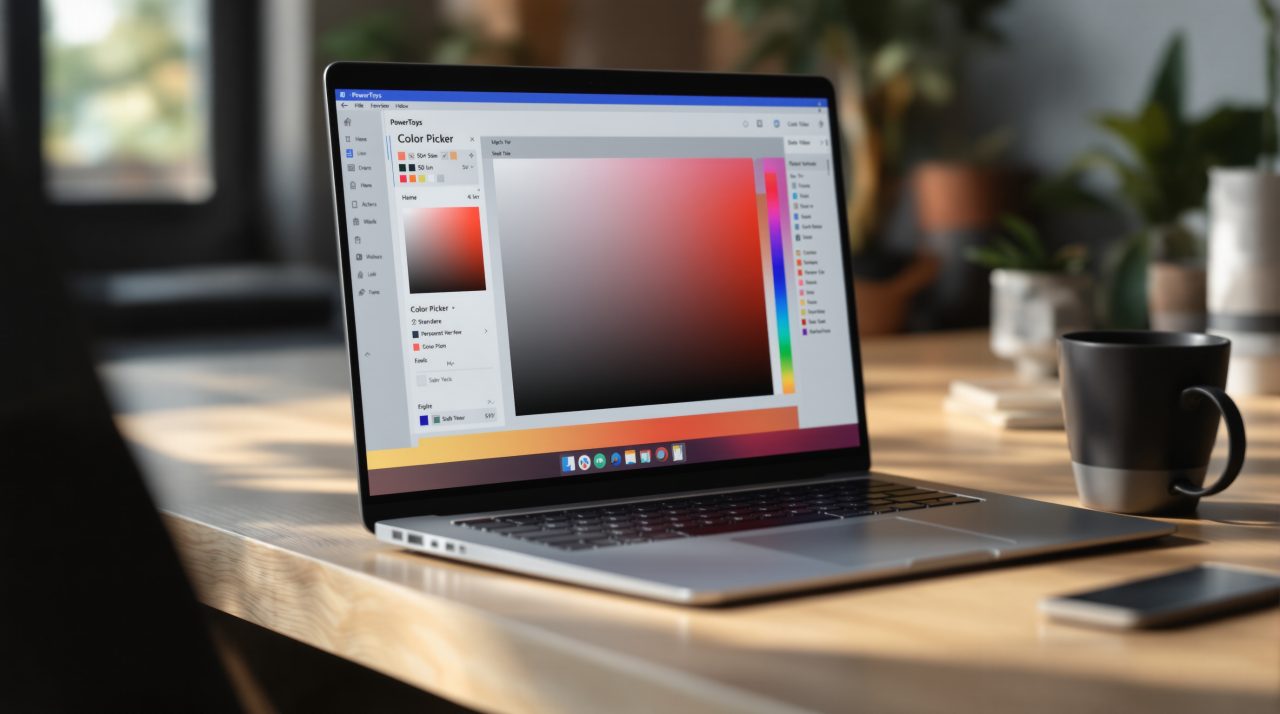
Niels Laute, a senior product manager at Microsoft, wrote in the release post that “Color Picker and Text Extractor also move to WinUI 3.” Color Picker gets a new overlay, editor and magnifier as part of the move.
The same post says “Your existing shortcuts and settings carry over,” so nobody has to relearn a hotkey. The release also added Mouse Button Lock, CursorHide, and on-device speech transcription for ZoomIt snips, which is where most of the headlines went.
The WinUI 3 switch is the less visible change, but it is the one that decides what future PowerToys updates can do. Why Microsoft bothered is spelled out in the project’s own planning notes.
Why Microsoft is moving PowerToys to WinUI 3
The tracking issue on GitHub, titled “Migrate existing WPF/WinForm utility to WinUI3,” says a mix of UI frameworks “makes the new contributor more confused and hard to maintain.” It also says WinUI 3 offers a modern interface that fits the Windows 11 look.
The issue puts numbers on the size benefit, using PowerToys 0.100.2 as the baseline at 960 MB installed with a 271.7 MB installer. Those are estimates for work that has not all shipped, so treat them as a ceiling for now.
| Milestone | Installed size saved | Installer saved |
|---|---|---|
| Drop the WPF copy from the WinUI 3 apps folder | About 42.6 MB | About 17 to 19 MB |
| WPF gone from both folders | About 85 MB | About 30 to 38 MB |
| Whole WindowsDesktop runtime gone | About 138 MB | Up to about 55 MB |
A saving of 85 MB on a 960 MB install is not dramatic, and that is honest. The bigger payoff is probably a utility pack that looks like it belongs on the same desktop as Settings.
What is staying on WPF for now
PowerToys Run is explicitly out of scope in the tracking issue. Its plugin API uses WPF types and more than 22 plugins depend on it, and the issue says migrating would “break the plugin ecosystem for little UI gain.”
The FancyZones editor is waiting on a UX redesign, and Workspaces was listed as in progress. If you rely on either, expect them to look a little different from Color Picker for a while, a mismatch that shows up the moment you use two tools back to back.
Text Extractor and the multi-monitor question
The Text Extractor migration issue describes a borderless, topmost window for each display, created once every screen has been captured. A new PowerOCR.Core library now holds the OCR and text formatting logic, separate from the interface.
On the page I read, multi-monitor and mixed per-monitor DPI verification was still unchecked. If you run a laptop beside a 4K monitor and use Text Extractor to grab text from a video call, that is the setup to test first after updating. My earlier look at how Text Extractor works covers the everyday behavior you would be comparing against.
How to get the update and what to check afterward
Microsoft’s release post says to get the update by checking for updates inside PowerToys. New to the suite, our guide to installing PowerToys on Windows 11 walks through setup.
After updating, trigger Color Picker and Text Extractor once with your usual shortcuts and confirm the overlay lands on the right screen. Not a dramatic change, but a useful one to catch early if something is off.