There is a particular kind of frustration that builds up slowly. You are watching a tutorial, and the presenter shows a config file on screen that lasts for about four seconds. Then it is gone.
In another case, you are reading a PDF where the text is actually an image, or you open an app that simply does not let you select text no matter what you try. The old fix was retyping everything.
Everyone did it. Nobody liked it, and a lot of time was wasted. But not anymore. PowerToys Text Extractor ended that for me about a week ago.
I honestly did not expect the feature to work. Most things from PowerToys on Windows 11 feel like they are for a certain type of user, more developer than everyday. I felt Text Extractor is different. It is genuinely one of those tools that changes a reflex.
TL;DR: PowerToys Text Extractor uses Windows OCR to copy text from images, videos, and apps that block selection. The shortcut is Win + Shift + T, and text lands on your clipboard instantly. It handles most real-world cases reliably. OCR accuracy drops on blurry or low-contrast images, and table mode needs to be manually re-enabled each session.
How to use Text Extractor on Windows 11?
The shortcut is Win + Shift + T.
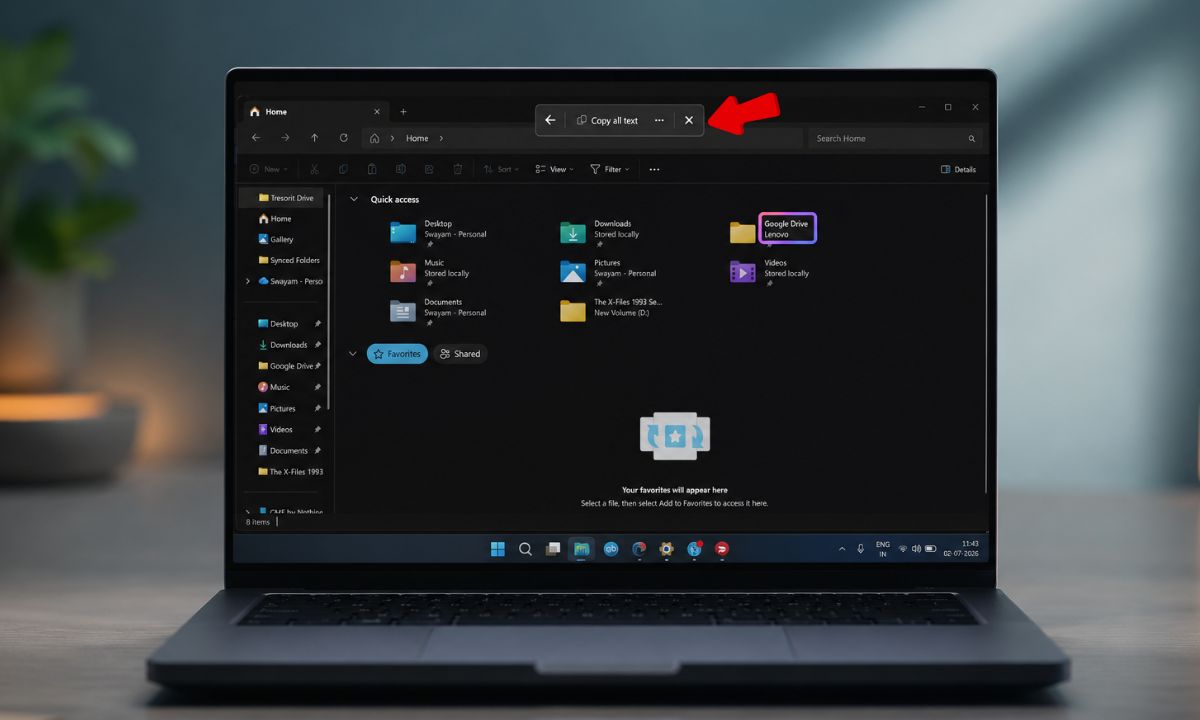
- When you press the shortcut, the screen dims.
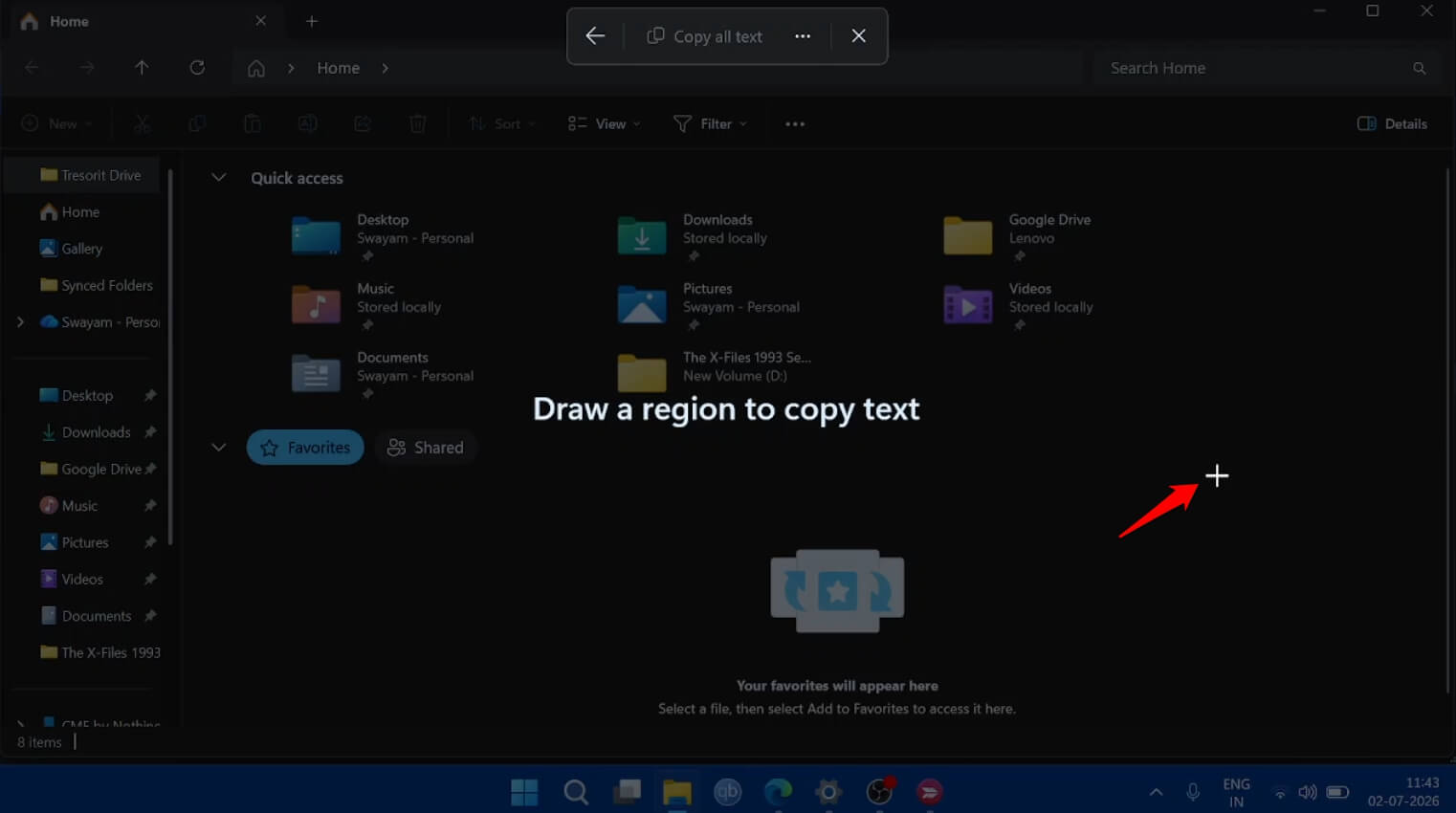

- Using the cursor pointer, drag over whichever text you want to select for copying.
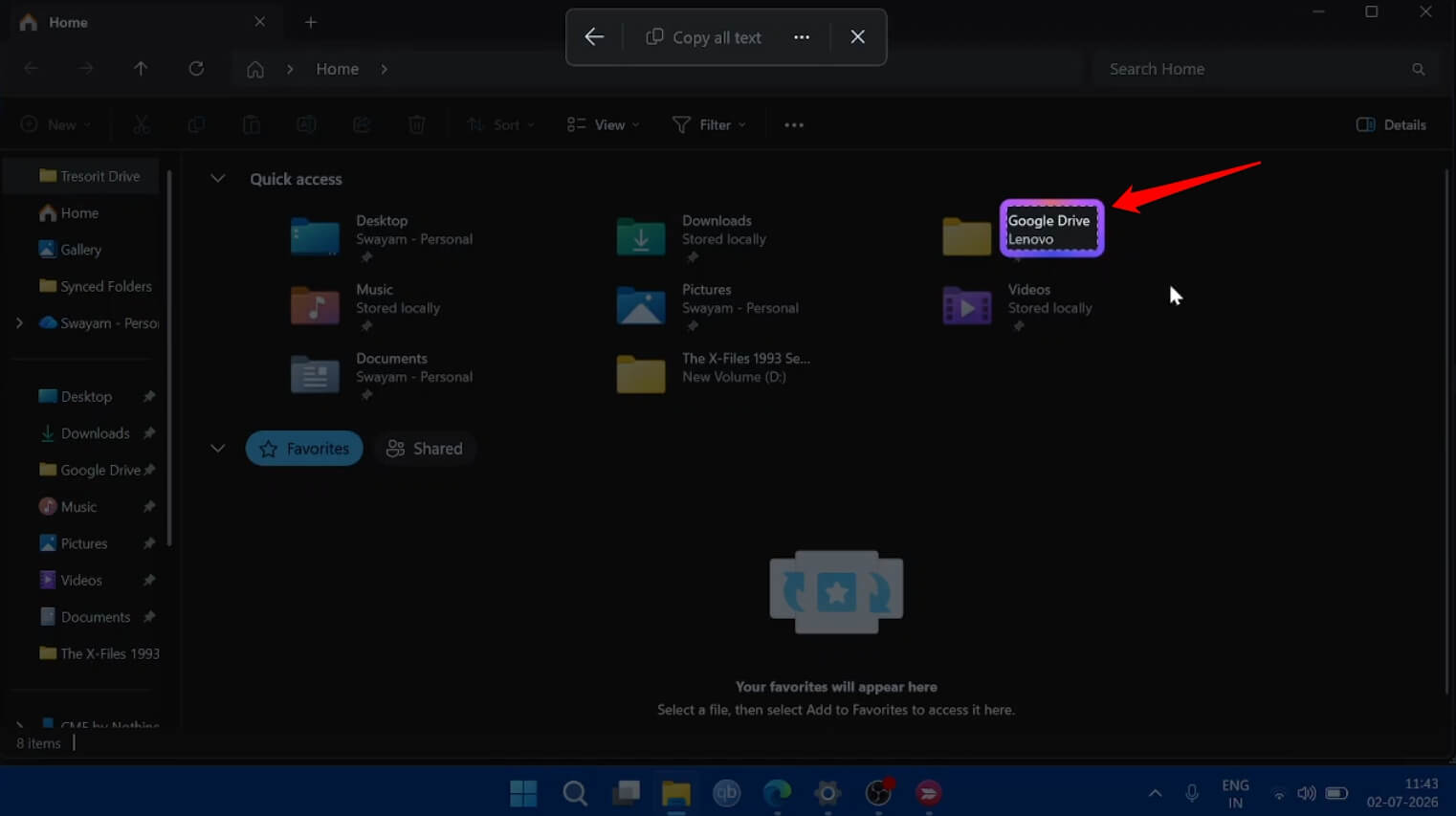

- The moment you release the mouse, the text instantly gets copied to your clipboard. Alternatively, you may click the “Copy All Text” button to copy the selected portion of text.
Click the kebab menu button next to “Copy All Text” and select Copy Text Automatically. It will make your work easier.
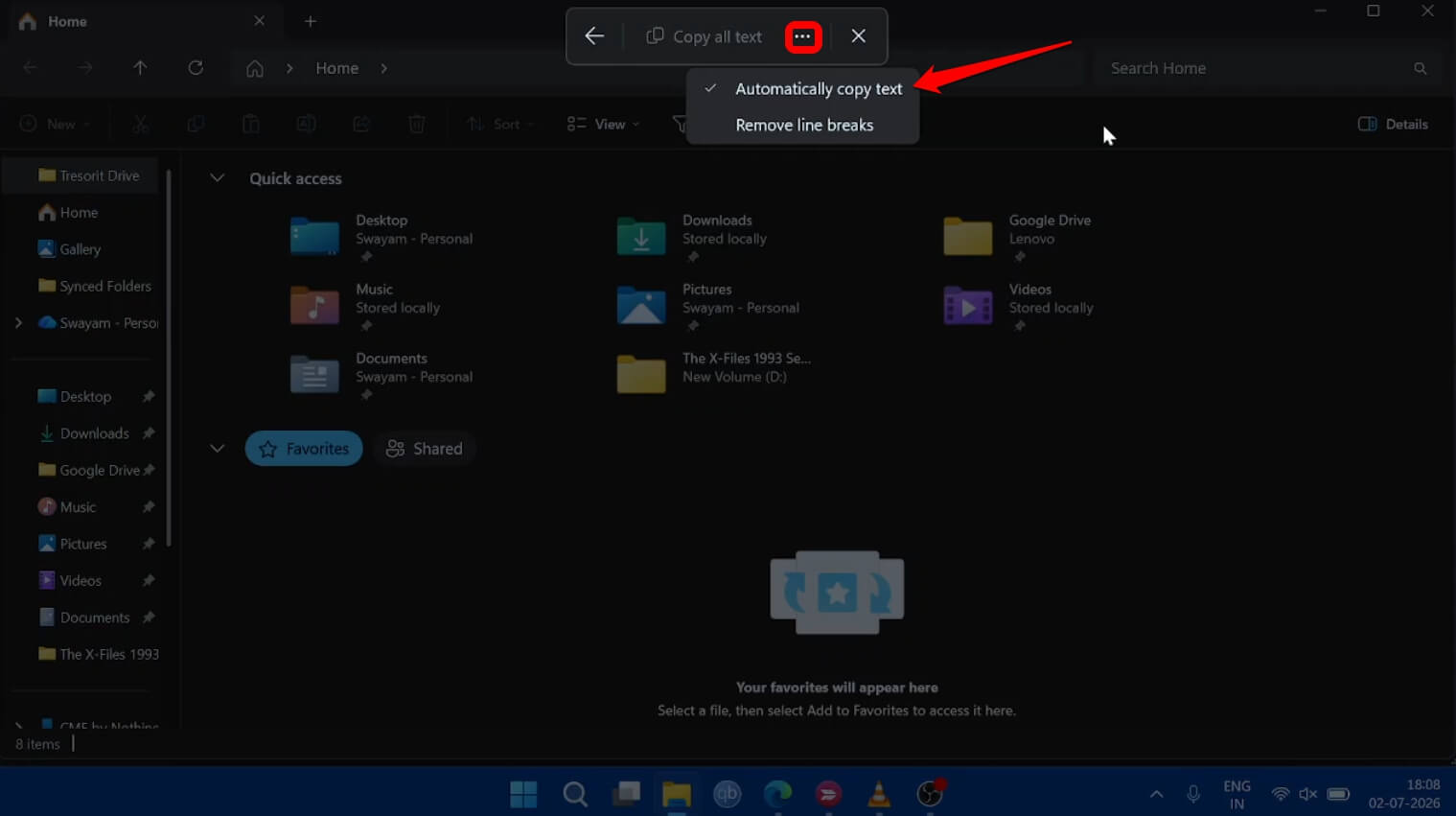
Initially, I found it strange why that manual text copy button exists when the text gets automatically copied upon selection. On second thought, given how Windows 11 is riddled with random bugs, it is actually good to have an alternative option to manually copy the text.
From then on, you can paste the text anywhere you wish. Funny as it may sound, being impulsive, at first I kept pressing Ctrl+C out of habit after releasing the mouse, as if the tool needed a second confirmation. It does not. That habit took about two days to unlearn.
How does PowerToys Text Extractor actually work?
| Feature | Detail |
|---|---|
| Activation shortcut | Win + Shift + T (default, remappable) |
| Technology | Windows built-in OCR engine |
| Works on | Images, videos, apps that block text selection, PDFs |
| Single-line mode | Joins captured text into one continuous line |
| Table mode | Preserves rows and columns for spreadsheet pasting |
| Language support | Requires OCR language pack installed on Windows |
| Output | Copied directly to clipboard, no dialog or save step |
| Cost | Free, open source, part of Microsoft PowerToys |
Text Extractor uses Windows’ built-in OCR engine to read whatever is visible in the region you select.
It is not reading source code or DOM elements. It is literally looking at pixels, the same way a person would, and converting what it sees into text.
This matters because it works regardless of whether the app you are using supports copying. PDFs that block selection, chat apps that disable right-click, screenshots in Slack, text baked into a YouTube thumbnail, error messages inside a frozen dialog box.
All of the above are selectable with Text Extractor. The underlying technology surfaces the same OCR capability Windows has had for some time, just in a way that is actually reachable.
The toolbar that appears at the top when you activate the tool has three options worth knowing.
- A language dropdown lets you switch OCR language packs if you work in more than one language.
- Single-line mode joins everything into one continuous line, which is useful when you are pulling a serial number or a command string that would otherwise get broken up by line breaks.
- Table mode attempts to preserve rows and columns, so if you are extracting a spec grid from a paused video or a screenshot, it tries to output something you can paste into a spreadsheet.
Table mode does not retain its state between captures. If you forget to switch it on before the next grab, you will only notice after you paste and see a jumbled single column.
It is a minor thing but worth knowing before you sit down to extract a dozen rows from a PDF.
What the Text Extractor quietly changed how I work
The thing I did not anticipate was how often this problem existed before I could solve it. Once Text Extractor was available, I started noticing all the places I used to just give up.
Error messages in installers, for example. The kind that disappear when you click OK and leave nothing behind to search for.
I used to squint at the screen and retype the error code into a browser. Now I hit the shortcut before clicking OK, and the full message is already on my clipboard.
The other one was video content. Watching a recorded webinar where someone pastes a terminal command on screen, or a tutorial where a config structure appears for a few seconds.
The shortcut works on paused video just as well as anything else. I found myself pausing, grabbing the text, and resuming without breaking the flow of watching.
What surprised me more was the accuracy. I expected it to mangle things. Well, Microsoft does have its fair share of mess-ups with its features.
Interestingly, the text extractor did fine. Clean fonts on high-contrast backgrounds come through cleanly. Where it struggles is small text, light-coloured fonts on white backgrounds, or images already compressed into blurriness. Zooming in before triggering the capture helps noticeably in those cases.
Snipping Tool does the same thing now, sort of
Microsoft’s own documentation recommends the Snipping Tool over Text Extractor for most screen capture tasks, and the Snipping Tool on current Windows 11 builds includes its own text extraction through the Text Actions feature.
The difference I noticed is that Snipping Tool takes a moment longer to complete the recognition. Not long, but enough to feel slower when you are doing it repeatedly.
There is also a workflow difference. Snipping Tool opens a window, processes the capture, shows you the text in the interface, and lets you copy from there.
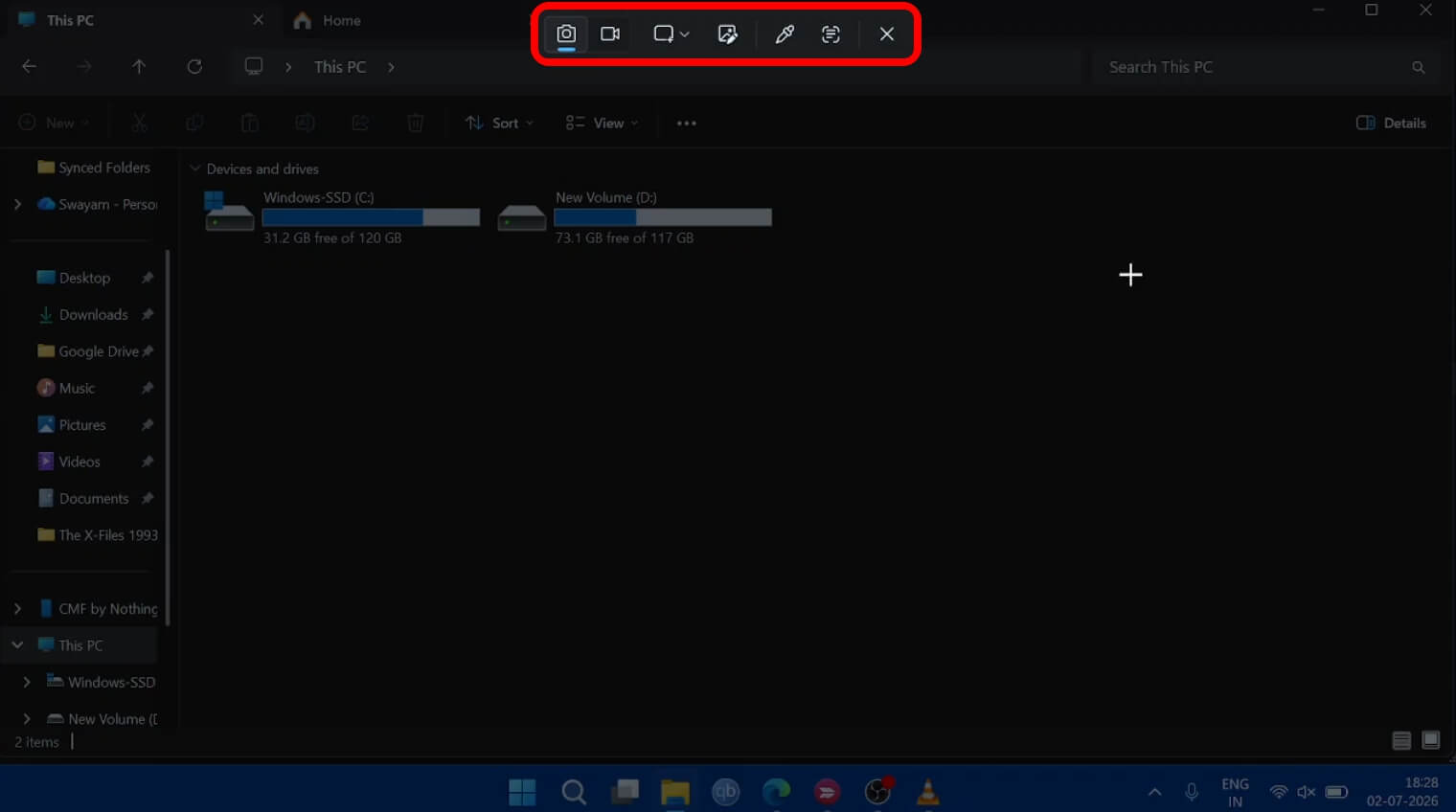
Text Extractor does not show you anything. The text goes straight to your clipboard and the overlay closes.
For someone who just wants the text and already knows the shortcut, that extra step in Snipping Tool is a small but consistent interruption.
The thing Text Extractor does not do is proofread for you. OCR is not perfect, and the engine will occasionally misread a character, especially in monospaced code fonts or compressed images.
The result is nearly always close enough to fix in seconds. But if you are extracting something going directly into a command or config without checking, check it anyway.

What a week of using Text Extractor actually showed me
After a week, I started noticing the absence of a behavior I used to have. I was no longer switching to my phone to Google an error message I had seen on screen.
Also, I was not pausing videos and opening Notes to type something down. I was not right-clicking on PDFs and quietly accepting that no, I cannot copy this. It is one shortcut. The muscle memory develops faster than expected.
The only thing worth doing before you rely on it is checking that the OCR language pack for your language is installed, because PowerToys Text Extractor will not work without it. You can verify this in PowerToys settings under the Text Extractor language dropdown.
If the dropdown shows nothing, you will need to install the relevant language pack through Windows settings. It is a one-time step and takes a few minutes. After that, it is invisible.