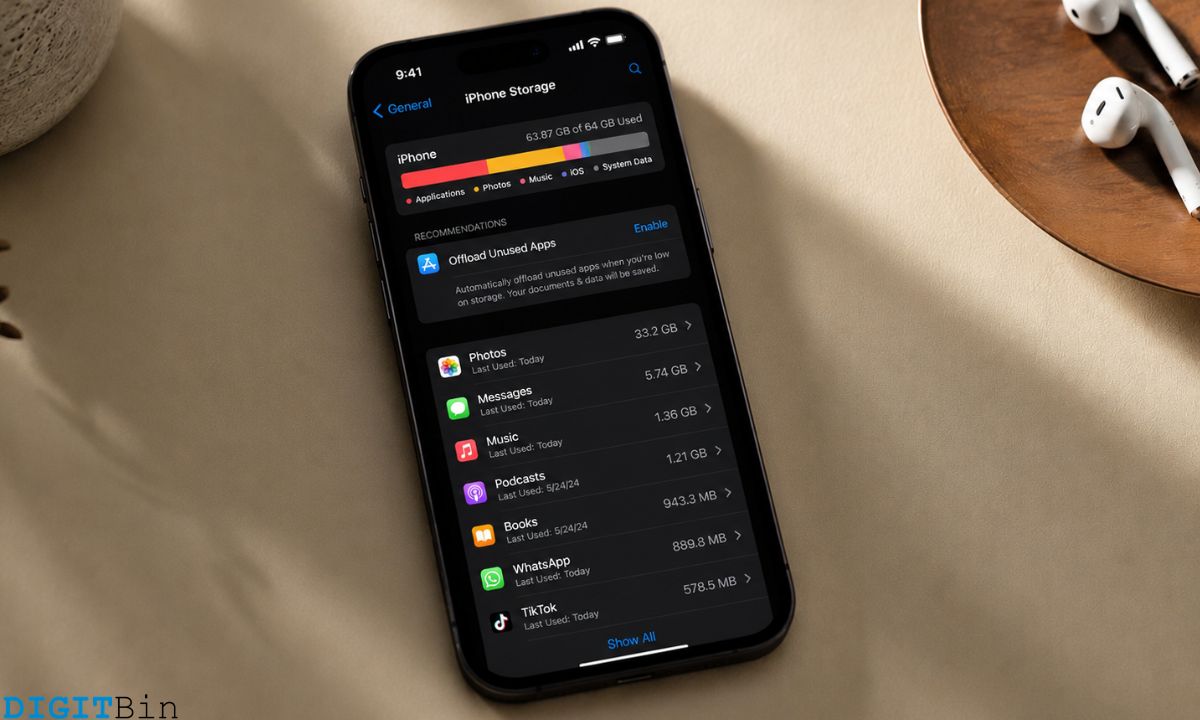
Getting the iPhone storage full alert on a 256GB model sounds like it should not happen. The latest iPhone 17 starts at 256GB, twice what was standard just two years ago, and the “Storage Almost Full” warning still appears.
I saw mine after a year of normal use with maybe four hundred photos and twenty apps installed. The storage screen told me WhatsApp alone was using 14.2GB.
The phone camera refused to take a video. I deleted nothing visible and freed nothing. The same problem returned within a week.
Most of the usual advice points to deleting photos, but photos were not the issue. This article covers what actually fills the iPhone storage, where 256 GB storage is the maximum capacity, and what can actually be done to fix the issue.
TL;DR: WhatsApp group media, Instagram cache, streaming app downloads, and iOS System Data are the real culprits. Photos are rarely the main problem, especially with iCloud Photos optimization turned on. The two settings that recover the most space without deleting anything are Offload Unused Apps under App Store and Optimize iPhone Storage under iCloud Photos.
What actually causes iPhone storage full warnings on 256GB?
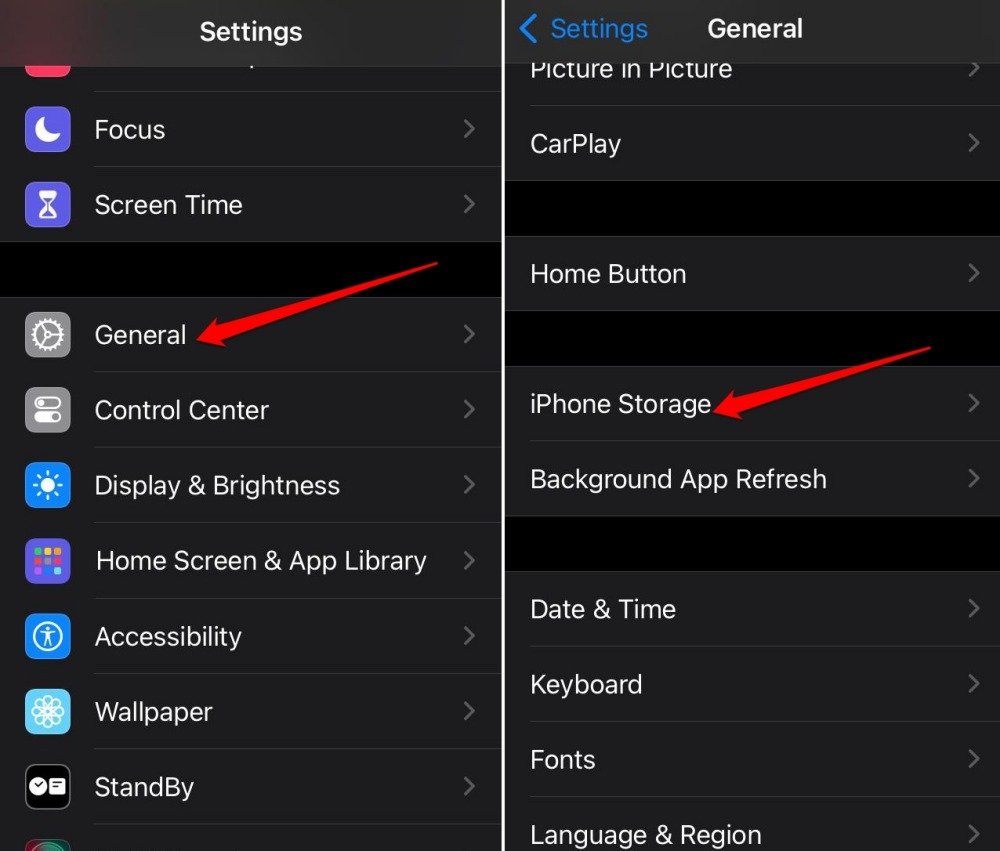
To check the storage consumption breakdown, go to Settings > General > iPhone Storage. Wait a few seconds for the bar graph to fully load.
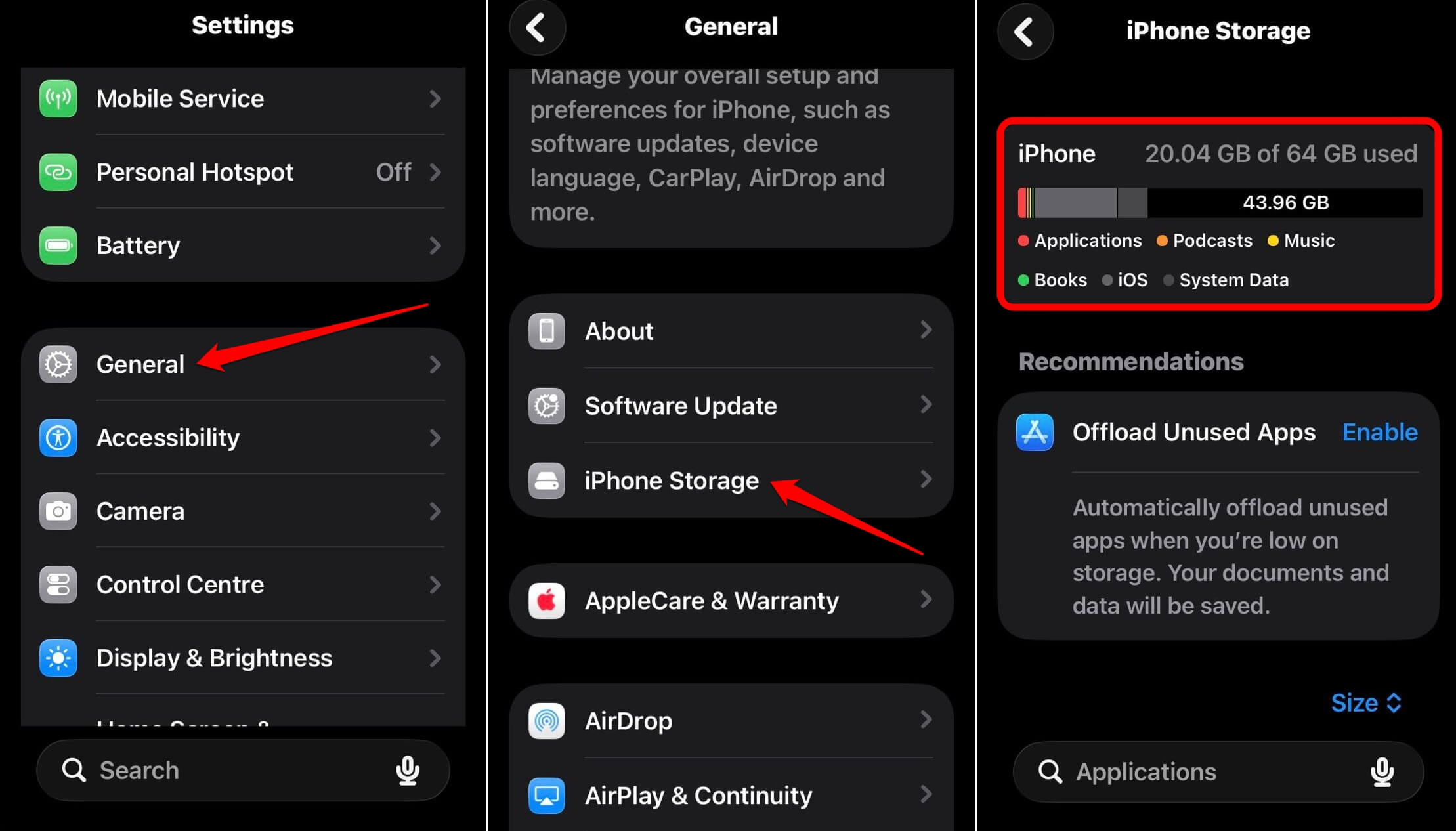
The breakdown shows Apps, Photos, iOS, and a category Apple labels System Data.
For most people who hit the storage warning without realizing why, the App bar and System Data bar are the problem. Photos is rarely the largest.
Scroll down past the graph to see apps ranked by total size. The number shown includes both the app itself and all data it has accumulated, including cached media, downloaded content, and files the app saved locally.
A WhatsApp that downloaded five years of group chat memes sits at a completely different size than a WhatsApp freshly installed.
| Category | Typical space used | Grows automatically | How to clear it |
|---|---|---|---|
| 5 to 30 GB | Yes, via group media and forwarded files | WhatsApp Settings, Storage and Data, Manage Storage | |
| 1 to 8 GB | Yes, via reel and story cache | Offload or reinstall the app | |
| TikTok | 1 to 5 GB | Yes | TikTok Profile, Settings, Free Up Space, Clear Cache |
| Streaming downloads (Spotify, Netflix, Apple TV) | 2 to 15 GB | Only if auto-download is enabled | Clear downloads inside each app’s settings |
| Messages attachments | 1 to 10 GB | Yes, passively over years | Settings, iPhone Storage, Messages, Review Large Attachments |
| System Data | 10 to 40 GB | Yes, iOS caches, logs, Spotlight index | Restart, clear Safari data; cannot be fully cleared directly |
System Data is the category with no direct clear button. It contains iOS caches, Spotlight index files, Siri voice data, Apple Intelligence model files, and various logs.
The storage for this section grows with the phone and shrinks temporarily after a restart or a major Safari cache clear, but it will grow back. It always does.
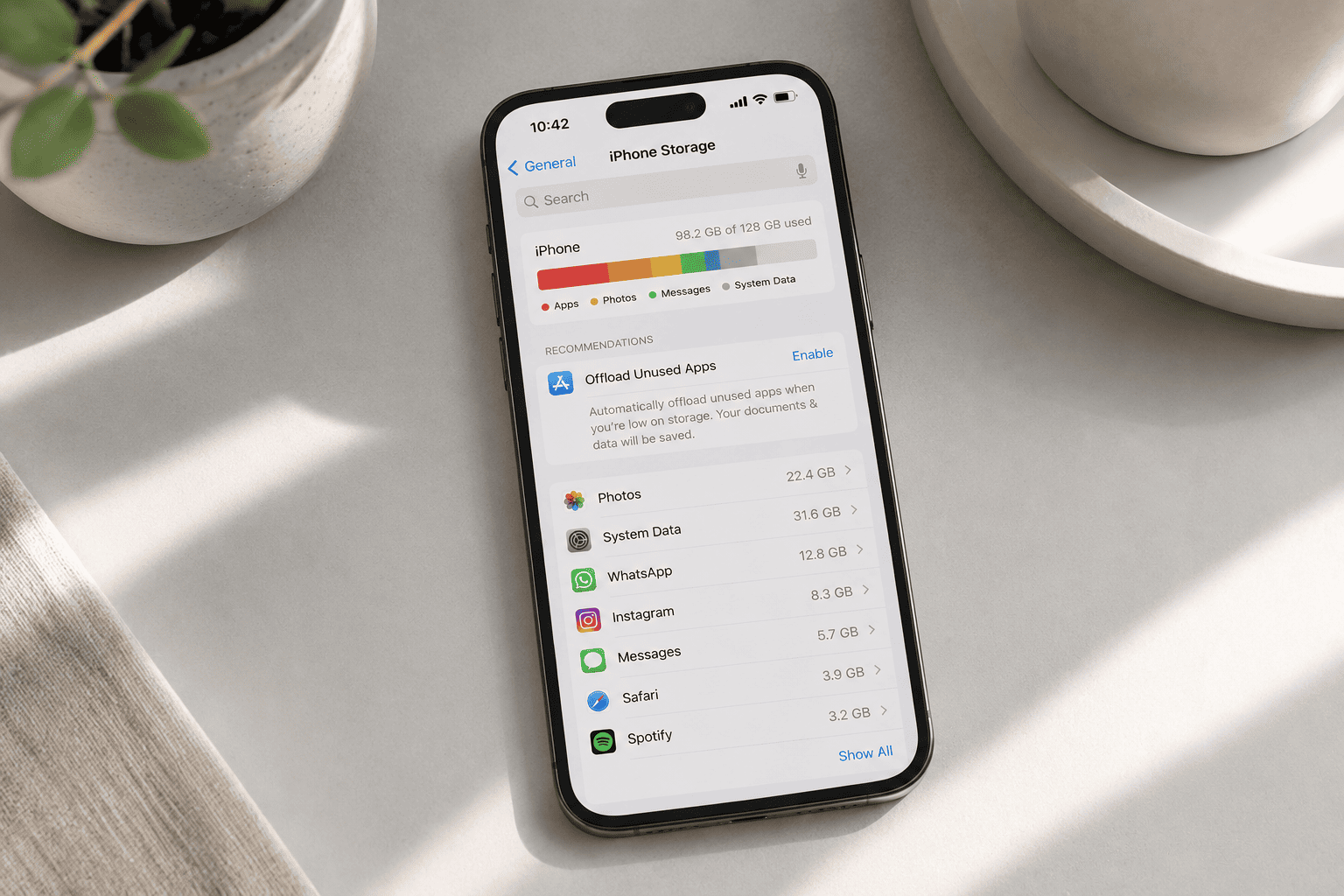
WhatsApp: the most consistent storage problem by far?
WhatsApp stores every photo, video, voice note, sticker pack, and forwarded file received in any chat unless you manually delete them.
Group chats accumulate media at a rate that is easy to underestimate. A group of ten people sharing memes, screenshots, and forwarded videos for two years can push WhatsApp storage past 20GB without anyone individually sending large files.
The fastest fix is inside WhatsApp itself.
- Open WhatsApp > tap on Account > Storage and Data.
- Tap on Manage Storage.
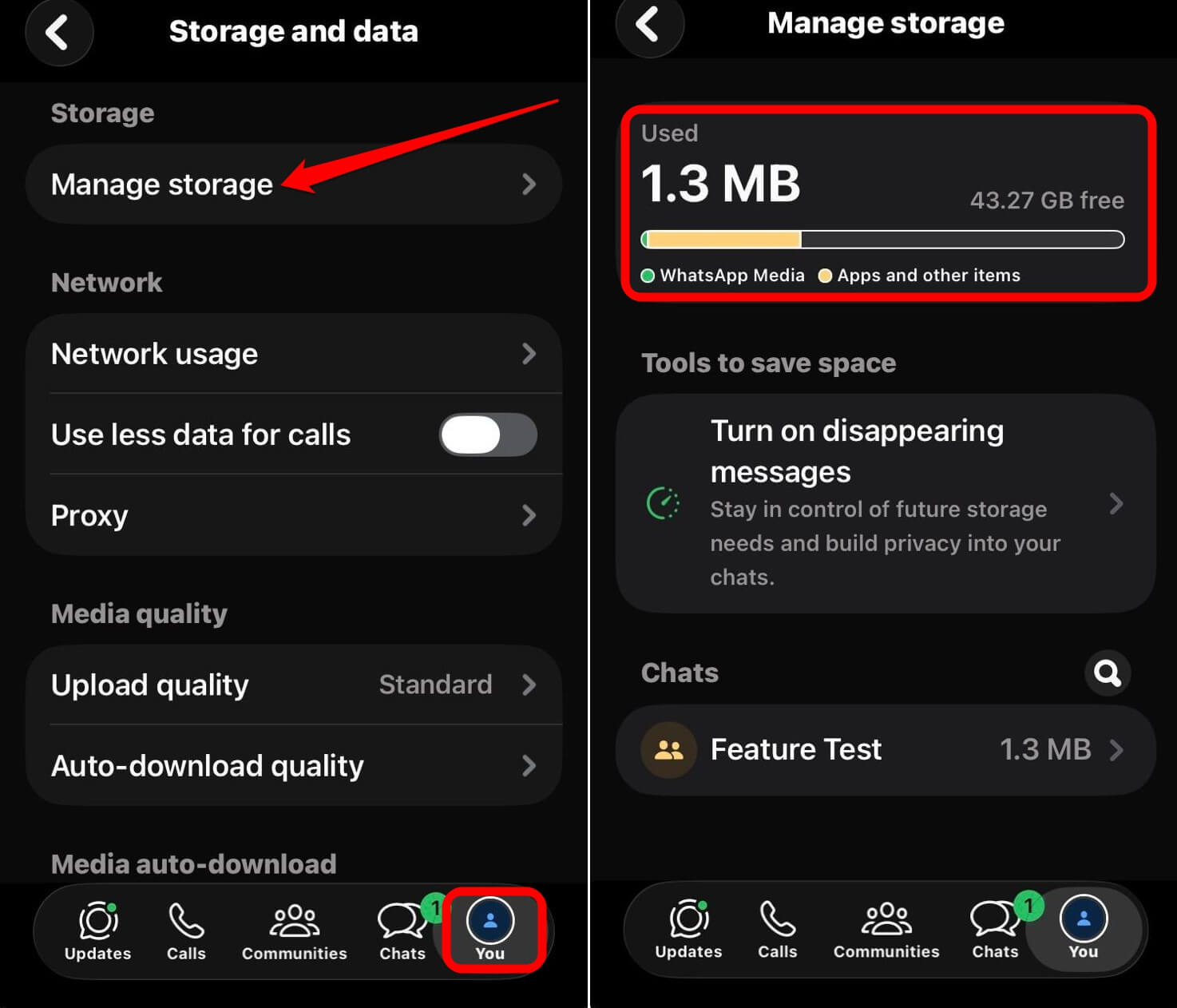

This screen shows every chat ranked by storage used, and lets you select and delete media by category without losing the conversation text.
Forwarded videos and voice notes are usually the largest items. Deleting those alone can recover several gigabytes in a few minutes.
Reinstalling the app is not necessary unless the storage reading in Settings does not match what WhatsApp’s own Manage Storage shows.
When there is a large gap between the two numbers, reinstalling after backing up clears the discrepancy. Your messages restore from the iCloud backup.
Instagram, TikTok, and the cache you cannot manually clear
Unlike Android, iOS does not give apps a direct Clear Cache button.
Instagram stores temporary files from browsing Reels, Stories, and Explore, and those files do not clean themselves up reliably. An Instagram that has been in daily use for a year often sits at 5 to 8GB even for a moderate user.
Offloading the app is the closest option iOS provides. To do this,
- Go to iPhone Settings > General > iPhone Storage.

- Tap on Instagram > press Offload App.
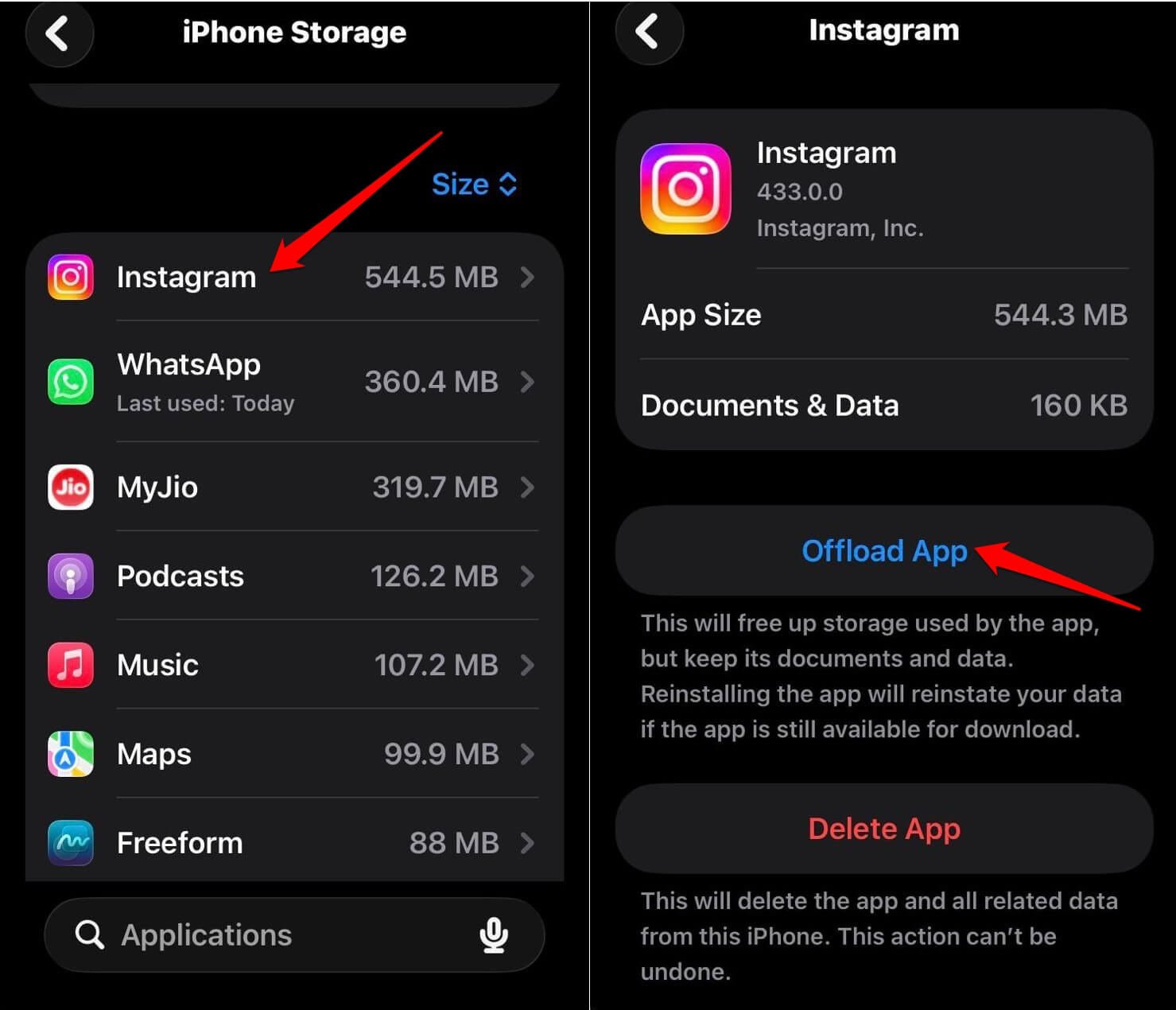

This removes the app binary but keeps some local data. The next time you reinstall Instagram, some of that cached data comes back, but the bulk is cleared.
Reinstalling the app entirely is more thorough but requires logging back in. The account and all content stay on Instagram’s servers. Nothing is lost.
TikTok has a built-in cache tool that Instagram lacks. To clear the cache,
- Open TikTok > go to Profile.
- Tap the three-line menu button > press Settings and Privacy.
- Scroll to Free Up Space > Clear Cache.
This option removes temporary files without reinstalling the app.
For the broadest storage impact without deleting anything permanently, our guide on how to clear iPhone storage without deleting apps covers the full set of methods across streaming, Messages, and browser data.
The two iPhone settings that recover space without deleting anything
Offload Unused Apps removes any app you have not opened in a while, but keeps the app’s documents and data on the device. The next time you tap the app’s icon, it reinstalls automatically and picks up where it left off.
To turn this on automatically,
- Open the Settings app > Apps.
- Go to App Store.
- Enable Offload Unused Apps.
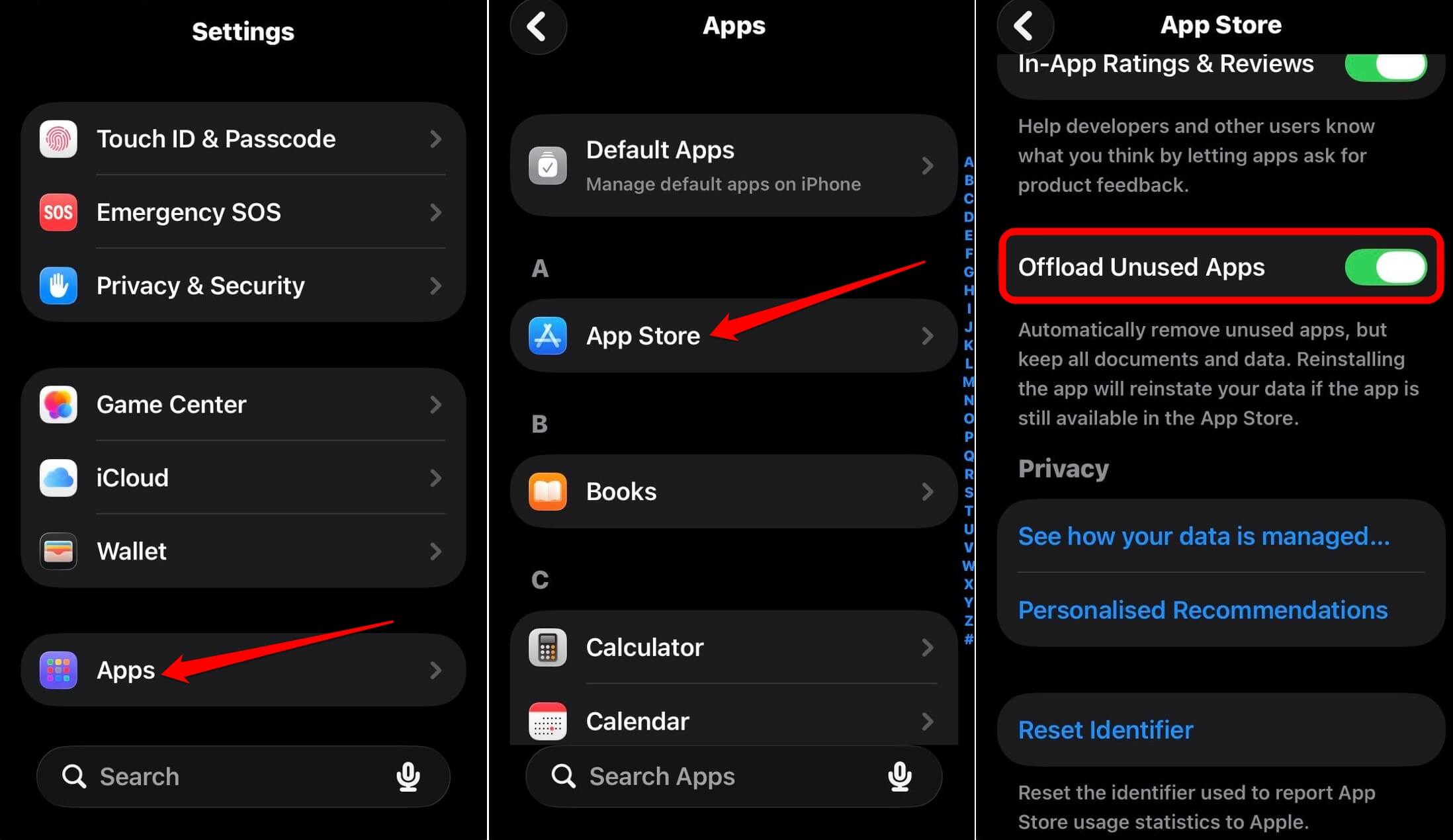

iOS handles the selection based on usage patterns.
There is another option named Optimize iPhone Storage.
You can access it by
- Opening the iOS Settings > your Apple account
- Tap on iCloud.
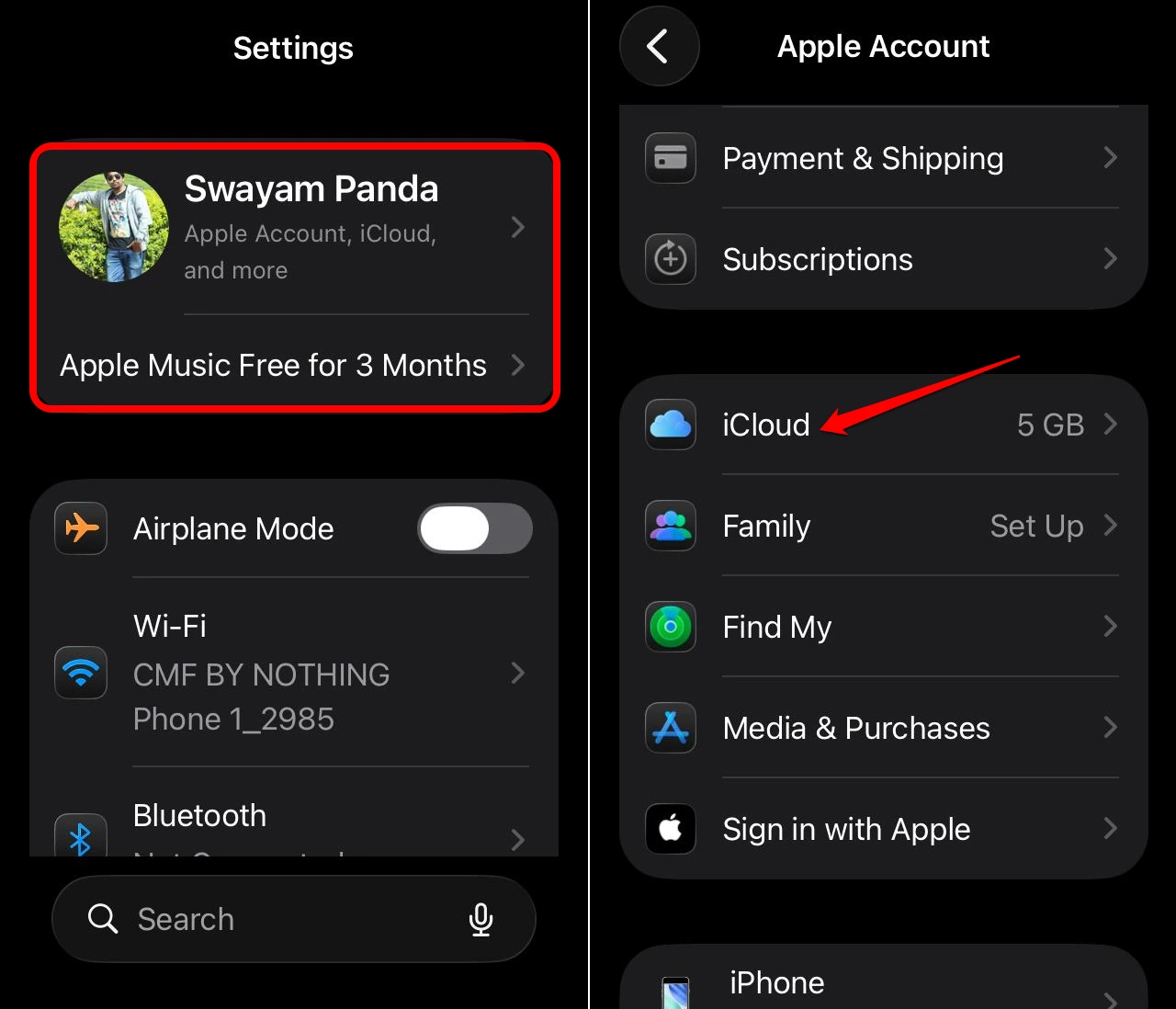

- Go to Photos and select Optimize iPhone Storage.
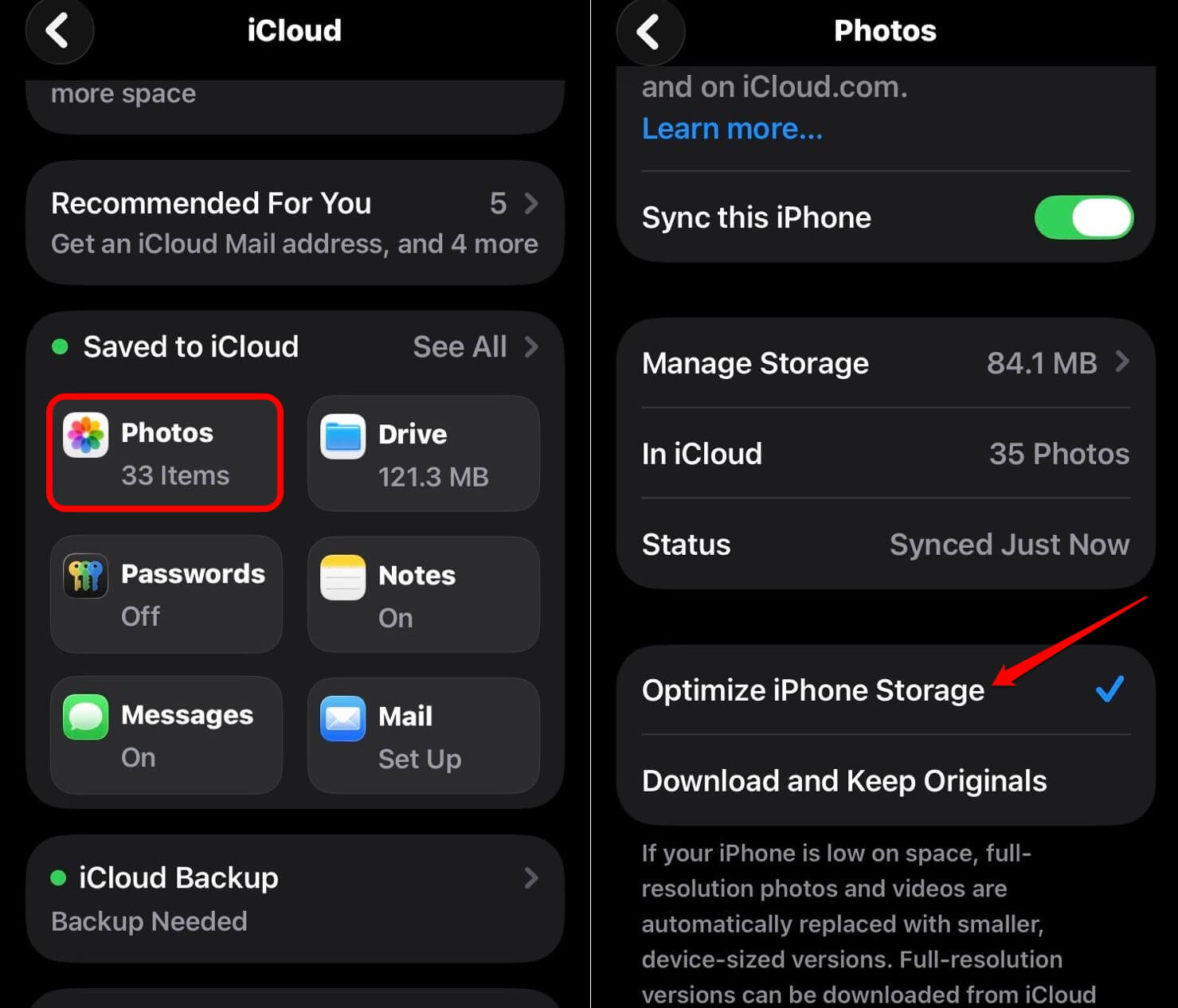

This option keeps full-resolution versions of photos and videos in iCloud while storing smaller compressed versions on the device.
The full version downloads again when you tap a specific photo to view it. This alone can recover tens of gigabytes on a phone with a large photo library, and why iPhone storage keeps filling up explains how iOS manages that process behind the scenes.
Neither setting deletes content. Offloading removes app binaries and releases the storage. The Optimize Storage feature moves originals to iCloud. Both are reversible.
Frequently asked questions
Does deleting WhatsApp media delete it from other people’s phones?
No. Deleting media from your WhatsApp storage only removes it from your device. Other people in the chat keep their copies, and any media you sent still exists in the chat for others.
Will Optimize iPhone Storage delete my photos?
No. It moves the original full-resolution versions to iCloud while keeping smaller versions on your device. You can access the originals anytime by tapping them, as long as your iCloud storage has space.
Why does System Data keep growing back after I clear it?
iOS continuously generates caches, logs, and index files as you use the phone. There is no setting to prevent this. Restarting the device and clearing Safari data helps temporarily, but System Data will grow again over weeks of normal use.
What is not worth worrying about
Photos are seldom the main storage problem once iCloud Photos is enabled with Optimize Storage turned on. The bar graph may show a large Photos category, but most of that lives in iCloud rather than on the device itself.
Buying more iCloud storage solves the backup and photo sync problem but does not clear device storage. The phone itself stays full.
You may go through the Apple’s storage management guide, which explains the difference between device storage and iCloud storage clearly, and it is worth reading before upgrading to a paid storage plan.