Normally, I don’t use the Instagram app a lot, thanks to the doom scrolling and FOMO it induces. Instead, I mostly use the Chrome browser on Android to check out any Instagram account or page without signing in to my profile.
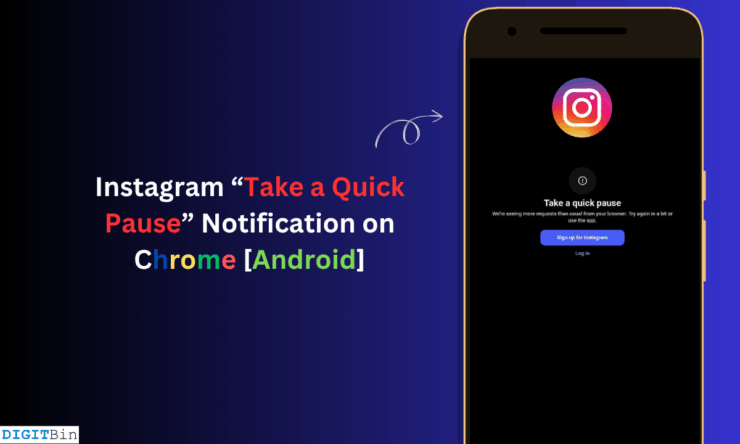
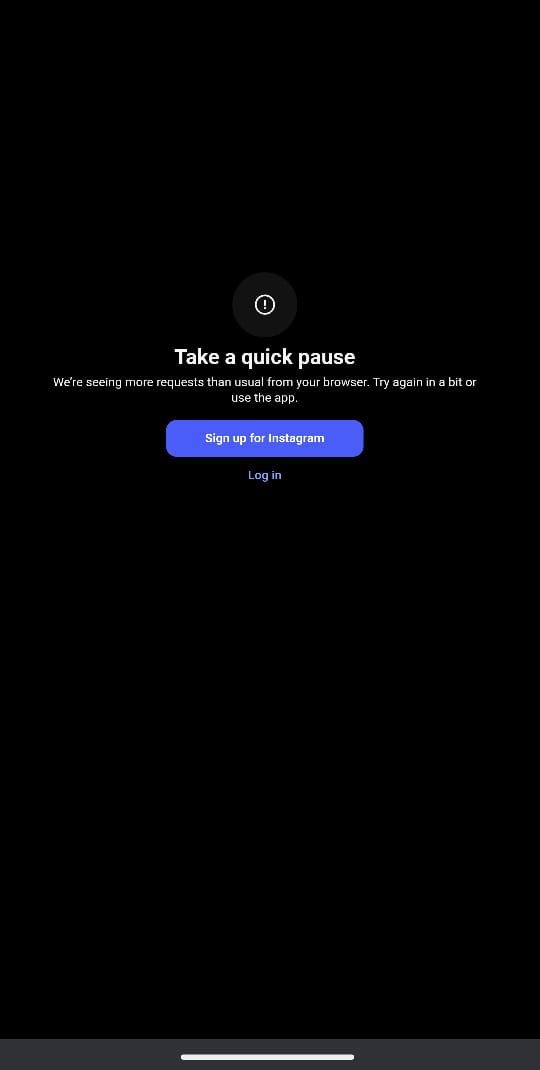
Recently, I was checking out a couple of Insta pages on Chrome browser without logging in to my account. After visiting one or two pages, I encountered a pop-up message on the page from Instagram that said, “Take a Quick Pause: We are seeing more requests than usual from your browser. Try again after some time or use the app.”
I tried decoding why I encountered this issue and what troubleshooting steps can fix this problem. If you access Instagram from a browser (without sign-in), you might have encountered this error as well, which stops you from viewing any Instagram account posts.
I have figured out a few troubleshooting tips that I have shared in this guide to overcome this issue. Stay tuned to know how to bypass the restriction from Instagram to view pages without logging in.
“Take a Quick Pause” Error on Instagram: What It Means?
When you do not log in to your account but repeatedly view Instagram accounts or pages from the browser, Instagram restricts the actions for a brief time.
From what I observed, when you repeatedly visit one or more Instagram accounts from the same device in a short time without logging in, Instagram flags the IP of your device for bot activity.
Although it is completely a human activity (done by you), Instagram’s algorithm thinks that the device in use might be trying to scrape data from the Instagram pages that it is visiting repeatedly in a short time without signing in.
My curiosity led me to switch to incognito mode on Chrome and visit the Instagram profiles without signing in. As expected, after viewing around three Instagram profiles/pages, the “Take a Quick Pause” notification showed up.
Instagram surely uses advanced automated systems that understand that the same IP address is visiting various profiles on Instagram without signing in.
Further, by using incognito mode, which implements tracking protection, it triggers the security systems of Meta, making them think that the repeated profile visits are a suspicious activity that probably has other malicious motives.
Sometimes, cached data in the Chrome browser app can lead to this issue of profile view restriction, where Instagram profiles won’t load if you access their URL without signing into your account.
Besides, Instagram is primarily an app-based service. It doesn’t want people snooping around other accounts from the browser without signing in. Meta would want these ‘lurkers’ to access Instagram by signing up/logging in.
So, to push authenticated use of Instagram, after one or two profile views without signing in, you are restricted with the “Take a quick pause” notification.
Fix ‘Take a Quick Pause’ Error on Browser
Your aim should be to avoid triggering Instagram’s security systems from thinking your activity is bot behavior on Chrome. Based on that, I have created a few workarounds and tips which I’m sure will help overcome the “Take a Quick Pause: We are seeing more requests than usual from your browser. Try again after some time or use the app” issue.
Use the Instagram App
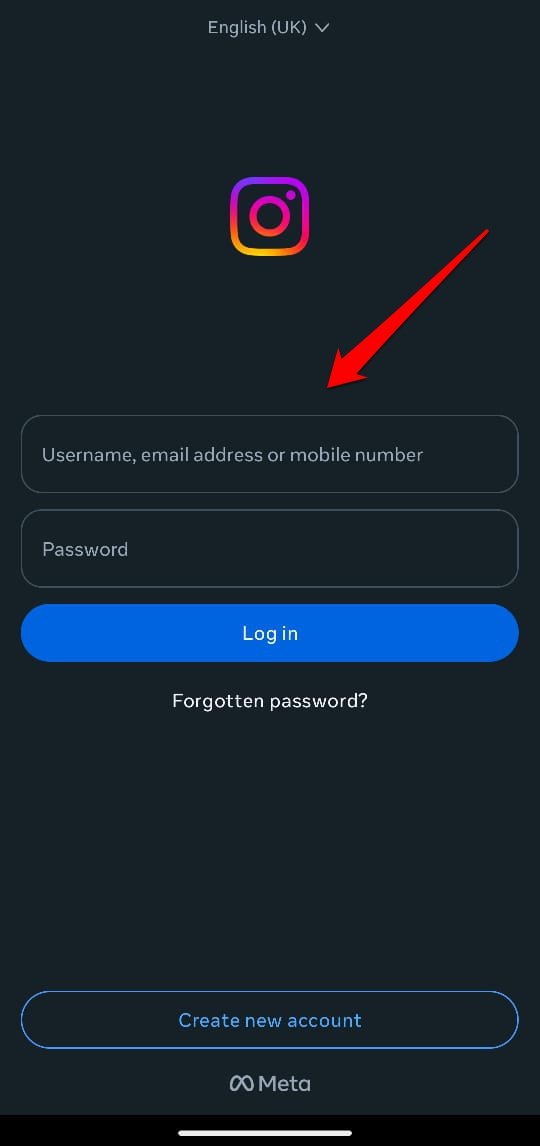
The most straightforward approach to bypassing profile visit restriction is to log in to your Instagram account from the official app.
I have never faced any limitation in viewing Instagram profiles/pages (set to public view) when I log into the app. You can directly view the publicly available Instagram profiles without having to follow them.
NOTE: If you connect third-party tools to your Instagram account, send spam messages to random people, or get reported by other Instagram users for such activities, your profile reach might get restricted.
Clear the Cache of Chrome
Primarily, the “take a quick pause” message on Chrome browser happens due to Instagram’s security systems flagging your device IP for suspicious bot activity.
But I have observed that the issue may also occur due to junk data in the Chrome app cache. Clearing the cache should fix the issue.
Here are the steps you can follow and clear the Chrome app cache
- Long-press on the Chrome app icon and select the app info button marked with ‘i’.
- Go to Storage and Cache.
- Press Clear Cache.
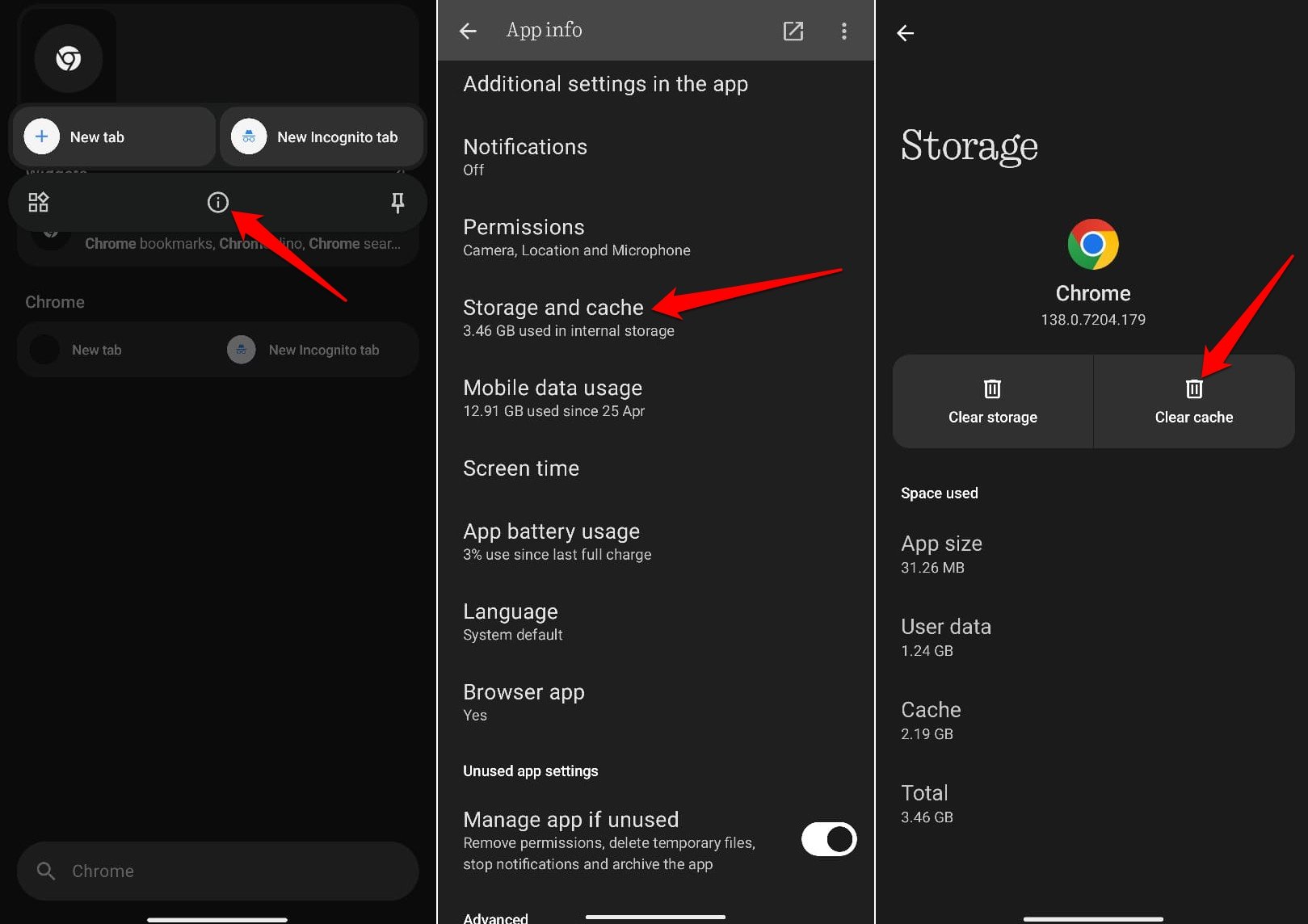

- Relaunch Chrome.
If the issue was not with Chrome cache, visiting multiple Instagram profiles through the browser without signing into your account will again restrict your actions.
Avoid Visiting Multiple Profiles in a Short Time (Without Login)
Here is how I tackle the “Take a Quick Pause: We are seeing more requests than usual from your browser. Try again after some time or use the app” issue on Chrome.
I visit two profiles or their posts on the browser without signing in. Then I wait for a few minutes before again checking the pages.
The Instagram system is designed to flag an IP address only when it repeatedly visits one or more profiles in a short duration without signing into its account.
Avoid using any Bot/Data Scrapping Tool on your browser
This is the most important advice of this article that I can suggest to you. By all means, avoid using any such tools or extensions used for data scraping or other activities that violate the Instagram Terms of Use.
It doesn’t matter whether you are using the data scraper/bot for any other sites/apps. Accessing Instagram profiles on Chrome while signed out and with such bots/tools active on the browser, it won’t be long before you are restricted with the “Take a Quick Pause: We are seeing more requests than usual from your browser. Try again after some time or use the app” message.
Use a VPN
As Instagram flags the device IP and restricts viewing others’ profiles on the Chrome browser without signing in, you can try to change the IP.
The simple way to change the IP address is to use a VPN. Once you enable VPN, it will change your device IP through a remote server based on the location you have set.
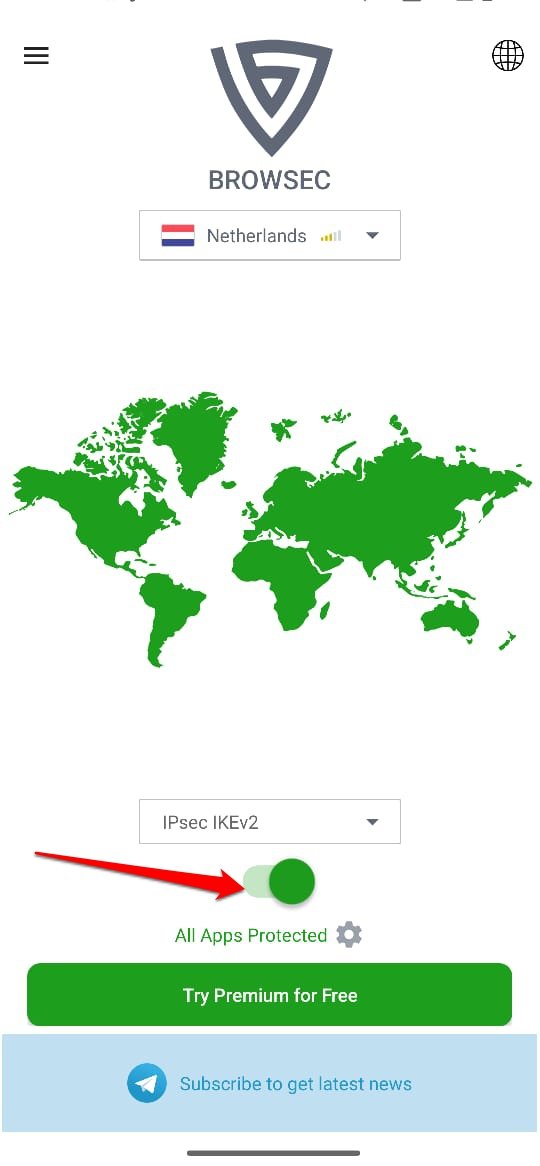
However, in my experience, the VPN trick doesn’t always work. Sometimes, after activating the VPN, I get redirected to the login page when I try to type an Instagram account URL or reload the page.
Switch to Desktop View on Chrome
I have noticed that if I switch to desktop view on Chrome for Android, I can view the Instagram profiles without signing in. You may try it as well.
- Press the menu button to view the Chrome menu bar.
- Tap the checkbox next to Desktop Site and enable desktop view.
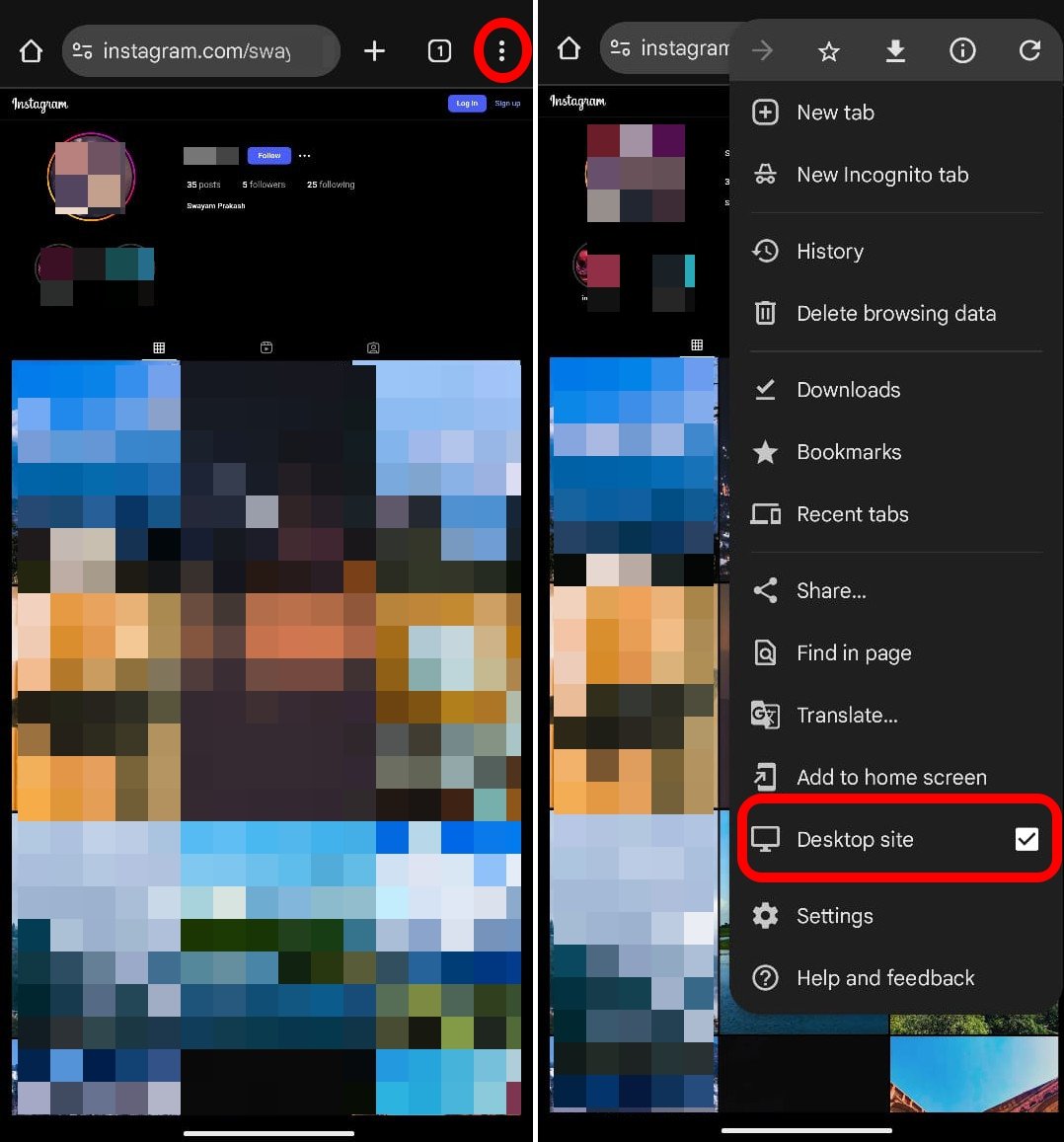

- Now reload the Instagram page you were viewing.
Use another browser
Switch to other browsers if you are facing the “Take a Quick Pause: We are seeing more requests than usual from your browser. Try again after some time or use the app” issue on Chrome while visiting Instagram profiles without signing into your account.
Remember that the restriction is enforced when Meta thinks that the same device is trying to view multiple Instagram profiles within a short duration, or it detects any actual bot/data scraper being used in the browser.
So, it is not exactly a browser problem; rather, it’s the same IP address or use of unauthorized extensions violating Instagram’s Terms of Service. However, when I switch to other browsers such as Brave or Firefox, I can view Instagram pages without logging into my account or getting restricted.
Frequently Asked Questions (FAQs)
Why do I get the “Take a Quick Pause” error while browsing Instagram on Chrome?
Instagram’s security system flags your device (based on IP) for suspicious bot activities or data scraping. Hence, your action gets restricted.
Can my profile and actions get restricted if I use the Instagram app while logged in?
YES. Linking bots, third-party tools, or sending spam to other users while logged in can result in a temporary restriction on your use.
Can I view Instagram Accounts on a Browser without signing in or getting the “Take a Quick Pause” Notification?
YES. Don’t view multiple profiles in a short duration. Browse through one account, wait for some time before viewing another Instagram page.
Bypass Restrictions and view Instagram Profiles Easily
Instagram implements its system to prevent bot activities and data scraping on its platform, while promoting authentic users. Viewing Instagram accounts on a browser without signing in leads to restrictions on your use after a few views.
Using some of the tips I have shared, you can view Instagram accounts on a browser without logging in to your account. To entirely bypass any Instagram restriction, you should sign in before viewing any profile.
If you've any thoughts on Instagram Says ‘Take a Quick Pause’ on Chrome: Here’s how I Fixed the Issue, then feel free to drop in below comment box. Also, please subscribe to our DigitBin YouTube channel for videos tutorials. Cheers!