Do you want to cast your iPhone to Windows 11? I will show you how to do it using two such applications exclusively meant to share the screen of the iPhone on a Windows computer. Apple is very particular about its ecosystem. So, expecting to easily share the screen of your iPhone on a Windows PC is not possible.
You have to find exclusive streaming casting applications that will bridge the interface gap, and those are made exclusively to cast Apple devices to Windows devices. Often, you may want to share the content of your iPhone with multiple audiences, such as your friends or family. So, doing that on a bigger screen will bring a better view for the entire audience. For that, you have to cast your iPhone screen to Windows OS.
Use AnyViewer to Mirror iOS to PC
AnyViewer is easiest way to mirror an iPhone to a PC on Windows 11? It is the top mobile screen mirroring pick. It allows you to wirelessly stream your iOS or Android screen to your computer in real time, whether you’re on the same Wi-Fi network or connecting remotely via the internet. Whether it’s for work, presentations, or entertainment, AnyViewer enhances your experience with a larger, clearer display.
Key Features That Set AnyViewer Apart:
- Ultra HD Clarity: Enjoy high-definition visuals with Ultra HD mode.
- Up to 60 FPS Performance: Mirror your screen with up to 60 frames per second, ensuring buttery-smooth visuals, ideal for fast-paced games, video playback, or real-time interactions.
- True-to-Life Colors: With advanced 4:4:4 chroma sampling, AnyViewer’s True Color technology replicates your iPhone display’s vivid and accurate colors.
Method 1. Scan a QR Code (Best for Local Connections)
If your iPhone and the target Windows 11 PC are within reach, just scan the on-screen QR code to connect instantly.
Step 1. Install AnyViewer on your Windows PC from the official site and create a free account.
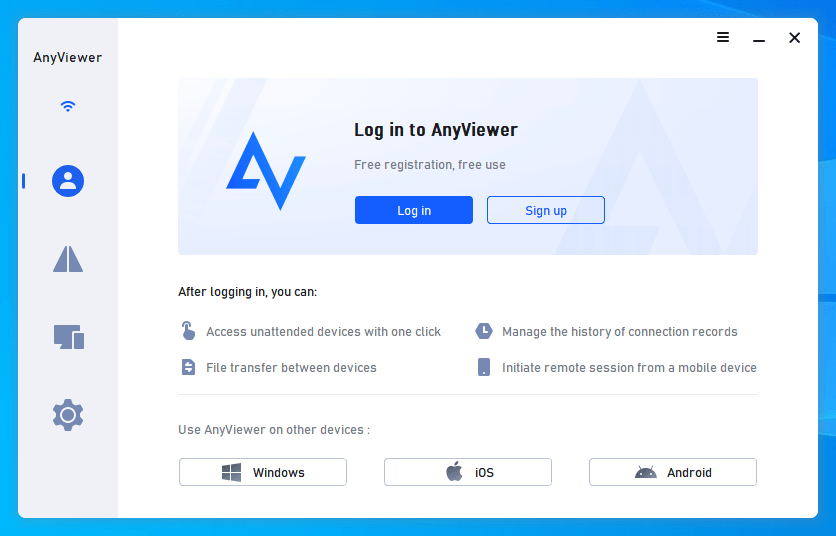
Step 2. On the PC, go to Device > Mobile Screen Mirroring to display a QR code.
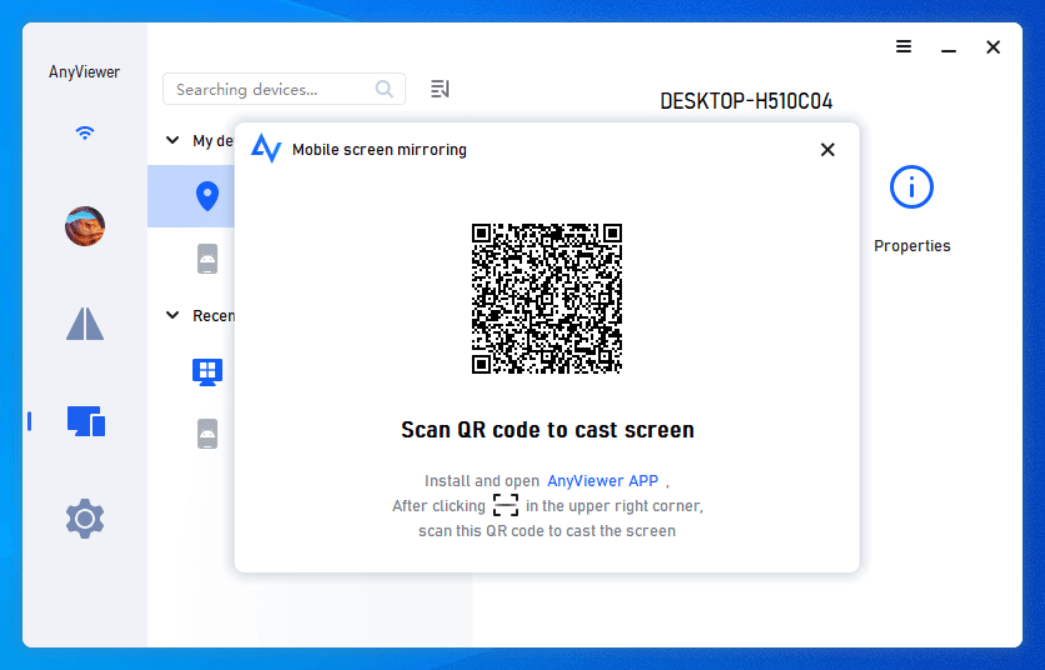
Step 3. On your iPhone, install the AnyViewer app from the App Store, tap the Scan icon, and scan the QR code.
Step 4. Tap OK to confirm the connection, then hit Start Broadcast.
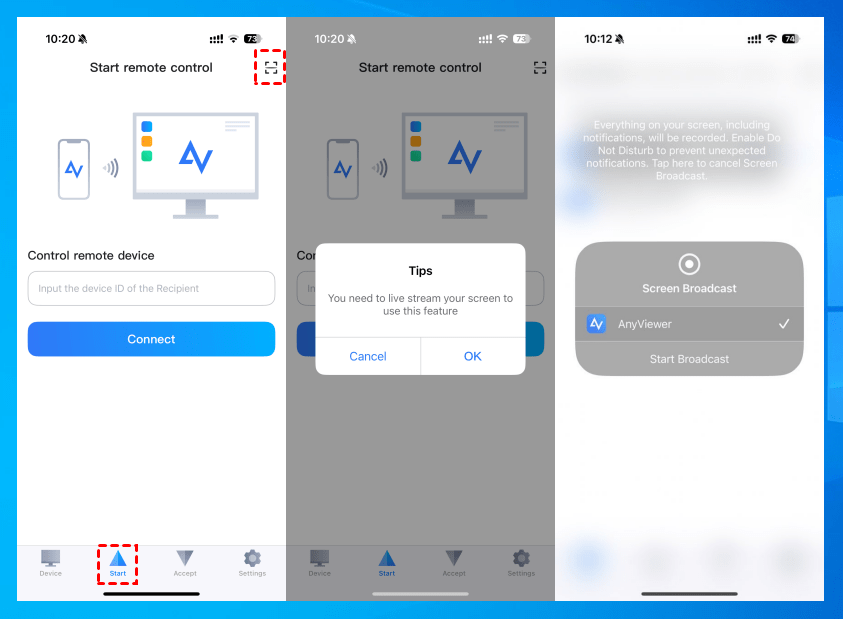
Step 5. Your iPhone screen will instantly appear on your PC.
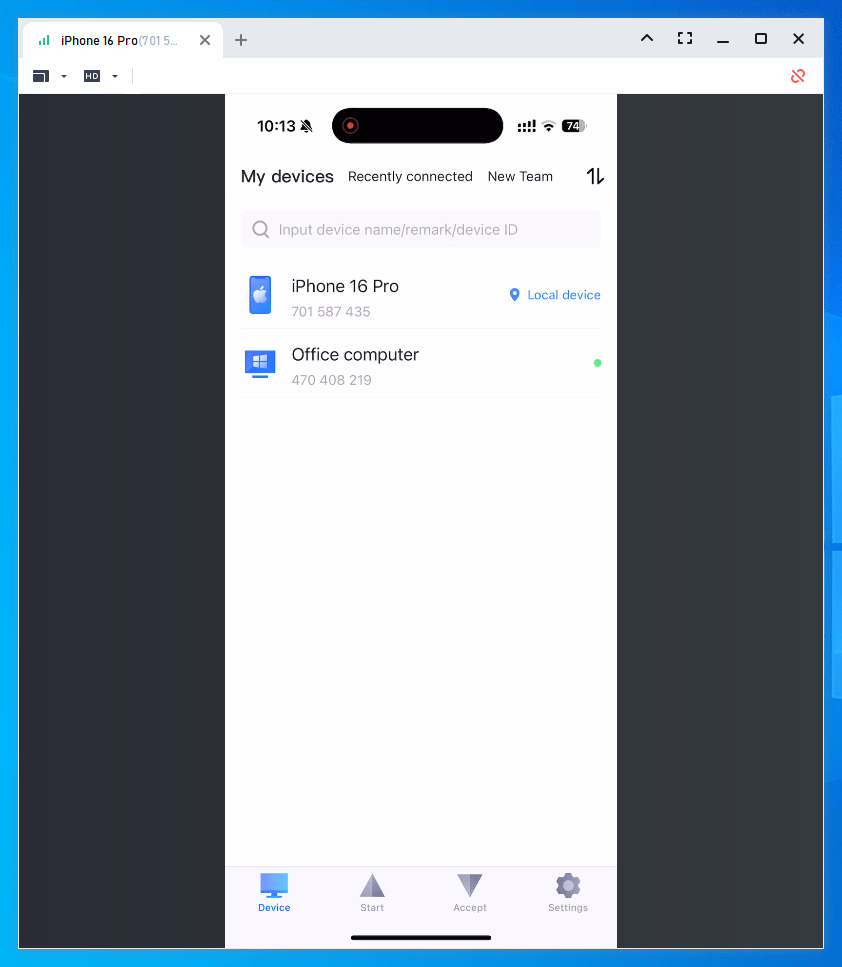
Method 2. Use “View Screen” (Ideal for Remote Access)
Want to share your screen with someone far away? Use the “View Screen” feature to cast your iPhone to a remote computer.
Step 1. Install and log in to AnyViewer on both your PC and iPhone using the same account.
Step 2. On your PC, locate your iPhone under Device, then click View Screen.
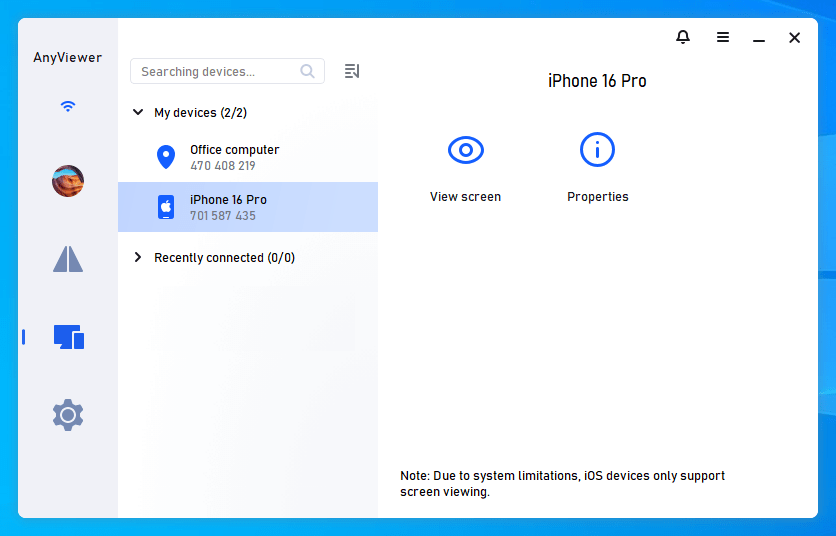
Step 3. Approve the screen sharing request on your iPhone and tap Start Broadcast.
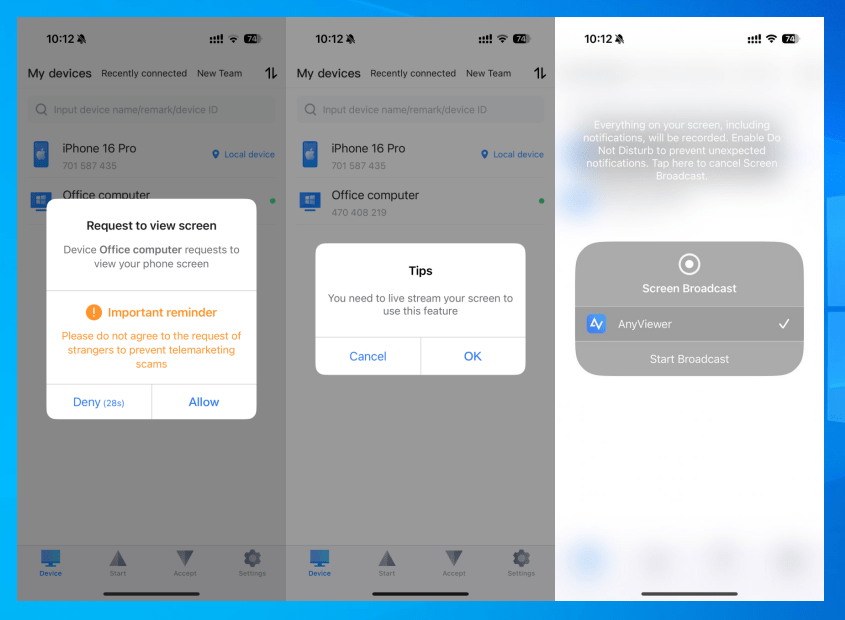
Step 4. That’s it, your iPhone screen will display on your PC in real time, even from afar.
Can You Mirror an iPhone to Windows 11 Without Any apps?
Windows OS does support free screencasting of intelligent devices. There is a feature called Projecting to This PC on Windows 11, which you have to enable along with the wireless display support. Then you can connect any smartphone to your PC and cast the phone’s screen on Windows 11.
When I say any smartphone, the feature is limited to Windows and Android smartphones. It doesn’t work with an iPhone. I tried with my smartphone, to be precise. While I could project my Android phone easily on Windows 11, the same could not be done with my iPhone.
Using LonelyScreen and Reflector 4 to Cast iOS to Windows 11
The apps that I will show you in this guide are LonelyScreen and Reflector. These are not free applications. They offer limited free usage, after which you have to purchase these apps to use them and unlock other features they offer.
Without using any third-party app, it is not possible to cast the iPhone screen on Windows 11.
Note: This article is not a paid promotion of the apps mentioned for screencasting iPhone to Windows 11. I used these apps and found their interface and implementation easier. Hence, I am recommending them in this guide. Besides, without third-party apps, there is no way you can cast an iPhone screen on a Windows computer.
How to Use LonelyScreen to Cast iPhone Screen to Windows 11 Computer
- You have to start by downloading the LonelyScreen application on your Windows PC.
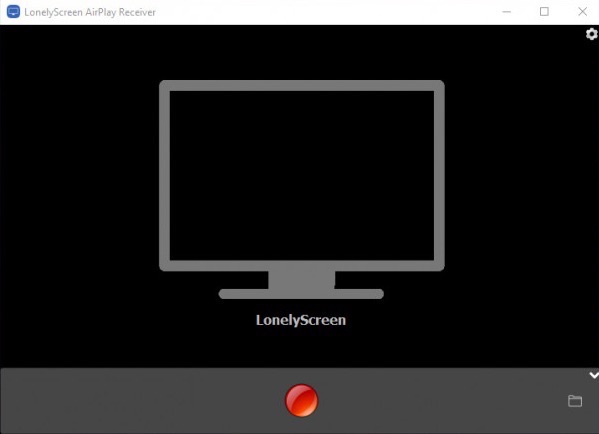
- Install the application and launch it once it is installed.
- Only a blank black screen with a computer diagram will show.

- Connect the computer and the iPhone using the appropriate cable.
- Now, make sure that both the computer and the iPhone are on the same WiFi network.
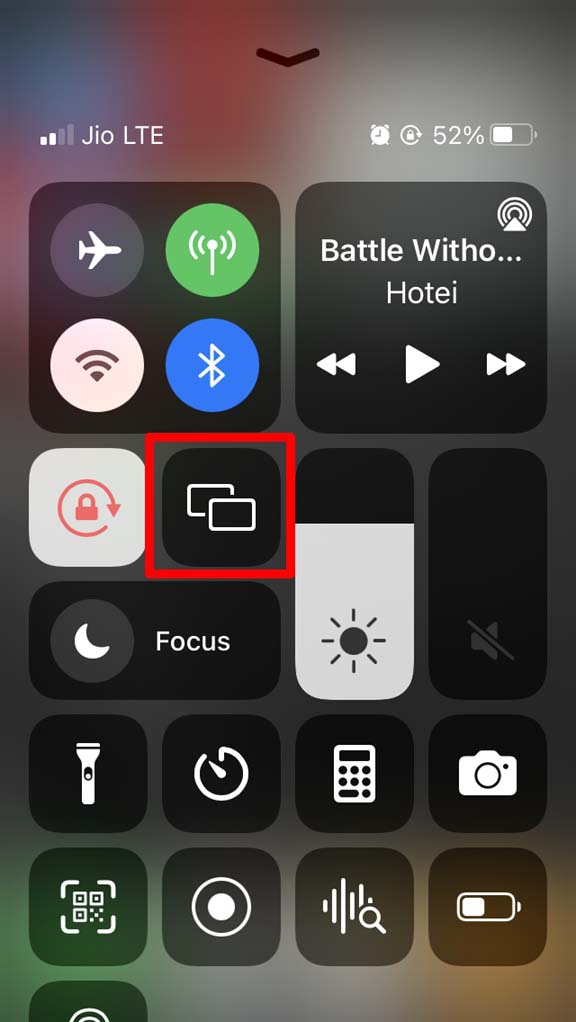
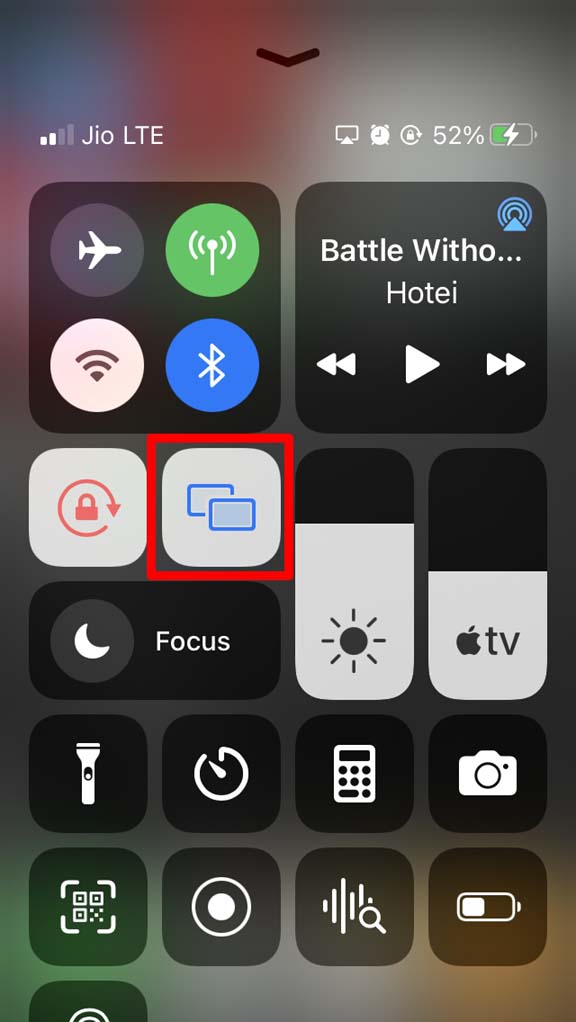
- Open the control center on your iPhone.
- Tap on the Screen mirror icon to initiate the screencasting process.

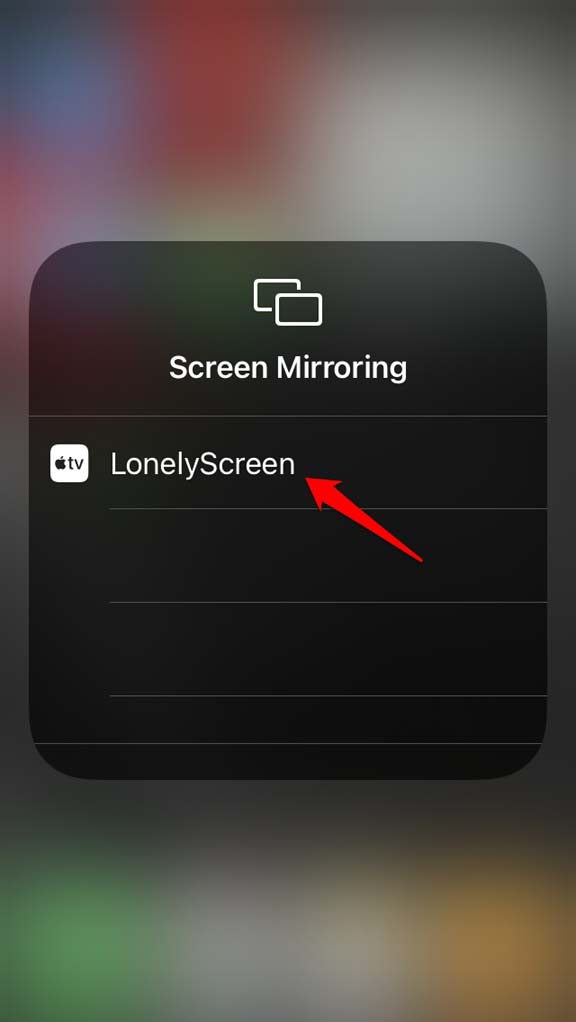
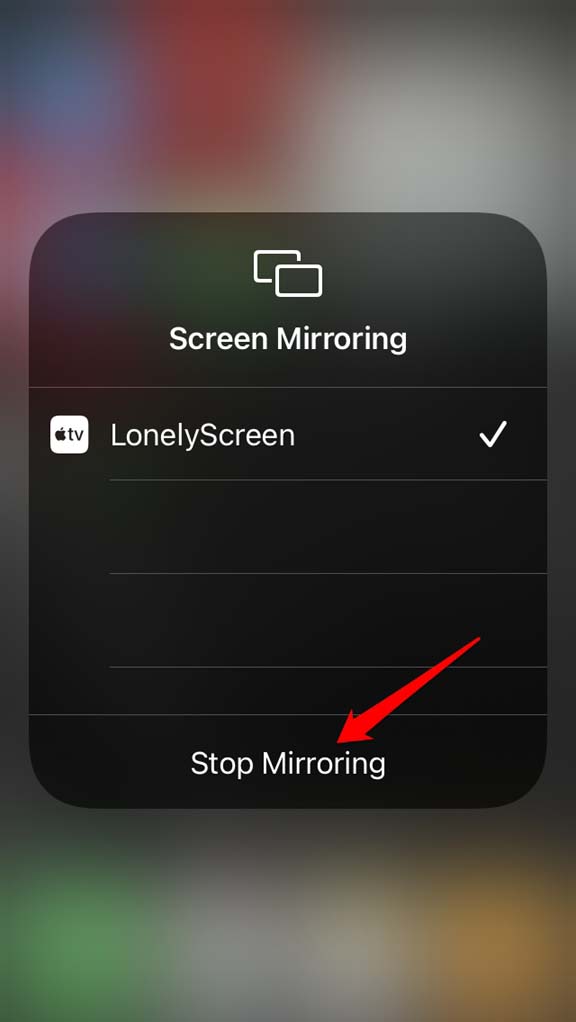
- The Screen Mirroring will search for available services and will display LonelyScreen once it is discovered.
- Tap on Lonely Screen.
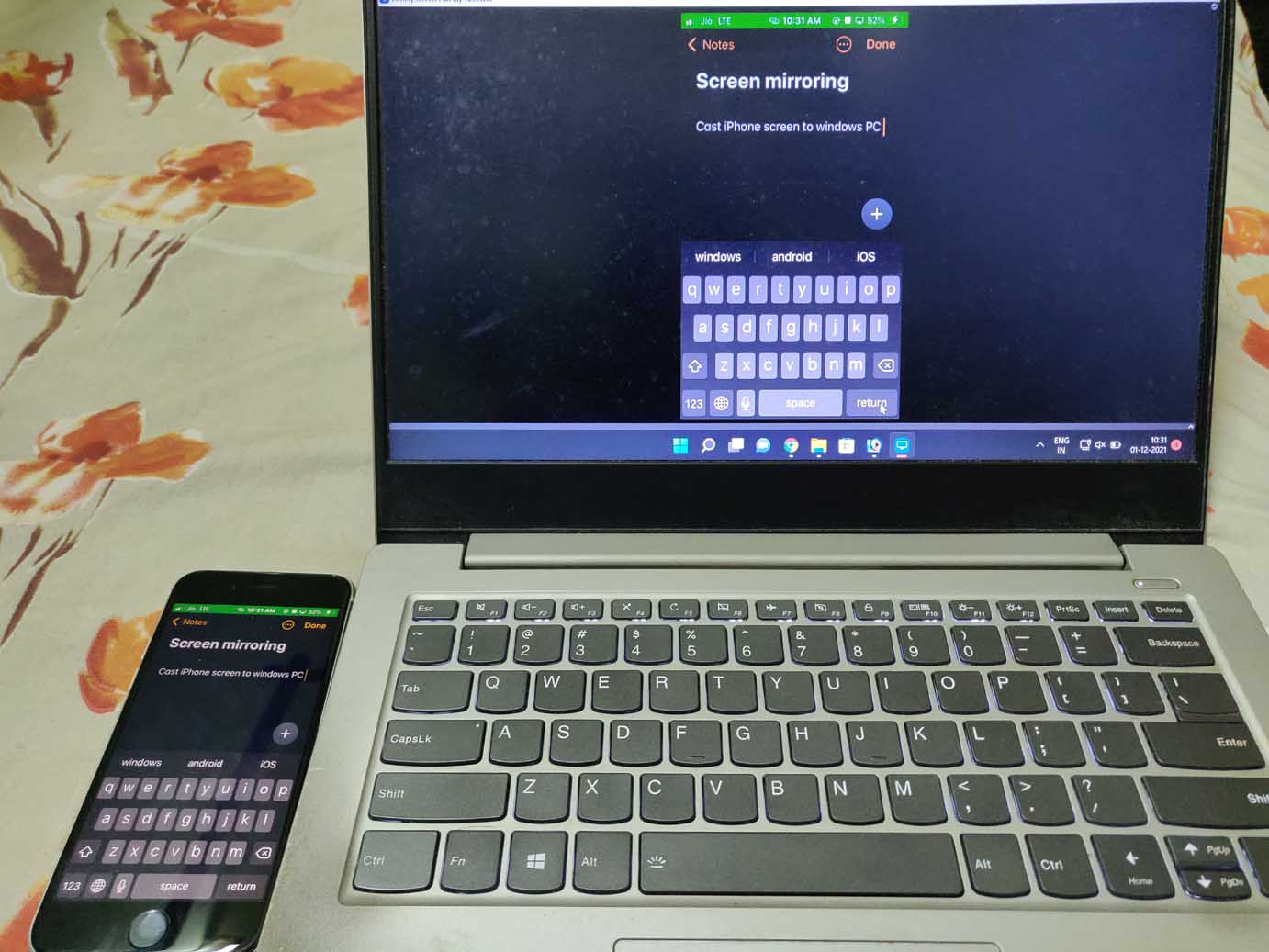
- Within a few seconds, the iPhone screen will show on the Windows PC screen.

- When you want to finish the casting of the iPhone screen, open the control center again.
- Tap on the Screen Mirroring button.
- Then tap on Stop Mirroring, and then you can disconnect the iPhone from the Windows computer.
Cast iPhone Screen to Windows 11 Using Reflector
Here is another application called Reflector that follows a similar functional pattern as that of LonelyScreen.
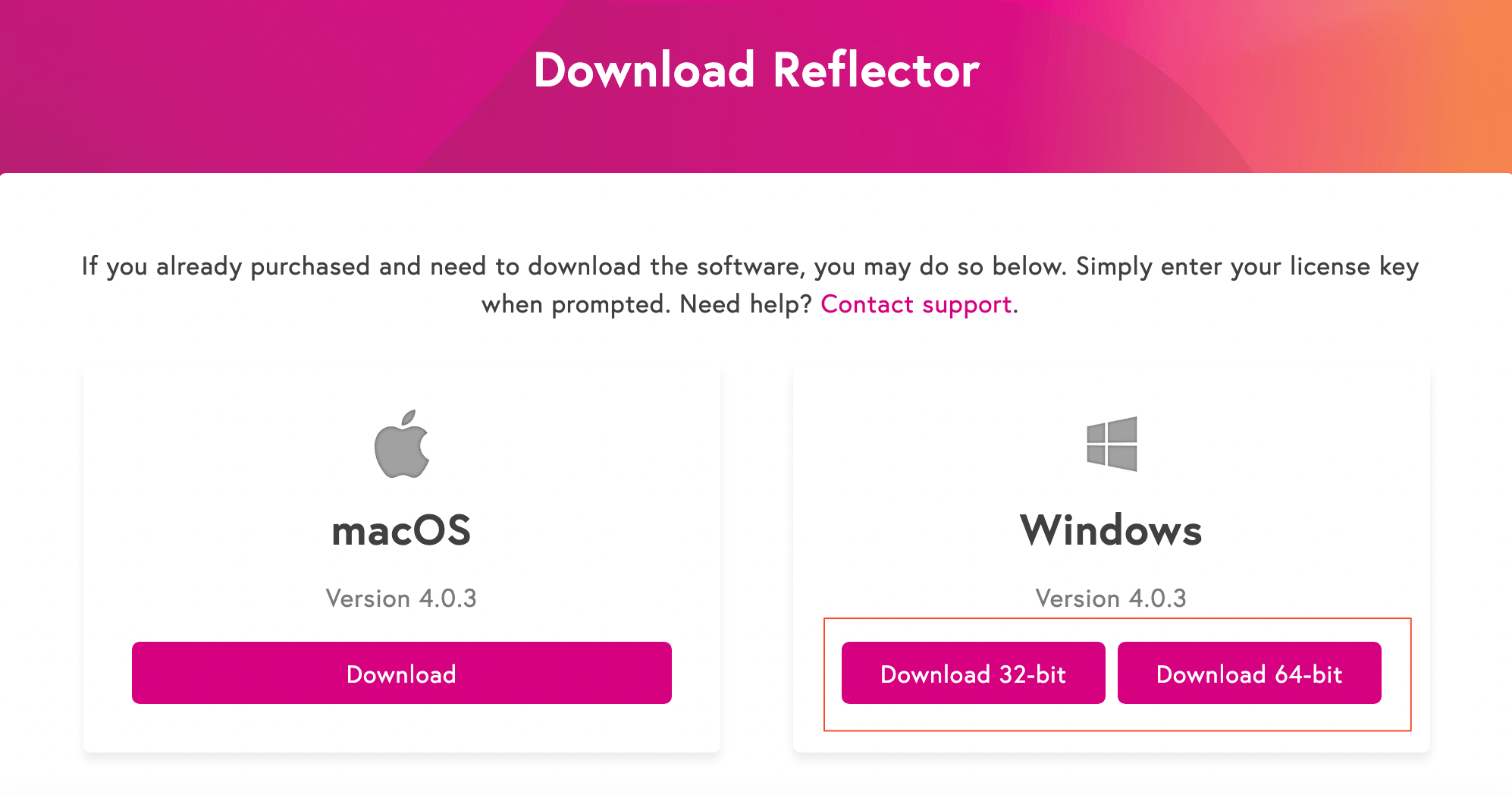
- Download and Install Reflector 4 from its official website.

- Connect iPhone with your computer.
- Use the same WiFi network for iPhone and the computer.
- Bring up the control center on the iPhone.
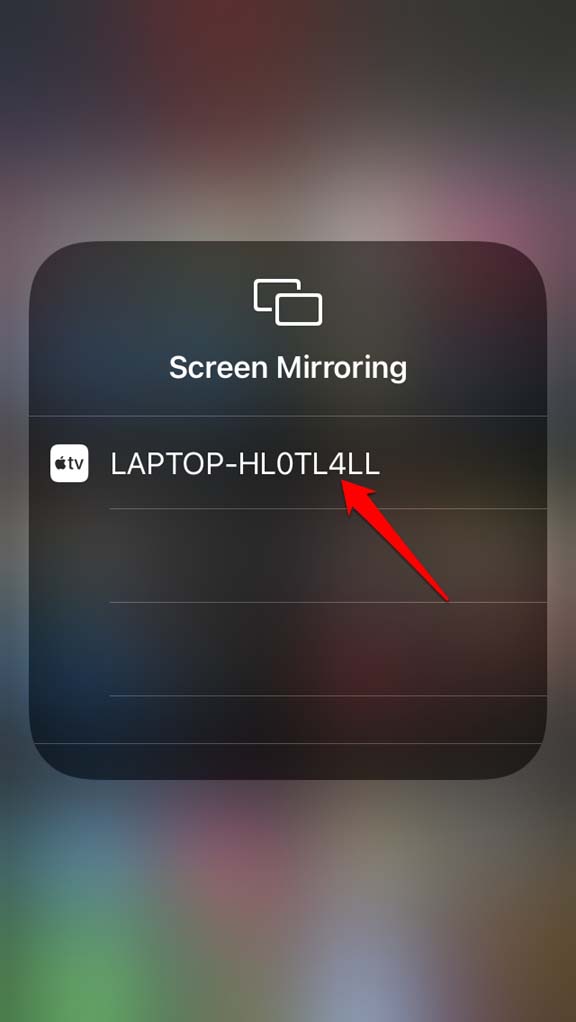
- Tap on the Screen mirroring option.
- The laptop/computer name will show up as the available device for screencasting.
- Tap on the computer name.
- You will be asked to enter the AirPlay Code on your iPhone.
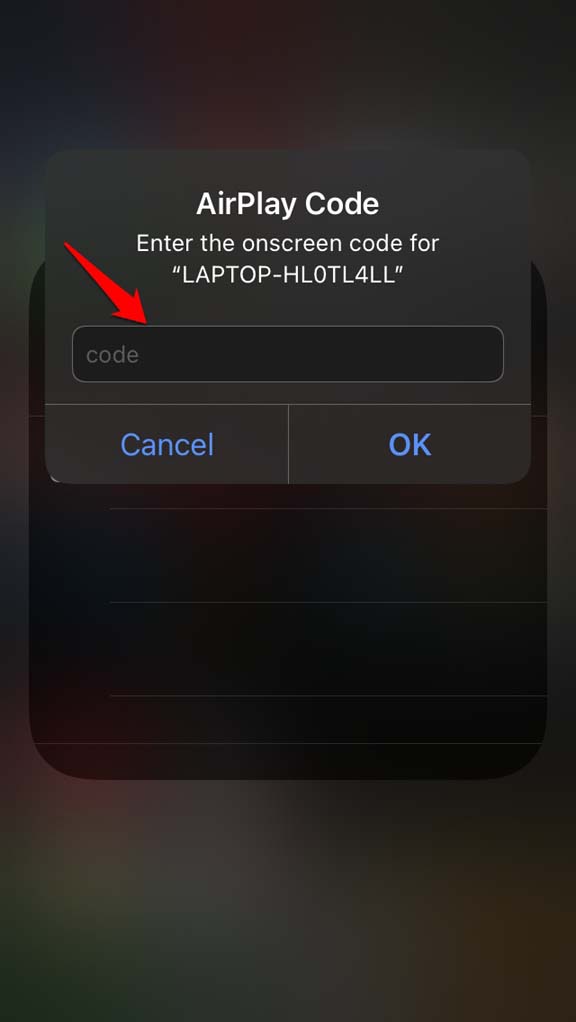
- Now, the Reflector app, which is open on your computer, will show a 4-digit code.
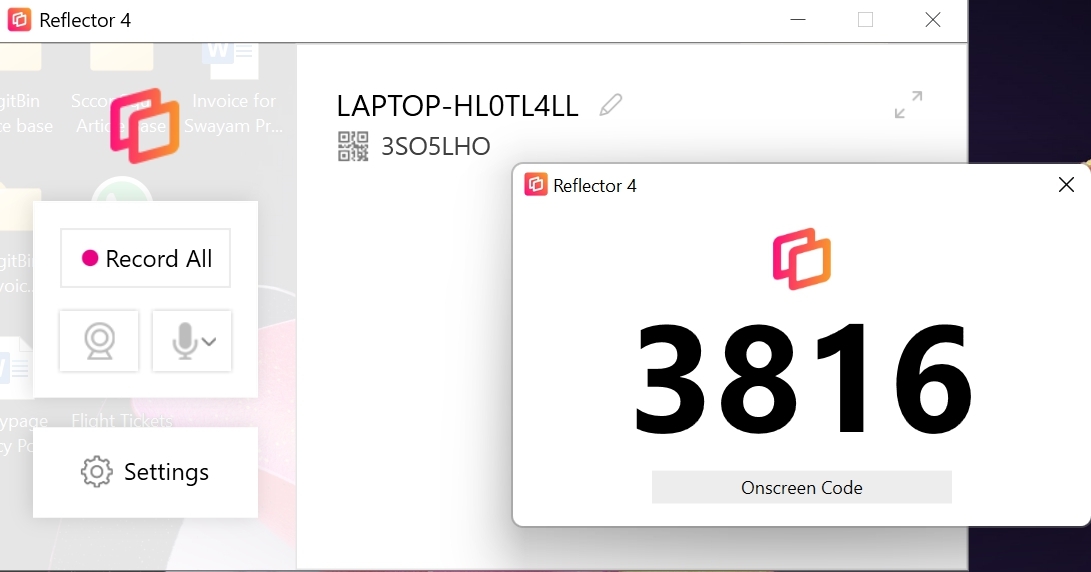

- Enter the same code on the iPhone.
- Now, the screen of the iPhone will start to cast on the screen of the Windows 11 computer.
When you wish to end the casting, do it by tapping on Screen Mirroring from iPhone control enter. Then tap Stop Mirroring. The trial version of Reflector will have a watermark on it. To remove that, you need to buy the full version of the app.
Also, the screen will be cast vertically with the backdrop of an iPhone. The quality will be of high definition on both the Reflector app as well as LonelyScreen.
Screen Mirroring Cannot Discover the Computer. What to Do?
If you are not seeing the computer name on the Screen Mirroring list of nearby casting devices, then make sure you have connected your iPhone and computer properly. Only use Apple’s lightning or USB cable to connect the iPhone to the PC.
Disconnecting and reconnecting the devices should work in case the connection was loosely established previously.
Which ScreenCasting App for iPhone is Better?
In my opinion, LonelyScreen is better than Reflector as the former doesn’t put any watermark when you use the trial version. Also, between the two, LonelyScreen has a better and simple UI as compared to Reflector.
Keep in mind that there are a dozen of similar apps out there that can be used for casting the screen of the iPhone on PC. Make sure to check its review by genuine users and always download from the application’s official website. Almost all of them are paid apps with limited free usage permission.
So, that’s all about how to cast iPhone on Windows 11 computer screen. I hope the guide was informative.
If you've any thoughts on How to Screen Cast iPhone to Windows 11?, then feel free to drop in below comment box. Also, please subscribe to our DigitBin YouTube channel for videos tutorials. Cheers!