Gemini is now in my email. It is also in my browser. I can see it in my photo library. Google’s AI assistant is now baked into my phone’s long-press button. I even see it in my Docs editor.
Google has wired it into almost everything, and that happened gradually enough that most people didn’t notice until it was already everywhere.
I’m not here to argue whether that’s good or bad. I’m here to give an honest account of what I actually use, what I’ve turned off, and where Gemini has earned a permanent place in my day versus where it mostly creates friction I didn’t ask for.
The following write-up is not a setup guide. If you want to know where the toggles live, Google’s help pages cover that.
This is a feature-by-feature audit from someone who uses these tools daily and has had real reactions to each one.
TL;DR: Gmail thread summarizing is genuinely useful and worth keeping on. Gemini in Google Docs earns its place for first drafts and style matching. The Android overlay is better than it used to be, but still interrupts more than it helps. Google Photos AI editing is the most consistently impressive feature in the whole lineup. Gemini in Chrome is mostly in the way. The honest answer is: some of this is good. Most of it is optional.
Gmail: The one that actually changed how I work
I’ll start here because this is the feature I was most skeptical about, and it turned out to be the one I actually use every day.
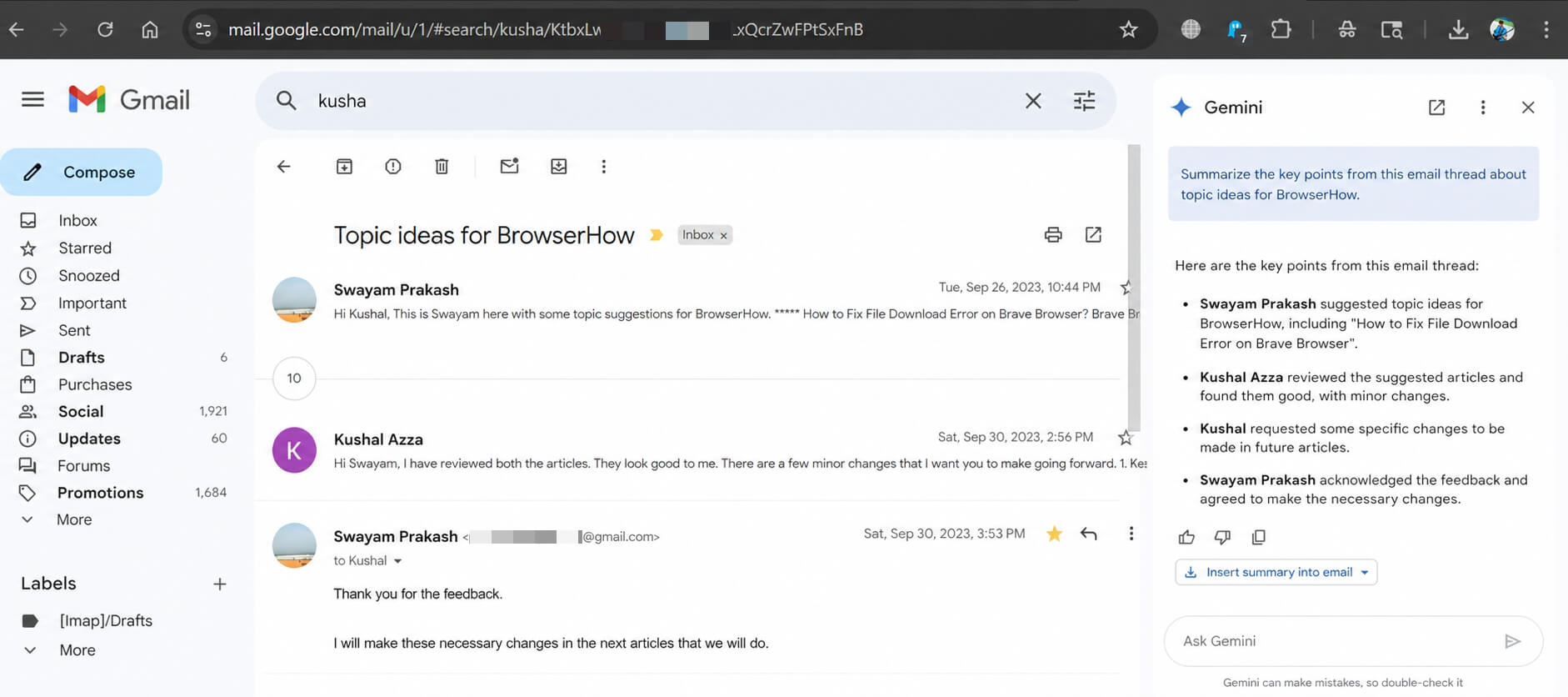
Gemini’s AI Overview in Gmail appears at the top of longer email threads and synthesizes the key points before you read a single message.
On a 20-reply back-and-forth about a project deliverable, opening the thread and seeing “Decision pending on timeline. Two open questions about budget. Next step assigned to you.” is not a gimmick. It is genuinely useful. The time saved is real.
Long threads that used to take several minutes to parse now take thirty seconds to absorb.
The summary is almost always accurate on factual points, though it can miss tone and subtext, which matters in some conversations and not others.
What Gemini does not do well here is help me write.
The Help Me Write draft tool, which generates a reply from a short prompt, produces technically correct sentences that do not sound like me.
Every draft needs meaningful editing before it’s usable. It is faster than starting from a blank compose window, but only barely, and only if you have a clear sense of what you’re trying to say before you prompt it.
Gemini in Gmail is most useful for reading, not writing. If you only turn on one Gemini feature across all of Google’s apps, the email thread summary is the one.
Google Docs: Useful in specific ways, overrated in others
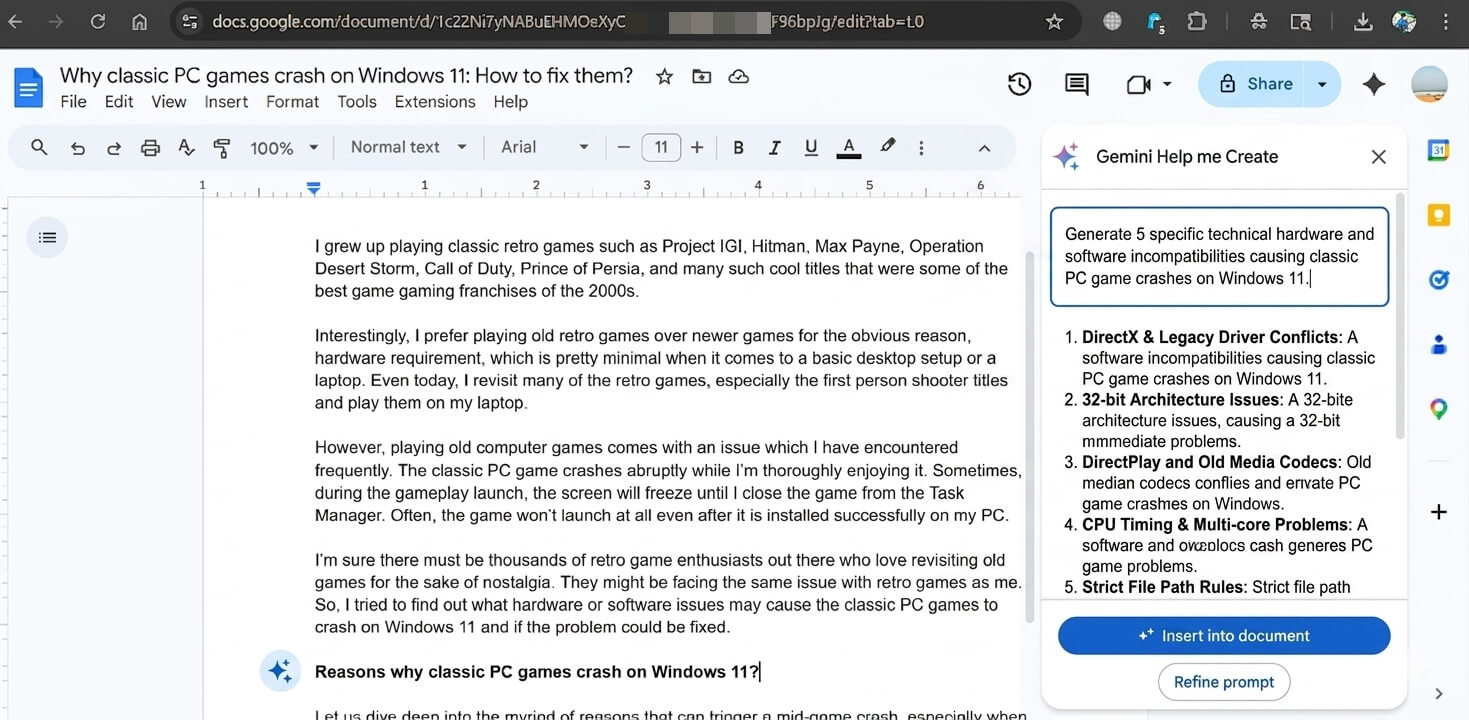
Gemini in Docs has been through several iterations, and the April 2026 version is meaningfully better than what launched.
The Help Me Create experience now pulls context from your Drive files, past emails, and the web to generate a first draft, which means it can actually produce something relevant rather than a generic template that has nothing to do with your project.
The feature I use most is “Match writing style.” If you have an existing document with an established tone and you need Gemini to continue writing in the same voice, it handles that reasonably well.
It is not perfect, but it is much better than pasting a writing sample into a chat window and hoping for the best. I’ve used it on long guides where later sections needed to match the register of earlier ones, and it saved time.
What Gemini in Docs does not do well is produce good prose from scratch.
The outputs are competent and well-structured, but they read like competent AI output.
If the final document needs to sound like a specific person or carry a specific voice, you are still doing the real writing. Gemini gives you scaffolding. The substance has to come from you.
There is also a friction point worth naming: the side panel takes up screen space.
On a laptop, working with the Docs editor at half-width because Gemini’s panel is open on the right is not a comfortable writing environment. You end up toggling it open and closed rather than leaving it resident, which adds small interruptions throughout the session.
Gemini in Docs is genuinely useful for first drafts and style matching. It does not replace actual writing.
Android Overlay: Getting better, still interrupts
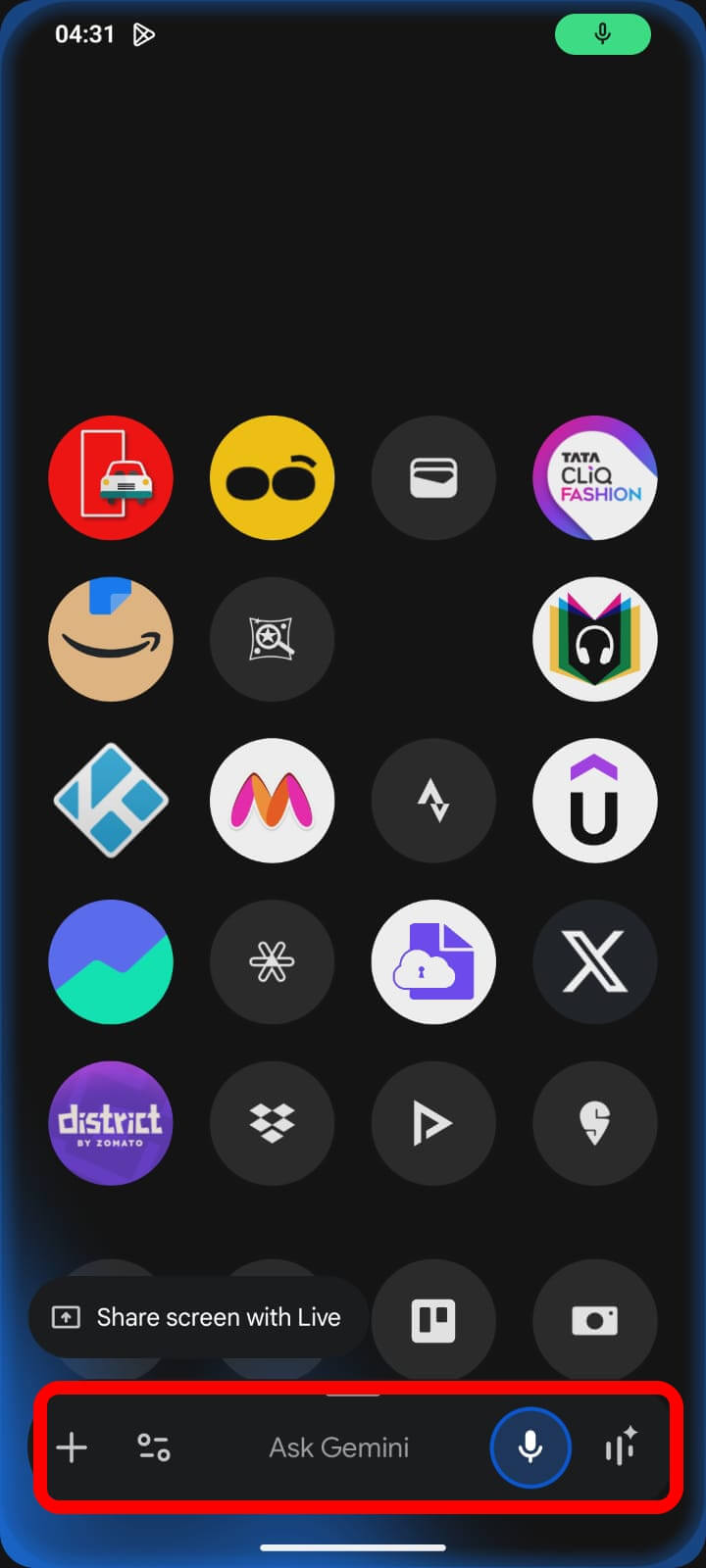
The Gemini overlay on Android, activated by holding the power button or saying “Hey Google,” replaced Google Assistant as the default voice assistant across Android devices. That transition is essentially complete as of early 2026.
The overlay improved significantly in March 2026 with a redesign that brought a full Tools menu directly from the system overlay, including Deep Research, Canvas, and image creation, without needing to open the Gemini app.
The multitasking behavior also got better: you can now minimize the overlay to a floating button instead of losing your session entirely when you switch apps.
But there are two problems I still run into regularly.
The first is accidental activation. Holding the power button is also how I restart my phone, and the line between a hold and a long-hold is thin enough that I open Gemini when I meant to hit the power menu more often than I should.
The second is that Gemini is still a conversation model, not a task executor. I cannot ask it to set a timer and immediately lock my screen while it confirms the timer is set. The response loop adds a step that Google Assistant did not require.
For lookup tasks while in another app, the overlay has real value. I’ve used it to pull context from a YouTube video I was watching, to ask a quick question mid-article, and to check something from a recent email without leaving my current screen.
Those moments work. The problem is that the interactions around those moments still feel clunky.
If you’ve found the power button issue annoying, the DigitBin guide on AI features you can actually disable on Android covers how to remap the assistant trigger and remove the floating Gemini button from apps like Messages where it shows up uninvited.
The Gemini Android overlay is better than it was, but it still creates more friction than Google Assistant did for quick tasks.
Google Photos: The best Gemini feature nobody talks about
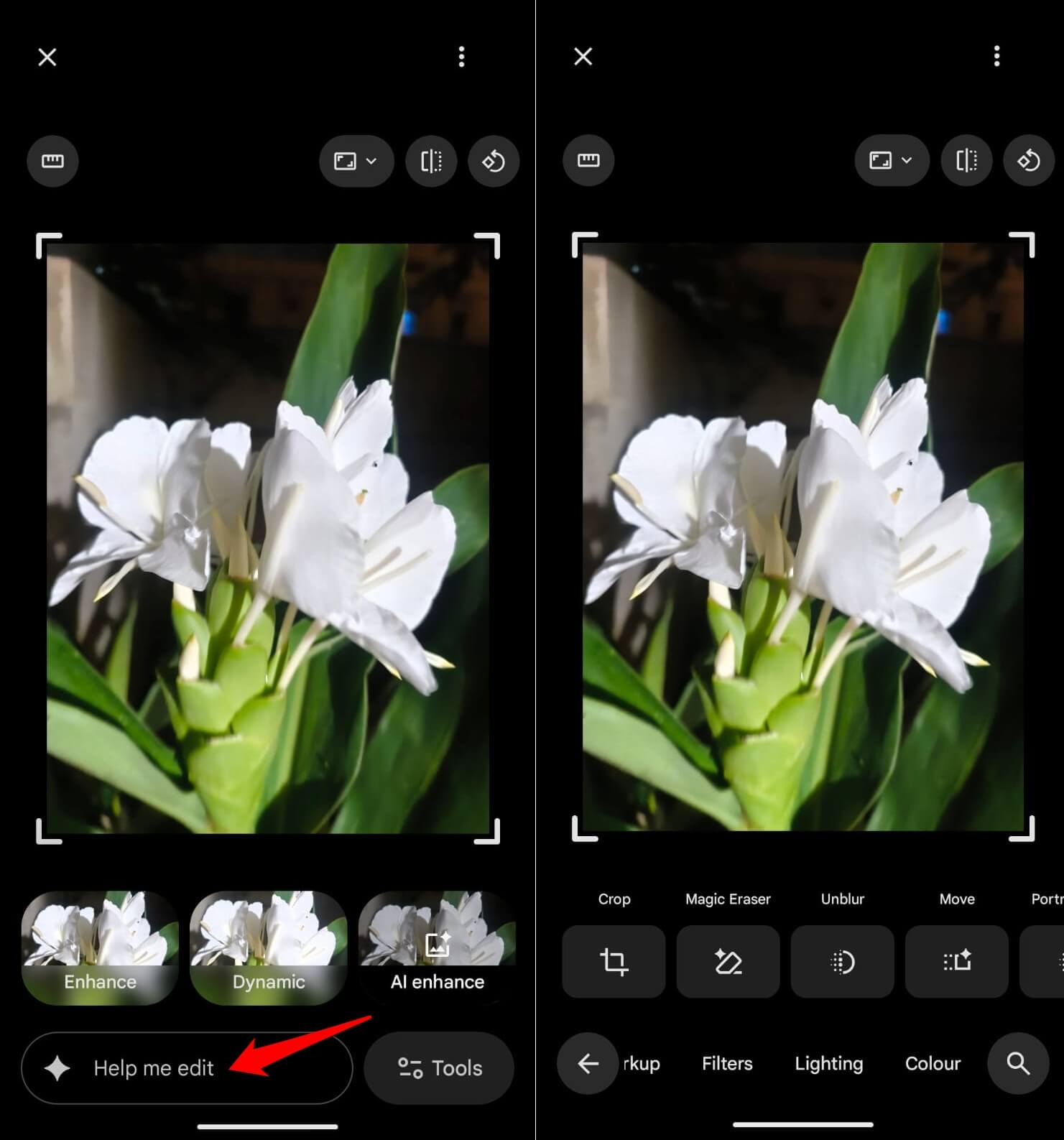
If you want to see what Gemini is actually capable of when it is applied to a specific, well-scoped problem, open Google Photos.
Magic Eraser removes photobombers and background distractions cleanly, and has been free for all Google Photos users since May 2025, no subscription required.
Photo Unblur recovers usable shots from slightly blurry originals.
The Reimagine tool lets you make generative changes to a photo by describing what you want changed, and it works well on simple modifications.
The November 2025 update added Ask Photos, an “Ask” button that appears above photos and lets you query your library in natural language.
“Where was this taken?” and “What year was this?” answer themselves from the library context. This feature is available in the US on Android and iOS. International availability varies.
The April 2026 integration of Gemini Personal Intelligence into Google Photos means the app can now pull context from across your connected Google apps, so asking a question like “find the photos from the trip in the email I got last March” actually works as a query.
These tools have a clear, specific job and do it reliably. That is the difference between Gemini in Photos and Gemini in many other places.
The scope is narrow. The results are consistent. There is no side panel trying to take over your workflow.
Google Photos AI editing is the most consistently useful Gemini feature in Google’s ecosystem, and most users are underusing it.
Google Gemini in Chrome: Mostly in the way
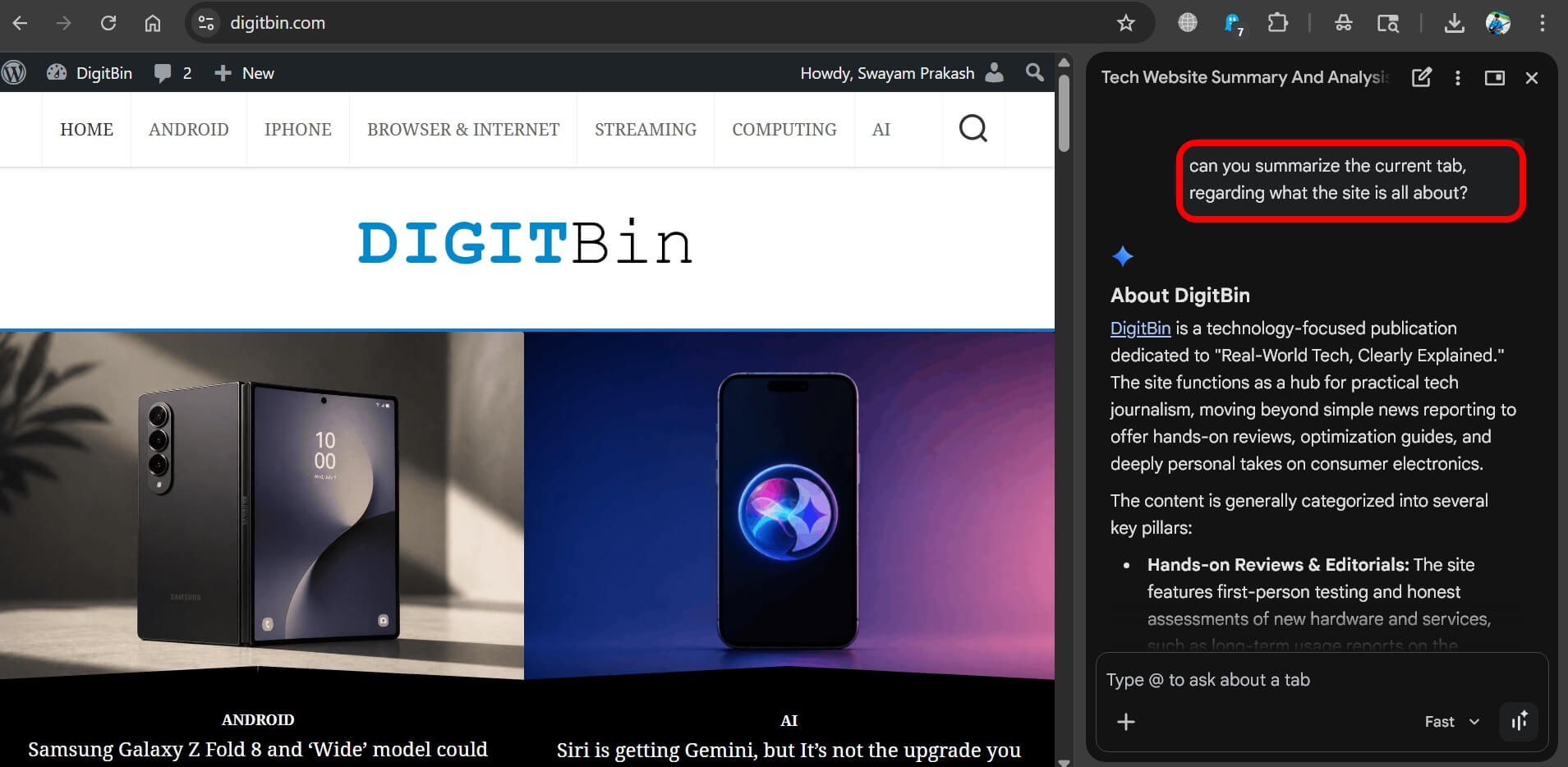
This one I turned off. Here is why.
Gemini in Chrome lives in a side panel alongside your tabs. It can summarize the page you’re reading, answer questions about the content, and pull context from up to ten open tabs at once.
The auto browse feature, which lets it complete multi-step tasks on your behalf, is currently limited to Google AI Pro and Ultra subscribers in the US.
The tab summarization does work. On a dense technical article or a long legal document, getting a three-sentence digest is occasionally useful.
But in normal browsing, the side panel is open space I’m not using, and the “Ask Gemini” icon in the toolbar is one more thing in an already crowded bar.
The sparkle prompt that appears when you select text to suggest a Gemini action adds a click to dismiss on every selection, whether or not you want AI involved.
The personal intelligence integration in Chrome, which lets Gemini pull from your Gmail and Google Photos to answer questions while you browse, is in beta and US-only as of April 2026.
The concept is interesting. In practice, the situations where I need my inbox and my browser to share context are rare enough that the always-on panel is not worth the interface overhead for the occasional hit. Disabling it is straightforward.
To do that, going to chrome://settings/ai takes you directly to the AI panel where you can toggle off Gemini in Chrome, Help me write, and History search.
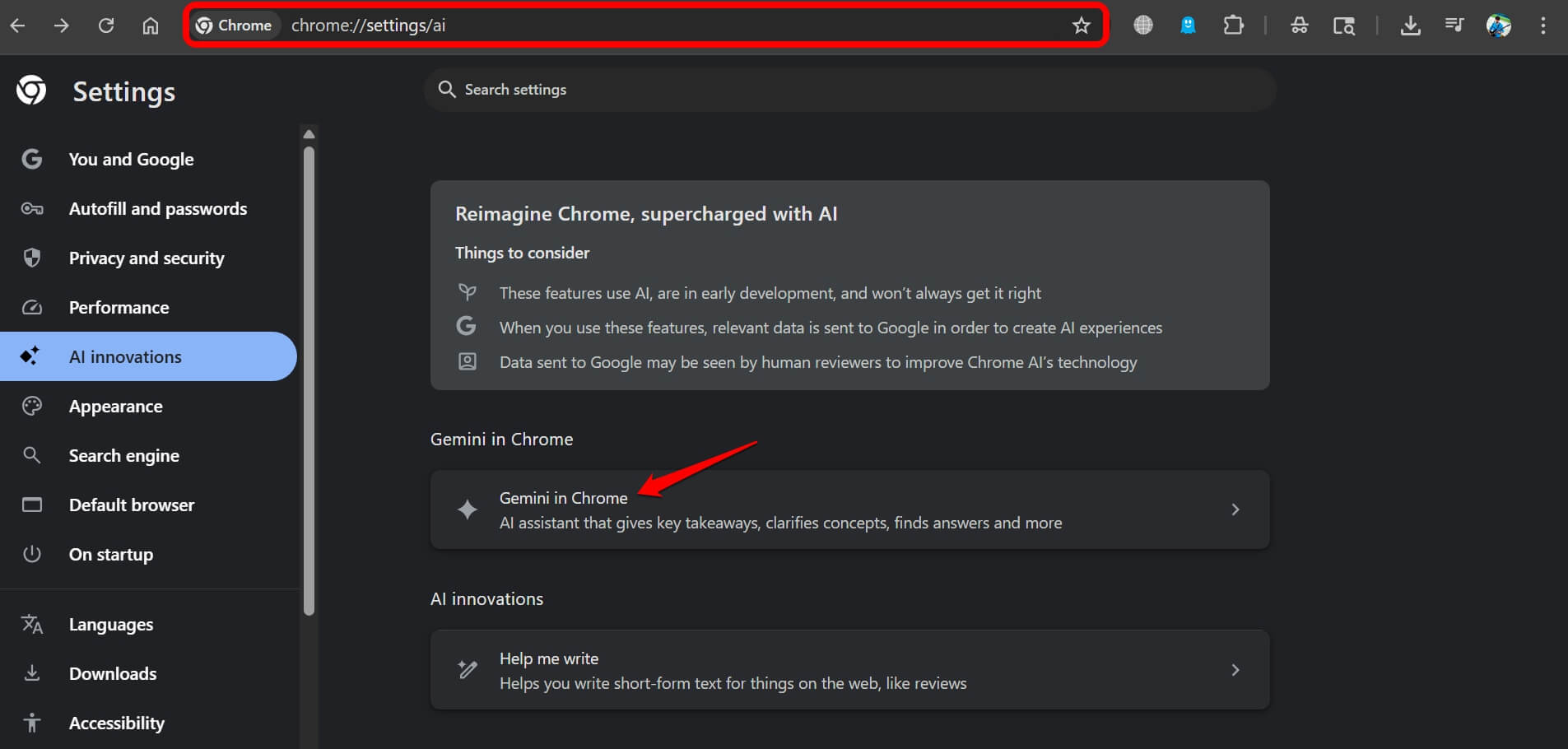
Our full guide on why I disabled Gemini in Chrome covers every setting and what actually disappears when you turn each one off.
Gemini in Chrome adds real value for tab summarization on long documents. For everyday browsing, the side panel creates more interruptions than it resolves.
What do I actually keep on?
After running all of this for several months, here is where I land.
Gmail AI Overviews are on. They work, they save time, and they do not interfere with anything. The writing assistance is off because it requires too much editing to be worth the prompt overhead.
Gemini in Docs is on when I’m starting a new document or working through a draft that needs structural help. I close the panel during the actual writing.
Google Photos AI tools are fully on and worth the default-on status. Magic Eraser alone is worth keeping active.
The Android overlay stays on, but I’ve remapped my power button behavior to reduce accidental triggers. The overlay is useful enough in specific situations that turning it off entirely would be a net loss.
Gemini in Chrome is off. The use cases that would justify it exist, but they do not happen often enough in my browsing to warrant the permanent presence.
None of this is permanent.
Google updates these features frequently, and something that creates friction today may be the thing I rely on in six months.
This is the honest state of Gemini across the Google ecosystem in 2026: some of it has earned its place, some of it is still finding out what its place is, and you are not obligated to keep any of it on by default.
If you have been thinking about switching back to Google Assistant on Android specifically because Gemini handles quick tasks worse, our guide on reverting from Gemini to Google Assistant covers how to do it and whether the option will stay available.
Frequently asked questions
Is Gemini in Gmail worth keeping on?
Yes, specifically the AI Overview thread summarization. It accurately synthesizes long email threads and saves meaningful time on busy inboxes. The reply drafting is less reliable and typically needs significant editing.
Can I turn off Gemini in Chrome without affecting Gmail or Google Photos?
Yes. Gemini in Chrome is controlled through chrome://settings/ai and is entirely separate from Gemini features in Gmail, Google Photos, and other Google apps, which have their own settings.
Is the Google Photos AI editing free?
Magic Eraser, Photo Unblur, Portrait Light, and 10 monthly Magic Editor saves have been free for all Google Photos users since May 2025. Some advanced generative editing features and higher limits require a Pixel device or a Google AI Pro subscription.
Is Gemini on Android better than Google Assistant for everyday tasks?
For conversational queries and cross-app lookups, Gemini is stronger. For quick device actions like setting timers or controlling smart home devices, Google Assistant was faster. Google intends to replace Assistant with Gemini entirely, though the switch-back option still works as of early 2026.
Does Google Gemini in Docs work without a paid subscription?
Basic features like Help me write are available to Google Workspace users on eligible plans. The upgraded Help me create experience and Match writing style tools are currently available to Google AI Pro and Ultra subscribers, with usage limits applying after June 2026.
Which Gemini feature across all Google apps is most worth using?
Google Photos AI editing is the most consistently useful and the most underused. Gmail thread summarization is the most immediately practical for anyone with a high-volume inbox. Gemini in Chrome has the weakest case for staying on by default.