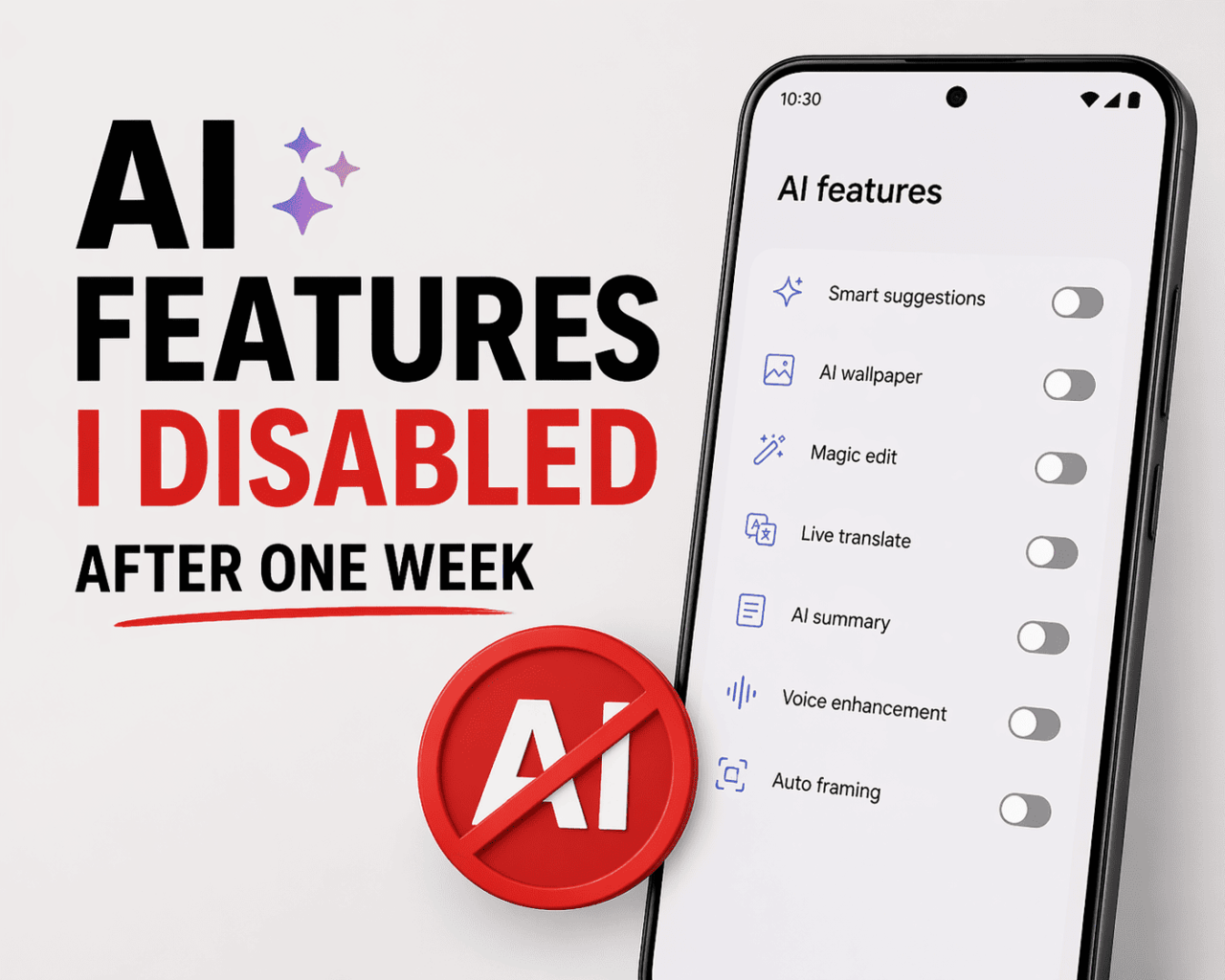
Android phones in 2026 ship with more AI features than most people will ever use.
Every OEM has its own suite, Google has Gemini woven through nearly every app, and Samsung has a dedicated Galaxy AI menu with a dozen toggles.
Most of this landed on my phone without me asking for it. I gave each feature a fair try. That matters because dismissing something after one tap is not the same as living with it for a week and deciding it does not fit.
These AI features are the ones that did not make the cut, what each one actually did, and exactly where to turn them off.
1. Circle to Search triggering while scrolling
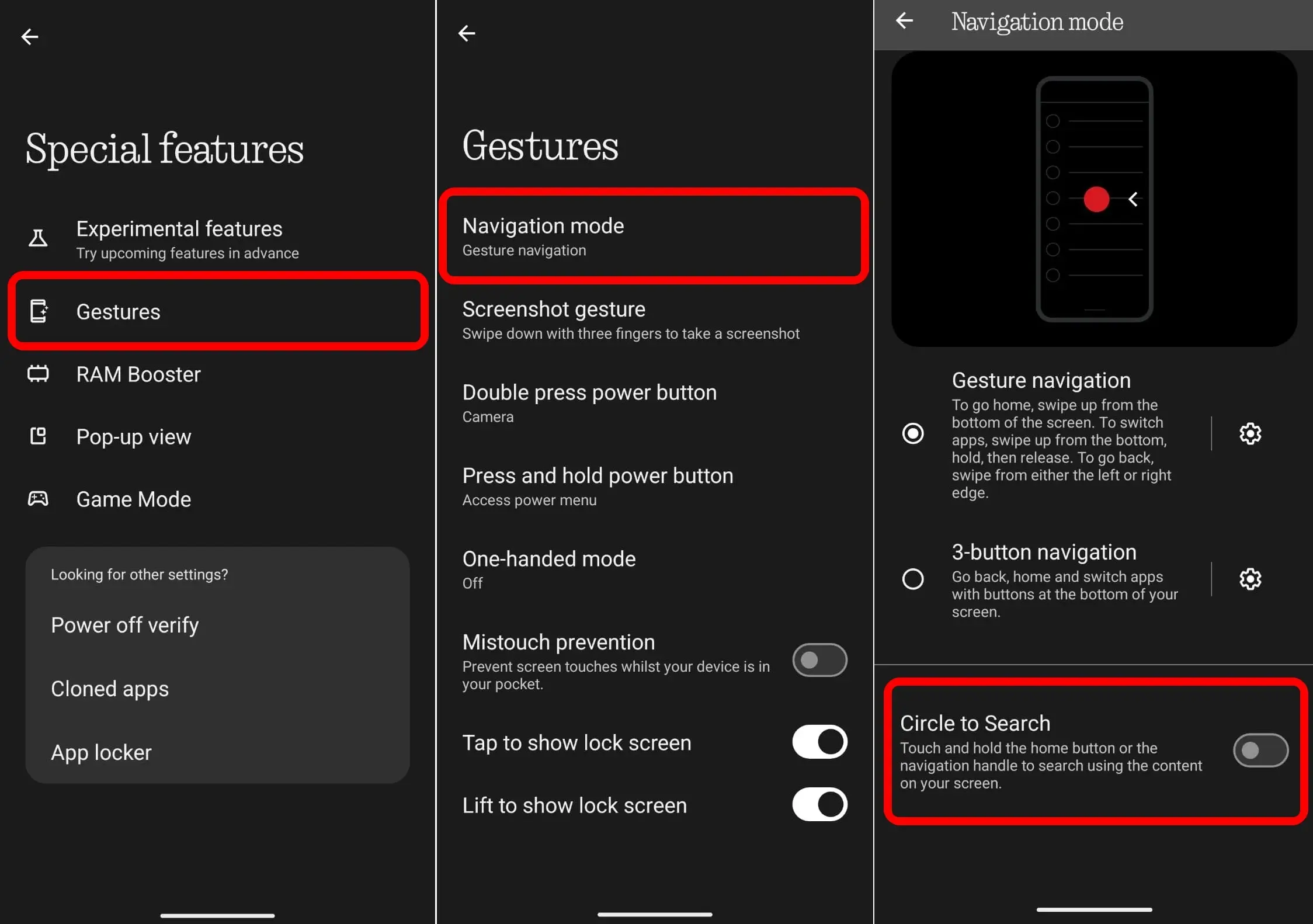
The idea was simple: hold the home button or navigation bar, draw around anything on screen, and get instant search results.
What actually happened was that I kept triggering Circle to Search as I scrolled. The gesture threshold is low enough that a slightly extended swipe on the nav bar launches the overlay, which then sits over whatever I was reading.
After the fifth accidental trigger in two days, I turned it off. The feature is genuinely useful in controlled moments, but in normal use, it becomes noise.
On your Android device, go to Settings > Special Features > Gestures > Navigation Mode > toggle off Circle to Search.
Pixel users can go to Settings > System > Navigation mode > toggle off Circle to Search.
Samsung users can turn off Circle to Search in the One UI by going to the Settings > Display > Navigation bar > turn off Circle to Search.
2. Gemini replacing Google Assistant
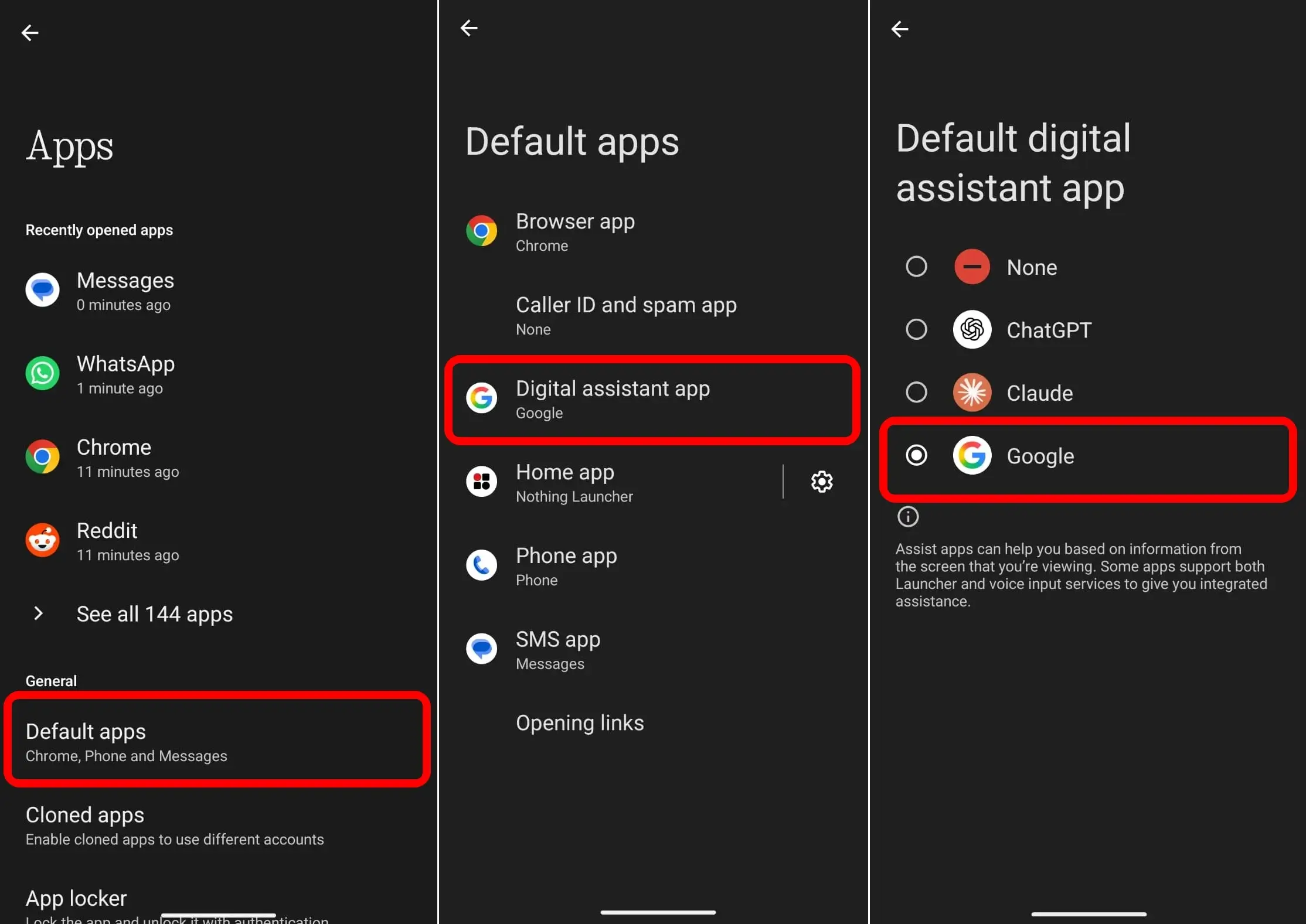
Gemini became the default assistant on my phone after a system update, without a prompt or confirmation.
I had expected a smarter version of the same thing. What I got with Google Gemini was a different thing entirely.
Gemini is a conversational AI, not a task executor. It does not handle my alarms, does not control smart home devices the same way, and does not drop cleanly into the middle of a call to set a reminder. Those are things I use the assistant for every day.
Switching back is straightforward. On Pixel, open the Gemini app > tap your profile photo, and select Switch to Google Assistant.
On other Android devices, go to Settings > Apps > Default apps > Digital assistant app and select Google from the list.
Note that Google has been moving to replace Google Assistant entirely with Gemini. The switch-back option still works as of early 2026, but its long-term availability is not guaranteed.
3. AI suggested replies in Google Messages
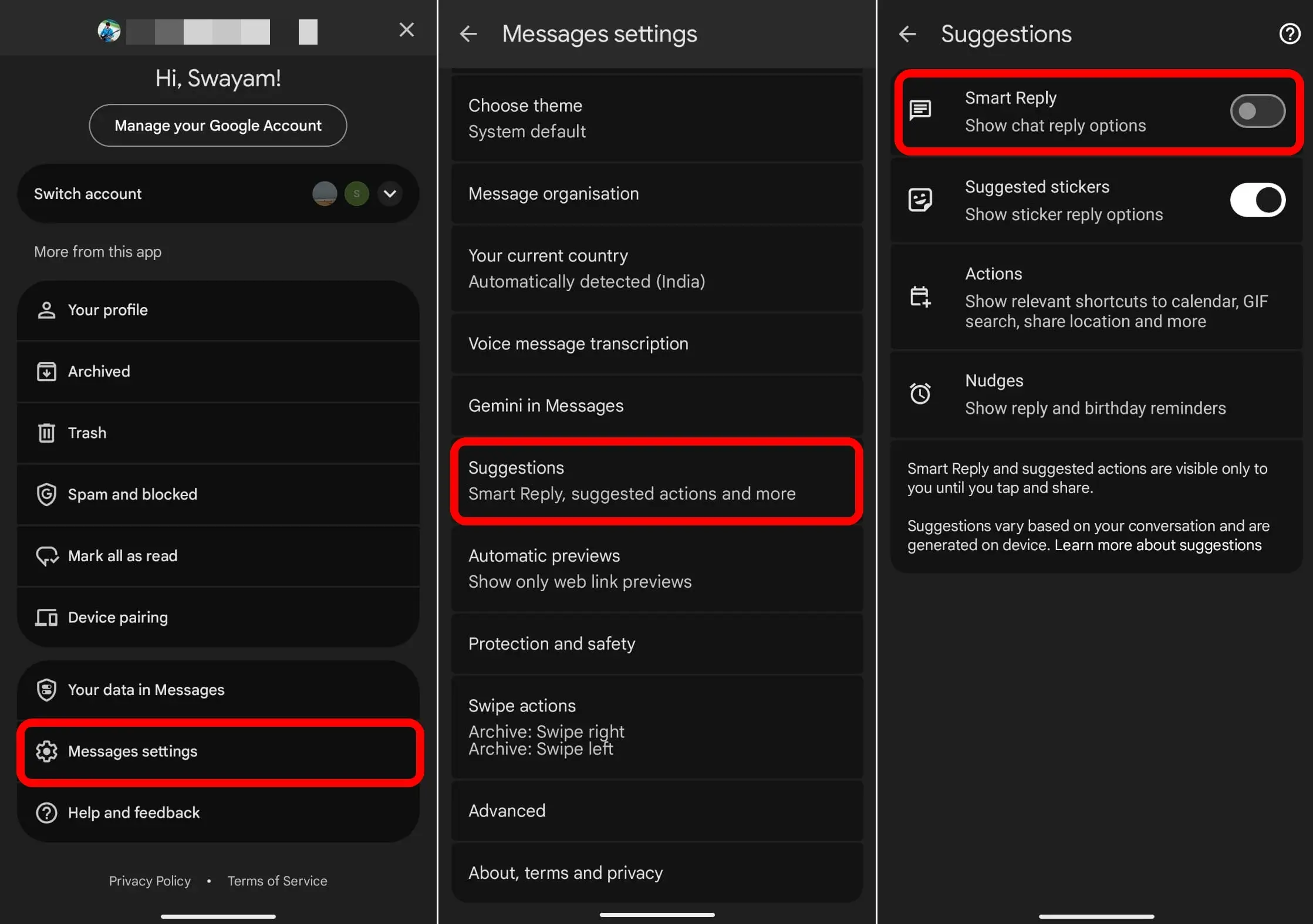
Smart Reply in Google Messages shows small reply chips above the keyboard, like “Sounds good” or “On my way.” They appear automatically on incoming messages.
The replies themselves are fine. The problem is they appear on almost every message, including conversations where a response is tonally wrong.
A message from a family member about something serious does not need “Got it!” floating above the keyboard.
I turned it off on my Android device through these steps: open Google Messages, tap your profile photo, go to Messages settings, then Suggestions, and disable Smart Reply.
On Samsung devices running One UI, the setting is at Settings > Advanced features > Labs > Suggested replies.
4. Galaxy AI photo assist suggestions in Gallery
On my Samsung device, the Gallery app shows a Photo Assist icon on every image. Tap it, and you get suggestions for removing objects, remastering the shot, or applying generative edits.
The icon is persistent and sits in the editing toolbar regardless of whether the photo needs any of that.
I do not need generative editing suggestions on a screenshot or a receipt photo. The icon being present on everything made the Gallery feel like a store demo rather than a personal photo viewer.
To disable Photo Assist: Settings > Galaxy AI > Photo Assist > toggle off the AI feature.
This removes the Photo Assist icon from the Gallery editing toolbar. The Generative Edit and Sketch to image features go with it. Other Gallery editing tools remain untouched.
5. Now Brief on the Lock Screen (Samsung One UI)
Now Brief is Samsung’s AI-generated summary card that appears on the lock screen. It pulls from your calendar, health data, and usage patterns to surface a morning brief, a midday check-in, and a few other touchpoints through the day.
The content was sometimes useful. The problem was placement.
Now Brief sits inside the Now Bar on the lock screen, and on some days, it covers my media playback controls entirely. I could not pause a song or skip a track without first dismissing the Brief card.
Several users in Samsung community threads have reported the same issue, with one describing it as blocking music controls they rely on every morning.
To remove it from the lock screen, follow these steps: Settings > Lock screen and AOD > Now Bar > scroll down and toggle off Now Brief.
NOTE: The Now Brief feature is not fully disabled this way. It can still be accessed through a home screen widget. The setting only removes it from the Now Bar on the lock screen, which is the part that caused the interference.
6. Gemini Button in Google Messages
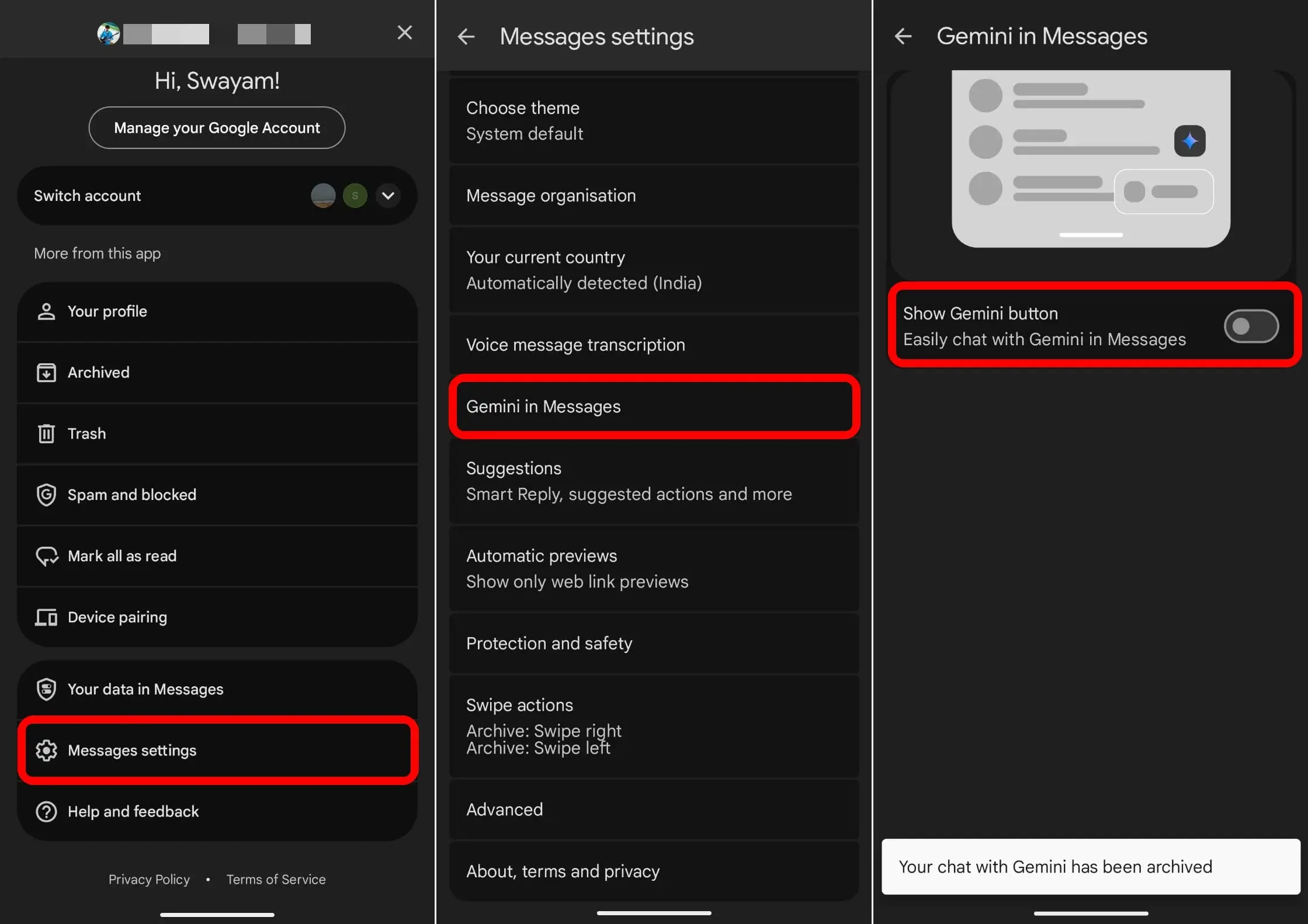
A floating Gemini button appeared inside my Google Messages conversations. Tapping it opens the Gemini assistant in a side sheet within the app, where you can ask questions or get help drafting a reply.
The concept is not bad. But the button sits close to the text input area, and I tapped it by accident more than I tapped it intentionally.
Opening a full AI panel when you meant to tap the attach button interrupts the flow of a conversation.
To remove it: open Google Messages, tap your profile photo, go to Messages settings, select Gemini in Messages, and toggle off the Show Gemini button.
7. AI Overviews in Google Search
This one is not a phone-specific feature, but it affects every search you do on your Android phone through the Google app or Chrome.
AI Overviews generate a synthesized answer at the top of search results. For simple factual queries, they are occasionally useful.
For anything involving nuance, recent events, or technical specifics, they have produced wrong answers in my experience and in widely documented cases since the feature launched in 2024.
The cleaner fix is switching your default search to Google Web mode, which bypasses AI Overviews entirely.
In Chrome on Android, visit tenbluelinks.org, run any search from there, then go to Chrome Settings > Search engine and select Google Web from the Recently visited section.
For a detailed workaround, including how to set it up on a desktop too, the full guide on disabling Google AI Overviews covers everything step by step.
8. Hold the power button to open Gemini (Pixel)
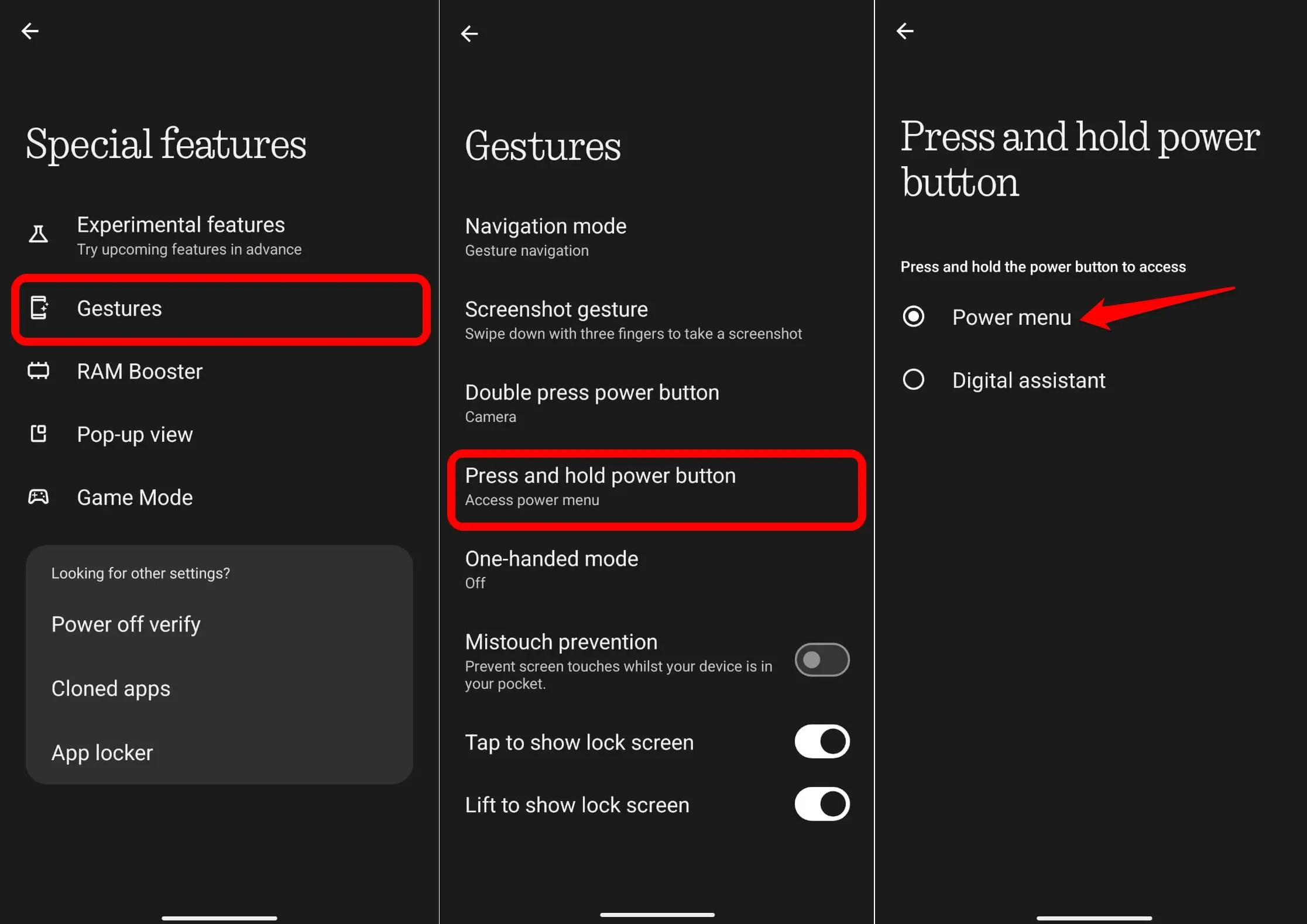
On Android devices, holding the power button activates the default digital assistant.
After Gemini became the default on my device, holding the power button opened Gemini instead of the power menu.
I found myself accidentally launching Gemini when I was trying to restart or power off the phone quickly.
The power menu is a safety function. Having an AI chatbot open instead was disorienting.
To fix it, I followed these steps: Settings > System > Gestures > Press and hold power button > change the selection from Digital assistant to Power menu.
9. Magic Cue on Pixel
Magic Cue is a Pixel-specific feature that reads context from your screen during calls and activities, then surfaces relevant information.
The idea is that if you are on a phone call with a restaurant, it might show your reservation details automatically.
In practice, the hit rate was inconsistent. During a week of use, it surfaced useful context twice and showed nothing relevant five or six times when I expected it to.
The feature runs in the background and accesses your screen content continuously to do this, which felt like a disproportionate trade-off for occasional usefulness.
To disable it: Settings > Magic Cue > toggle off Use Magic Cue.
TIP: You can disable each sub-feature individually or turn off the main toggle to stop all of them.
10. AI-powered search in Pixel screenshots
The Pixel Screenshots app indexes your captured screenshots using on-device AI, then lets you search them by describing what was on screen rather than browsing thumbnails.
That is a reasonable feature in isolation. The issue is that it processes every screenshot you take, including anything sensitive, like banking confirmations, OTPs, or personal messages captured for reference.
The processing is on-device, not cloud-based, but the idea of an AI model continuously reading through my screenshot library was enough for me to turn it off.
To turn off the feature: open the Pixel Screenshots app, tap the gear icon in the top-right corner, and toggle off Search your screenshots with on-device AI.
Which AI features do I still use?
Not everything got turned off.
Live Caption is still running. Magic Editor in Google Photos is still on because the object eraser saves time on shots I actually want to keep. Call Screen on Pixel still handles suspected spam calls.
The point is not to remove AI from a phone. It is to stop the features that create friction rather than reduce it.
Most of these are easy to re-enable if your workflow changes. The settings paths above should stay consistent unless a major One UI or Android update shifts them.
Frequently asked questions
Will these settings stay off after a system update?
Most will, but it is worth double-checking after major OS updates. Some features have been reported to re-enable after updates, particularly Gemini-related settings on Pixel devices.
Can I switch back from Gemini to Google Assistant permanently?
You can switch back using Settings > Apps > Default apps > Digital Assistant app, but Google has confirmed it intends to fully replace Google Assistant with Gemini across Android devices. The switch-back option exists as of early 2026 but may not be available indefinitely.
Does disabling Circle to Search remove it completely?
No. Toggling it off stops it from activating on the nav bar, but Circle to Search remains installed as part of the system. You cannot uninstall it on supported devices.
Does turning off Now Brief on the lock screen also disable the widget?
No. Removing Now Brief from the Now Bar only stops it from appearing on the lock screen. The Now Brief home screen widget continues to function if you have it placed on your home screen.
Is the Gemini button in Messages the same as Gemini replacing Google Assistant?
They are separate. The Gemini button in Messages is a feature within the Google Messages app, while Gemini replacing Google Assistant affects the system-wide assistant that activates on the home button or power button. Both can be toggled independently.
Does disabling AI Overviews also disable AI Mode in Google Search?
No. AI Overviews and Google AI Mode are separate features. Switching to Google Web mode removes AI Overviews from results, but AI Mode is a distinct search experience that requires its own setting to disable, currently accessible through Google Labs.