Quick Summary
With the legacy manifest flag, you can reinstall the uBlock Origin extension on Google Chrome that was turned off due to the MV2 manifest error.
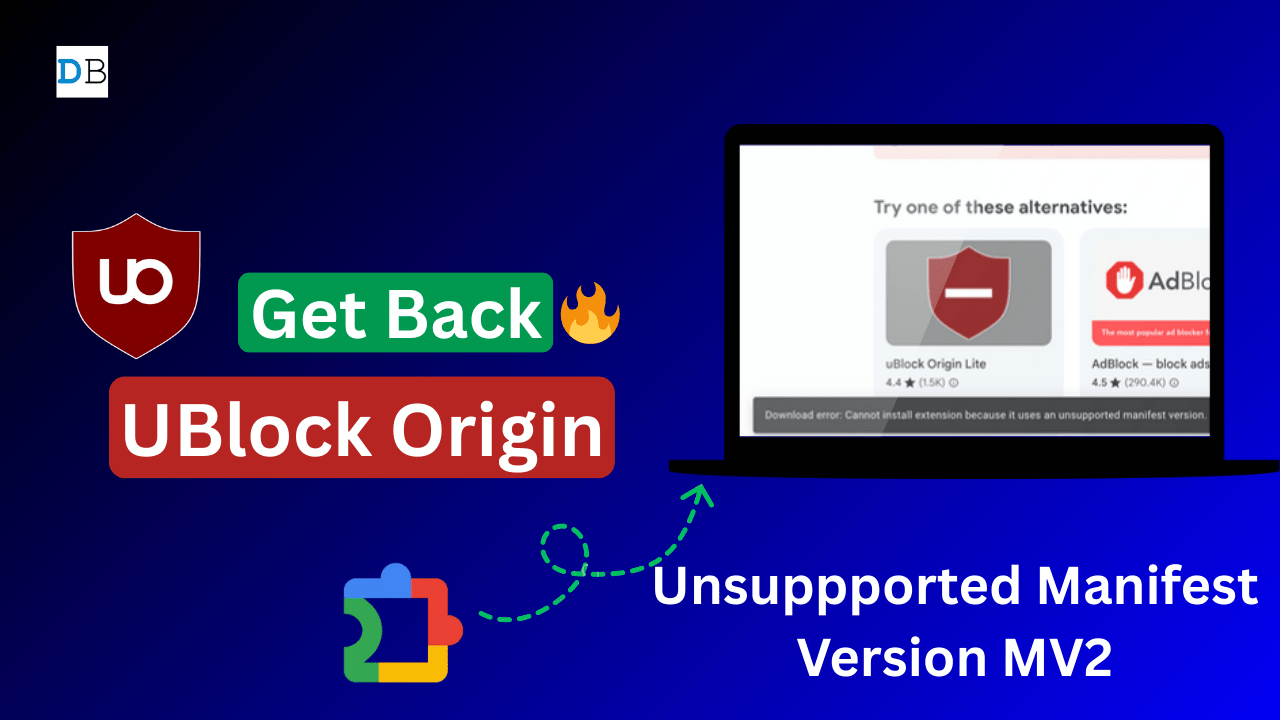
In one of the posts, I talked about my fondness for uBlock Origin as my primary adblock extension. But with recent news of Chrome Web Store removing support for uBlock Origin (uBO) due to Google’s move towards a modern extension platform with Manifest V3.
uBO works on older MV2, which Google says will be deprecated by August 2025w with the release of Chrome 139. Many users where looking for option to add back the extension as it was forcibly turned off. I have found a solution that works and you can enjoy the ever popular uBO on your chrome as of now. Follow the simple step-by-step guide below.
Steps to Re-add uBlock Origin to Google Chrome
You can watch this YouTube video I made on the same issue, or head over to the steps that are simple and provide a quick fix.
![uBlock Origin Disabled? Get It Back on Chrome | Re-Enable Extension 🚀 [100% Work]](https://www.digitbin.com/wp-content/plugins/wp-youtube-lyte/lyteCache.php?origThumbUrl=https%3A%2F%2Fi.ytimg.com%2Fvi%2Fft5hYVP65F8%2F0.jpg "How to Get uBlock Origin Back on Chrome? Fix Manifest V2 Error 2")
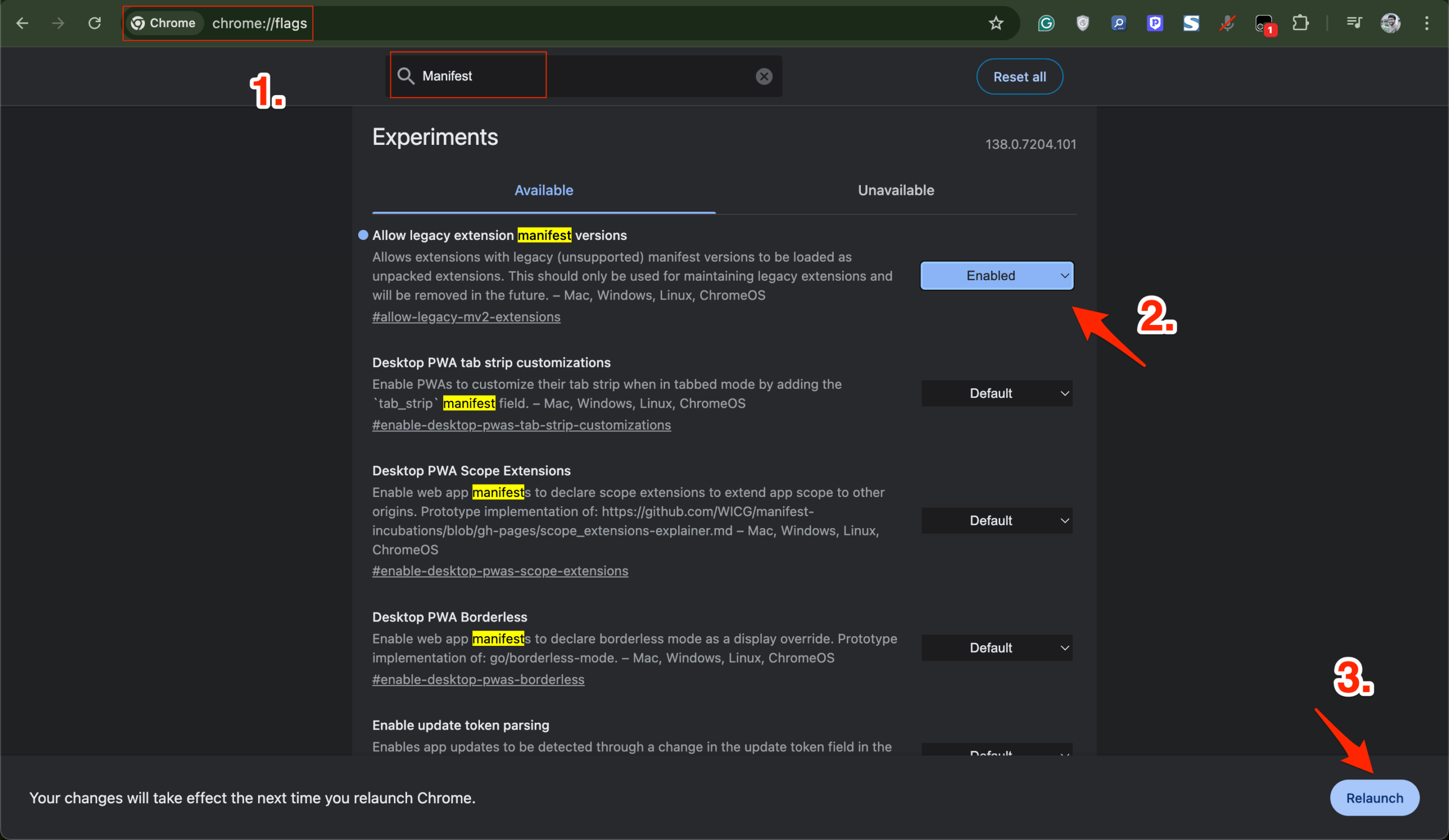
- In the Chrome Omni box, type chrome://flags and hit Enter.
- This opens experimental Chrome features called Flags and search for Manifest.
- Here, look for a flag named Allow legacy extension manifest versions.
- Click on the drop-down menu, select Enabled, and click Relaunch.

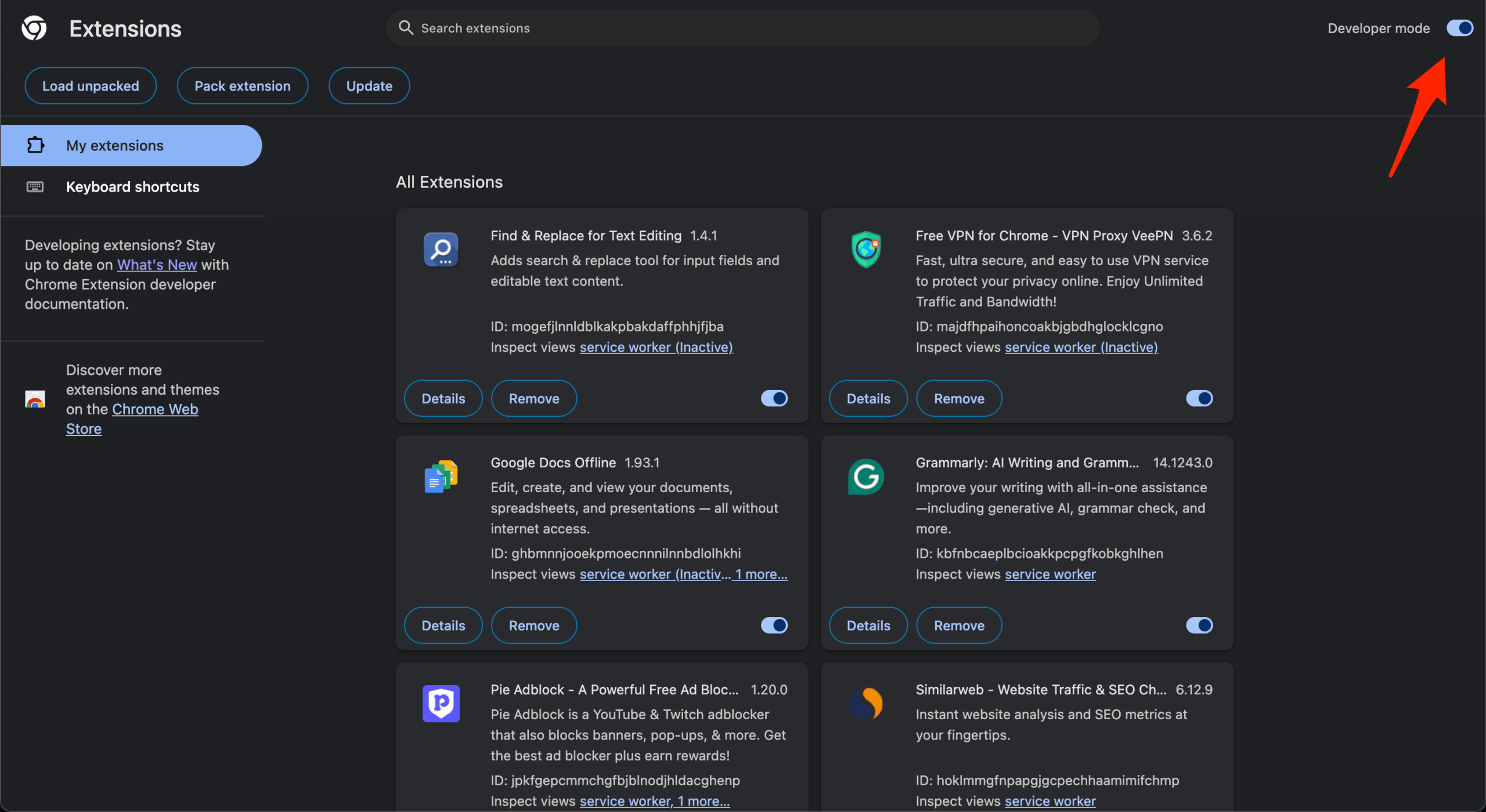
- Once the browser restarts, type chrome://extensions to go to the Chrome extension manager page.
- Here, make sure to enable Developer mode on the top right.

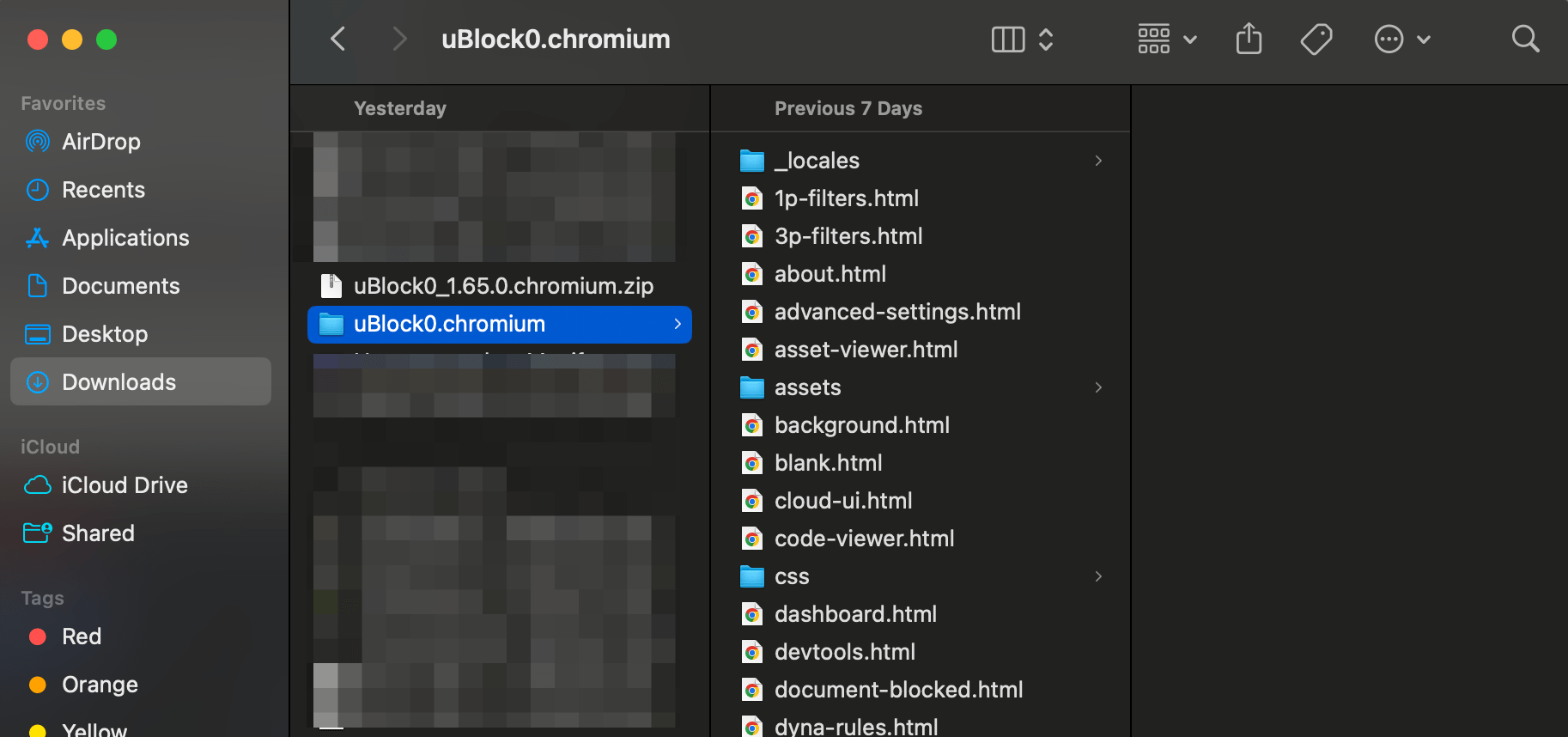
- Now open the Ublock Origin GitHub release page—under assets, click on Ublock Origin Chromium zip to download the zip file.


- Extract the zip file, and you will see the uBlockO Chromium folder.

- On the Chrome extension page, click on Load Unpacked and select the extracted folder.
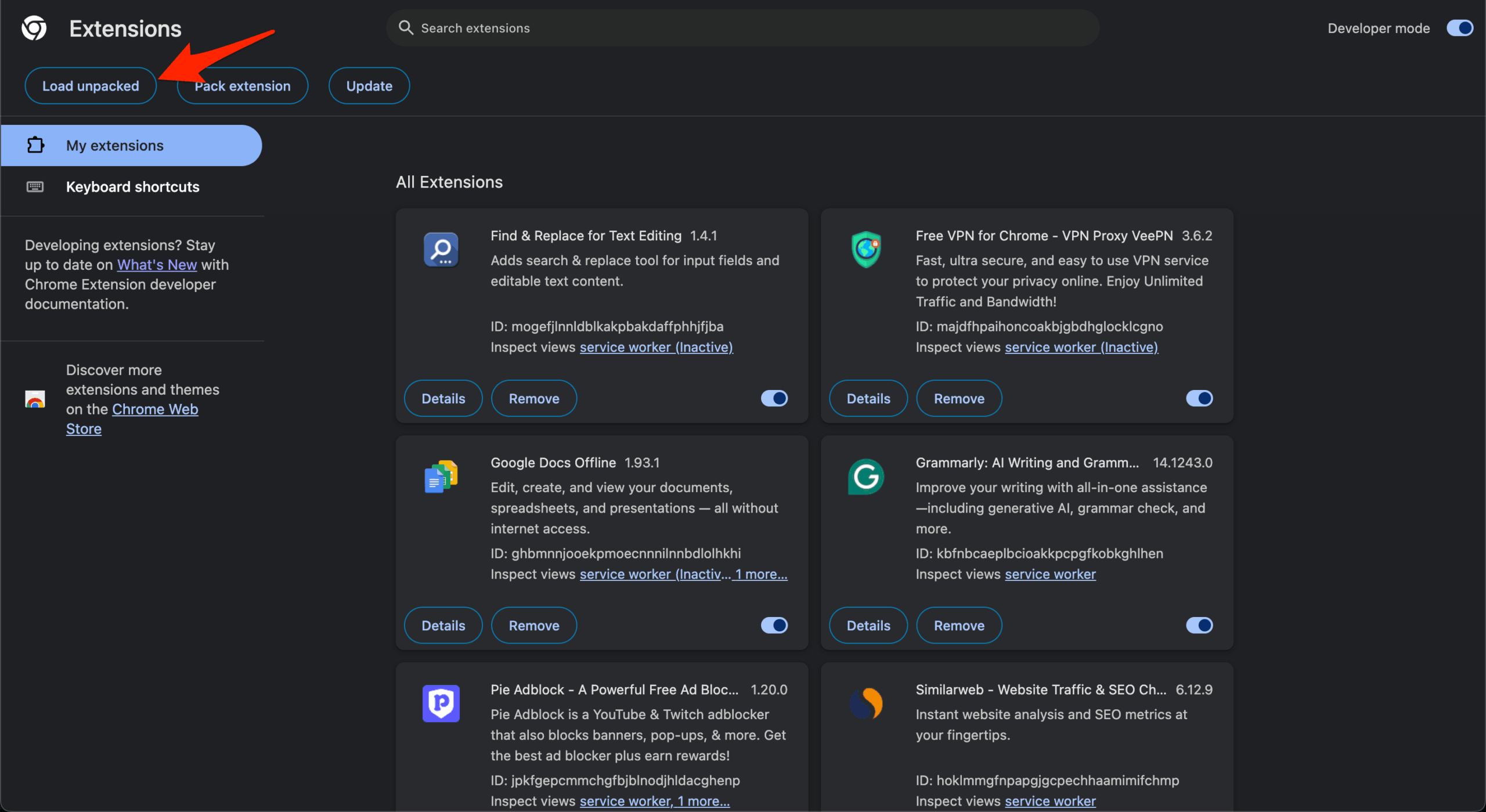
- Boom! The uBO extension is installed on your Chrome browser and added to the toolbar.
Conclusion
This simple yet useful flag is what presently works for the uBlock Origin, as the extension support on Chrome is coming to an end. But you can still try uBO Lite and an alternative extension built by the same team which incoporates the Chrome’s latest MV3 rules.