Recently, my cousin came to me complaining that her Apple Watch screen turned green. She told me before turning completely green, the wearable from Apple was running completely fine. She said that a lighter shade of greenish tint appeared on the screen, yet the screen content was visible, and she could use it until a day later, when the display turned entirely green.
I searched various tech forums to understand the Apple Watch Green Screen of Death issue. Turns out that the green screen of death normally occurs on an Apple Watch if it came in contact with water (more than the usual limit), damaging the screen badly.
While I had my cousin’s Apple Watch with me, I tried a variety of troubleshooting methods, which I thought I would share through this article with other Apple Watch users who may be having a hard time understanding how to fix the green screen of death.
Possible Reasons for Apple Watch Green Screen of Death
Primarily, if your Apple Watch was submerged in water for a prolonged period, the water seeping inside the display panel can damage it. Secondly, if the Apple Watch were subjected to a fall on a harder surface, the display could be damaged internally.
Sometimes, a buggy watchOS update can also cause several technical snags on the Apple Watch. One of them is the notorious Apple Watch battery drain issue, which can be fixed.
Tips to Fix the Apple Watch Green Screen of Death
I tried some tips and tricks to revive my cousin’s Apple Watch from the green screen of death. Also, I visited several tech forums to seek advice from other Apple Watch users. Most likely, everyone suggested replacing the display or upgrading to the latest Apple Watch.
Depending on what works for you, check out these troubleshooting tips that may help you fix the green screen problem on your smartwatch.
Enable Sleep Focus Mode
When I was on Reddit trying to find a possible solution for the Apple Watch green screen of death, I found a solution shared by a Redditor.
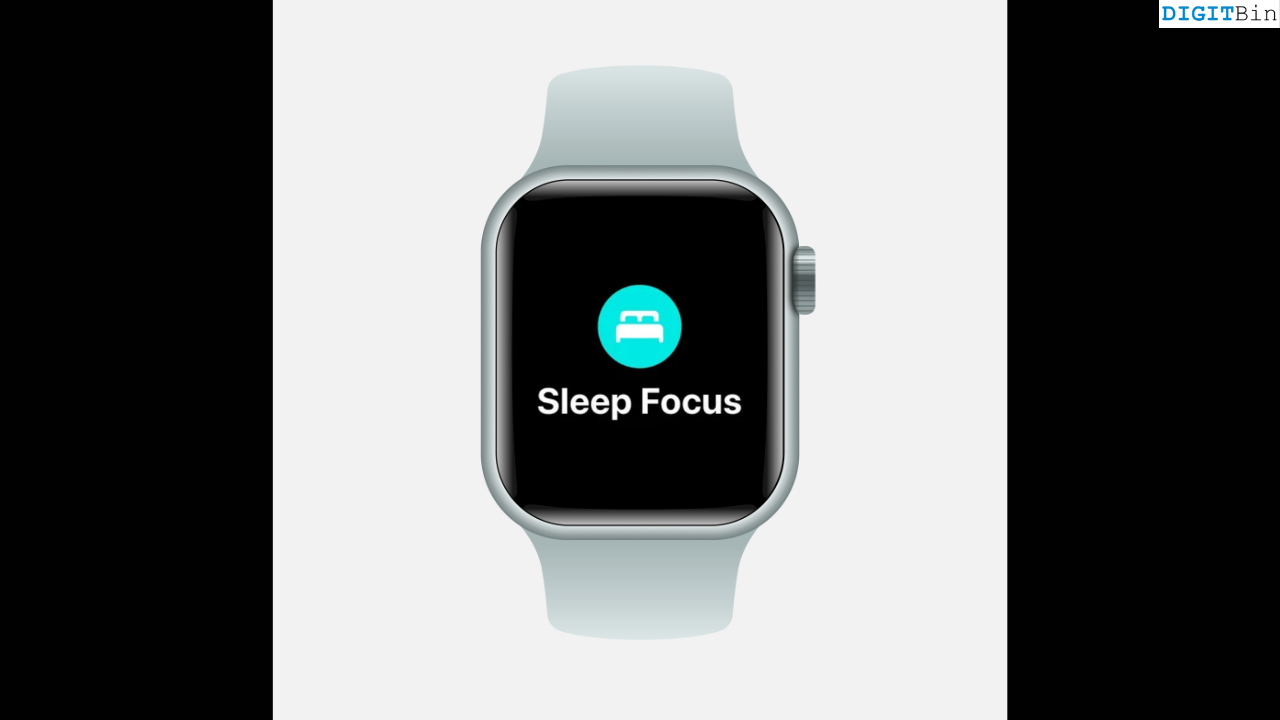
He suggested that enabling the Sleep Focus mode got rid of the green screen issue; however, it was a temporary fix. Turning off the sleep focus mode would bring back the green screen on the Apple Watch display. In my opinion, there is no harm in trying this hack.
Follow these steps to enable the sleep focus mode on your Apple Watch.
- Press the side button of the Apple Watch to view the Control Center.
- Scroll to the focus icon denoted with the Moon symbol and tap on it to view the various Focus options.
- Go to Sleep Focus and tap on it to enable.

Drain out the Battery of the Apple Watch
Let the existing battery charge on your Apple Watch drain, leading it to shut down. That will likely terminate any buggy system function in the watchOS, which may be causing the green screen issue.
Following that, set the Apple Watch to charge. Once the wearable is active, check if the green screen issue persists. Move on to the next troubleshooting if the display on your Apple Watch is still green.
Restart the Apple Watch
Simply, long-press the side button (one below the crown) of the Apple Watch and wait until the Apple logo flashes on the screen. That signifies the watch has rebooted, and you should check for the green color patch on the screen.
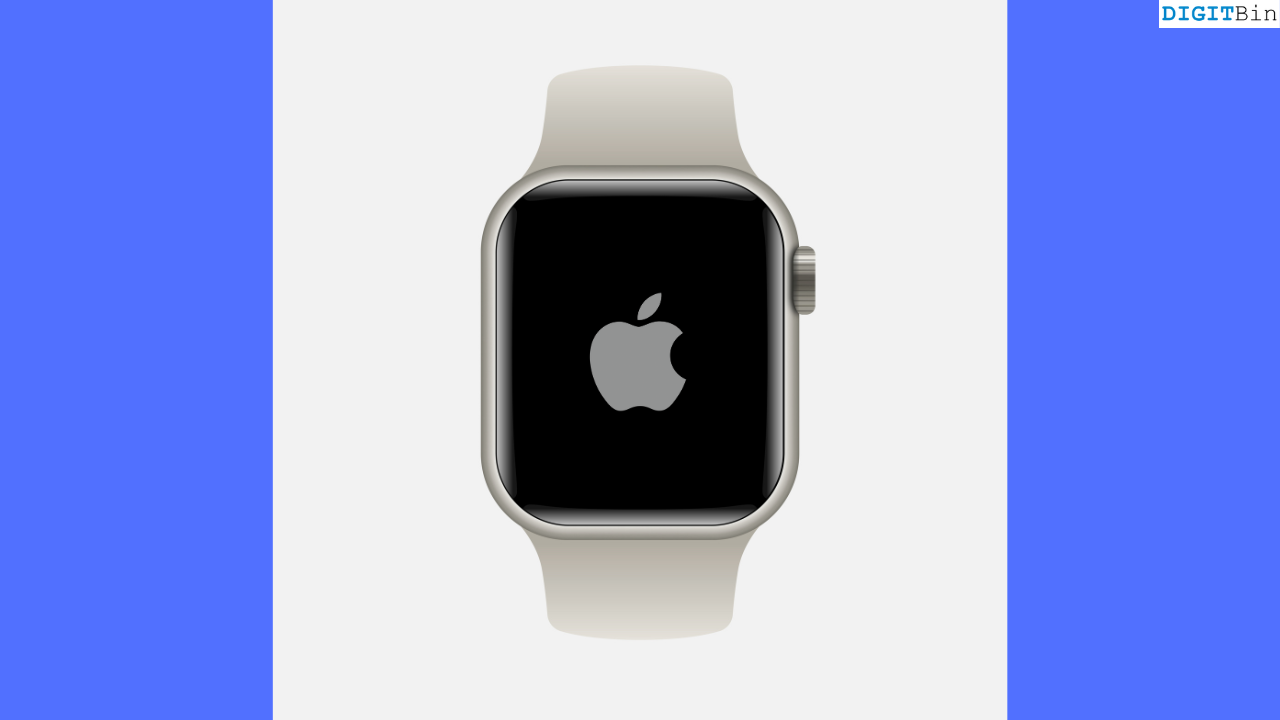
Often, a simple trick like restarting a device can kill any buggy system function on the device, which may cause temporary glitches on it.
Update watchOS
To fix any technical issue with the current version of watchOS on your Apple Watch, check for new updates.
- Access the Settings.
- Go to General > Software Update and tap it.
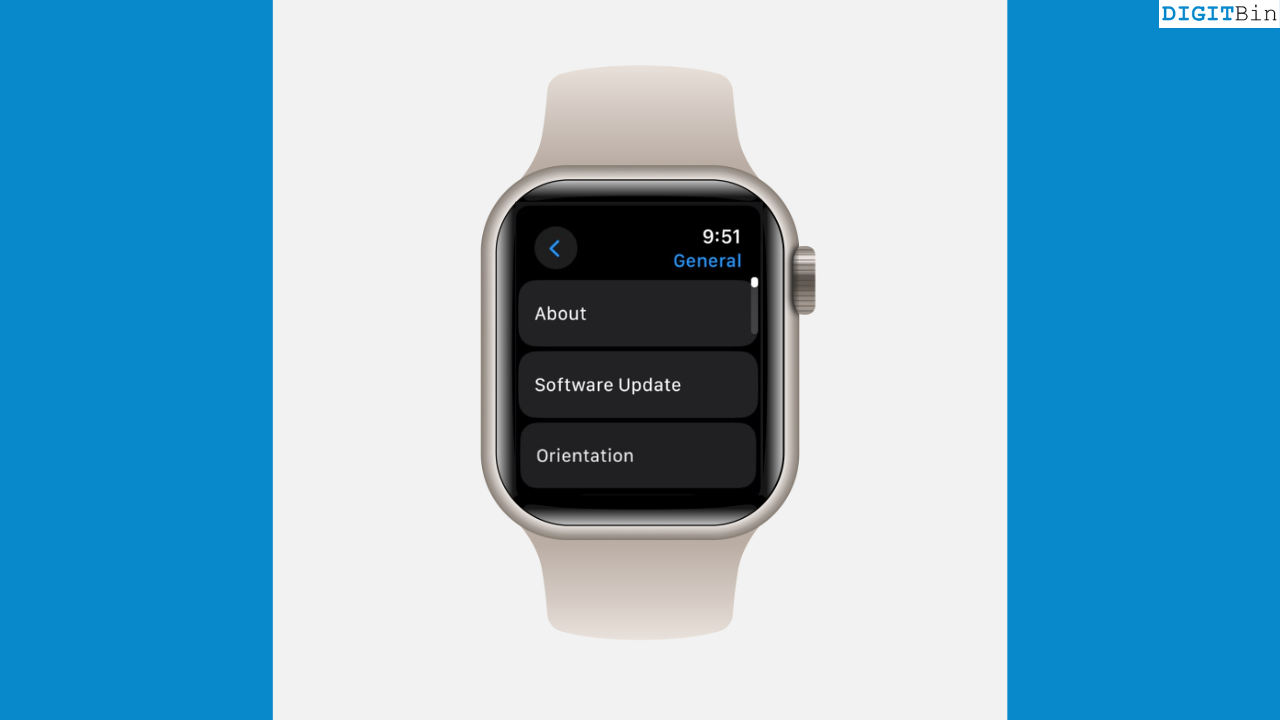
- Press Install if the latest watchOS build is available.
After installing the watchOS update, check if the Apple Watch display still has a green tint.
Factory Reset Apple Watch
When all other fixes fail, often a factory reset can do wonders for gadgets going through technical problems. To resolve the green display issue with the Apple Watch, you can factory reset it using these steps.
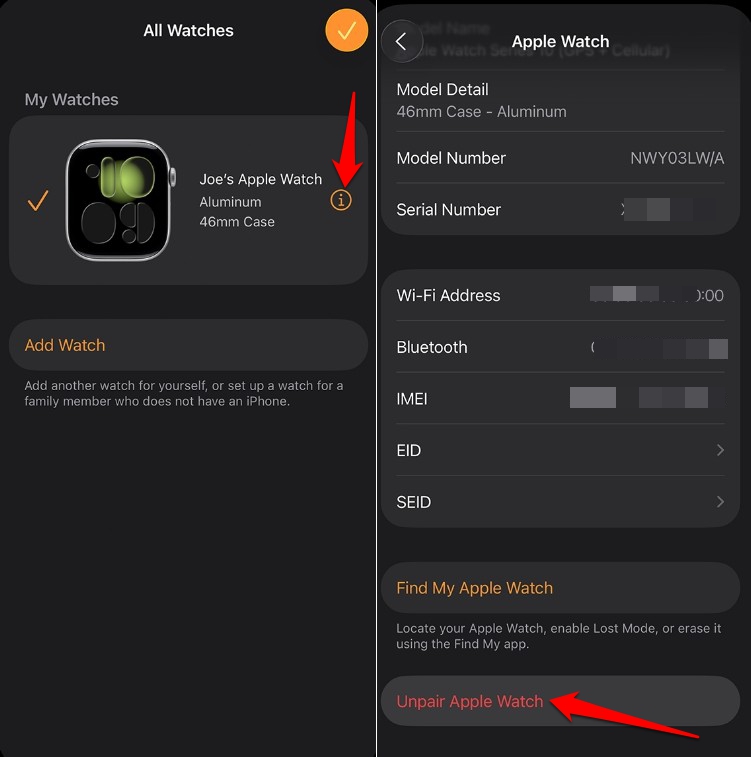
- Launch the Apple Watch app on your iPhone.
- Go to My Watch > All Watches.
- Tap the info button beside the Apple Watch name to unpair.
- Scroll down and press Unpair Apple Watch.

- Provide the email ID connected to the Apple account and its related password.
Next, turn on the Apple Watch and check if the green tint persists on the watch display.
Replace the Apple Watch Display
When any of the previously explained troubleshooting steps don’t solve the green screen of death, the last resort is to change the display of the Apple Watch. If you have Apple Care coverage, reach out to Apple Support and check if Apple can replace the display of your watch without you having to shell out money.

Other Apple Watch users on Reddit have stated that Apple would quote close to $200 for replacing the display of the Apple Watch, which is quite expensive. So, check with Apple Support if Apple Care can cover the screen replacement. If you don’t have an Apple Care plan, most likely you have to pay the amount Apple Service quotes to get the repair done.
Upgrade to the Latest Apple Watch
Replacing the display should be sufficient to mitigate the green screen of death issue on the Apple Watch. However, upon the unavailability of spare parts for the model of Apple Watch you are using, your next best step is to purchase the latest model of Apple Watch. You may check out the new Watch Series 11 launched by Apple.
Green Screen Death Sentence for Apple Watch
From the information that I gathered about the Apple Watch green screen of death, in most cases, the issue could not be fixed unless the display is entirely replaced. So, your best course of action is to get in touch with Apple Support to learn about the display change. If your affected Apple Watch is quite old, consider upgrading to a new available model.
If you've any thoughts on Can the Apple Watch Green Screen of Death be Fixed? These are the hacks I used, then feel free to drop in below comment box. Also, please subscribe to our DigitBin YouTube channel for videos tutorials. Cheers!