I recorded maybe six or seven video clips at a wedding one afternoon, each no longer than a minute or two.
By the time I checked my Google One storage that evening, those clips alone had used close to 3GB of my cloud space. That part is expected.
Google Photos backs up whatever your camera shoots straight out of the DCIM folder, automatically, no toggle needed. The part that actually frustrated me came after, when I tried to get that 3GB back without losing the videos off my phone.
TL;DR: Google Photos automatically backs up everything your camera records from the DCIM folder, which is normal and by design. The confusion starts when you try to delete for space. The regular delete button in the app removes a file from your phone and the cloud at the same time. To remove only the cloud copy and keep the file on your phone, you have to delete it from photos.google.com on a browser instead, not from the app.
DCIM backup is automatic, and video is what fills storage fastest
Every photo and video your camera app saves goes into DCIM by default, and Google Photos treats that folder as the one thing it always backs up, no setup required. This is the part of Google Photos that is working exactly as intended.
Video is what actually eats the space. A handful of short clips at a wedding added up to almost 3GB for me in a single afternoon, more than a fifth of the entire 15GB a free Google account gets, shared across Gmail, Drive, and Photos combined.
If you are already close to that ceiling, it is worth knowing what other Google Photos alternatives exist for overflow storage.
Deleting from the app removes it from your phone and the cloud together
I wanted the cloud copies gone to free up that 15GB, but I still wanted the actual wedding footage sitting on my phone.
So I opened Google Photos on my phone and hit delete on the clips. That was the wrong move.
Tapping the regular delete button in the Google Photos app, with backup turned on, removes the file from your device and from your Google account at the same time.
My phone storage dropped along with my cloud storage, which was the opposite of what I was trying to do.
How to delete from Google Photos without deleting from your phone
Deleting a backed-up photo or video from photos.google.com in a browser only removes the cloud copy. The file sitting on your phone stays exactly where it was.
According to a 9to5Google report citing Google’s own community guide, this is one of three distinct outcomes depending on where you tap delete, and Google felt it was confusing enough to publish an explainer about it.
I went back and deleted the same wedding clips again, this time from the browser on my laptop, and the videos on my phone did not move. It is simple to do.
- Go to photos.google.com
- Access the album/folder in which the videos are backed up.
- Hover over the video thumbnail to view a checkmark. Click it to select the video.
- Press the bin button at the top to delete the concerned file.
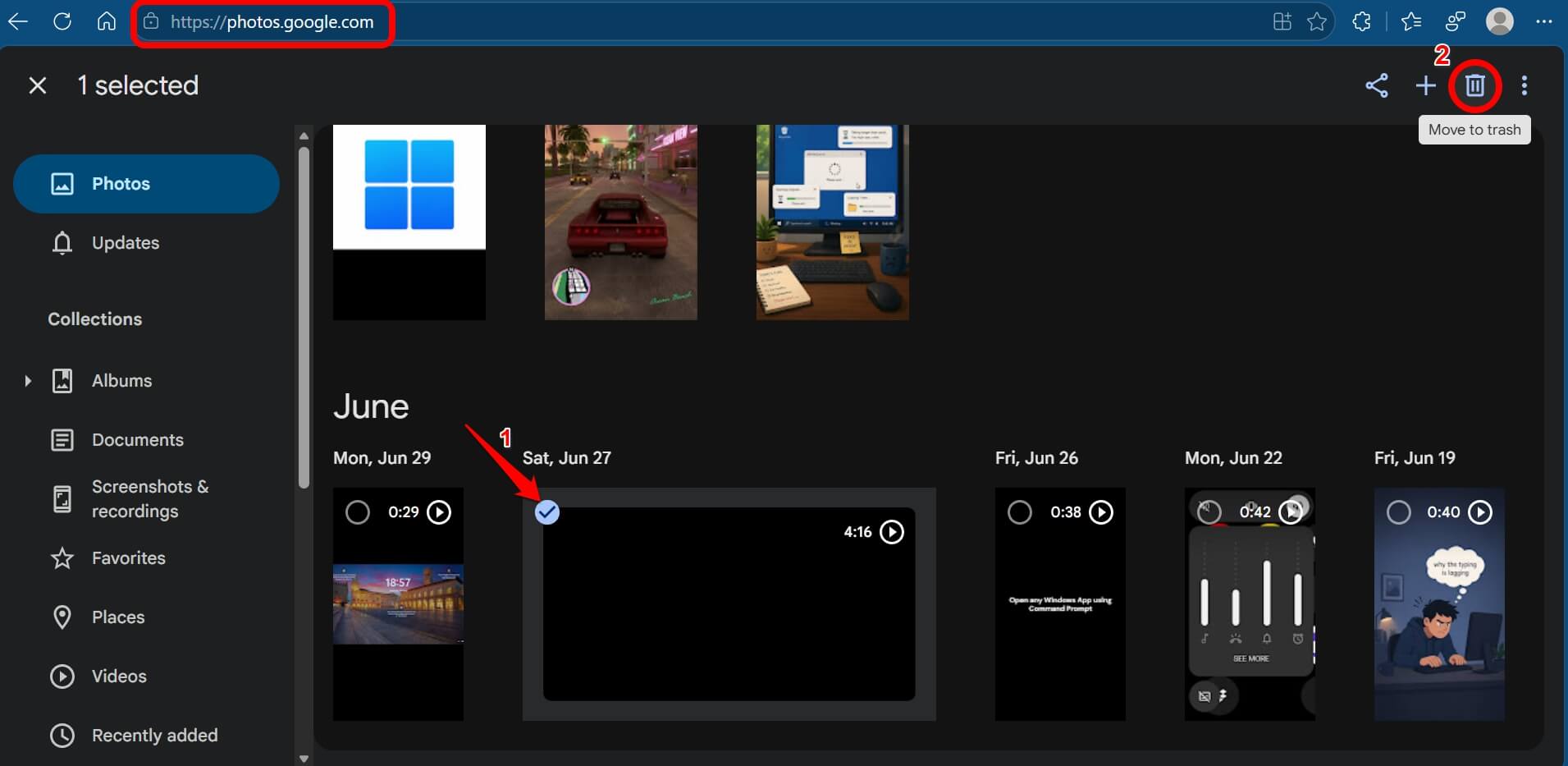

- Repeat that for any of the videos you may want to delete.
I did not need to turn off backup at any point to make this work, which is the part I had assumed going in.
There is also a device-only delete, for the opposite problem
If your phone storage is the tight one instead of your cloud storage, the Google Photos app has a separate “Delete from device” option in the overflow menu on an item, which removes only the local copy and leaves the cloud backup untouched.
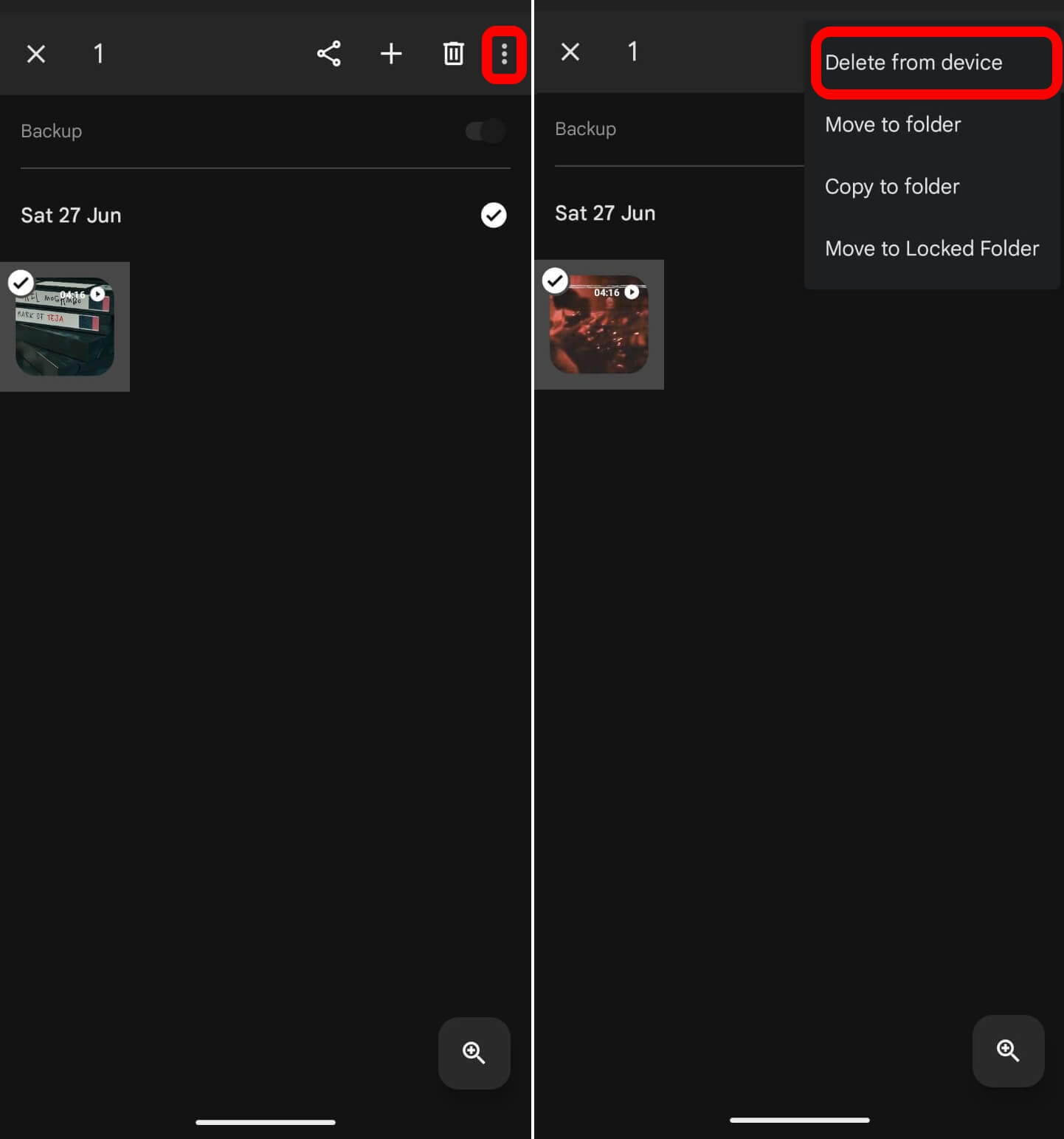
Between these two, the split is clean once you know it exists. Delete from the app to clear the phone. Delete from the website to clear the cloud.
The regular in-app delete button clears both at once, and that button looks identical regardless of which one you actually meant.
Anyone dealing with this across the whole 15GB pool might also want to compare other free cloud storage options before relying on deletion alone.
| Where you delete | What happens to your phone | What happens to the cloud |
|---|---|---|
| App, regular delete, backup on | File removed | File removed |
| App, “Delete from device” | File removed | File stays |
| Website, photos.google.com | File stays | File removed |
| App, regular delete, backup off | File removed | Nothing was there to begin with |

Frequently asked questions
Does Google Photos back up videos automatically like photos?
Yes. Anything your camera saves to the DCIM folder, photos or videos, backs up automatically with no separate setting needed.
Why did deleting a video remove it from my phone too?
The regular delete button in the Google Photos app removes the file from both your device and your Google account at the same time when backup is turned on.
How do I delete a video from Google Photos but keep it on my phone?
Delete it from photos.google.com on a computer browser instead of the app. That only removes the cloud copy and leaves the file on your phone untouched.
Do I need to turn off backup to do this?
No. Deleting from the website works without turning off backup at all, and turning backup off would stop your other photos and videos from uploading too.
How do I free up phone storage without losing my cloud backup?
Use the “Delete from device” option in the app, or the built-in “Free up space” feature. Both remove the local copy only and leave the cloud version alone.
The one habit that would have saved me the confusion
To put it simply, nothing needed a settings change in Google Photos or a workaround app. It required knowing that the delete button in Google Photos does not mean the same thing depending on where you tap it.
I still catch myself reaching for the app first out of habit when I actually want to clear cloud space, and I have to stop and open a browser instead. That one small correction is the whole fix.