Ask Gemini in Chrome stopped me from opening another tab. That sounds small. After a few weeks of using it through research-heavy workdays, it is the most accurate thing I can say about how the feature actually changed my browsing.
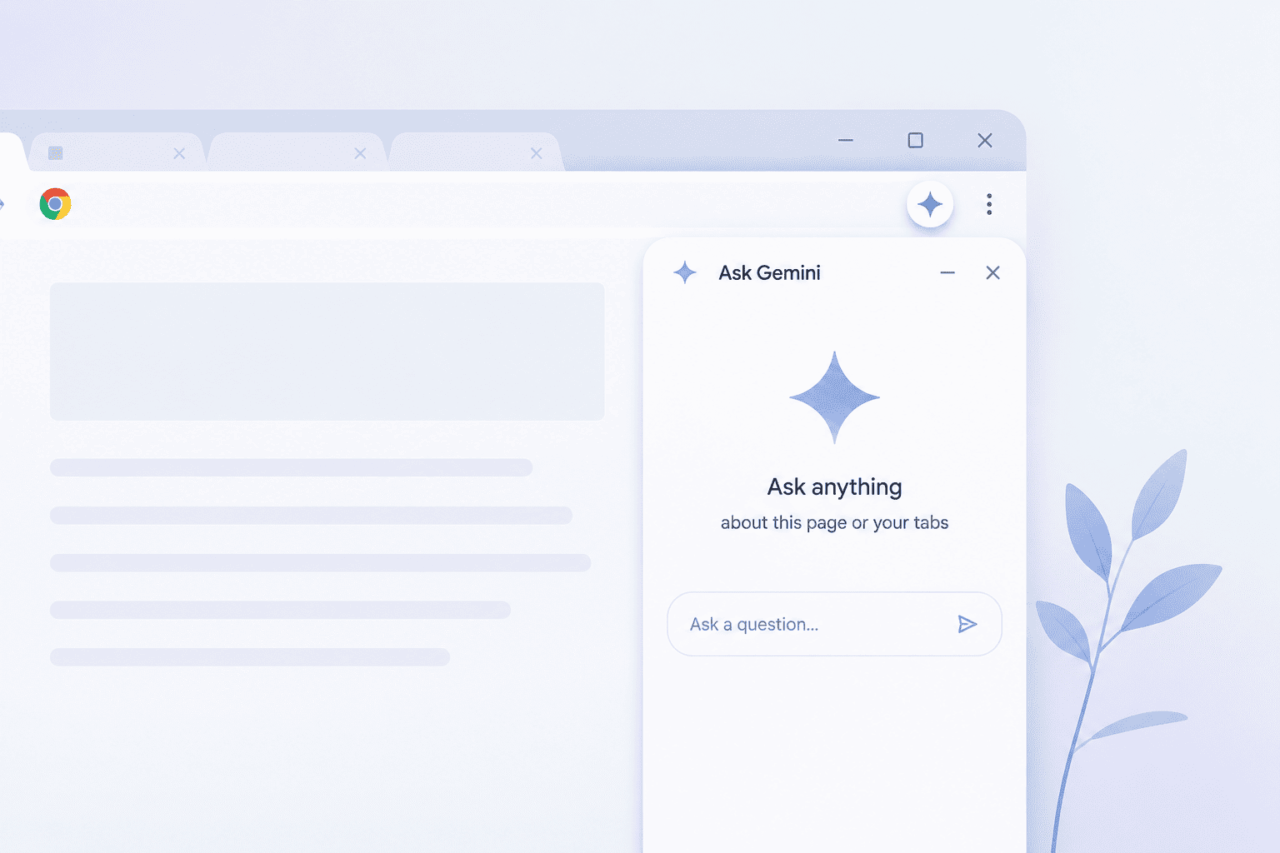
The feature launched at Google I/O 2025 in May and initially required a Google AI Pro or Ultra subscription. Google removed the paywall in September 2025, making it available to all Chrome users on Windows and Mac in the US with their browser language set to English. The basics: click the sparkle icon in the top-right corner of Chrome, and a side panel opens. Gemini reads whatever page you are on and answers questions about it without requiring you to paste anything or open a new tab.
TL;DR: Ask Gemini in Chrome works as a side panel that reads your active page and up to 10 open tabs simultaneously. It reduces tab-switching during research by letting you ask follow-up questions directly inside Chrome. The feature is free for US users with Chrome set to English on Windows or Mac. It is most useful for research, dense reading, and multi-tab comparisons. Privacy-conscious users should know it collects tab content and browsing history.
What Ask Gemini in Chrome actually does during browsing
| Capability | Available | Notes |
|---|---|---|
| Page Q&A and summarization | Yes | Reads current tab without copy-pasting |
| Multi-tab context | Yes | Up to 10 tabs simultaneously |
| YouTube video navigation | Yes | Jumps to specific moments on request |
| Google Calendar integration | Yes | Add events from page directly to Calendar |
| Browsing history recall | Yes | Find previously visited pages by description |
| Auto browse (agentic tasks) | Yes | Experimental, requires Google AI Pro or Ultra |
| Available on Android | No | Rolling out June 2026 |
| Available on iOS | No | In development as of May 2026 |
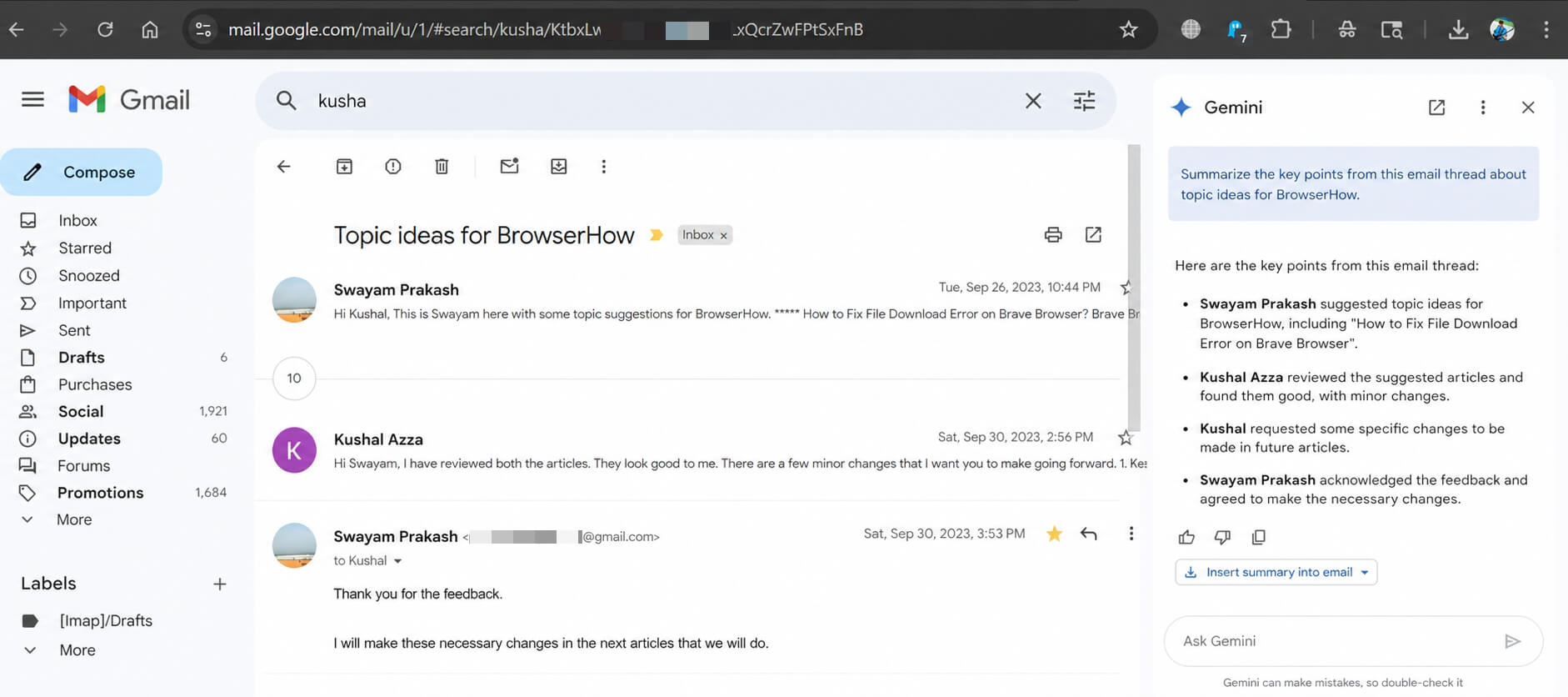
The side panel stays attached to your browsing session. Gemini reads the current page, and you can pull in up to 10 open tabs for cross-tab context. In practice, I used this most when I had a product page open in one tab and a review in another and wanted a quick comparison without manually switching back and forth.
Ask a specific question and it pulls the relevant part from whichever tab has the answer. Ask something vague and it reflects that back at you with a vague answer. The quality of what comes out depends almost entirely on how specific you are going in.
Where it changes research habits
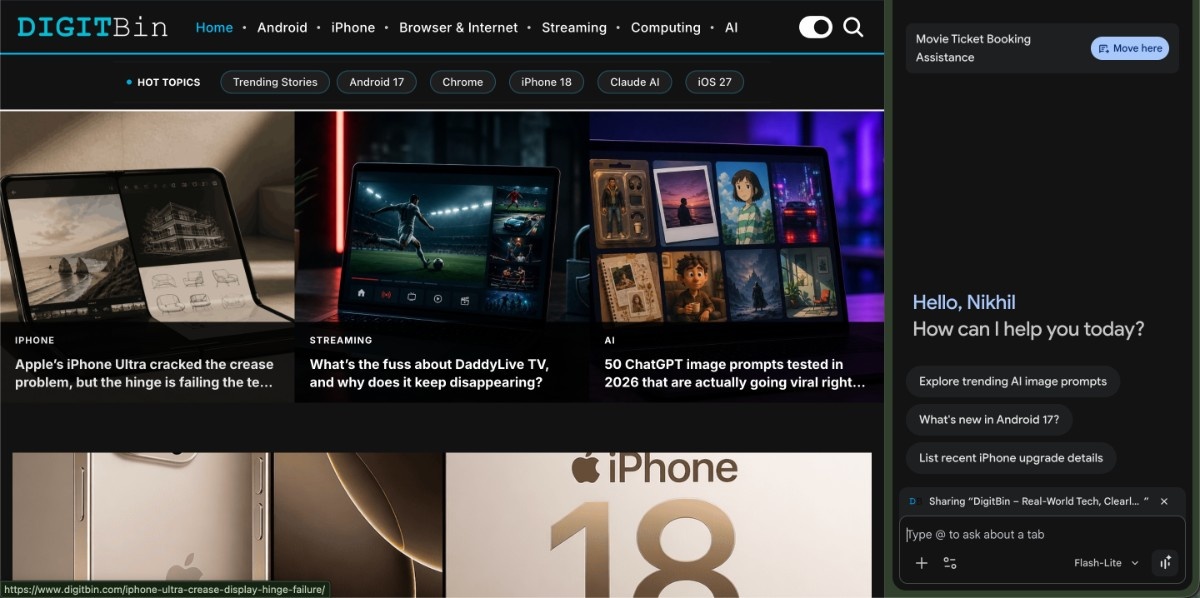
Most of my extra tabs existed to answer tiny follow-up questions: what does this term mean, what year was this released, does this apply to my country. I used to open a new tab, type the question, get the answer, and close it. With Gemini sitting in the panel, I started asking those questions there instead.
After about three days, the reflex of opening a new tab for a side question started to fade. Not completely, but noticeably. Long explainers and Reddit threads became easier to process. I used it on a 4,000-word thread about Wi-Fi 7 router complaints because I wanted the setup issues, not the full discussion. Instead of skimming, I asked the panel directly. The answer was not always perfect but it was faster.
YouTube integration is one of the more practically useful additions. If you need a specific moment in a video, you can ask Gemini to find it and Chrome jumps there directly instead of you scrubbing through the timeline manually.
Multi-tab comparison: where it actually earns its keep
Ask Gemini in Chrome can pull context from up to 10 open tabs simultaneously, which is where the feature earns its keep for product research. I had three laptop reviews open comparing the Galaxy Book5 Pro, Zenbook S 16, and LG Gram 17 and asked which one had the longest real-world battery. Gemini pulled estimates from all three tabs and surfaced the answer without me reopening each benchmark section manually.
It worked cleanly when the tabs were focused on the same thing. It got noisier when I had a mix of unrelated pages open. Most AI browser tools get annoying fast. This one mostly stays out of the way. The key is keeping the tab set tight.
Google Workspace connections
Gemini in Chrome connects to Calendar, Tasks, Drive, Docs, Sheets, Slides, Maps, and YouTube. If there are event dates on a page you are reading, you can add them to Calendar directly from the panel without switching apps. From a recipe page, ingredients can go to Google Keep.
These integrations work as advertised. The Calendar one is useful during travel research when you have multiple event details spread across tabs. The others are genuinely there, though how often you reach for them depends on how embedded you are in the Google ecosystem already.
The privacy trade-off worth knowing about
Gemini reads your tab content to generate responses. Google’s support documentation states it collects the URLs and page content of selected tabs in chat or live mode, and says this data is not used for AI model training outside your domain without permission. Users can deselect tabs at any time by clicking the X next to the tab name in the panel.
A more significant issue surfaced in late 2025. A vulnerability tracked as CVE-2026-0628 was discovered by Palo Alto Networks’ Unit 42 in October 2025. It allowed malicious Chrome extensions to hijack the Gemini panel and access camera, microphone, and local files without additional user consent beyond opening the panel. Google patched the issue in January 2026 via Chrome 143. If you have not restarted Chrome in a while, check your version and update it before using the feature regularly.
For anyone who prefers to browse without Gemini in the picture at all, the setting is in Chrome under Settings and then AI innovations, though the process to disable Gemini in Chrome completely involves two separate setting areas and is not immediately obvious.
Who this works well for and who should skip it
If you do most of your research inside a browser and frequently open tabs to answer side questions while reading, this reduces genuine friction. The feature does not think ahead of you. It doesn’t rewrite how you browse. It sits in a panel and responds when you ask it something. That is actually why it works. Most AI browser features fail because they try to do too much. This one doesn’t.
For privacy-conscious users, the tab content collection and browsing history recall are worth reading about before you keep it on. For users outside the US, Canada, India, and New Zealand, the dedicated Gemini side panel is not yet available as of Chrome 146 (stable, released March 2026). Those in supported regions who want a broader comparison with other browser AI tools can see how it stacks up against ChatGPT Atlas in a direct comparison.
Whether it’s worth keeping on after the novelty wears off
After several weeks, the feature is still running on my machine. That is the most straightforward answer I have. Most new AI browser features get disabled within a week once the novelty fades. This one changed a specific behavior in a way that turned out to be worth keeping.
It doesn’t transform browsing at a fundamental level. It reduces one specific kind of friction. And for the way I use Chrome, that turns out to be enough.