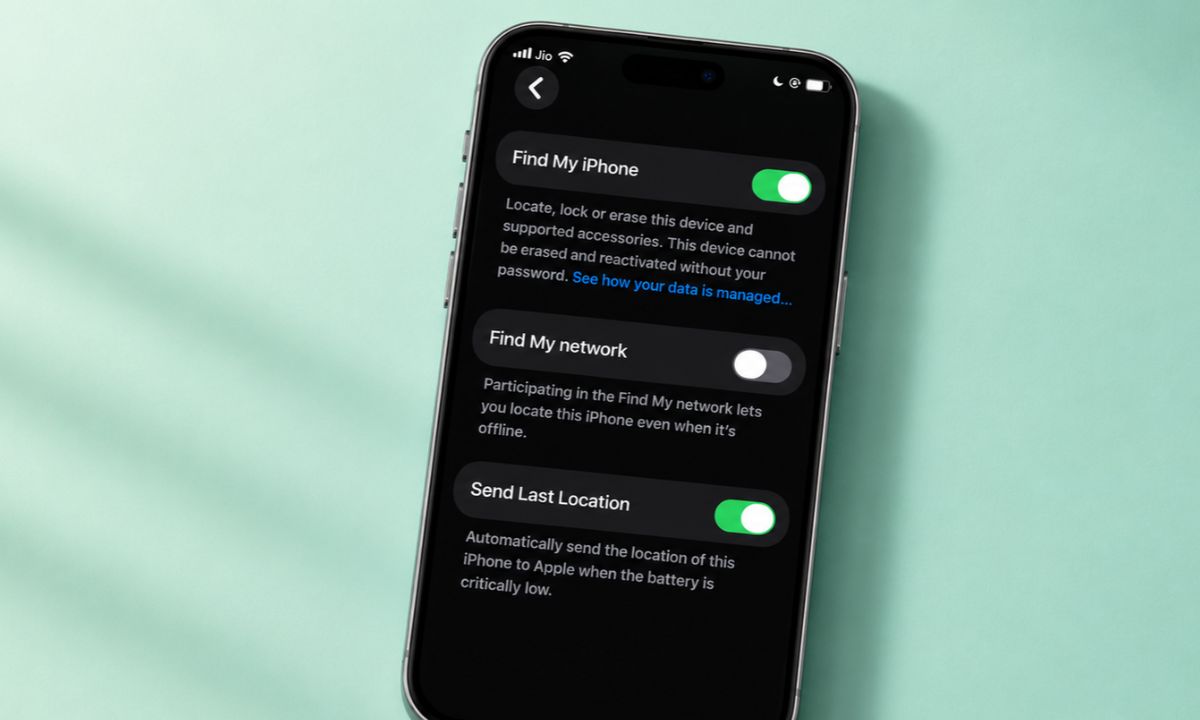
I went looking for an iPhone version of Android’s Theft Protection menu and did not find one. iPhone theft protection exists. It is just spread across Face ID & Passcode, Find My, the Home Screen, and a website.
That scatter is the real problem, because you can’t tell what is on without visiting these settings in four places. So, I went through them in order to understand what they can do when a theft actually plays out. Here is what each setting does, where it falls short, and the steps to enable it on iOS.
TL;DR: iPhone theft protection sits in Face ID & Passcode, Find My, your Home Screen, and iCloud.com/find. Apple turns Stolen Device Protection on by default from iOS 26.4, but it is worth confirming. Turn on Find My network, lock your banking apps, and know the Lost Mode steps. Apple has not announced anything that locks an iPhone the moment it is snatched.
Why iPhone passcode is a weak point?
Apple built Stolen Device Protection for a thief who has your iPhone and has also learned your passcode. Face ID helps because you type the passcode less often, so there is less to watch over your shoulder in public.
I noticed how rarely I type mine, which made it feel more exposed on the days I had to.
iPhone theft protection starts with Stolen Device Protection
Stolen Device Protection stops that thief from changing your Apple Account password or passcode. Away from familiar places, it needs Face ID or Touch ID with no passcode fallback, plus a one-hour wait for the biggest changes.
I only understood it when I tried a passcode change away from home. The phone wanted Touch ID/Face ID, then a wait, and there was no passcode box to fall back on.
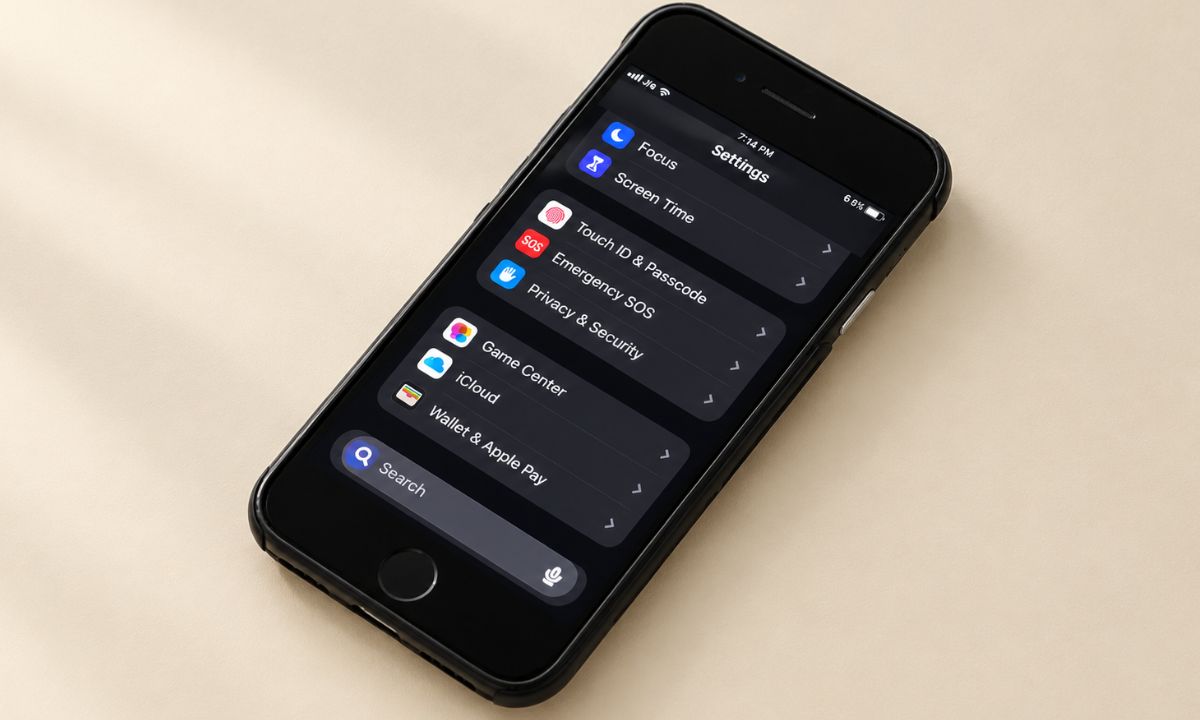
- Open Settings > tap Face ID & Passcode/Touch ID & Passcode.
- Enter the iPhone passcode.
- Tap Stolen Device Protection and confirm it is on.
- Choose Always if you want the delay enforced at home too.
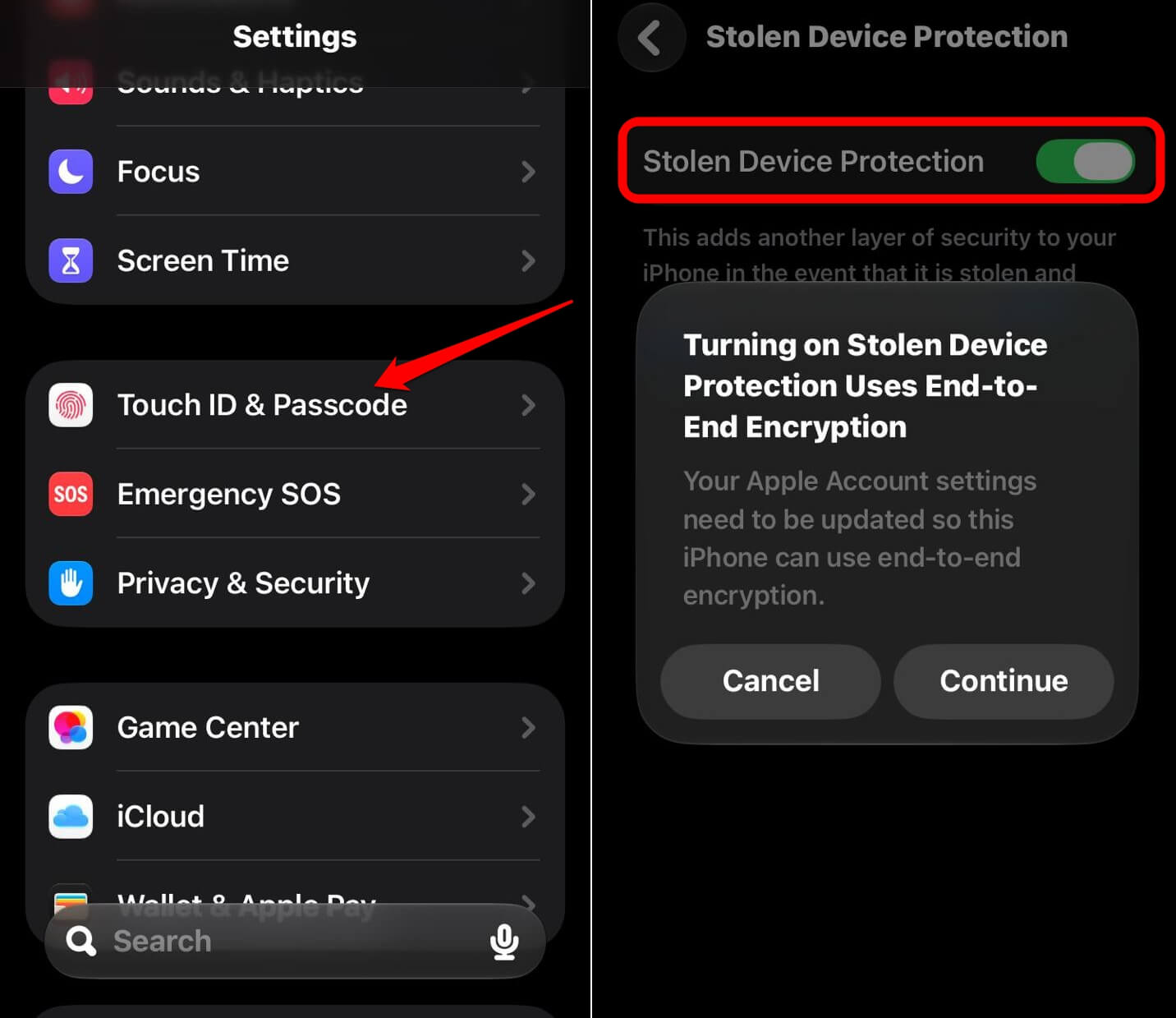

It can still be off if someone switched it off, and if the option is missing, set up Face ID or Touch ID first.
Find My and Activation Lock
Activation Lock turns on by itself when you turn on Find My, and it needs your Apple Account password before anyone can erase or reactivate the phone.
It only works if Find My was on before any possible theft. I assumed that was one switch, but there are three.
- Open Settings > tap your name > Find My.
- Tap Find My iPhone and turn it on.
- Turn on Find My network and Send Last Location.
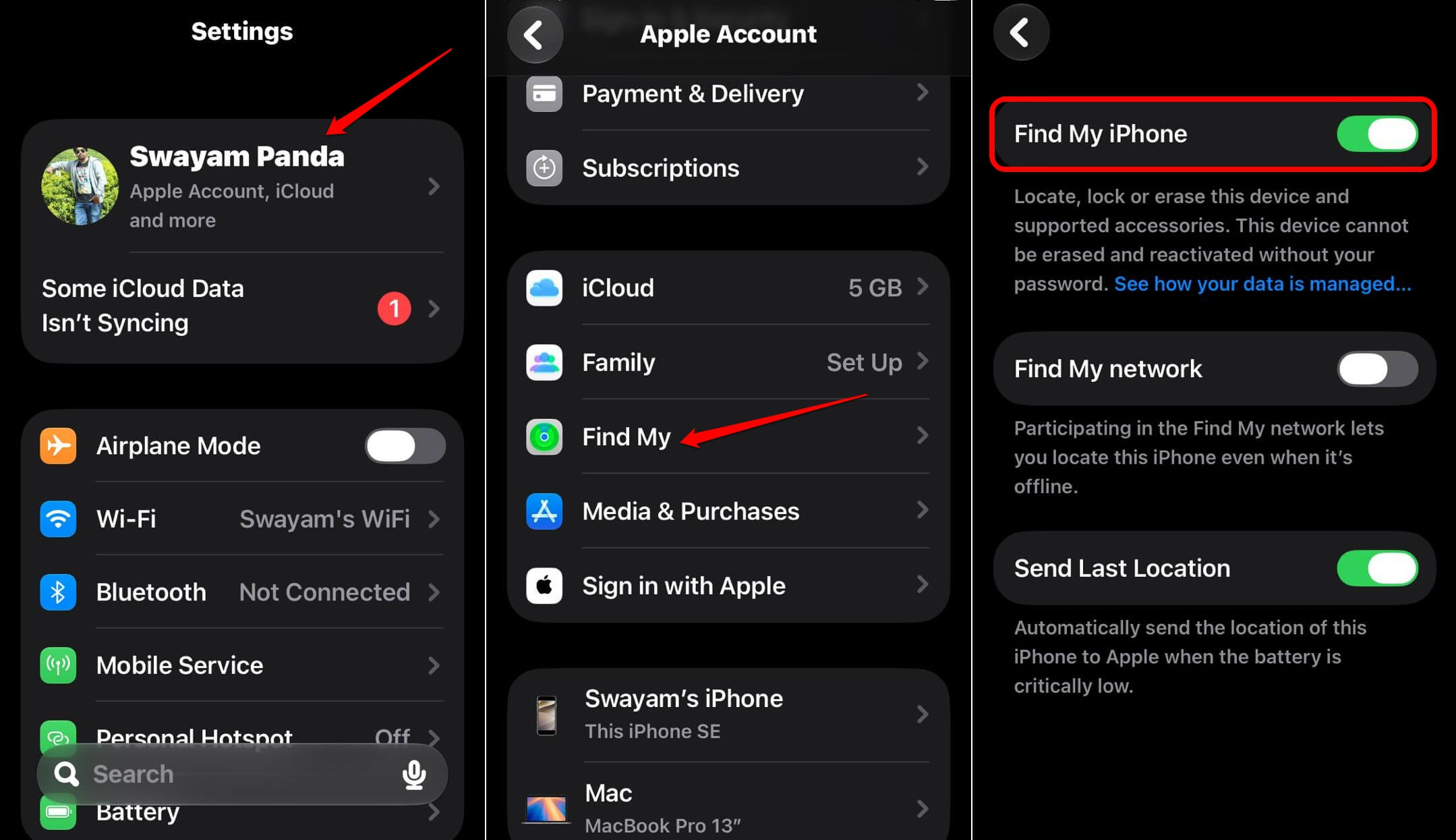

Find My network can locate a supported iPhone for up to 24 hours after it is powered off. If you buy used, make sure the seller removed Find My first, as instructed in our used vs refurbished iPhone comparison linked below.
Lock your payment apps
Locked apps need Face ID or your passcode to open, and with Stolen Device Protection active, they open with biometrics only. This is useful to protect payment apps from being accessed by thieves if they steal your iPhone.
- Touch and hold the choice of payment app icon on the Home Screen.
- Tap Require Face ID/Require Touch ID, then confirm.
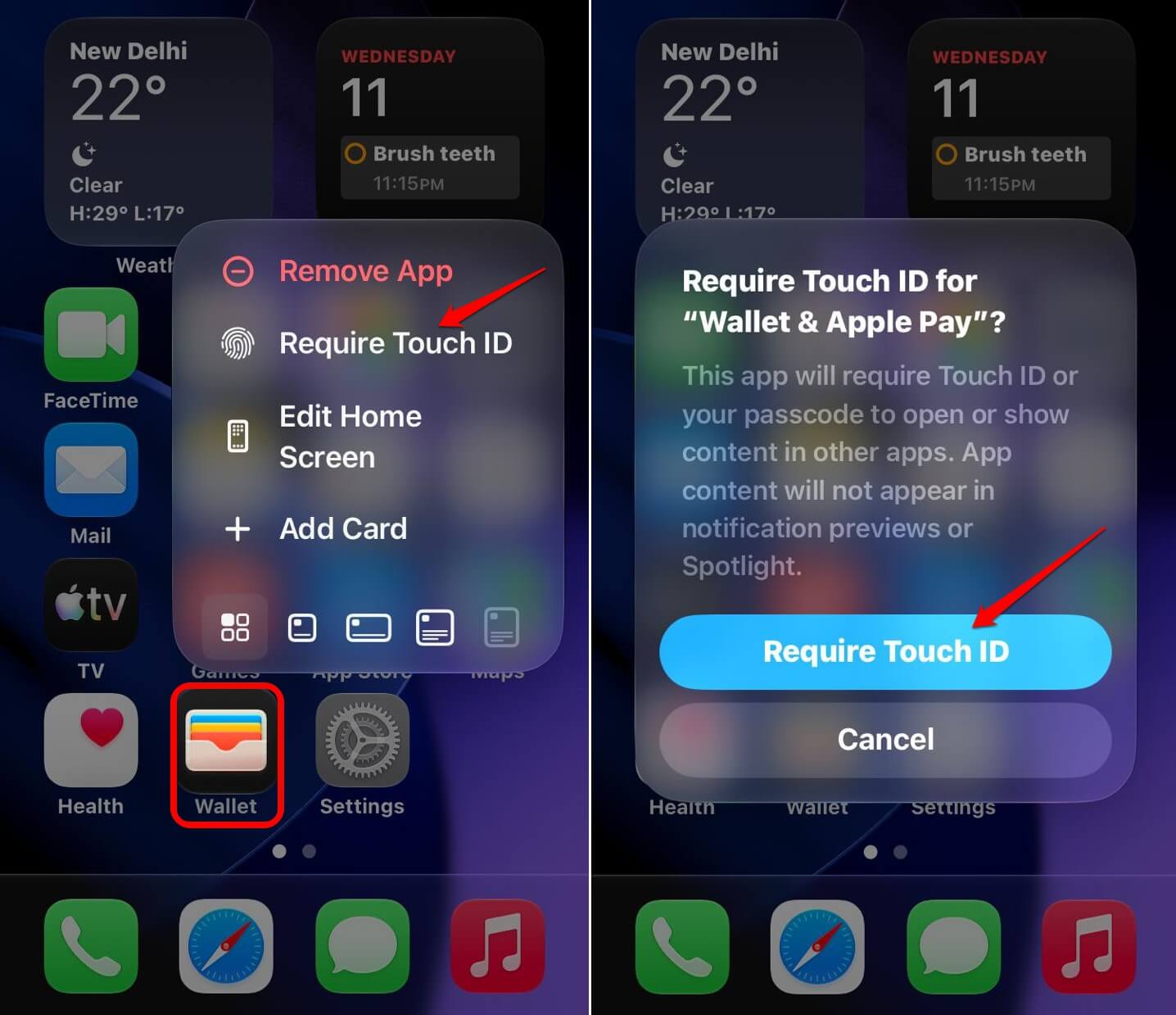

Banking notification previews went blank after I locked mine, which felt like a bug for a day. Apple says locked apps keep their content out of previews, Search and Siri suggestions. The lock does not sync through iCloud, so you need to repeat it on a new iPhone.
Lost Mode and the first hour
It is imperative to mark a stolen iPhone as lost before anything else, even with Stolen Device Protection on, because its safeguards only last a limited time.
What surprised me is that iCloud.com/find lets you sign in without your iPhone(now stolen), provided you have an alternate phone number you have access to.
On this alternate phone, Apple will send the verification code to enable you to log into your iCloud and use the Find My feature to mark the stolen iPhone as lost. There is no bypassing the two-factor authentication to view your iCloud or use features in it.
- Go to iCloud.com and sign in with your Apple Account.
- Under the Apps menu, click on Find My.
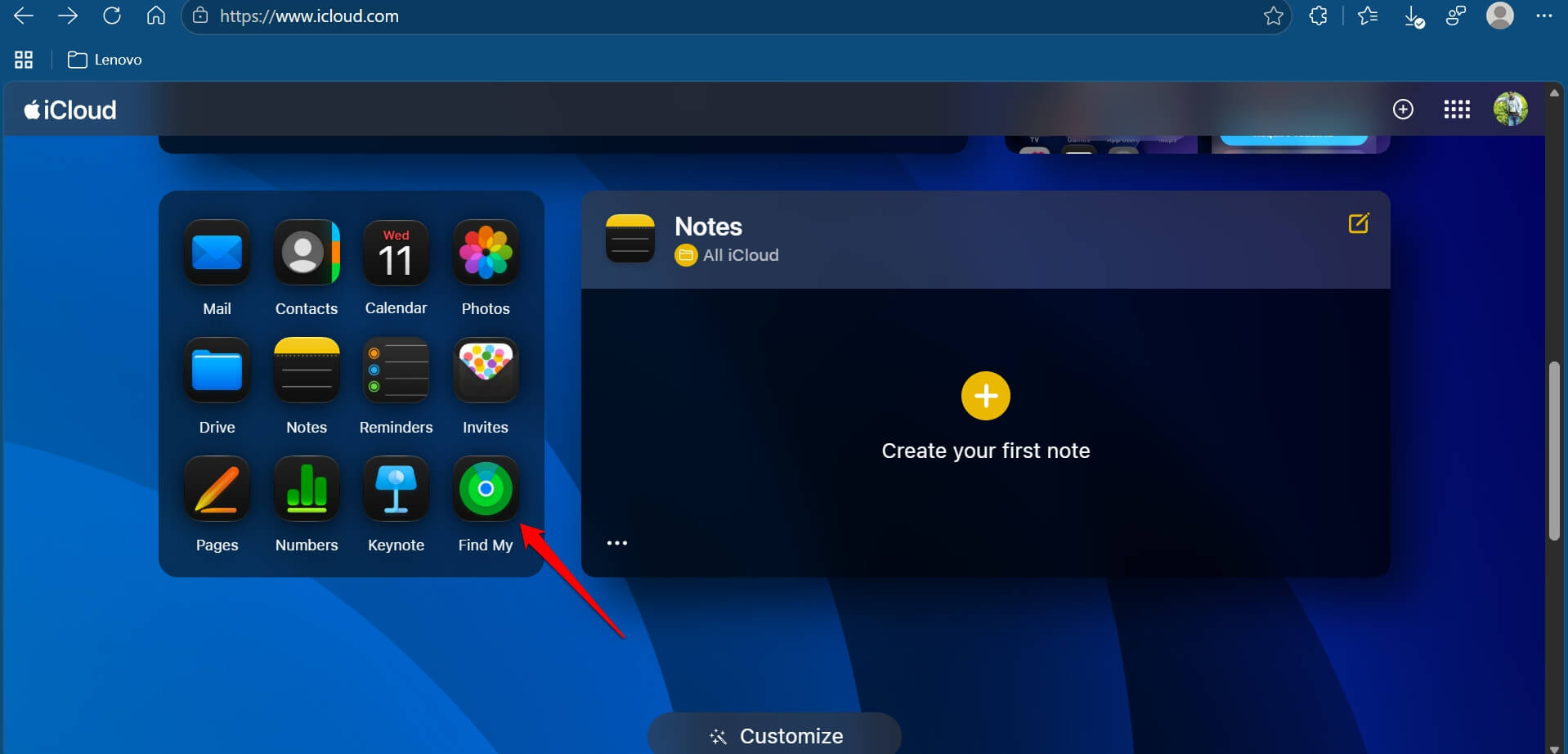

- Click on Lost iPhone to mark your stolen phone.
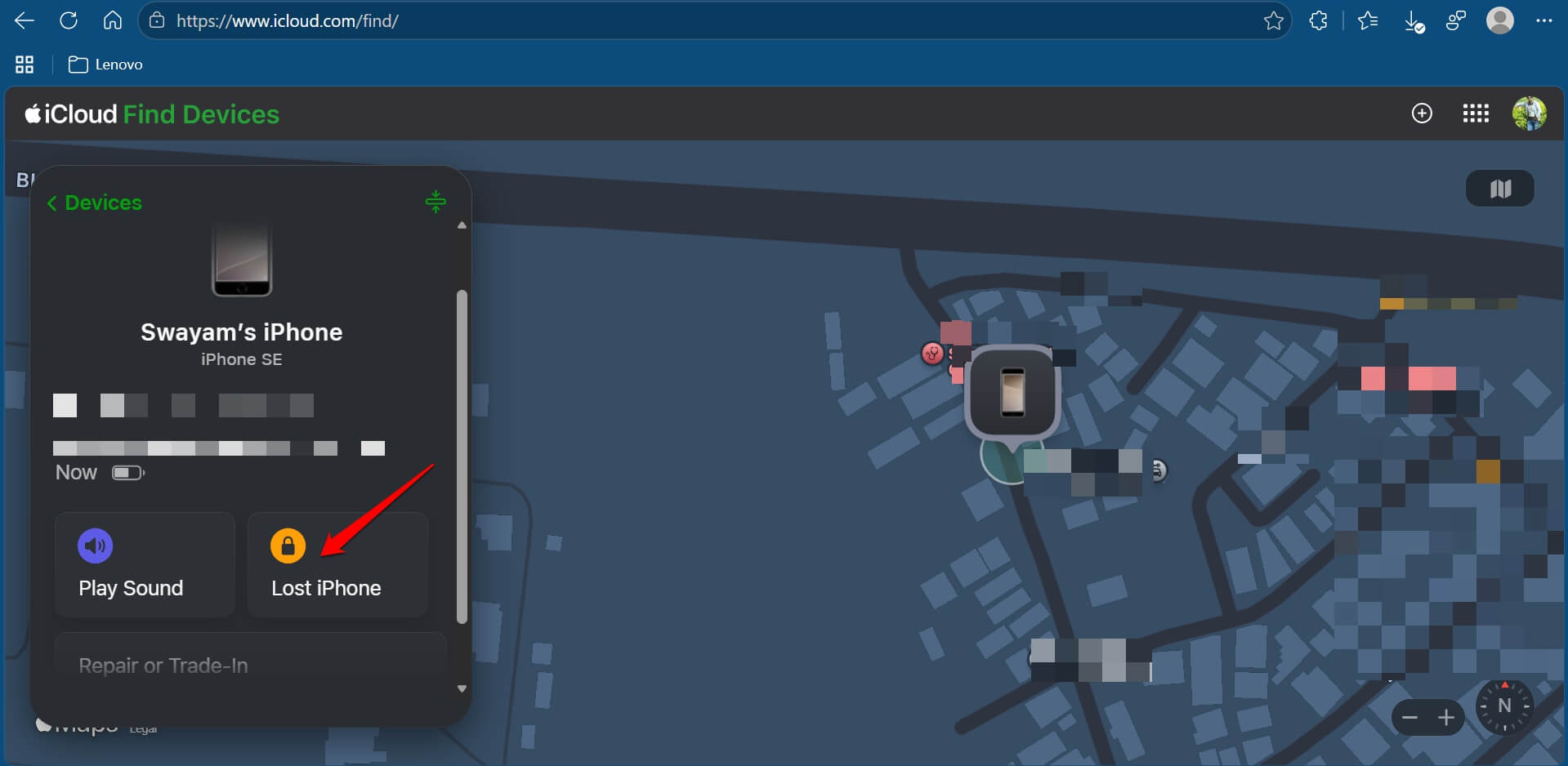

- Add a phone number and message.
Lost Mode locks the phone and suspends Apple Pay cards. Do not remove the phone from Find My afterward, since that removes Activation Lock.
What iPhone cannot do yet?
Apple has not announced anything that locks an iPhone the moment it is snatched, which is the job of Android’s Theft Detection Lock.
On Android, if a thief manages to steal your phone and run away while you are using it, the system will detect it and promptly lock the phone screen. It seems Apple needs to catch up with Android by shipping a similar feature in the future.
Frequently Asked Questions
Is Stolen Device Protection on by default?
Apple turns it on by default starting with iOS 26.4, but it can still be off. Open Settings > tap Face ID & Passcode. Tap Stolen Device Protection to check.
Does Stolen Device Protection stop my iPhone being stolen?
No, it does not stop the theft itself. It stops a thief who knows your passcode from changing your Apple account password or passcode.
Can I lock my banking app on iPhone?
Yes. Touch and hold the app icon, tap Require Face ID, then confirm.
What should I do first if my iPhone is stolen?
Mark it as lost at iCloud.com/find. Do not remove it from Find My afterward, because that removes Activation Lock.
Does an iPhone lock itself if someone snatches it?
Not today. Apple has not announced it, and AutoLock only appears in iOS 27.2 beta 2 code.
The checklist to safeguard your iPhone
Five minutes covers all of it, as long as you know the respective menu that holds each mode of protection.
| Protection | Where to find it | What it does | Your move |
|---|---|---|---|
| Stolen Device Protection | Settings, Face ID & Passcode | Needs Face ID and a delay for sensitive changes | Confirm it is on |
| Find My and Activation Lock | Settings, your name, Find My | Locks the phone to your Apple Account | Turn on all three switches |
| Locked apps | Touch and hold the app icon | Needs Face ID to open the app | Lock banking apps |
| Lost Mode | iCloud.com/find | Locks the phone and suspends Apple Pay cards | Learn the steps |
| Snatch detection | Not available | None announced | Nothing to do |
After a theft, report it to the police and your carrier, and get the serial number from your Apple Account page. iOS 27 also has a separate impersonation risk detection setting that supported apps can check before a payment.
No single iOS setting can ensure device safety on its own. When put together, these settings can ensure better security against potential iPhone theft.