Apple’s Impersonation Risk Detection in iOS 27 is built to catch scams that two-factor authentication cannot, and Apple’s support page says the way to use it is to turn on a setting called Share with App Developers. The setting lets supported banking and payment apps ask your iPhone for a risk level before a payment or password change. Apple published the document on September 14, 2026, and nothing in a normal iOS 27 update sends you to that screen. If a fake bank agent has ever kept you on the phone while you tapped through a transfer, this is the protection aimed at that moment.
TL;DR: Impersonation Risk Detection is an iOS 27 and iPadOS 27 feature that lets supported apps ask your iPhone for a risk level before a payment or password change. Apps get only Unknown, Medium or High, never the data behind it. To use it, open Settings, Privacy & Security, and turn on Share with App Developers. It only helps in apps that support it, and an Unknown result is not a safety guarantee.
What Impersonation Risk Detection checks
Apple describes the feature as protection against active social engineering scams, where someone posing as a bank, a government agency or a trusted contact pushes you into a payment or an account change. Apple’s support page says traditional measures such as two-factor authentication cannot always detect this kind of scam, because you take the action yourself.
A supported app can request a risk assessment before something like a payment or a password change. Your iPhone looks at interaction patterns, timing, context and basic sensor data on the device, and Apple says it never analyzes the content of Photos, Messages or Mail. What comes back to the app is deliberately small.
The three risk levels apps can see
Apple says the app “receives only the risk level, not the underlying information used to generate it.” Unknown means no suspicious activity was detected, Medium means some signs of suspicious activity were detected, and High means significant signs were detected.
Unknown is the one to read carefully. Apple notes it does not confirm an action is safe, so a clean result is the absence of a warning, not an approval.
What happens next is up to the app. Apple says the feature “doesn’t determine or control the action that the app takes,” so a bank might ask for identity verification, add a waiting period or show a warning. That split is sensible, but it means your protection will look different from one app to the next.
How to turn on Impersonation Risk Detection
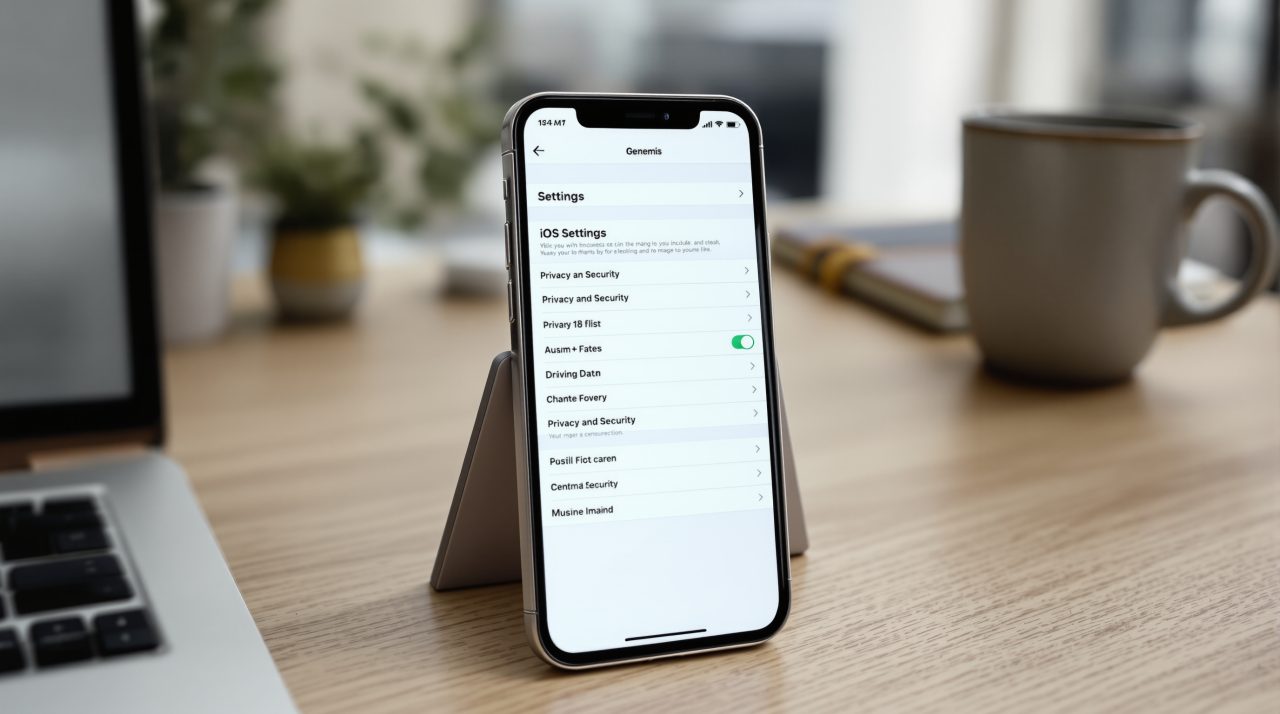
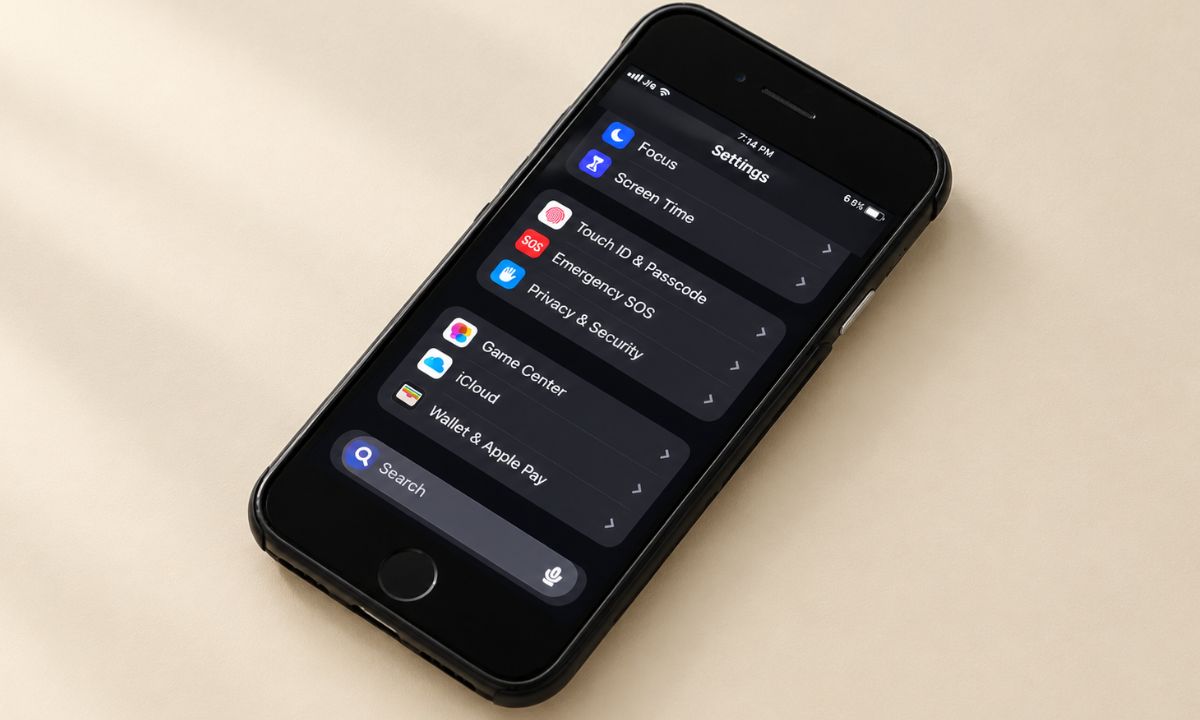
Open Settings, tap Privacy & Security, choose Impersonation Risk Detection and turn on Share with App Developers, according to Apple’s support page. Apple adds that you may need to sign in to the App Store with your Apple Account to turn it on. Apple’s page does not say whether the setting ships on or off, so open the screen and check rather than assume.
Recent Activity lists the apps that have requested a risk assessment, and Reasons for Access shows the actions behind each request. A toggle for each app lets you cut off access one app at a time.
Changes to the main setting or to a single app can take up to 24 hours to apply, so flip it before you need it, not while a stranger is on the line. Apple also warns that if someone directs you to turn this feature off, you might be the victim of a scam. If you are working through your post-update setup anyway, our guide to iOS 27 settings to change covers the rest of the list.

Who this helps and who it leaves alone
The feature works only in apps that support it, and Apple’s page names none. It lists no supported iPhone models or regions either, only availability starting with iOS 27 and iPadOS 27. If your bank has not added support, switching it on gives that app nothing to work with.
Even so, the idea is a sound one: your phone can see the shape of a pressured moment that a bank’s servers cannot. If you think you are already in the middle of a scam, what to do in the first hour after calling a scam number is the better read.