The first hour after a major iOS update is when you tap through whatever prompts appear, and that is the hour that sets most of your defaults. I now treat every big iPhone update as a small audit, and iOS 27 is a good example.
Apple released iOS 27 on September 14, and it runs on iPhones from the iPhone 11 onward. These are the iOS 27 settings I check first, in the order I check them.
TL;DR: After updating to iOS 27, review the Siri AI and data-sharing prompts, adjust Liquid Glass if the interface looks too busy, and check battery activity before blaming the update. Then audit location and app permissions. Siri AI needs an iPhone 15 Pro or newer, so older models can skip that part.
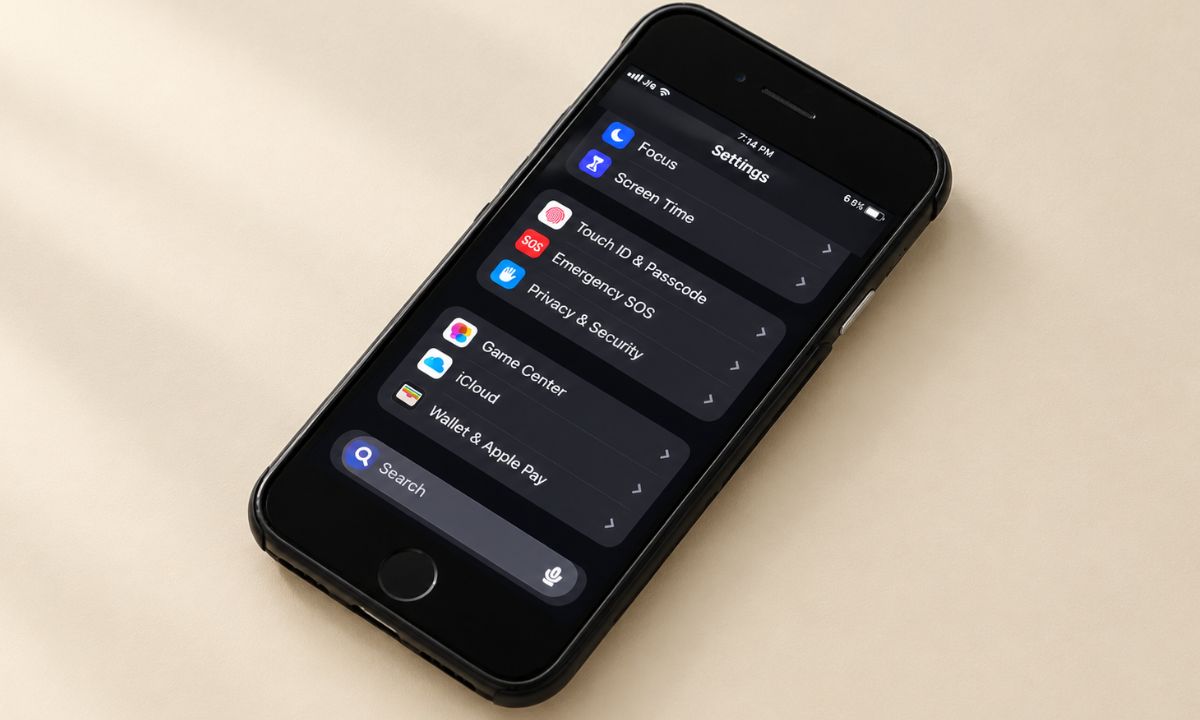
iOS 27 settings to check on day one
None of these are mandatory. They are the places where the update either adds something new that asks for your data, or changes how the phone looks and feels.
| Setting | Where to look | Why check it |
|---|---|---|
| Siri AI (beta) | Settings, Siri | New in iOS 27, needs iPhone 15 Pro or newer |
| Help improve Siri | Settings, Analysis and Improvements | Controls whether Siri requests may be used to improve it |
| Liquid Glass | Settings, Display and Brightness or Appearance | Adjusts transparency and contrast |
| Battery activity | Settings, Battery | Shows which apps and services use power |
| Location Services | Settings, Privacy and Security | Switch Always to While Using where possible |
| Stolen Device Protection | Settings, Face ID and Passcode | Adds a delay for sensitive changes away from familiar places |
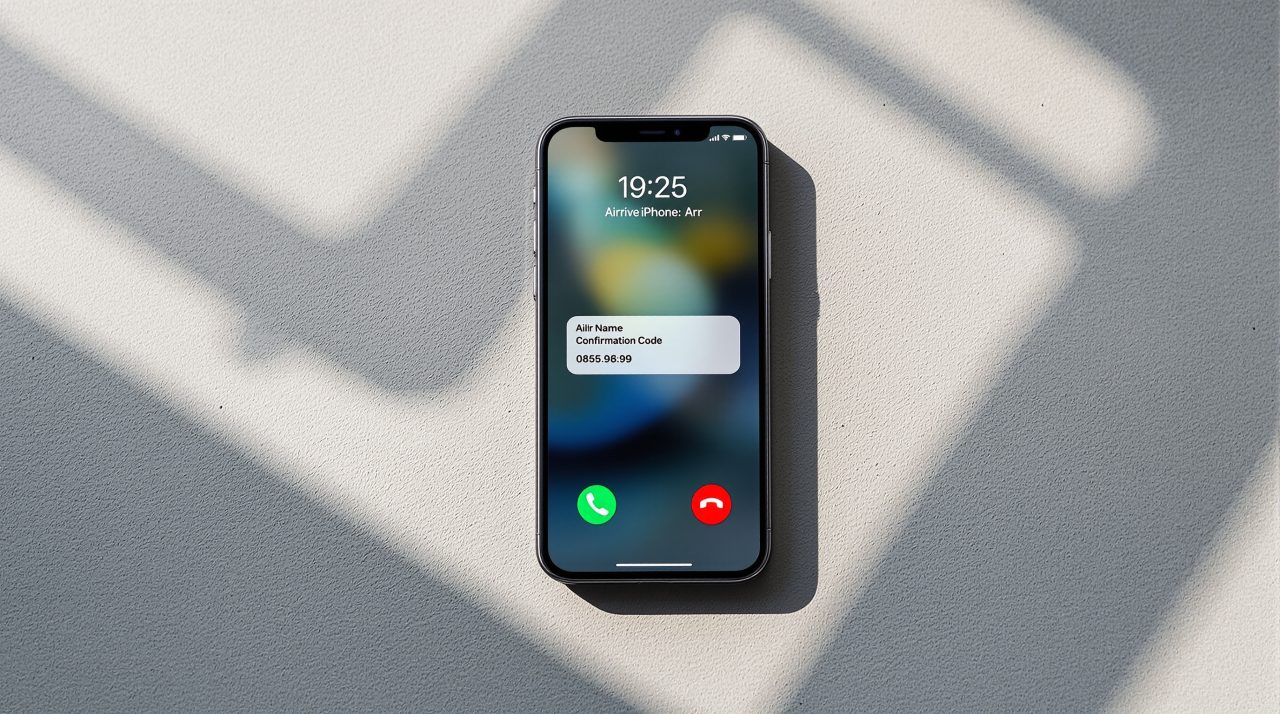
Siri AI and the data-sharing prompt
Siri AI is the headline feature of iOS 27, according to MacRumors, and it is limited to iPhone 15 Pro and newer. One roundup describes it as a beta switched on from the Siri settings.
Cybernews reports that when you activate it, iOS asks whether you want to help improve Siri, with a prominent “Agree” button and a quieter “Not now”. The setting lives under Analysis and Improvements, where you can switch it off later.
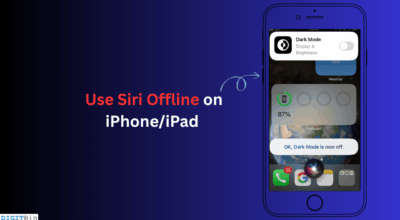
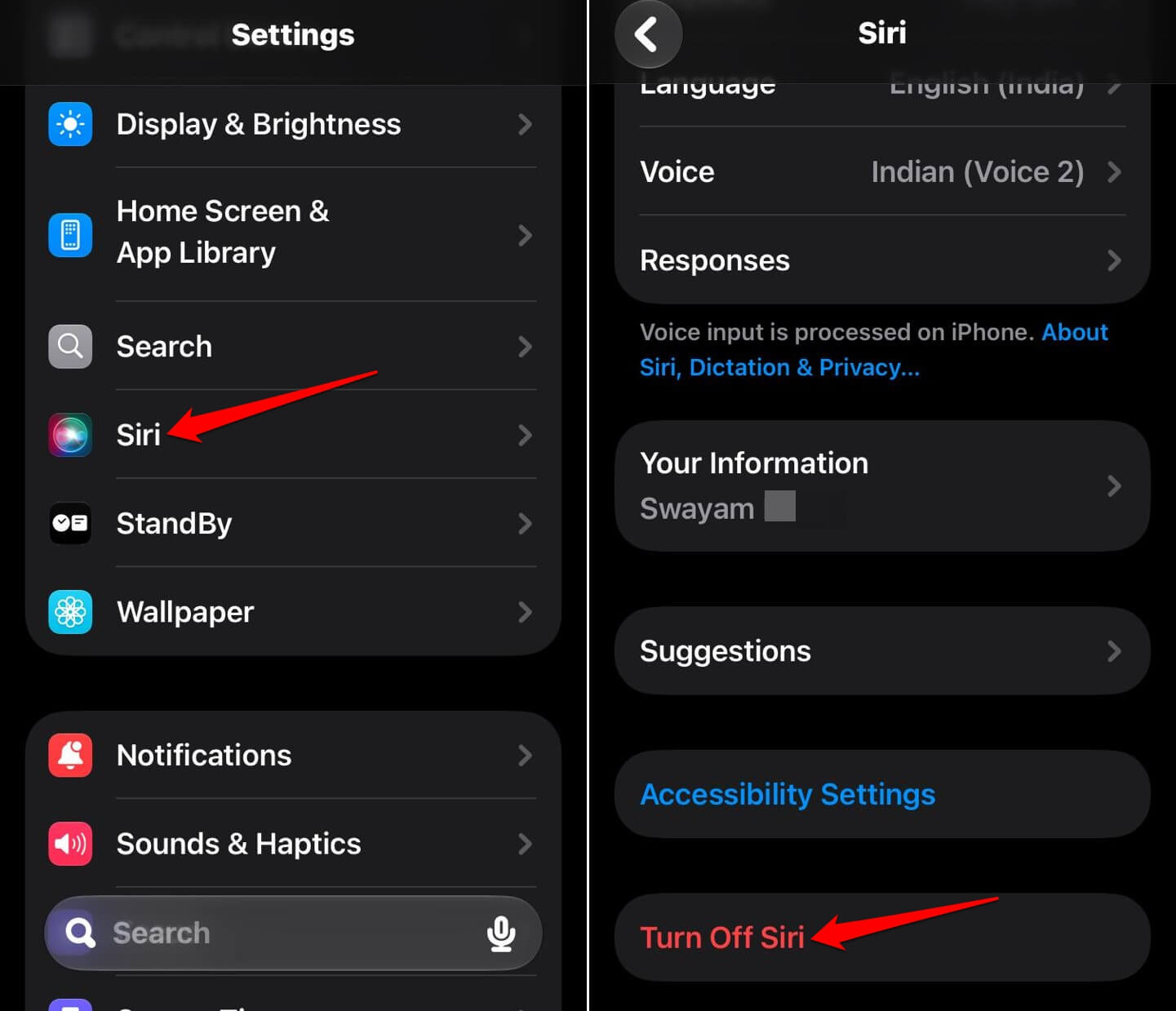
If you decide you do not want Siri AI at all, go to Settings > Siri > tap on Turn Off Siri.
Battery: wait before you blame the update
Battery can feel different in the first days after an update, and blaming the update is the obvious reflex. I try to look at the numbers before deciding anything.
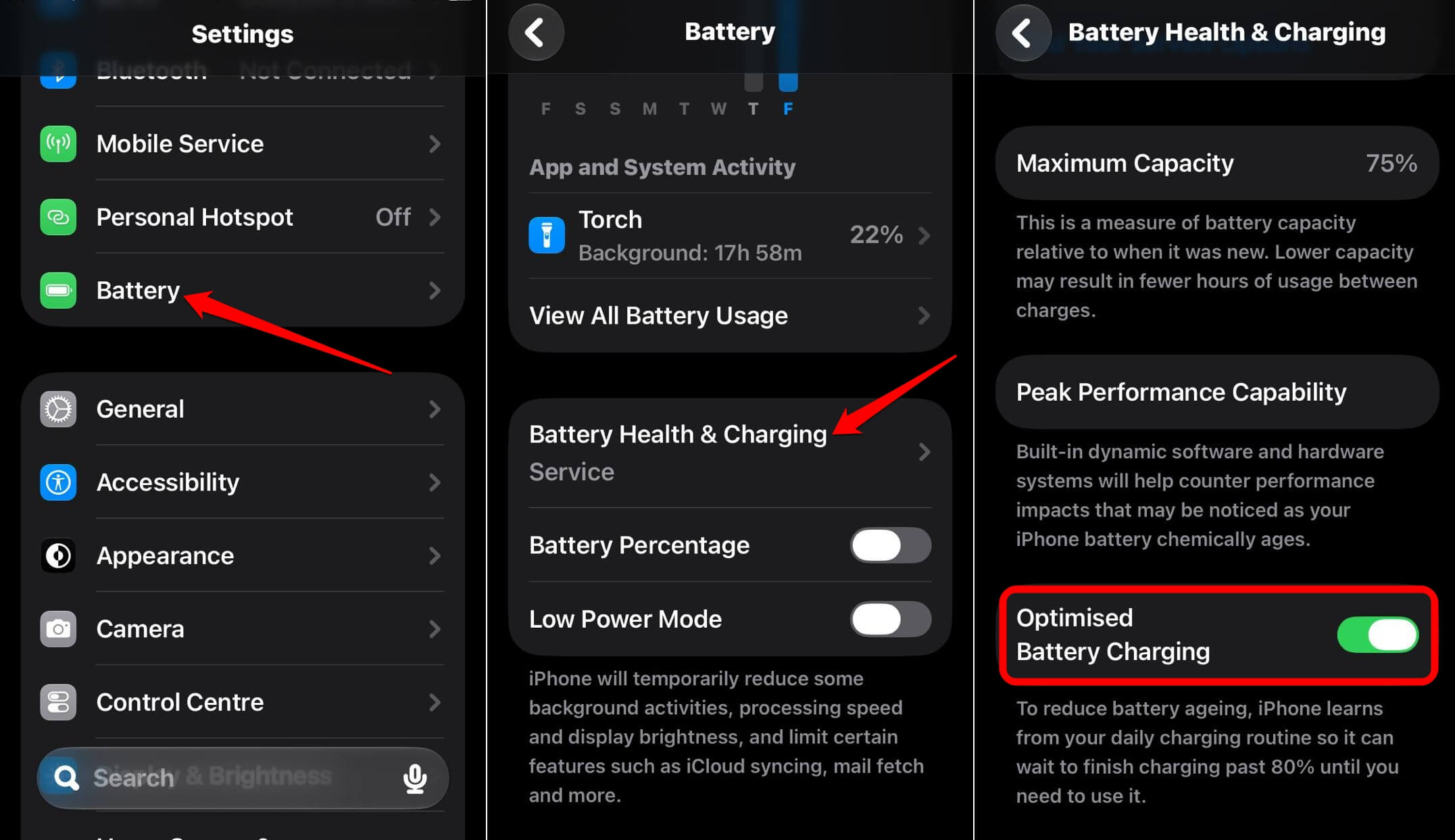
Open Settings > Battery and look at recent activity before changing anything. One iOS 27 guide notes that poor cellular reception can also raise battery use, which is easy to mistake for an update problem.
For better iPhone battery life, enable Optimized Battery Charging under the iOS 27 Battery settings > Battery Health and Charging.
Liquid Glass and the look of iOS 27
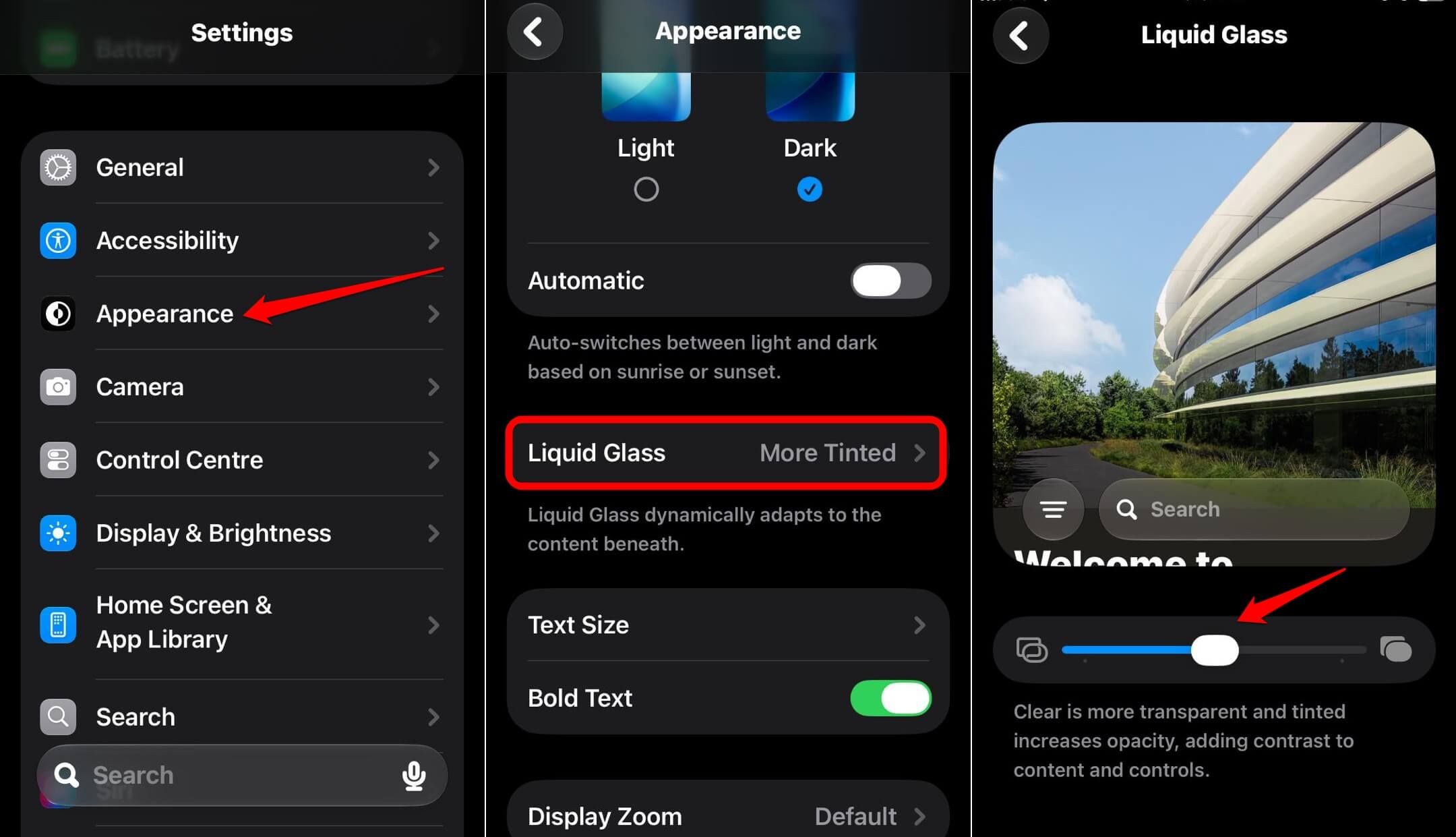
Liquid Glass is the translucent interface style, and iOS 27 gives you a control for how transparent or tinted it looks. You can locate it under Settings > Appearance.
Drag the slider between “Clear” and “Tinted” depending on whether you want a more transparent look or increased opacity with more contrast to the on-screen content.
Privacy and permissions worth a second look
Open Settings > Privacy and Security > Location Services on your iPhone.
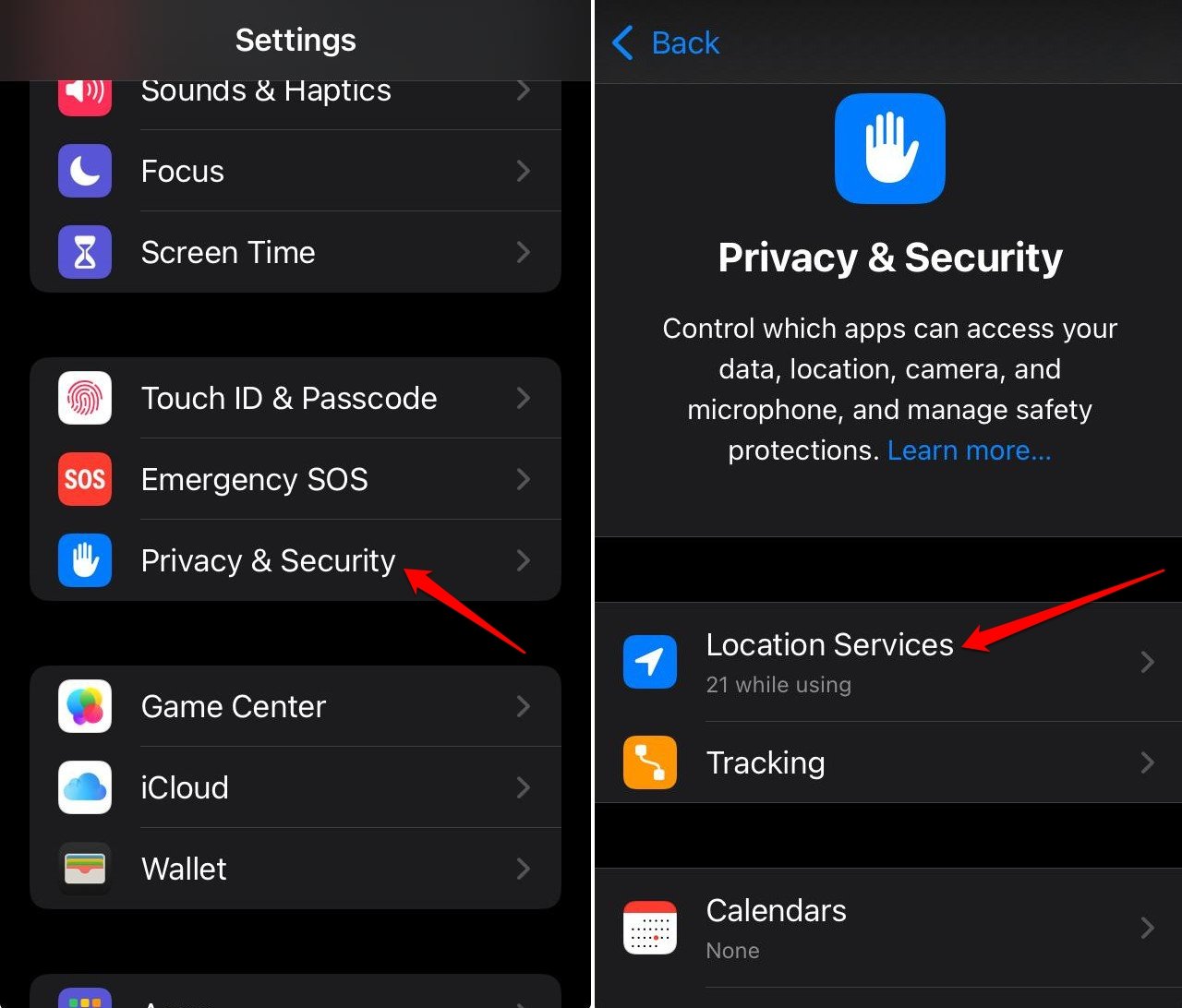
Look for apps set to “Always“. Change most of them to “While Using the App“.
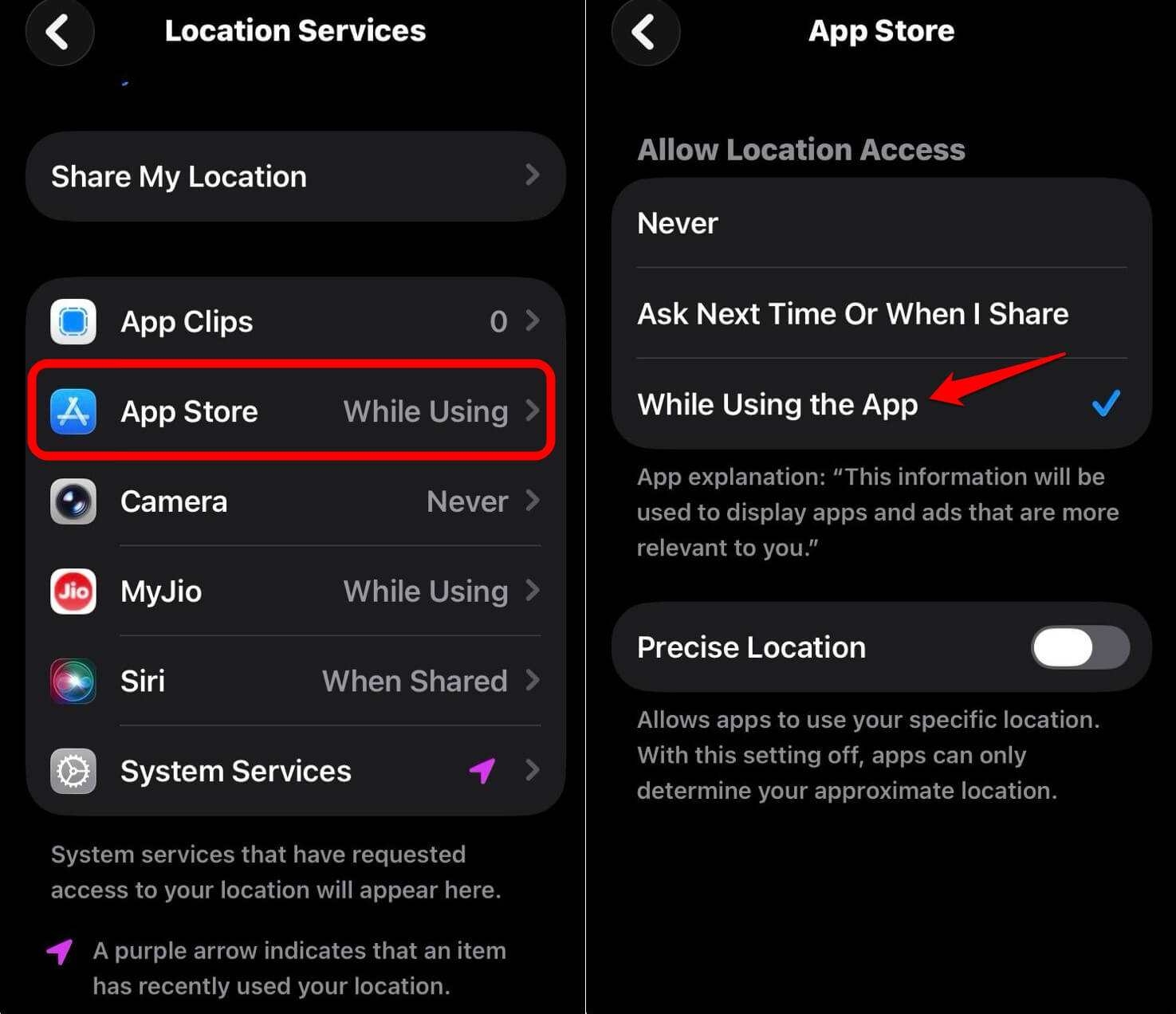
Also, turning off Precise Location where an app does not need it reduces what they can see. Our guide to auditing iPhone location permissions goes through that step by step.
How I change iPhone Settings after any major iOS update
The first day is for managing the prompts and choosing if you want the Siri AI. The next few days are for managing the battery settings, once the phone has settled. A week in, I check the app permissions, because by then I know which apps I actually use.
The order matters more than the exact toggles. Doing everything in the first hour means changing things before you know what is bothering you.
Frequently Asked Questions
Which iPhones can run iOS 27?
iOS 27 runs on iPhones from the iPhone 11 series onward. Siri AI is limited to iPhone 15 Pro and newer.
When was iOS 27 released?
Apple scheduled iOS 27 for September 14, according to MacRumors. It was available to all users with a compatible iPhone that day.
Should I turn off Siri AI after updating?
That depends on how comfortable you are with it. You can turn Siri off in Settings > Siri if you want to avoid it entirely.
Where is the Liquid Glass setting in iOS 27?
Guides place it under either Display and Brightness or Appearance. Searching Settings for Liquid Glass finds it on your build.
Manage the AI Assistant Settings first while the rest can wait
An update that adds an AI assistant and a new look will always want a few decisions from you. Make changes to the privacy settings deliberately and let the cosmetic ones wait a few days. You will know within a week which of these actually mattered to you in the long run.