Most lists of things to do with an old webcam stop at a pet camera and a desk scanner. Those work, but they are the ideas everyone already has.
A cheap USB webcam can also watch a 3D printer, feed a person detector or scan a whiteboard. You do not need a new camera for these projects, although some need a spare Raspberry Pi or a Windows PC.
Old cameras vary a lot, so I checked each idea against the tool’s own documentation and note the limit of each one.
Updated November 9, 2026. Software details checked against Microsoft, Frigate and OctoPrint documentation.
TL;DR: An old USB webcam can still watch a 3D printer, feed a Frigate person detector, scan whiteboards or shoot a time-lapse. Test it in the Windows Camera app first, because very old models can need special drivers on Linux. Many older webcams have limited resolution, which is fine for monitoring a project but less useful for identifying someone.
Test your old webcam before choosing a project
Plug the webcam into a Windows PC and open the Camera app, and a live picture means the hardware still works.
Models that follow the USB video class standard are the easy ones on Linux, which matters for the Raspberry Pi ideas below. A webcam from the 1990s may need its own driver, so test before you build anything around it.
The table shows what each idea runs on and where it tends to go wrong.
| Idea | Runs on | Main limit |
|---|---|---|
| 1. 3D print monitor | Raspberry Pi with OctoPrint or Klipper | Low frame rate by default |
| 2. Person detection | Linux PC with a detector (GPU or accelerator) | Linux only, set up in a config file |
| 3. Motion camera | Raspberry Pi with motionEye | Shadows can trigger recordings |
| 4. Whiteboard and code scans | Windows Camera app | Camera may need 1080p |
| 5. Time-lapse | Windows Camera app | PC must stay awake |
| 6. Pocket microscope | Any PC | Low resolution, lens may not unscrew |
| 7. Second camera angle | OBS Studio | Zoom and Teams use one camera at a time |
| 8. Recycle | Electronics drop-off | Only when it is dead |

1. Watch a 3D print from another room
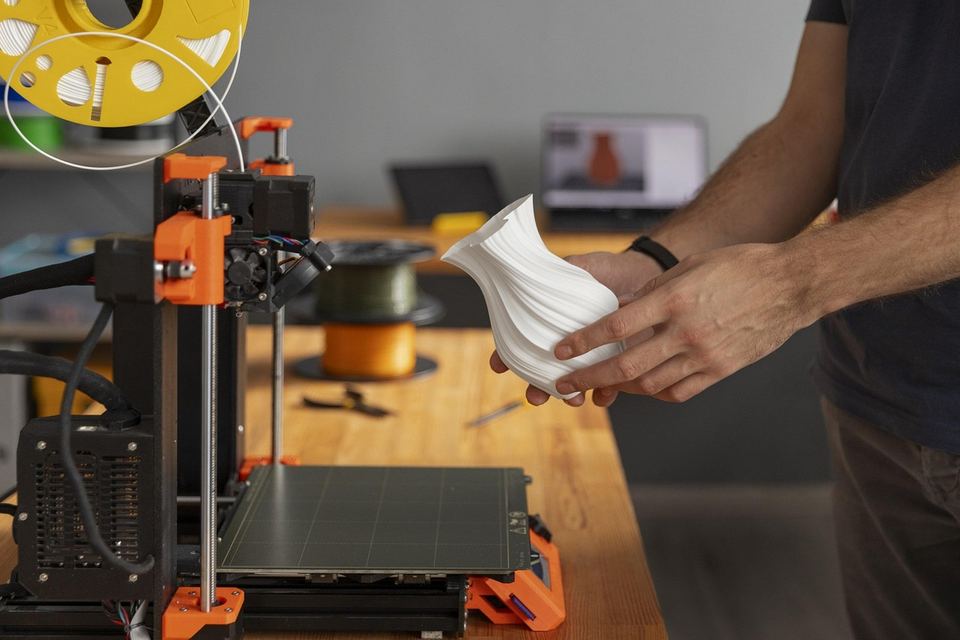
Plug the webcam into the Raspberry Pi that runs your printer, and OctoPrint or Mainsail can show a live view.
OctoPrint’s community keeps a list of USB webcams known to work with mjpg-streamer, and Klipper setups use the Crowsnest service for the same job.
OctoPi’s sample camera settings default to 640×480 at 10 frames per second, which is enough to spot a print lifting off the bed.
OctoPrint’s Webcam and Timelapse settings can also turn the same camera into a print time-lapse.
OctoPrint recommends the Raspberry Pi 3B, 3B+, 4B or Zero 2, and advises against the original Zero and Zero W, because heavy Wi-Fi use such as webcam streaming can hurt print quality.
Treat the picture as a smoke alarm and not an inspection tool, because an old sensor will not show fine layer detail.
2. Turn it into a person detector with Frigate
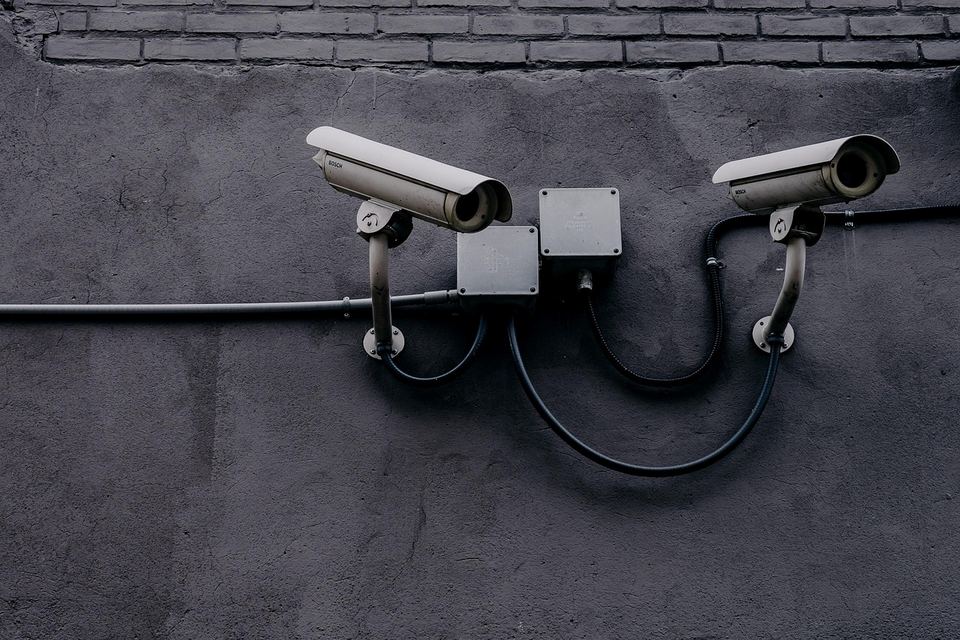
Frigate can use a USB webcam to tell people and cars apart from ordinary motion, which a basic motion-triggered camera cannot do. It detects that a person is present, not who that person is.
Frigate’s documentation recommends go2rtc’s FFmpeg device support, and you find the camera path by running v4l2-ctl with its list-devices option.
That route is Linux only. If Frigate runs in Docker, the container needs /dev/video0 passed through.
The bigger question is processing power. Frigate is designed around a separate detector, and its hardware guide calls CPU detection generally not recommended, so an old laptop running on its CPU alone may struggle.
An Intel integrated GPU or an Nvidia card can run detection, so a newer spare PC is the better host, and our old laptop guide covers what an older machine can still do.
Frigate also reports detections to Home Assistant, so a person at the door can trigger a phone notification.
3. Run a low-power motion camera with motionEye
motionEye on a small Raspberry Pi is the lighter option when Frigate feels like too much.
Install motionEye on Raspberry Pi OS, not from the separate motionEyeOS image, which is outdated and no longer recommended.
It spots motion by comparing frames, so shadows and light changes can trigger a recording.
Raise the Frame Change Threshold under Motion Detection, and save clips to a USB drive instead of the SD card, as in our external hard drive guide.
Recordings are saved to motionEye’s configured media directory, which may be on the SD card by default, so point it to the USB drive before the card starts wearing.
4. Scan whiteboards and codes with the Camera app

The Windows Camera app has Document, Whiteboard and QR and barcode modes, and Microsoft’s Camera app guide says a missing button means the camera does not support that mode.
Microsoft’s Store listing for the Camera app says the Whiteboard and Document features need a camera supporting 1080p or greater, so a 480p or 720p webcam may not show those buttons.
A whiteboard scan can be exported through the Print option, where you can save it as a PDF, and a scanned QR code shows its link at the bottom of the app.
Crop and Rotate are available on a scan, so a board photographed at an angle can be straightened before you save it.
Glare on a glossy board is the usual spoiler, so set the webcam slightly to one side.
If the picture flickers under office lights, the Camera app’s Video settings include flicker reduction.
5. Shoot a time-lapse without writing a script
The Camera app’s Settings list time lapse under Photo settings, so a plant, a window view or a slow project needs no extra software.
Fix the webcam in place before the first frame, because any shift ruins the effect.
The PC has to stay awake and powered for the whole run, so check the sleep timer before you leave it.
6. Flip the lens and make a pocket microscope
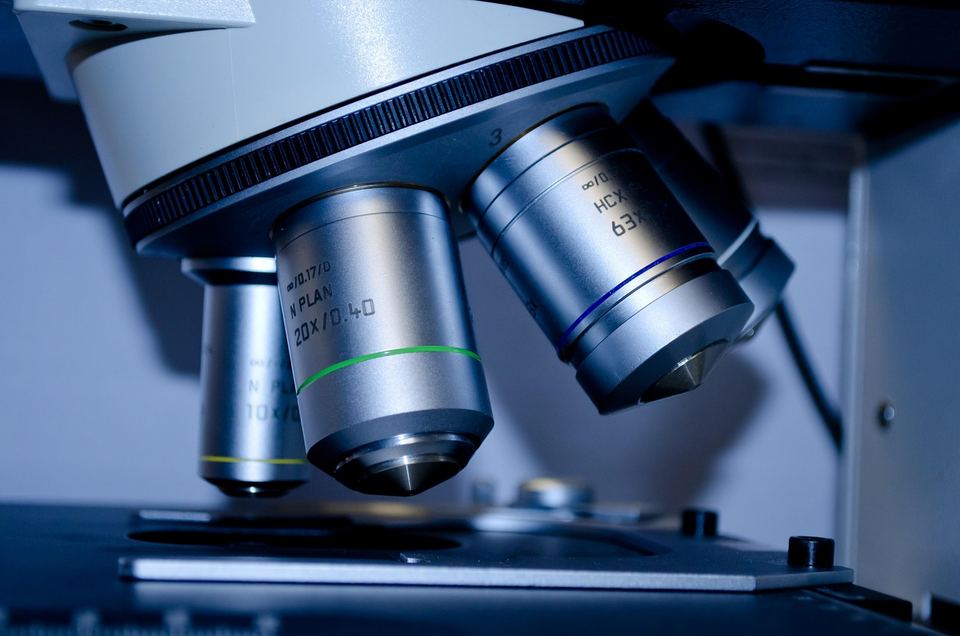
Unscrew the lens, reattach it backwards, and the webcam can focus on things a few millimetres away.
Guides show it working on webcams as weak as 0.3 megapixels, though the picture stays low resolution.
Use a webcam you do not need, since some lens barrels do not unscrew, and expect to hold the reversed lens at the right distance from the sensor with putty or a printed mount.
Add a small light beside the lens for contrast.
7. Use it as a second angle for calls and streams
A spare webcam gives you a second view for a call or a recording, such as a close shot of a desk or a keyboard.
In OBS Studio, add each webcam as a separate Video Capture Device source, then switch between them or show both in one scene.
Zoom and Teams also let you pick a connected webcam, but you will generally use one feed at a time unless you route a combined OBS scene through its virtual camera.
Put the better camera on your face and the old one on the work, because a low resolution sensor is more forgiving when it shows a whiteboard or a gadget.
Plug each camera into a different USB port on the PC, and try separate USB controllers if the picture stutters. A powered hub helps with power, but cameras sharing one connection still share its bandwidth.
8. Recycle it if it no longer works
A webcam that shows no picture in any app is not worth a project, so take it to an electronics drop-off.
Try a second USB port and another computer first, since a bad port looks like a dead camera.
Frequently Asked Questions
Can I use an old webcam as a security camera?
Yes. Frigate can use a USB webcam on Linux, and motionEye can run one on a Raspberry Pi, though low resolution limits both.
Will an old webcam work with OctoPrint?
Check the OctoPrint community’s list of USB webcams known to work with mjpg-streamer, which OctoPi bundles. Many models are listed.
How do I scan a whiteboard with a webcam?
Open the Windows Camera app and select Whiteboard. If the button is missing, Microsoft says the camera does not support that mode, and its Store listing says these modes need a camera supporting 1080p or greater.
What do I need to run Frigate with a USB webcam?
You need a Linux host where the webcam appears as /dev/video0, plus a detector such as an Intel GPU or an Nvidia card for good speed. If Frigate runs in Docker, that device has to be passed through to the container.
Can I use two webcams at once on one PC?
Yes, OBS Studio can use each webcam as its own source. Zoom and Teams generally use one camera at a time, and each webcam works best on its own USB port.
Why does motionEye record when nothing moved?
motionEye compares frames, so shadows and light changes can trigger it. Raise the Frame Change Threshold under Motion Detection.
The best things to do with an old webcam to try first
Start with the Camera app jobs, since they need no setup, and move to a Raspberry Pi project if the picture holds up.
Keep any camera feed on your home network, and do not forward ports to reach it from outside.
Unplug the webcam or cover its lens when you are not using it.
The usual pet camera and document scanner jobs still work, but plan for watching and not identifying, because many old webcams have limited resolution.
If you want a sharper picture, an old phone often has a better camera, and our old Android phone guide covers the setup.