
Samsung TVs, overall, are very versatile TVs that can provide good to very good picture quality. Samsung is the worlds most popular and trusted consumer electronics brand. We can expect best utilities and functions from Samsung Smart TV.
The Smart TV has a feature to use YouTube on the big screen, all you need is to activate the YouTube on your Samsung TV.
However, keep in mind that there are some Samsung TV models that don’t have the YouTube app. So, for those models, you won’t be able to perform the actions of activating youtube on TV.
Steps to Activate YouTube on Samsung TV using YouTube.com/Activate
Step 1.
Press the Smart Hub Button on your Samsung TV
Step 2.
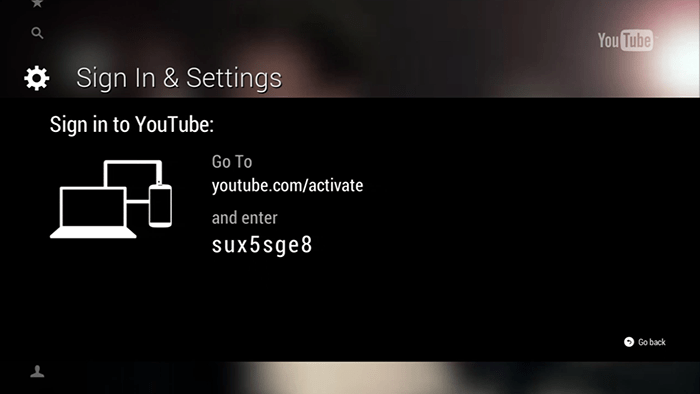
Go to Sign in & settings. Select Sign in.
Step 3.
You will receive the Code (Note it)
Step 4.
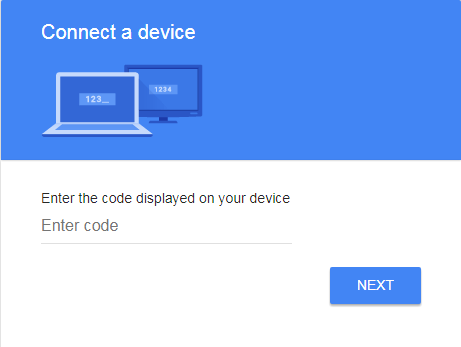
Now go to youtube.com/activate from your laptop or phone.
Step 5.
Sign-in with your Account Credentials.
Step 6.
You will be prompted to enter the code. Enter the code on your Device.
Step 7.
Click Allow access on your device.
Note & Conclusions: I hope the post was helpful. Do comment below for any assistance if needed. Cheers!
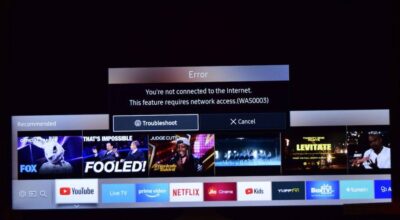
I have followed the steps several times. Each time after I enter the code, Google “Connect Device” seems to go out to lunch…never gets to the next screen. The code on my Samsung TV shows a hyphen between the 4th and 5th characters. I have tried entering and not entering the hyphen.
What is happening?
Thank you in advance for your help.
That’s Quite Wierd. I think the YouTube App you are using is an older version. Just update it and try it will work.
It’s not working
What issue are you facing, if you could please detail?
It’s need to be upgraded
Yes
LOL ok
I have a Samsung 4K Smart TV, Youtube App has been working fine before today. But now when I try and launch youtube all I get is a gray screen. I have tried my other apps and they are working fine.
Idk
iam haveing a hard timeacteivteing YouTube
thanks for posting this article, i have resolved my issue after reading this post..
Cheers 🙂
I have a 2012 samsung Series 6 tv. Please advise me How view youtube
I have samsung 4k and did not contain youtube app in store
Please please help me if there is way to get it