Every Android user has done it. Battery hits 30 percent by early afternoon, so you swipe open the recent apps tray and clear everything out. Twenty apps gone.
You feel like you fixed something. Two hours later, the battery is still draining at the same rate.
The habit is completely logical. It is also almost entirely wrong. And the actual culprit is something most people never think to check.
TL;DR: Most Android users blame background apps for poor battery life, but the screen is almost always the biggest drain, typically accounting for 20 to 30 percent of daily usage. Closing apps, turning off Wi-Fi, and enabling dark mode on an LCD phone make little real difference. Lowering screen brightness and shortening the screen timeout are the changes that actually move the number.
What does your battery usage screen actually show?
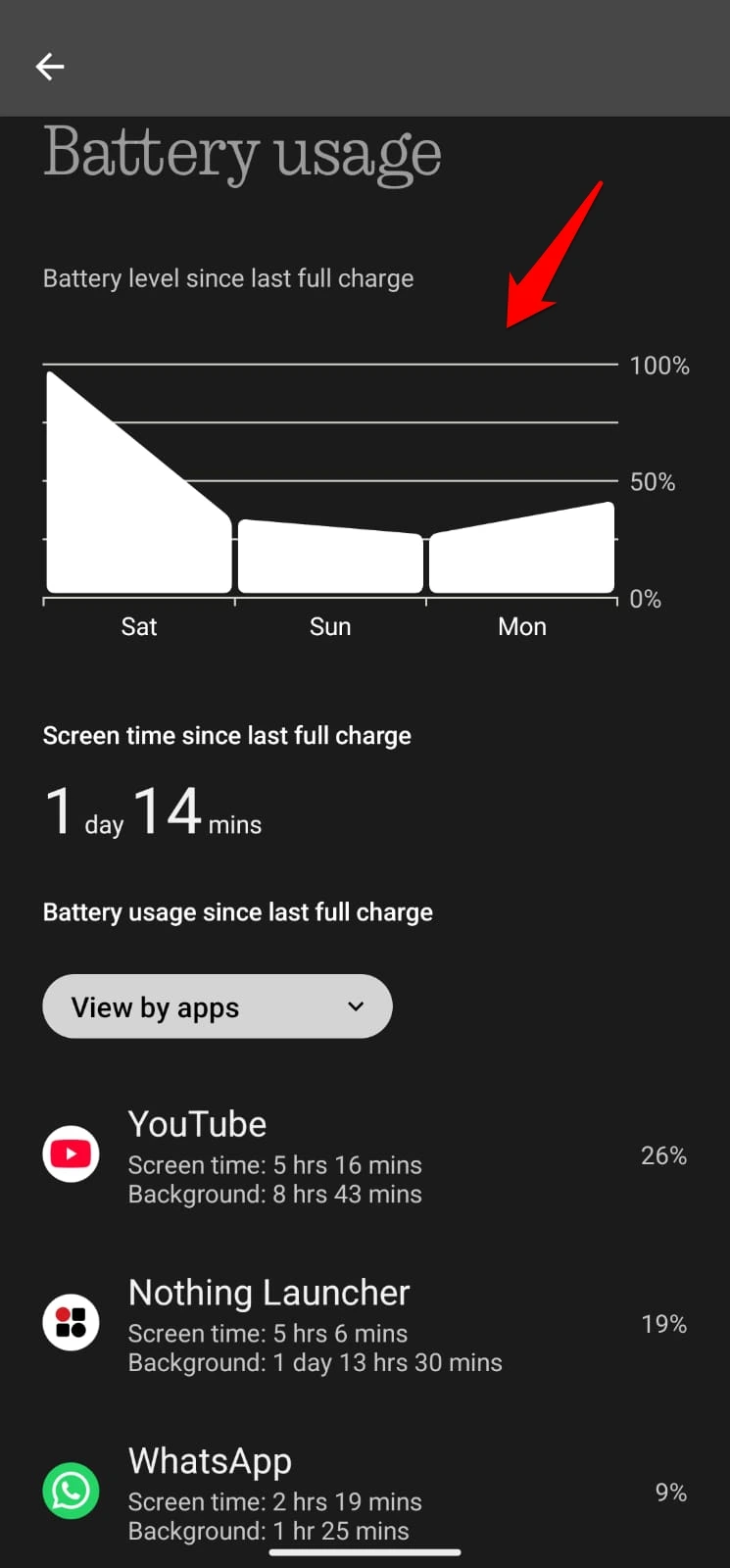
Open Settings on your Android phone. Tap Battery > Battery Usage. Look at what is sitting at the top of that list.
On almost every Android phone, regardless of brand, it is the screen. Not a rogue app. Not WhatsApp. The screen.
Display hardware typically accounts for 20 to 30 percent of total daily battery drain, and that figure climbs sharply when brightness is high or screen-on time is long.
That one number explains more about your battery life than anything else on the list. Everything below it, the apps, the connectivity services, the system processes, adds up to the remaining 70 to 80 percent combined.
Check this screen after a normal day, not a troubleshooting day. What it shows on a regular Tuesday is the honest picture.
If an app is sitting above 15 percent without much active use, that is worth investigating. But nine times out of ten, the screen is at the top by a significant margin.
Myth 1: Closing apps saves battery
This is the most deeply held myth in Android, and it is wrong in a specific, technically important way.
When you switch away from an app, Android suspends it in RAM. It is paused. It is not running, not syncing, not consuming meaningful power. It is sitting frozen in memory precisely so it can resume in a fraction of a second when you go back to it.
When you force-close that app, the next time you open it, Android has to load it from storage all over again. That full reload burns CPU cycles. CPU cycles burn battery.
Do that with six apps throughout the day, and you have asked your phone to do more work than if you had left them alone. This habit made sense on Android phones from 2011 with 512MB of RAM and a primitive memory manager.
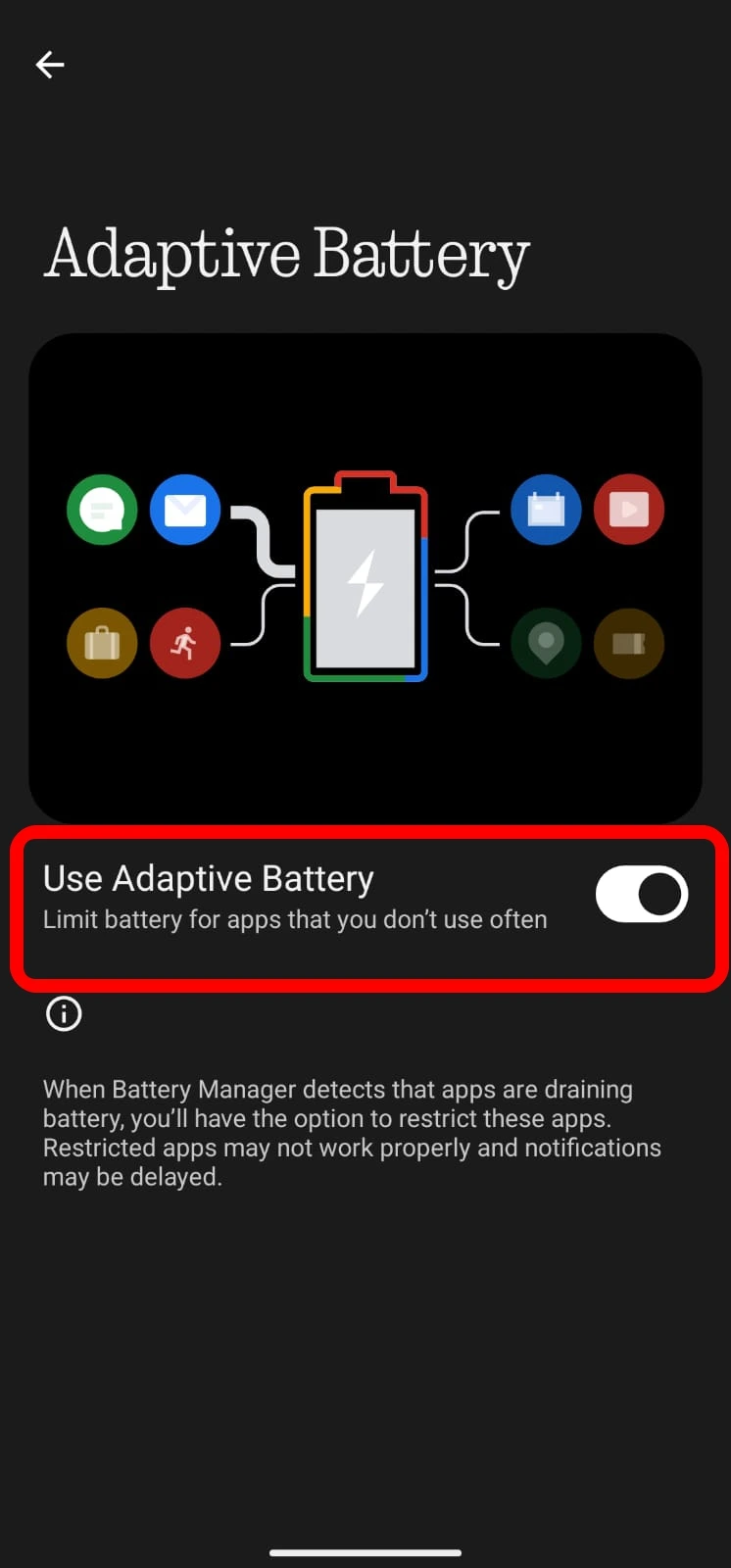
Modern Android does not work that way. The Adaptive Battery feature, introduced in Android 9 and refined in every version since, monitors your usage patterns and automatically restricts background activity on apps you rarely open. It does this without you touching anything.
Manually closing apps you use regularly is counterproductive. Closing apps you never open is pointless, because Android has almost certainly already restricted them.
The only time force-closing makes real sense is when an app is misbehaving, crashing, or you can see it sitting unusually high in battery usage.
Myth 2: Wi-Fi drains battery faster than mobile data
This one runs backwards from reality. Wi-Fi is almost always kinder to your battery than mobile data, and the reason is straightforward.
Your phone communicates with a cell tower that may be hundreds of metres away, or several kilometres away if coverage is weak. Maintaining that connection, especially while moving or inside a building, forces the radio to work hard.
In a weak signal area, the phone ramps up its transmit power to stay connected, and that draws significantly more battery.
A Wi-Fi router is typically a few metres away. The radio does a fraction of the work.
Research comparing Wi-Fi and LTE for video streaming found energy efficiency to be at least 54 percent higher on Wi-Fi under most conditions. That is not a marginal difference.
The one exception worth knowing: if your Wi-Fi signal is weak enough that the phone is constantly dropping and reconnecting, you are better off turning Wi-Fi off entirely and letting it use mobile data cleanly.
But in any normal home, office, or coffee shop with a decent connection, staying on Wi-Fi is the right move for battery life. Turning Wi-Fi off to save battery is one of those tips that sounds plausible and mostly does the opposite.
Myth 3: Dark mode saves battery on any phone
Dark mode saves meaningful battery on OLED and AMOLED screens.
On LCD screens, it saves almost nothing. This distinction matters enormously, and most people have no idea which type of screen their phone has.
On an OLED display, every pixel produces its own light independently. A black pixel is a pixel that is switched off, drawing close to zero power. When dark mode fills the interface with blacks and dark greys, a large portion of the screen is literally off.
A Purdue University study by researchers measured this directly: at the 30 to 50 percent brightness most people use indoors, switching from light mode to dark mode saves 3 to 9 percent of display power on OLED phones. At maximum brightness outdoors, that saving can reach 40 percent or higher.
On an LCD screen, a single backlight illuminates the entire panel from behind, regardless of what colours are on screen.
Showing a black image requires the same backlight power as showing a white one. The liquid crystals simply block the light rather than turning it off. Dark mode on an LCD phone is purely a visual preference. The battery benefit is negligible.
Most flagship Android phones from Samsung, Google Pixel, and OnePlus use OLED or AMOLED. Many mid-range and budget phones, particularly under 300 dollars, still use LCD.
Searching your model name and “display type” takes a few seconds and immediately tells you whether dark mode is doing anything real for your battery, or just looks different.
One honest note here: if your battery has genuinely degraded after two or three years of use, dark mode and app management will not compensate.
A lithium-ion battery typically retains around 80 percent of its original capacity after roughly 500 full charge cycles. Below that threshold, the phone simply cannot hold a charge the way it once did.
You can check your Android battery health in Settings on Android 14 and later, or with a free app like AccuBattery. If the health figure is low, the fix is a battery replacement, not a settings tweak.
Myth 4: Background apps are the main problem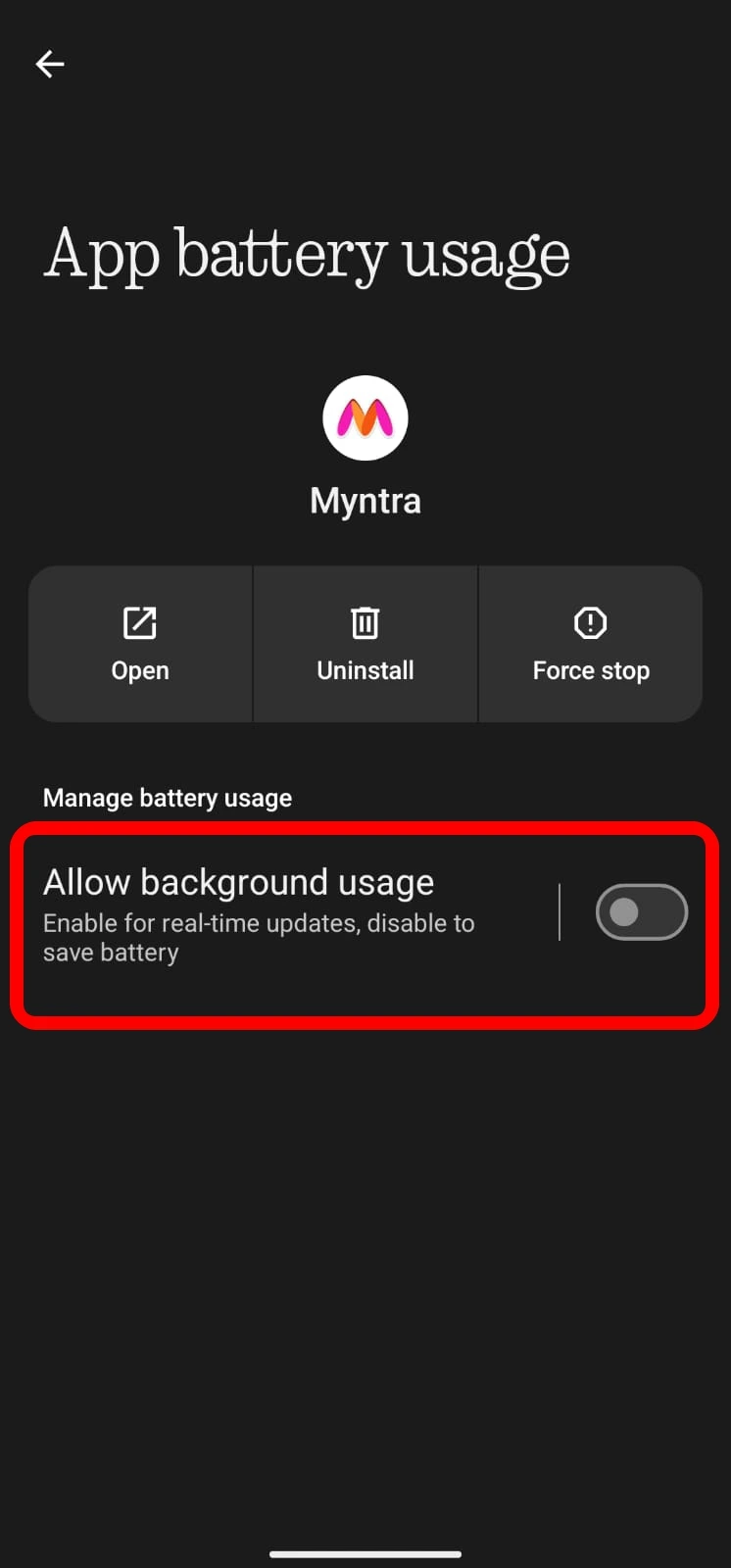

Background drain is real, but it rarely tops the battery usage list. The screen almost always does that.
The apps that genuinely cause outsized drain are specific: navigation apps running GPS continuously, video streaming at high brightness, mobile games with demanding graphics, and social media apps granted persistent background access.
Facebook, Instagram, and TikTok are legitimately designed to keep you active, refresh content, send notifications, and pull you back in.
If one of them is sitting at 12 to 15 percent of your daily drain without much active use, go into Settings, find the app, tap Battery, and restrict its background activity.
But for most apps, Android’s Adaptive Battery has already done this work after a few weeks of normal use. The system learns that you open Gmail ten times a day and a meditation app twice a month, and it treats them completely differently in the background.
What it cannot automatically fix is an app you genuinely use that is poorly optimised or has a bug that keeps it active when it should be sleeping, which is exactly what battery usage is designed to surface.
The one change that actually moves the number
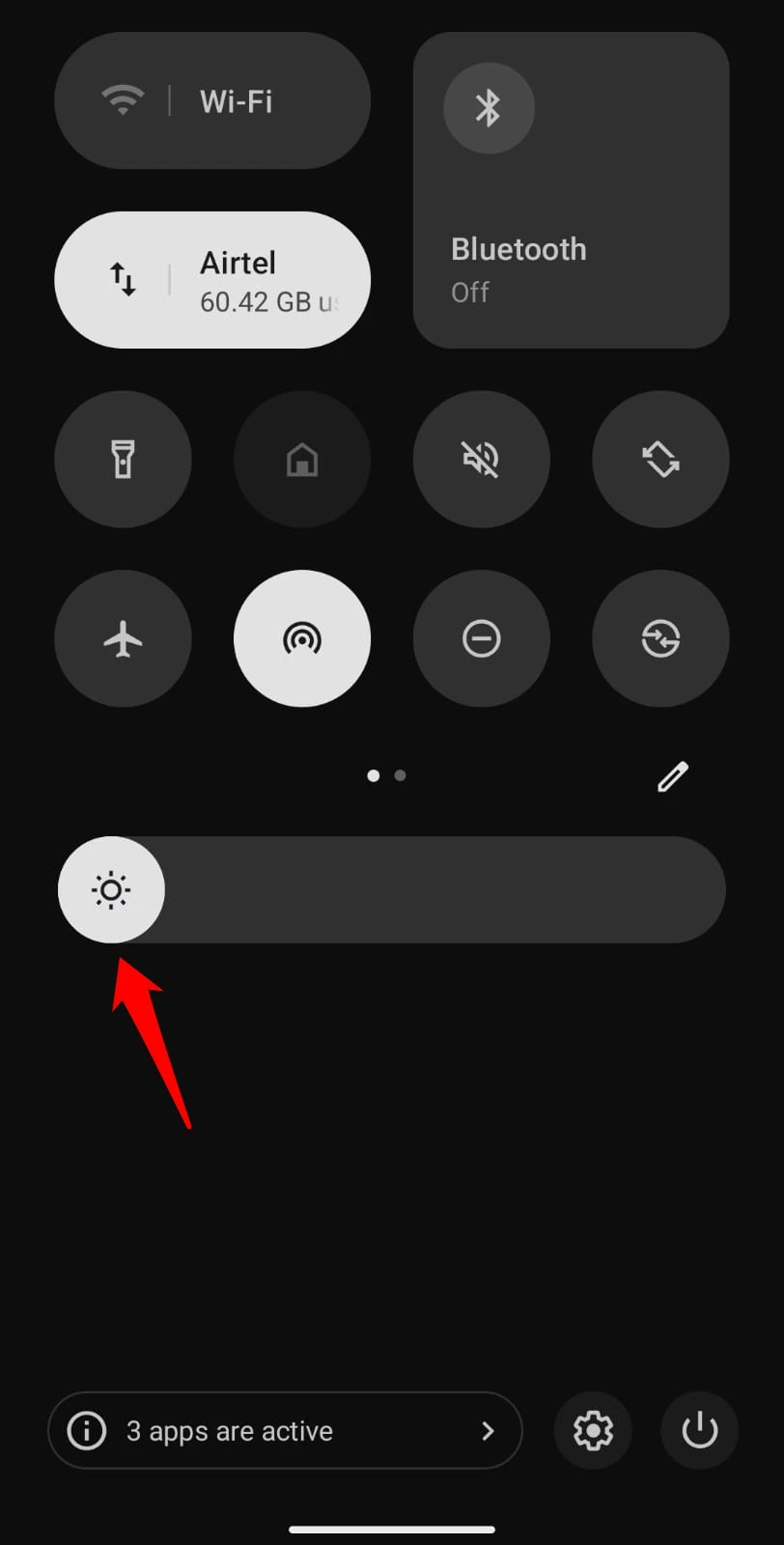
Lower the screen brightness. That is the honest answer.
Enabling auto-brightness instead of leaving the screen at maximum can make a measurable difference in hours, not minutes.
Shortening your screen timeout from two minutes to 30 seconds helps. Disabling Always-On Display, if your phone has one, eliminates a constant low-level draw throughout the day.
At maximum brightness, your screen can drain the battery twice as fast as at moderate settings, according to display power measurements on AMOLED devices. That ratio is not a small margin.
None of this needs a third-party app or a specialist settings menu. It needs a correct diagnosis. These myths persist because they feel logical.
Clearing running apps looks like housekeeping. Turning off a radio sounds like conserving battery. But the battery usage screen does not lie. Open it, look at what is at the top, and fix that first.