The night before I switched from my old iPhone to a Pixel, I sat there scrolling old WhatsApp chat threads I had not opened in years. A voice note from my dad testing out his new phone. A group chat from a trip that is not active anymore because half the people in it stopped talking to each other. I was fully prepared to lose all of it, because that used to be how this worked.
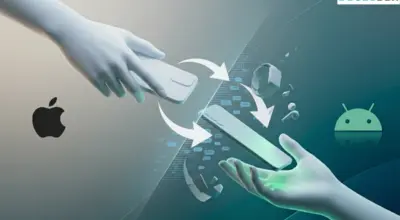
Thankfully, it doesn’t work that way anymore. You can transfer WhatsApp between iPhone and Android officially now, but the process is not symmetrical, and figuring that out cost me about twenty minutes I did not need to spend.
TL;DR: WhatsApp chat transfer between iPhone and Android now works officially in both directions using a USB-C to Lightning cable and a QR code scan. Android to iPhone still leans on Apple’s Move to iOS app, while iPhone to Android uses WhatsApp’s own Move Chats to Android tool. Only one WhatsApp account transfers per migration, and WhatsApp Business accounts are not supported.
What you need to transfer WhatsApp between iPhone and Android
Transferring WhatsApp chats from iOS to Android, or vice versa, follows the same three things: a cable that connects the two phones directly, a charged battery on each, and the new phone not yet set up with WhatsApp installed. That last part matters more than it sounds.
I made the mistake of opening WhatsApp on the Pixel first out of habit, and had to delete it and start over because the app assumed I wanted a fresh account instead of a migration.
For this transfer, you will need a USB-C to Lightning cable specifically, not a USB-C to USB-C cable, even though the Pixel itself uses USB-C. The iPhone side of the connection is what dictates the cable.
If you are also weighing an Android versus iPhone security tradeoff while switching, that is worth reading separately, which you can follow in the link below.
iPhone to Android: the direction that finally works properly
On the iPhone,
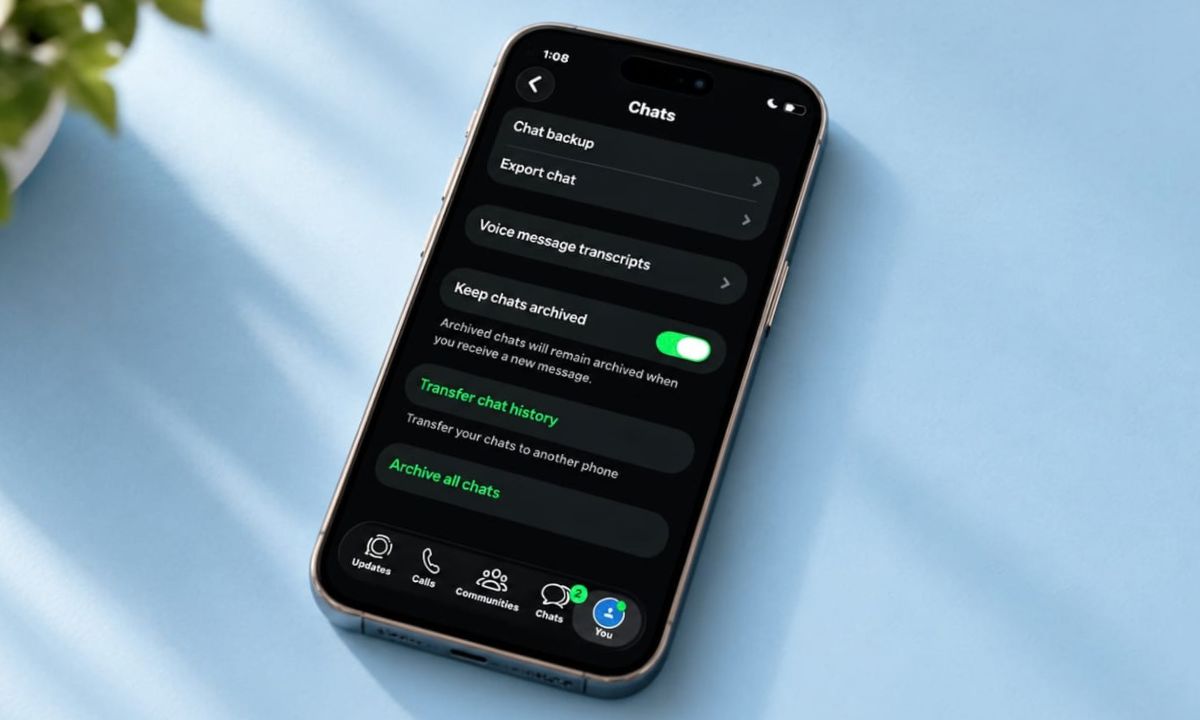
- Open WhatsApp > Tap on your profile > Go to Chats
- Tap on Transfer Chat History
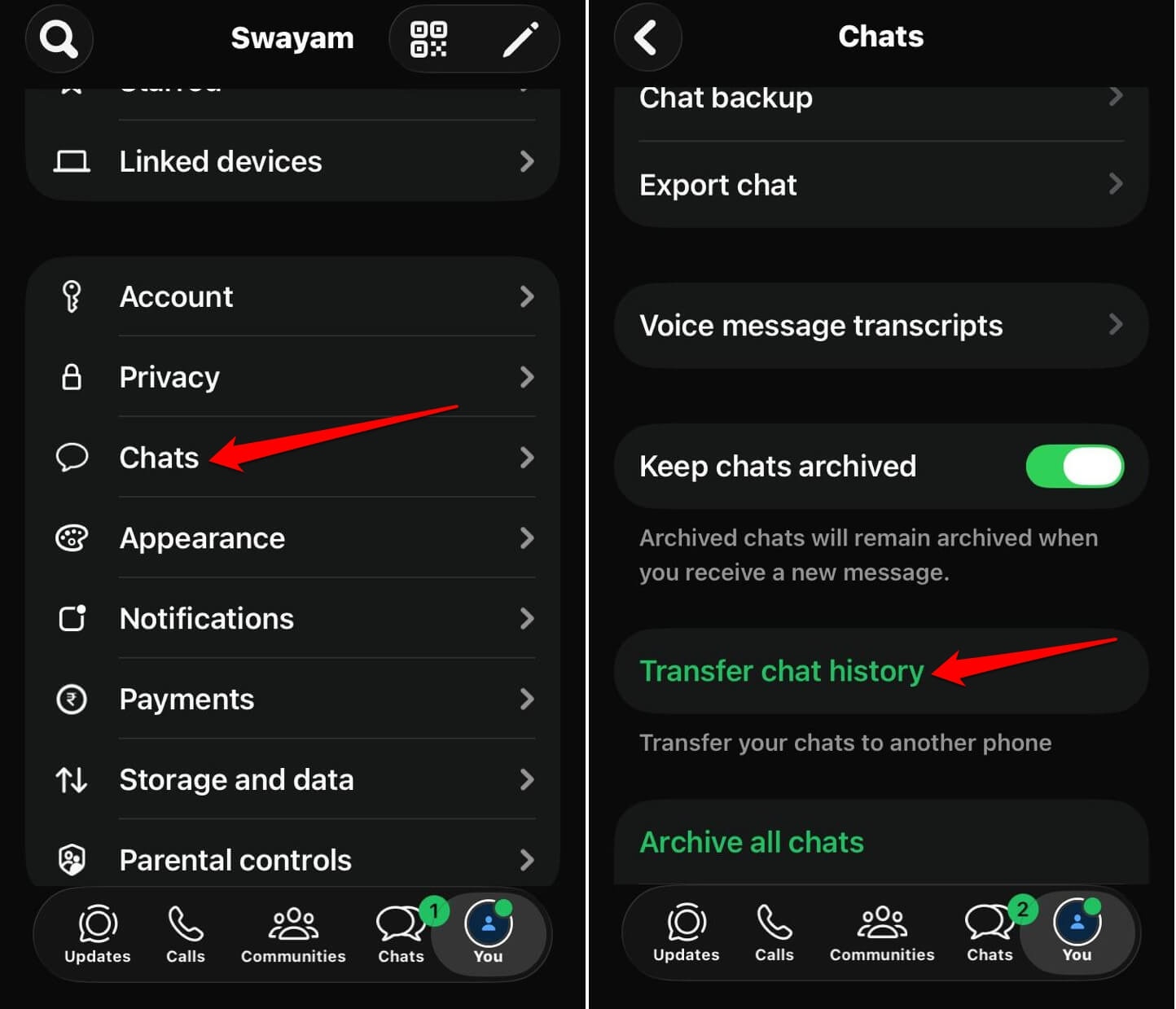

- Connect the cable when prompted
- On the Android phone, WhatsApp will show a QR code during setup for you to scan with the iPhone.
Once scanned, the transfer starts moving conversations, media, and voice notes directly between the two phones rather than through the cloud, a process Google detailed when the feature launched.
This is worth noticing because it means your Android phone does not need a Google Drive backup pulled down afterward. The data just arrives seamlessly.
Android to iPhone: still routed through Apple’s own app
Going the other direction uses Apple’s Move to iOS app, installed from the Play Store on the Android phone.
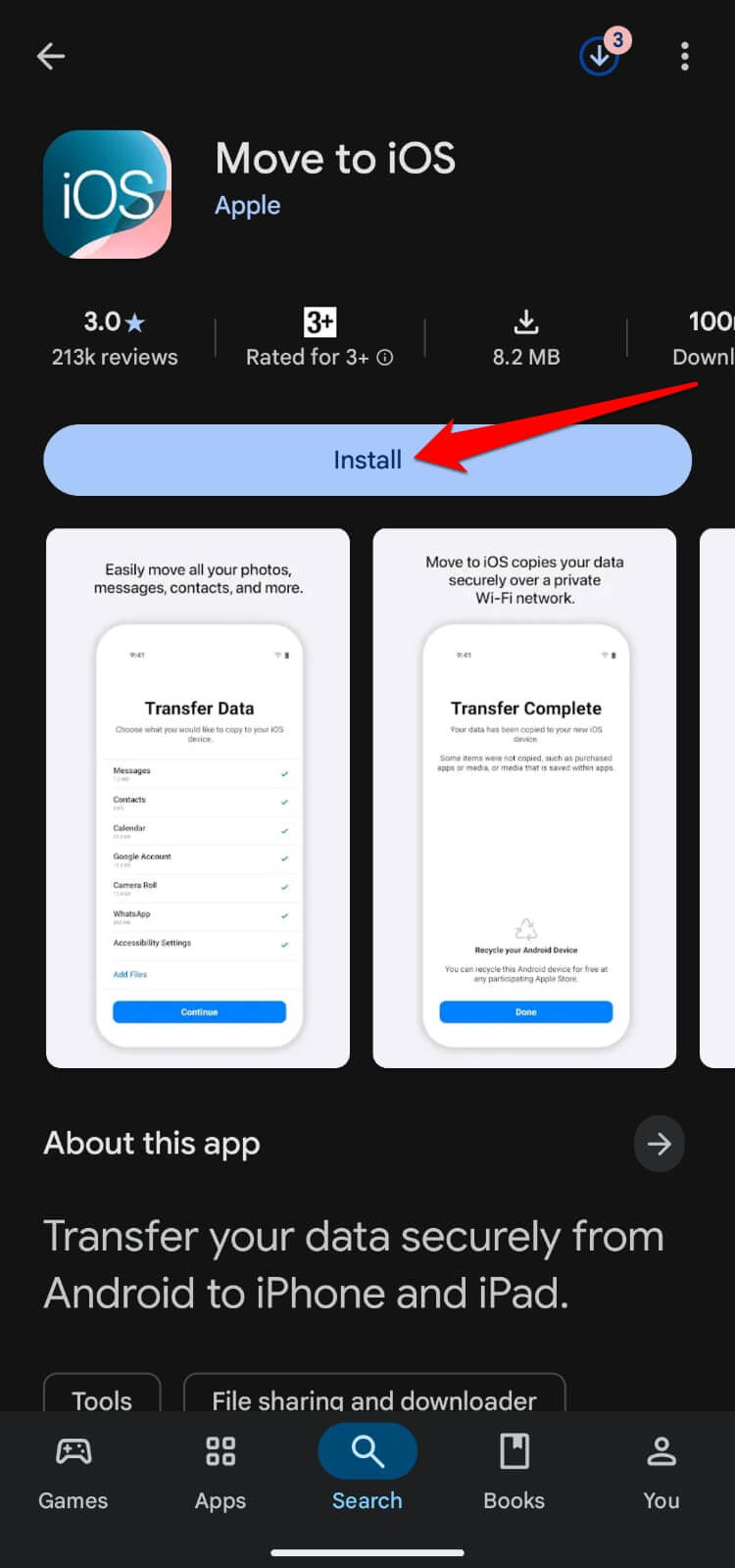
- Start setting up the iPhone until you reach the Apps and Data screen.
- Choose Move Data from Android, and a code appears on the iPhone.
- Enter that code inside Move to iOS on the Android device.
- Select WhatsApp among the data types offered, and let the transfer run.
I did not expect the two directions to feel this different in practice. iPhone to Android felt like a WhatsApp feature. Android to iPhone still feels like an Apple feature that happens to include WhatsApp, because it lives inside the same tool that also moves your photos, contacts, and text messages.
| Requirement | iPhone to Android | Android to iPhone |
|---|---|---|
| Tool used | WhatsApp’s own Move Chats to Android | Apple’s Move to iOS app |
| Cable needed | USB-C to Lightning | USB-C to Lightning |
| New phone setup state | WhatsApp not yet installed | iPhone not yet set up |
| WhatsApp Business supported | No | No |
| Accounts per migration | One | One |
What data actually made it to the new phone
Everything I cared about showed up after the data migration. Conversations, media, voice notes, group chats, all intact and in order.
What did not carry over was my call history and my WhatsApp display name, which I had to reset from scratch on the Pixel. Neither felt like a real loss, but I would have wanted to know in advance rather than notice it missing later.
The stranger adjustment was habit, not data. For the first few days I kept swiping in the exact spot where the iPhone’s WhatsApp icon used to sit, landing on whatever Android had put there instead. The chats being present did not stop my thumb from expecting the old layout.
If you only need one or two conversations, skip all of this
Full migration is overkill if you genuinely only need a couple of specific chats preserved, not your entire history.
Inside any conversation,
- Tap the contact name in the Chat
- Scroll down and select Export Chat
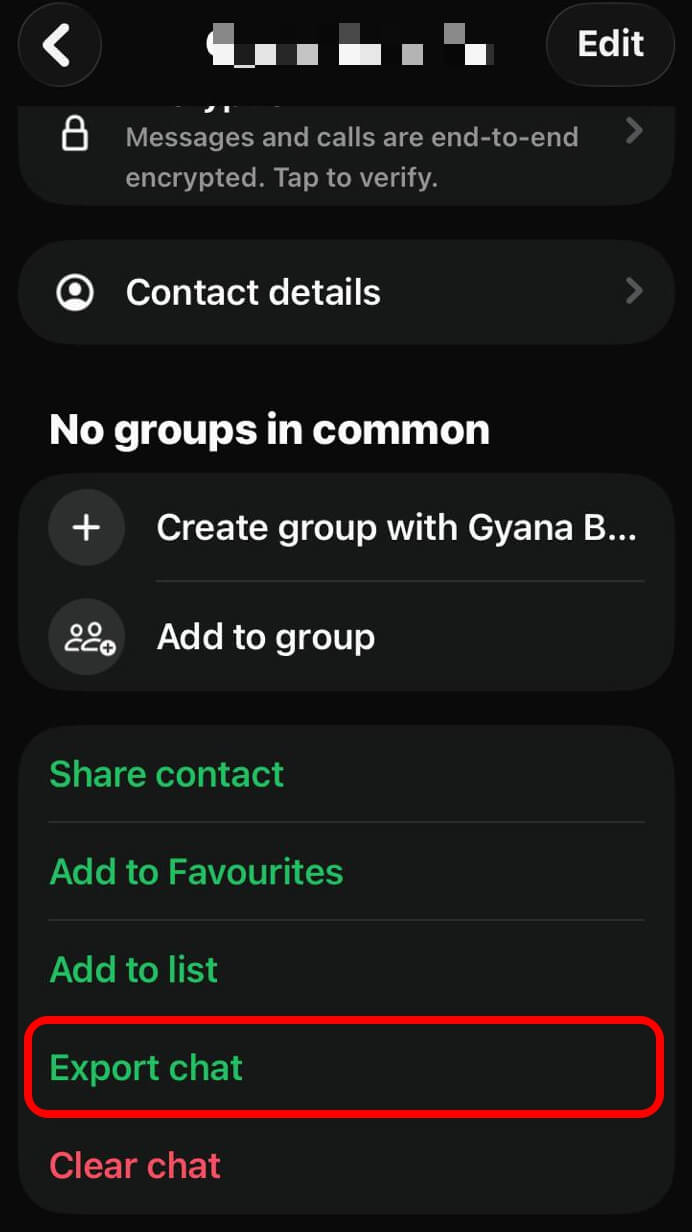

This saves that single conversation as a file you can email to yourself and open on the new phone, though without the original media attachments unless you choose to include them, which makes the file considerably larger.
I used this for exactly one conversation, a years-long thread with my sister that I wanted searchable outside of WhatsApp entirely. It took two minutes and skipped the cable, the QR code, and the setup timing requirements completely.
The backup you should still make regardless
You can always back up your WhatsApp chats manually.
On Android,
- Go to Settings > Chats > Chat Backup > Back Up.
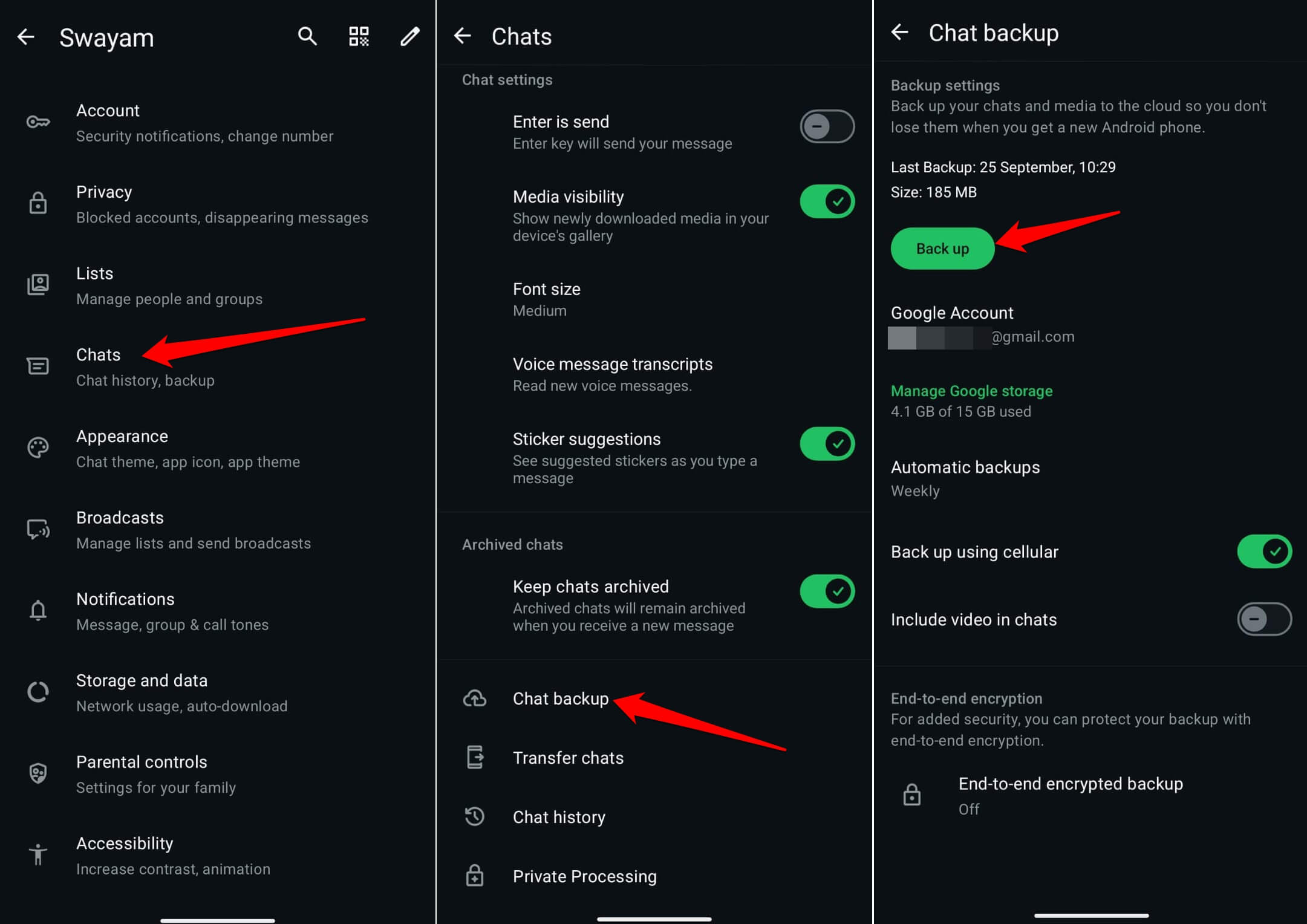

On iPhone, it is the same path, but chats are backed up through iCloud instead of Google Drive.
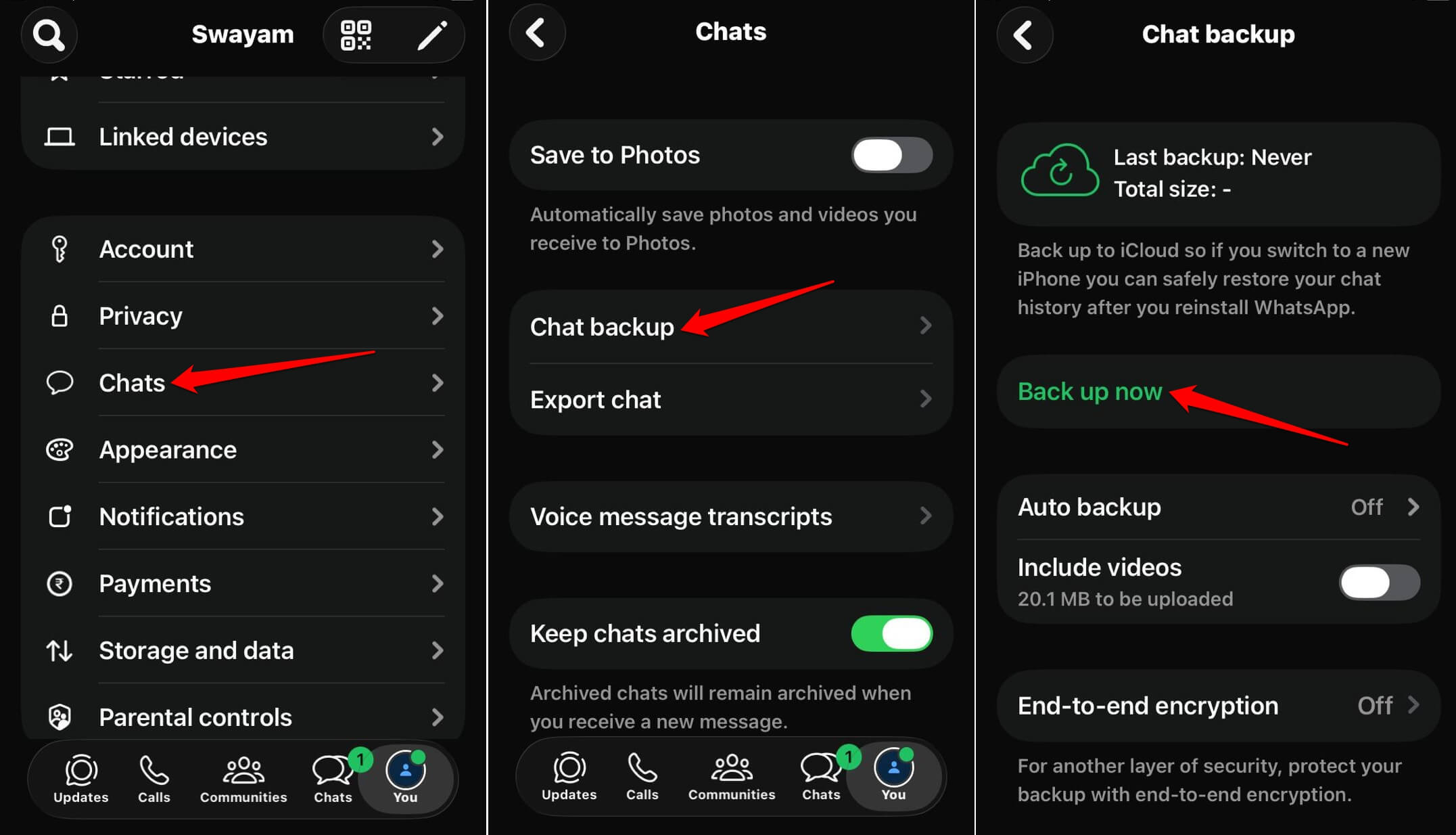
A finished direct transfer does not need this backup, but if the transfer stalls partway through, having a recent backup means you are not troubleshooting a half-finished migration and a total data loss scenario at the same time.
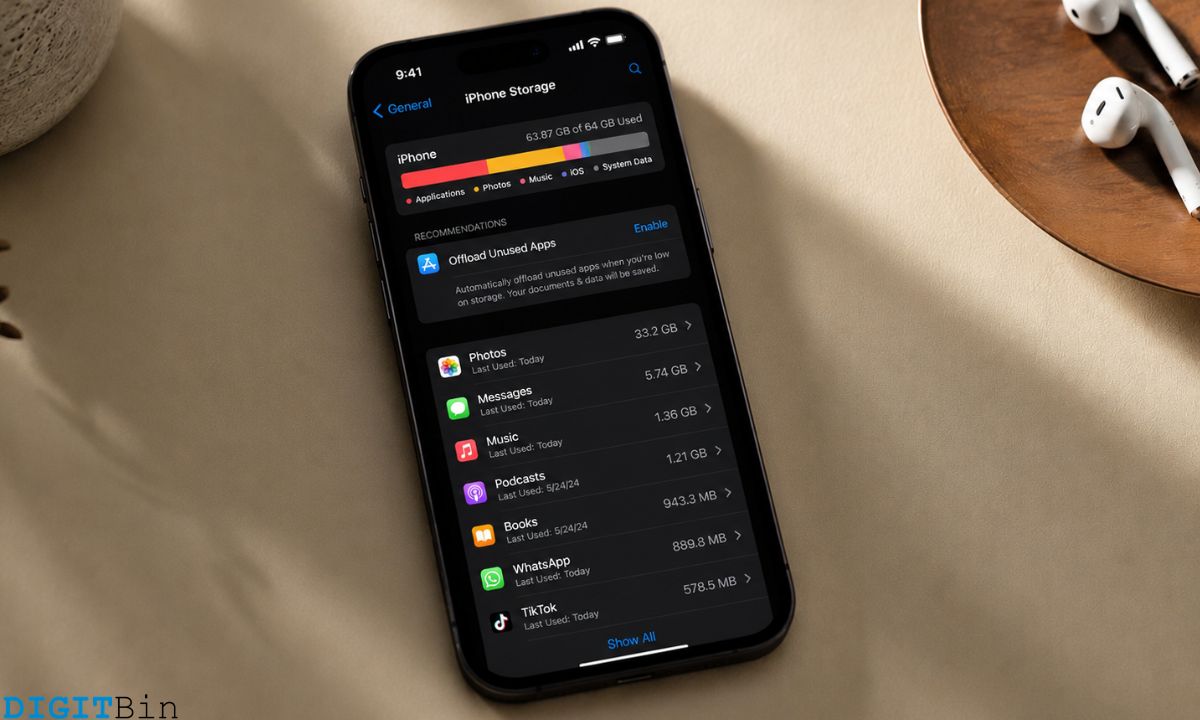
If storage space is tight during the transfer, clearing it first the way by following our iPhone storage guide linked below can prevent the transfer from stalling.
Frequently Asked Questions
Can I transfer WhatsApp Business chats this way?
No. Both official transfer methods only support regular WhatsApp accounts, not WhatsApp Business.
Do I need Wi-Fi for the transfer?
No. The direct cable transfer moves data phone to phone and does not require an internet connection once started.
Will my call history transfer along with my chats?
No. WhatsApp call history does not transfer in either direction, only chats, media, and voice notes.
Can I transfer more than one WhatsApp account at once?
No. Only one account can be migrated per transfer session.
What if the WhatsApp data transfer stops halfway through?
Restart the process from the beginning after confirming your manual backup is recent, since a failed transfer does not resume from where it stopped.
The fear of switching platforms and losing years of conversations is mostly gone now. What is left is just knowing which direction you are going and giving yourself a little time for the migration setup that I did not initially plan for, in my case.