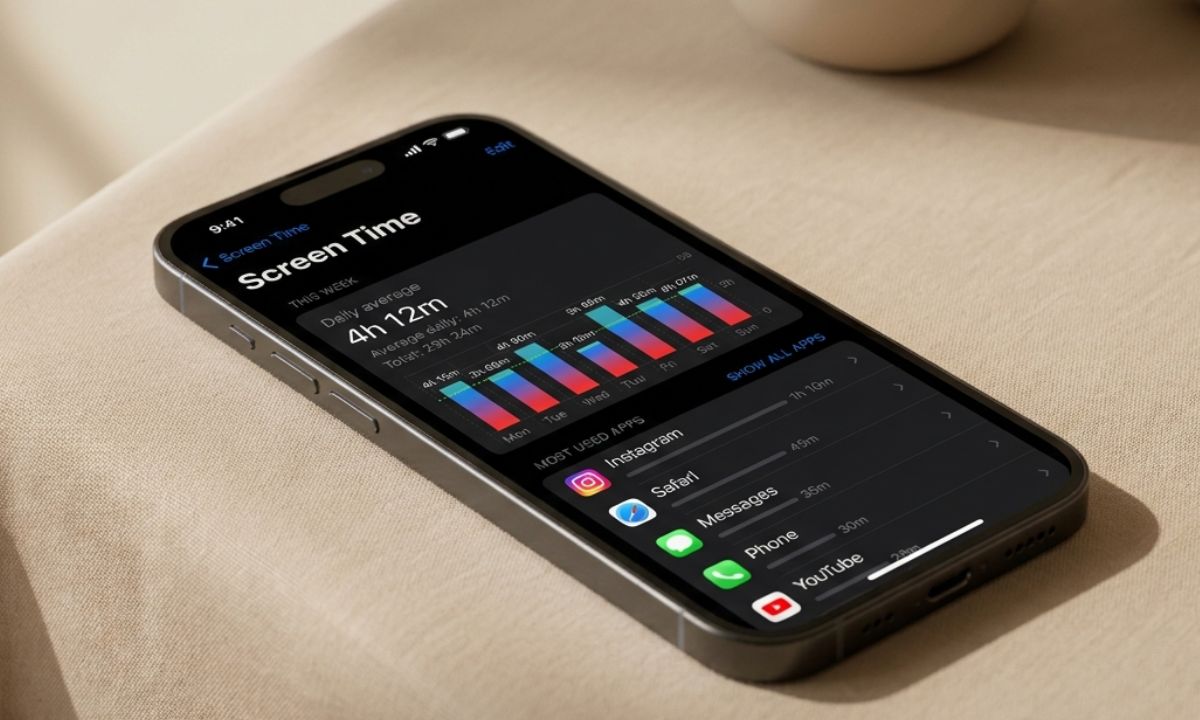
Screen Time and Live Activities do almost opposite jobs on the same phone. One tells you how much you used your iPhone. The other puts more information in front of you while you are using it, right on the Lock Screen or in the Dynamic Island.
I turned both on properly, the personal version of Screen Time rather than the parental one. Also, I left Live Activities running for anything that offered it. It went on for two weeks straight to see what actually changes about a normal day.
TL;DR: Screen Time set up as This is My iPhone gives adults the same App Limits, Downtime, and weekly report tools built for kids, minus any restrictions. Live Activities display real-time information, such as delivery ETAs and timers, on the Lock Screen and Dynamic Island without opening the app. Two weeks of both running together cut nighttime phone pickups and cut the habit of unlocking the phone just to check a number that was already visible.
Setting up Screen Time took longer than I thought
Setting up Screen Time is straightforward. Here are the steps
- Open Settings > Screen Time.
- Go to App and Website Activity and turn on the feature.
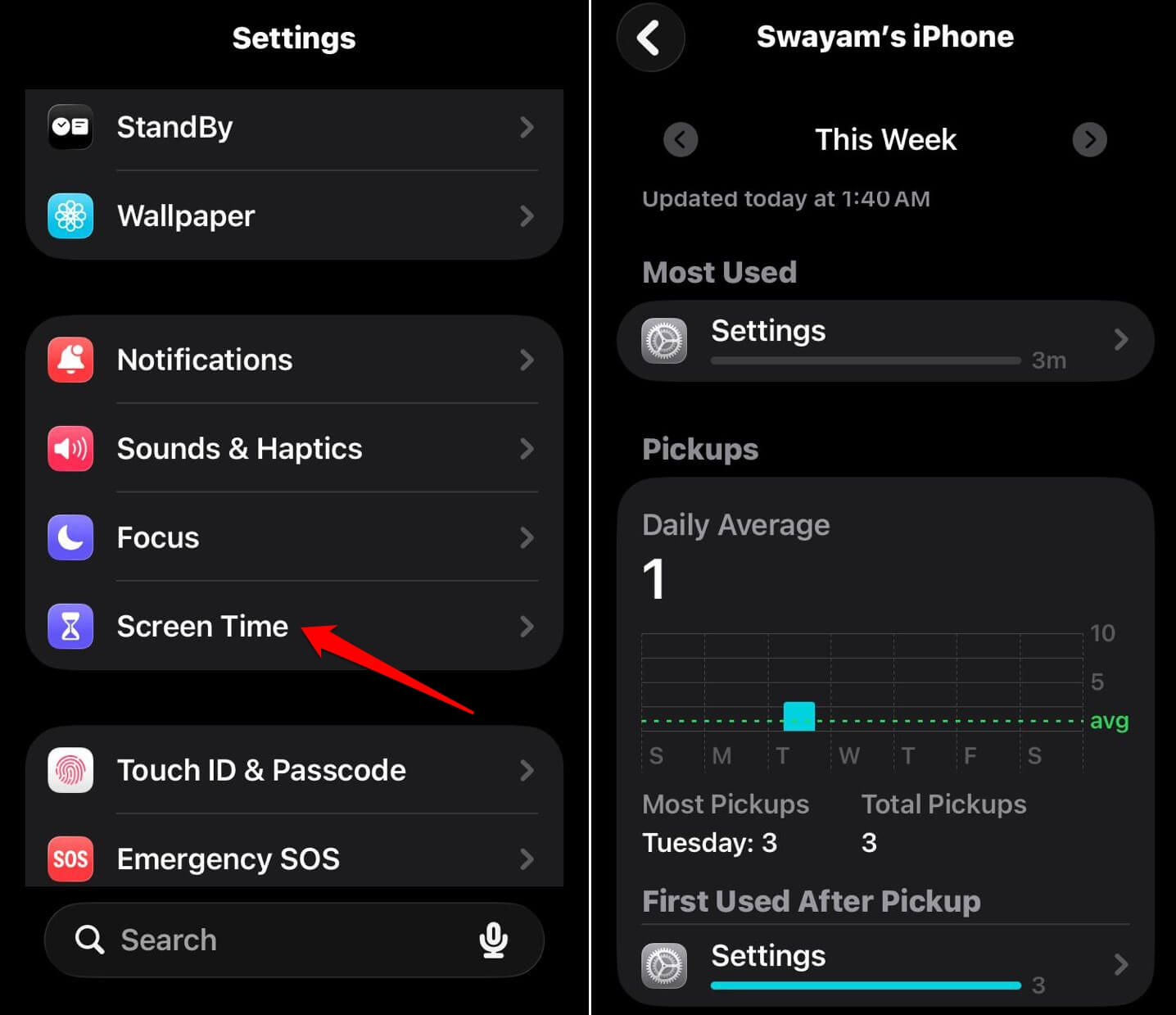

Apart from the above settings, within Screen Time you get individual settings to limit communications, protect against sensitive content, and set content and privacy restrictions.
App Limits let you cap a category, Social, Games, Entertainment, or a single app, at a daily number of minutes, resetting automatically at midnight. Setting up every individual feature according to your requirements will take a fair amount of time. It is not just a tap-a-toggle setting.
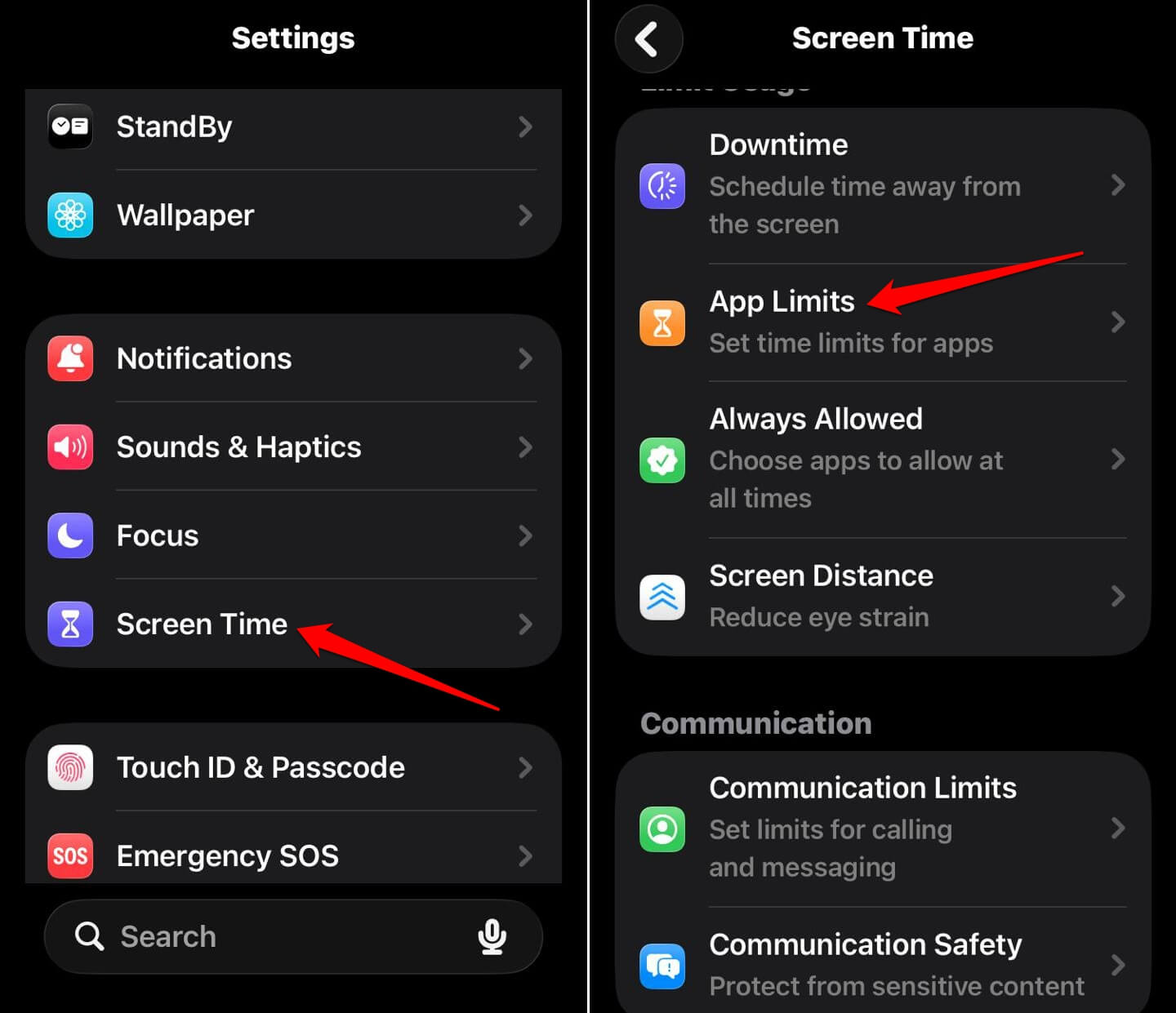
I set Social to ninety minutes mostly to see what would happen, expecting to just tap Ignore Limit the first time it came up. I did that at first, but not on the second day.
It was not out of discipline, but more because the screen interrupting me mid-scroll broke whatever momentum had me there in the first place. By the time the limit screen cleared, I had already opened something else.
Downtime turned my iPhone into a dumber phone on a schedule
| Feature | Settings path | What it does |
|---|---|---|
| Screen Time setup | Settings, Screen Time, Turn On Screen Time, This is My iPhone | Personal Screen Time without parental controls |
| App Limits | Settings, Screen Time, App Limits | Daily time cap per app or category, resets at midnight |
| Downtime | Settings, Screen Time, Downtime | Blocks all apps except the Always Allowed list during a set window |
| Live Activities, all apps | Settings, Face ID and Passcode, Allow Access When Locked | Global on or off toggle for every app at once |
| Live Activities, single app | Settings, then the app’s own page | Per-app toggle, separate from the global switch |
Downtime blocks everything outside a list of apps marked Always Allowed during a set window. I ran mine from eleven at night to seven in the morning. Phone calls still work regardless. Everything else greys out, but the icon is still visible. It is, however, just unresponsive, with a small hourglass badge instead of opening.
The first night I reached for the same three apps out of pure habit, tapped one, watched it grey out, and put the phone down without really registering why.
The interruption did the deciding for me before I had a chance to argue with myself about it. By the second week, I had stopped picking the phone up at all in that window, which is a different outcome than I expected. I thought I would just get annoyed at the grey icons every night, not stop reaching for them.
I also added Messages and Maps to “Always Allowed” after the first week, both for reasons that had nothing to do with discipline. One because a late text(urgent ones) mattered and I could not read it. The other because Downtime does not know the difference between doomscrolling and needing directions at midnight.
Live Activities put information where I stopped having to unlock the phone to get it
Live Activities show up on the iPhone Lock Screen. On models with the Dynamic Island, it appears as a small pill at the top of the screen while the phone is unlocked and in use.
It updates in real time without opening the app that started it. A delivery tracker, a timer, a sports score, a ride share, all rendered live rather than as a static notification you have to tap into.
Turning Live Activities on/off entirely goes through
- Settings > Touch ID and Passcode/Face ID and Passcode
- Allow Access When Locked tab > Live Activities.
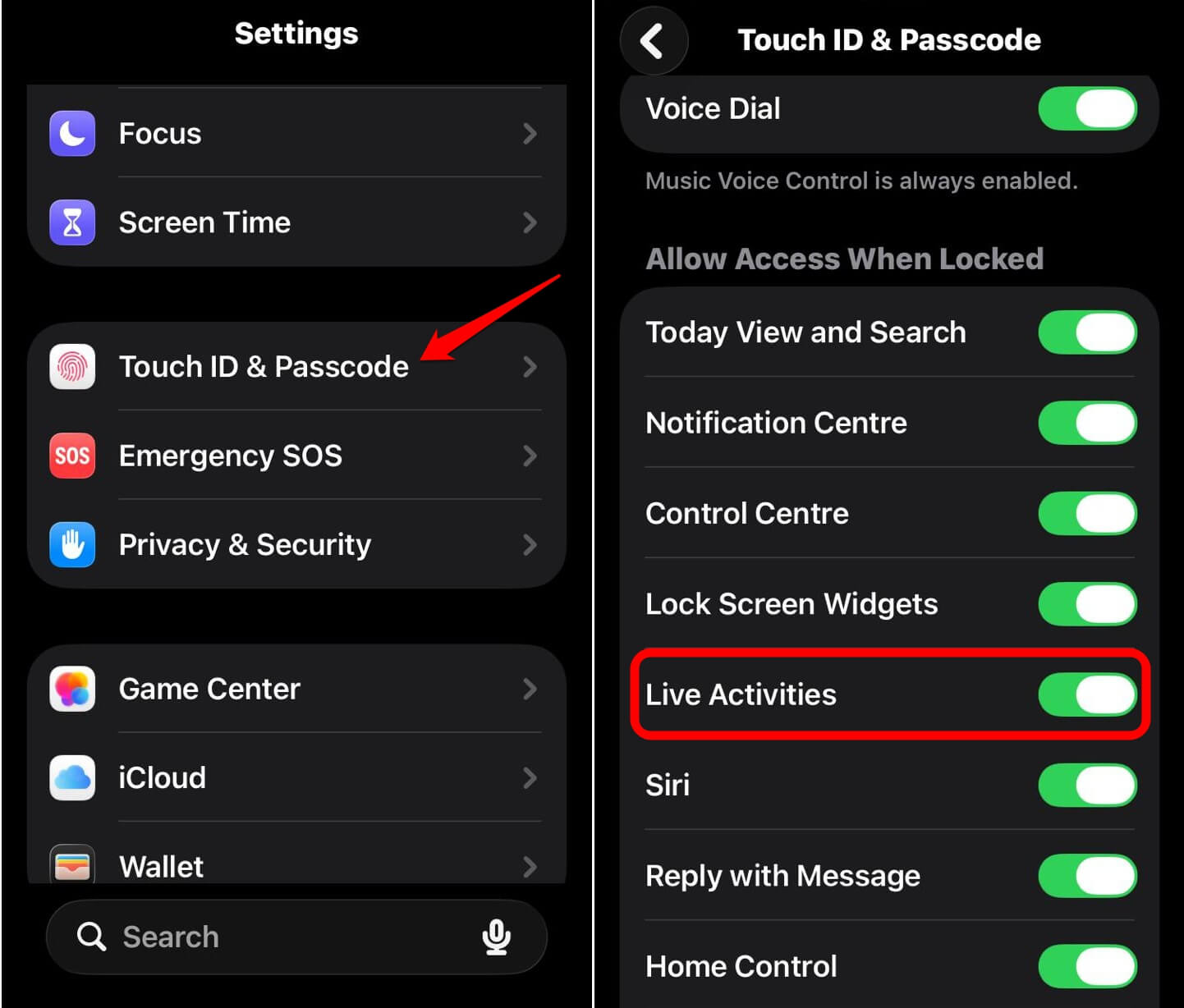

Turning off a single app’s Live Activities instead means going into that app’s own page under Settings and finding the toggle there, which is a more scattered system than I expected the first time I went looking for it.
What actually changed was smaller than I expected. I stopped unlocking the phone to check a delivery ETA. The Dynamic Island already had the number.
I noticed that habit disappearing before I noticed the timer running out on its own. The checking just stopped being necessary, and I only caught myself missing it once, during a food delivery. Back then, the app had not adopted the feature yet, and I was back to unlocking and tapping through three screens for a number that used to sit right at the top.
The weekly report told me things I already suspected, and one I did not
Every Sunday, a notification lands with the week’s total, broken down by app, along with pickup count and which app sent the most notifications. The category totals matched what I expected going in. The surprise was pickups, over a hundred a day most days, a number I would have guessed at maybe a third of.
I stopped opening the full report most weeks by the second week. The Sunday notification’s summary line was already enough, which is its own small admission that the number itself mattered less over time than the one moment of seeing it.
The report also is not perfectly accurate. It tracks active foreground use rather than anything running quietly in the background, so an app playing audio while the screen is off barely shows up at all, a gap I only noticed because a podcast app I use for hours a week barely registered any time.
Frequently Asked Questions
Does Screen Time work the same way for my own iPhone as it does for a child’s?
Yes. Choosing This is My iPhone during setup gives you App Limits, Downtime, and the weekly report without any parental restrictions layered on top.
Where do I turn off Live Activities completely?
Settings, then Face ID and Passcode, then Allow Access When Locked, where Live Activities has its own toggle.
Can I turn off Live Activities for just one app?
Yes, inside that app’s own settings page under Settings, there is a separate Live Activities toggle specific to that app.
Does the Screen Time weekly report track background app use?
Not reliably. It mainly tracks active foreground use, so apps playing audio or running quietly in the background can show far less time than they actually used.
Does Downtime block phone calls?
No. Phone calls remain available during Downtime regardless of which apps are marked Always Allowed.
Living with Screen Time and Live Activities at once
Screen Time and Live Activities ended up pulling in opposite directions, and both stuck anyway. One added friction on purpose, interrupting a habit long enough for me to notice it was getting quite addictive.
The other removed friction, cutting out the unlock and tap sequence for things I used to check manually. Neither changed how much I actually use the device in total. They did change the way I used my iPhone.