

Quick Summary
- Disable GPU Rendering – Turn off GPU-accelerated rendering in Steam settings to reduce resource load.
- Use Offline Mode – Limits WebHelper activity but disables downloads, updates, and some online-only games.
- Turn Off Extra Features – Disable animated avatars, Steam Overlay, and other non-essential features.
- Run Steam Lite – Use Mini Games List or create a batch file to launch Steam in a barebones mode without WebHelper.
Often, while using Steam, I have noticed that it consumes a huge chunk of memory. After investigating, I realised it’s the WebHelper client of Steam that requires a sufficient amount of CPU firepower to perform various tasks.
You can think of the Steam Client WebHelper as a browser that is built within the Steam. All the functions of the Steam that require web access it is loaded with the WebHelper. There are multiple WebHelper clients that Steam implements to manage various tasks.
We know that modern webpages are resource-intensive. The same issue happens with the Steam client WebHelper. In the process of managing various features and functions through web pages, a significant amount of memory is used in every session.
As long as you use Steam, the different WebHelpers active in the background keep consuming memory. There are different workarounds to lessen the load on RAM and conserve memory while using Steam, which I have outlined in this guide.
Different Ways to Prevent Steam Web Helper from Using Too Much Memory
If you are using Steam and noticing high usage of memory, it can likely be due to the Steam client WebHelper. Follow the workarounds explained here to utilize comparatively less memory while you are logged into Steam.
1. Disable GPU Rendering
The GPU-accelerated rendering feature on Steam permits the utilization of the PC graphics unit to supply resources for loading webpages and associated components. It is like the hardware acceleration feature found on browsers.
Turn this feature off in Steam to reduce the load on the GPU.
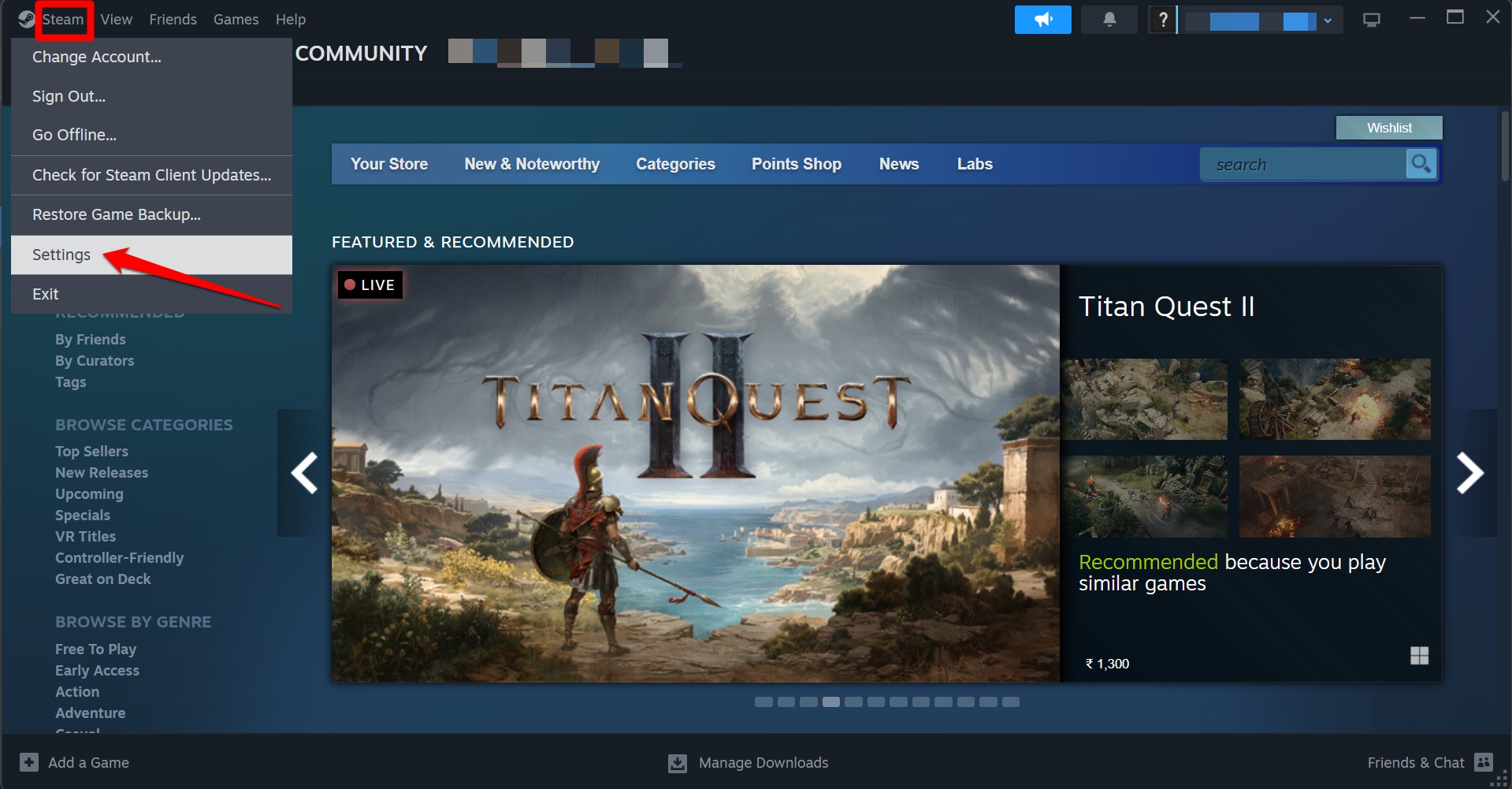
- Click the Steam button and go to Settings.
- Next, go to Interface.

- Scroll to Enable GPU-accelerated rendering in web views.
- Turn the toggle for the above feature.
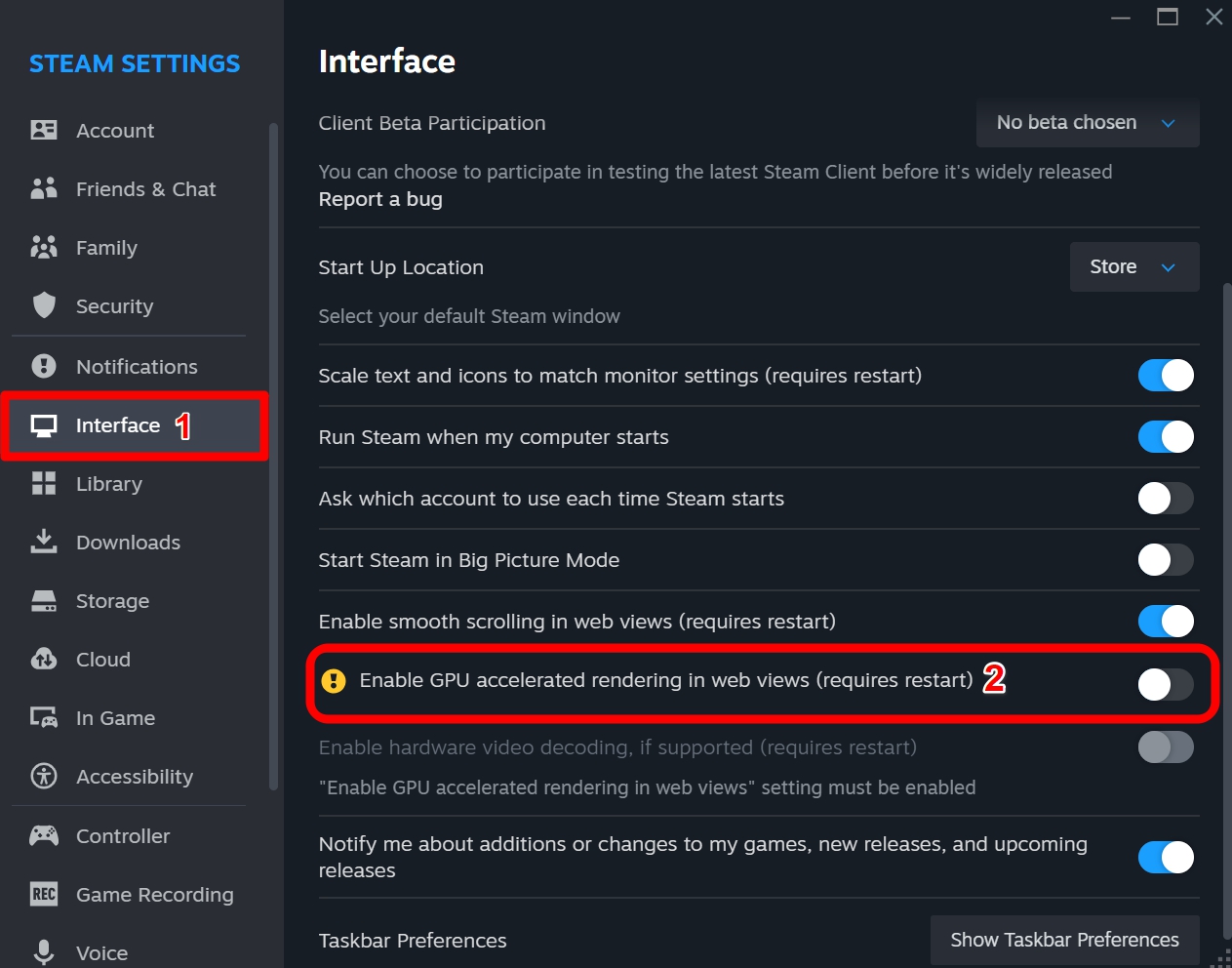

- Relaunch Steam.
2. Use Steam in Offline Mode
Using Steam in Offline mode prevents the different Steam WebHelper from running in the background and consuming memory.
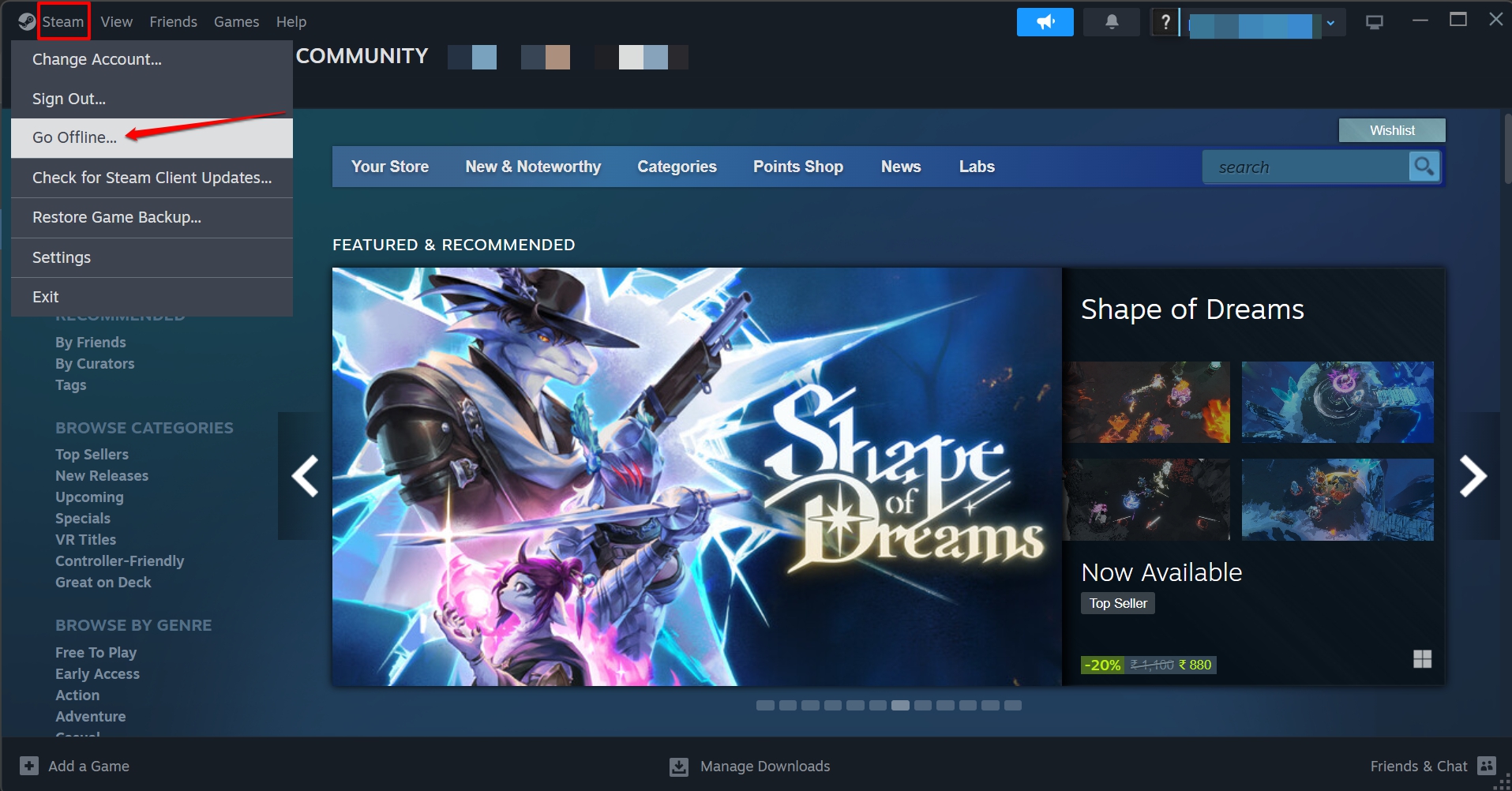
- From the menu, click Steam > Go Offline.

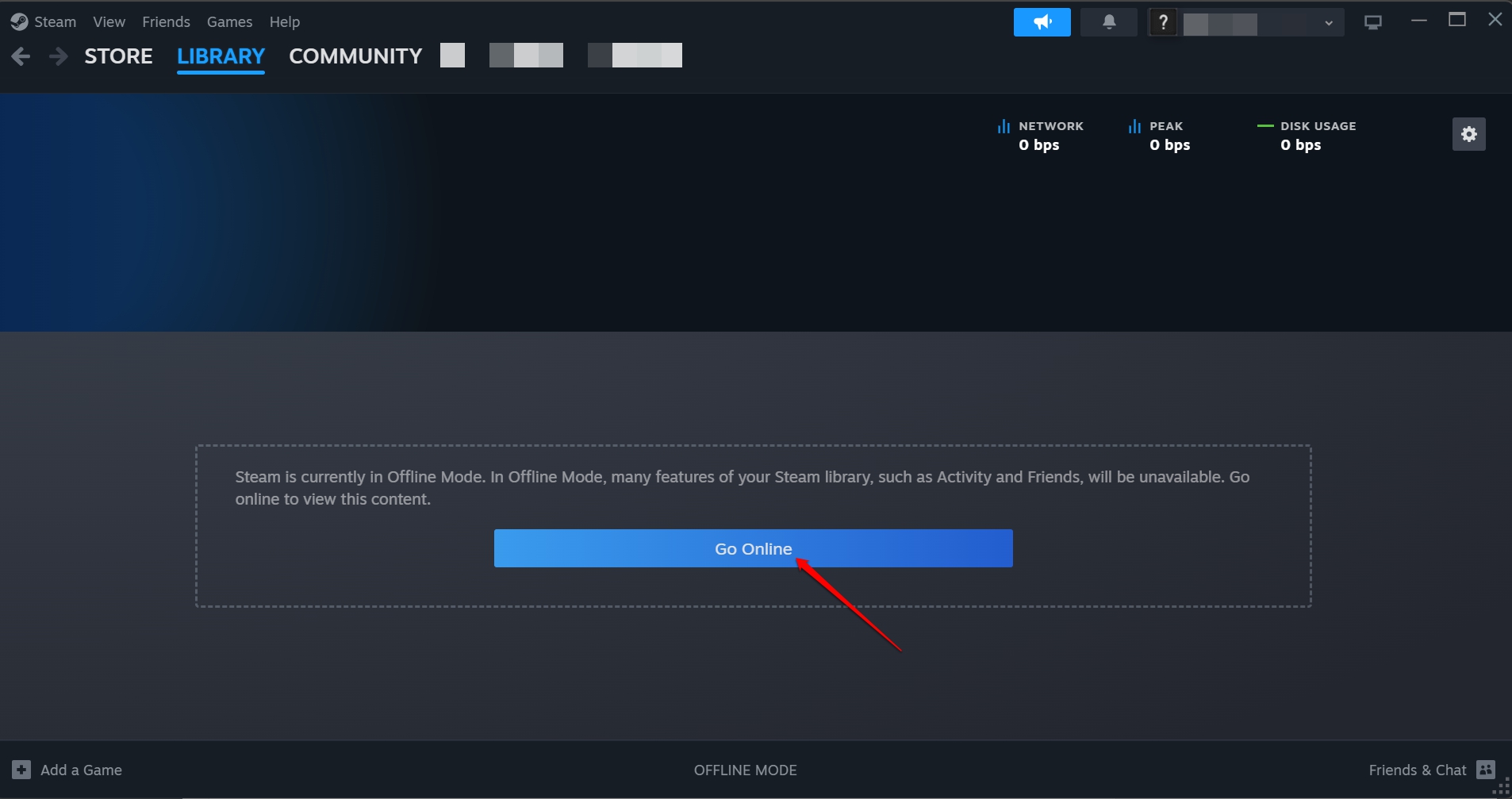
When you want to switch to Online Mode,
- Click Steam > Go Online.


- Press Go Online to confirm.

NOTE: Steam offline mode prevents downloading updates, games, and playing specific games that are supposed to be played while the user is connected to the web.
3. Turn off Unwanted Steam Features
Steam offers several features that add to the aesthetic vibes of the platform, but the process consumes a lot of memory. You can turn off the unwanted features on Steam, without which you can enjoy your gaming session just fine.
- Open Steam.
- Go to Steam Settings.
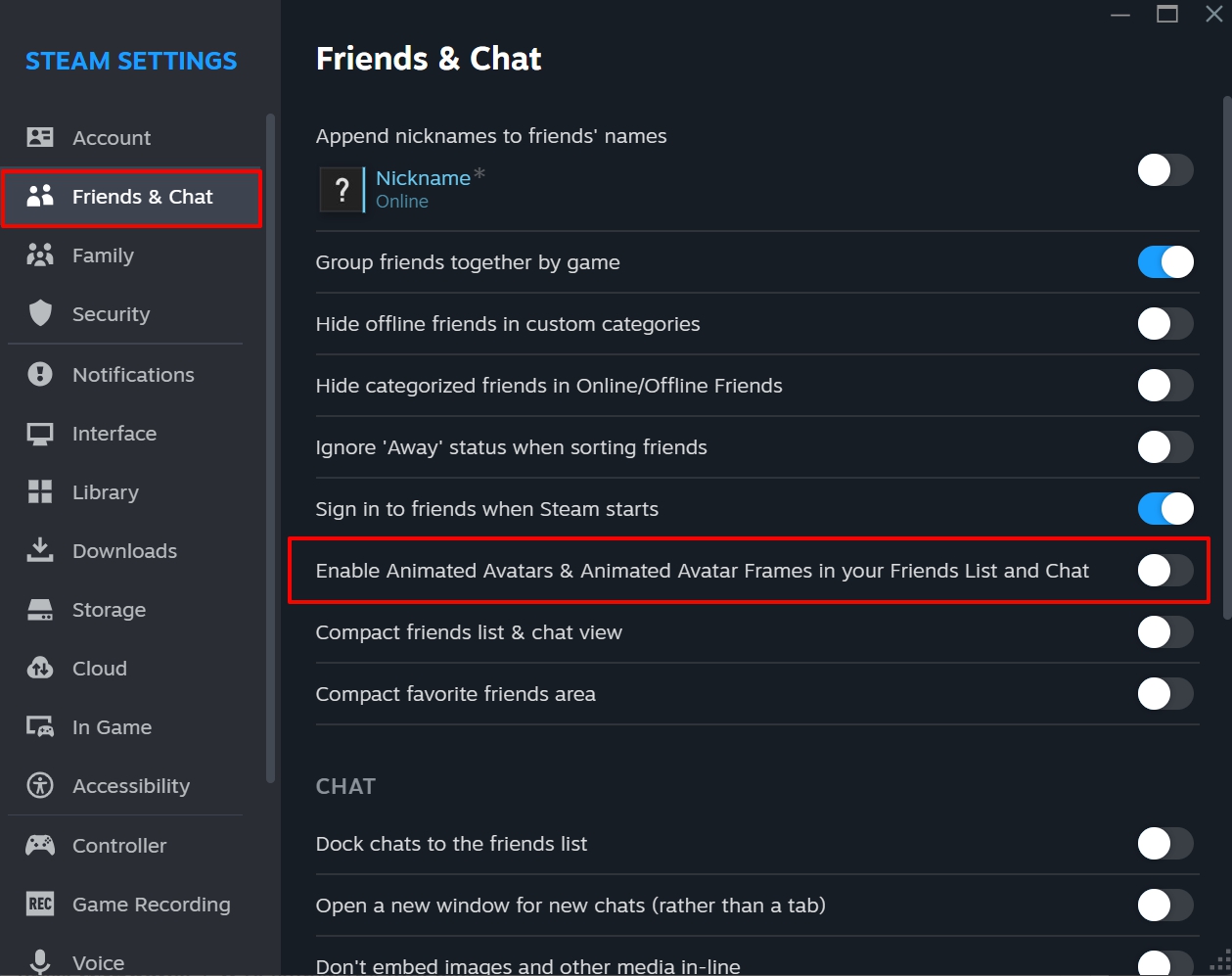
- Click on the tab Friends and chat.
- Turn off the toggle next to Enable Animated Avatars & Animated Avatar Frames in your Friends List and Chat.

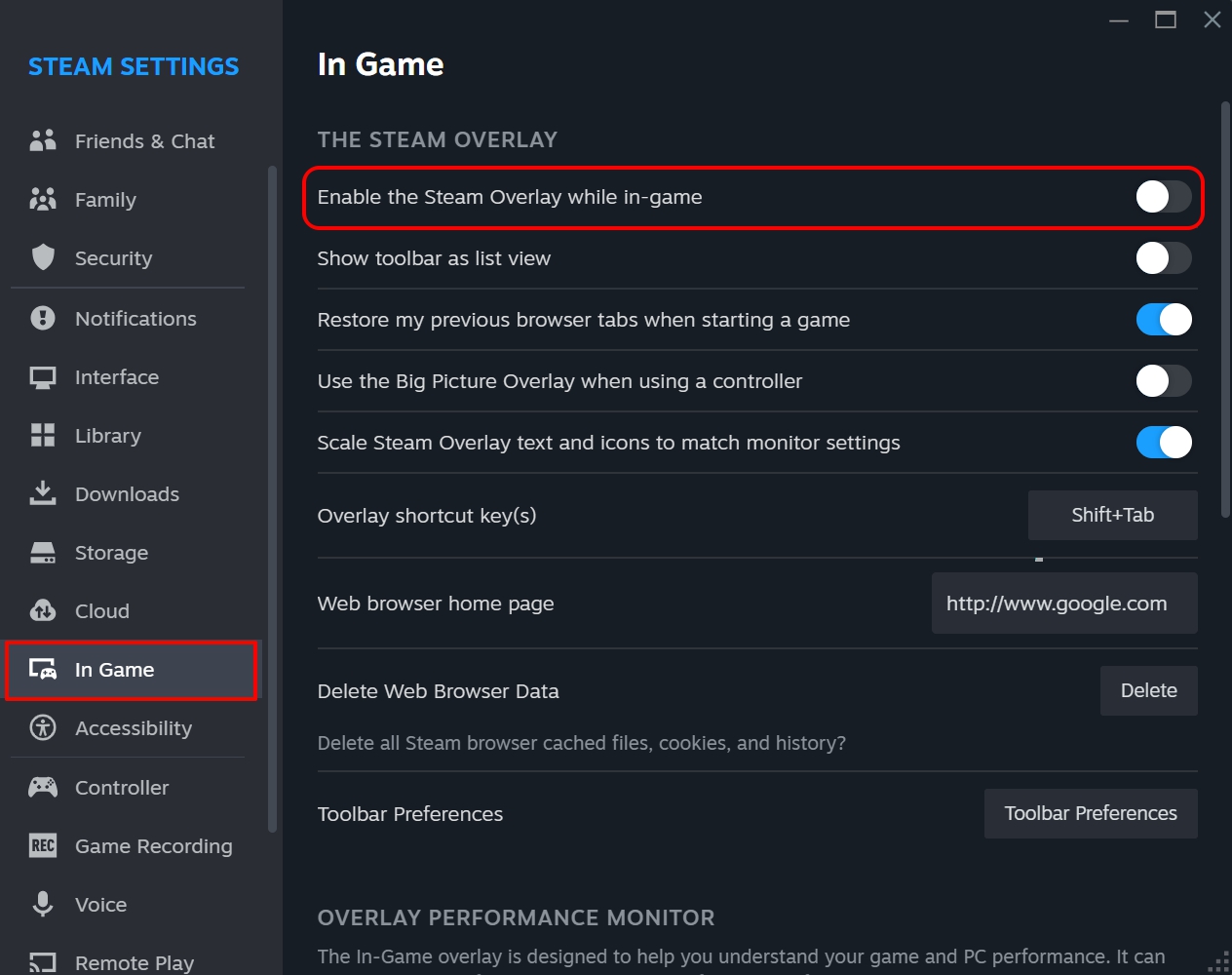
- Next, go to the In-game tab.
- Disable the toggle next to Enable the Steam Overlay while in-game.

4. Launch Steam Mini Games
Access the Steam Mini Games List if you are focused on playing the games on your PC and not interested in additional news, updates, or blogs from Steam.
To invoke the Steam Mini Games List,
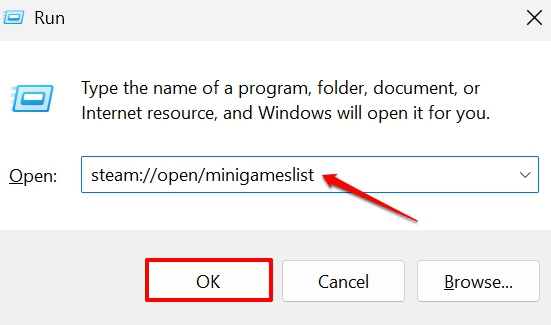
- Press Windows + R to launch the Run box.
- Type steam://open/minigameslist and press the Enter key.

Now, Steam will launch in a small vertical window instead of its full-screen form and display the games you have downloaded on it.
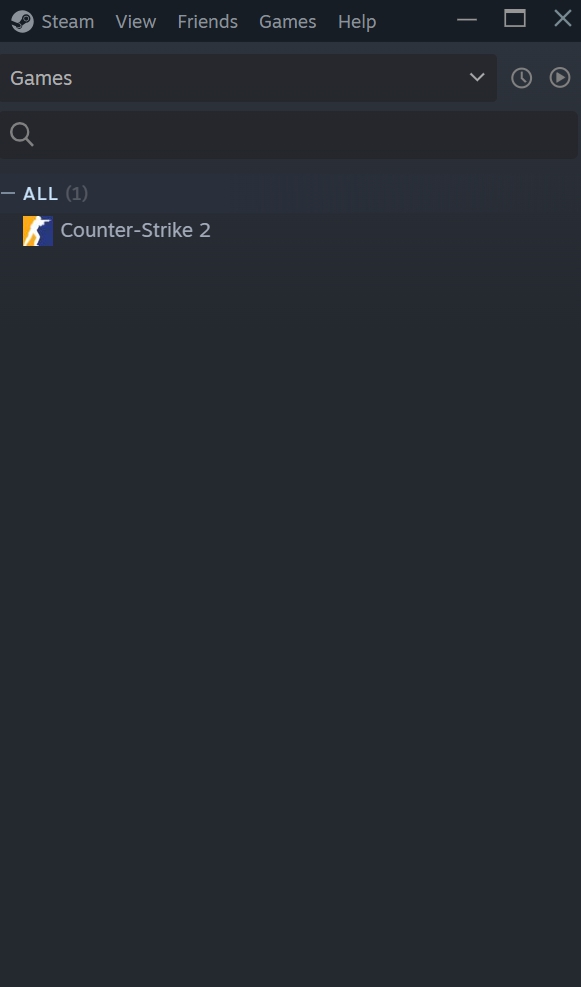
To switch back to the regular view, click View on the Steam menu bar and choose the Large Mode option.
5. Run the Barebones form of Steam
I came to know that it is possible to create a batch file of specific commands that will launch Steam and allow using it without running the Steam client WebHelper.
You can do it as well.
- Open Notepad and create a new file.
- Copy and paste the following commands.
start steam.exe -dev -console -nofriendsui -no-dwrite -nointro -nobigpicture -nofasthtml -nocrashmonitor -noshaders -no-shared-textures -disablehighdpi -cef-single-process -cef-in-process-gpu -single_core -cef-disable-d3d11 -cef-disable-sandbox -disable-winh264 -cef-force-32bit -no-cef-sandbox -vrdisable -cef-disable-breakpad
- Save the file as Steamy.bat in the same directory where Steam is installed.
Now, launch this BAT file and Steam will run by stripping off various features such as store, view friends, news, etc.
Preserve PC Memory while Gaming on Steam
Gaming sessions are an absolute stress buster; there is no denying that. Similarly, that should not stress your computer’s memory too. Following the tips shared in this article, you can prevent the Steam client WebHelper from utilizing too much memory or run Steam in its minimal form.
If you've any thoughts on How I prevented Steam WebHelper from using too much Memory, then feel free to drop in below comment box. Also, please subscribe to our DigitBin YouTube channel for videos tutorials. Cheers!







This guide is super helpful! Finally, a clear way to cut down Steams memory usage. The steps are easy to follow, and my PC runs smoother now. Great job!