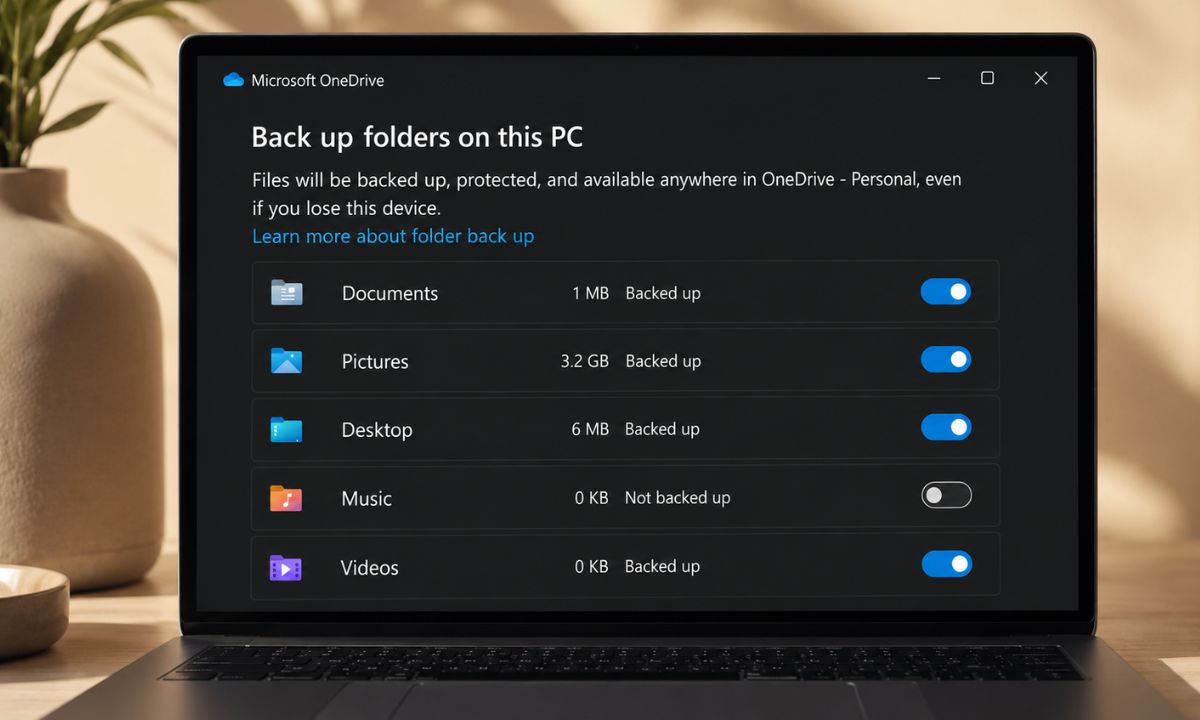
I set up a new Windows 11 laptop, and by the time I opened File Explorer, the OneDrive folder backup had already started.
The Desktop was covered in green checkmarks I did not put there; a cloud icon had appeared in the taskbar, and some paths in File Explorer were pointing somewhere I did not expect.
Nothing was missing yet. But nothing was where I expected it to be. It felt overwhelming and uncalled for a feature to force data backup without the user needing it.
OneDrive had moved Desktop, Documents, and Pictures into the cloud during setup and had already started consuming the 5GB of free storage before I had a chance to decide whether I wanted any of this.
TL;DR: OneDrive folder backup on Windows 11 automatically moves Desktop, Documents, and Pictures into the cloud during setup, often without a visible prompt. Free storage is only 5GB, which fills quickly. Files can quietly become online-only, meaning no local copy remains on your drive. To stop it: OneDrive icon in system tray > Settings > Sync and backup > Manage backup > Stop backup for each folder. Disabling it does not move the files back. You have to do that step manually.
OneDrive folder backup activates on Windows 11 without a clear prompt
This is called Known Folder Move or Folder Backup in Microsoft’s documentation.
When you sign into Windows 11 with a Microsoft account, OneDrive targets three folders: Desktop, Documents, and Pictures, and redirects them so they live inside your OneDrive path instead of the standard local user profile.
Since June 2024, Microsoft has changed the Windows 11 setup process so this activates automatically. There is no opt-in step for new users setting up a fresh installation while connected to the internet and signed into a Microsoft account.
This sounds to me like Microsoft is forcing the users to use their data backup product right when signing into a PC through a Microsoft account. So that the user later cannot think of using any other backup service.
In Windows 11 25H2, Microsoft adjusted some of the prompting behavior, but the feature still enables without explicit confirmation. The first sign is usually the green checkmarks appearing on files you did not touch.
What happens to your 5GB of free storage?
OneDrive gives 5GB of free storage on a personal Microsoft account. If Desktop, Documents, and Pictures together contain more than that, the upload stalls and prompts to upgrade to Microsoft 365 start appearing.
Folder backup is designed in part to drive users toward subscriptions. The 5GB ceiling is what creates the pressure. A few years of downloaded files, screenshots, and project PDFs will exceed it in no time.
In 2026, 5GB is a very small number, as most users deal with media files that are way above the backup storage limit found on the free tier of OneDrive. Even the Outlook email storage counts against the same 5GB quota.
If you have a Microsoft or Outlook email account, some of that allocation is already used before a single Desktop file syncs. The Windows 11 settings to disable guide is worth reading alongside this for other features that work the same way.
What the icons in File Explorer actually mean?
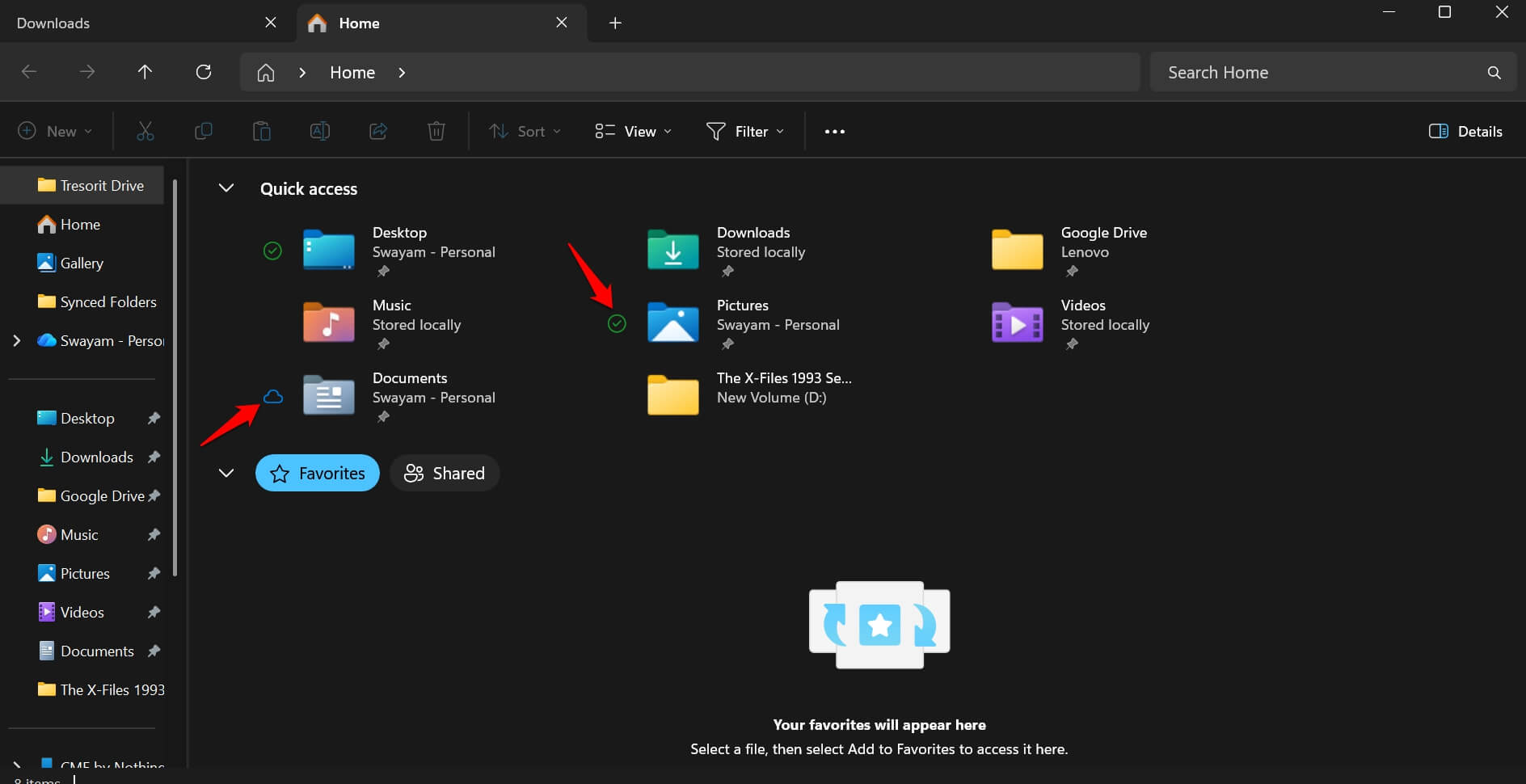
Once OneDrive takes over a folder, every file in it gets a status icon.
A solid green checkmark means the file exists both locally and in the cloud.
A cloud outline icon means the file is online-only: the local copy has been removed, and the file will be downloaded the next time you open it.
| File Explorer icon | What it means | Local copy exists? |
|---|---|---|
| Solid green checkmark | Synced locally and to cloud | Yes |
| Cloud outline icon | File is online-only | No |
| Blue sync arrows | Upload or download in progress | Not yet confirmed |
| Red X or error badge | Sync failed | Depends |
This matters more than it sounds. If you try to back up a folder with online-only files using a third-party tool or an external drive, the backup software reads placeholders, not real data.
The backup completes without errors, but the files on the drive are zero-byte shells. I found this out after an external drive backup, three weeks in. Everything had copied across at zero bytes.
How to stop folder backup without losing your files?
Go to the OneDrive icon in the system tray,
- Click the gear icon, then Settings.
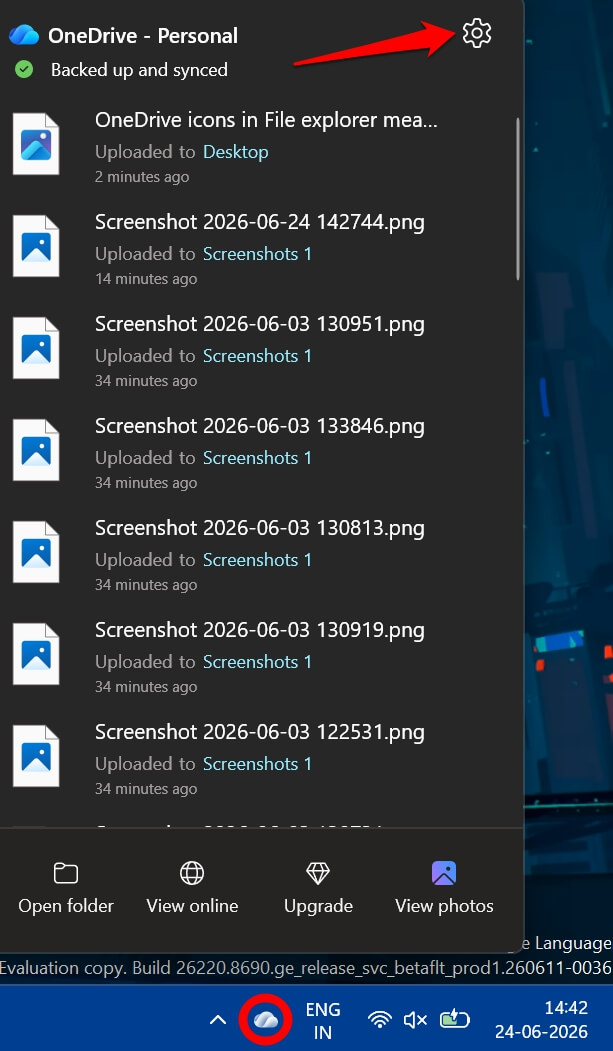

- Go to Sync and backup > Manage backup.
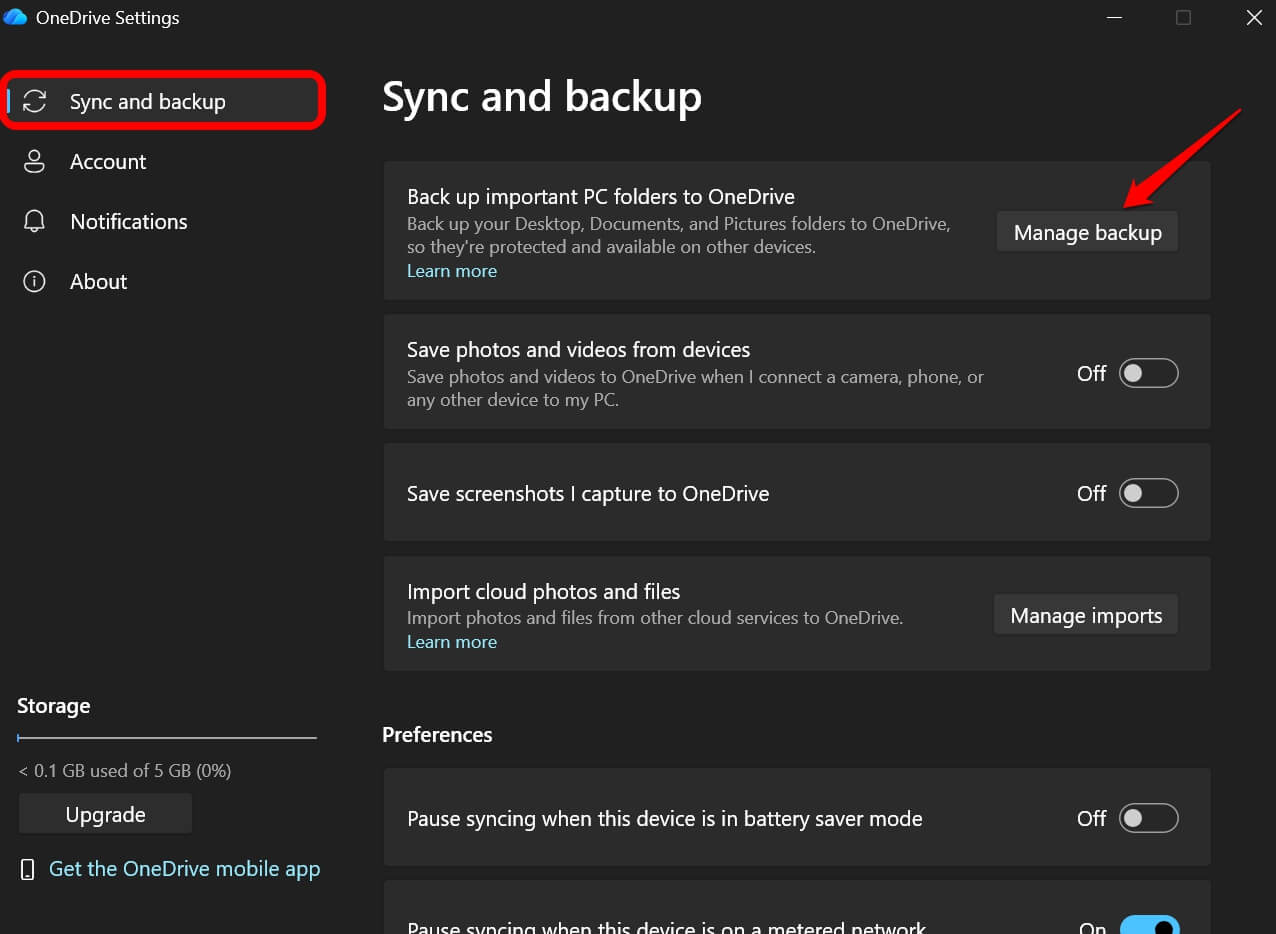

- Beside each folder (Desktop, Documents, Pictures), press the toggle to stop backup.
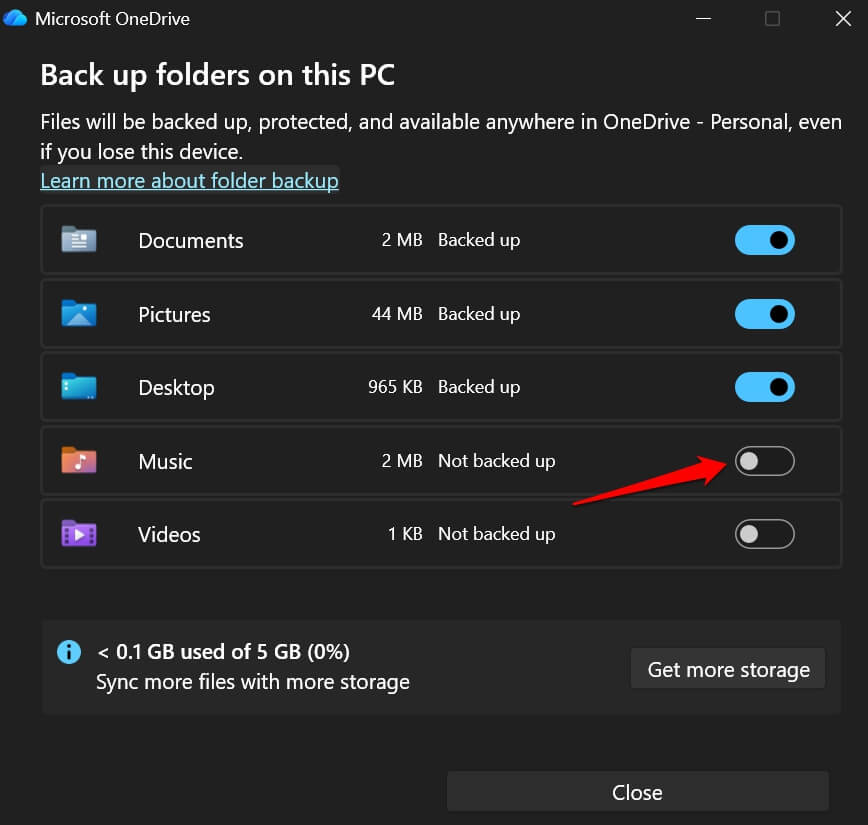

Before doing this, right-click each relevant folder inside File Explorer and choose Always keep on this device.
This forces OneDrive to download any cloud-only files locally before you disconnect the sync. Skipping this step means online-only files disappear from your local drive when backup is turned off. You surely don’t want to lose your files.
After stopping backup, the old folder shortcuts still exist in File Explorer but are now empty. You will need to move the files manually from your OneDrive folder back to the original local paths.
The step everyone misses after turning it off
Disabling folder backup does not undo what already happened. The files stay inside the OneDrive folder path, not the original local folders, and Windows leaves empty placeholder shortcuts at the old locations.
I spent time looking for Pictures and Documents before finding them inside C:\Users\YourName\OneDrive. The files were there the whole time, just not where the navigation pane shortcuts suggested.
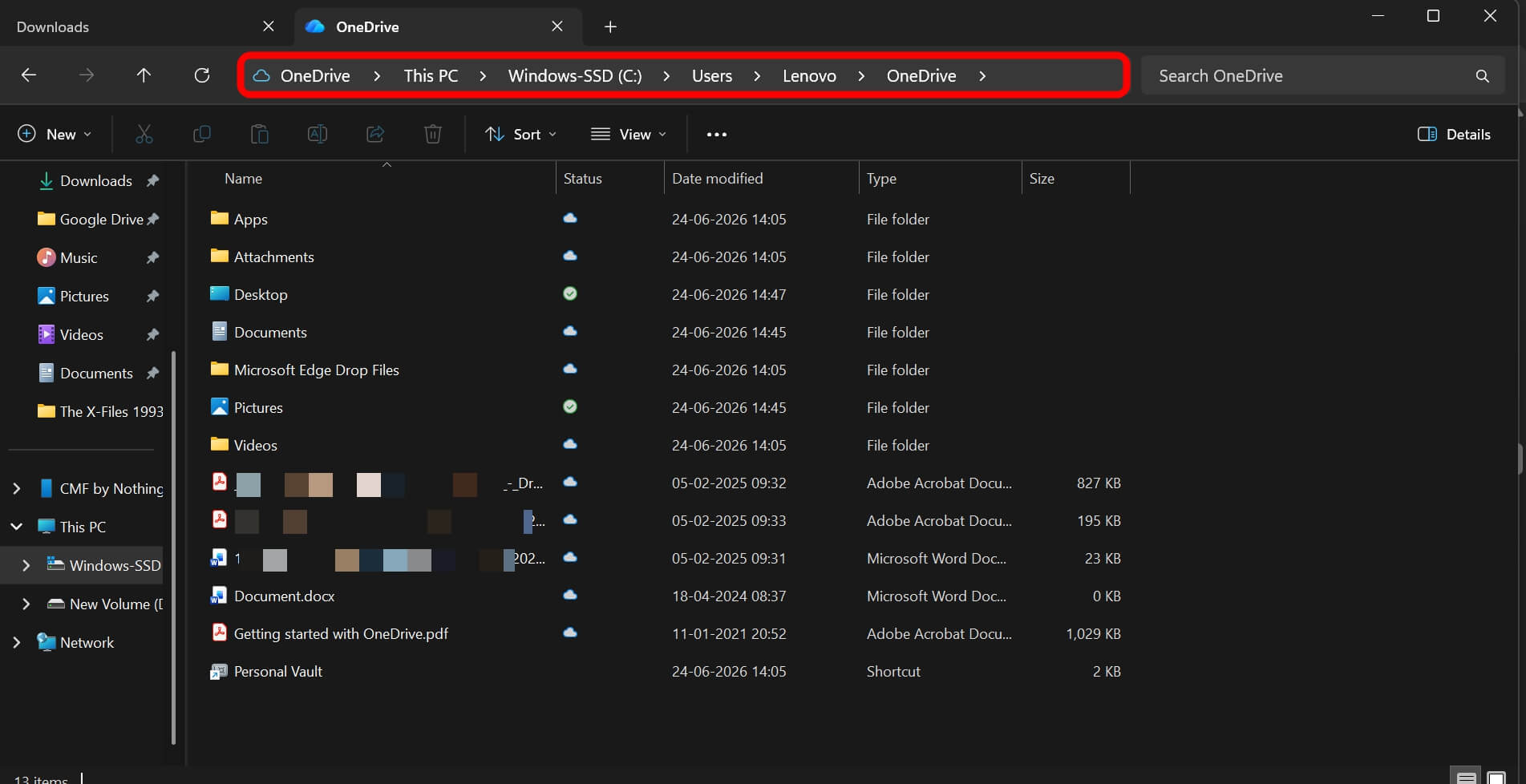
To restore them:
- Open File Explorer and navigate to your OneDrive folder.
- Locate the Desktop, Documents, and Pictures folders.
- Move the contents back to the equivalent local paths, such as C:\Users\YourName\Desktop.
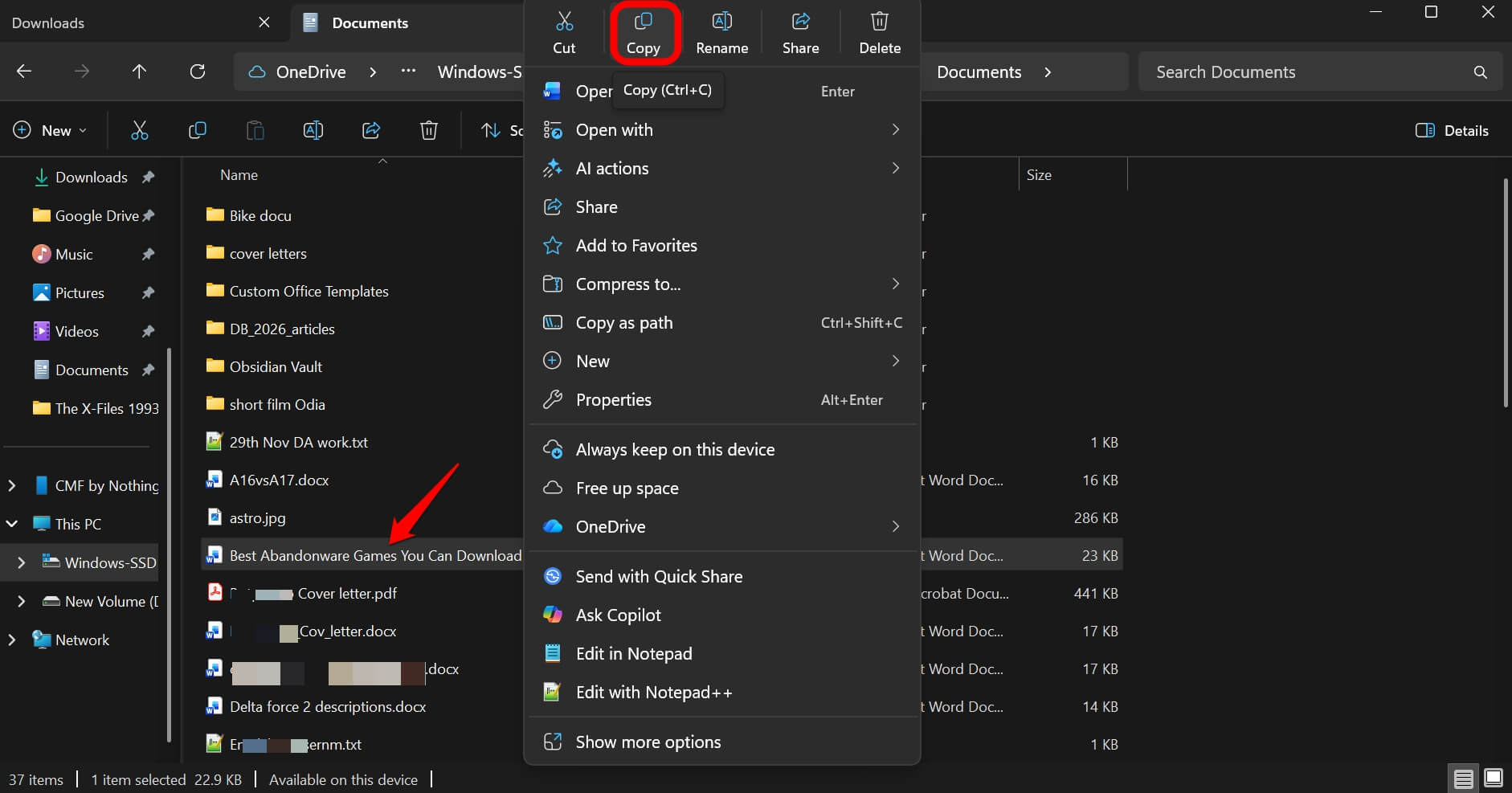

It takes a few minutes, and nothing is permanently gone. But Microsoft does not surface this step anywhere in the process.

Frequently asked questions
How do I know if OneDrive folder backup is turned on?
Open OneDrive from the system tray, click the gear icon, go to Settings > Sync and backup, then Manage backup. Any folder showing a Backed up status is being redirected to OneDrive.
Will turning off OneDrive folder backup delete my files?
No. Turning off folder backup leaves your files in the OneDrive folder. You need to manually move them back to the original local paths such as C:\Users\YourName\Documents.
Why is my OneDrive storage full after setting up Windows 11?
Folder backup is likely enabled and has uploaded Desktop, Documents, and Pictures to your account. Free storage is only 5GB, and Outlook email counts against the same limit.
What does the cloud icon mean on my files in File Explorer?
A cloud outline icon means the file is online-only. The local copy has been removed from your drive, and opening the file requires an internet connection to download it first.
How do I get my files back from OneDrive to local storage?
After stopping folder backup, open File Explorer and navigate to your OneDrive folder. Move the contents of the Desktop, Documents, and Pictures folders there back to the equivalent local paths on your drive.
Who should leave it on and who should turn it off?
If you have a Microsoft 365 subscription with 1TB of OneDrive storage, folder backup is genuinely useful. Files survive a hard drive failure, appear automatically on other Windows machines you sign into, and require no manual management. For that use case, the backup service earns its place.
For everyone on the 5GB free tier, the math does not hold. Most users with an external drive, a dedicated backup tool, or another cloud service will hit the storage ceiling before the feature pays back anything.
Exploring free cloud storage services that offer more than 5GB is worth doing before committing to Microsoft 365 just for the headroom. The time to disable folder backup is during initial setup, before the upload begins.