Mostly it comes down to two questions when you decide what to do with an old router: does it still get security updates, and is it actually yours? A working one can still be a second access point, a switch or a spare, and it tends to sit in a drawer until the day the main router dies.
Below are nine uses, with the settings each one needs and the point where recycling makes more sense. I have not tested every model so the steps follow the makers’ own guides, and your manual has the final word.
TL;DR: An old router can still work as an access point, an Ethernet switch, a wired-to-Wi-Fi bridge or a USB file share. Check first that it is not rented from your ISP. If the maker has ended support, replacing it is the safest option, and any reuse should be temporary, with the latest firmware installed and remote management off. Best Buy recycles routers free in stores.
What to do with an old router: check these three things first
Start with ownership. If your ISP rents you the router it has to go back, and Xfinity lists a retail store, a UPS drop-off and an online return center for that.
Then check support. The FBI says routers dated 2010 or earlier likely no longer get software updates, and it describes malware that needs no password to infect them. TP-Link advises owners of end-of-life models to replace them, or if that is not possible to install the latest firmware, switch off remote management and restrict access to trusted internal networks.
Sitting behind your main router doesn’t make unsupported hardware safe. It only limits who can reach it.
Last, count the ports. LAN ports, a USB port and a spare WAN port decide which uses below are possible.
| Use | What the router needs | Main catch |
|---|---|---|
| 1. Access point | A LAN port and an admin page | DHCP off for manual setup |
| 2. Ethernet switch | Spare LAN ports | Older ports may be slower |
| 3. Wi-Fi bridge | Client mode or OpenWrt | Slower than a cable |
| 4. Separate network | A WAN port | Double NAT |
| 5. USB file share | A USB port | Drive support varies |
| 6. OpenWrt | A supported model with enough memory | Old models fall short |
| 7. Spare | Its own power adapter | Firmware ages in storage |
| 8. Sell or give away | A factory reset | Support status matters |
| 9. Recycle | Nothing | Three items per day at Best Buy |

1. Turn it into an access point for a dead spot
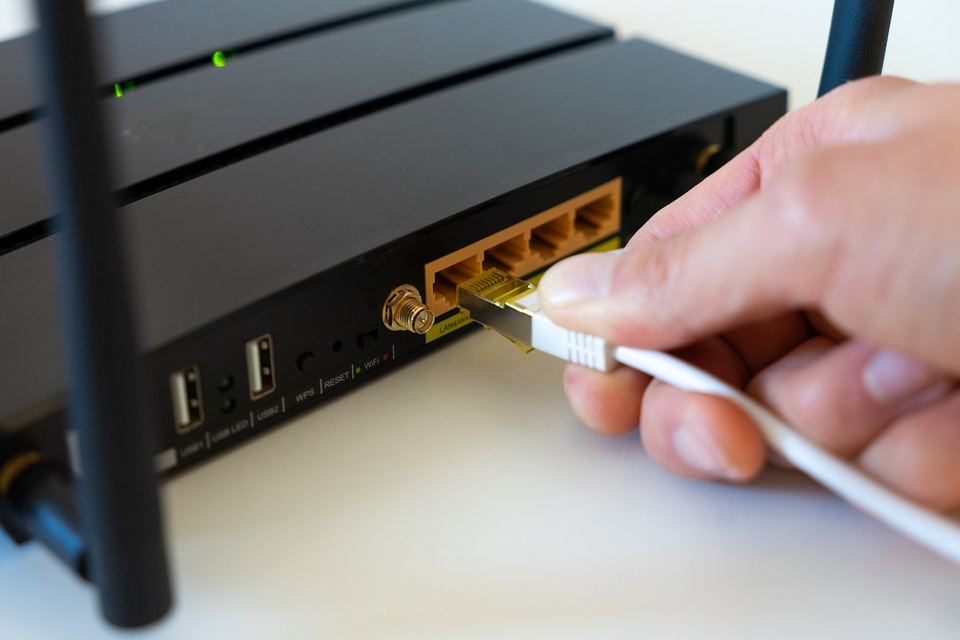
This is the one most old routers do best. An access point adds Wi-Fi without adding a second network, and on newer models Netgear says to open the admin page, choose Wireless AP, select AP Mode and click Apply.
The catch comes right after Apply, when the connection to the router drops. It now takes its address from your main router so look for it in that router’s device list.
Older models with no AP mode need the manual method: a fixed address in the main router’s range, DHCP off, and a cable from a LAN port to the main router. SpeedGuide says never to use the Internet port on the old one. Run Ethernet back if you can.
2. Use it as an Ethernet switch near the TV or desk
Where the LAN ports stay active in AP mode, that is all you need. Netgear names an unmanaged Ethernet switch as the clean way to add ports, and a Netgear community guide says the LAN ports keep working in AP mode.
Not every router behaves that way. Otherwise a manual setup may work, with DHCP off, provided the manual supports it. Turn the Wi-Fi off if you only want ports, and check the port labels because older routers may top out at 100 Mbps.
3. Bridge a wired device onto Wi-Fi

A router can pick up Wi-Fi and hand it to something that only has an Ethernet port. Hackaday did this with OpenWrt’s relayd package, which gives a pseudo-bridge between a wireless client and the wired LAN.
The link negotiated around 700 Mbps on a Wi-Fi 7 router but real throughput landed near 250 Mbps. Fine for a smart TV or your old TV, less so for big downloads. Some stock firmware has a client or bridge mode so check your manual before flashing anything.
4. Give smart home gadgets their own network

A second router in full router mode gives its devices a separate private network. Netgear calls that double NAT when a router sits behind an ISP gateway or another router, and says it can cause network problems.
Nokia adds that a gaming device on the second router may struggle in online play. Smart plugs and sensors may work fine, but double NAT can interfere with discovery and local control, and it is not real isolation. Don’t treat it as a substitute for proper network security.
5. Share a USB drive from the router
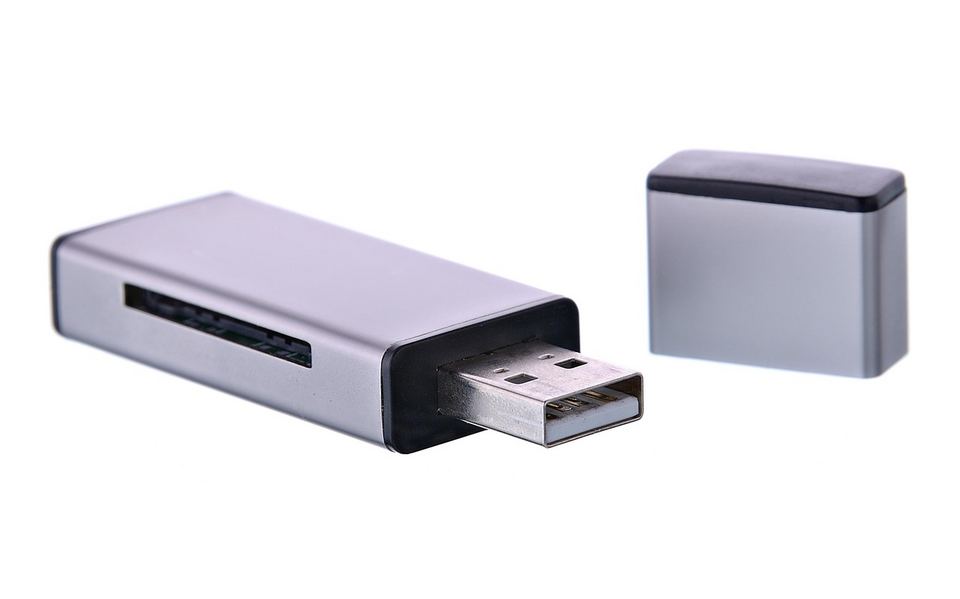
Plenty of routers with a USB port can share a connected drive across the network. Netgear says most USB storage devices will work, but only those on its compatibility list are officially supported.
What the port accepts differs by model, so read the manual before plugging in anything but a drive. An old pen drive or an external hard drive makes a basic shared folder. A USB 2.0 port will drag on large files though.
6. Flash OpenWrt only if the memory is there
OpenWrt is community firmware that can keep a router patched after the maker stops. Check the supported-device table for your exact model, and check the memory too.
OpenWrt’s own warning says devices with 4 MB of flash and 32 MB of RAM cannot offer secure and reliable operation. Its 8/64 warning tells users to expect instability from release 21.02 onward on anything under 16 MB of flash or 64 MB of RAM.
That rules out a lot of the oldest routers, and a failed flash can leave one unusable. If yours is borderline, skipping OpenWrt is a fair call.
7. Keep it as a spare for troubleshooting
Mostly useful on the day the internet drops and you can’t tell whether it’s the router or the line. Swap the spare in and see whether the problem follows.
Factory reset it, install any firmware still on offer, and store it in a labelled bag with its own adapter. Don’t borrow another adapter because voltage and plug polarity differ between routers.
8. Reset it, then sell or give it away
A factory reset wipes the Wi-Fi password and settings before the router leaves your hands. TP-Link says it clears Internet settings, Wi-Fi settings, port forwarding rules and parental controls, and holding the Reset button for more than 10 seconds triggers it on its models.
Say plainly in the listing if the maker no longer supports it. A buyer should know a router has stopped getting security fixes.
9. Recycle it when nothing fits

Best Buy lists modems, routers and hubs among the items it recycles free in stores, with a limit of three items per household per day.
It also offers an in-store coupon for 15% off a networking device when you recycle one. Terms apply and can vary by store, so reset the router first and check the page before you go.

Frequently Asked Questions
Can I use an old router as a Wi-Fi extender?
Yes, as an access point linked by Ethernet cable. Netgear describes AP mode as a way to expand wireless coverage in your home.
Is it safe to keep using an old router?
Not if the maker has ended support. The FBI says routers dated 2010 or earlier likely no longer receive updates, and TP-Link advises replacing end-of-life models.
Do I need to turn off DHCP on the old router?
Yes, for a manual access point setup, so only one device hands out addresses. Netgear’s built-in AP mode takes its address from the main router instead.
Will a second router cause double NAT?
Yes, if it runs in router mode behind another router or an ISP gateway. Netgear recommends removing the first router, bridge mode, or AP mode on the second.
Can I recycle an old router for free?
Best Buy takes modems, routers and hubs free in stores, with a limit of three items per household per day. Terms can vary by store.
Where these steps come from
The steps follow vendor guides, mainly Netgear and TP-Link, plus reporting from Hackaday. Menu names differ by brand, so treat the Netgear steps as an example of the pattern and not a universal recipe.
I did not test any router, so the bridge speeds are another writer’s result. OpenWrt’s pages blocked direct access, so its memory warnings come from search excerpts of those pages. Policies and fees change, so confirm them before you act.
Sources: FBI, TP-Link, Xfinity, Netgear, Netgear, Netgear, Hackaday, OpenWrt’s own warning, Best Buy, TP-Link.