There are plenty of things to do with an old iPad, and most of them need no new gear. The usual story is that a newer one arrives and the old one slides into a drawer, still working, with a battery that lasts a decent afternoon.
I kept one like that for almost two years. It was fine for what it did, which was nothing, until I started giving it small jobs.
This list runs from the easy ones to the slightly more involved, and it ends with trading it in. Pick the jobs that match the iPad you actually have.
TL;DR: An old iPad can work as a photo frame, a kids’ tablet, a kitchen screen, an e-reader, a travel player, a smart home panel, a notepad or a second screen for a Mac. Use Guided Access and Screen Time to keep it limited to one job. When you are done with it, erase it first, then trade it in or recycle it with Apple.
1. Turn it into a digital photo frame

The Photos app can play a slideshow from any album, and Apple’s Photos guide says you can set it to loop, change the transition and duration and add music. Open an album, tap the More button, pick Start Slideshow, then tap the screen to reach Customize.
On a shelf or a desk with a stand, it replaces a small digital frame and costs nothing. Keep it plugged in, because a slideshow drains an old battery faster than you expect.
It looked wrong at night at first. The screen was far too bright for a bedroom, so I moved it to the hallway, where it quietly became the thing people stop and look at.
2. Hand it down as a kids’ tablet
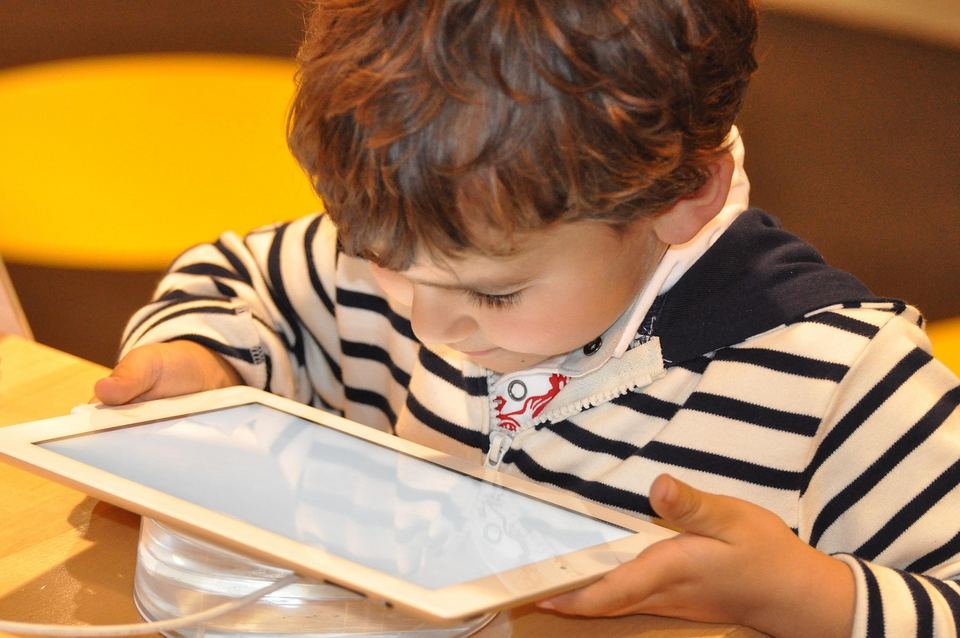
An older iPad suits a child well, because it matters less if it gets dropped. Apple says to set up Family Sharing first, give your child their own Apple Account, then manage Screen Time from your own device under Settings, then Family, then their name.
From there you can set downtime, app limits, allowed contacts and content ratings. Ask to Buy and Ask to Browse are on by default for children under 13.
One detail catches people out. The newer Screen Time Schedules and Time Allowances need iPadOS 27 on every device in the family group, so an older iPad may only offer the older Downtime and App Limits controls.
3. Lock it to one app for the kitchen
A kitchen screen does not need to do much. It shows a recipe, runs a timer and stays out of the way of floury hands.
Guided Access helps here. Apple describes it as a way to temporarily restrict the iPad to a single app, and it lets you disable areas of the screen, hardware buttons and touch. You turn it on under Settings, Accessibility, Guided Access, then triple-click the top button inside the app you want, or double-click on iPadOS 18 and earlier.
I used it with a recipe page and the first thing I noticed was how rarely I swiped away by accident. The screen simply stayed put until I ended the session with a passcode.
4. Use it as an e-reader

A larger screen is nicer for reading than a phone, and an old iPad runs the Books app and most reading apps without trouble. It does not need to be fast to turn a page.
It is heavier than a Kindle, and that shows after twenty minutes in bed. I found myself propping it on a pillow instead of holding it, which is the real test of whether a device suits reading.
It works best for magazines, comics and PDFs with pictures, where the bigger colour screen earns its place. For a long novel, a dedicated reader is easier on the hands, but a spare iPad costs nothing to try.
5. Keep it for travel and the back seat

An old iPad is a good travel player when you load it before you leave. Most streaming apps let you download titles for offline viewing, though what you can download depends on the app and the title.
Download on home Wi-Fi the night before, because hotel and airport networks tend to be slow when you need them. Charge it fully and carry a short cable.
It also works for long car trips with children in the back seat. Setting up the same Guided Access mode before you leave keeps one video app on screen for the passengers, and the driver should never be the one using it.
6. Make it a smart home control panel
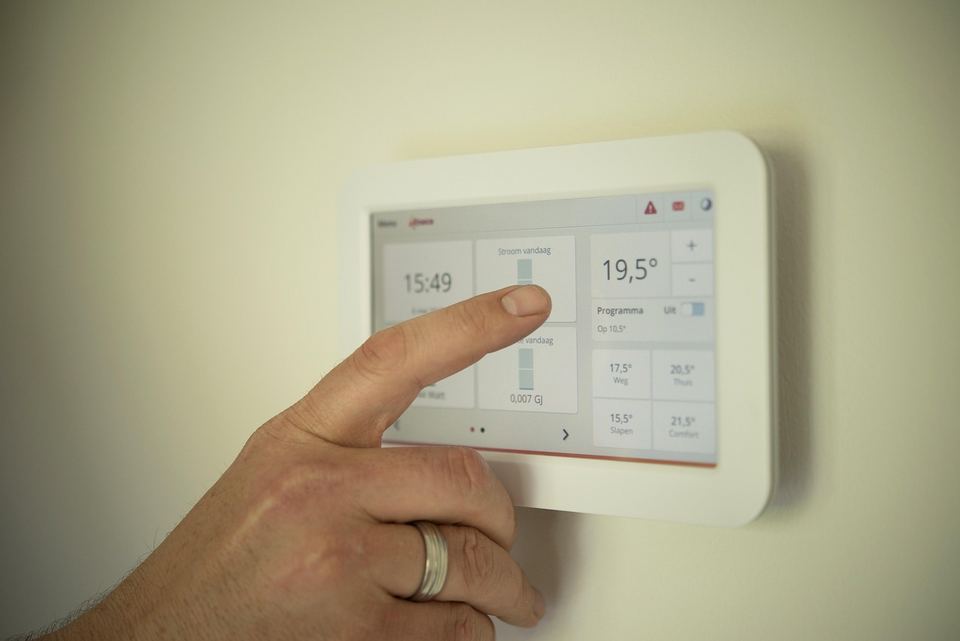
A wall mount or a stand turns an iPad into a small control panel. The Home app on an iPad can still control smart lights and other accessories, run scenes and show compatible cameras, and a wall panel is easier to reach than a phone app when the hands are full.
There is a catch that many older guides miss. Apple says iPad is not supported as a home hub on the latest version of Apple Home, and that support for the previous version ended on February 10, 2026.
So the iPad can control the home, but a hub for remote access and sharing must be an Apple TV or a HomePod. I only noticed this when the old tutorial I was following told me to turn on a setting that was no longer there.
7. Use it for notes, sketching and PDFs
With an Apple Pencil that your model supports, an old iPad becomes a decent notepad. Check which Pencil your iPad takes, because the older and newer versions are not interchangeable.
Handwritten notes, marked up PDFs and quick sketches do not need a fast chip. They need a screen that tracks the pencil, and older iPads usually manage that without trouble.
Even without a Pencil, it makes a good meeting notebook with a cheap case and a keyboard. I used mine for signing forms and marking up a PDF, which is a job I used to do on a laptop and never enjoyed.
8. Use it as a second screen for your Mac

Sidecar lets an iPad extend or mirror a Mac screen, and Apple lists the requirements. The Mac needs macOS Catalina 10.15 or newer, and the iPad needs iPadOS 13 or newer, which covers every iPad Pro, the iPad 6th generation or later, the iPad mini 5 or later and the iPad Air 3 or later.
Both devices must use the same Apple Account with two-factor authentication. Wireless use needs them within 10 metres with Bluetooth, Wi-Fi and Handoff on, and Apple says you can connect a cable to keep the iPad charged.
I use it for a reference window, usually a chat or a document. On a busy home network the picture sometimes lagged, and plugging in the cable fixed that.
It is Mac only, and that is worth knowing before you buy a stand. If you own a Windows PC, this idea does not apply.
9. Share files with it as a spare storage hub
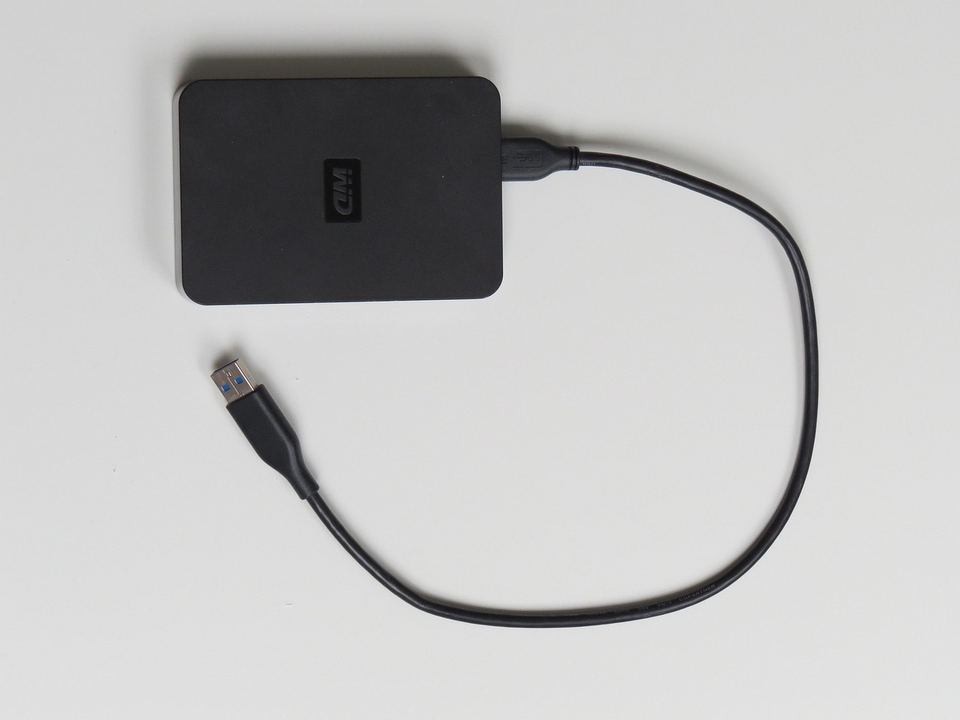
An iPad with spare space can hold your downloads, scans and a few offline files, and the Files app reads external drives too. It pairs well with an external hard drive for a movie library or a pen drive for quick transfers.
Apple’s external storage guide says you may need a Lightning to USB Camera Adapter or a Lightning to USB 3 Camera Adapter, depending on your model. The drive needs a single partition in a supported format, and external hard drives often need their own power source, which on a Lightning iPad means the USB 3 adapter plus a power adapter.
It is not a clever trick, but it is useful when you travel with limited cloud access.
Check that the app you use to open the files is still supported on your iPad. Very old models stop getting app updates, and a few apps quietly drop support.
10. Trade it in or recycle it
If none of the above sticks, let it go properly. Apple Trade In accepts many Apple devices for credit, and if your device has no trade-in value Apple says you can still recycle it for free at an Apple Store or on apple.com.
Before you hand it over, follow Apple’s guide. Back up, sign out of your Apple Account, then go to Settings, General, Transfer or Reset iPad, and tap Erase All Content and Settings. Find My and Activation Lock turn off when you erase it.
If you already sold or gave it away and forgot to turn off Find My, you can erase it and remove Activation Lock from icloud.com/find. My old iPhone guide covers a similar clean up for phones.
Which job suits which iPad
Not every iPad can do every job here. The table below sums up what each one needs, based on Apple’s pages.
| Job | What it needs |
|---|---|
| Photo frame | Photos app slideshow with Loop turned on |
| Kids’ tablet | Family Sharing and a child Apple Account |
| Kitchen screen | Guided Access, under Accessibility settings |
| Mac second screen | iPadOS 13 or later and a supported model, Mac on macOS 10.15 or later |
| Smart home panel | Home app, with an Apple TV or HomePod as the hub |
| Trade in | Any iPad, erased first |
Not sure which model you have? Open Settings, General, About, then match the model number on Apple’s model identification page.
For software support, check Apple’s iPadOS 27 compatibility list. It covers the iPad mini 6 and later, the iPad Air 4 and later, and the iPad Pro 11-inch 2nd generation or 12.9-inch 4th generation and later. Apple’s pages differ on whether the iPad 9th generation is listed, so look up yours there.

Frequently Asked Questions
Can I use an old iPad as a second monitor?
Yes, for a Mac. Sidecar works with iPadOS 13 or later on supported models and macOS Catalina 10.15 or later.
Can an old iPad be a smart home hub?
No, not on the latest version of Apple Home. An Apple TV or a HomePod must be the hub, though an iPad can still control the home.
How do I make a child safe iPad?
Set up Family Sharing, give your child their own Apple Account and manage Screen Time from your device. Apple says Ask to Buy is on by default for children under 13.
How do I wipe an old iPad before selling it?
Back it up, sign out of your Apple Account, then choose Erase All Content and Settings under General, Transfer or Reset iPad.
Can I recycle an iPad that no longer works?
Yes. Apple says it recycles any Apple device for free at its stores and on its website.
Start with the one job you will actually use
Pick one use and put the iPad where it will do that job, not in a drawer. A device that sits in view gets used, and one that needs charging first usually does not.
Mine ended up as a recipe screen next to the stove. That was the least exciting idea on this list, and it was the only one that survived the first month.