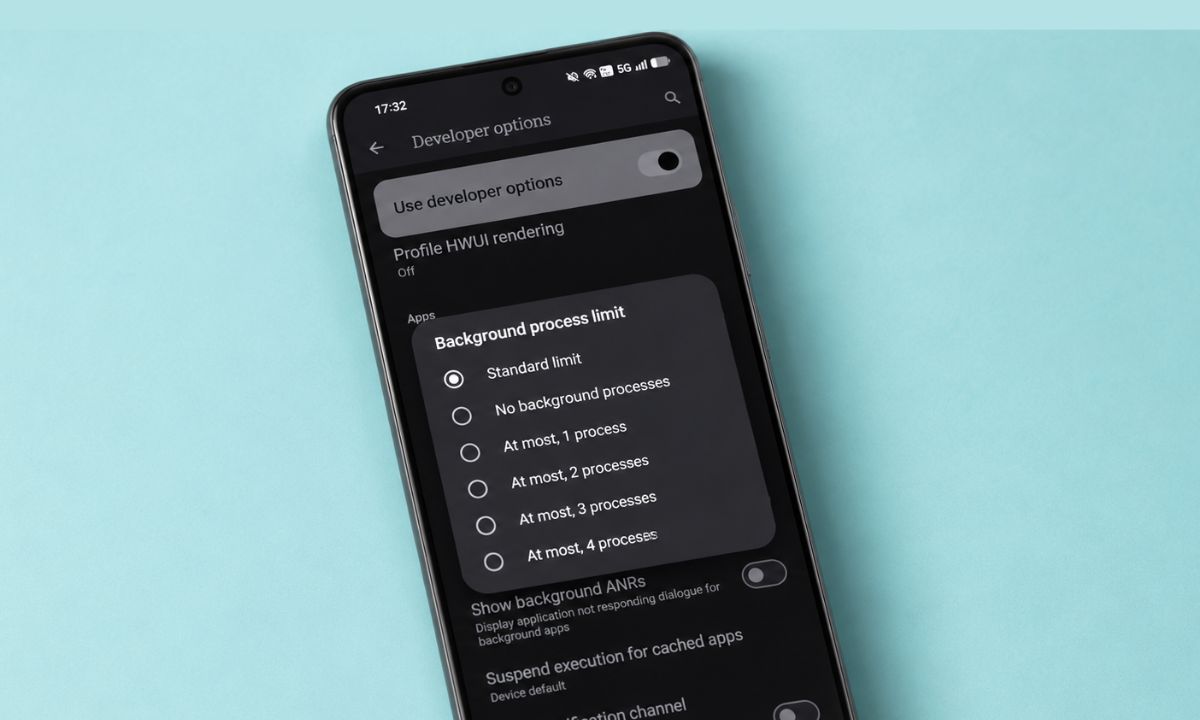
The Background process limit on Android is one of those settings that sounds like a free speed-up for overall device performance. I tried it on my Android device because the phone sometimes stuttered when I switched between a few apps.
The result was not what I thought limiting background processes would usually do. The setting is real and easy to find. What it does is narrower than most guides claim, and I ended up putting it back. Read on to know why.
TL;DR: The Background process limit setting in Developer options caps how many cached background processes Android keeps. Lowering it frees some memory, but apps then reload from scratch when you return to them, which can feel slower. Stay on the Standard limit unless a specific phone is short on RAM, and change one level at a time so you can see what you gave up.
Where to find the background process limit settings on Android?
- First, enable Developer options by tapping Build number seven times in the phone’s About section.
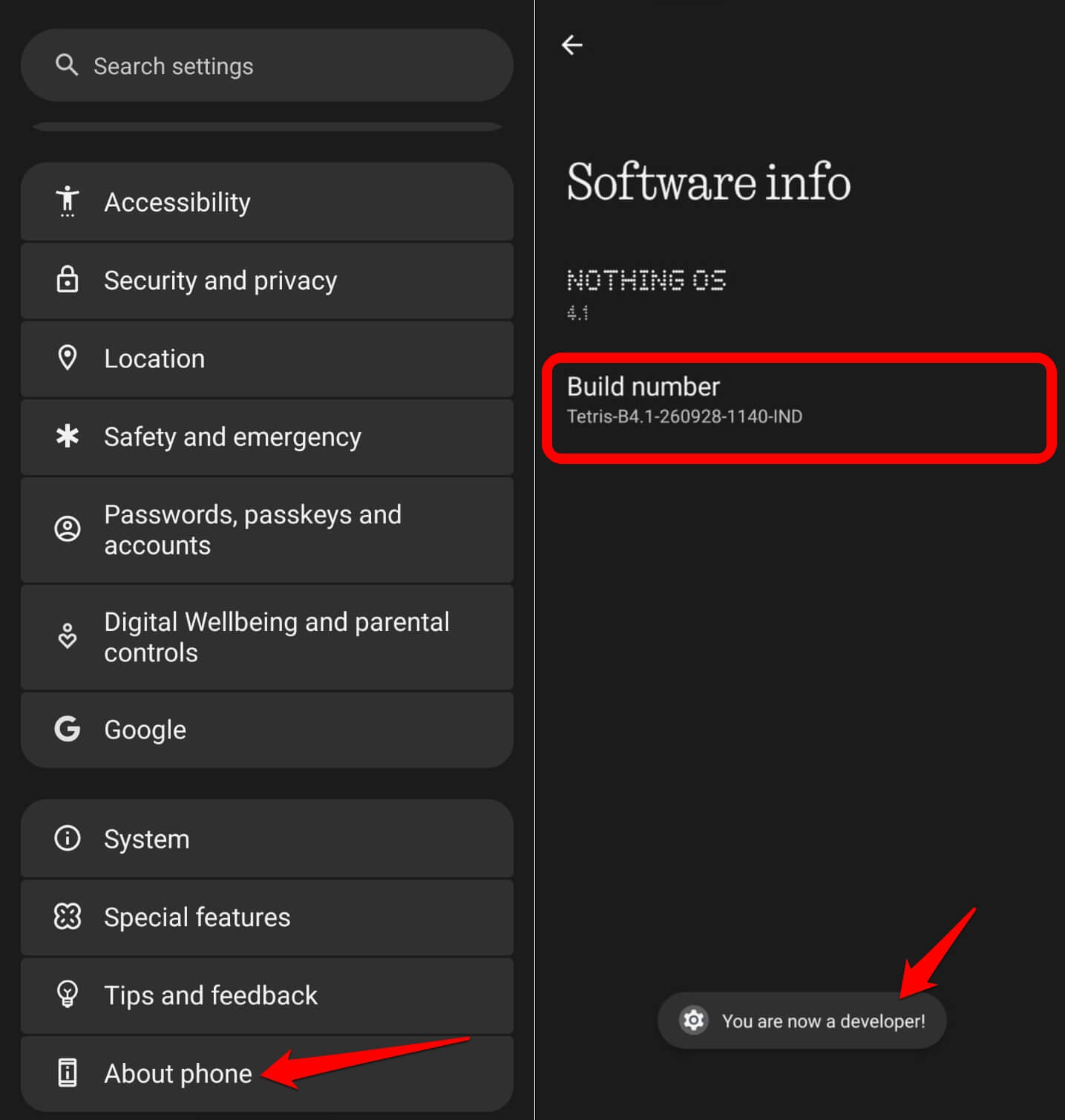

- Open Settings > System > Developer options.
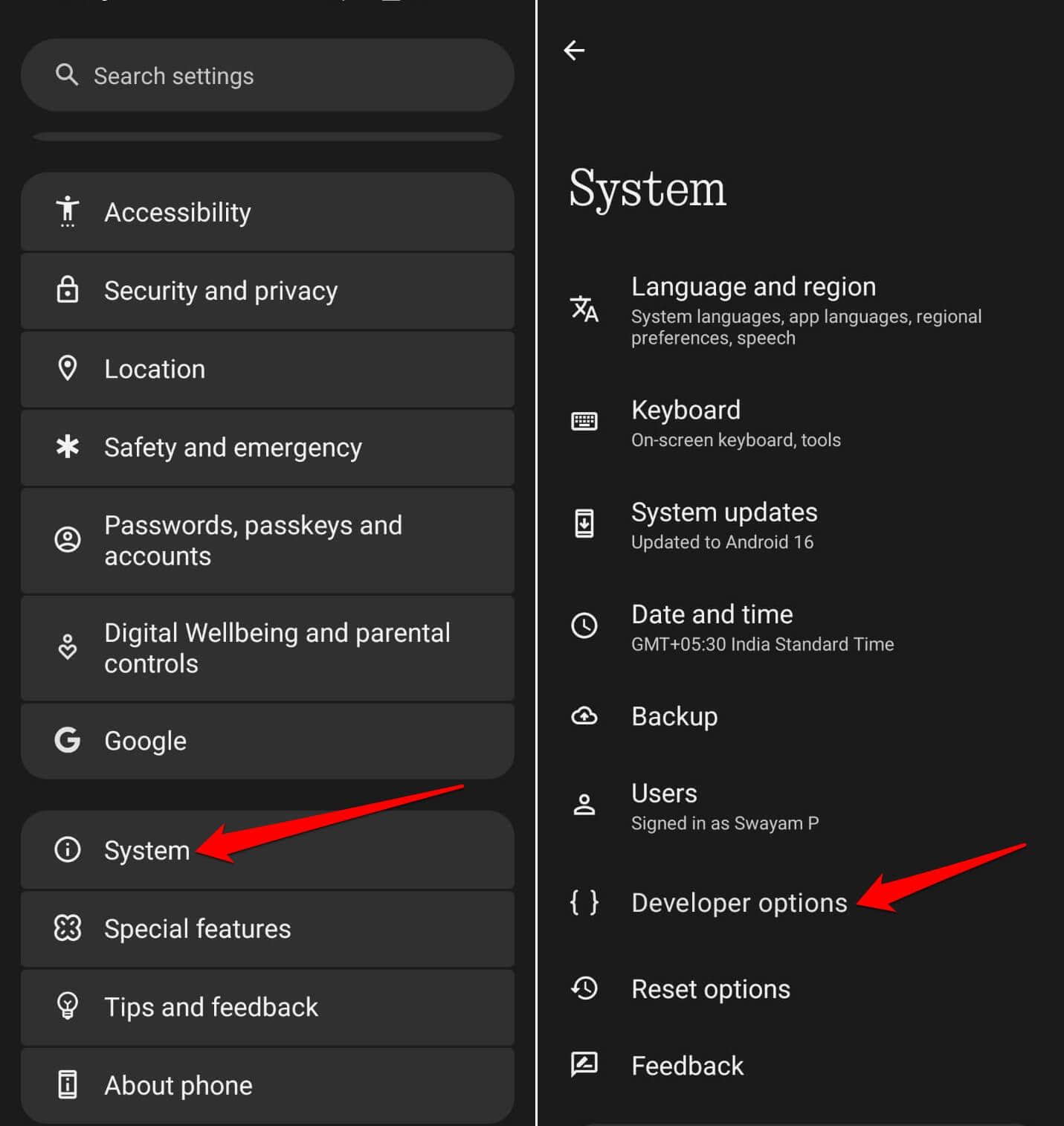

- Scroll to Background Process Limit and tap on it to view the options.
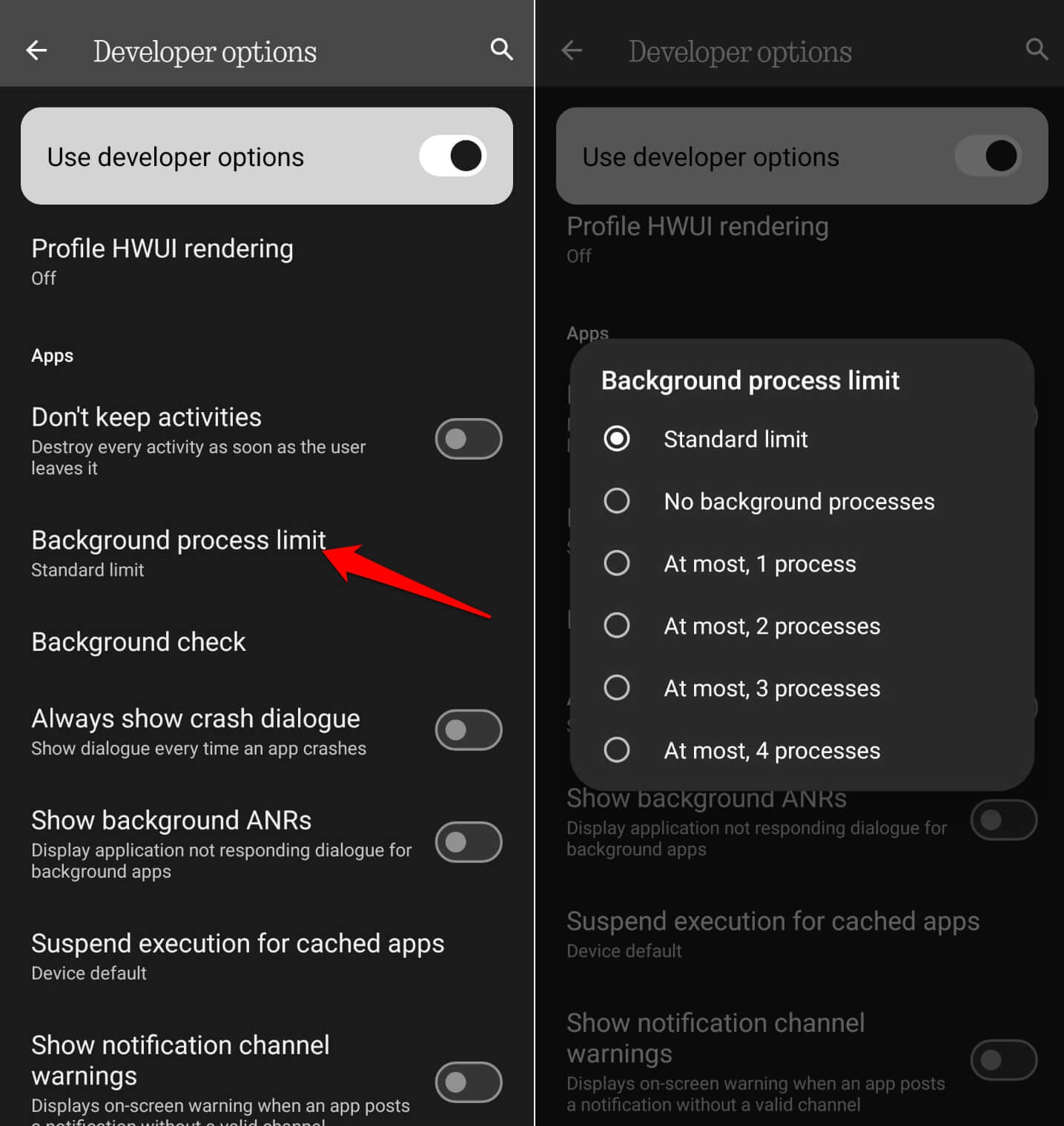

You will see different choices, such as Standard limit, No background processes, and At most 1, 2, 3, or 4 processes
The names are the same across most phone brands, though the menu position can shift from phone to phone. You’ll usually find it in Settings > Developer Options.
Nothing was lost by trying. The setting takes effect straight away, and you can change it back in two taps.
| Setting | What it does | My experience |
|---|---|---|
| Standard limit | Android decides | Apps resumed where I left them |
| At most 4 processes | Keeps four cached apps | Mostly the same as standard |
| At most 2 processes | Keeps two cached apps | Apps reloaded more often |
| No background processes | Closes apps as you leave | Everything cold started |
What a background process limit changes
Android keeps recently used apps in memory so they open instantly. Lowering the limit makes it throw those away sooner, so memory is freed up. That extra memory comes at the price of cached processes.
The cached processes are not what drains the battery or uses the processor, since they are mostly sitting idle. That is why the gain is smaller than the tip suggests.
I read the setting as a trade rather than a boost, and that is how it behaved.
What happened when I set it to two processes
I left it on At most 2 processes for a few days. Switching between a messaging app, a browser, and maps worked, but each return took a beat longer, because the app had to start again. The first oddity was the browser. I would open a page, check a message, and come back to a tab that reloaded instead of resuming.
Mind you, I did not time it with a stopwatch, and I did not run any sort of benchmark. It was just keen observation on the basis of my usage. So, I can only tell you how it felt. It was pretty real. The one thing that improved was the launcher, which stopped hanging around between apps. The overall feel was no faster.
When limiting background processes makes sense
Limiting the cached processes can help on a phone with very little RAM. These are the cases where the system struggles to keep anything cached, and overall the device performs terribly slow.
On a newer phone, you are removing a convenience for almost no benefit. Some may argue that limiting the background process makes phones slower by forcing apps to reload. Aggressive limits can also make apps restart more often, which uses more resources in the long run.
If your real problem is a phone that has gotten slow, try removing unused apps first. Get rid of the apps you only installed on a whim and barely ever use. The TV version of the same problem is covered in debloating a slow Android TV guide linked below.

What I would check before changing the background processes limit
Open Running services in Developer options to see how much memory is in use and which apps are holding it.
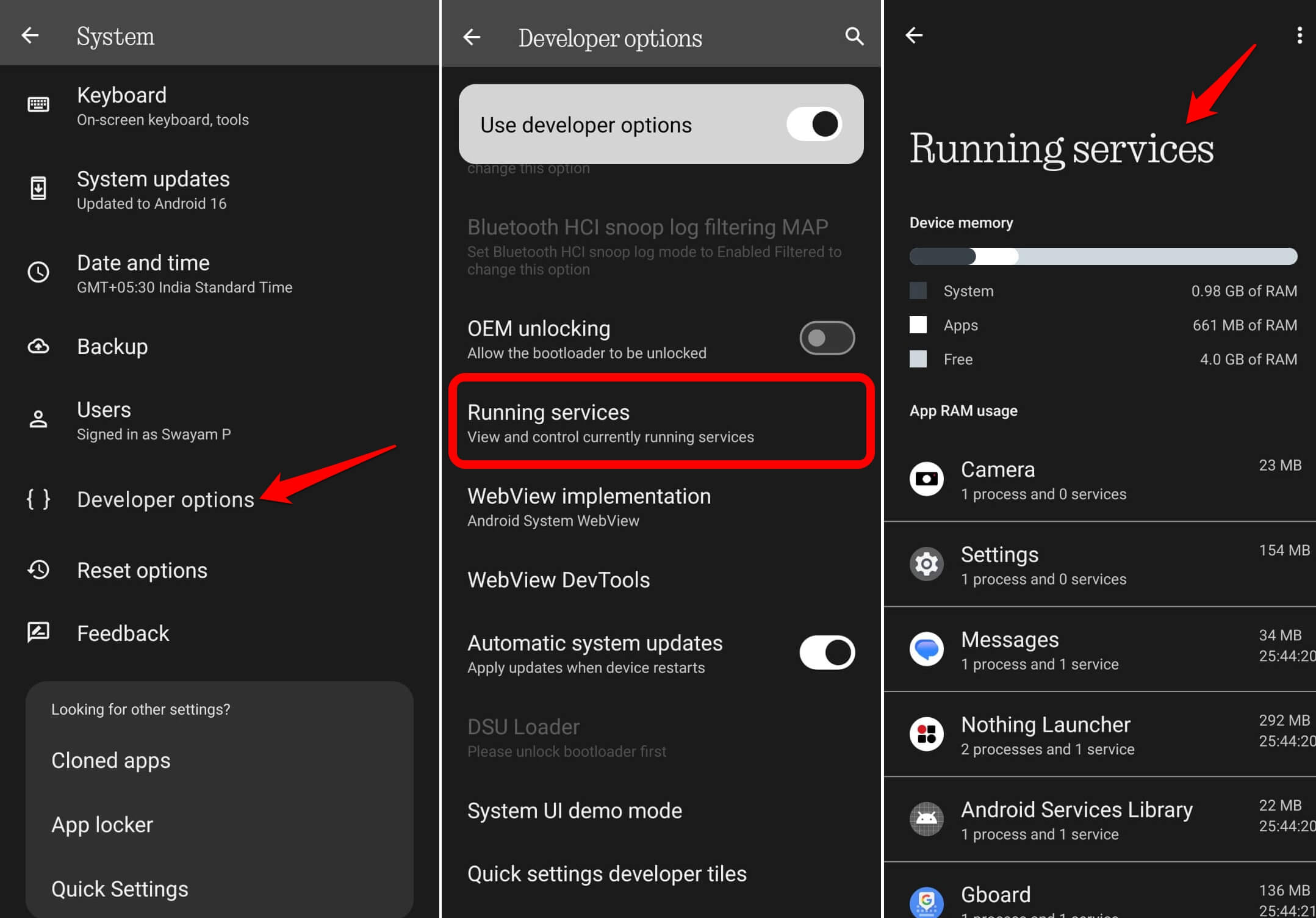
If one app is the cause, restricting that app is a better fix than limiting everything. Also check that you have the latest system update installed, since memory bugs are fixed in updates and not in settings.
Restoring the standard limit
I put the setting back to Standard limit after about a week. Notifications from messaging apps kept arriving, but apps that depended on a background sync started more slowly, so nothing I noticed justified the change.
A real memory bug is a different case. The Android 17 QPR3 Beta 4 memory leak fix is the kind of thing a system update fixes, and a limit would only have hidden it. Check it out.

Frequently asked questions
Where is the background process limit on Android?
It is in Developer options under Apps. You need to enable Developer options first by tapping Build number seven times.
Does limiting background processes save battery?
Not reliably. Cached apps are mostly idle, and reloading them can use more processor time.
Which background process limit setting should I use?
Standard limit for most phones. Try At most 4 only if a low-RAM phone struggles to switch apps.
Will it stop notifications?
It can stop some apps from doing background work. In my test, notifications from messaging apps still arrived.

Limit background processes as per your device use
If you want to experiment, change the background process limit one level at a time. Use the phone for a normal day and observe the overall performance. Do not limit multiple processes expecting the system to free up a lot of memory. Switch to the Standard limit if apps start reloading more than they used to.