A slow Android TV rarely has a single cause. Sponsored rows, preinstalled apps and background services all compete for the small amount of memory a budget set has.
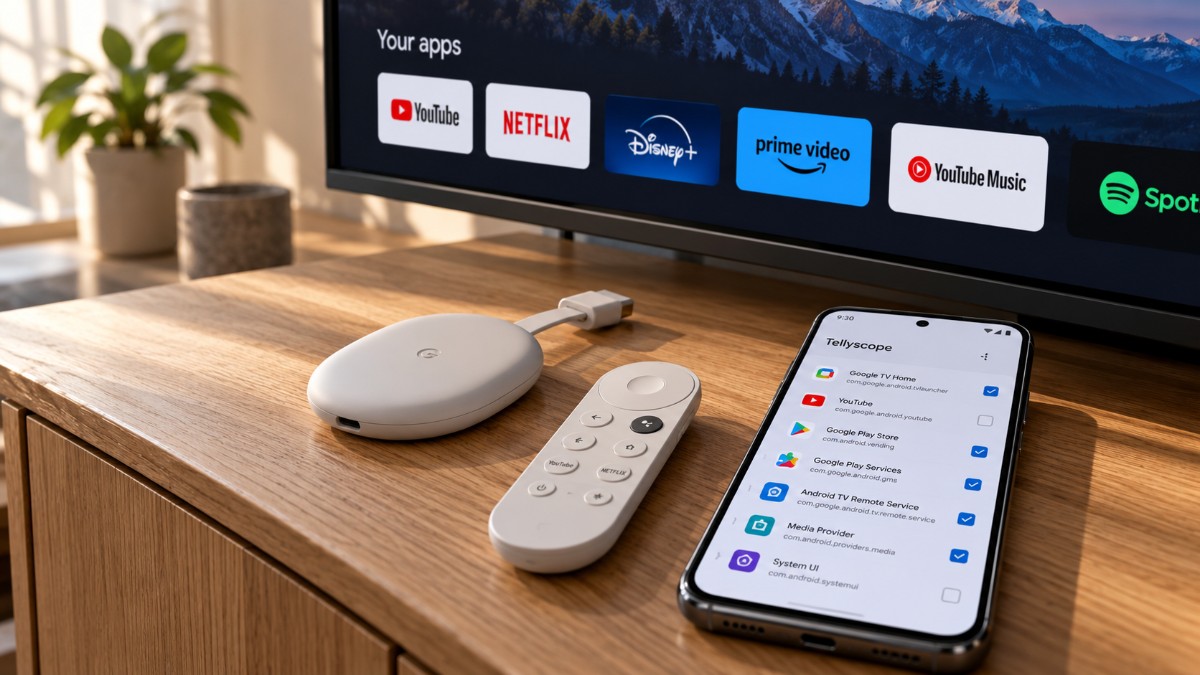
You can now debloat Android TV without a PC. An open source app called Tellyscope does it from your phone over Wi-Fi.
It will not turn a cheap TV into a flagship. What it can do is switch off apps you never asked for, with an undo if something breaks.
This is a walkthrough of one tool, so the steps are Tellyscope’s. I also cover what it can and cannot fix, and what I would leave alone.
TL;DR: Debloating can make a sluggish Android TV feel lighter but I found no reliable benchmarks, so expect a modest change rather than a transformation. Tellyscope does it from your phone, disables apps instead of uninstalling them, and lets you undo changes. Samsung, LG and Roku TVs cannot be debloated this way, and Fire TV and Shield support is unproven.
Will debloating make your Android TV faster?
Possibly, though not by as much as some guides imply. I could not find a proper benchmark, only user reports.
One TCL owner on r/AndroidTV said the set felt a lot less laggy after disabling recommendations and ads, and that swapping the launcher mattered most.
There is a cost too. It’s FOSS noted that turning off voice input and screencast may make a TV a bit faster but takes away voice search and casting.
So treat this as a trade, not a free upgrade.
Which TVs this works on
Android TV and Google TV are the main targets for this method. Tellyscope also lists NVIDIA Shield and Fire TV, but I could not confirm real hardware testing for either.
Samsung’s Tizen, LG’s webOS and Roku run different systems, so this method does not apply, as It’s FOSS pointed out.
| Requirement | Status |
|---|---|
| Android TV or Google TV | Supported |
| NVIDIA Shield | Listed, not tested on real hardware |
| Fire TV | Listed, testing status unclear |
| Samsung Tizen, LG webOS, Roku | No |
| Phone | Android 8.0 or newer |
| Network | Same Wi-Fi as the TV |
Fire TV compatibility is less certain. The project page says Fire TV and Shield have not been tested on real hardware, while another copy of the README mentions Fire OS 8 with a few remote keys not working.
Turn on debugging on the TV
Open Settings, then About, and press OK on Build seven times to unlock Developer options. On Fire TV, press OK on the device name instead.
In Developer options, turn on USB debugging, which Fire TV calls ADB debugging. Tellyscope then works with network debugging, or with wireless debugging on Android 11 or newer.
Turn on whichever your TV lists. The README does not say you need both.
Menu names differ by brand, which is why Tellyscope shows the exact ones for yours.
None of this changes anything yet. It only lets your phone talk to the TV over Wi-Fi, which is why the TV asks for permission later.
How to debloat Android TV from your phone
Install Tellyscope on a phone running Android 8.0 or newer, on the same Wi-Fi as the TV. The project page says it is under 3 MB.
Pick your TV’s brand under Add your TV, then tap Connect when the TV appears. You can add it by IP address if it does not.
The Allow debugging prompt shows up on the TV screen, not the phone. Check the key matches, tick Always allow from this computer, and press Allow. With wireless debugging you type the 6-digit pairing code the TV shows instead.
If you would rather use a computer, our guide to installing ADB on PC covers that route.
If your TV does not show up
Check that the phone and TV are on the same Wi-Fi, and that debugging is still switched on. Tellyscope scans again every 10 seconds or when you tap Rescan, and you can add the TV by IP address.
If the Allow debugging prompt never appears, restart the TV. One commenter on r/AndroidTV said unplugging the set for 30 seconds brought the prompt back, though that was for a different debloat tool.
What gets turned off, and how to undo it
Tellyscope matches your TV to one of 330+ tested lists, each written for a specific TV, adapted from cleanyourtv. The README says it then shows every app it will turn off before it does anything.
Untick anything you use. Built-in apps are disabled, not uninstalled, so nothing is deleted from the TV.
Before its first change it records which apps were already off, and each change goes into a History with an Undo. Apps the TV needs to boot, update, stay on Wi-Fi or show the home screen are protected and cannot be disabled.
If something feels broken, the History is the first place I would look.
Does debloating free up RAM or storage?
Storage mostly no. A disabled app stays installed, so its space is not given back.
Memory and background activity are where any gain would come from, because a disabled app can no longer launch or run. That only helps if the app was actually running or starting at boot.
Removing sponsored rows or changing the launcher may make navigation feel less cluttered. None of it upgrades the TV’s processor, RAM or storage speed.
What I would leave alone
Casting, AirPlay and voice search are the usual casualties. A commenter in that same r/AndroidTV thread said AirPlay on a TCL QM7 leans on Miracast and Google Play Services, and posted commands to switch them back on.
So read the list before you accept it. If you cast from your phone every day, keep those apps ticked.
Replacing the home screen is a separate step. Tellyscope can install Projectivy or FLauncher, but on Fire TV the README says it can set Projectivy as Home while cleanyourtv’s notes say Fire OS does not allow it.
Stick to the stable build too, since the releases page lists several alpha builds marked untested.
Frequently Asked Questions
Will debloating my Android TV make it faster?
It may feel lighter, but I found no reliable benchmarks. The reports so far are anecdotal, and one TCL owner said a custom launcher mattered more.
Can I debloat Android TV without a PC?
Yes. Tellyscope runs on an Android 8.0 or newer phone that is on the same Wi-Fi as the TV.
Does debloating delete apps?
No. Tellyscope disables built-in apps instead of uninstalling them, and you can undo changes from its History.
Does debloating free up storage?
Mostly no. Disabled apps stay installed, so their storage is not reclaimed, and any gain comes from less background activity.
Does this work on Samsung or LG TVs?
No. Samsung’s Tizen, LG’s webOS and Roku run different systems, so the ADB method does not apply.
Who should probably leave their TV alone
If your TV runs fine and you cast every evening, there is little to gain here. The risk is fairly small, but the speed-up is hard to predict.
If the home screen lags and half of it is ads, a careful debloat with the list in front of you is a reasonable afternoon. Go slowly, untick what you use, and keep Undo within reach.
How much quicker it feels will depend on the TV’s hardware, what is installed and what runs in the background.