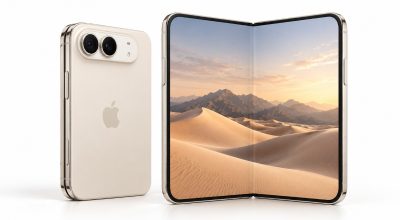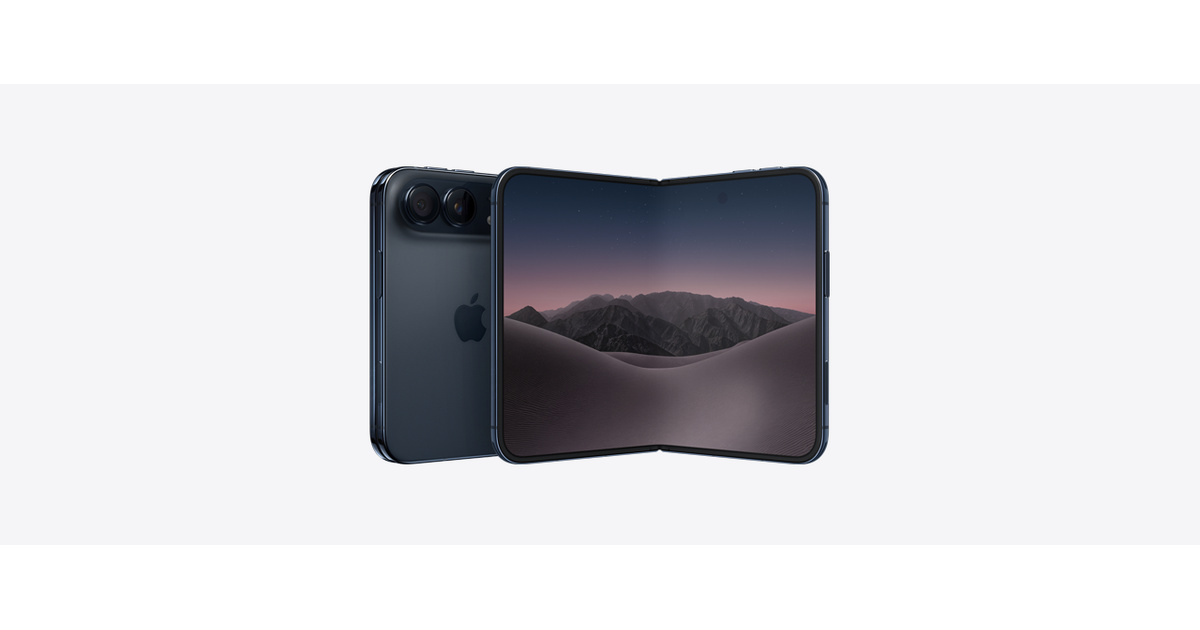
The iPhone Duo reached buyers on October 23, a few weeks after Apple’s September event.
It also arrived without Face ID, without an Action button and without a Ring/Silent switch.
If you are the kind of person who flips the mute switch before every meeting, the first unexpected ring will make that gap feel personal.
These iPhone Duo settings cover for what is missing, with the exact path for each, plus two that only exist on the foldable.
TL;DR: Touch ID in the side button replaces Face ID, and Unlock with Apple Watch is the faster way in if you wear one. Silent Mode now lives in Control Center, and a Lock Screen control or Shortcuts widget can stand in for the Action button. Two more settings suit the Duo well: Fixed Position Volume Controls and StandBy, which works without a charger.
iPhone Duo settings for Touch ID and extra fingers
The iPhone Duo unlocks with Touch ID in the side button, and Apple says it works whether the phone is open or closed.
Setup asks for one finger, but your grip changes when you unfold the phone.
Add more under Settings > Touch ID & Passcode > Add a Fingerprint.
Enroll a different finger for each way you hold it, including one for when the inner screen is rotated clockwise.
A thumb that suits the closed phone can feel awkward once you open it and turn it sideways.
| Feature | On iPhone Duo | Where to set it |
|---|---|---|
| Face ID | No | Settings > Touch ID & Passcode |
| Action button | No | Lock Screen control |
| Ring/Silent switch | No | Silent Mode in Control Center |
| Unlock with Apple Watch | Yes | Settings > Touch ID & Passcode |
| Rest Finger to Open | Yes | Settings > Touch ID & Passcode |
| Camera Control | Yes | Settings > Camera > Camera Control |
| Fixed Position Volume Controls | Yes | Settings > Sounds & Haptics |
| StandBy without charging | Yes | Settings > StandBy |
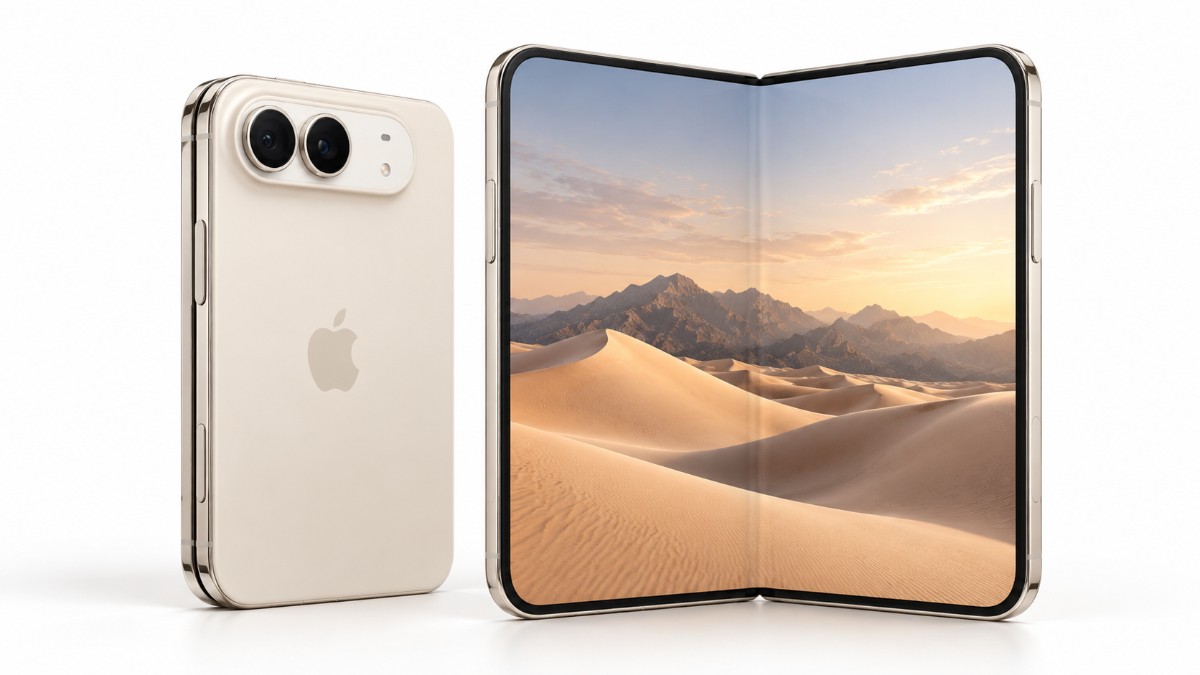
Unlock with Apple Watch and skip the swipe
Unlock with Apple Watch is switched on under Settings > Touch ID & Passcode, in the Apple Watch section, and it needs a compatible Apple Watch on your wrist and unlocked.
Rest Finger to Open removes the swipe up after Touch ID and appears in two places that control the same switch: Settings > Touch ID & Passcode, which asks for your passcode, and Settings > Accessibility > Side Button.
Turn it on and you can unlock by resting a finger on the side button, with no extra swipe afterward.
Where the mute switch went
Silent Mode on the iPhone Duo lives in Control Center, so you add it as a control.
Swipe down from the top right corner, tap the plus button at the top left, choose Add a Control and pick Silent Mode, the bell icon.
If your thumb still heads for the edge out of habit, Control Center is the replacement.
Replacing the Action button
The iPhone Duo has no Action button, so a Lock Screen control or a Shortcuts widget can replace some of its functions, though not the physical press itself.
For the Lock Screen, touch and hold it, tap Customize, choose Lock Screen, then swap one of the two controls for your shortcut. Tapping it runs the shortcut, so it suits launching an app or action better than an instant toggle.
For the Home Screen, touch and hold an empty area, choose Edit, then Add Widget, then Shortcuts.
Put the Shortcuts widget on the side your thumb reaches, since a one-handed grip on a closed phone leaves the far edge hard to get to.
Camera Control is still there
The iPhone Duo keeps Camera Control, the separate button on the side, so one physical shortcut survives.
Apple says Camera Control launches the camera and adds a Siri Camera mode, which lets Siri see what you see.
Its options live under Settings > Camera > Camera Control.
Volume buttons that follow the screen
The iPhone Duo can change how its volume buttons behave as you rotate the phone. By default, dynamic volume controls make the button on the top or right increase volume, while the button on the bottom or left lowers it.
Go to Settings > Sounds & Haptics > Fixed Position Volume Controls to change this behavior.
Turn the setting on if you want the buttons to keep the same volume functions regardless of orientation. Leave it off if you want them to adapt as you rotate the phone.
This is useful when switching between the outer display and the larger inner screen, since the buttons remain intuitive in different orientations.
StandBy without a charger
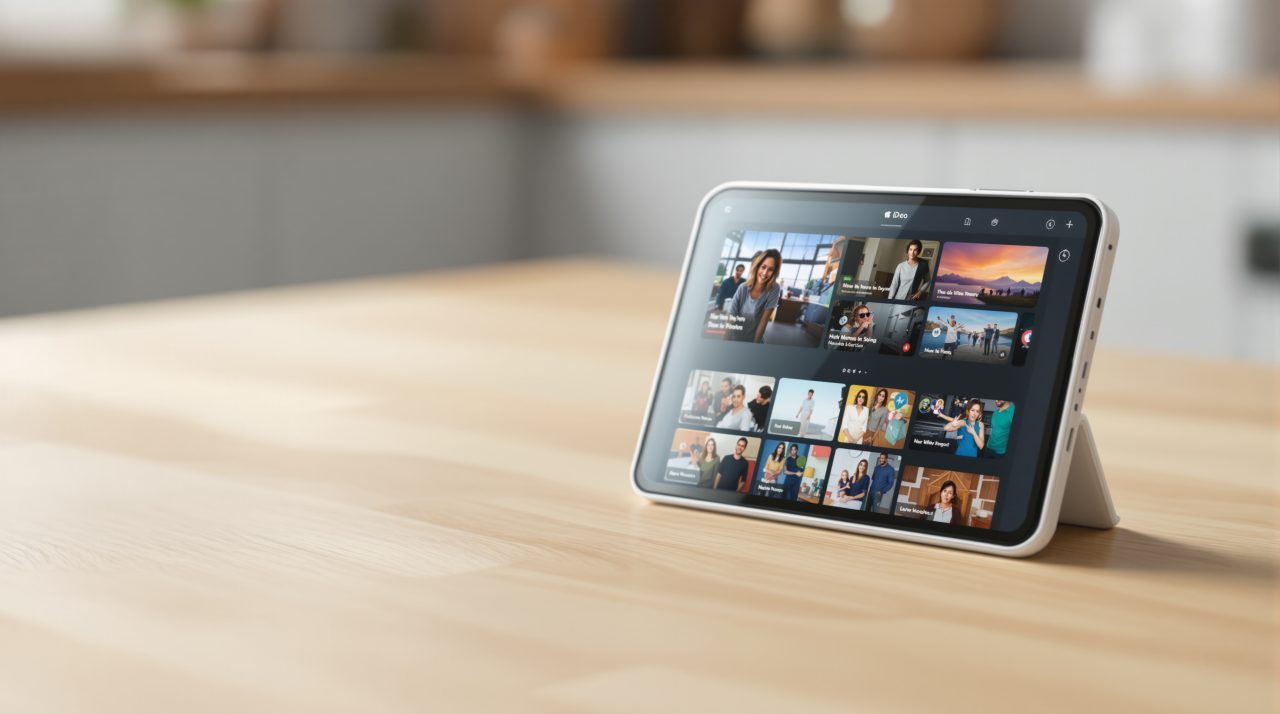
Apple says the iPhone Duo enters StandBy on either display even when it is not charging, and you can adjust it under Settings > StandBy.
On other iPhones, StandBy needs the phone to be charging and resting on its side.
Running StandBy while the phone is not charging draws on the battery, so check how much it uses before leaving it on all day.
Frequently Asked Questions
Does the iPhone Duo have Face ID?
No, the iPhone Duo has no Face ID. It uses Touch ID in the side button, and an Apple Watch can also unlock it.
How do I mute the iPhone Duo?
Add the Silent Mode in Control Center by tapping the plus button at the top left, then Add a Control. The control shows as a bell icon.
Can I skip the swipe up after Touch ID?
Yes, turn on Rest Finger to Open under Settings > Touch ID & Passcode or Settings > Accessibility > Side Button.
Does StandBy need charging on the iPhone Duo?
No, StandBy on the iPhone Duo works on either display even when the phone is not charging, according to Apple.
Is there an Action button on the iPhone Duo?
No, the iPhone Duo has no Action button. A Lock Screen control or a Shortcuts widget is the closest replacement.
Which changes are worth making first
Start with a second fingerprint and the Silent Mode control, because those two fix the gaps you are likeliest to hit on day one.
Apple Watch unlocking and Rest Finger to Open come down to taste.
Whether the phone is worth buying at all is a separate question.
Check each path against your own phone, since Apple may rename or move these labels in later updates.
Most of the Duo’s missing pieces are a few taps away, but you only learn which ones you need by using it.