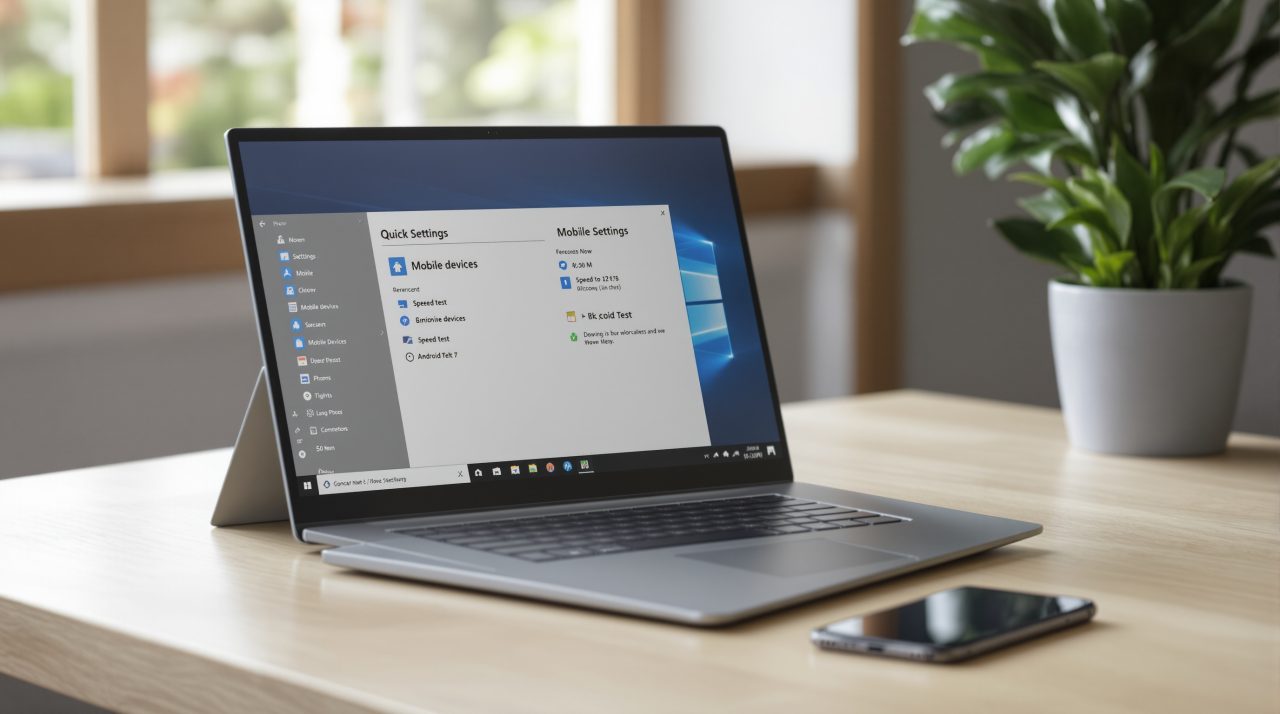
Windows 11 Quick Settings is getting two additions in Microsoft’s newest Insider builds: a Mobile devices panel for phone actions and a built-in internet speed test. Microsoft announced both on October 23, 2026, in Experimental build 26340.9767, and the Beta build released the same day does not list them. If you have ever opened a browser tab just to test your Wi-Fi, or fished out your phone to silence it before a call, both chores are heading for the taskbar.
TL;DR: Microsoft’s Experimental Insider build 26340.9767 adds a Mobile devices panel and a Speed test tile to Quick Settings. Android phones get Do Not Disturb, ringer mode and a find-my-phone sound, while iPhones get a limited status view. The Beta build released the same day lists different changes, so most Insiders will not see these yet.
What Windows 11 Quick Settings adds for your phone
Microsoft’s release notes for build 26340.9767 say a new Mobile devices experience is beginning to roll out in Quick Settings. With a supported Android phone connected, you can turn on Do Not Disturb before a meeting, change the ringer mode, and play a sound to find the phone nearby.
iPhone owners get less. The notes say iPhone support starts with a more limited, status-focused experience, and that capabilities vary by phone platform and device configuration. Expect a readout, not remote control.
To try it, open Quick Settings from the taskbar and look for Mobile devices. A phone that is already connected shows battery status and controls, and if you have not connected one, Windows walks you through setup. The notes never name the app that handles the pairing, so check what Windows asks for before assuming it matches the setup you already use.
The second addition has nothing to do with phones, but it lives in the same flyout.
A speed test without leaving the taskbar
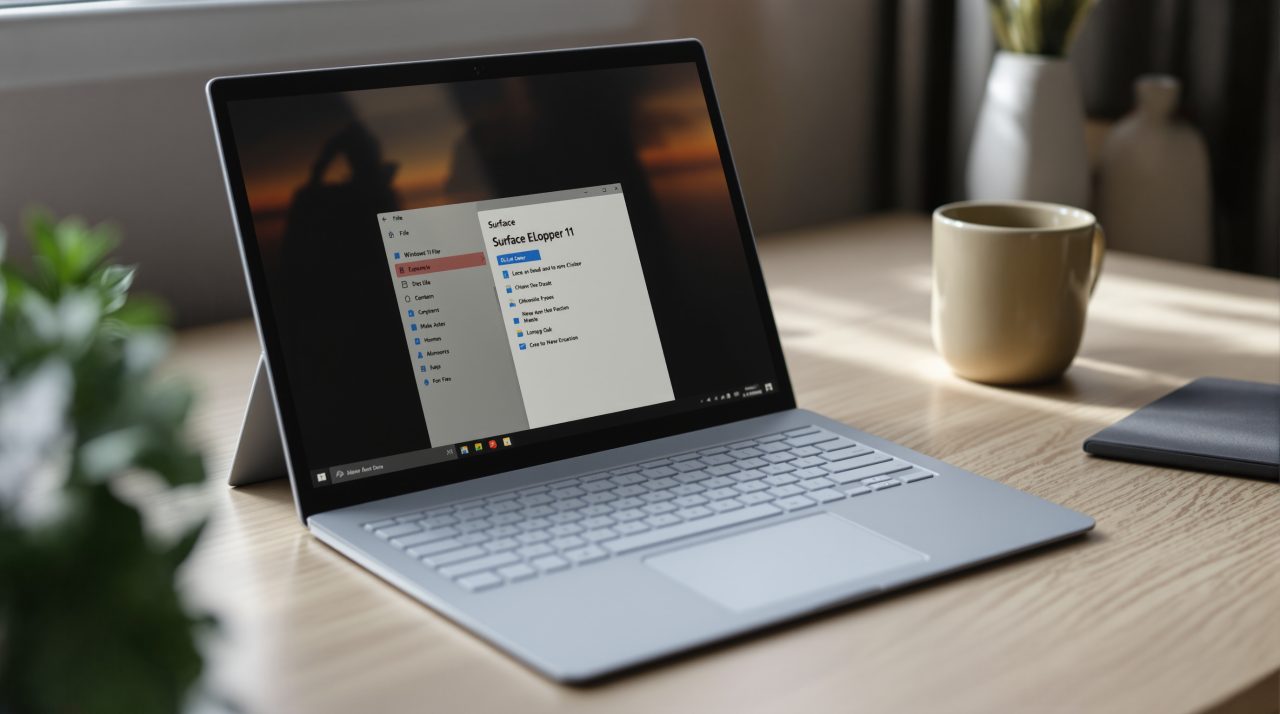
Microsoft says Insiders can now run an internet speed test and see the results directly in Quick Settings, without being redirected to a browser. You can start it from a new Speed test Quick Setting, from the Wi-Fi or Cellular flyout, or by right-clicking the network icon in the system tray and choosing Test internet speed.
While the test runs, Quick Settings shows its progress, then reports download speed, upload speed and ping. Microsoft describes it only as running against your active internet connection, so it measures the link you are on, not a link you pick.
The practical gain is small: you test the moment you suspect the connection, not three tabs later. Not a dramatic change, but an honest one.
Whether you can use either feature depends entirely on which Insider ring your PC sits in.
Which Insider build gets what
Build 26340.9767 sits in the Experimental channel and is based on Windows 11, version 26H2. Microsoft says many features in it use Controlled Feature Rollout, so they reach a subset of Insiders first and widen over time. Some changes may not appear on your device yet.
Beta build 26220.9757, released the same day on Windows 11 version 25H2, lists different changes: a redesigned File Explorer right-click menu and faster loading for the Settings home page. Quick Settings is not among them. That context menu follows the File Explorer menu changes we covered from Release Preview last week.
The Windows Insider Blog post also notes a small Experimental extra: Windows Insider Settings can now filter Feature flags by enablement state.
What to expect before anything reaches your PC
If you run the regular release of Windows 11, nothing changes today. Microsoft’s own reminder to Beta Insiders applies here too: features in these builds may never be released, may change, or may be replaced.
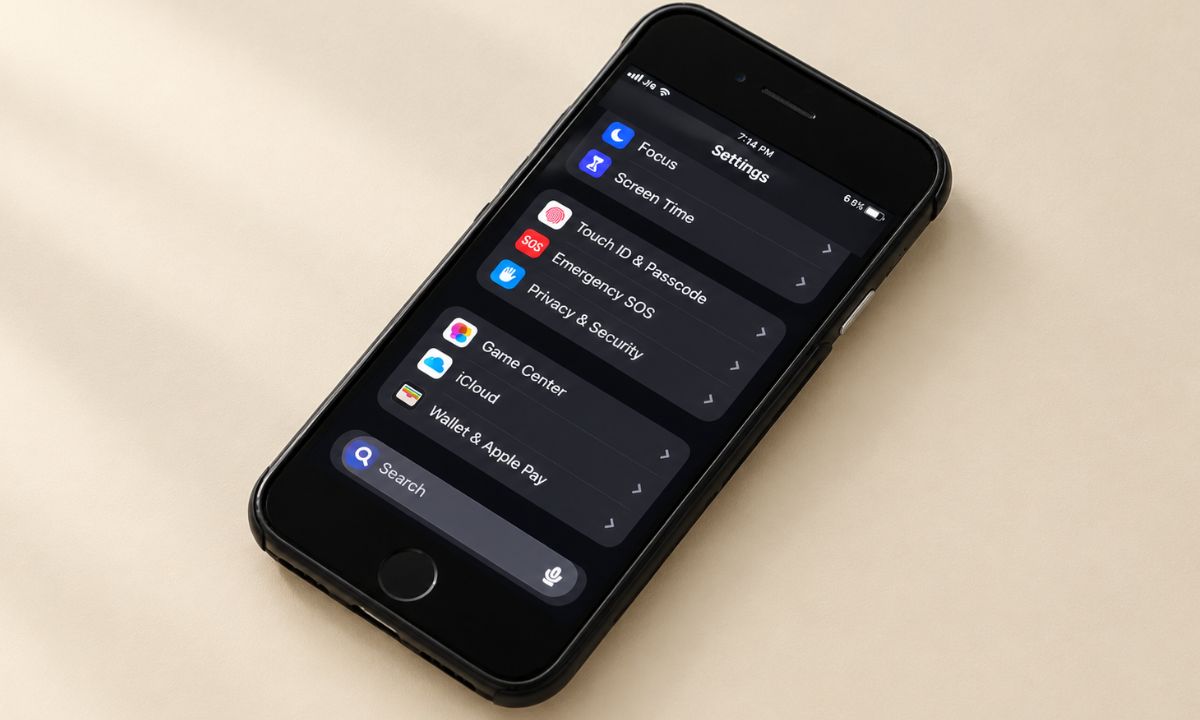
For Insiders on Experimental, the thing worth testing is the Android path, since that is where the full set of controls lives. If your phone is an iPhone, most of what you tune still happens in its own iOS 27 settings, with the PC showing status only. Microsoft has not given a date for a wider rollout.